

English
Acknowledgment of Receipt of an Offer/CO - Agent of the Two Parties
As an agent representing buyers and sellers, if you want to add an acknowledgement of receipt on an offer or a counter-offer (CO), you must manually add the fields after loading the template from your governing body (e.g. OACIQ).
In this article, you will see more specifically a situation with an agent representing buyers who make an offer to sellers represented by the same agent. The buyer’s agent wants to add fields in the "Acknowledgement or Receipt" section of the offer so that the buyers can acknowledge that they have received a copy of the seller’s reply.
In the desired eZsign folder, add a blank offer. For more information, please see the article Adding/Editing/Deleting a Document in an eZsign Folder.
**In the "List of Documents" sectio n, click on the file name or the **Fountain Pen icon to display the document.
Load the offer template from your governing body (e.g. OACIQ). For more information, please see the article Loading a Template from your Governing Body.
Select the agent for both parties, the buyers and the sellers. For more information, please see the article Reply to an Offer/CO - Agent of the Two Parties.
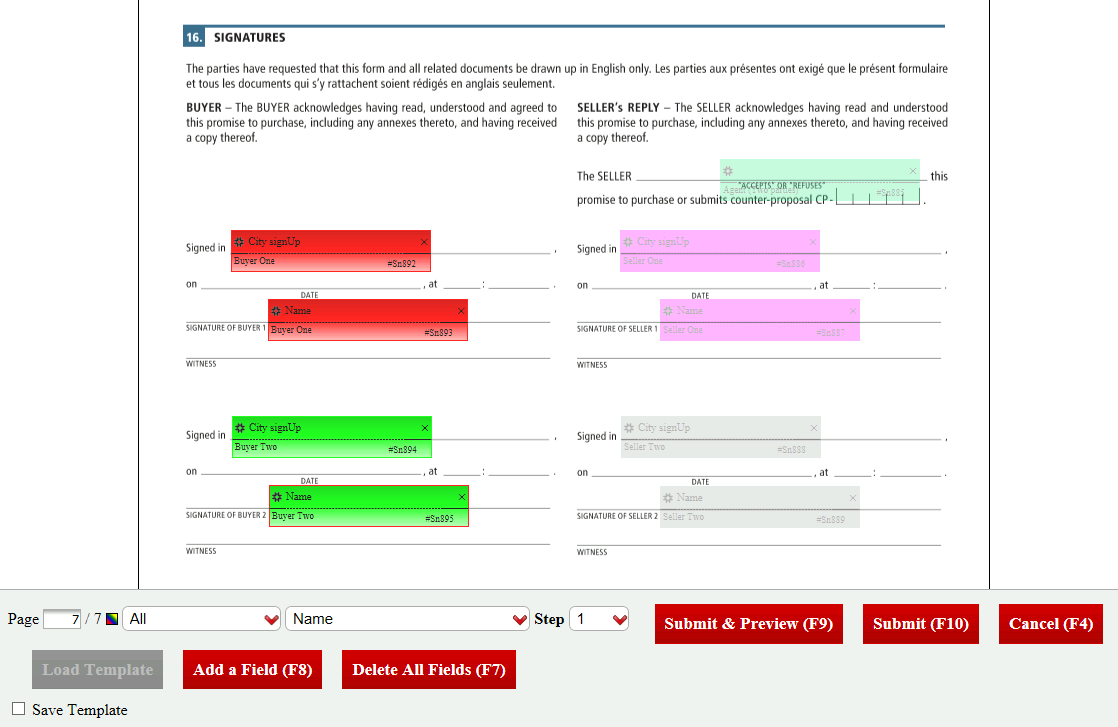
The fields will automatically appear in the right place in the "Signatures" section of the document, so do not edit/move them.
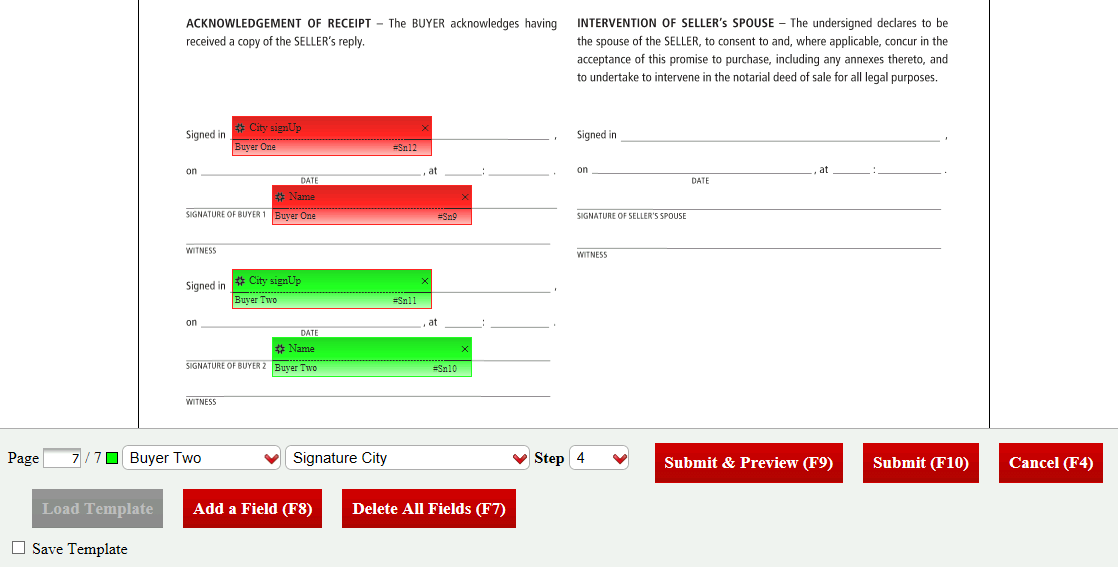
In the "Acknowledgement of Receipt" section, add and place the "Signature City" and "Name" fields for each buyer on the offer. For each of these fields, select Step "4". For more information, please see the articles Manually Adding/Editing/Deleting a Field in a Document and Order in Which Signatories will Sign.
Click on Submit.
You can now proceed to the next steps. For more information, please see the article Reply to an Offer/CO - Agent of the Two Parties.
When the "Signatures" section on offer is completed, the buyers will be able to sign in the "Acknowledgement of Receipt" section.