

English
New Ticketing System (eZmax)
New Ticketing System
We now have a new ticket management system that offers a smoother experience, along with a modernized client portal that improves visibility on all requests and makes it easier to access enhancement requests and known issues. In addition, several optimizations have been implemented by the eZmax team to handle your requests more efficiently.
WARNING
eZmax clients who are not using the new application (version 4+) will no longer be able to create tickets or communicate with support. Please update the application to use version 4+.
What’s New
In the new ticketing system, you will now be able to access the Enhancement Requests and Known Issues categories, allowing our support team to better organize requests and more efficiently identify issues that have already been reported. You will also be able to track the status of your tickets in real time and receive automated emails regarding their progress. Furthermore, once your request is resolved , you will now have the ability to close your ticket directly from the client portal.
NOTE: As before, phone support is not offered. Additionally, it will no longer be possible to contact our support team by email (support@ezmax.ca). All requests must be submitted through the ticketing system to ensure efficient prioritization. A dedicated eZmax team handles all inquiries, and if needed, a specialist will contact you to provide assistance.
Accessing the Ticketing System in eZmax
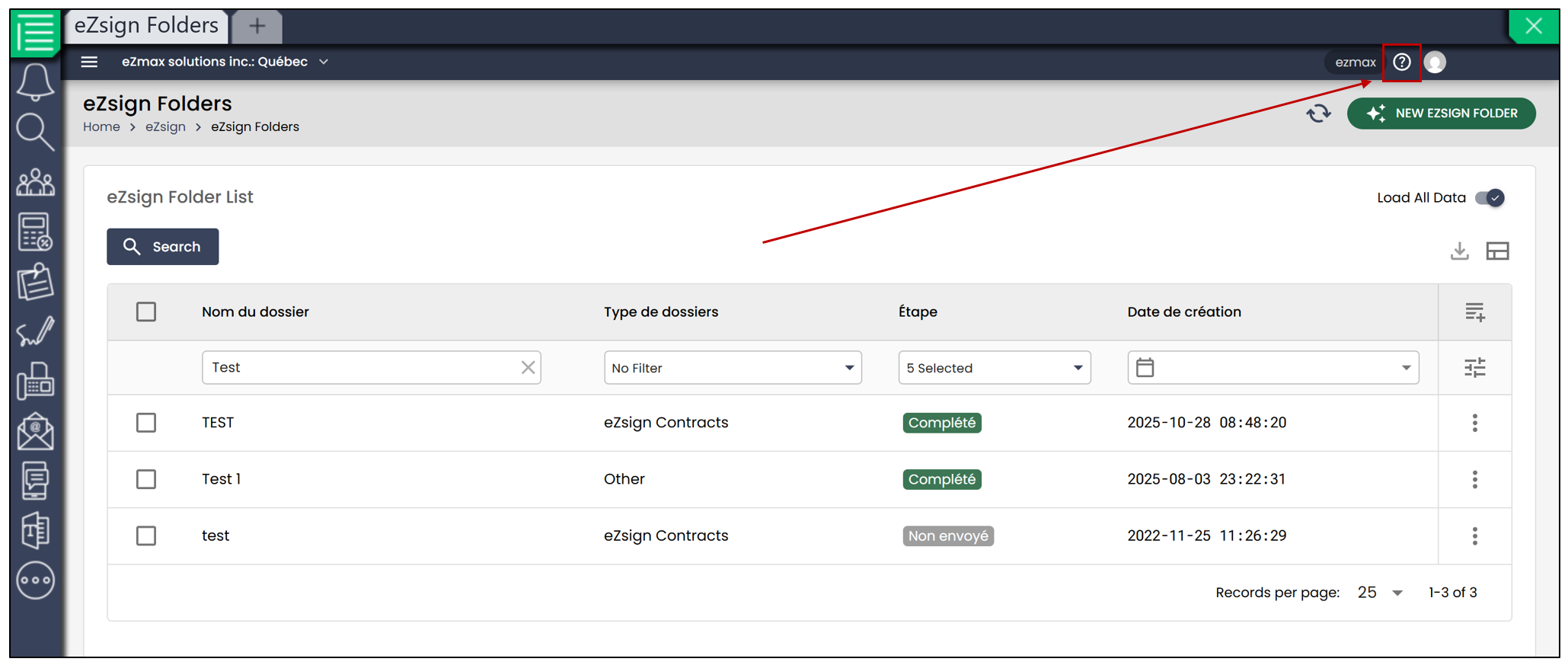
- To access the ticketing system in the eZmax app, click the question mark located to the left of your profile picture from any tab. You will be redirected to our new ticketing system.
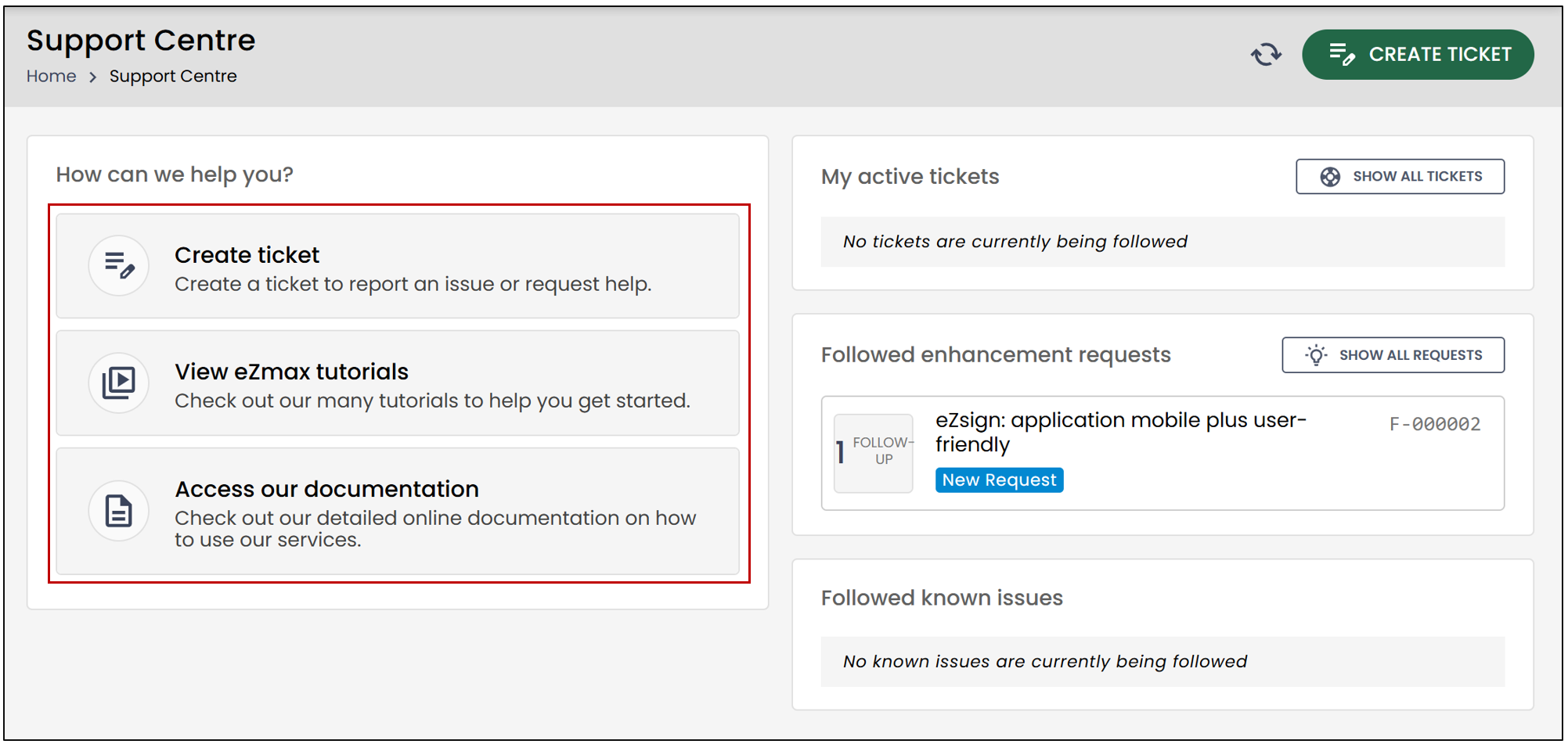
You will have the option to create a ticket, view eZmax tutorials, or access the online documentation.
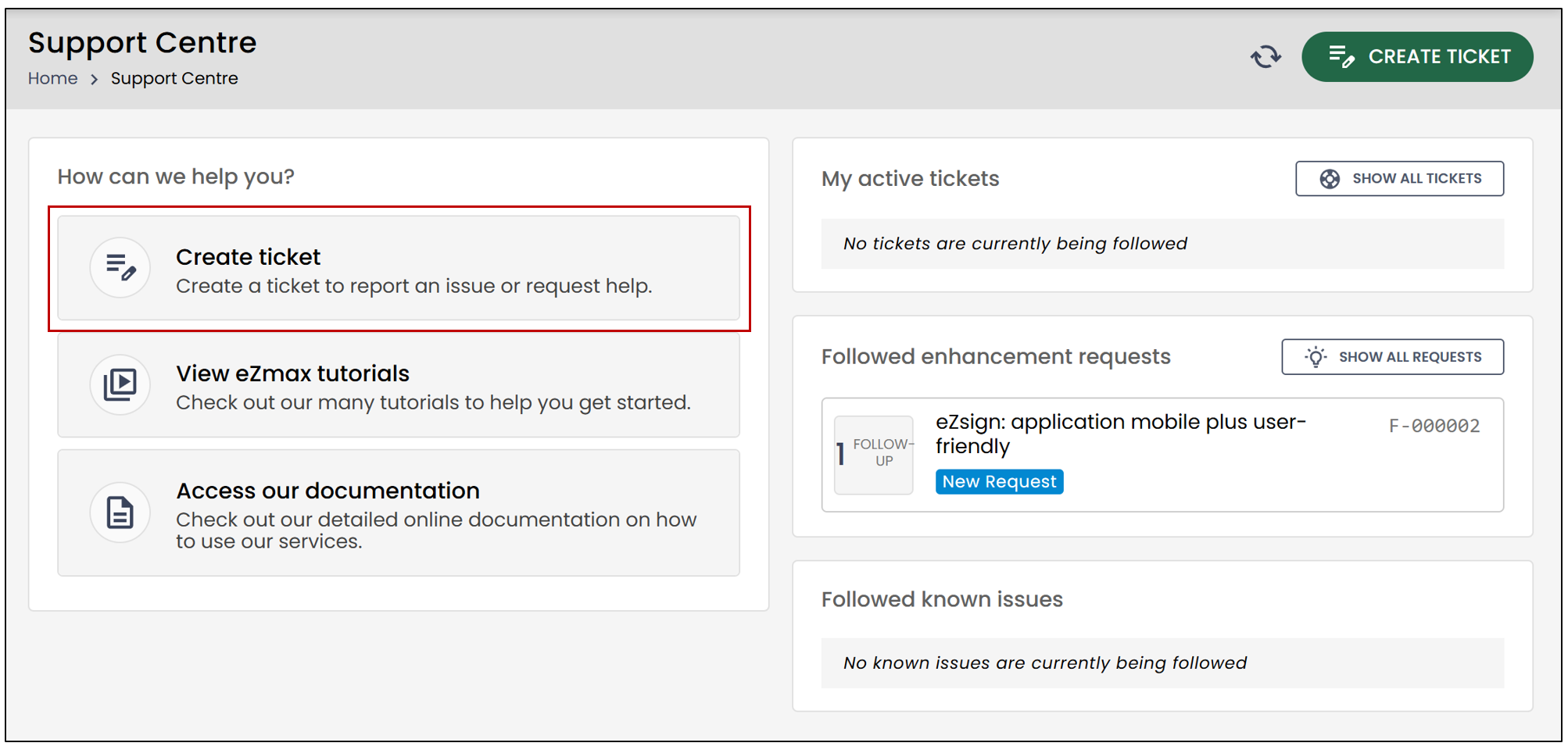
Create a Ticket
- If you wish to create a new ticket, click one of the designated buttons.
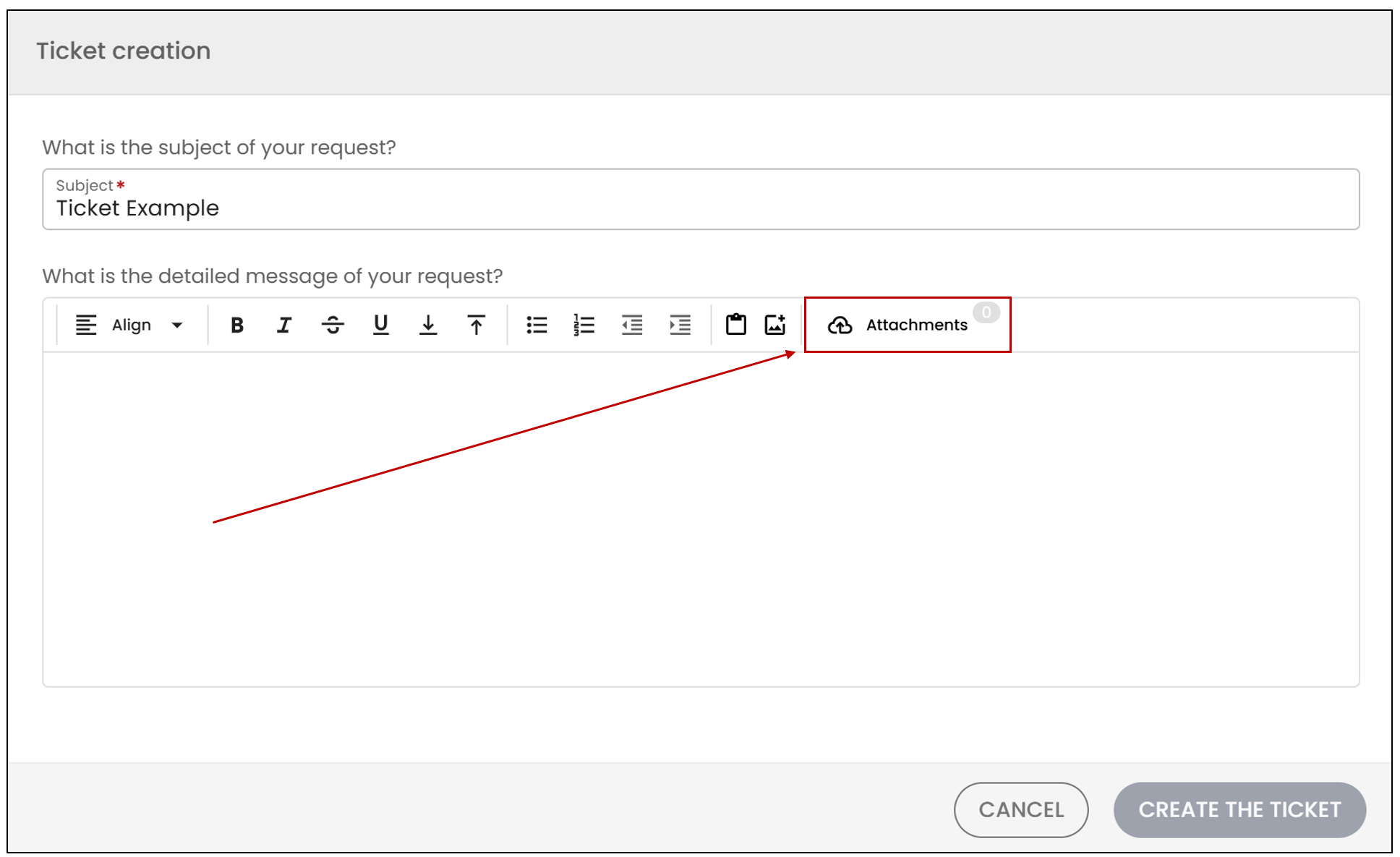
- You can enter the subject of your request, then add a detailed message.
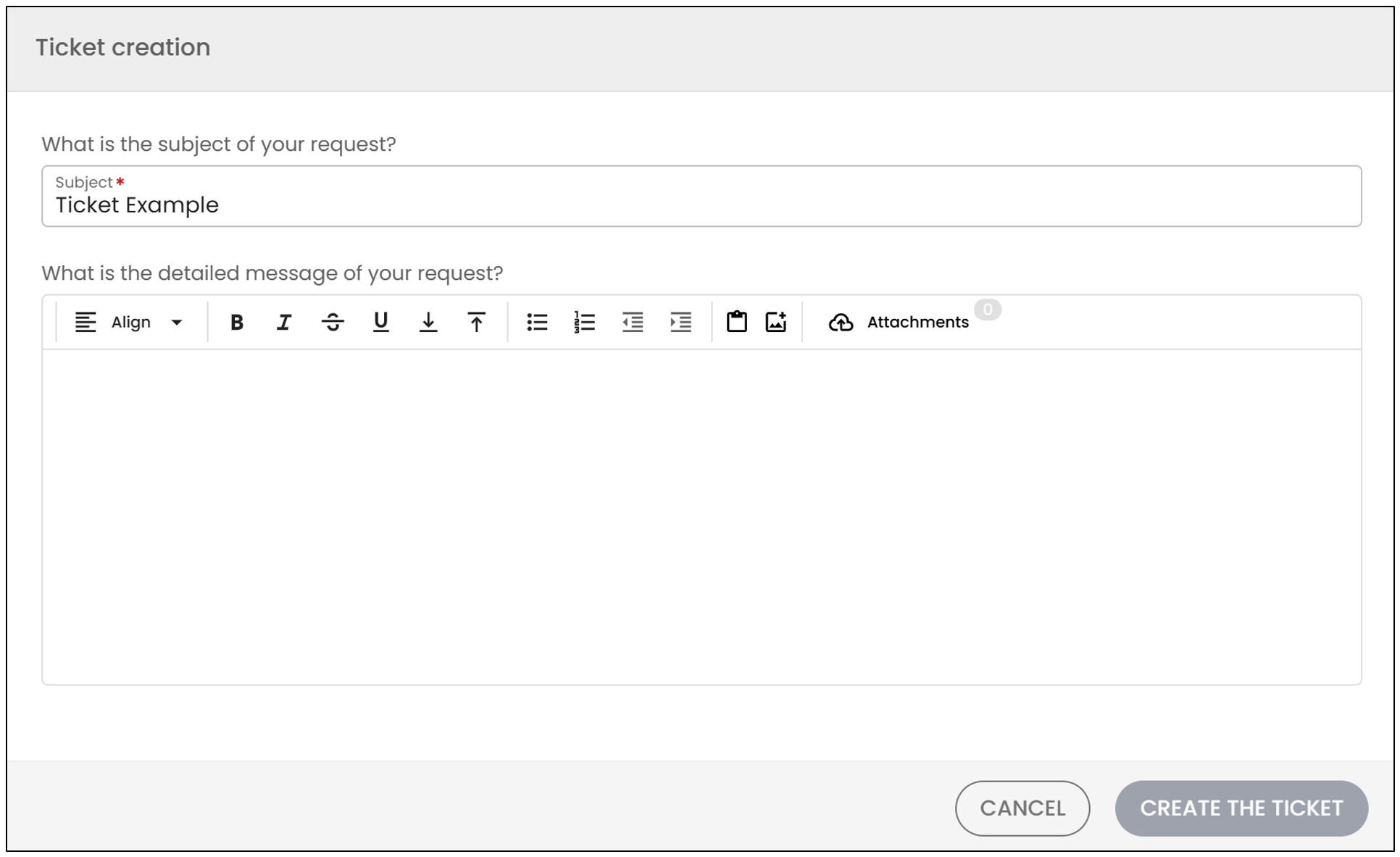
- If you want to attach files to your request, click the button intended for this purpose.
- When you are finished, click Create the Ticket.
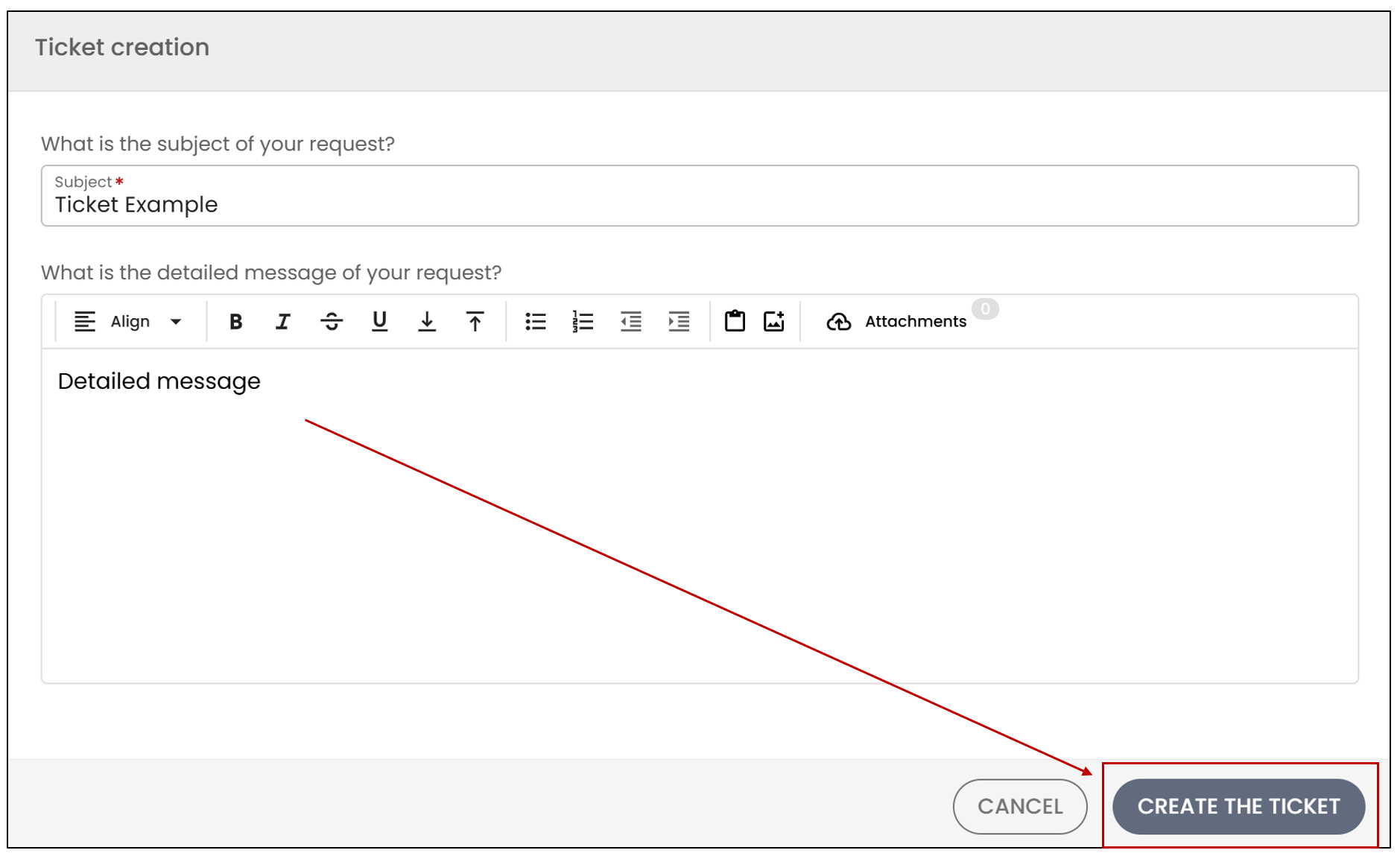
- Once your ticket is created, you will receive an email confirming that the support team has received your request and that the ticket has been opened.
Viewing Your Ticket Details
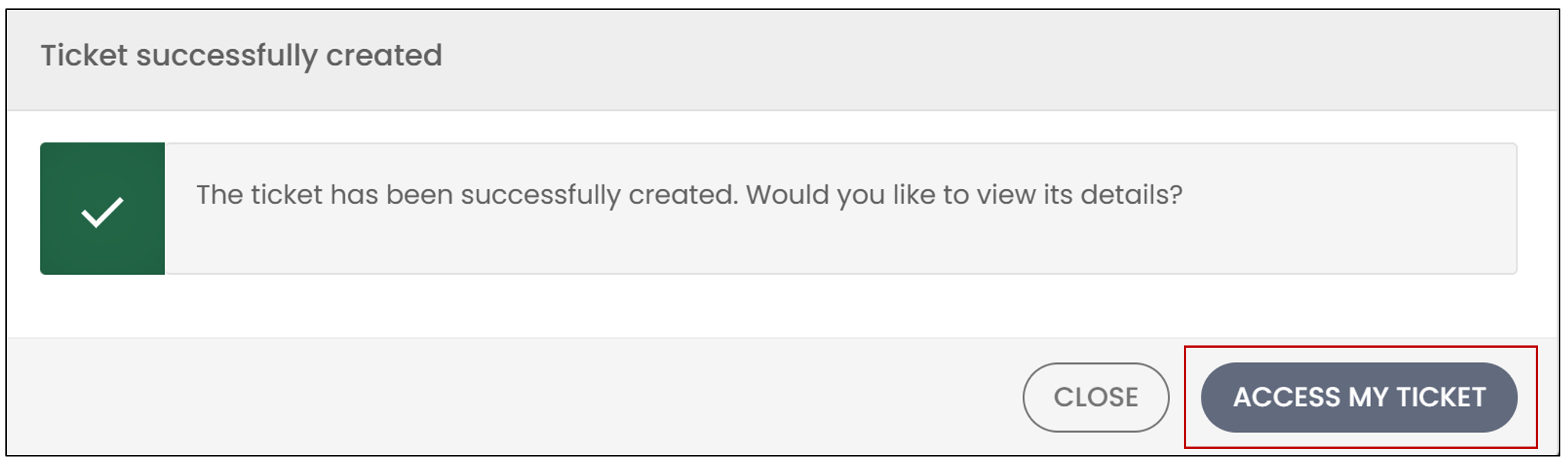
After creating a ticket, the following message will appear on your screen:
- To view its details, click Access My Ticket.
You will then be able to view the ticket’s status as well as all associated information.
- If you wish to add a message, enter it, then click Send the Message.
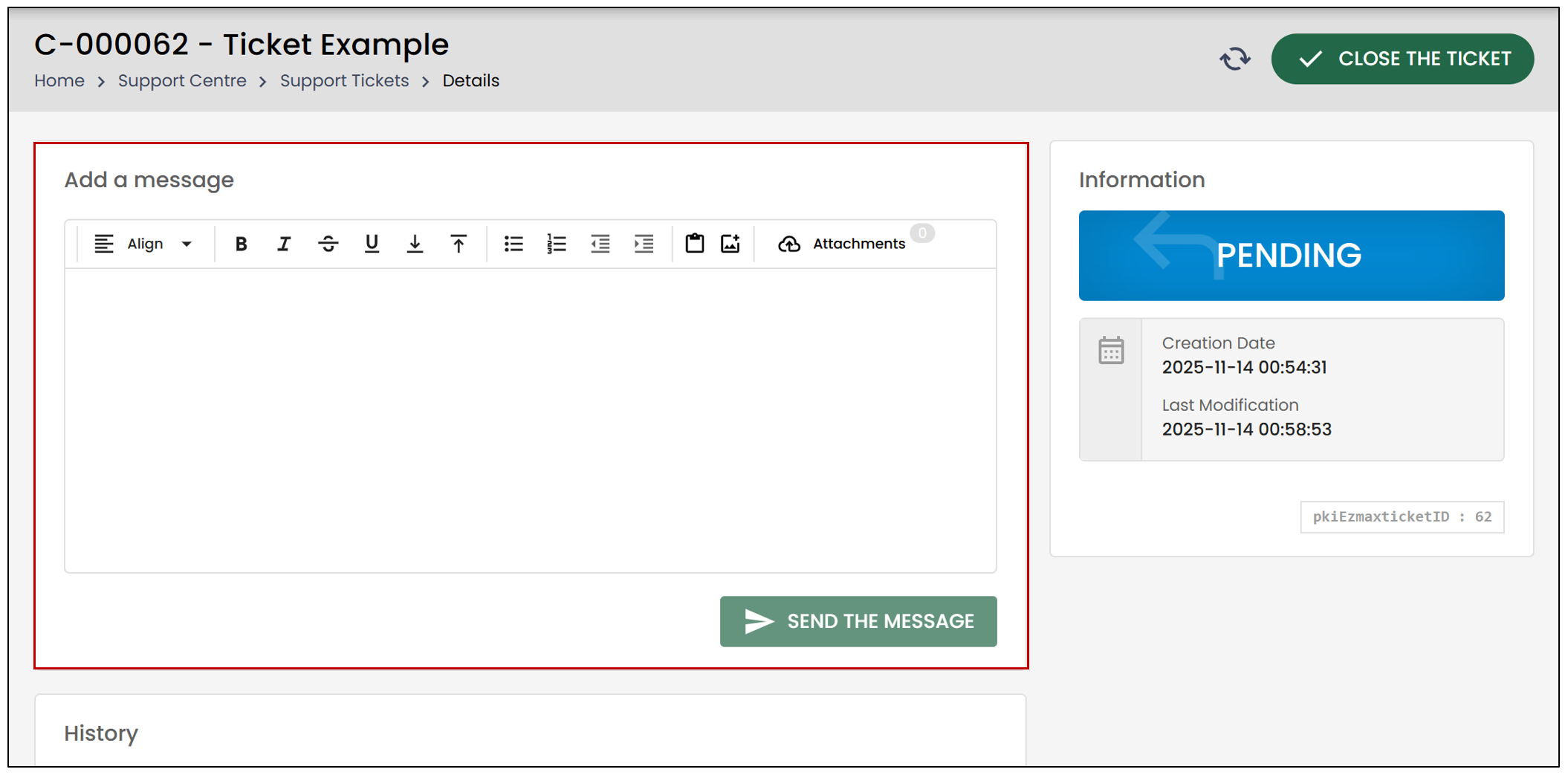
In the History section, you can view all actions and updates related to the specific ticket, as well as responses from the support team.
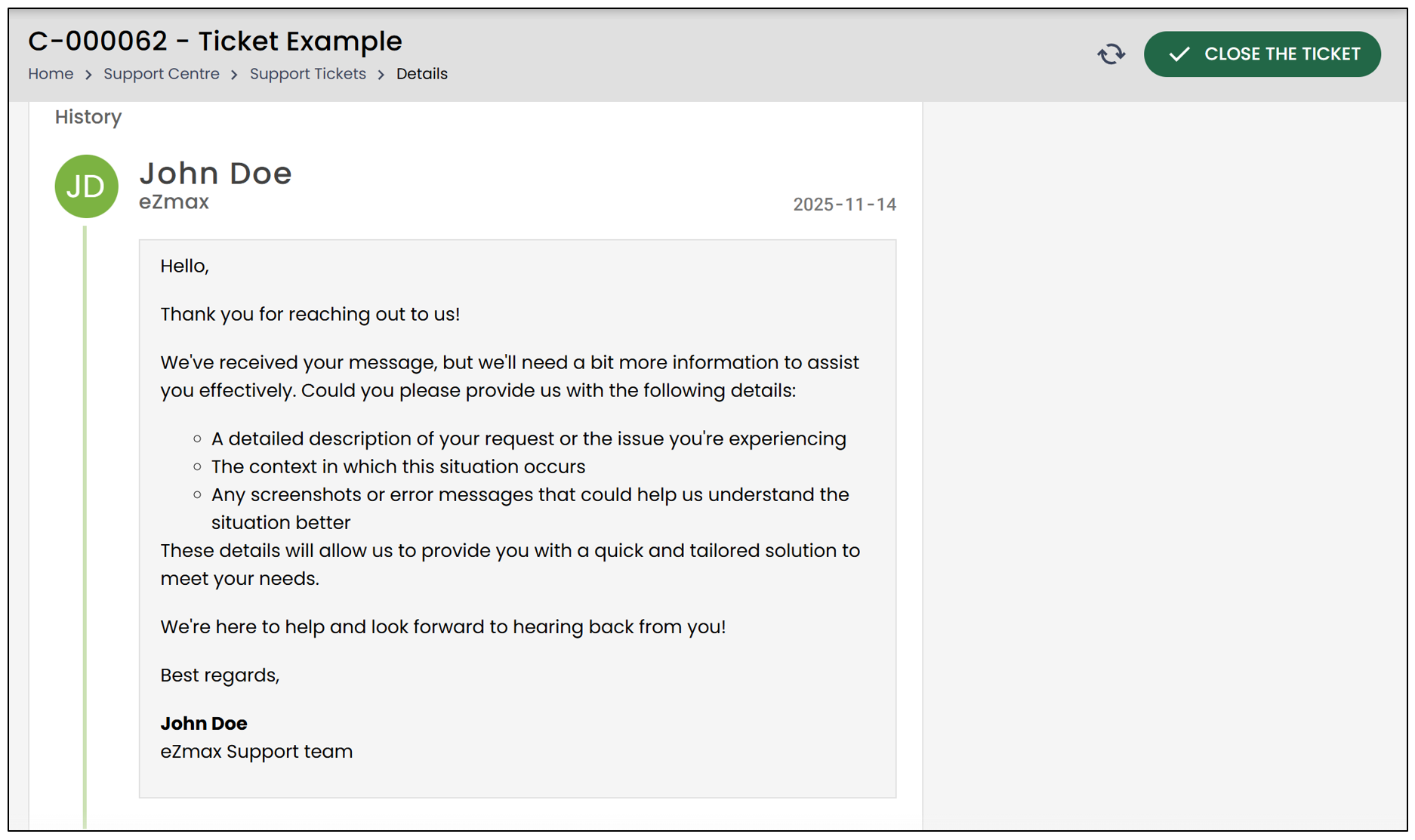
- To view the progress of all your tickets, click Show All Tickets after selecting the question mark icon.
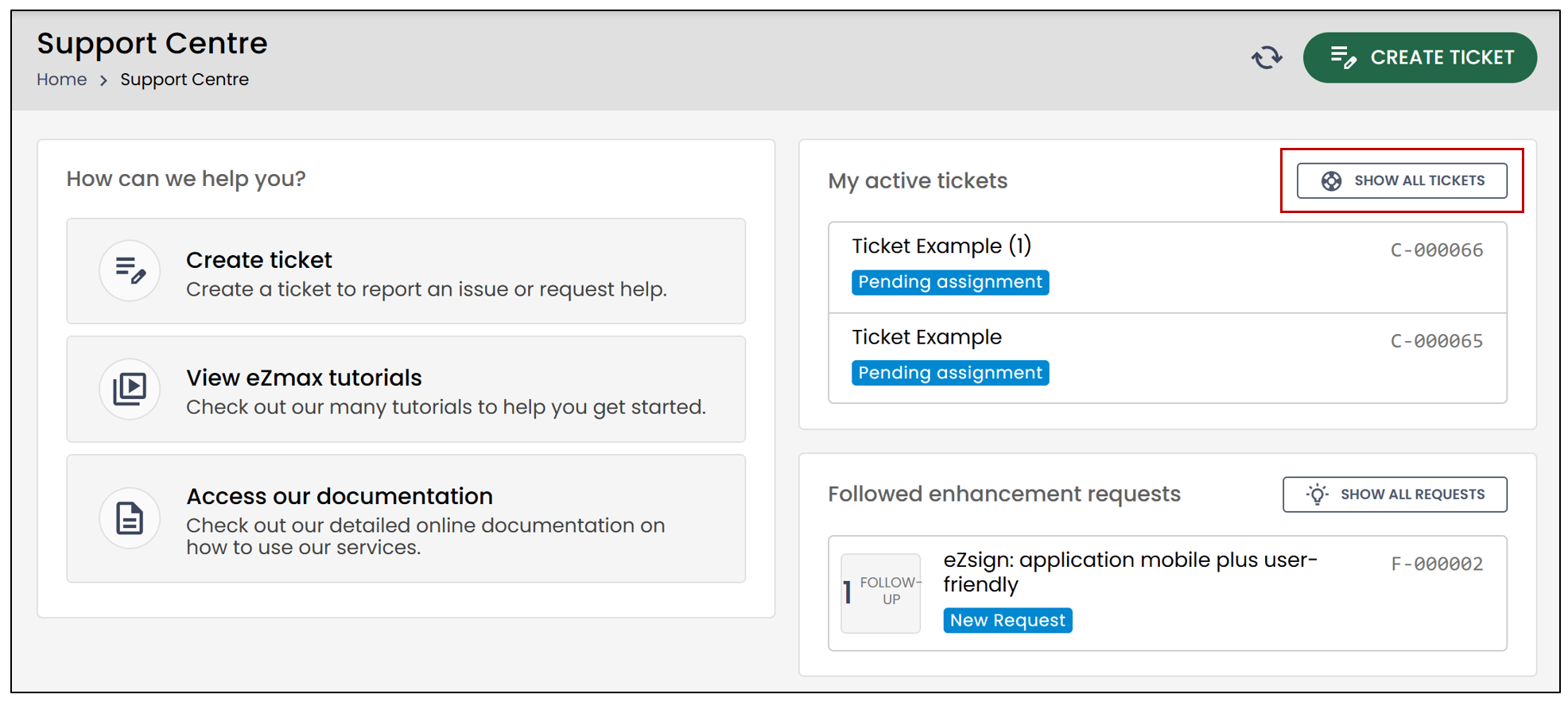
You will be redirected to the List of support tickets.
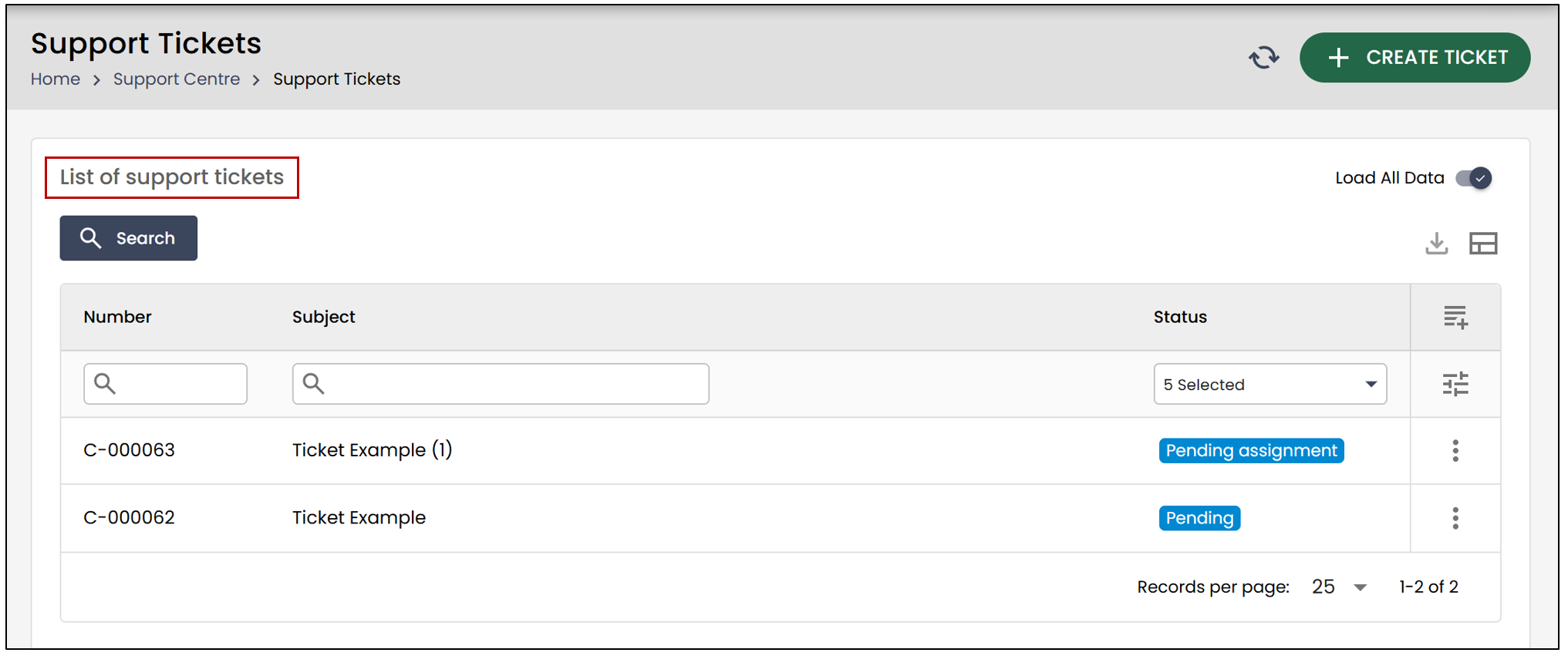
- You can then click the ticket you want to view to access its details.
Close a Ticket
As mentioned earlier, you now have the ability to close a ticket directly from eZmax.
- To do this, select it from the List of support tickets , then click Close the Ticket.
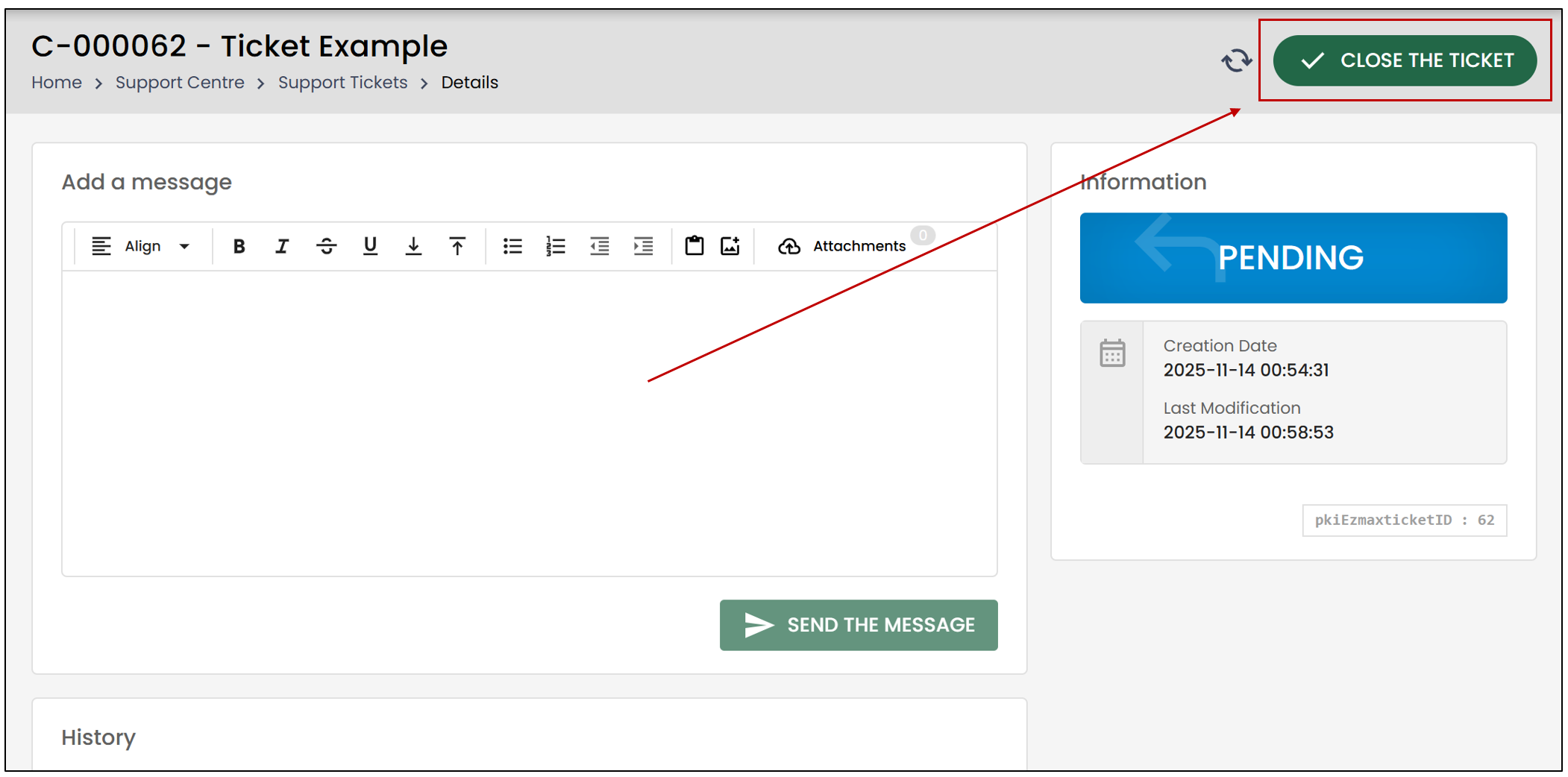
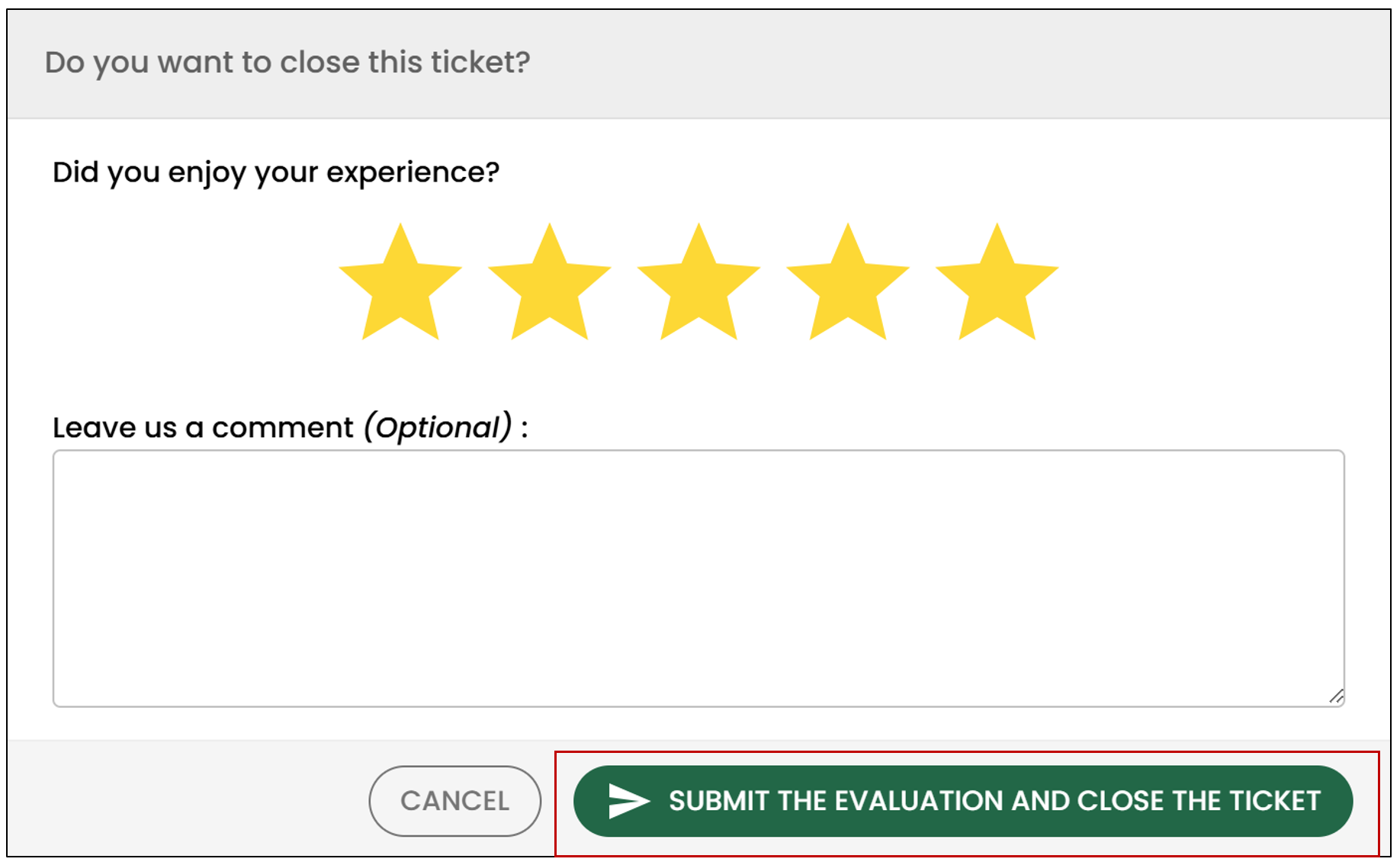
- Enter your evaluation, then click Submit the evaluation and close the ticket.
Followed****Enhancement Requests
When you create a ticket that is later classified by our team as an enhancement request, the original ticket will be closed automatically. The system will automatically link your follow-up to the enhancement request created from your ticket, allowing you to receive related updates.
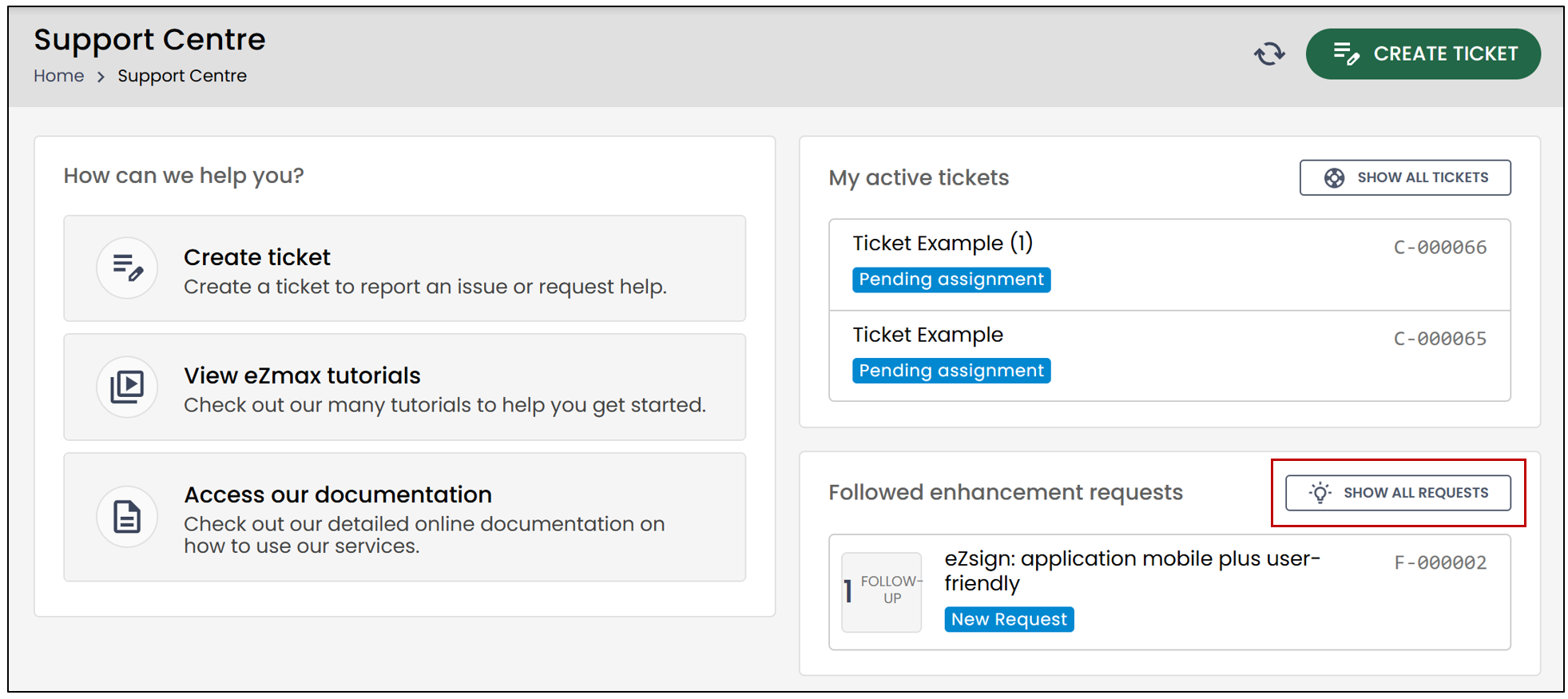
- You can also click Show All Requests to track enhancement requests that interest you and receive the corresponding updates.
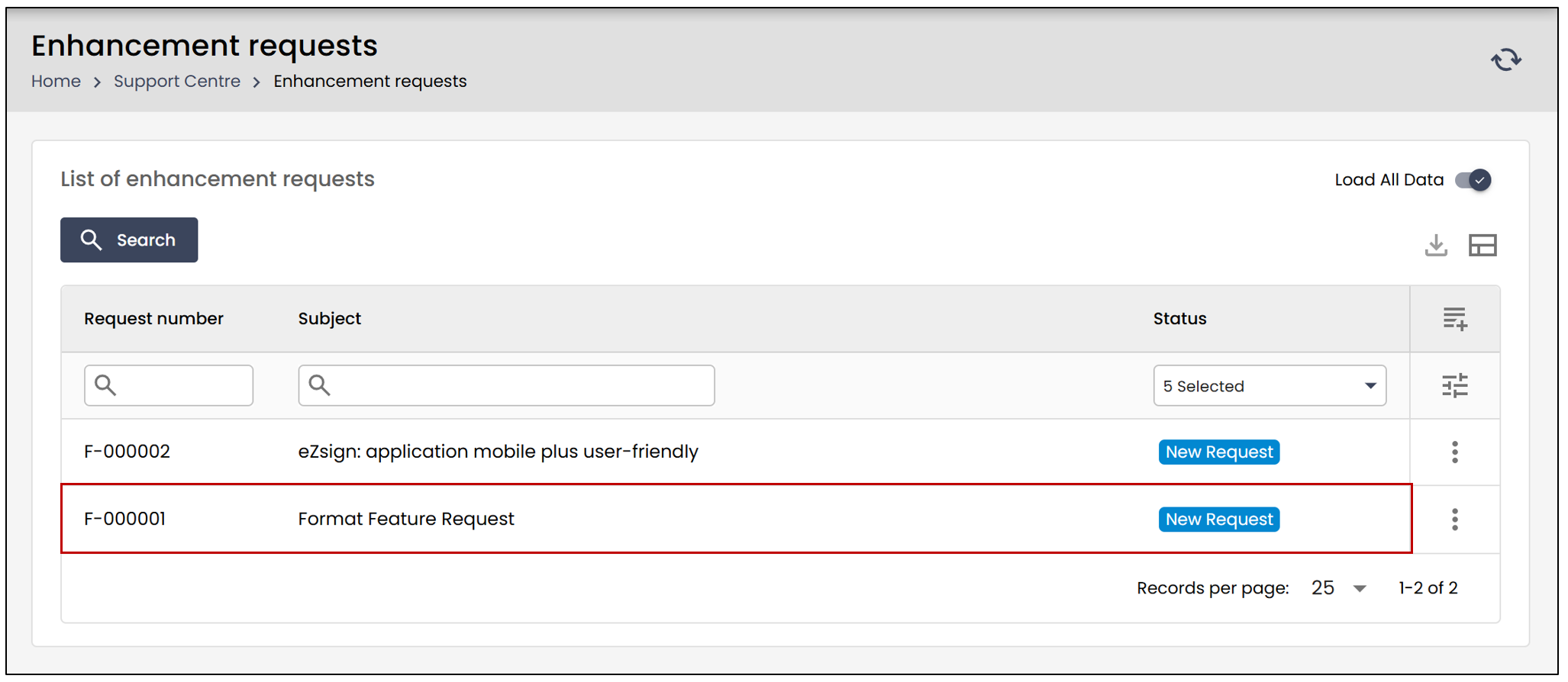
- To view the details of an enhancement request, select it from the List of enhancement requests.
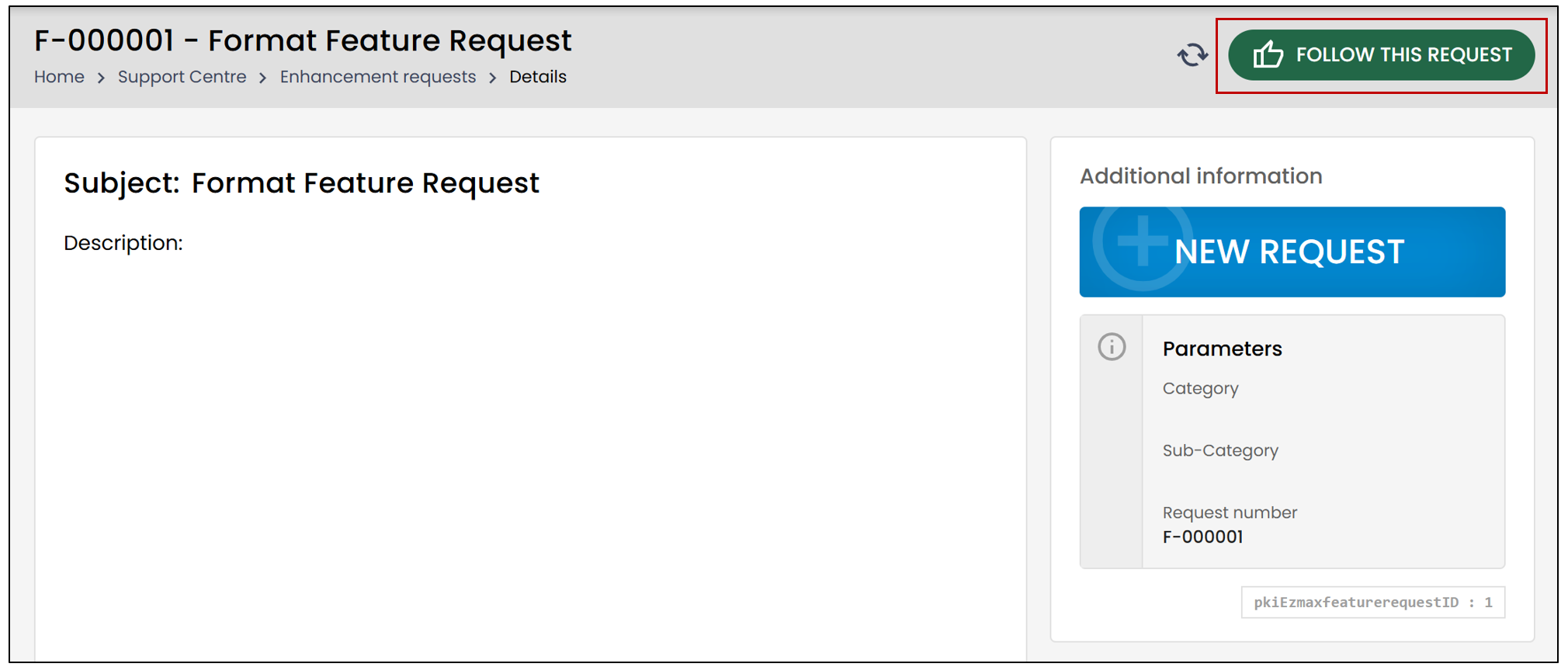
- To follow an enhancement request, click Follow This Request.
It will then appear in the Followed enhancement requests section.
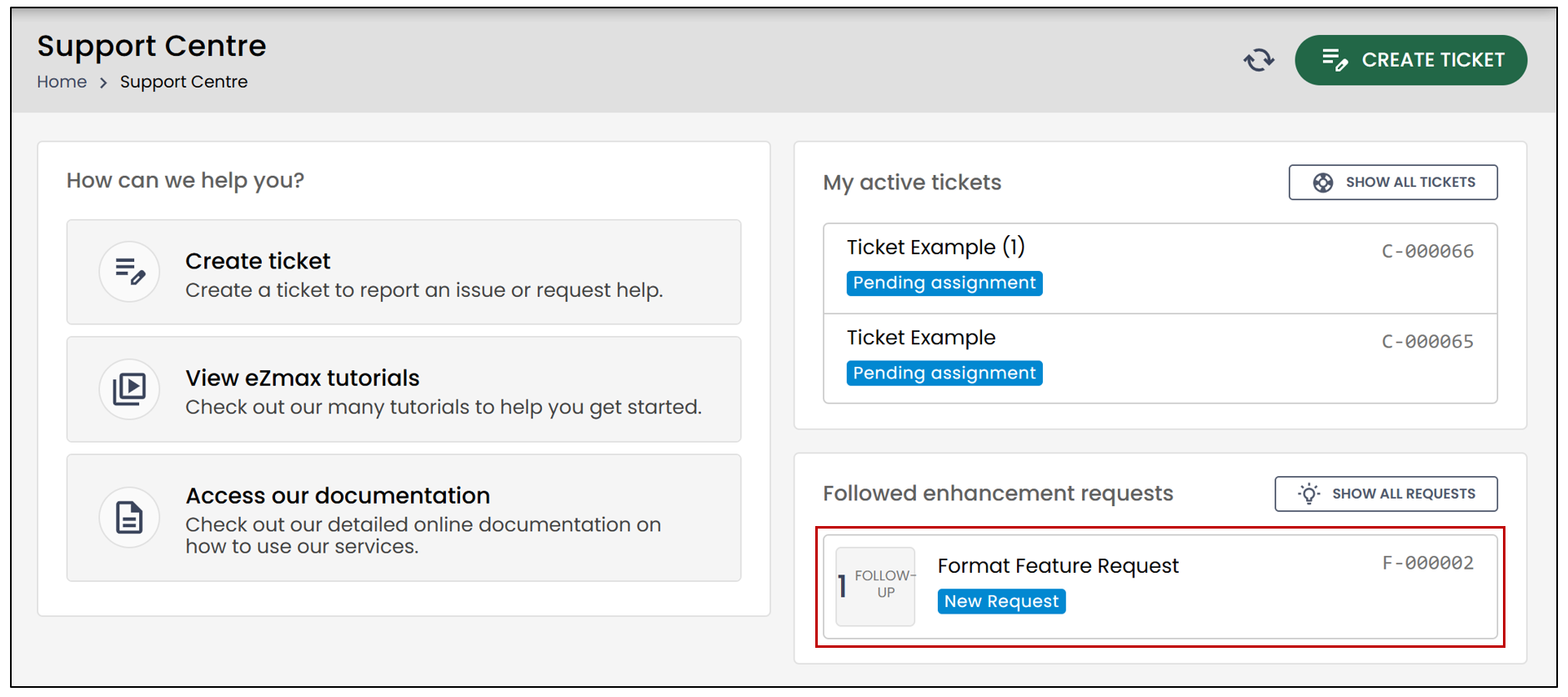
- To stop following an enhancement request, click on it, then click Stop Following This Request.
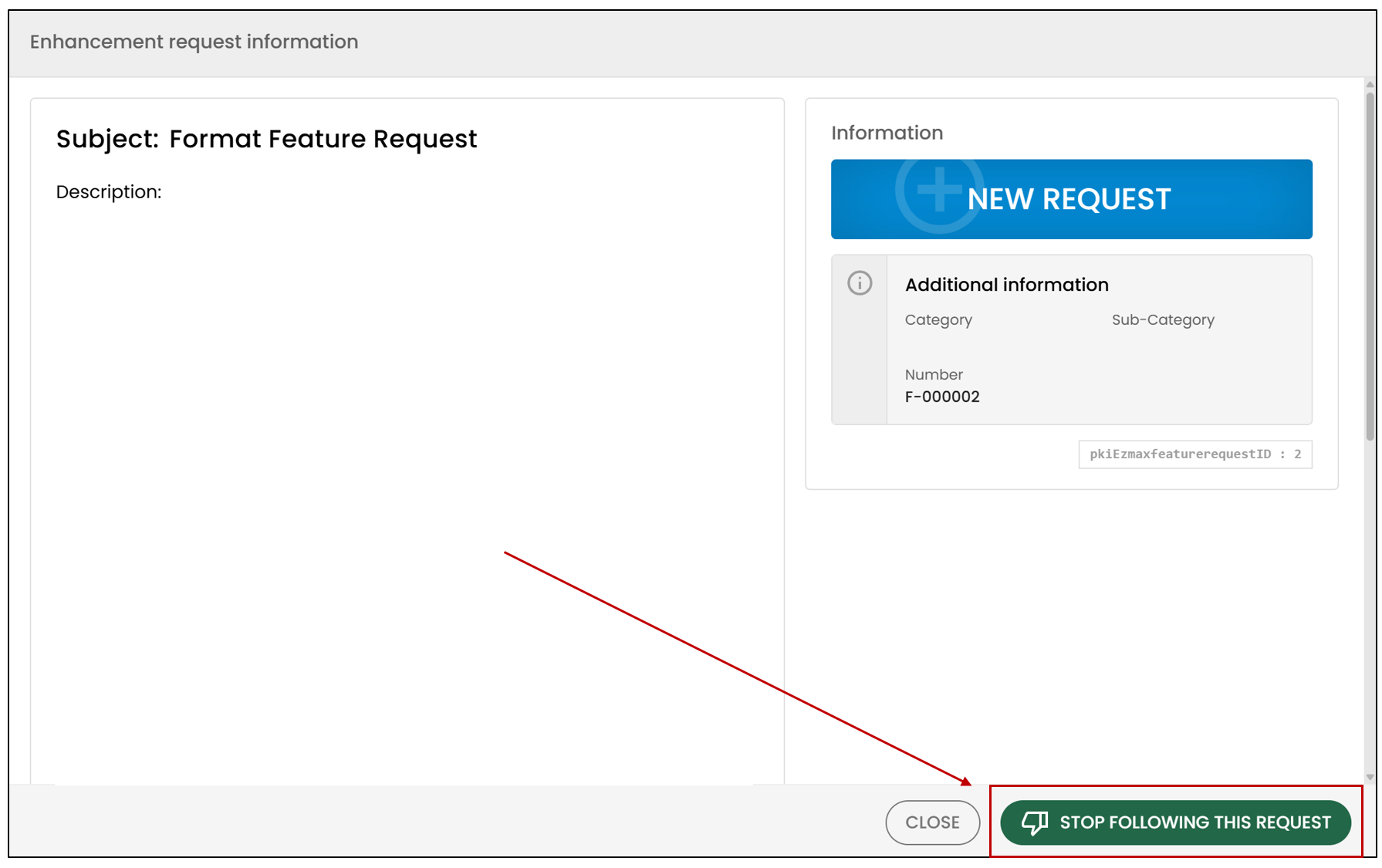
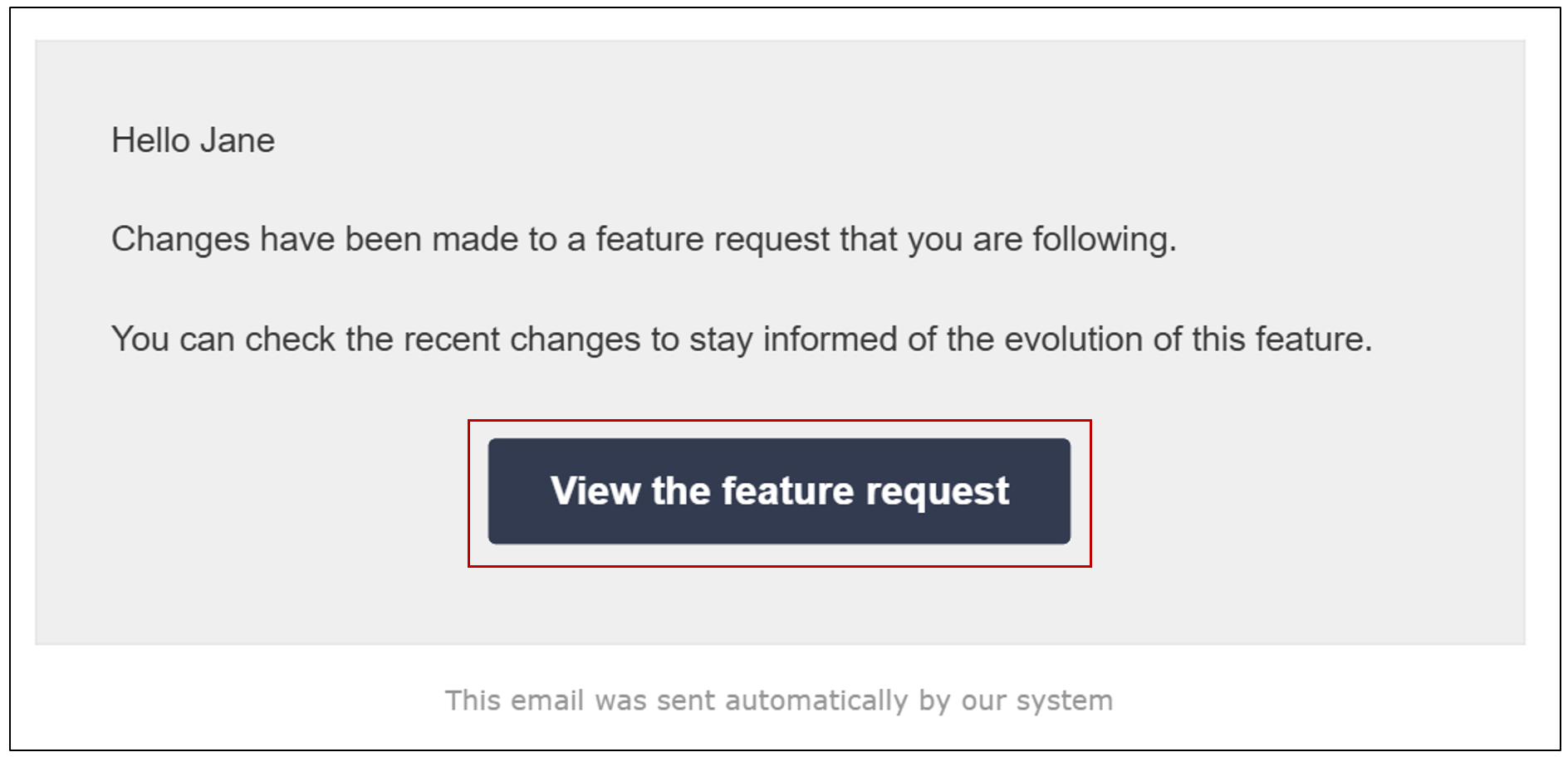
Clients who follow an enhancement request will automatically receive notifications whenever it is updated.
- To access an enhancement request, click View the feature request.
Followed Known Issues
When you create a ticket that is later classified by our team as a known issue, the original ticket will be closed automatically. The system will automatically link your follow-up to the issue created from your ticket, allowing you to receive related updates.
You will be able to view Followed known issues after selecting the question mark icon.
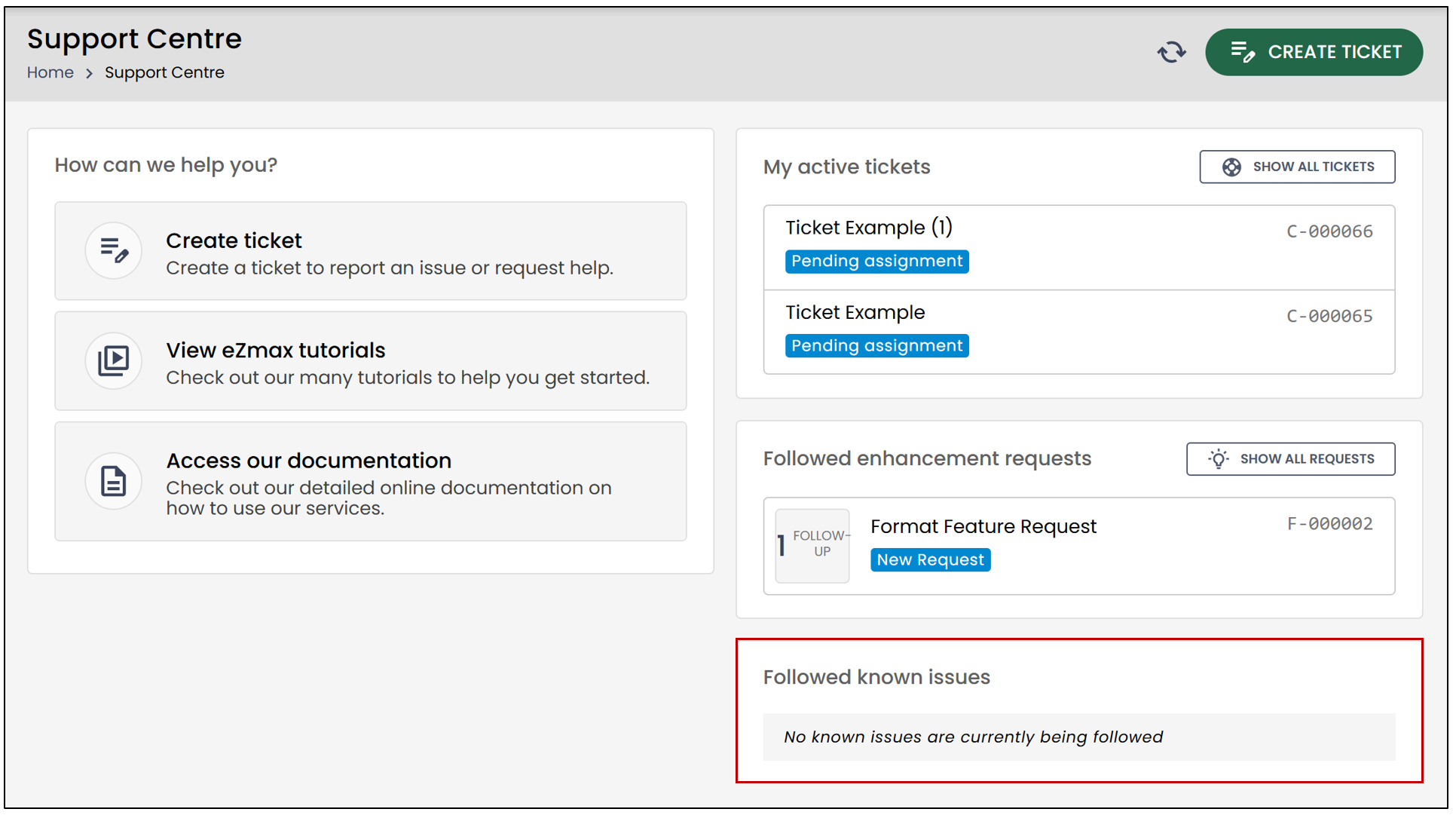
NOTE: Clients who follow a known issue will automatically receive notifications whenever it is updated or resolved.