English
eZsign Tutorial for Agents: Editing or Deleting a Partially Signed Document
Editing or Deleting a Partially Signed Document
Here’s how to do it in eZsign:
Editing a Partially Signed Document
- From the main menu, select eZsign Folders. Then, in the Step section, choose the filter Partially Signed.
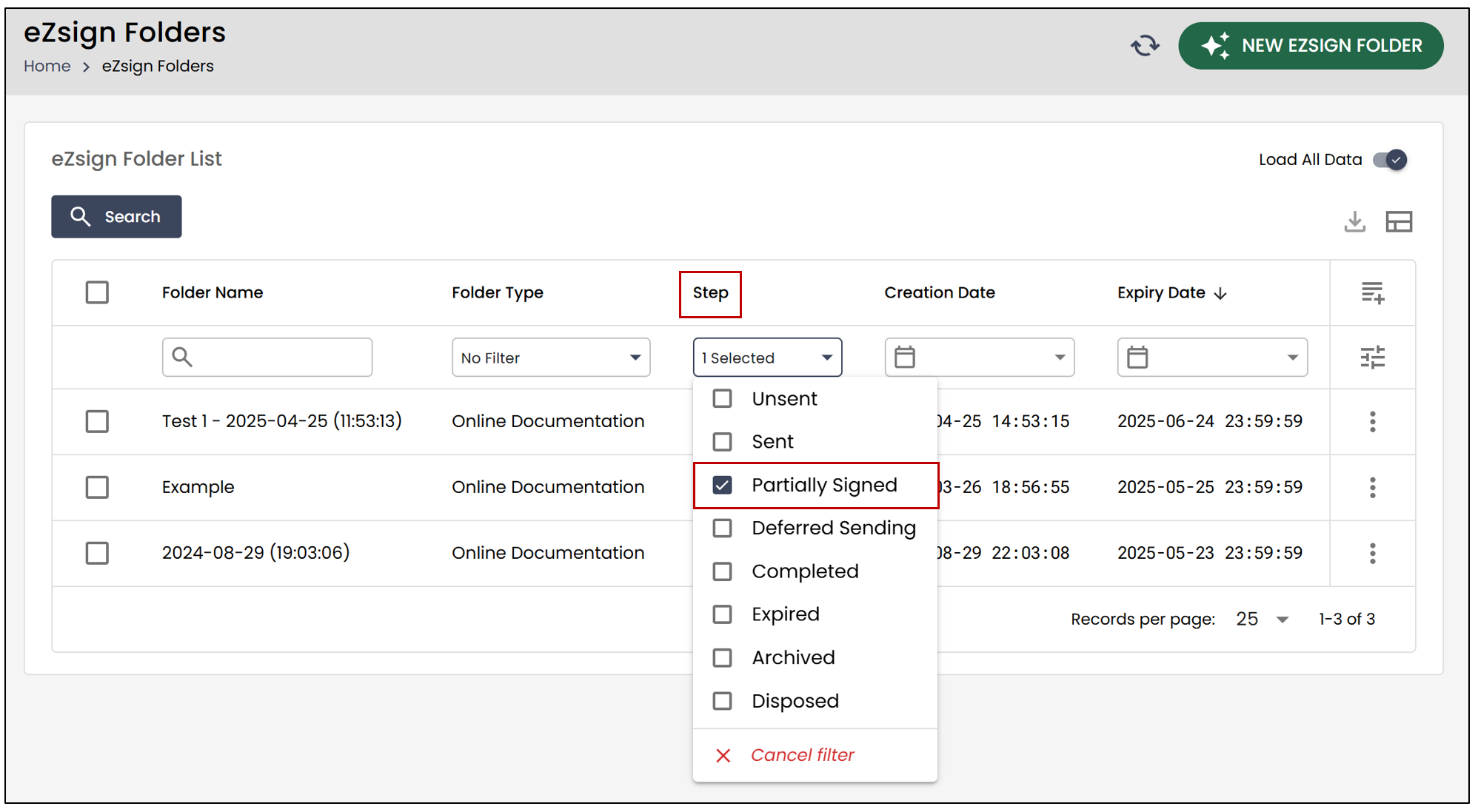
- Next, select the desired partially signed folder.
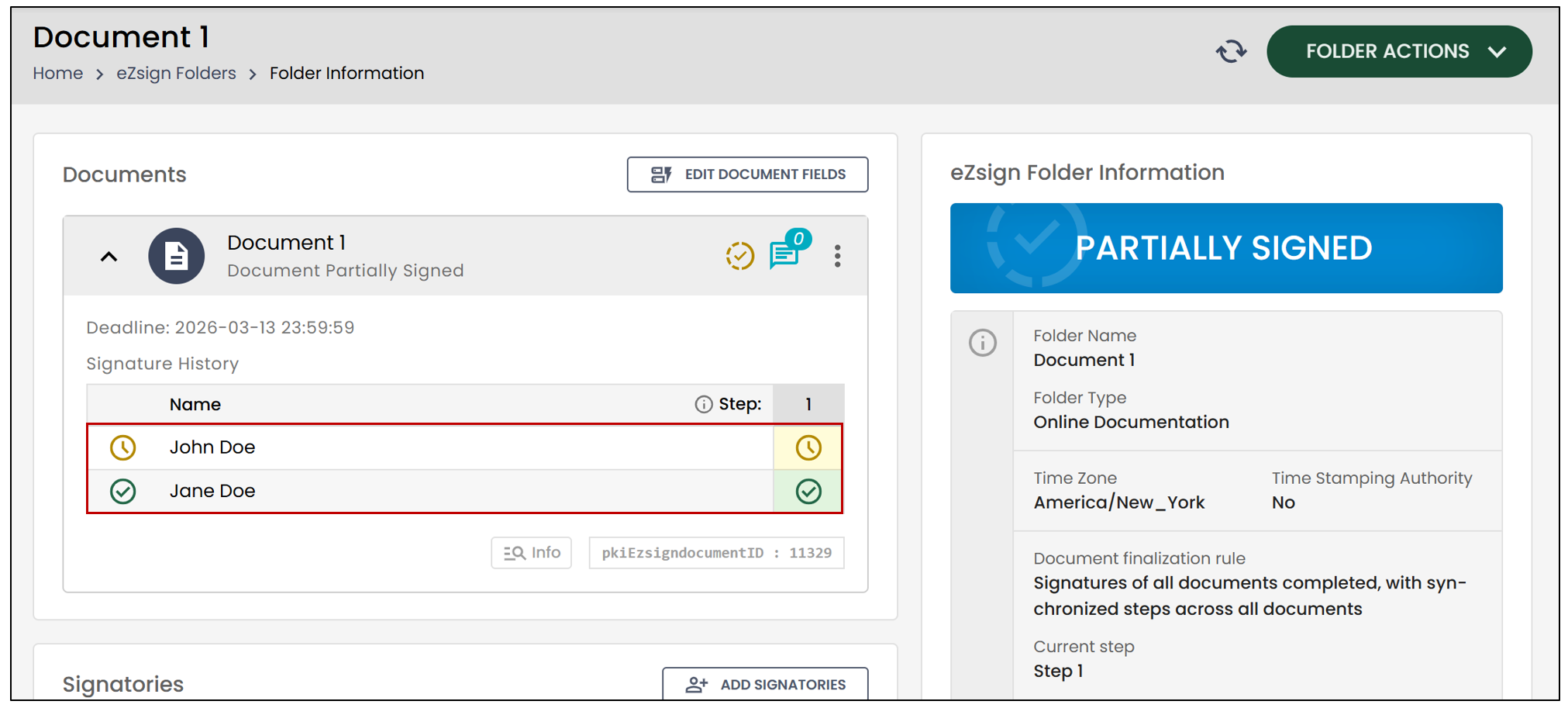
As you can see in this example, John Doe has already signed the document, but Jane Doe has not yet signed.
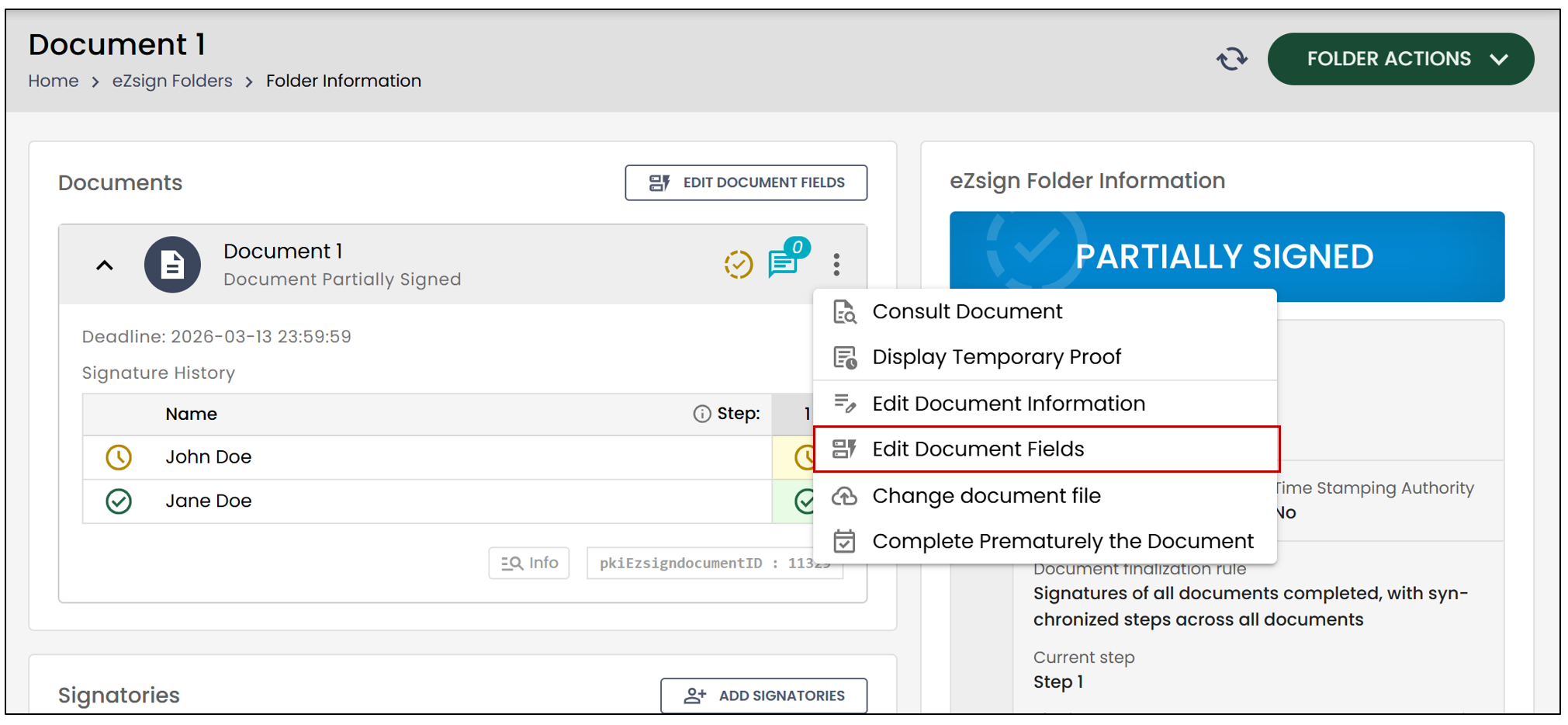
- To edit a document that already has signatures, you’ll need to click on the three vertical dots, then select the option Edit Document Fields.
This message will appear:
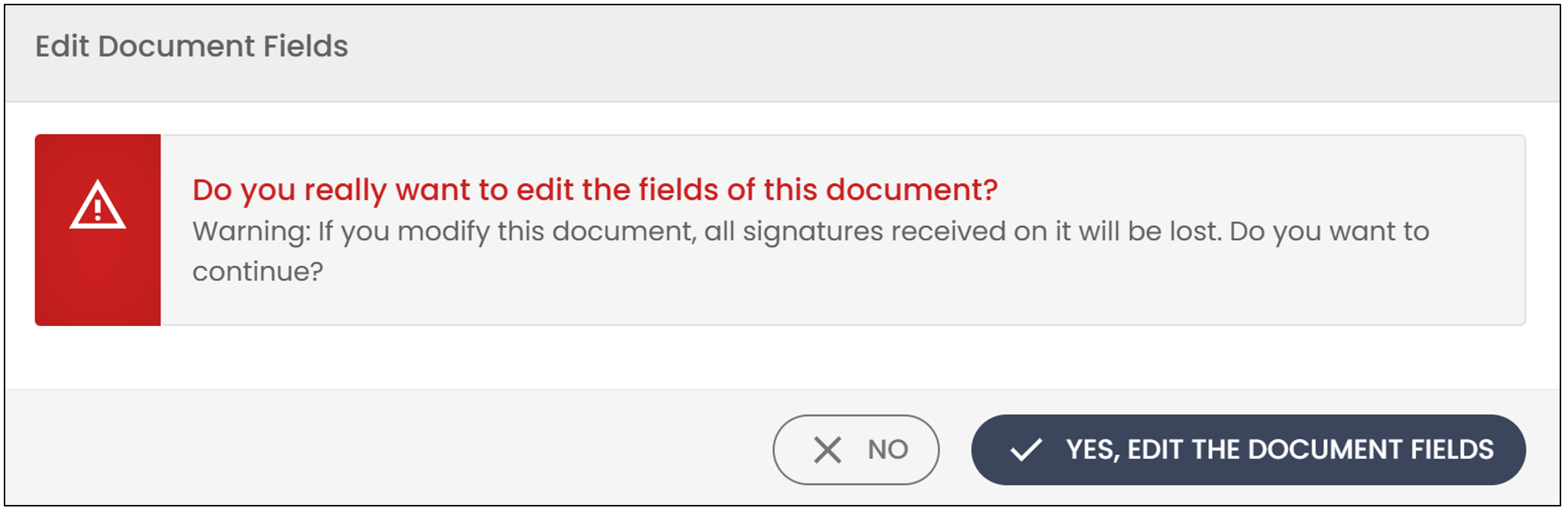
If you want to edit the document, click Yes, edit the document fields.
The document will return to the Pending Sending step. You can then resend the document by clicking Send Folder.
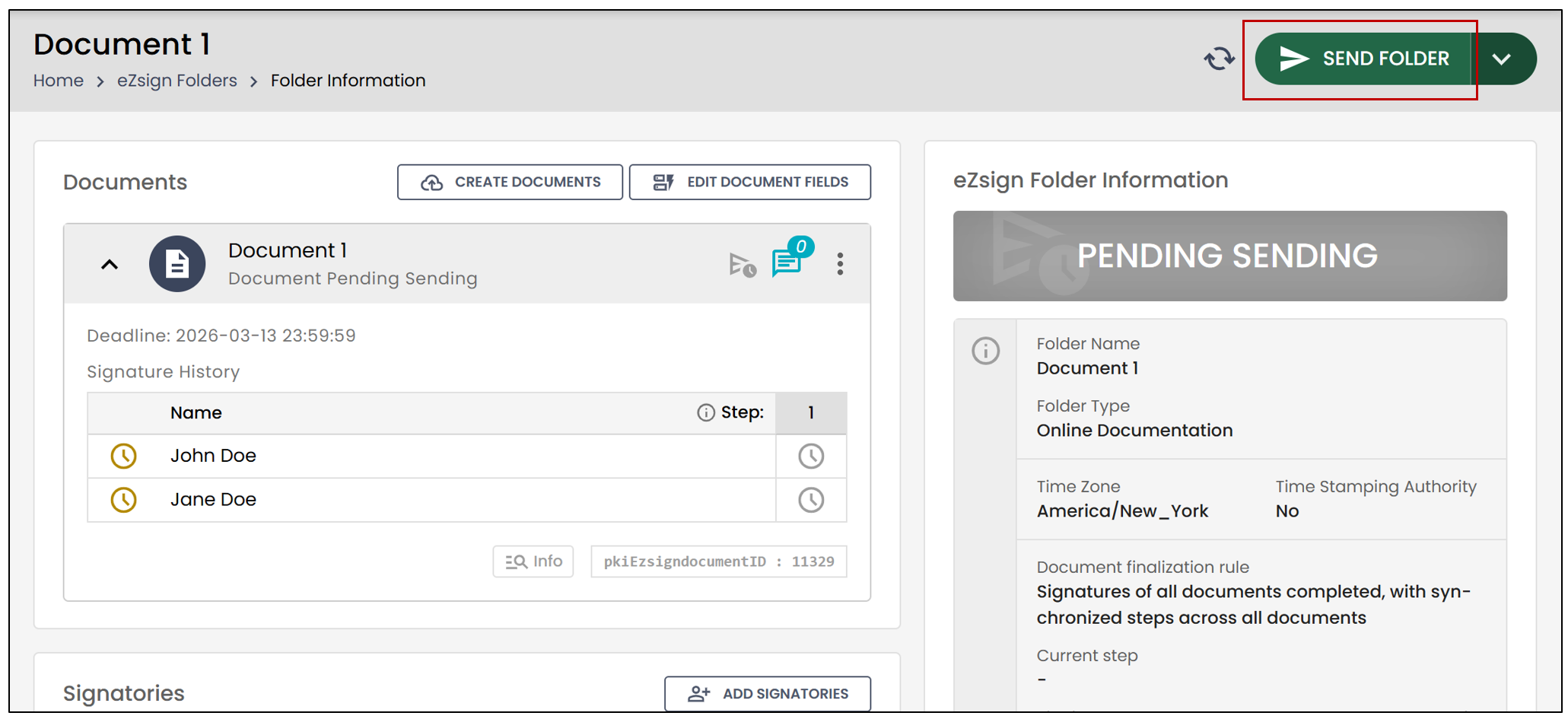
Deleting a Partially Signed Document
It is not possible to directly delete a document that contains signatures. You will need to return it to the Pending Sending step before deleting it.
- From your partially signed folder, you will first need to click on the three vertical dots, then select the option Edit Document Fields.
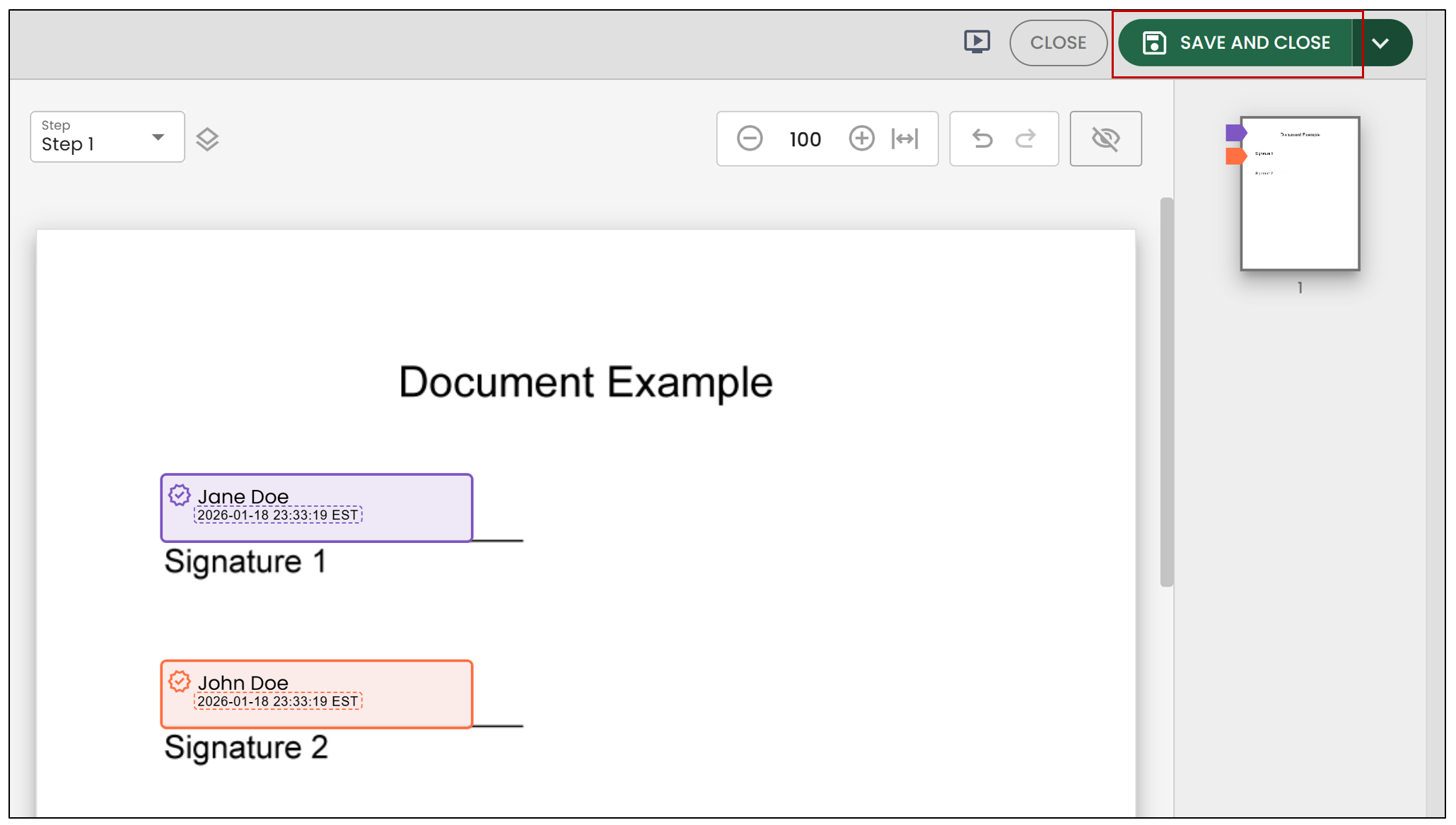
- Click on Save and close.
- The document will return to the Pending Sending step.
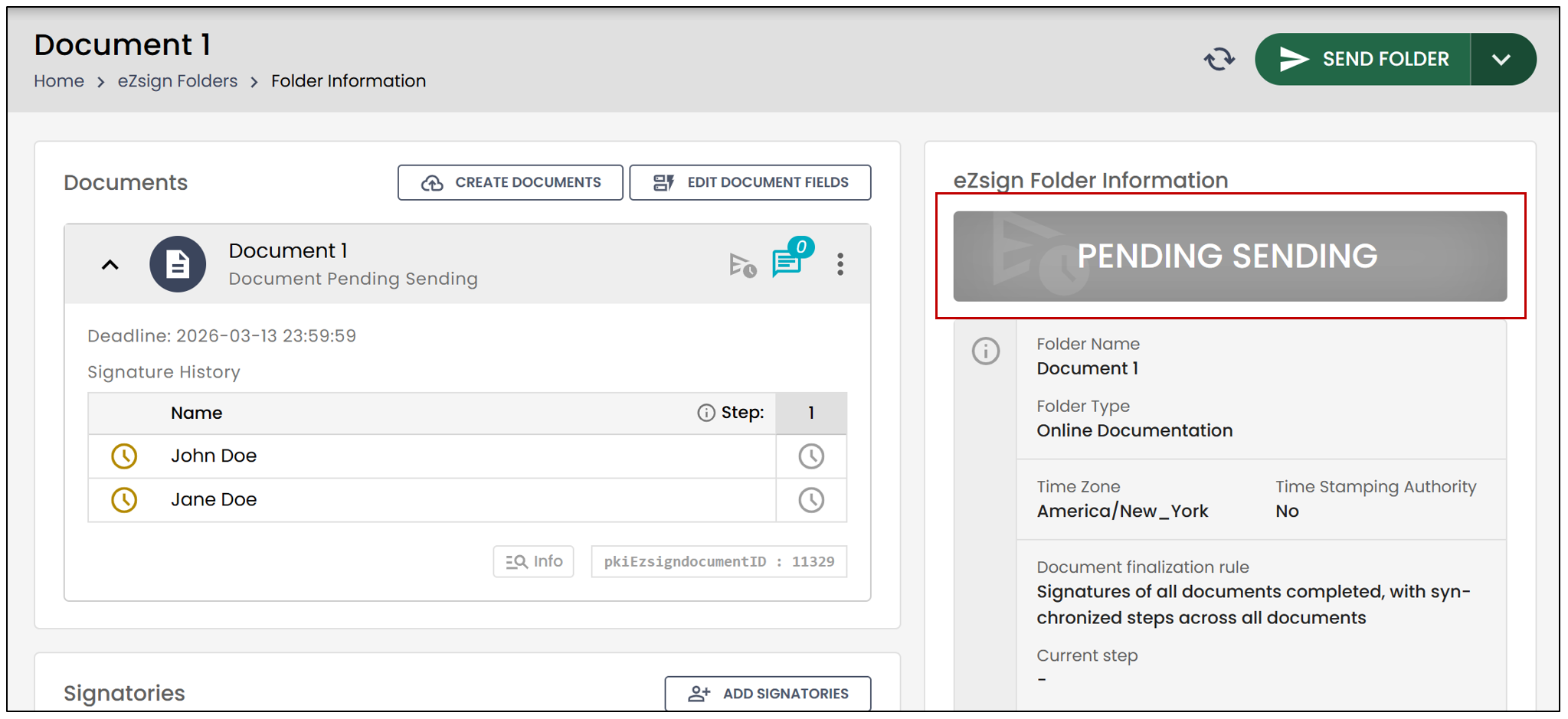
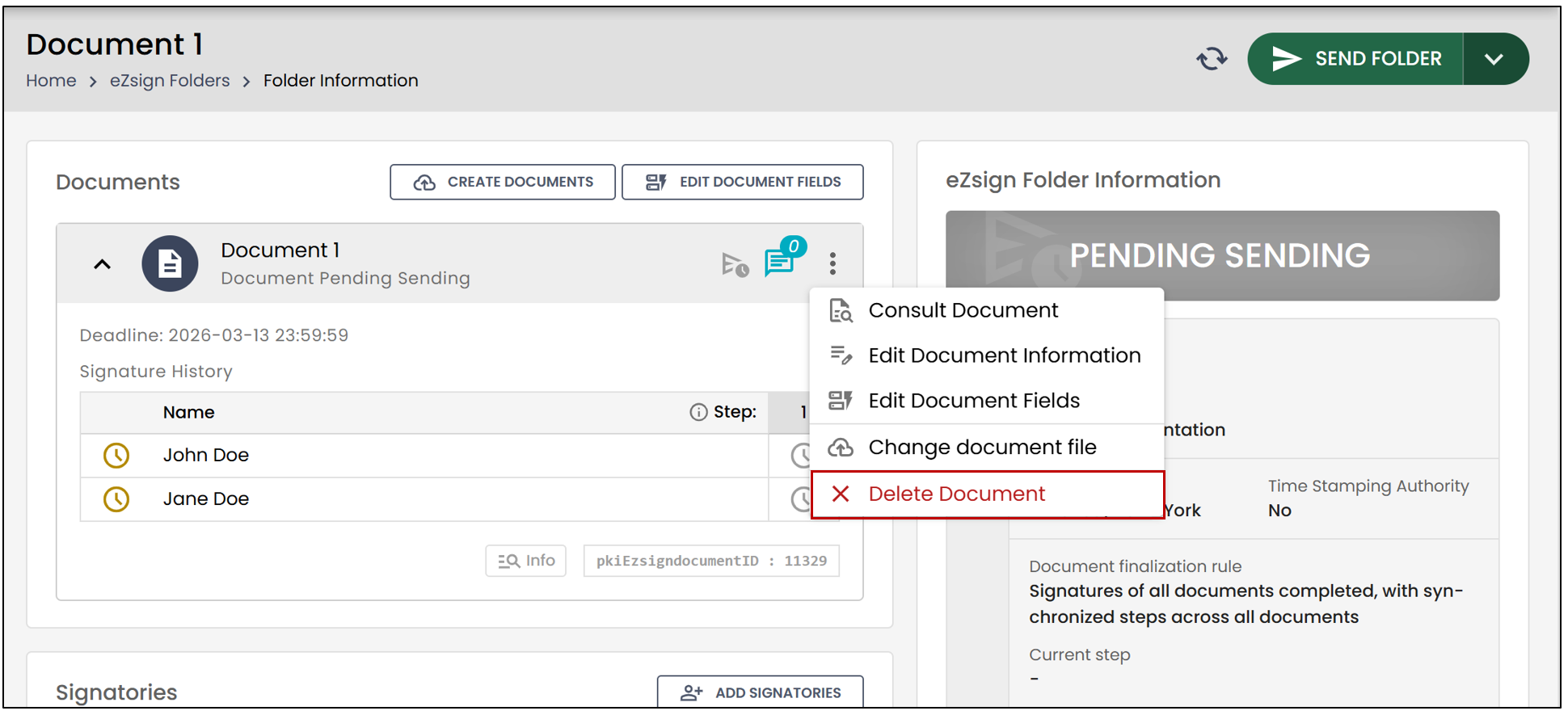
- You can click on the three vertical dots to the right of the document, then select Delete Document.