English
Managing CC Recipients in eZsign
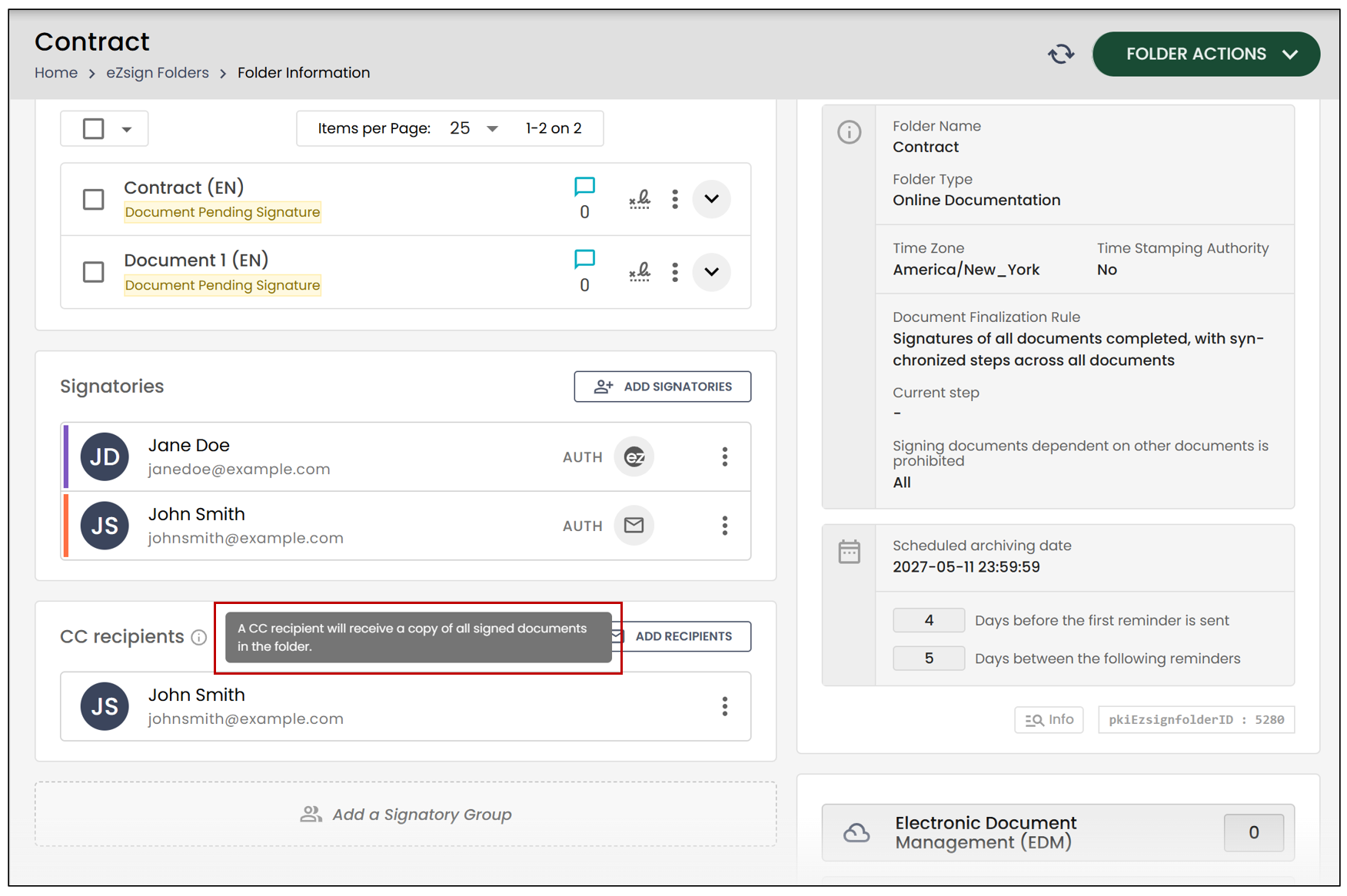
It is now possible to add CC recipients in a separate section when creating an eZsign folder.
This new approach makes it easy to add people who need to receive the signed documents in the folder without having to sign them. You can select an existing contact or add a new recipient directly when creating the folder.
This improvement also makes it easier to distinguish between signatories and CC recipients , while maintaining the existing flexibility.
Adding a CC Recipient
When creating an eZsign folder, you can add people who need to receive a copy of the signed documents in the section dedicated to CC recipients.
Click Add CC Recipients.
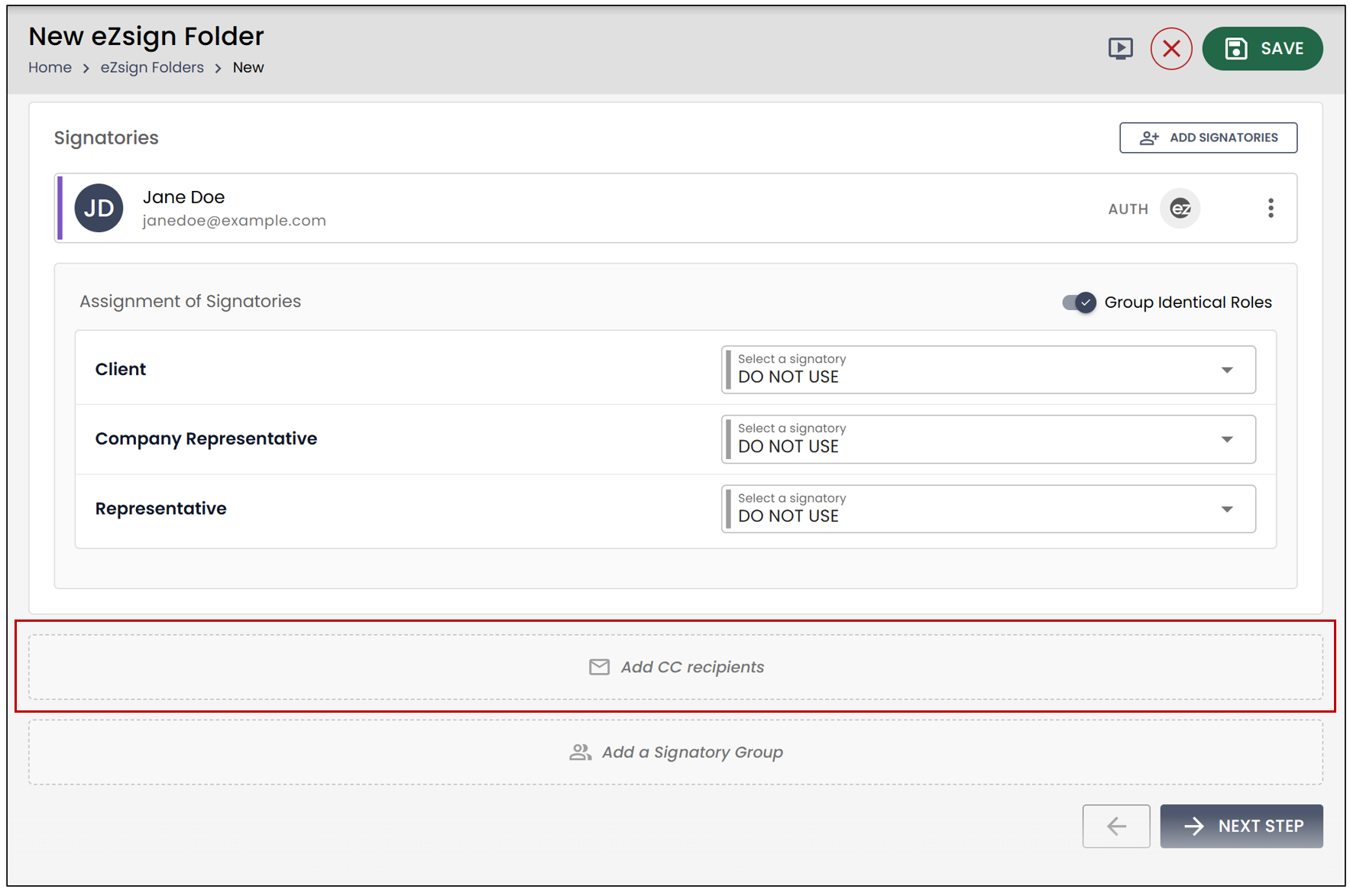
You will have the option to add existing contacts or create a new recipient.
Selecting an Existing Contact
Select the CC recipients from the drop-down lists.
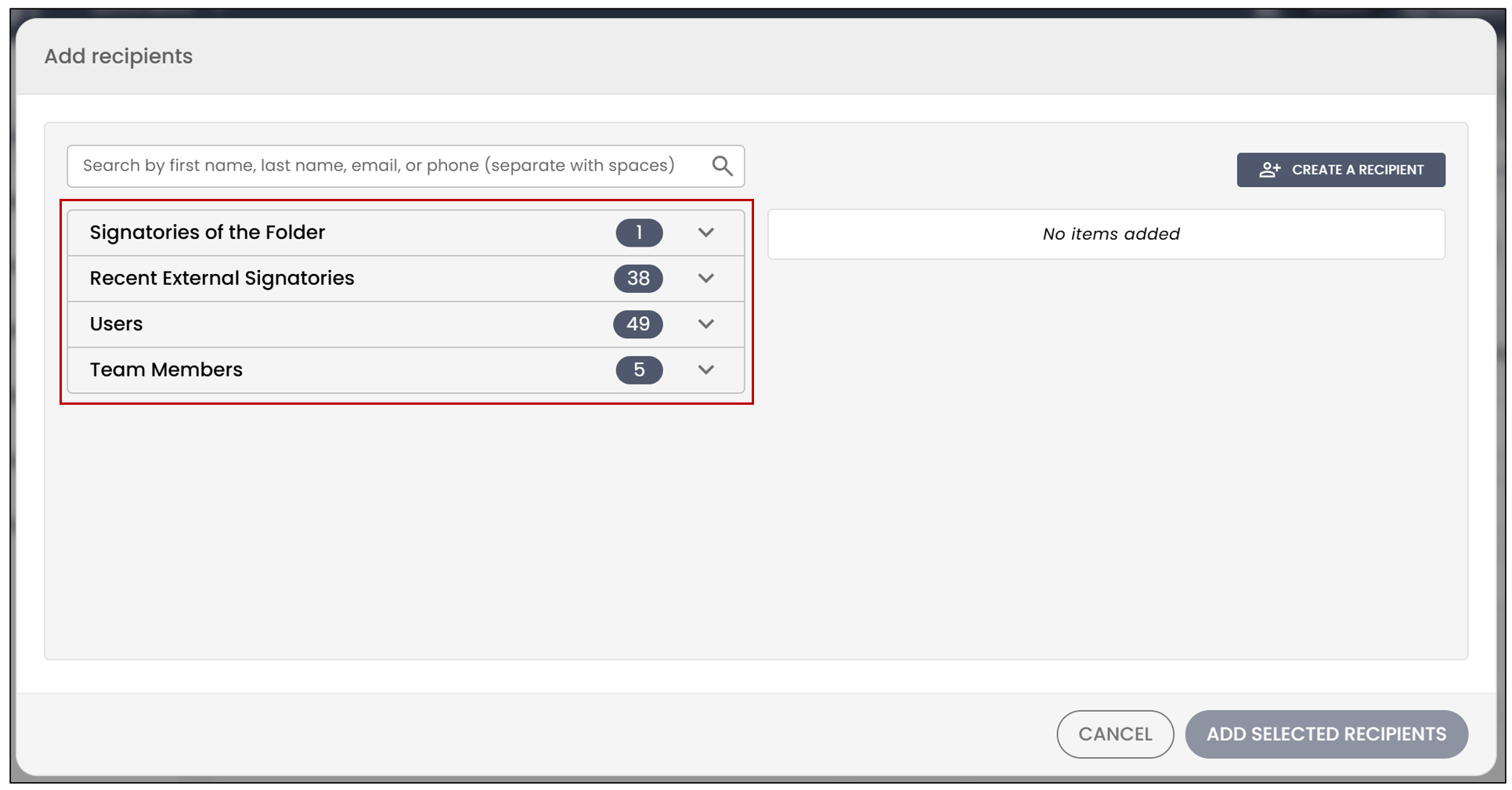
Once they have been added, click Add Selected Recipients.
Adding a New Recipient
To create a new recipient, click Create a Recipient.
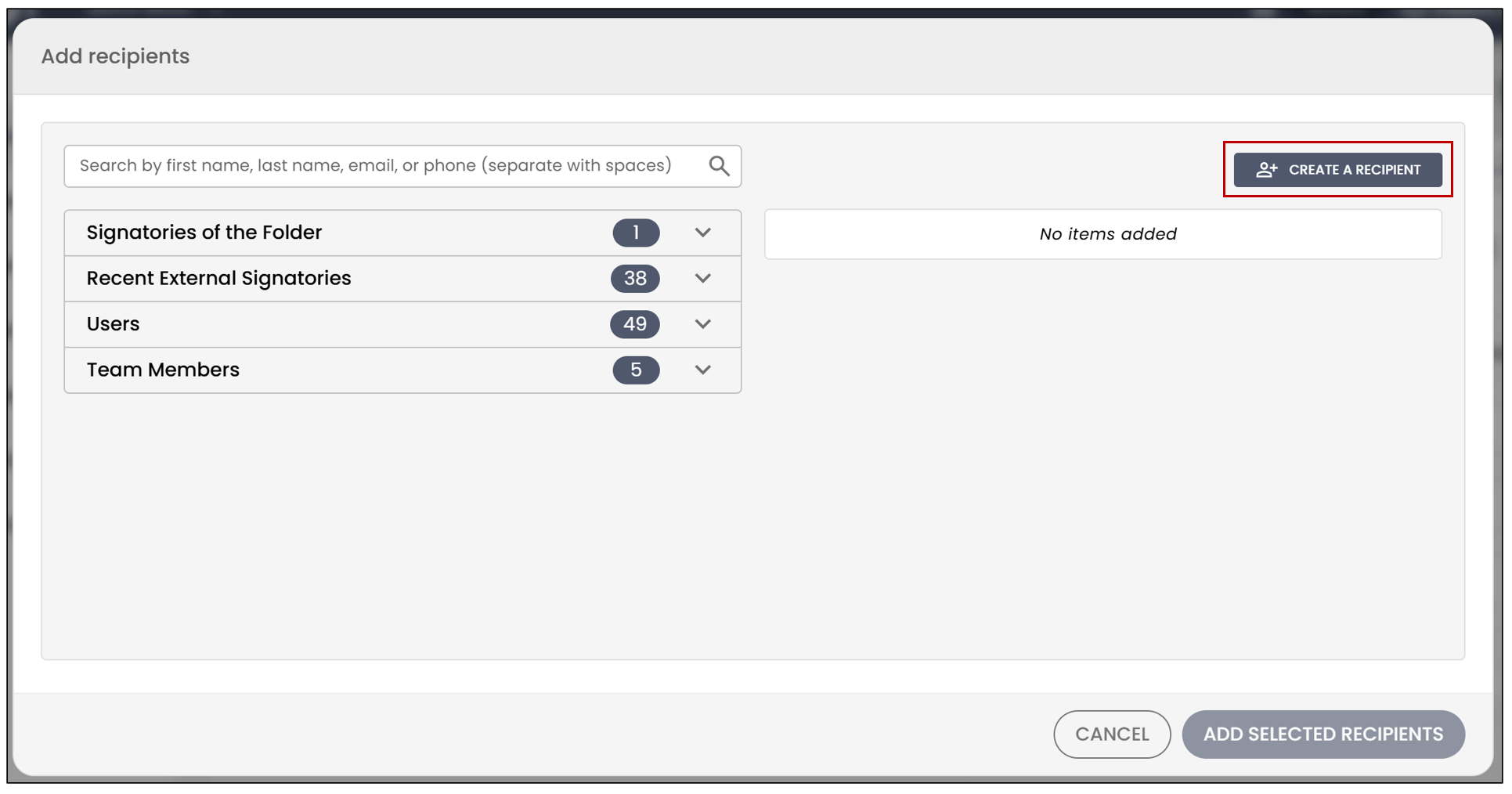
Enter the recipient’s information, then click Save.
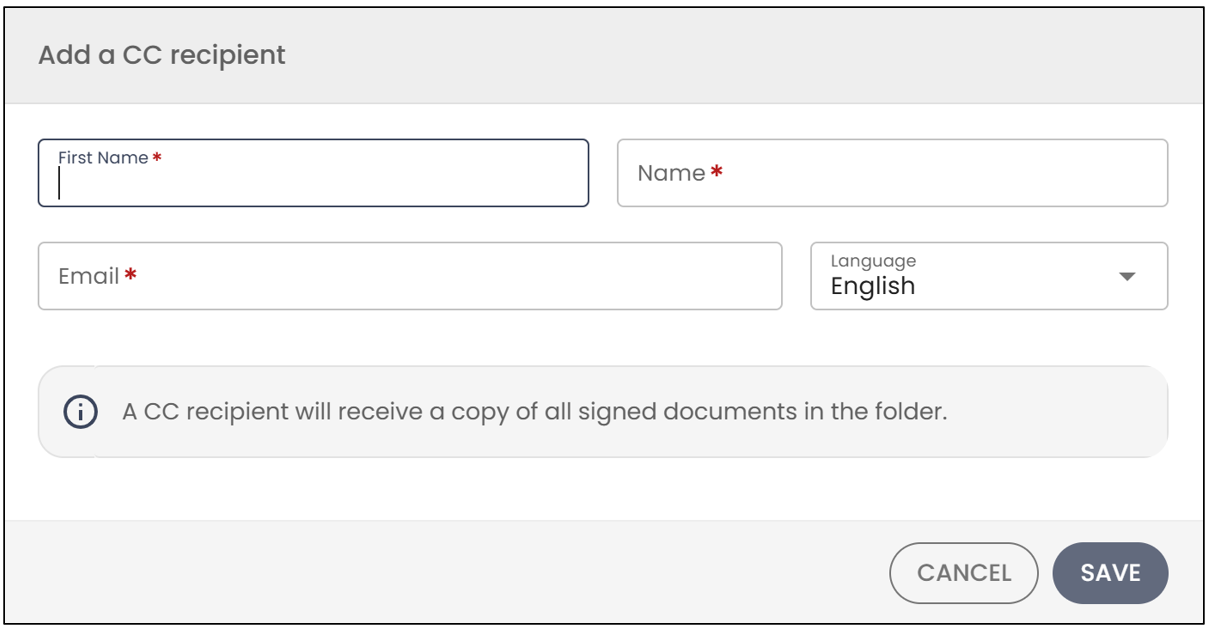
The recipient will appear in the selected recipients section.
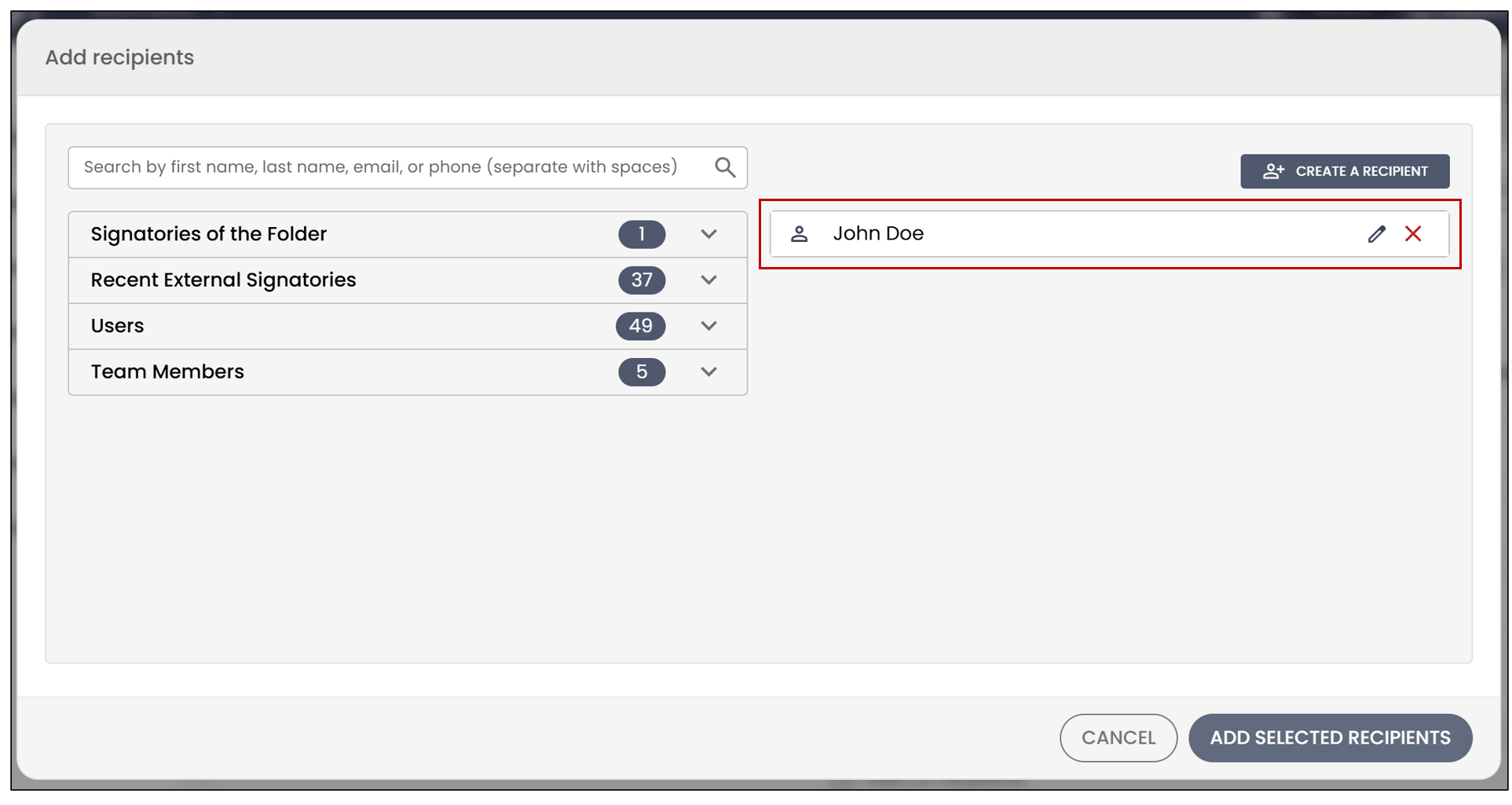
Once all your recipients have been added, click Add Selected Recipients.
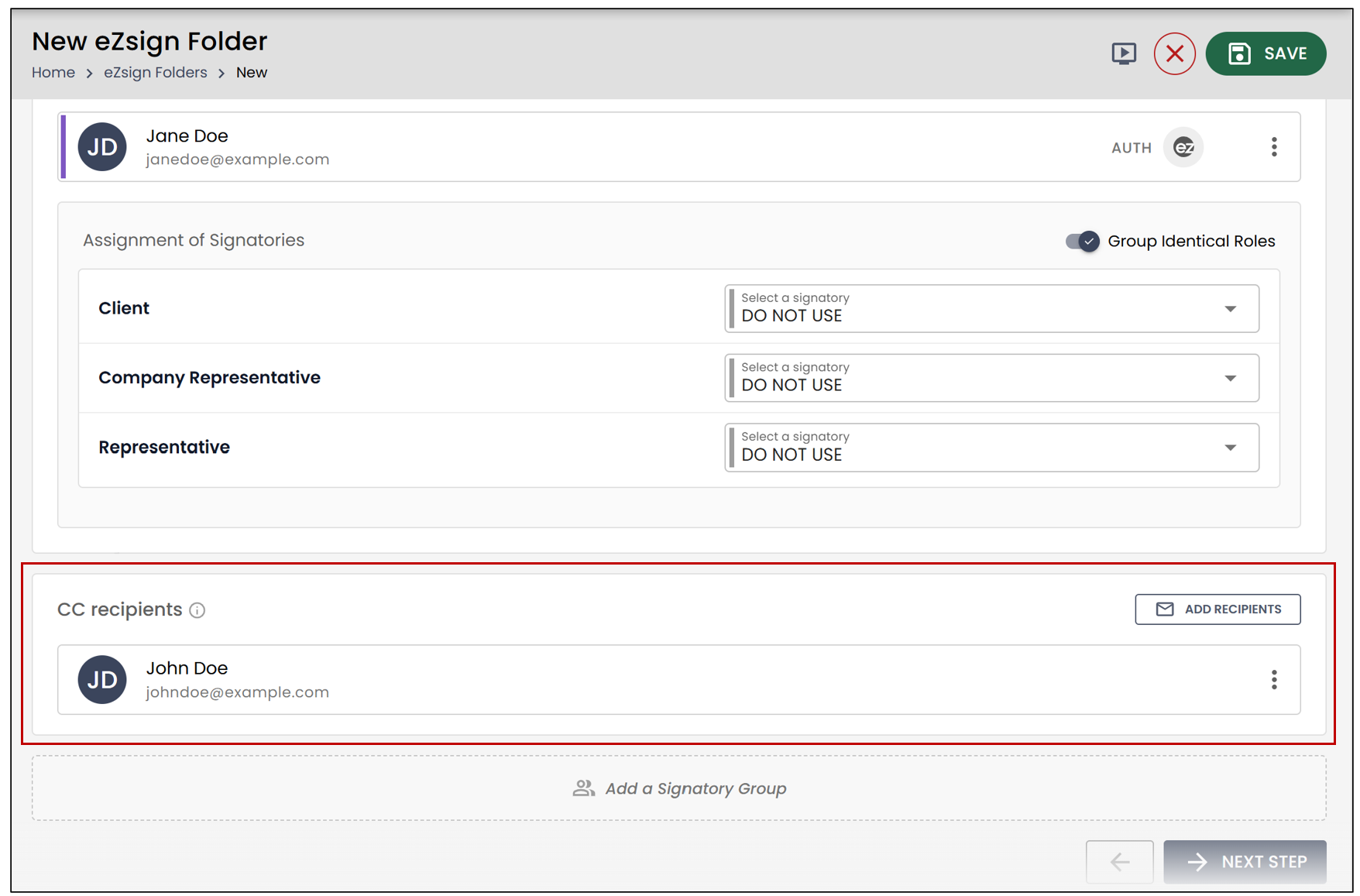
NOTE: CC recipients do not have any signing actions to complete. They receive the signed documents in the folder once the documents have been completed.
Automatically Adding a Signatory to the CC Recipients
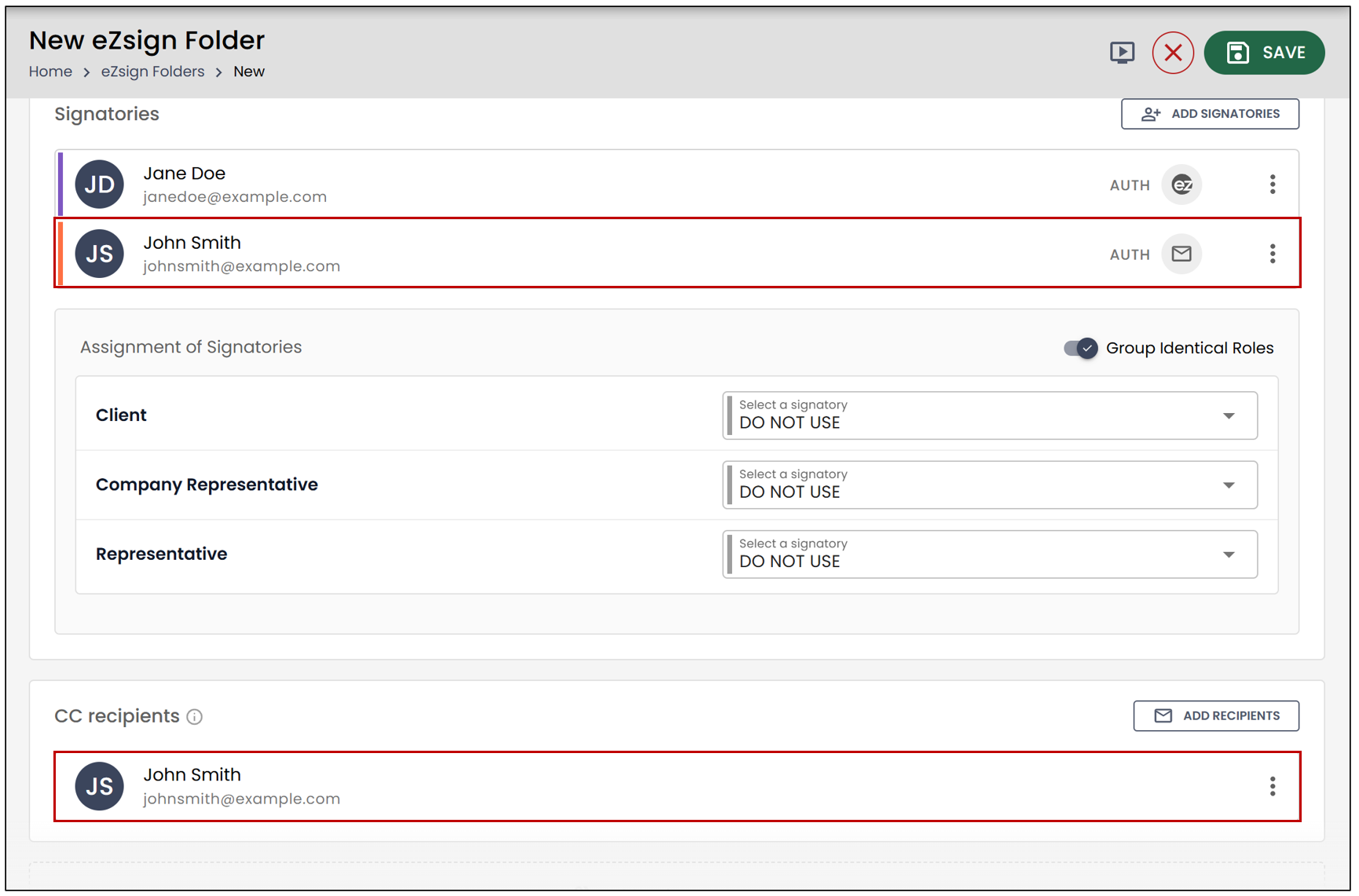
If a signatory needs to receive all documents in the folder , including those they are not required to sign, you can enable the corresponding option when creating the signatory.
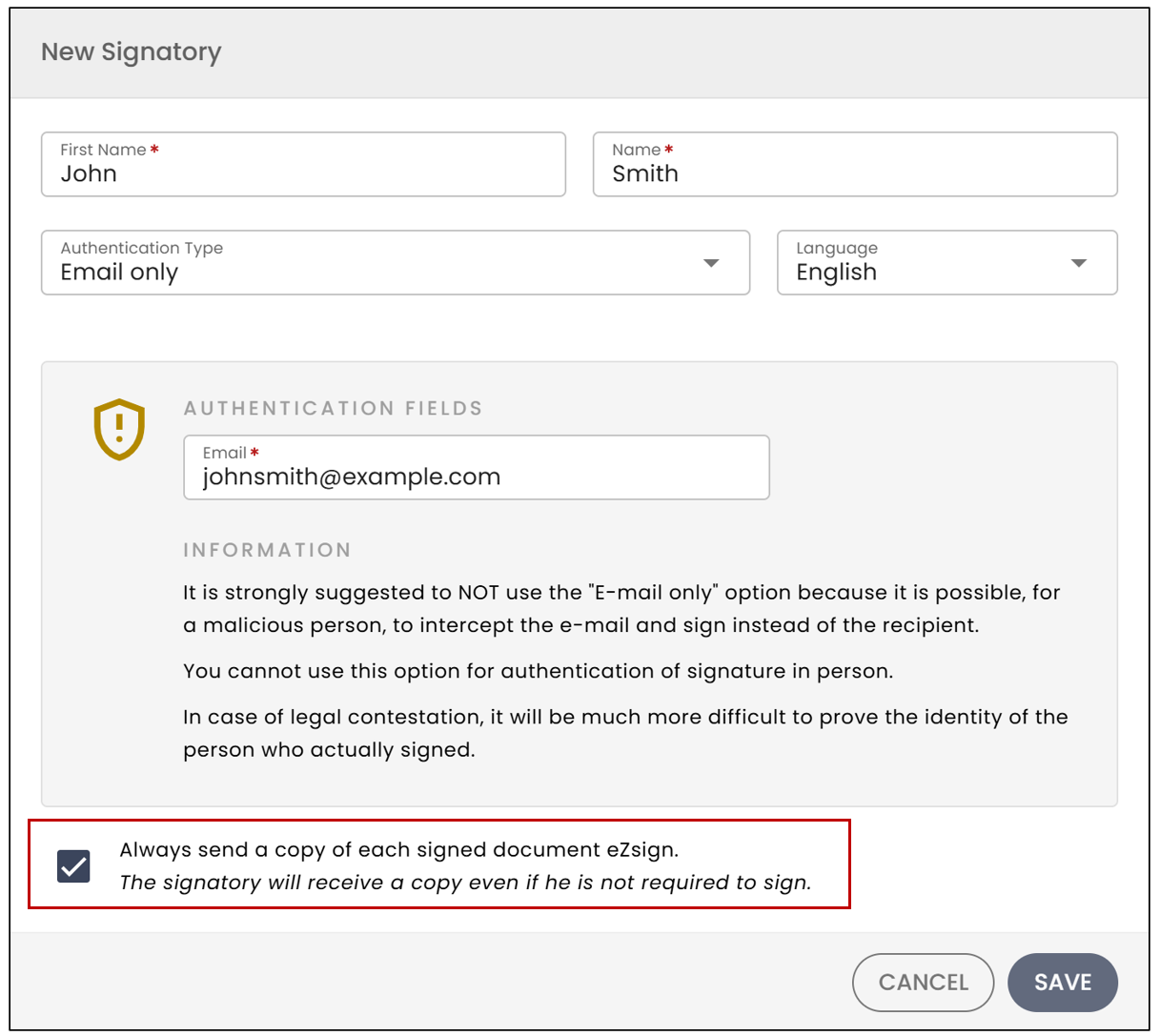
The signatory will then be automatically added to the list of CC recipients, in addition to being part of the folder’s signatories. The signatory will therefore appear in both sections.
Warning
A recipient added as a CC recipient receives all signed documents in the folder, whether they are a signatory on one or more documents or are not a signatory at all.