

English
Loading a Template from your Governing Body
It is possible to load a system template to quickly add fields in a document from your governing body, for example, an OACIQ amendments form.
In the desired eZsign folder, add the document. For more information, please see the article Adding/Editing/Deleting a Document in an eZsign Folder.
**In the "List of Documents" sectio n of your folder, click on the file name or the **Fountain Pen icon to display the document.
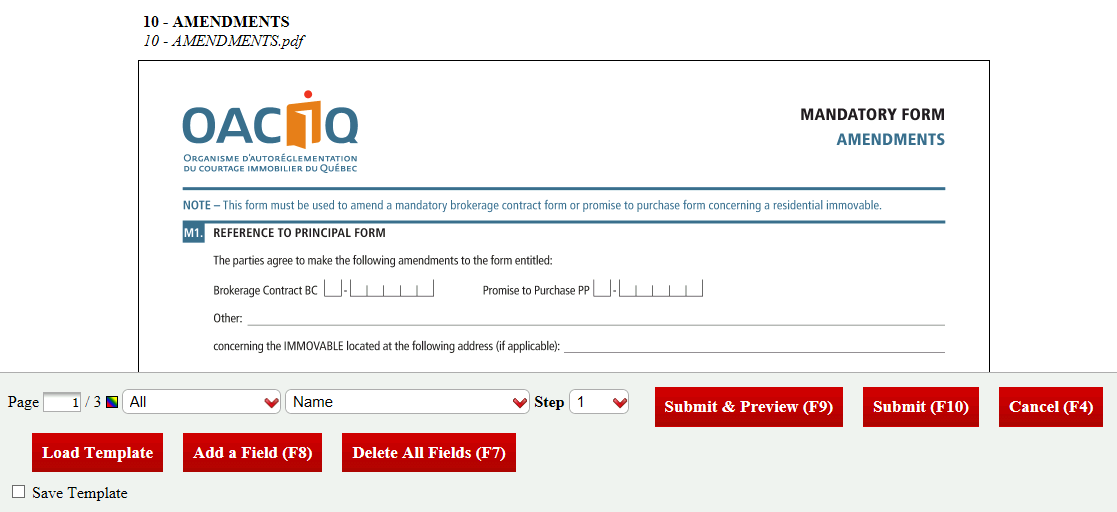
- Click on Load Template.
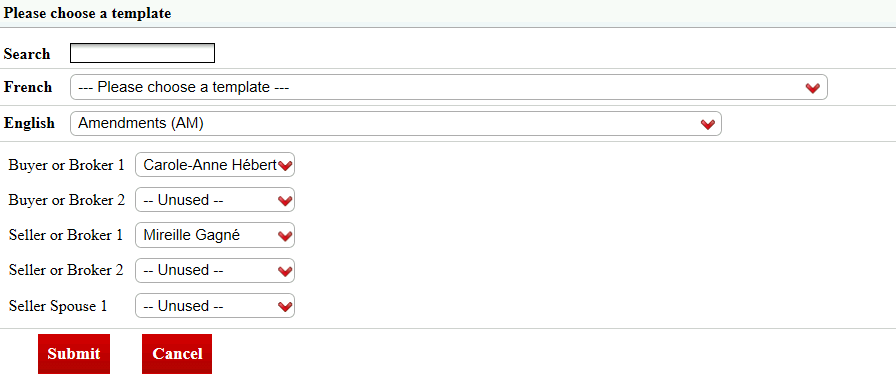
- You can Search the template by writing its name in this field or you can select it from the drop-down list of templates in French or English. In this example, the system template is: "Amendments (AM)".
Warning
Make sure you select the system template that exactly matches your document.
- Assign the role of each of the signatories. In this example: Carole-Anne Hébert is the buyer 1 and Mireille Gagné is the seller 1.
NOTE: If, for example, you have only one signatory instead of two, select "-- Unused --" for the 2nd role.
NOTE: If you have more than two buyers and/or sellers, you must add them manually. For more information, please see the article Manually Adding/Editing/Deleting a Field in a Document.
- Click on Submit.
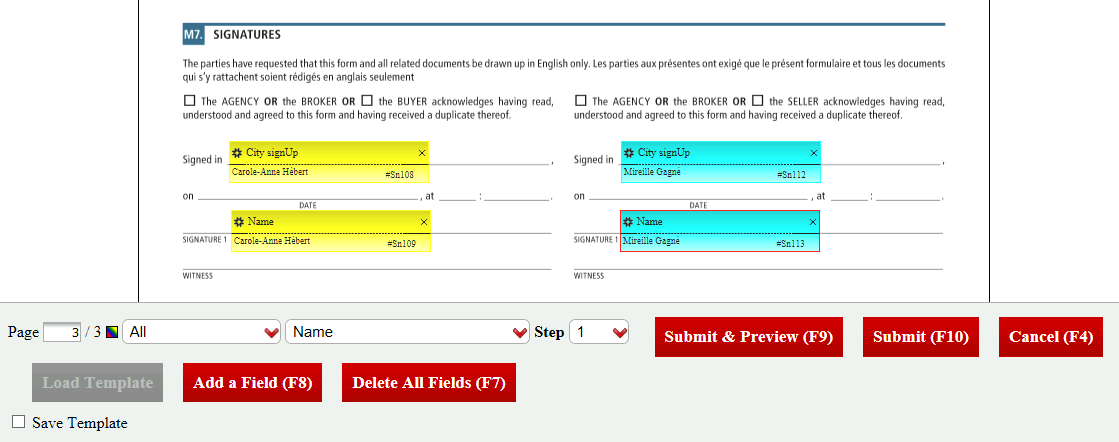
- The fields will automatically appear in the right place in the document, so do not edit/move them.
NOTE: The order in which the signatories will sign will be automatically established according to the selected system template. Therefore, you do not need to change the fields step.
Click on Submit.
You can now proceed to the next steps, which are:
- Send the documents to sign. For more information, please see the article Sending Documents to Sign.
- Sign the documents. For more information, please see the articles Signing a Document as a User and Signing a Document as an External Signatory.
- Send the signed documents by e-mail. For more information, please see the article Sending Signed Documents by E-mail.