English
Copy the Documents to the EDM
When an eZsign folder is completed, it is possible to copy all of its signed documents as well as the electronic evidence in the EDM (Electronic Document Management) of the eZmax file associated with this eZsign folder in a single step instead of downloading each of the signed documents, saving them on your computer and add them manually to the eZmax file.
NOTE: To use this function, the EDM must be available in your agency.
NOTE: The file (listing, deal, buyer’s contract, refused offer, etc.) must be created in eZmax before you can copy the document to the EDM.
- From the desired completed eZsign folder:
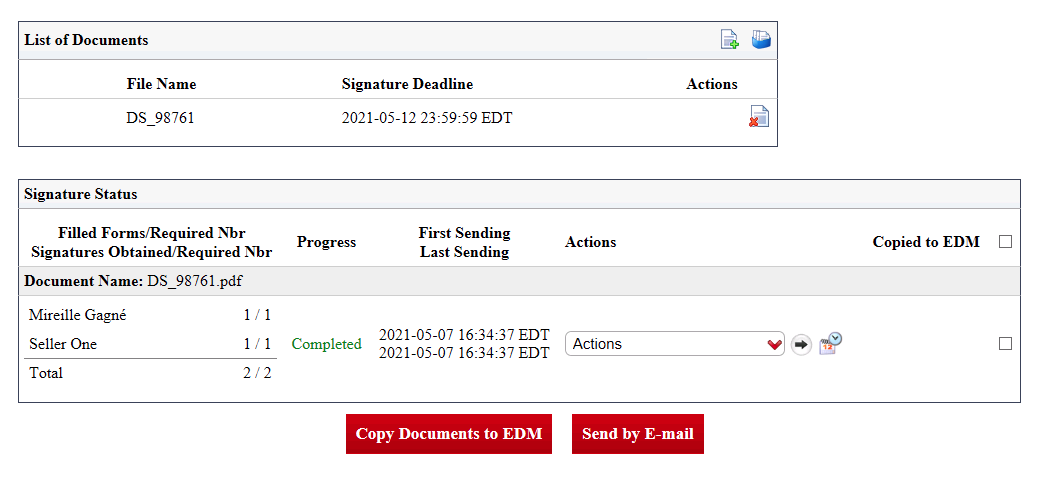
- Click on Copy Documents to EDM.
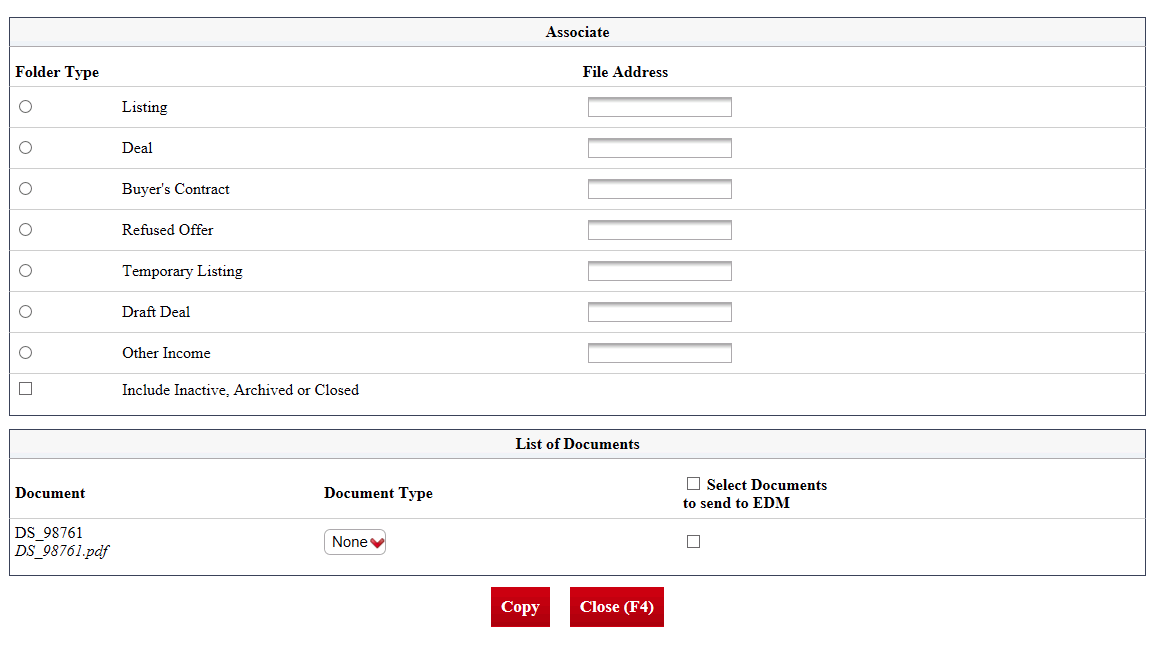
In the "Associate" section, check the radio button corresponding to your eZmax Folder Type.
Start typing the File Address , select the desired address and press the TAB key on your keyboard.
NOTE : In the case of a buyer’s contract, type the buyers name instead of the file address.
In the "List of Documents" section, select the appropriate Document Type (ex.: Declarations by the seller).
If there are several documents and you want to copy them all, you can check the box to the left of Select Documents to send to EDM. Otherwise, you can check the box to the right of the desired document.
Click on Copy.
The message "Operation completed successfully" will appear in green at the top of the page.
NOTE: If you get this message in red "Operation completed with errors.", it means that there is already a document in the eZmax file with the same name. If the document in the eZmax file is not yet approved, you can rename it (Sheet with a Pencil icon), but if the document has been approved, you must contact your administration.
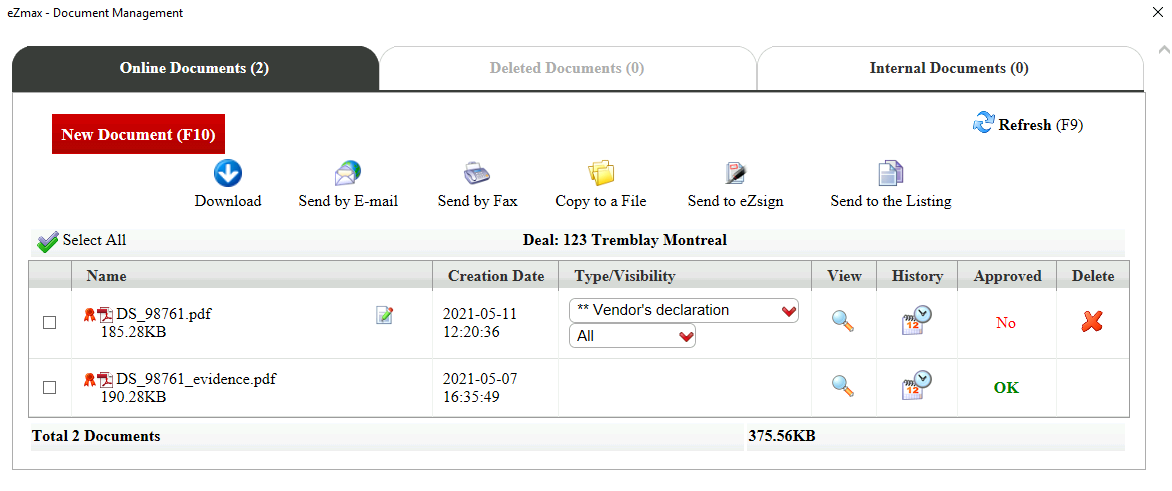
- The signed documents and electronic evidence from the eZsign folder will now be in the EDM of the selected eZmax file.