

English
Communication status (eZmax)
In the past, it was impossible to know for certain if an email had actually been sent, if it had reached its recipient, or if it had been blocked. Thanks to this new update in eZmax, you can now confirm the sending of an email within a file’s communications or find out why an email did not reach its recipient.
To access additional information, you need to click on the Communication icon (within a listing, a sale, etc.).
You will be able to see all communications related to the file if:
- You are the user who sent the communication;
- You are the user to whom the communication was sent;
- You have access to the module where the communication resides (for example, if you have access to the listing, you will see the communications for the listing).
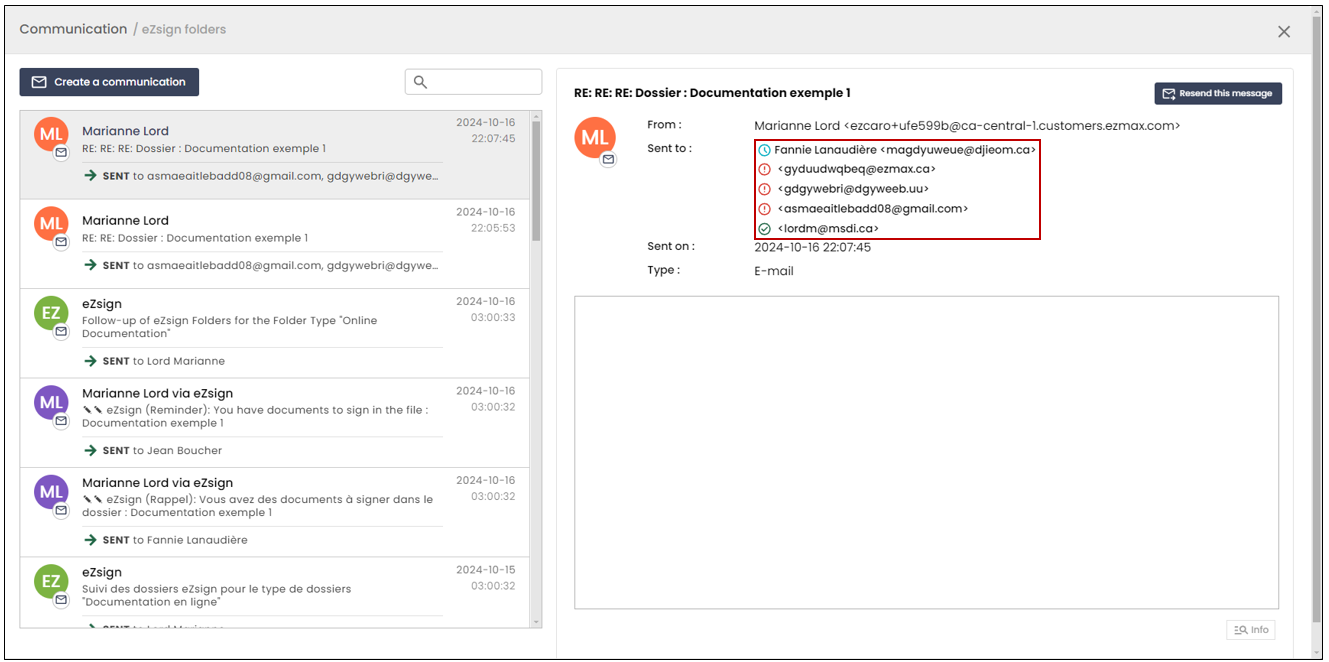
In the Sent to: section, you will be able to see if the communication was delivered to all email recipients thanks to this new feature.
The communication was delivered
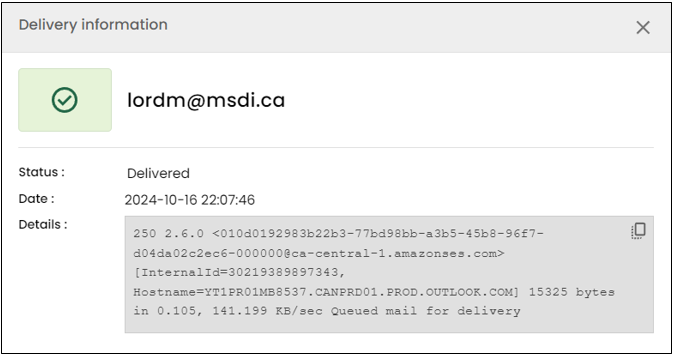
In this example, you can see that the communication was delivered to lordm@msdi.ca by looking at the green checkmark to the left of her name.
To view the details, click on the

icon.
- You will be able to confirm that the communication was delivered in the Status section.
The communication is on the waiting list
In this same example, you will notice that Fannie Lanaudière does not have a green checkmark to the left of her name, as the status of the communication is On the waiting list. The communication has not yet been delivered.
To view the details, click on the

icon.
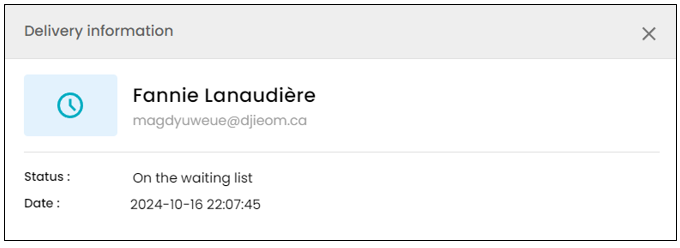
NOTE: If the communication fails to be delivered, the status will change to Not Delivered.
The communication could not be delivered
- In the Sent To : section, you can quickly identify the email addresses to which the message could not be sent by observing the icon to the left of each address.
NOTE: There are several reasons why a communication could not be sent.
- You will be able to see the reason by clicking on the exclamation mark. You should see Not Delivered in the communication’s Status section.
Here are a few examples:
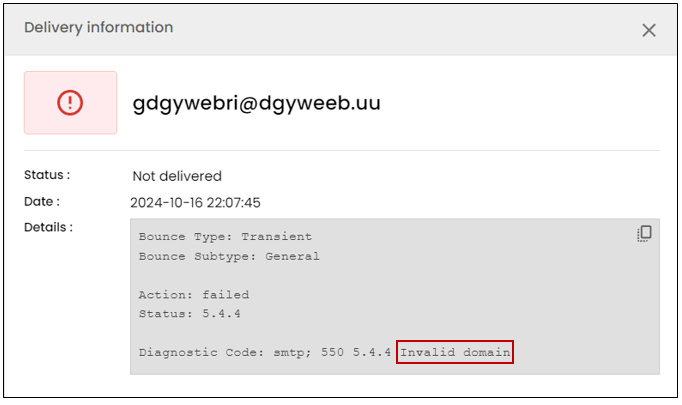
- In this first example, you will notice that the email address ends with ’.uu’. At the bottom of the details section, you will see the message Invalid domain. This indicates that the domain is invalid.
- In this second example, you will notice in the Bounce Subtype section that the email address is marked as OnAccountSuppressionList. This means that the user has previously identified this email as spam, and it is therefore on the suppression list.
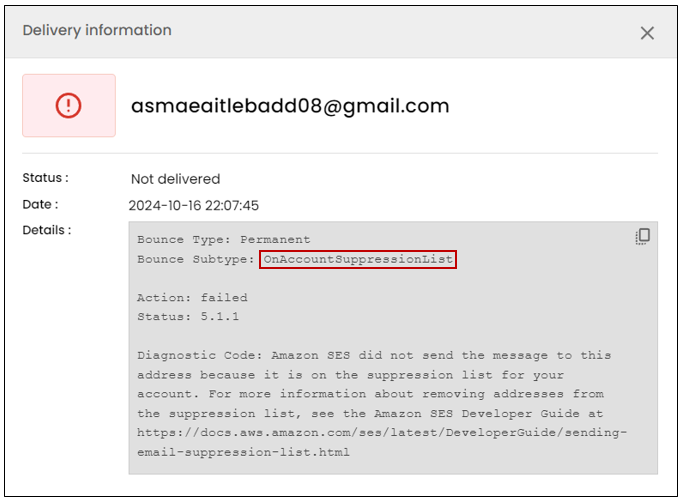
NOTE: Since the sender is considered spam, it will never be possible to send emails to this user.
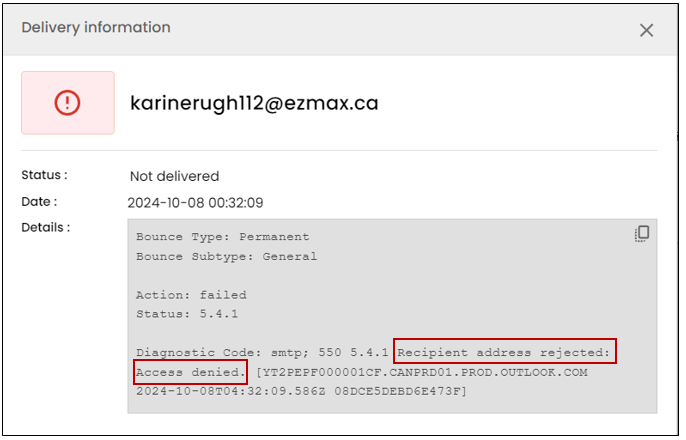
- In this final example, you will notice that the message in the Details section shows Recipient address rejected: Access denied. The email domain "@ezmax.ca" exists, but the username does not. It is possible that you made a mistake when typing the email address.
_
_
eZmax Mail Delivery Subsystem
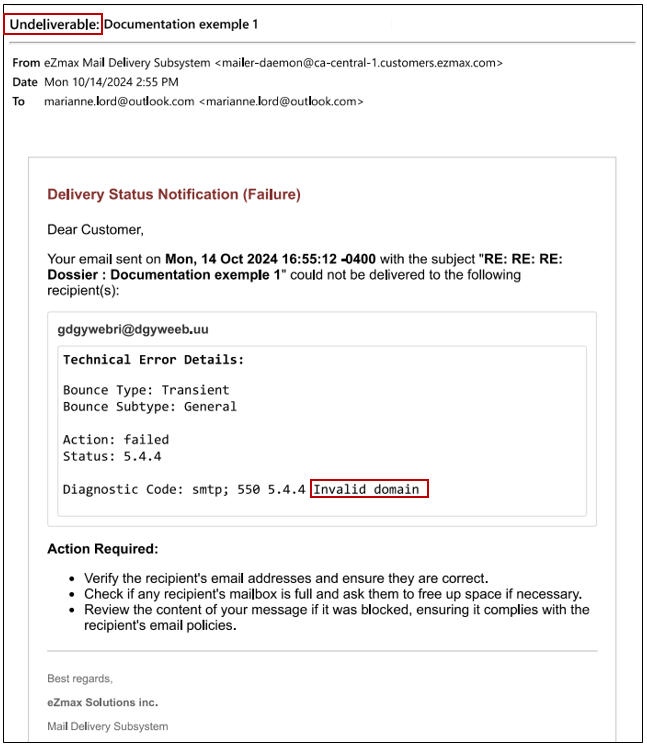
With this new feature, you will receive an email explaining why the message could not be sent to the relevant email address, without needing to check within the eZsign application. This email will be sent from the eZmax Mail Delivery Subsystem. The details of the delivery failure will be the same as those found in the communications of your application. There are two types of emails you might receive: Complaint or Undeliverable.
Complaint
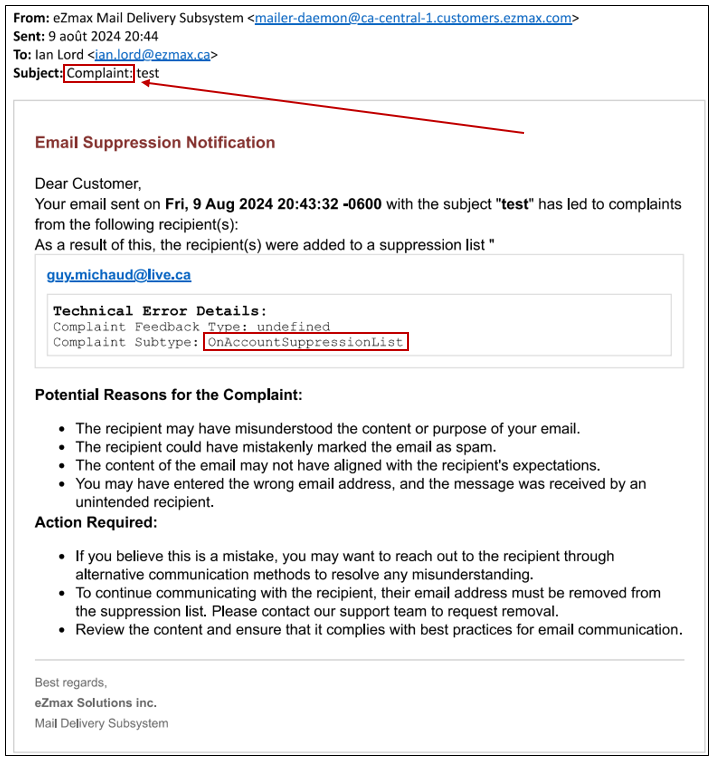
In this example, the email address to which the communication was sent is on the suppression list, meaning the email was previously marked as spam by the user. In this case, the email subject will be Complaint , followed by the original email title. You will be able to see OnAccountSuppressionList in the Complaint Subtype section.
_
_
NOTE: The Potential Reasons for the Complaint section presents possible causes for the failure to send, while the Action Required section suggests actions to take to resolve the issue.
Undeliverable
"In this second example, the email address used has an invalid domain, which is why the email was not sent. In this case, the email subject will be Undeliverable , followed by the original email title. You will be able to see Invalid domain in the Diagnostic Code section.
_
_
NOTE: The Action Required section suggests actions to take to resolve the issue.