

English
Acknowledgment of Receipt of an Offer/CO - Agent of One of the Two Partie
As an agent representing buyers or sellers only, if you want to add an acknowledgement of receipt on an offer or a counter-offer (CO), you can create a personal template. You need to manually add the fields in the offer or CO (signed by buyers and sellers) for the first time only and save this template in the list of personal templates. You can use this template later to speed up the process of adding the fields in the "Acknowledgement of Receipt" section of another offer or CO.
NOTE: It is not mandatory to save a personal template but if you do not, you will have to manually add and place the signature fields in the "Acknowledgement or Receipt" section of the document each time.
In this article, you will see more specifically a situation with an agent representing buyers who made an offer to sellers represented by another agent and those sellers accepted the offer. The buyer’s agent wants to add fields in the "Acknowledgement or Receipt" section of the offer so that the buyers can acknowledge that they have received a copy of the seller’s reply.
In the desired eZsign folder, add the offer signed by buyers and sellers. For more information, please see the article Adding/Editing/Deleting a Document in an eZsign Folder.
**In the "List of Documents" sectio n, click on the file name or the **Fountain Pen icon to display the document.
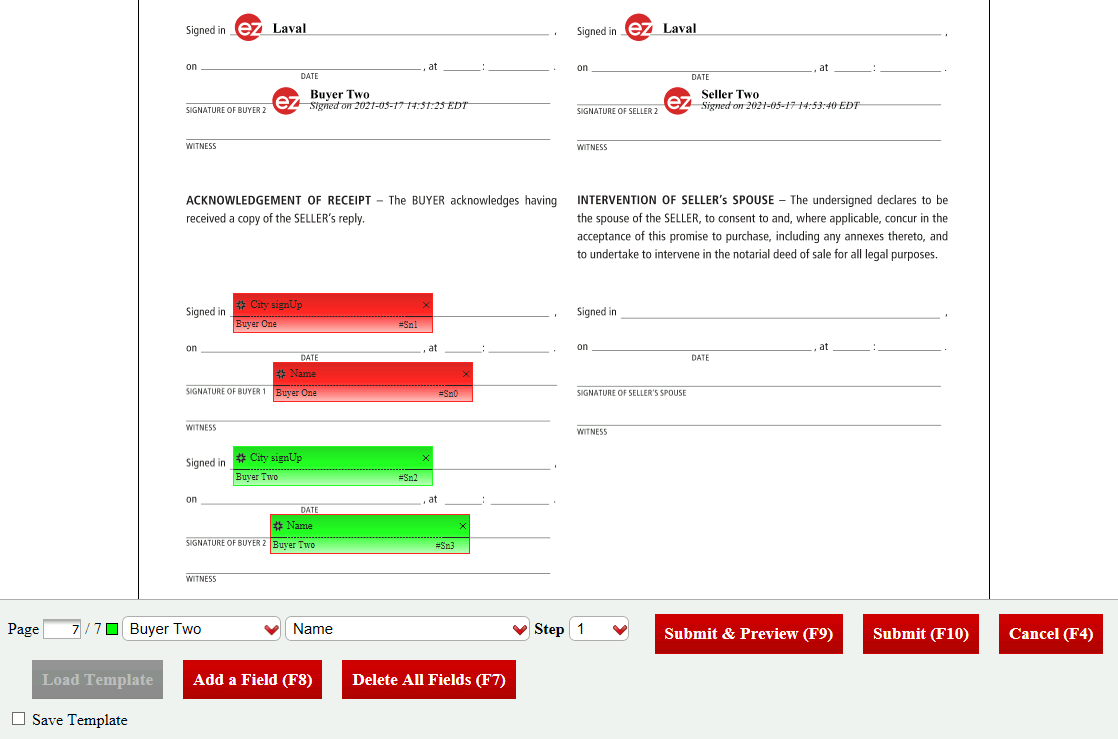
Add and place the "Signature City" and "Name" fields for each buyer on the offer. For more information, please see the article Manually Adding/Editing/Deleting a Field in a Document.
When all the desired fields are added, check the Save Template box.
Click on Submit.
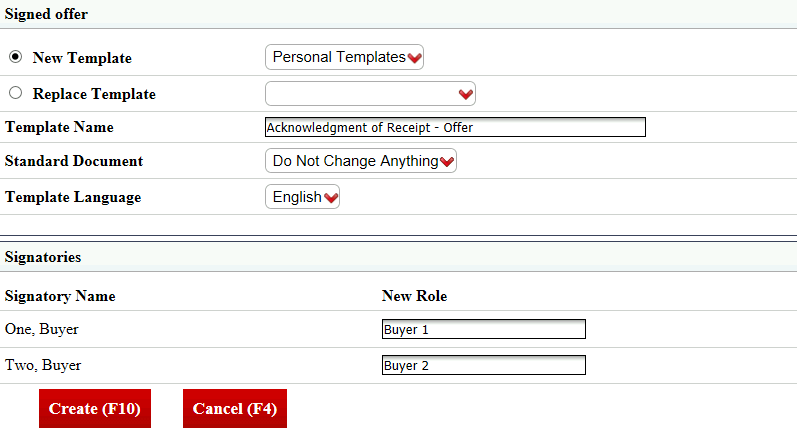
New Template : "Personal Templates" will be selected by default.
Enter the Template Name. For example: "Acknowledgement of Receipt - Offer".
Document Type : Select "Do Not Change Anything".".
Select the appropriate Template Language.
New Role : Assign a role to the signatories of this document. In this example: "Buyer 1" and "Buyer 2".
Click on Create and the template will be added to the list of personal templates. When adding another acknowledgment of receipt for an offer, you will be able to load the appropriate template instead of adding them manually.
You can now proceed to the next steps, which are:
- Send the documents to sign. For more information, please see the article Sending Documents to Sign.
- Sign the documents. For more information, please see the articles Signing a Document as a User and Signing a Document as an External Signatory.
- Send the signed documents by e-mail. For more information, please see the article Sending Signed Documents by E-mail.