

English
Creating a deal/rental (eZmax for agents)
Creating a Deal in eZmax
- You can go in the system to create a deal when you have an accepted offer.
Listing’s Agent
From Main menu >> Files >> Listings.
Click on the desired listing.
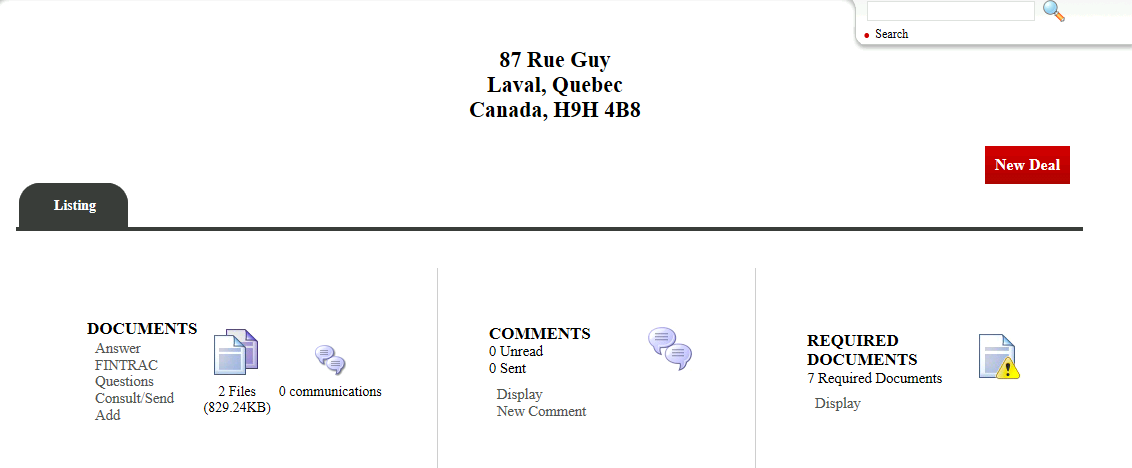
- Click on New Deal.
NOTE: You don’t need to enter the sellers information because it is already in the system.
"Buyers" Section
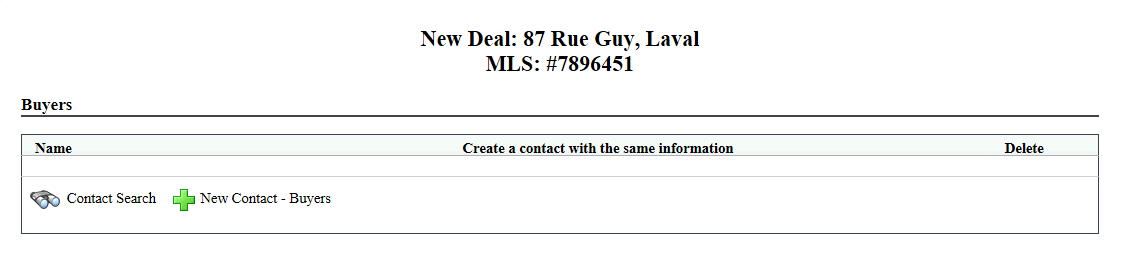
If it is a new buyer for you, click on the green + (New Contact - Buyers) and enter all the information such as first name, last name, e-mail, etc.
If the buyer already exists in the system, click on the binoculars (Contact Search) and enter his name.
"Transaction" section

Type : Deal, Rental or Real Estate Referral.
Accepted Offer Date/ Accepted Promise to Lease Date
Expected Closing Date : For rentals, enter the date of beginning of the rental (date of the lease).
Seller’s Lawyer and Buyer’s Lawyer : Start typing the name of the lawyer or put a question mark to see all the lawyers in the system and select it from the list.
$ Transaction
"Mortgage Information" section
- Information not mandatory.
"Conditions" section
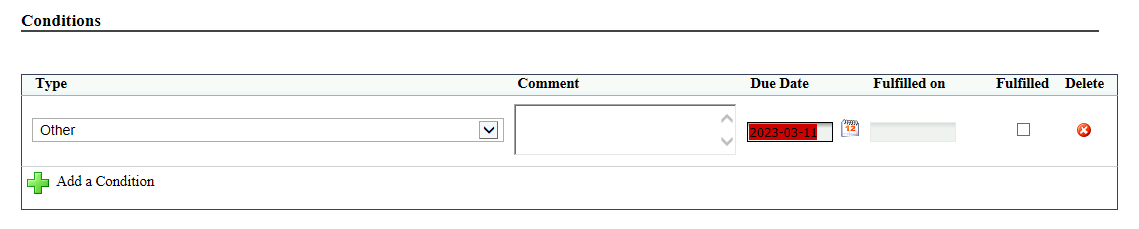
If applicable, click on the green + to Add a Condition from the list.
You can add a Comment.
Due Date : Enter the date at which the condition needs to be filled.
"Commissions" section
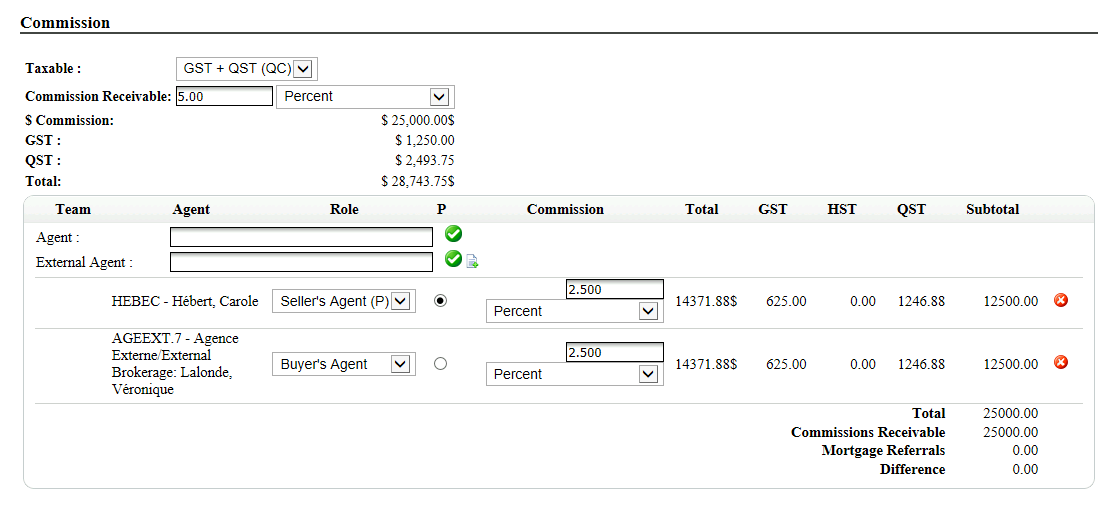
Taxable : Select the appropriate taxes based on province of the transaction.
Commission Receivable : You are the listing agent, so you will put in the complete commission amount for this transaction. From the list, you can select "Percent", "Percent, Taxes inc.", "Dollars", "Dollars, Taxes inc.", etc. In this example, you enter 5 percent.
You now need to distribute that percentage between the seller’s agent and buyer’s agent. The seller’s agent appears by default.
Add the buyer’s agent. In this example, she is from an external agency. Start typing the name in External Agent and click on the green check mark.
Enter the desired percentage for each agent. In this example: 2.5%. The system will do all the calculations.
"Comment" section
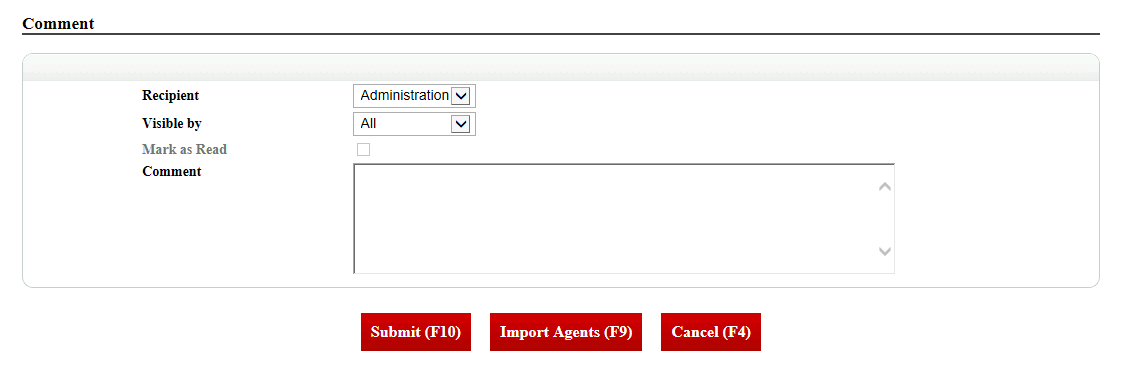
You can write a comment to transmit to your brokerage. Your brokerage will be notified of that comment attached to your transaction on their portal.
Click on Submit to create your deal.
The next step is to add the documents to the deal. For more information, please see the article Consult and add documents in EDM (eZmax for agents).
Buyer’s Agent
In the case where the listing is not yours.
From Main menu >> New Deal.
Make sure that the listing has not been entered into the system. If it is in the system, it is the listing agent from your brokerage who must enter the deal.
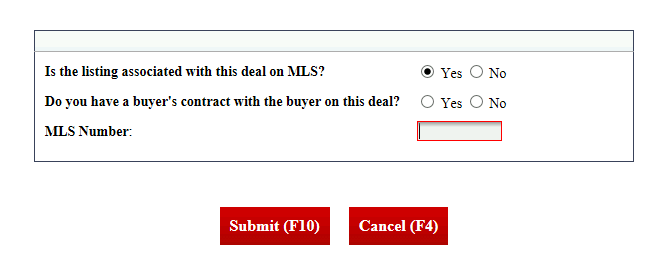
If the listing is associated with a MLS number, check "Yes" and enter it in the MLS Number field. The listing information will be imported even if it is not your listing.
If the listing is not associated with a MLS number, check "No" and answer the next question: Do you have a buyer’s contract with the buyer on this deal?
Click on Submit.
You will be able to create the deal by following the steps that were explained earlier in this article in the "Listing’s agent" section.