

English
Viewing/Editing/Archiving/Deleting an eZsign Folder
Viewing an eZsign Folder
Once a folder is created, you can consult it.
From Main menu >> General >> List of Personal Folders - eZsign, or;
Click on this icon

(eZsign Personal Folders).
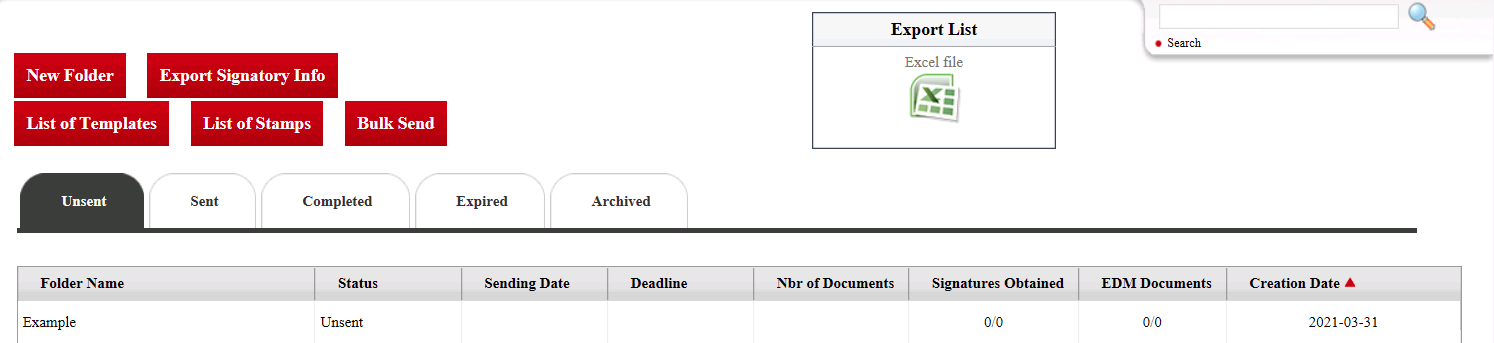
You can view the folders by status by clicking on the appropriate tab (Unsent, Sent, Completed, Expired or Archived).
Click on the desired folder to display it on the screen.
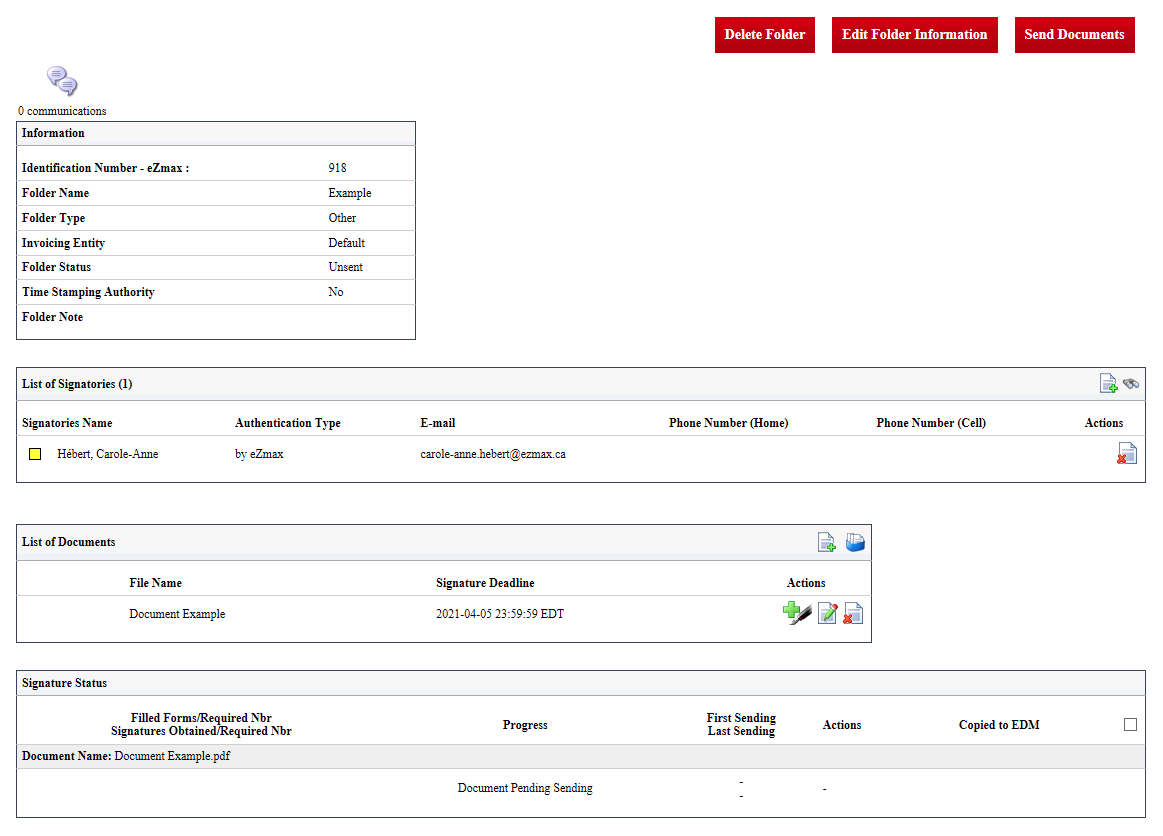
"Information" Section
Identification Number - eZmax : Assigned to the folder automatically by the system when it is created.
Folder Name : Name assigned to the folder by the user when it was created.
Folder Type : Name of the folder type selected when the folder was created.
Invoicing Entity : Coming soon.
Folder Status : Step at which the folder is currently at. For more information, please see the article Status of eZsign Folders.
Time Stamping Authority : Configured by your administration.
Folder Note : Entered when the folder was created.
"List of Signatories" Section"
- The user who created the folder is automatically added to the signatories. It is in this section that you can add, edit and/or delete signatories. For more information, please see the article Adding/Editing/Deleting a Signatory in an eZsign Folder.
"List of Documents" Section
- It is in this section that you can add, edit and/or delete documents and fields of signature. For more information, please see the articles Adding/Editing/Deleting a Document in an eZsign Folder and Adding/Editing/Deleting a Field in a Document.
"Signature Status" Section
Example of a document not sent:

Example of a document sent, without signature:

Example of a partially signed document:

Example of a completed document:
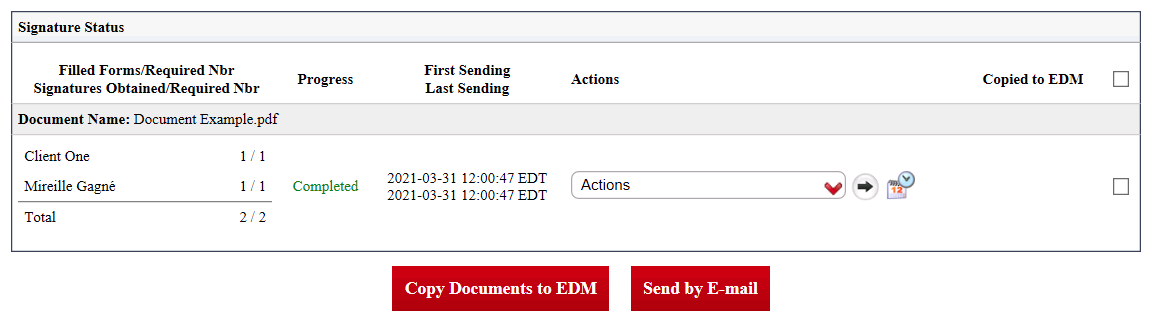
Filled Forms/Required Nbr and Signatures Obtained/Required Nbr : For each document, you can see how many completed forms or signatures obtained versus the number of forms or signatures required for each of the steps and the total for the entire document.
Progress : For each of the documents, if there are missing signatures, you will see the progress in image and if all the signatures have been obtained, it will be written "Completed". If there are forms to complete, it will be written "Form to Fill In."
First Sending and Last Sending : The date and time of the first and last sending of this document.
Actions : Depending on the progression of signatures in a document, different actions are possible such as downloading the electronic evidence. For more information, please see the article Actions in the "Signatures Status" Section of an eZsign Folder.
Copied to EDM : It is possible to send a completed document in an eZmax EDM file (listing, deal, refused offer, buyer’s contract or other income). For more information, please see the article Copy the Documents to the EDM.
When the document is completed, this icon

(History) appears in the right section. You can click on the icon to display more information about the document.
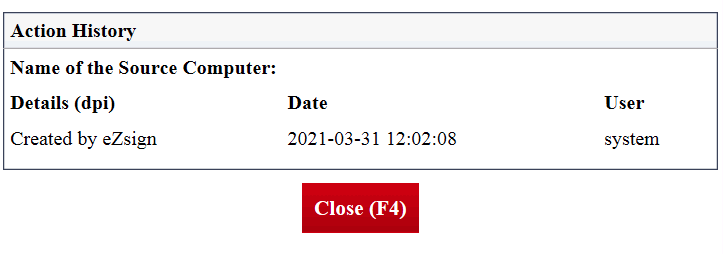
- When the document is completed, a box appears to the right completely of it. You can check this box and click on this icon:

(Send by E-mail). For more information, please see the article Sending Signed Documents by E-mail.
Communication Management
It is possible to consult the information related to the sending of documents to sign and the documents completed in a folder via the communication management.
- Click on this icon

at the top left of the folder to open the communication management.
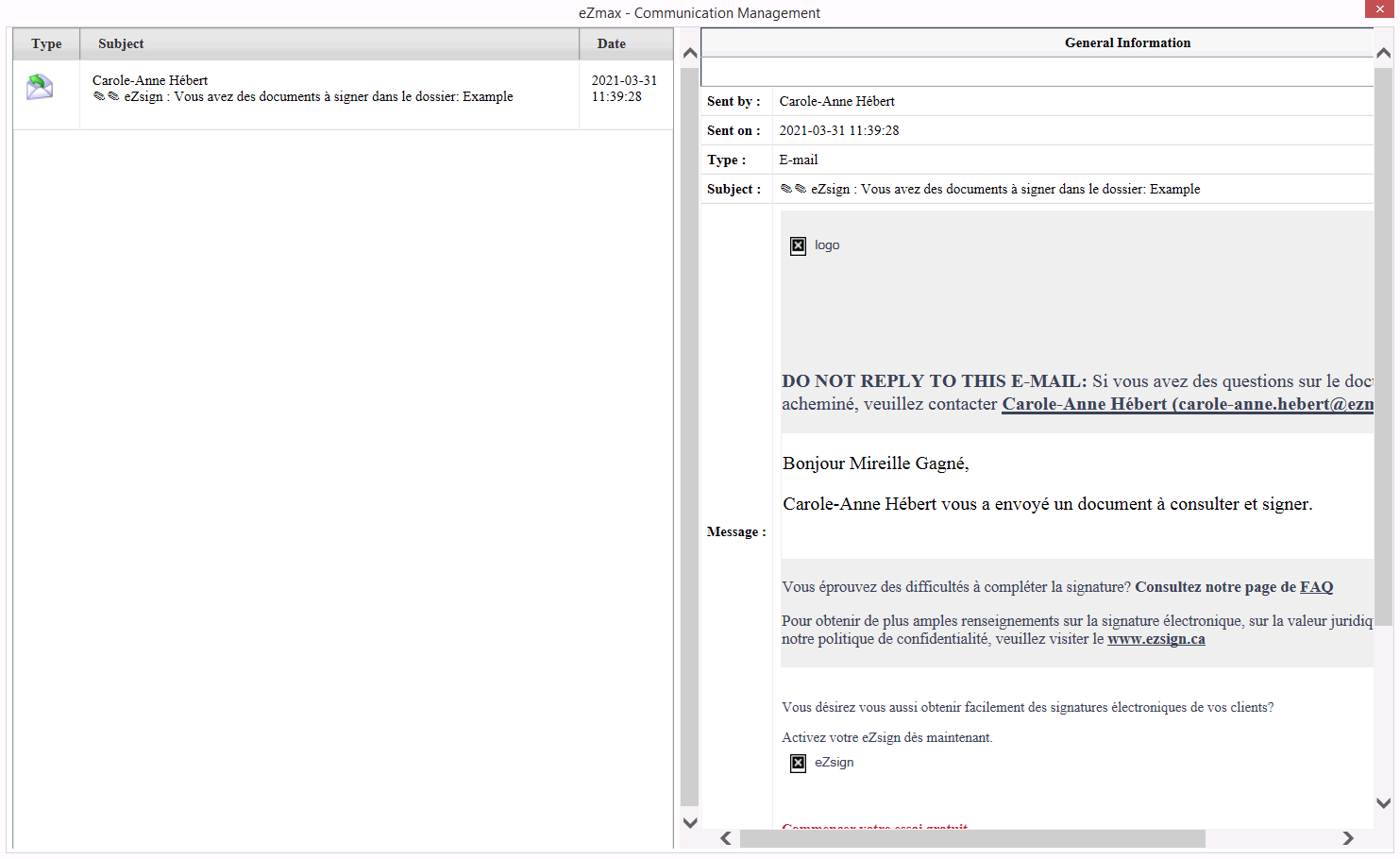
On the left side of the window, you will see a summary of the sending. It shows you the type, subject and the sending date of the document.
On the right side of the window, you will see the details of the e-mail sent.
Editing the Information of an eZsign Folder
Once a folder is created, you can change its information, i.e. the name, the frequency of the reminder and the notes.
From the List of Personal Folders - eZsign, select the desired folder.
Click on Edit Folder Information.
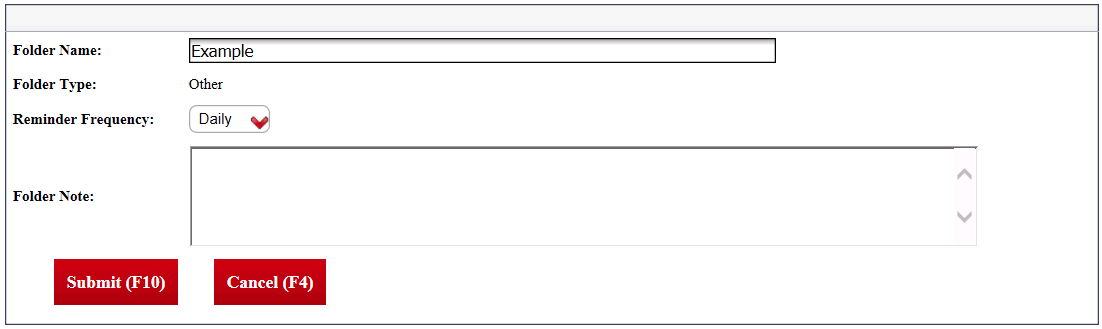
- Make the desired changes and click on Submit to save them.
Archiving an eZsign Folder
It is possible to archive an eZsign folder but only if it includes completed documents.
Warning
Once a folder is archived, it will no longer be possible to add new signatures, but you will be able to view those that have already been added to this folder.
An eZsign folder is automatically archived after 180 days of inactivity. An archived folder cannot be reactivated but you can create a new folder with the same name but adding "(2)" at the end. You will be able to search for the same signatories using the Binoculars icon.
From the List of Personal Folders - eZsign, select the desired folder.
Click on Archive Folder and this warning message will appear:
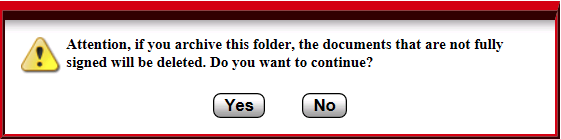
- Click on Yes to confirm.
Deleting an eZsign Folder
It is possible to delete an eZsign folder, but only if no document has been completed in the folder. Once a document had the completed status, the folder can no longer be deleted.
From the List of Personal Folders - eZsign, select the desired folder.
Click on the Delete Folder.
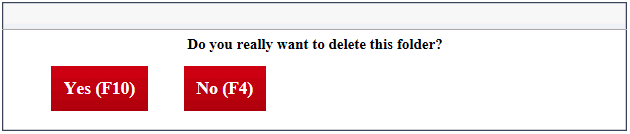
- Click on Yes to confirm.