

English
Account Management
This section guides you through managing your eZsign account, whether you are using a Corporate or Individual account. You will find the necessary steps to update your personal information, adjust your usage preferences, manage your signatures, view your profile history, and administer colleague access. Follow the instructions according to your account type to optimize your experience on the eZsign platform.
Managing Your eZsign Account - Corporate
- From the main menu >> click on your profile picture >> Account Information.
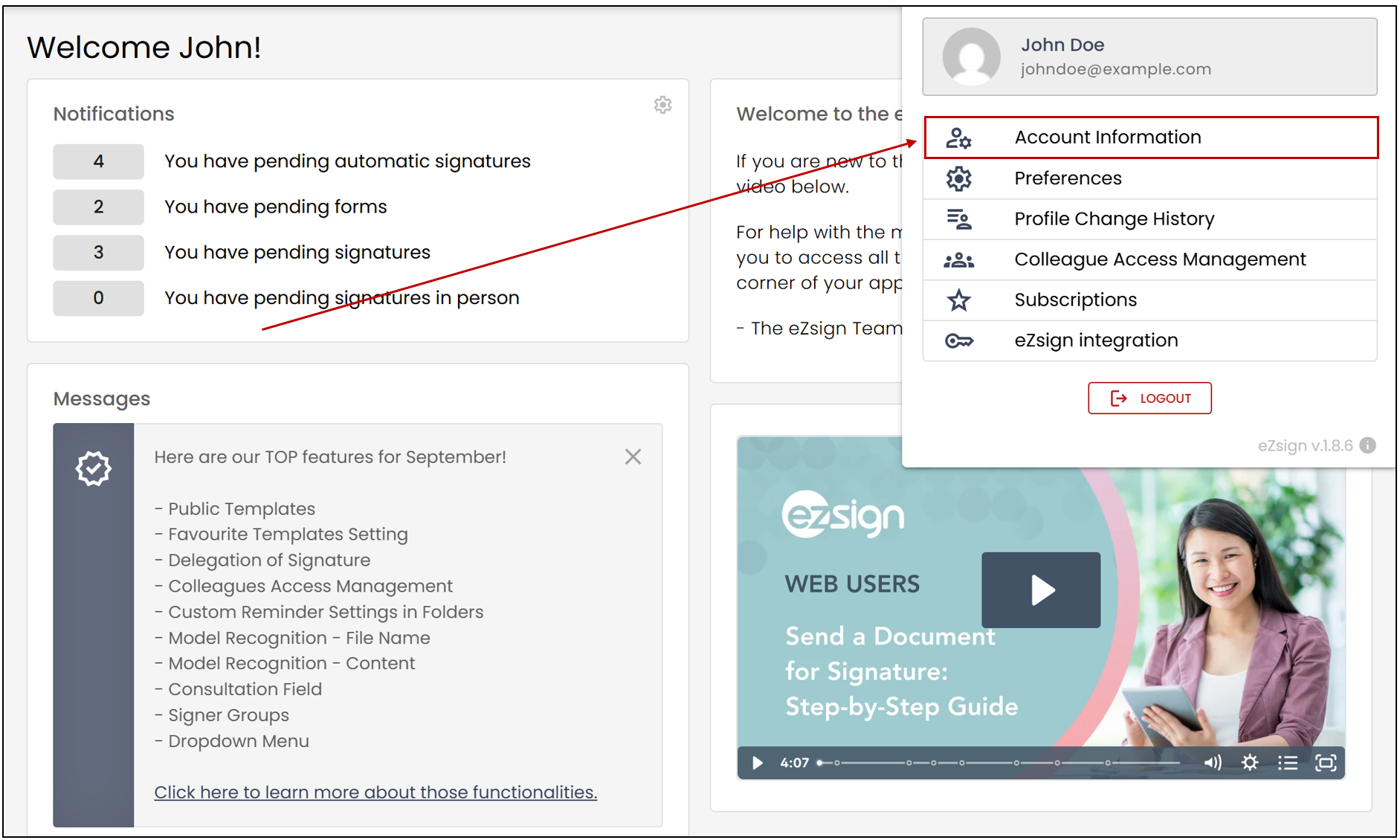
Account Information
- To change your password, please first enter your Current Password , then type the New Password in the field on the right.
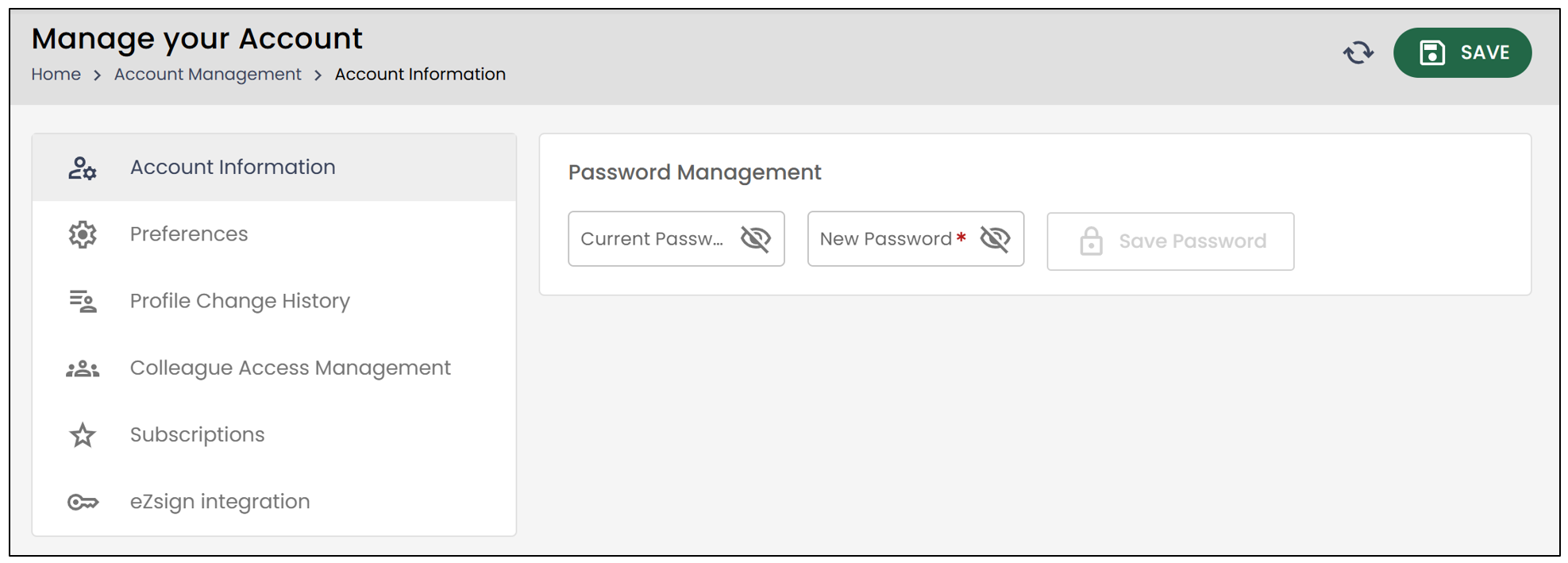
- Then click on Save Password to save your changes.
Preferences
- In the Application Preferences section, you will be able to change the Application Language and Time zone using the drop-down lists provided.
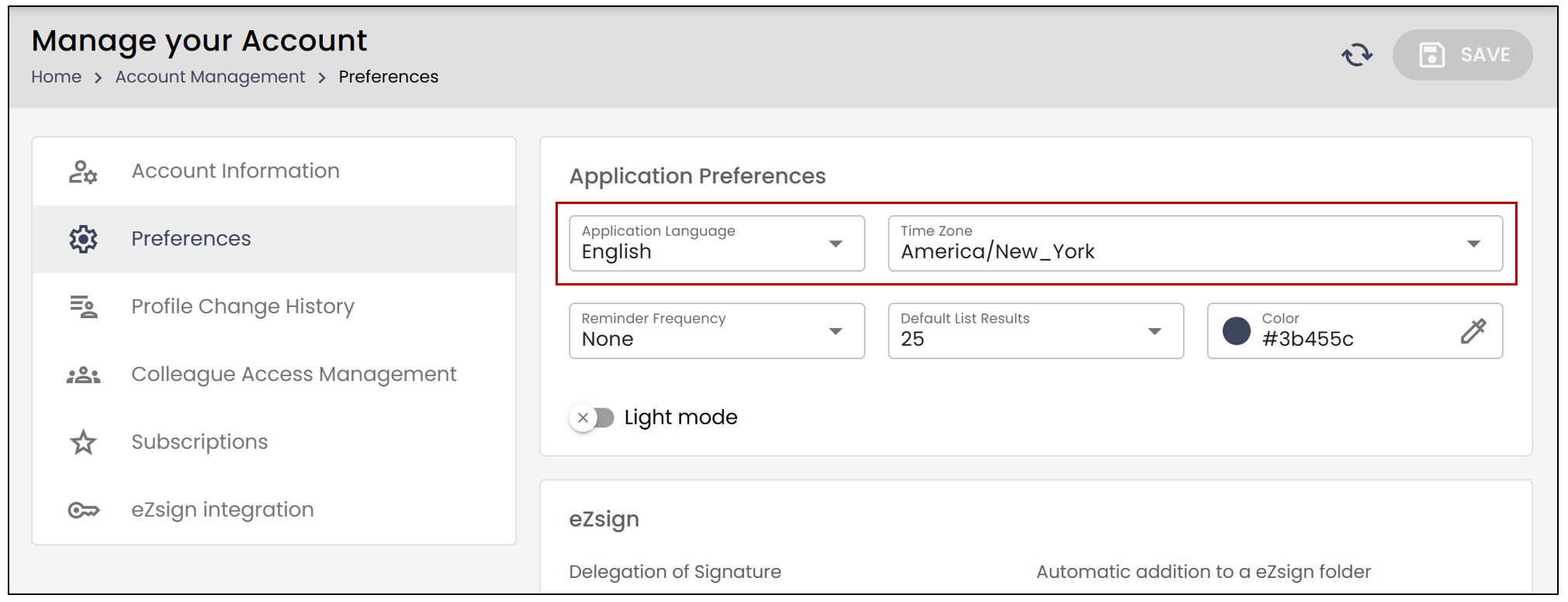
- You can then modify:
Reminder Frequency : If you want the system to automatically send a reminder to your clients to inform them that they haven’t signed yet.
Default List Results : Number of rows displayed when viewing a list.
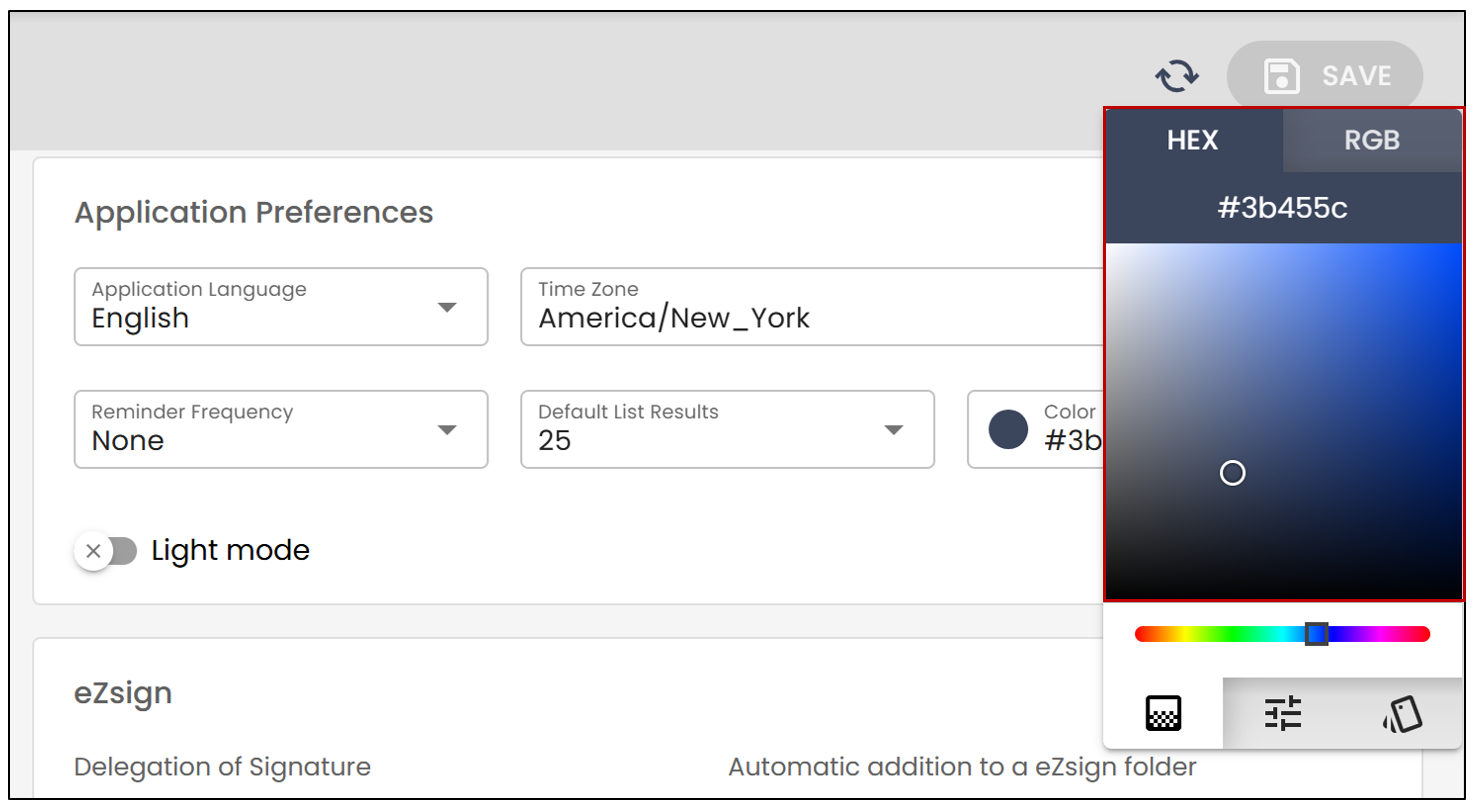
Colour : By clicking on the

icon, you can move the slider to choose your desired colour to personalize your app.
In the eZsign section, you will have the option to delegate your signatures to another user. To do so, you must enable the option I want to delegate my signatures to another user.
- From the drop-down list, select the user you wish to delegate to.
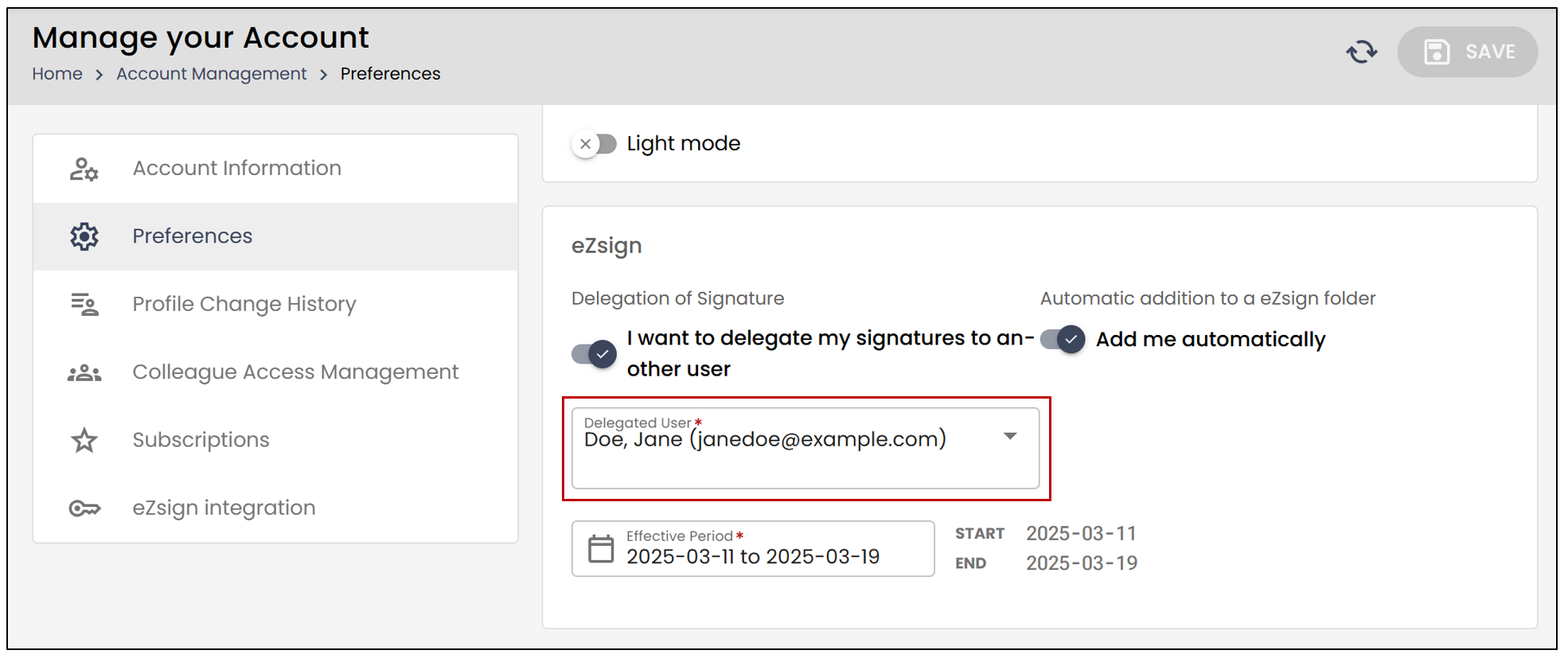
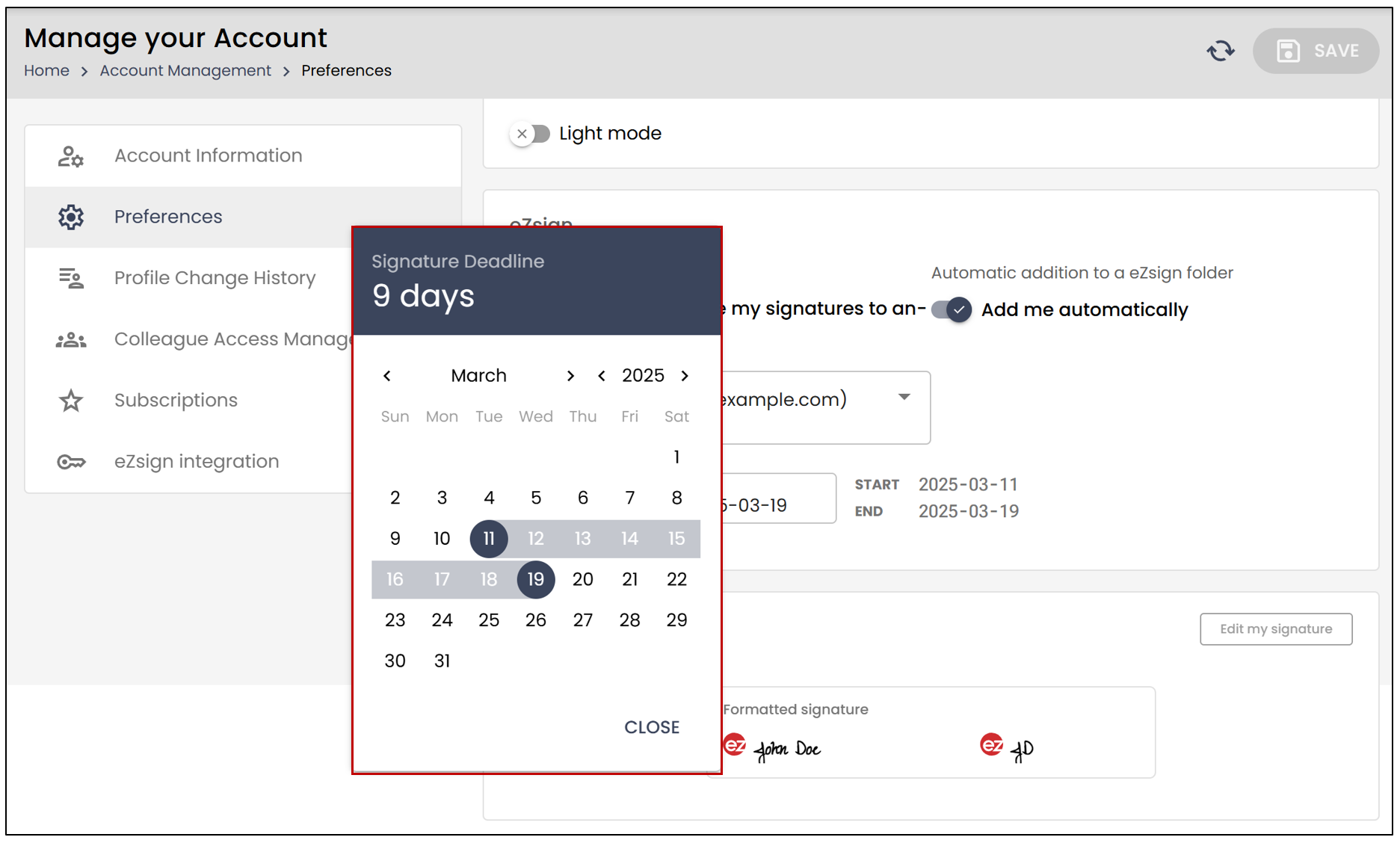
- You will then be able to select the effective period by clicking on the

icon. A calendar will appear, allowing you to choose the duration.
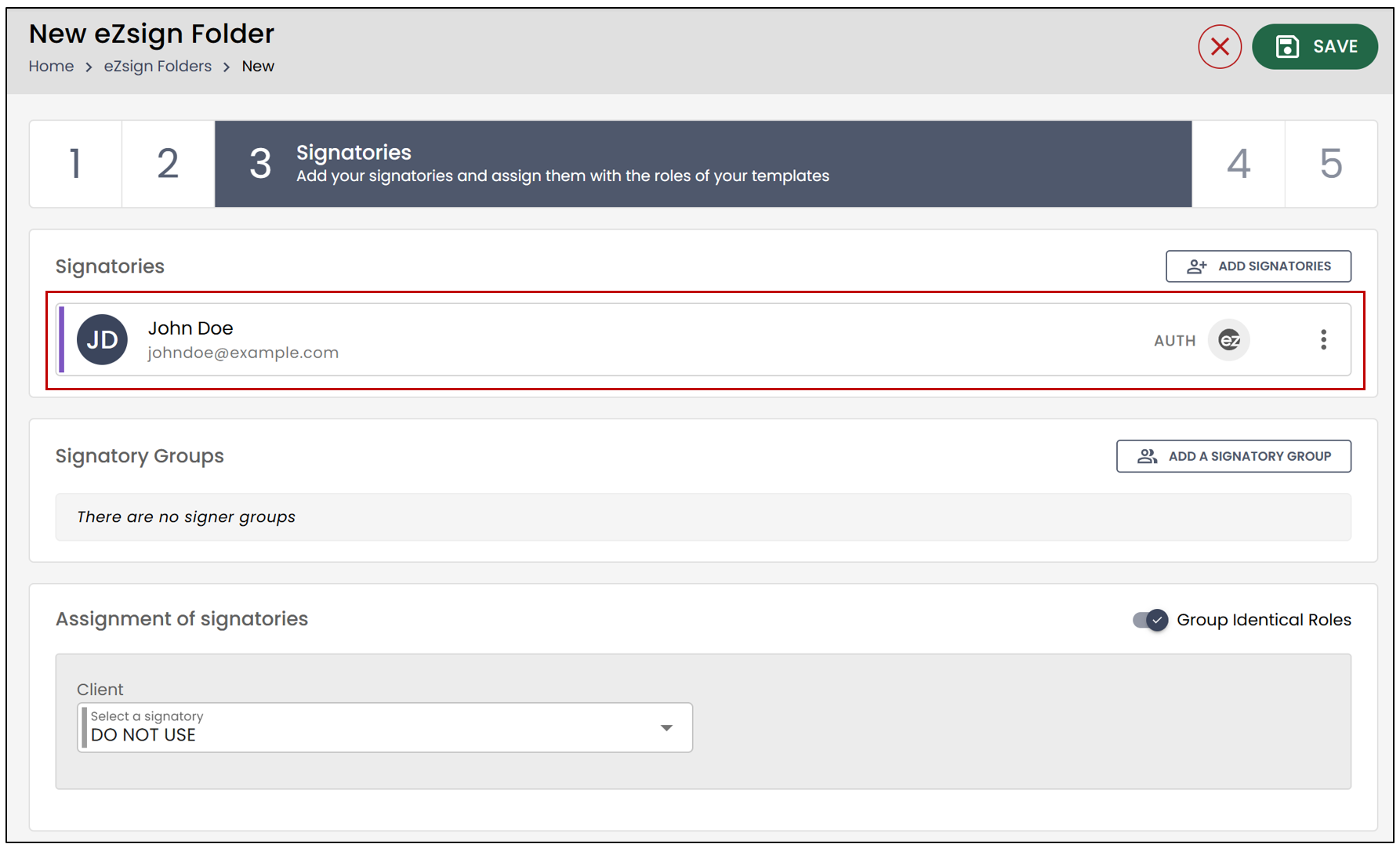
Under Automatic addition to an eZsign folder , you will have the option to check Add me automatically. If this option is enabled, when an eZsign folder is created, you will automatically be added as a signer to the folder.
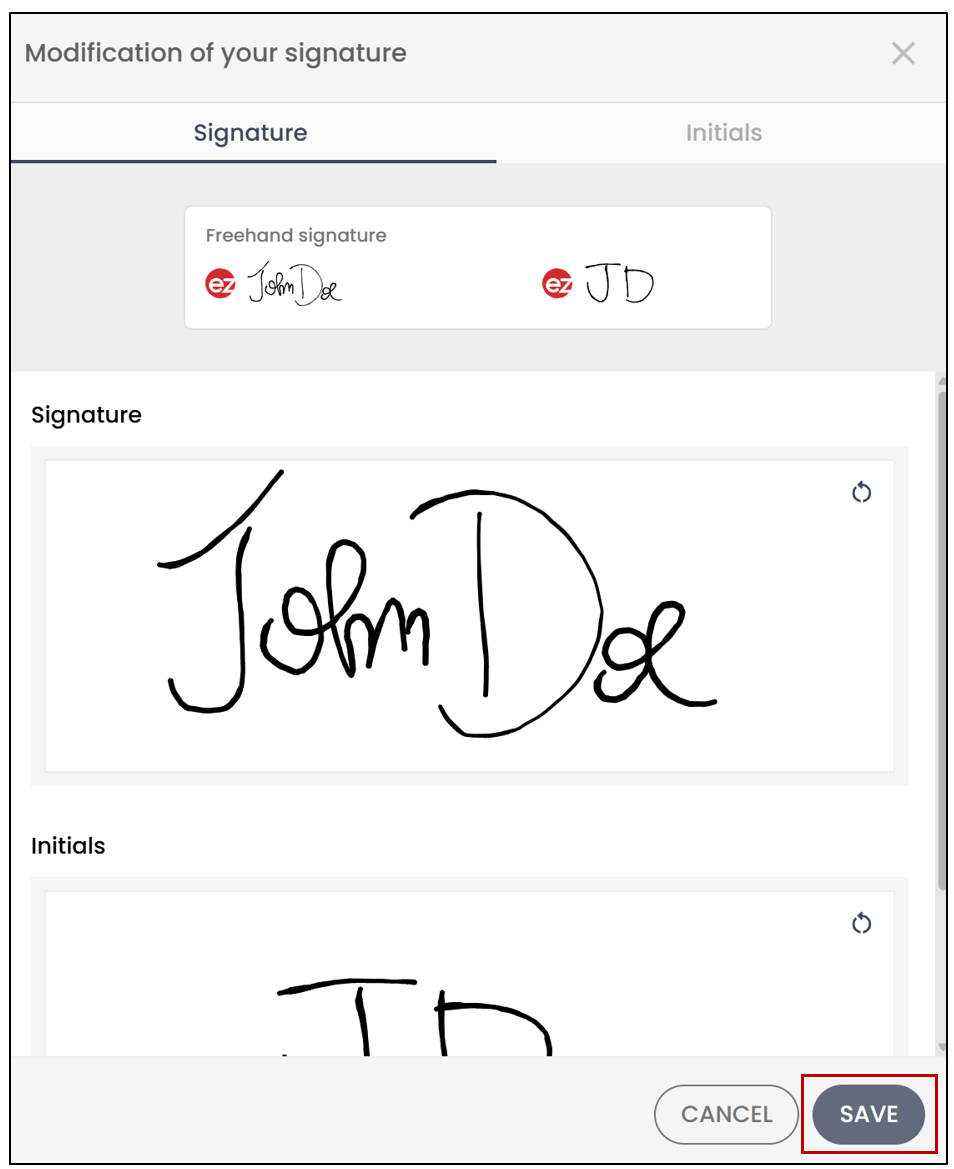
In the My Signature section, you can choose a default template and, if you wish, add a handwritten signature by clicking on Edit my signature.
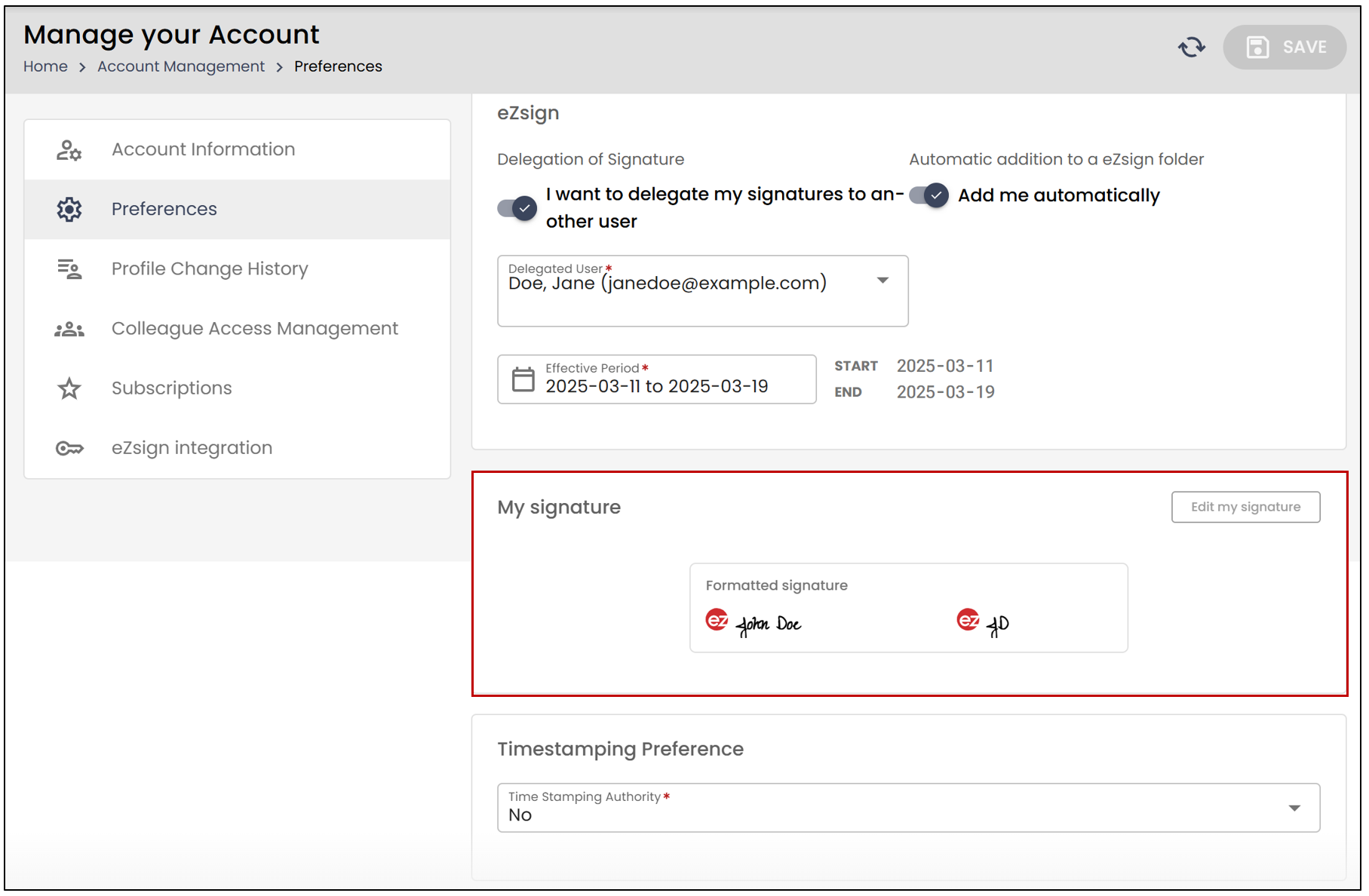
- To save your changes when adding a handwritten signature, select Save.
For more information about Time Stamping Authority , please refer to the article Time Stamping Authority.
Profile Change History
In this section, you will be able to view Who has used your profile as well as the Profiles you have used.
Colleague Access Management
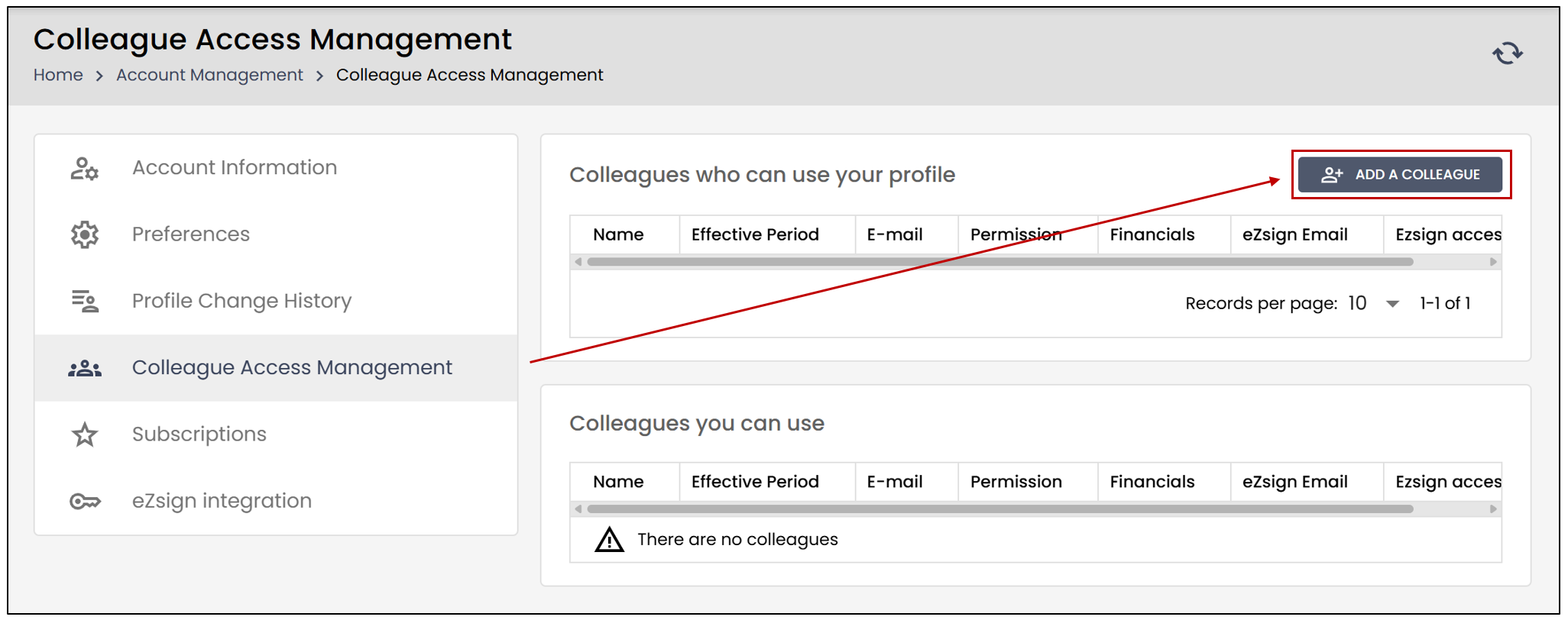
In this section, you will be able to see the colleagues authorized to use your profile, as well as the profiles of colleagues you are authorized to use.
- To add a colleague authorized to use your profile, click on Add a Colleague.
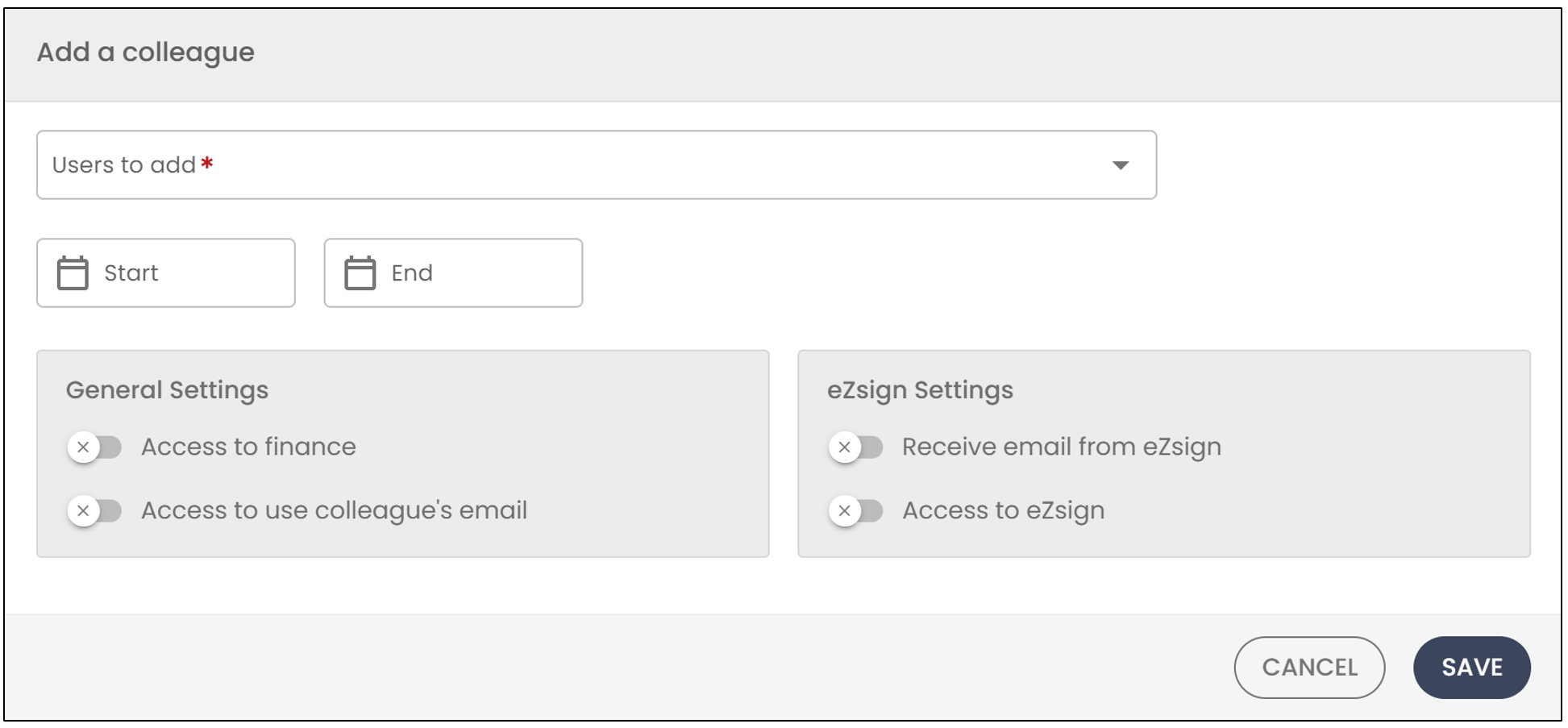
You will be able to select a user from the drop-down list.
Then, choose a Start date and an End date during which this user will be authorized to access your profile.
You can then select the items the user will be authorized to access in your account during this period.
Click on Save to add the user.
Managing Your eZsign Account - Individual
- From the main menu >> click on your profile picture >> Account Information.
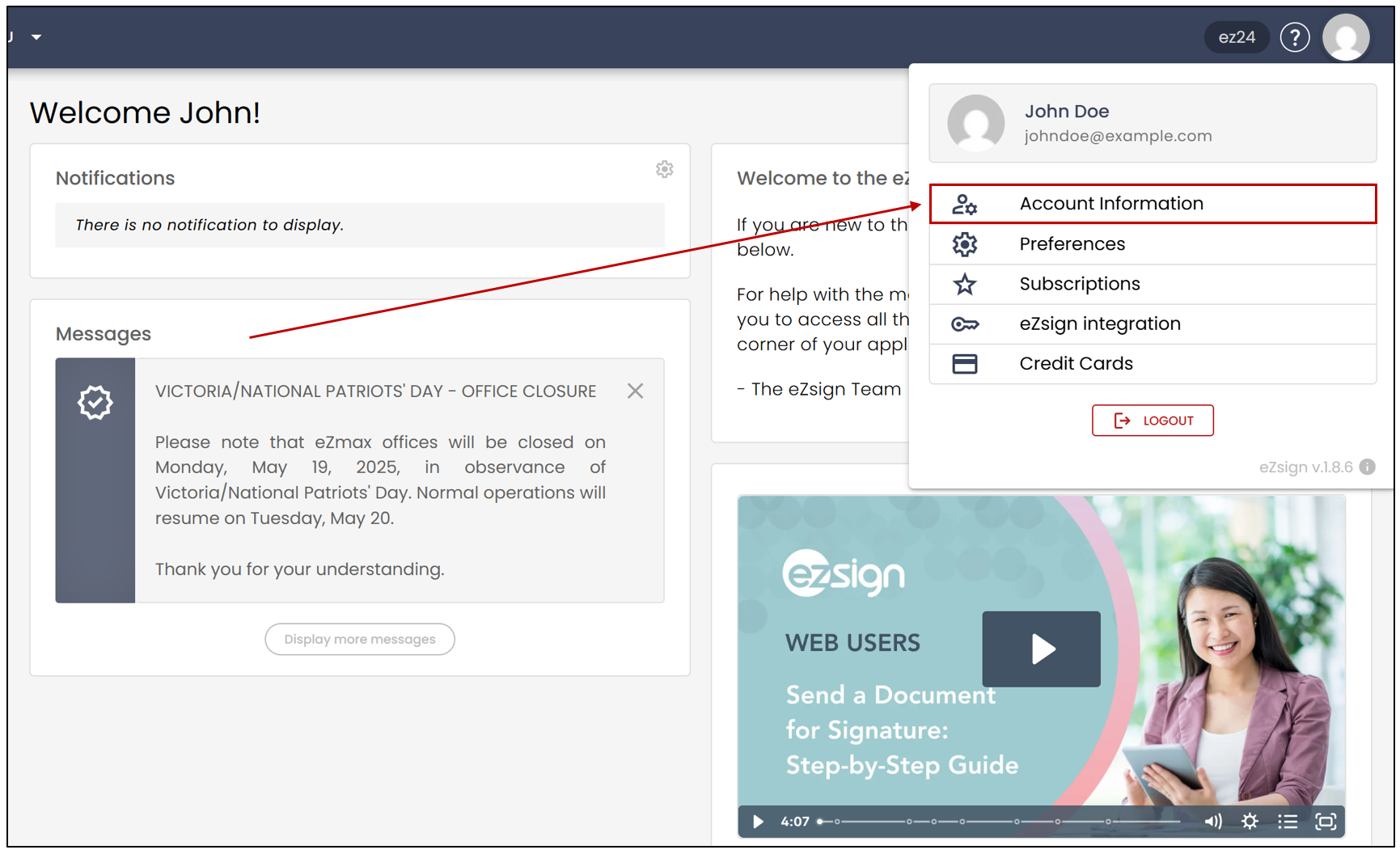
Account Information
In the Account Information section, you will be able to update your personal details (name, address) as well as change your password.
- To update your personal information, simply make the desired changes and click Save.
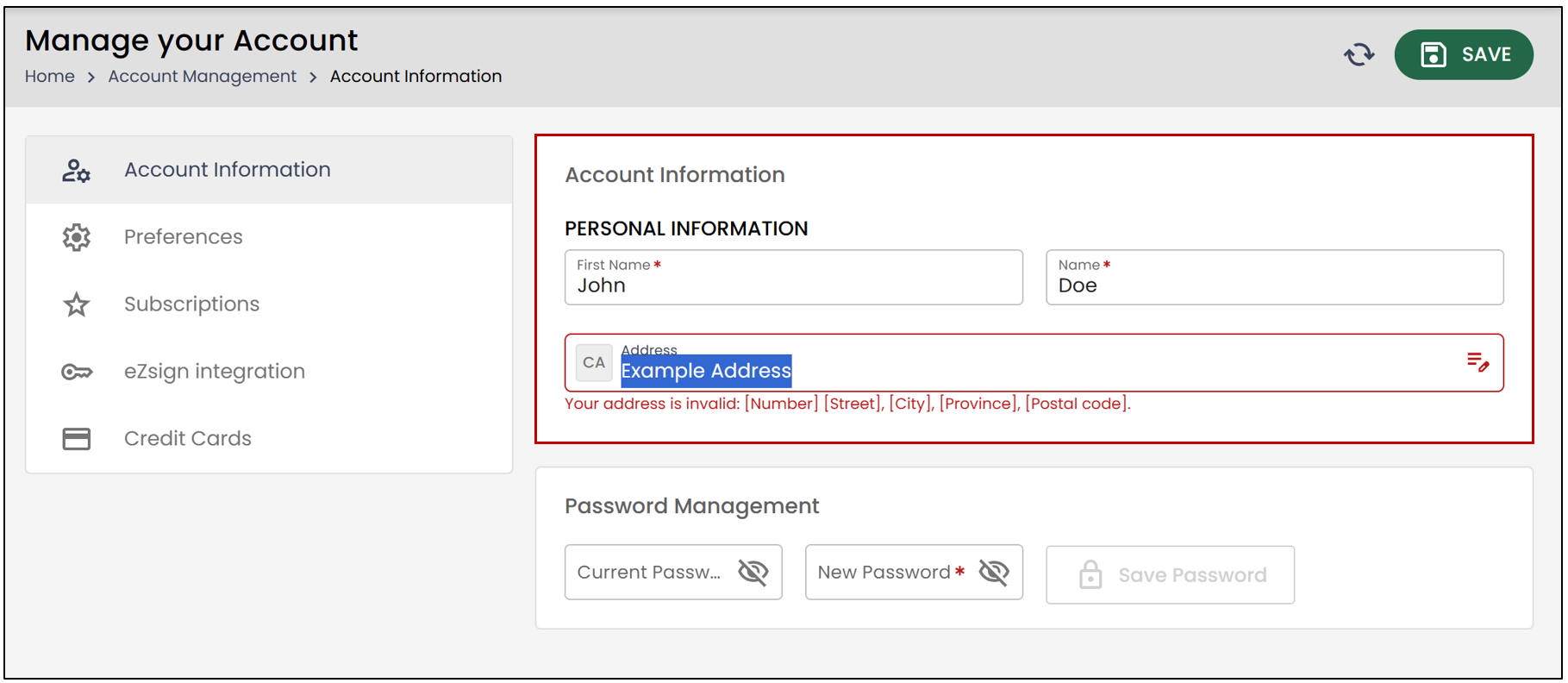
- To change your password, first enter your current password, then type your new password in the field on the right.
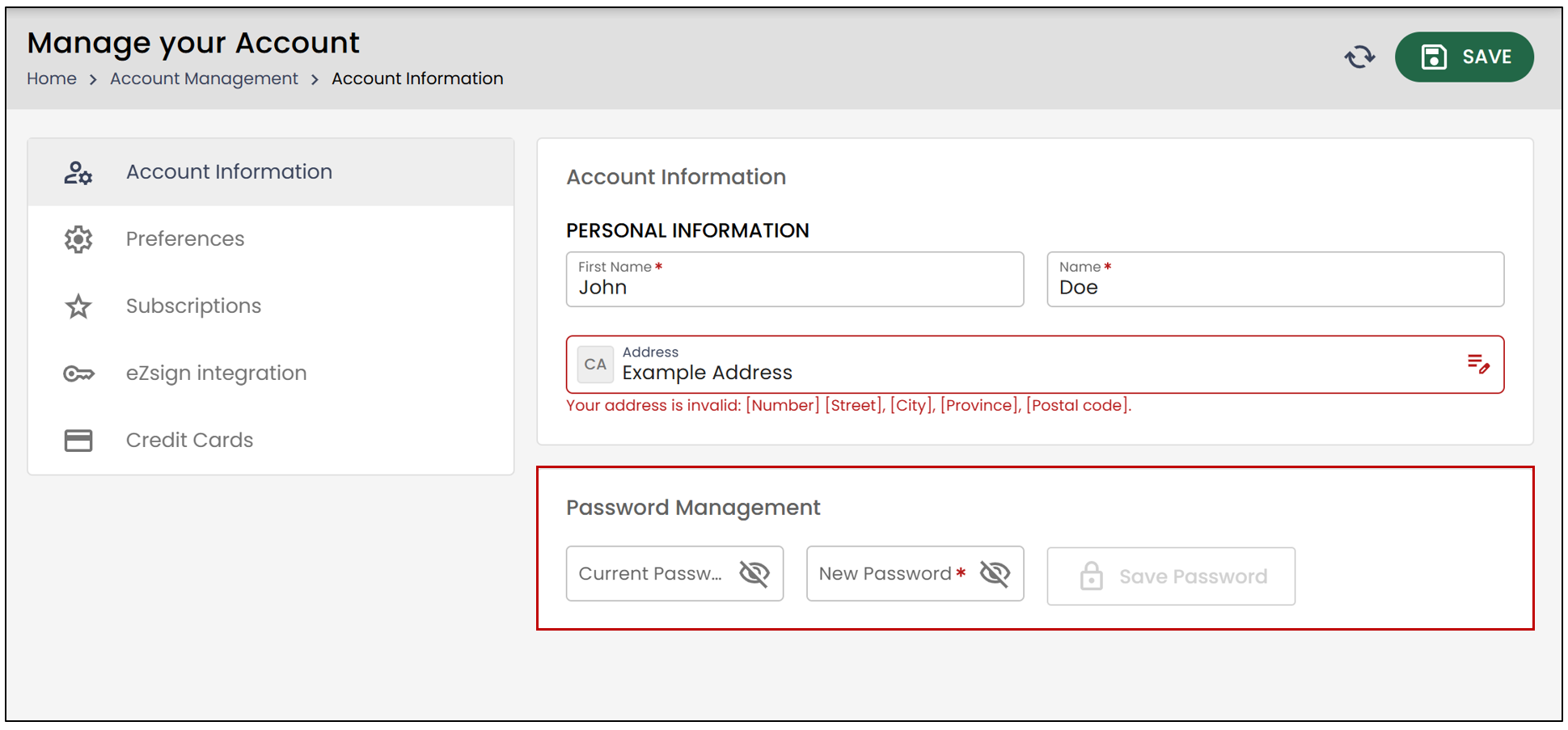
- Then click on Save Password to save your changes.
Preferences
- In the Application Preferences section, you will be able to change the Application Language and Time zone using the drop-down lists provided.
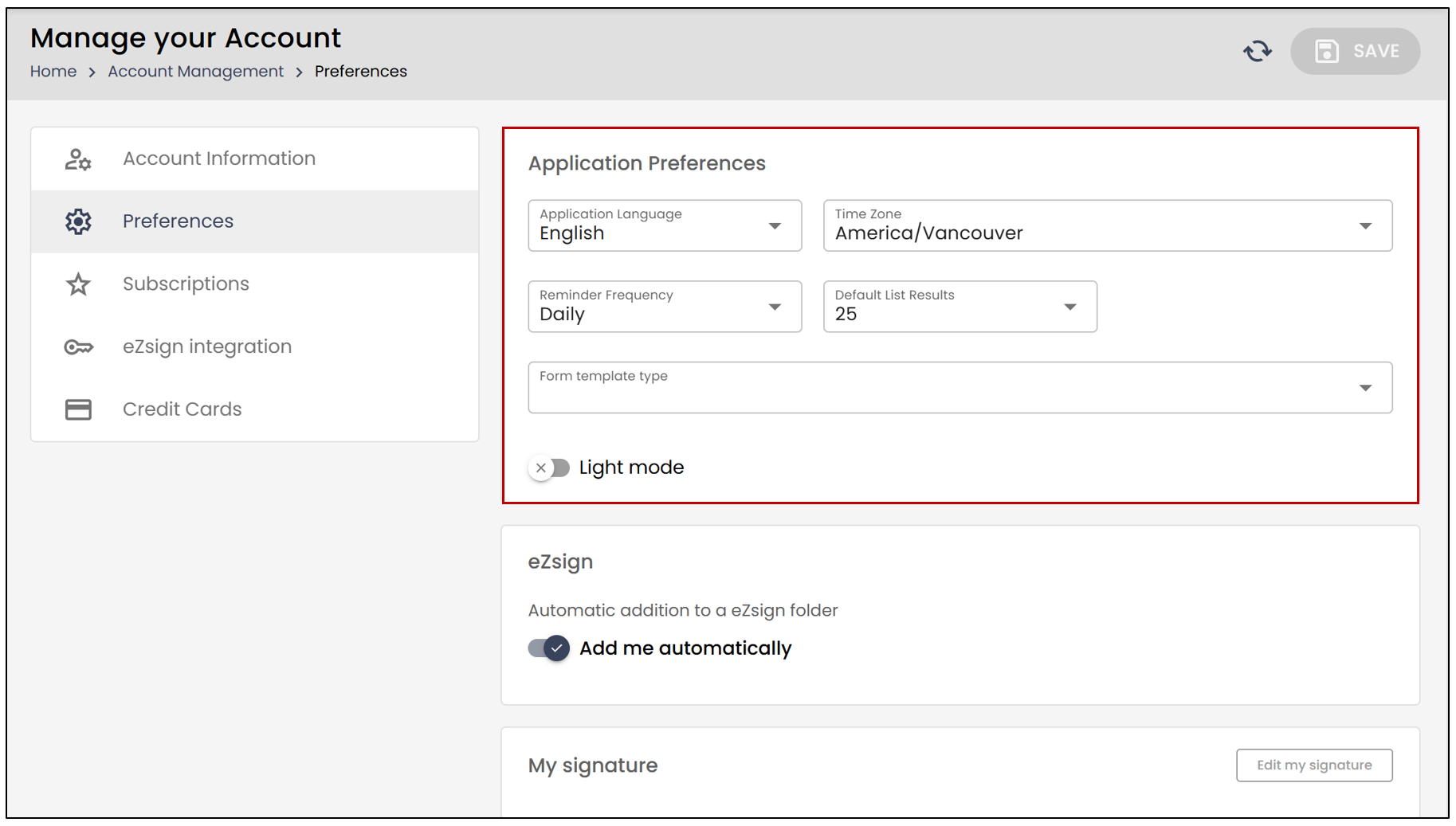
You can then modify the following settings:
Reminder Frequency : If you want the system to automatically send reminders to your clients to inform them they haven’t signed yet.
Default List Results : Number of rows displayed when viewing a list.
Form Template Type : Select the form template type from the drop-down menu.
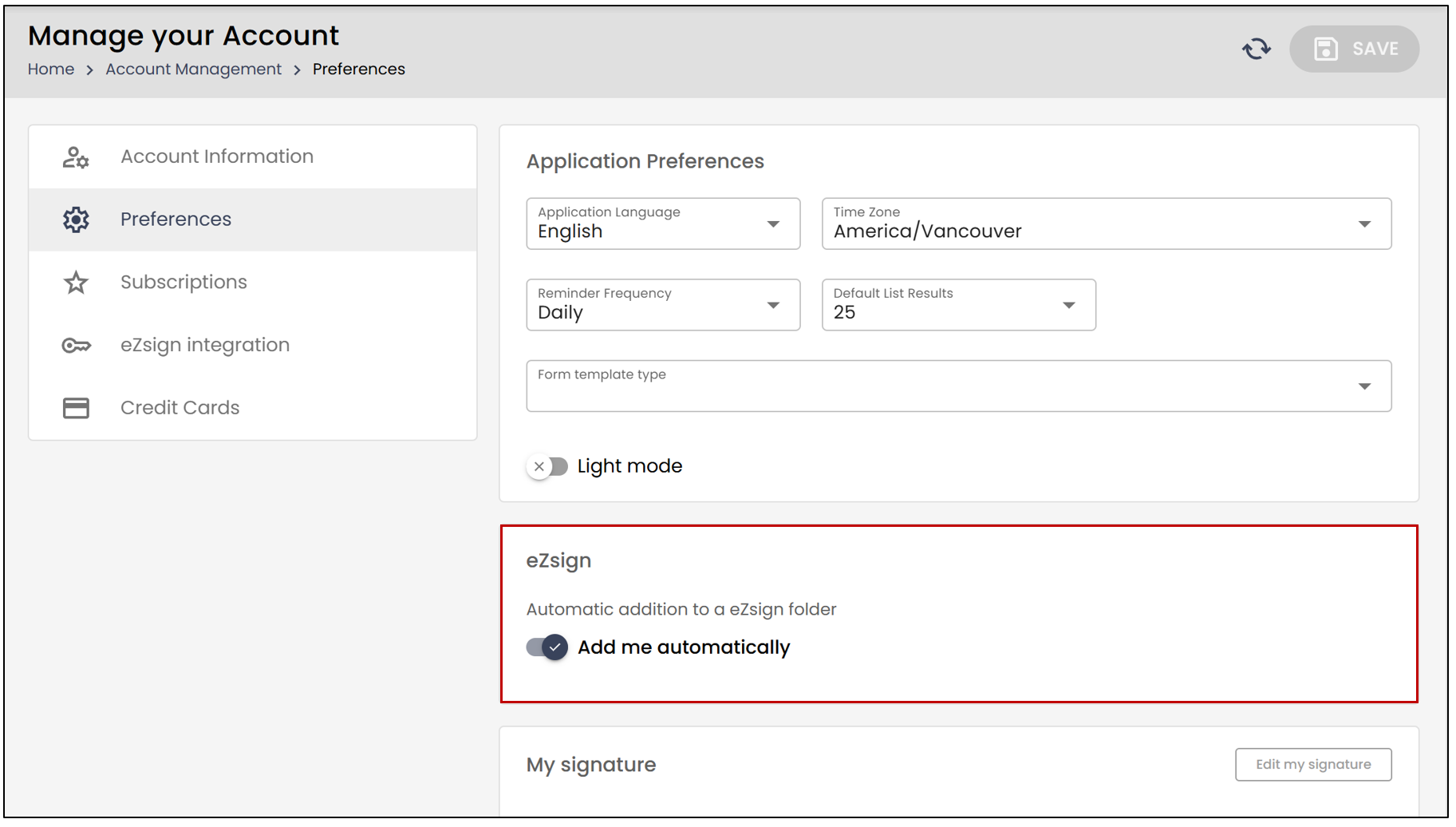
Under Automatic addition to an eZsign folder , you will have the option to check Add me automatically. If this option is enabled, when an eZsign folder is created, you will automatically be added as a signer to the folder.
In the My Signature section, you can choose a default template and, if you wish, add a handwritten signature by clicking on Edit my signature.
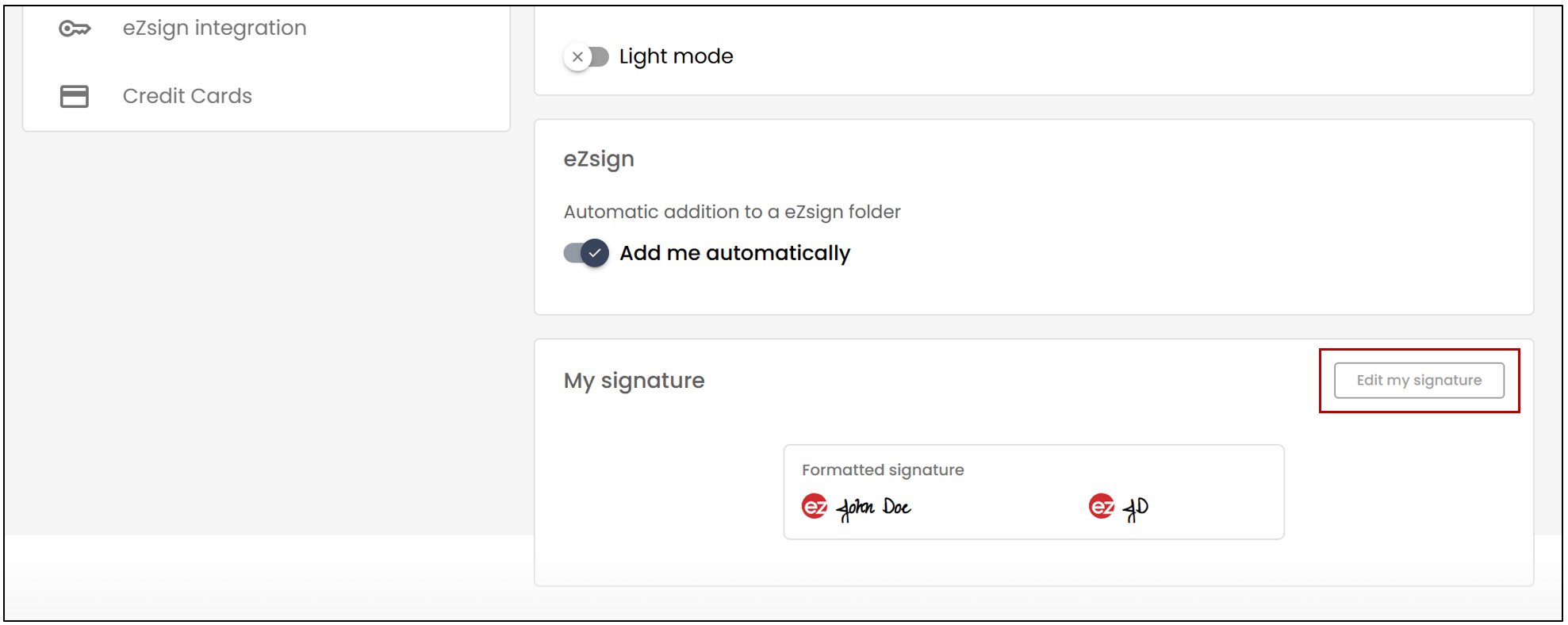
- To save your changes when adding a handwritten signature, select Save.
Subscriptions and Credit Cards
For more information about the Subscriptions and Credit Cards sections, please refer to the article Add/Modify Credit Card Information and Activate Auto-Renewal (Individual Account).
eZsign Integration
Detailed article coming soon.