

English
Download a Link to All Your Documents from eZmax or eZsign
Warning
When a link to all your documents is requested, applicable fees apply.
When a document request is made, a download link is sent by email. This link provides access to a copy of the documents available in your account.
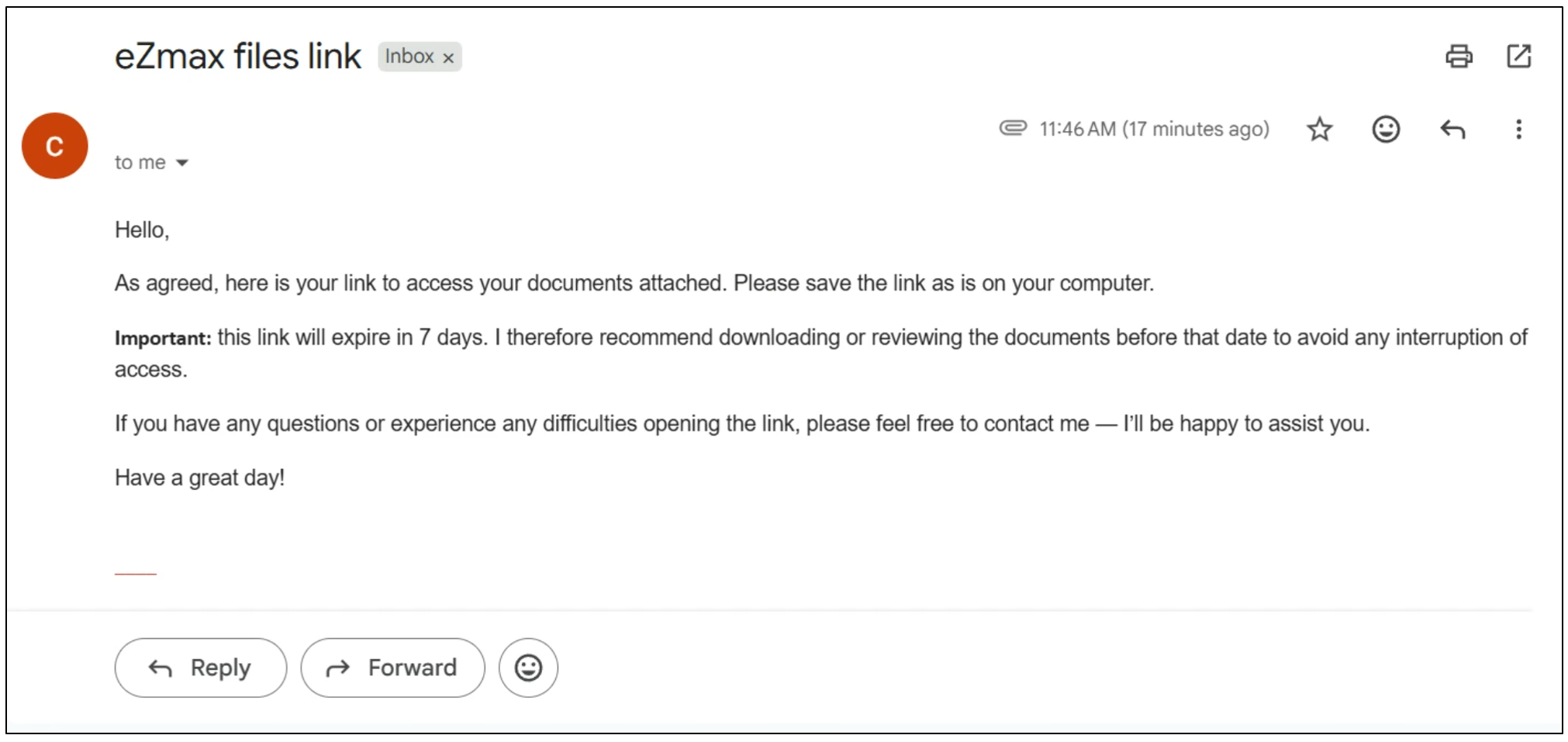
Please note that this link is valid for seven days. It is therefore essential to download and save the documents before the link expires.
A specific procedure must be followed to complete the download properly.
The email contains a download link that must be saved locally.
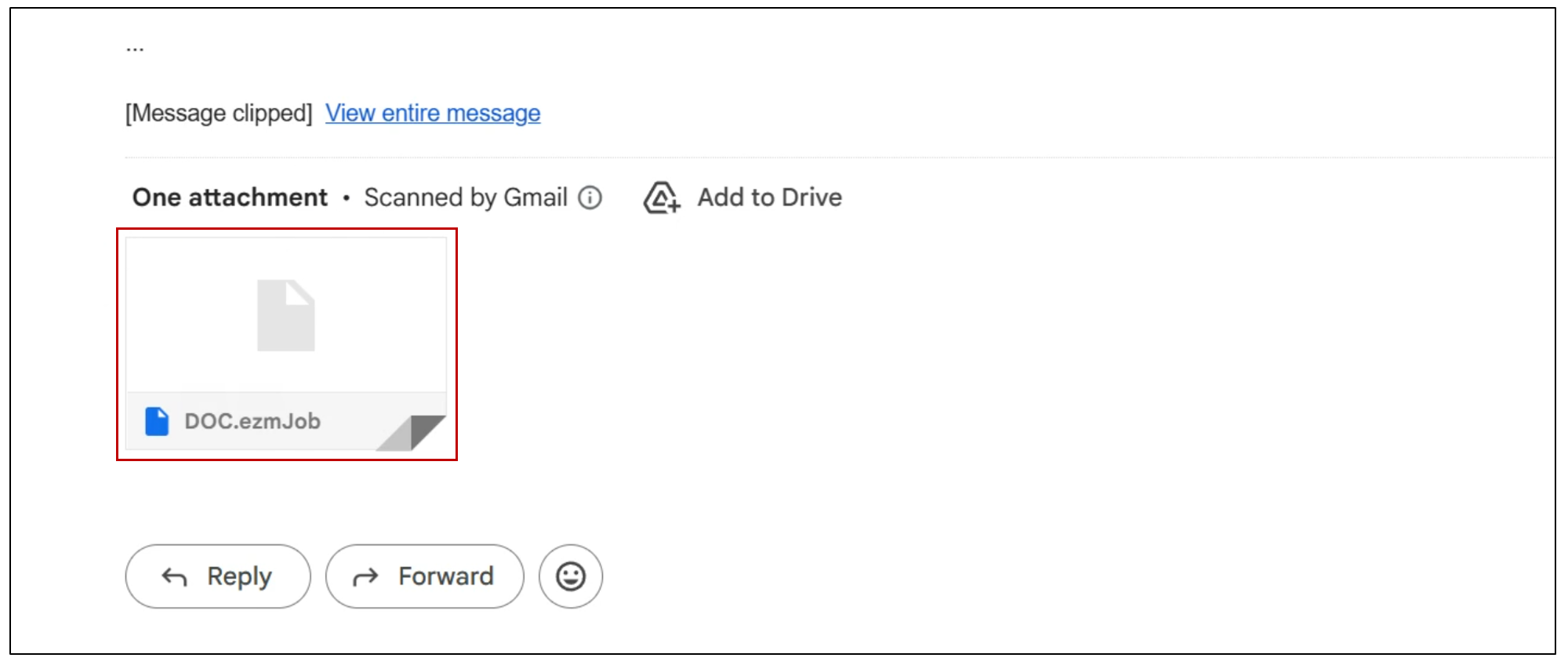
Next, even if you use eZsign on the web, you must download the eZmax application to access the documents. For more information, please refer to the article Download the eZmax application.
NOTE: The application can be uninstalled after use; it is only required to download the files from the link.
- In eZmax, right-click or long-press the green menu in the top left corner to access the File Manager.
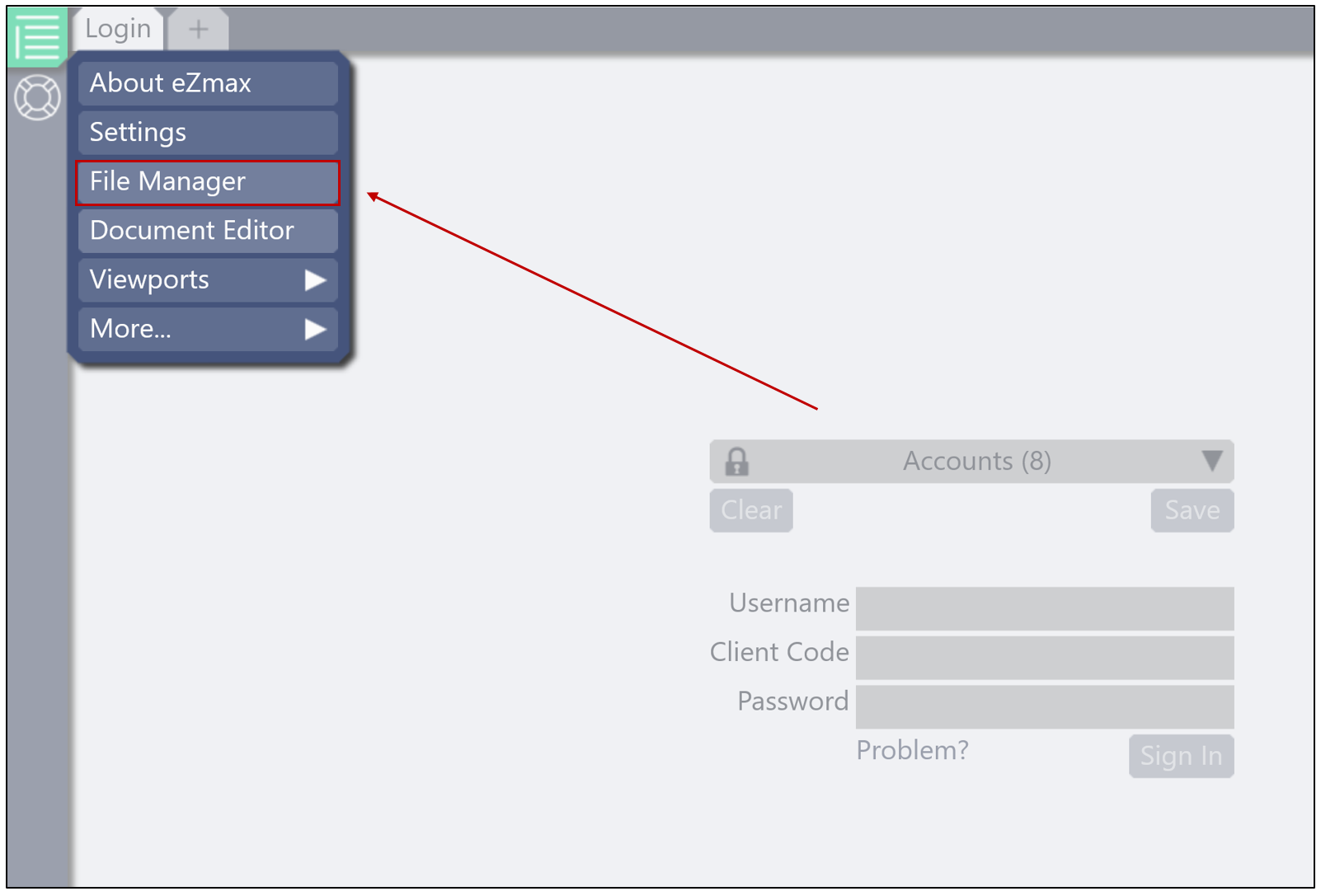
- Then click the

icon to access your local files.
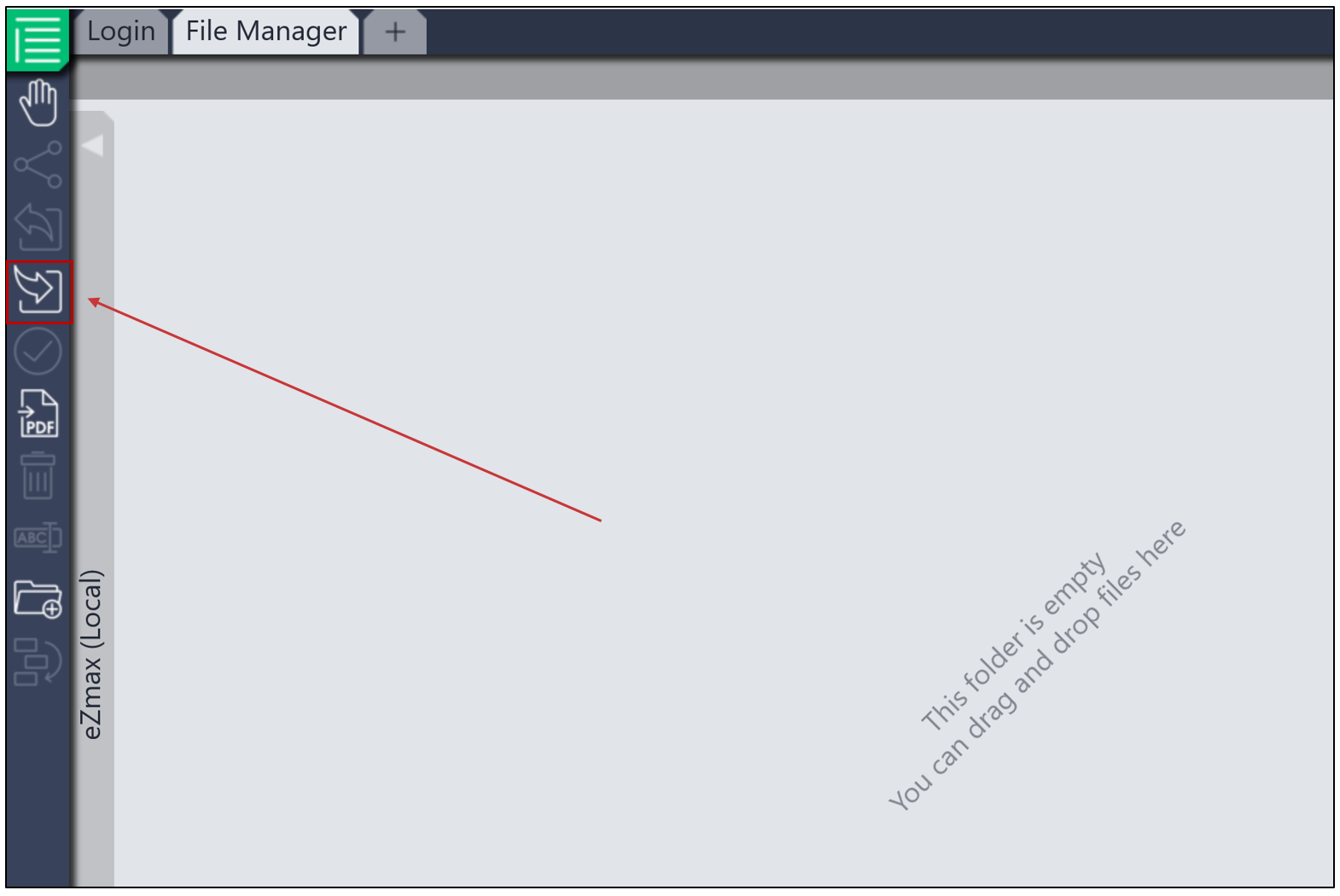
- You can then open your downloads and select the file downloaded from the email.
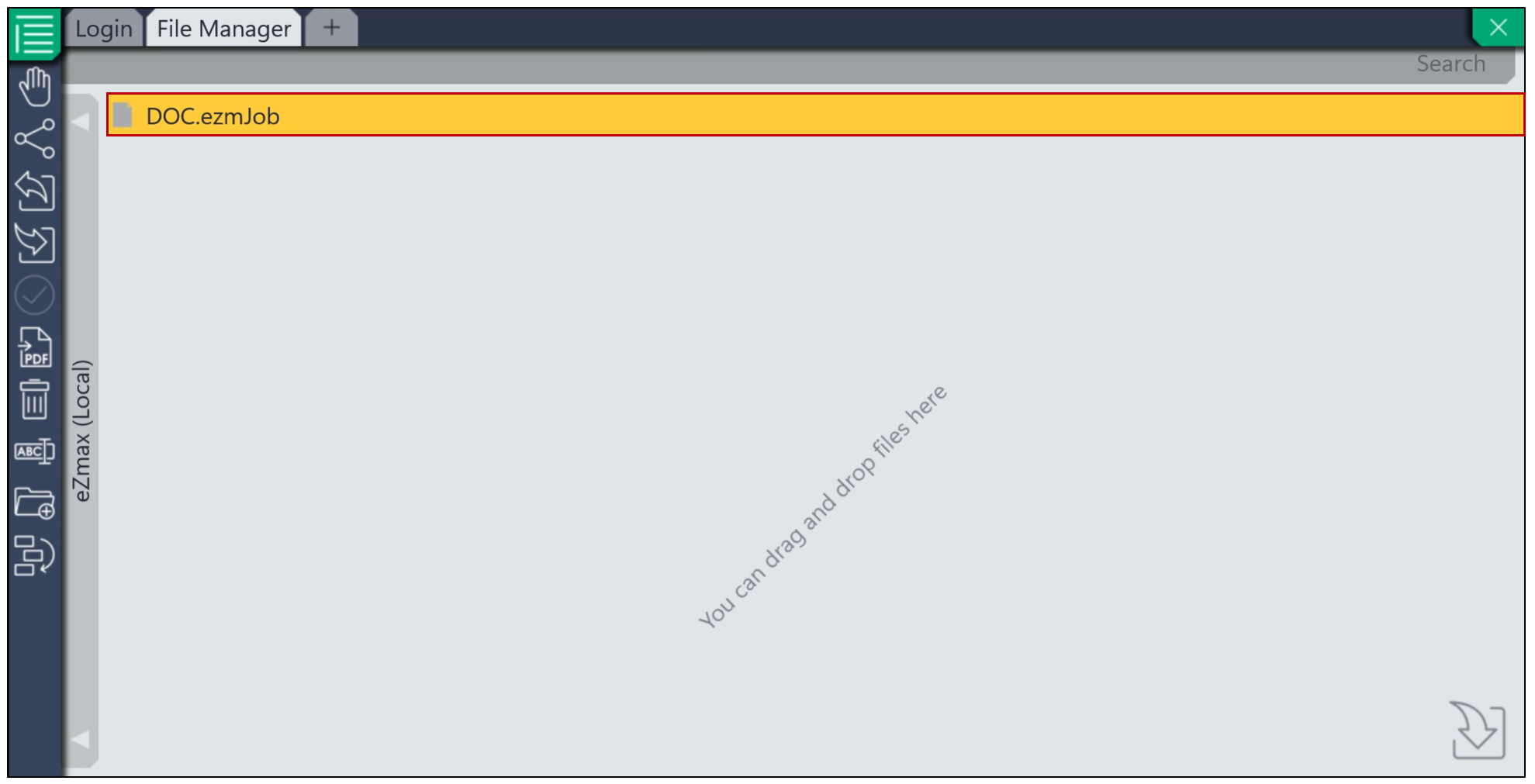
Double-click the file (in yellow) to open it.
Once it is ready to be downloaded, click the

icon to start the download.
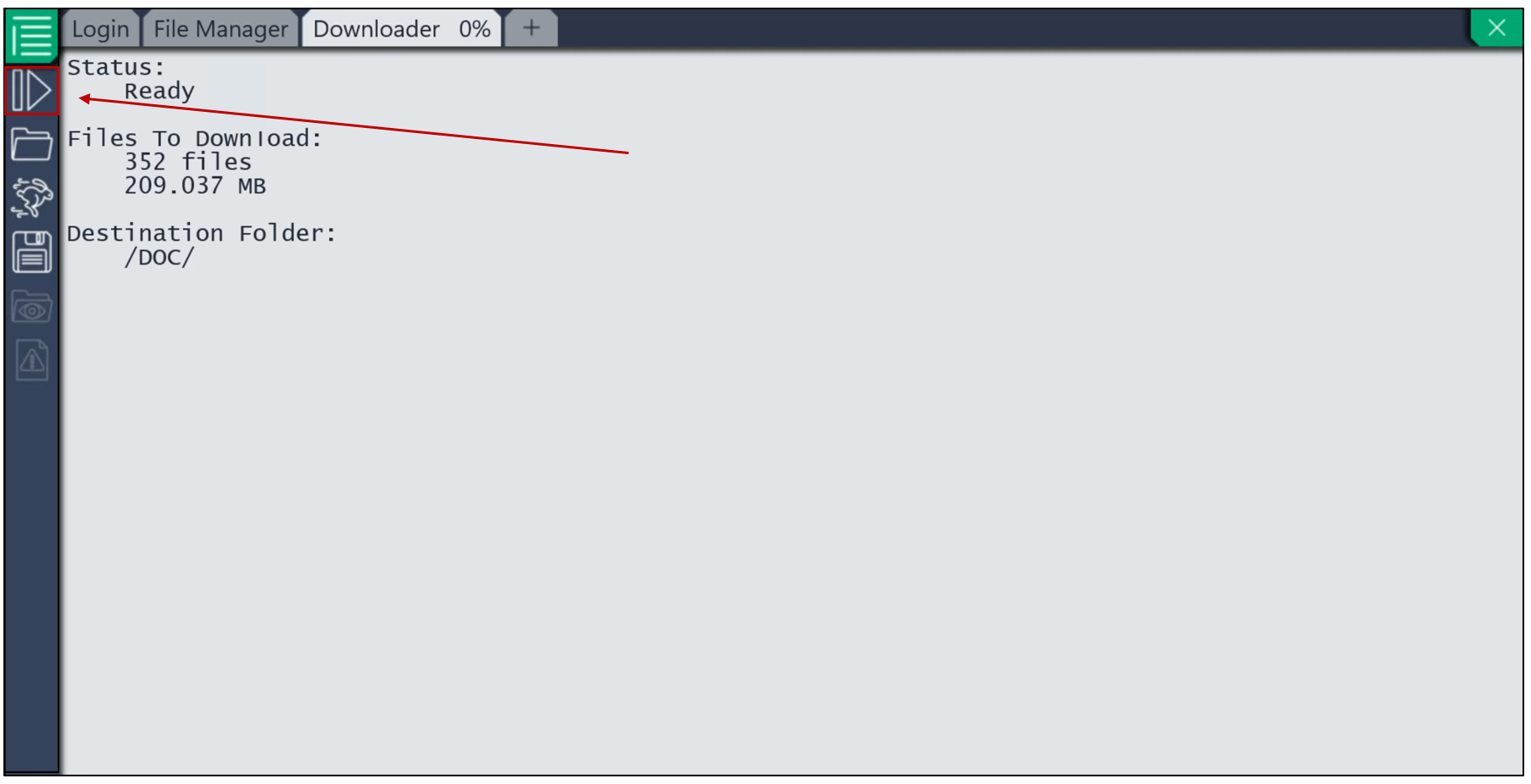
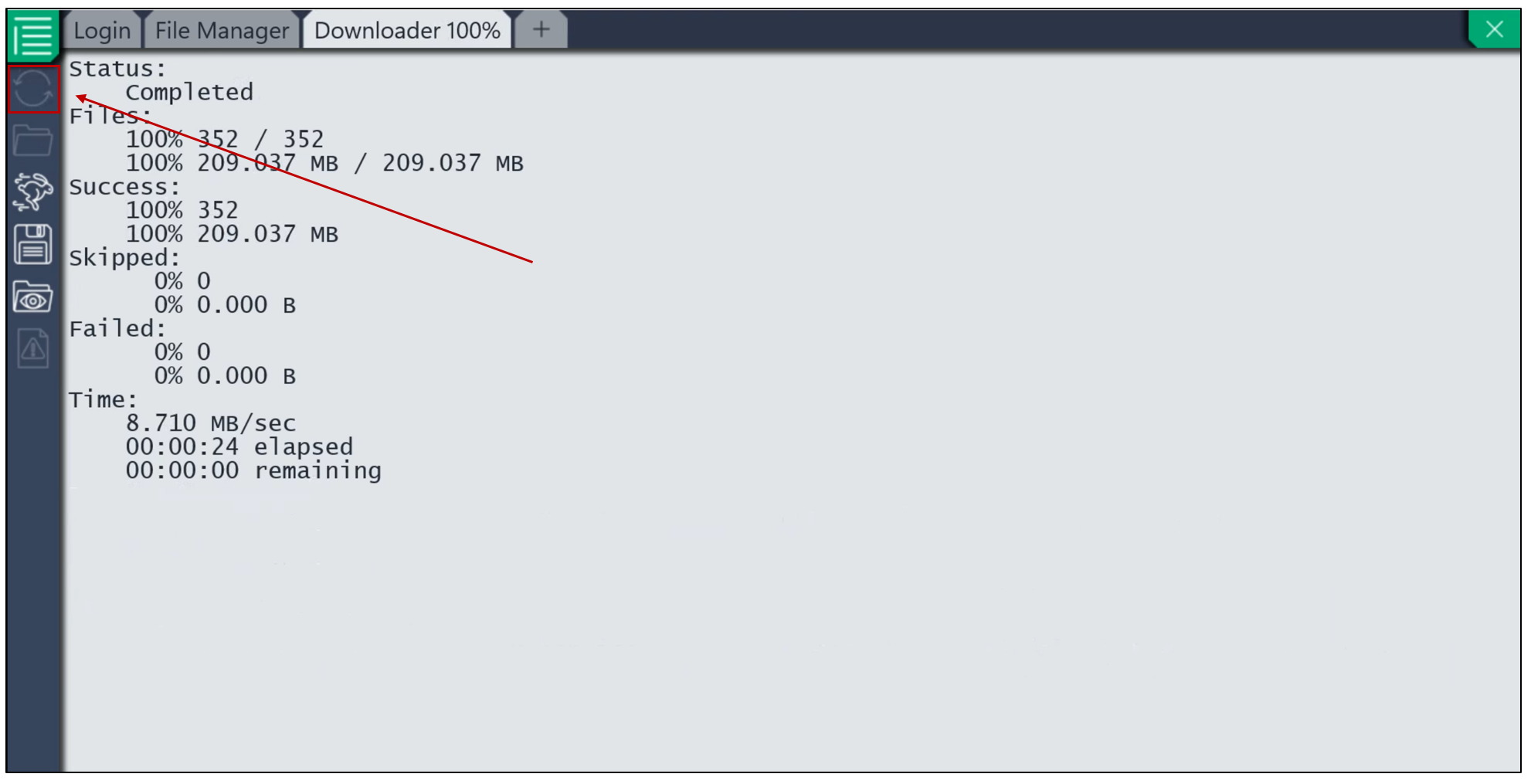
If the status shows “Files 100% – Success 100%,” the download is complete.
- In case of failure or skipped documents, a percentage and a count will be displayed. You can then click the

icon to retry processing the incomplete items.
- Once completed, return to the File Manager by clicking the green menu again.
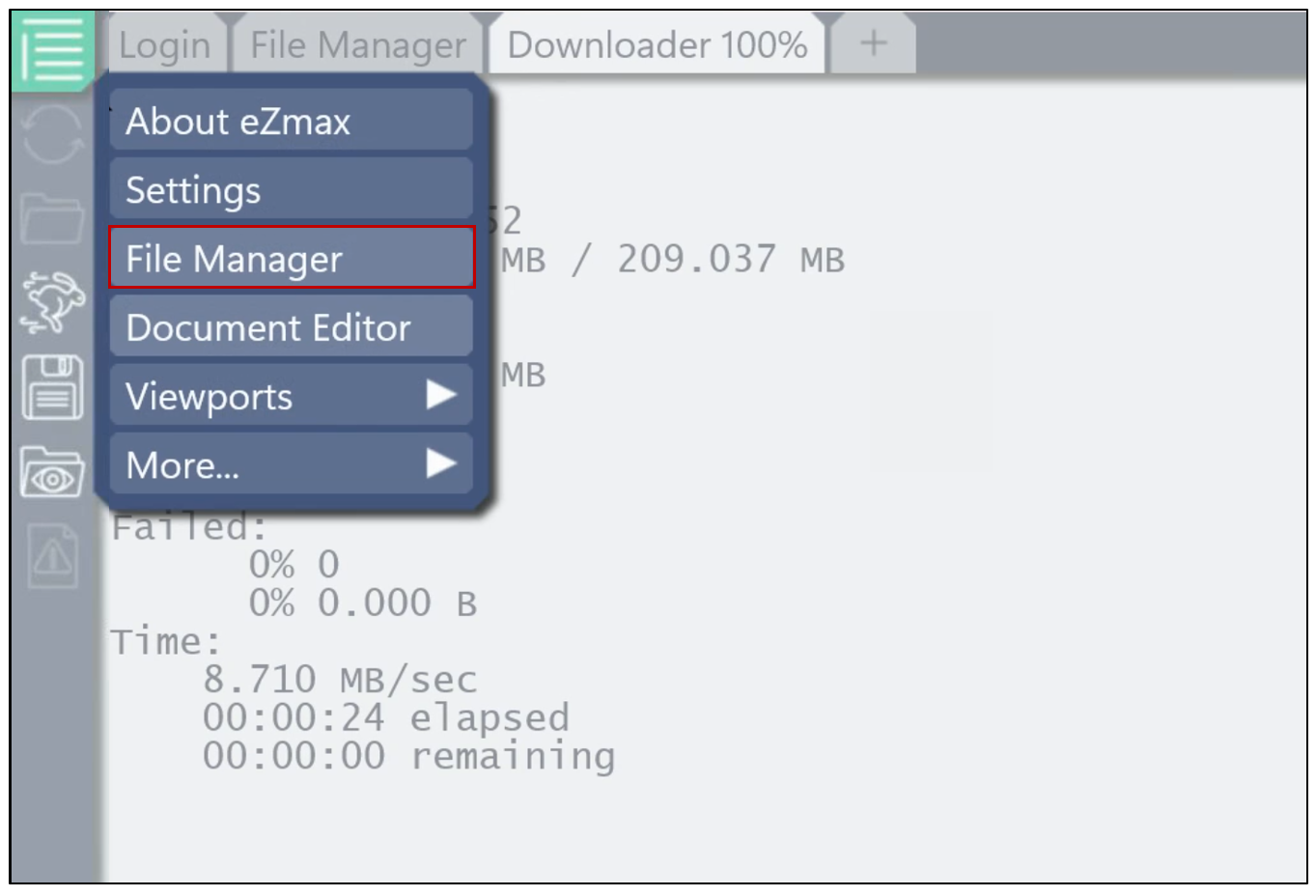
- In the File Manager, right-click (or long-press) on the eZmax (Local) bar. You will then see your file: it is no longer a link, but a local file.
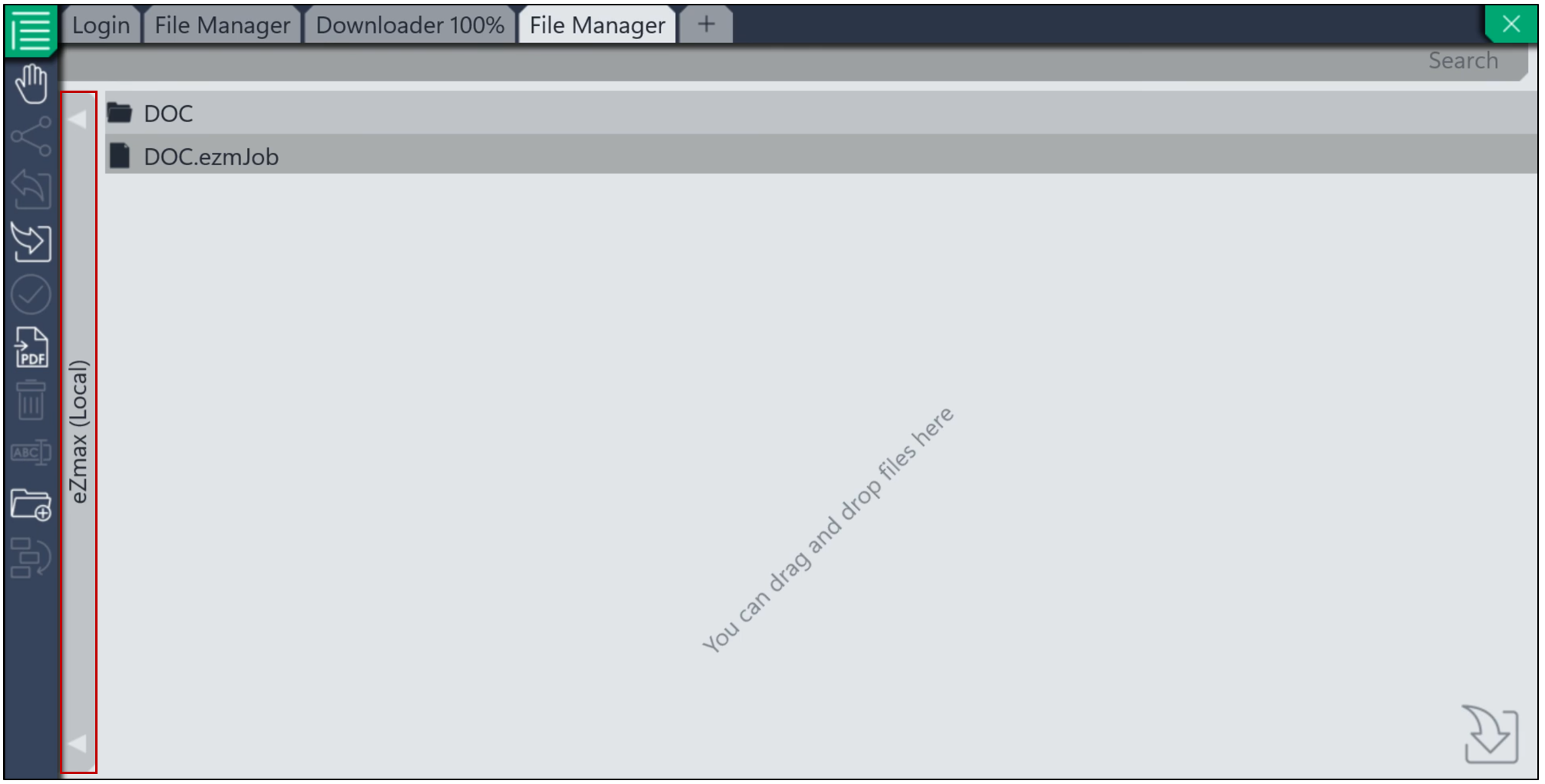
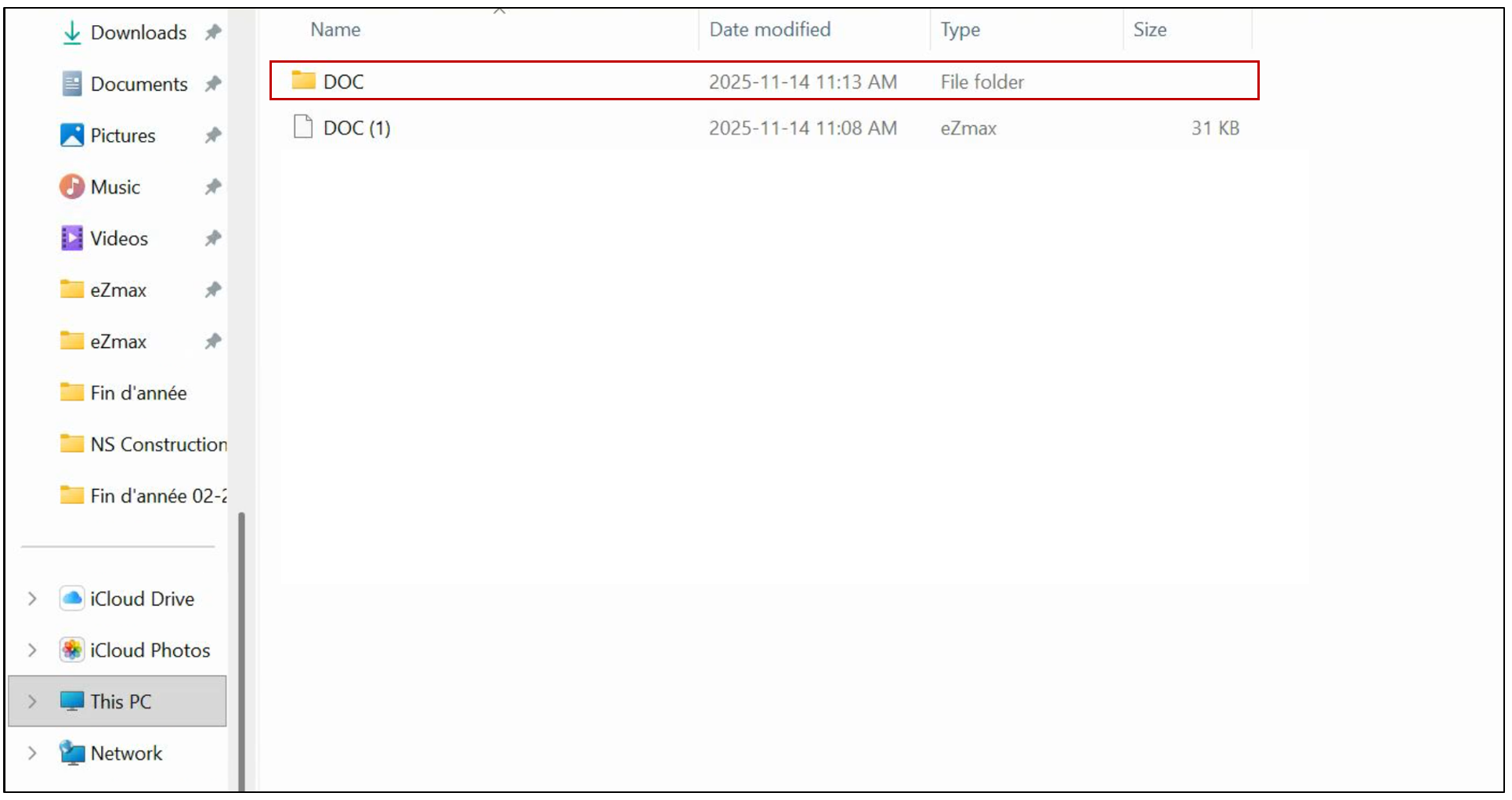
- You can then drag the file to your desktop for easy access.
You can also transfer it to a USB drive, keep it on your computer, or move it to an external drive to share it with other members of your team.