

English
Attachment Validation
When an attachment has been added to a document by a signer and you need to validate this attachment as a user, you can do so directly from the eZsign folder.
Access the Attachment to be Validated – From the eZsign Folder
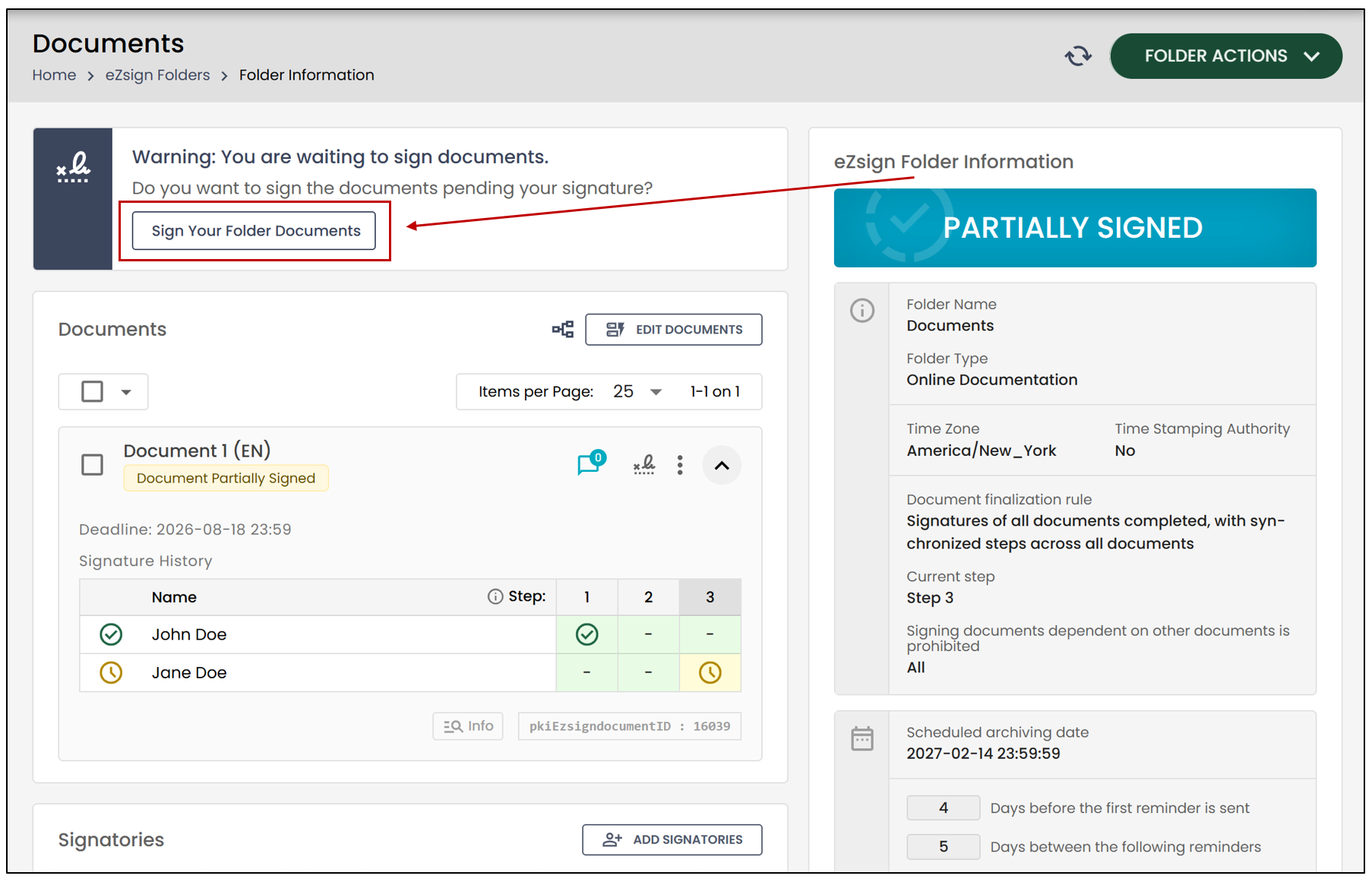
From the left-hand menu, click on eZsign Folders and select the desired folder.
In the box labelled "Warning: You are waiting to sign documents.", click on Sign Your Folder Documents.
Validate the Attachment
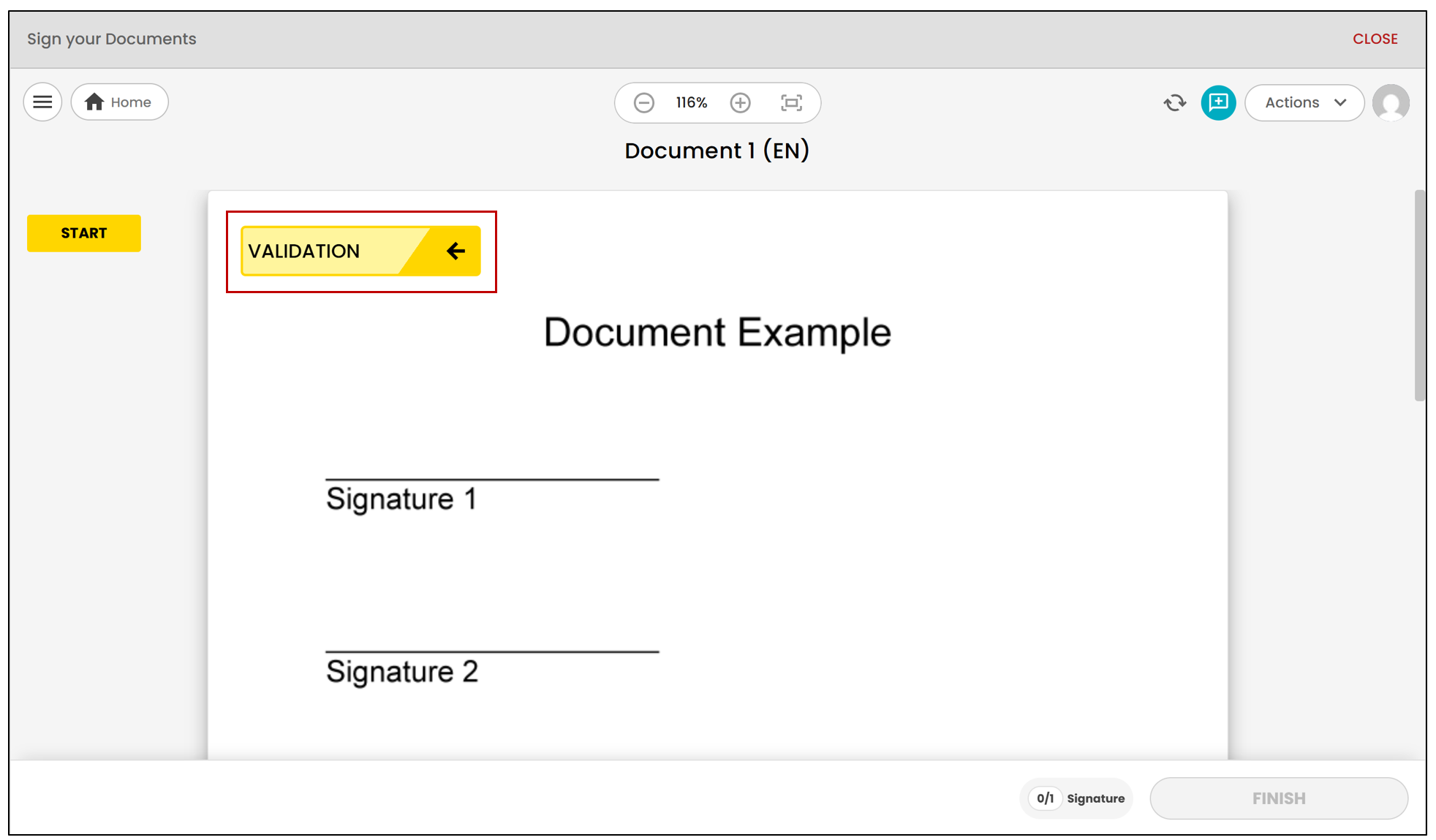
- To validate the attachment, click on Validation.
- You will have the option to view or download the attachment before the validation.
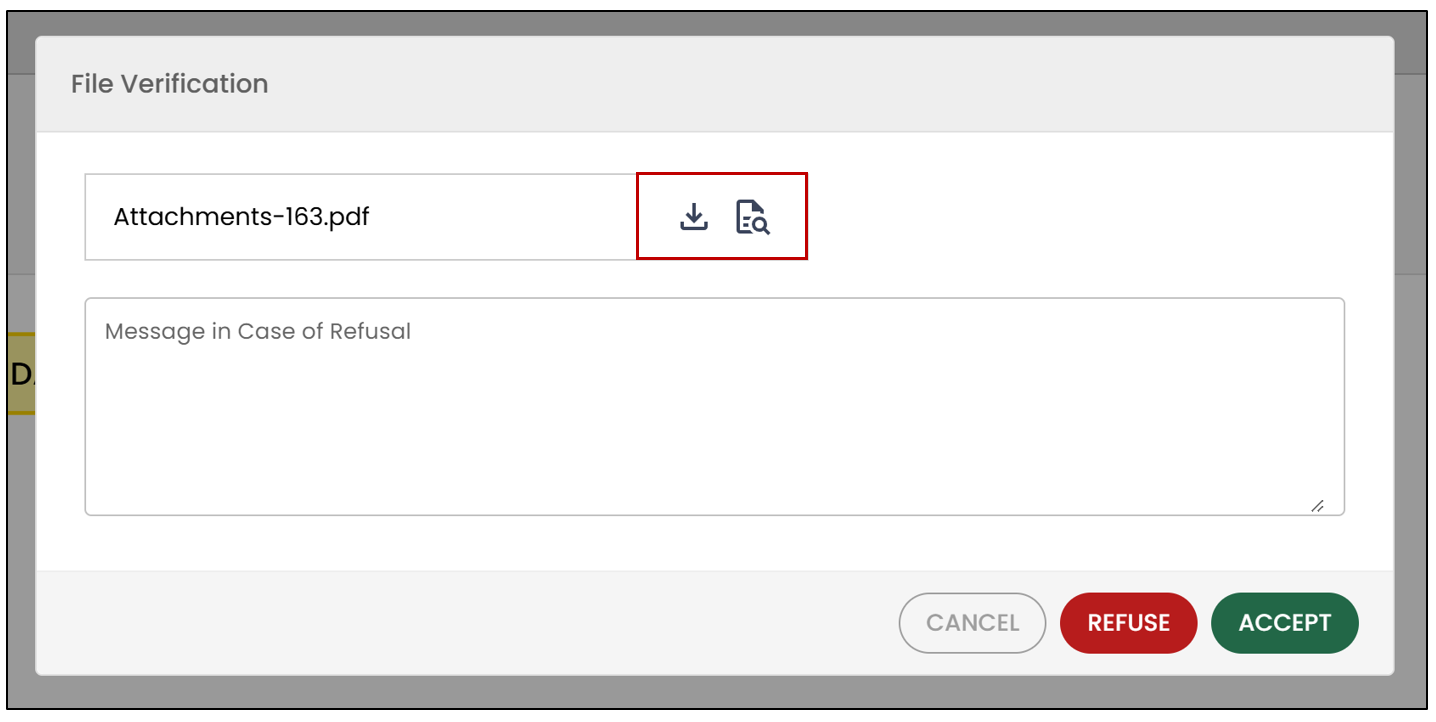
- You can then choose whether to Reject or Accept the attachment.
Accepting an attachment
- If you chose Accept , the document will be automatically validated. It will then proceed to the next step in the electronic signature process.
Rejecting an attachment
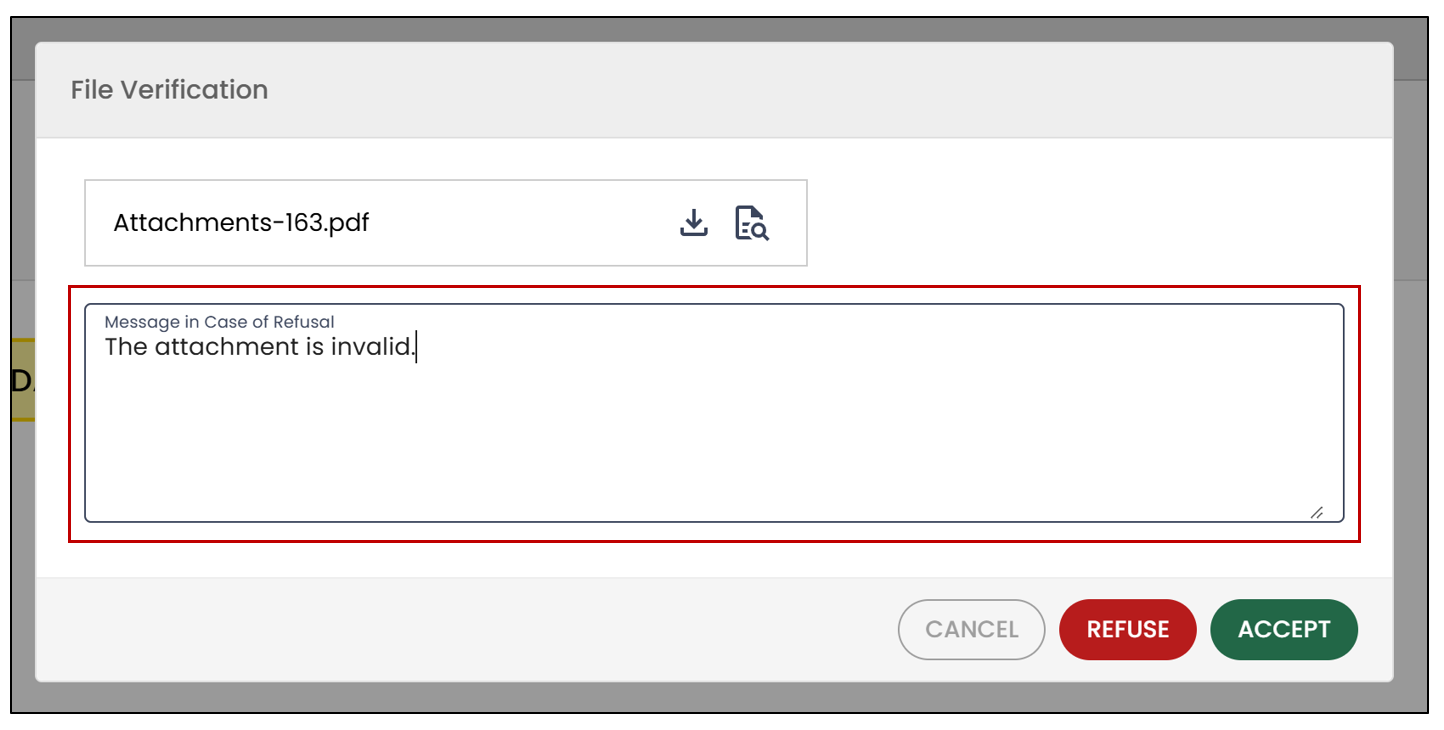
- If you chose Refuse , please enter a reason for the rejection in the field below. This reason will appear in the email sent to the signer who added the attachment.
This message will appear:
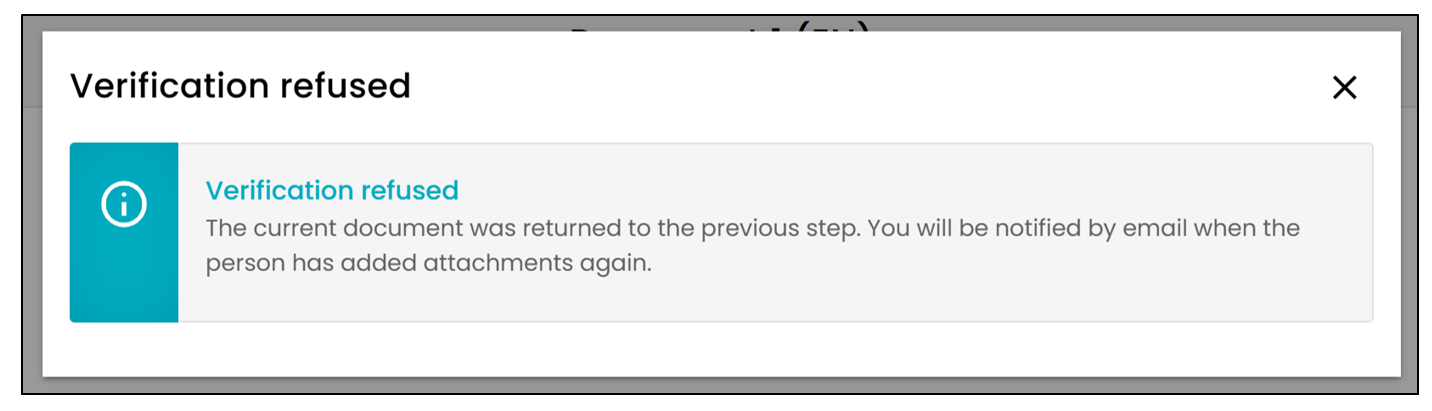
- The signer with the attachment field will receive an email informing them that they need to sign/add new files to the document.