

English
Add/Modify a User Group – Administration (eZsign Web)
It is possible to create a group composed of selected users, allowing all its members to access the same shared eZsign folders and to have the same permissions.
Add a User Group
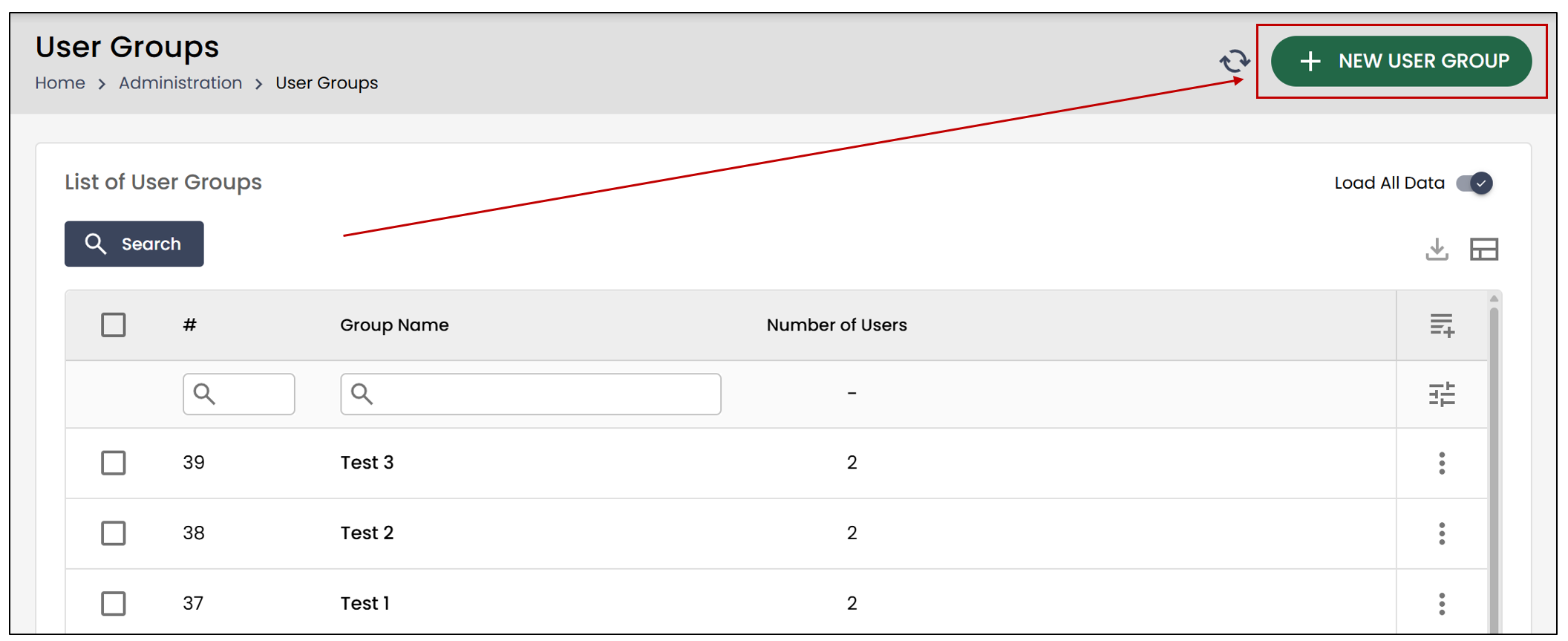
From the Administration menu >> User Groups.
- Click the New User Group button.
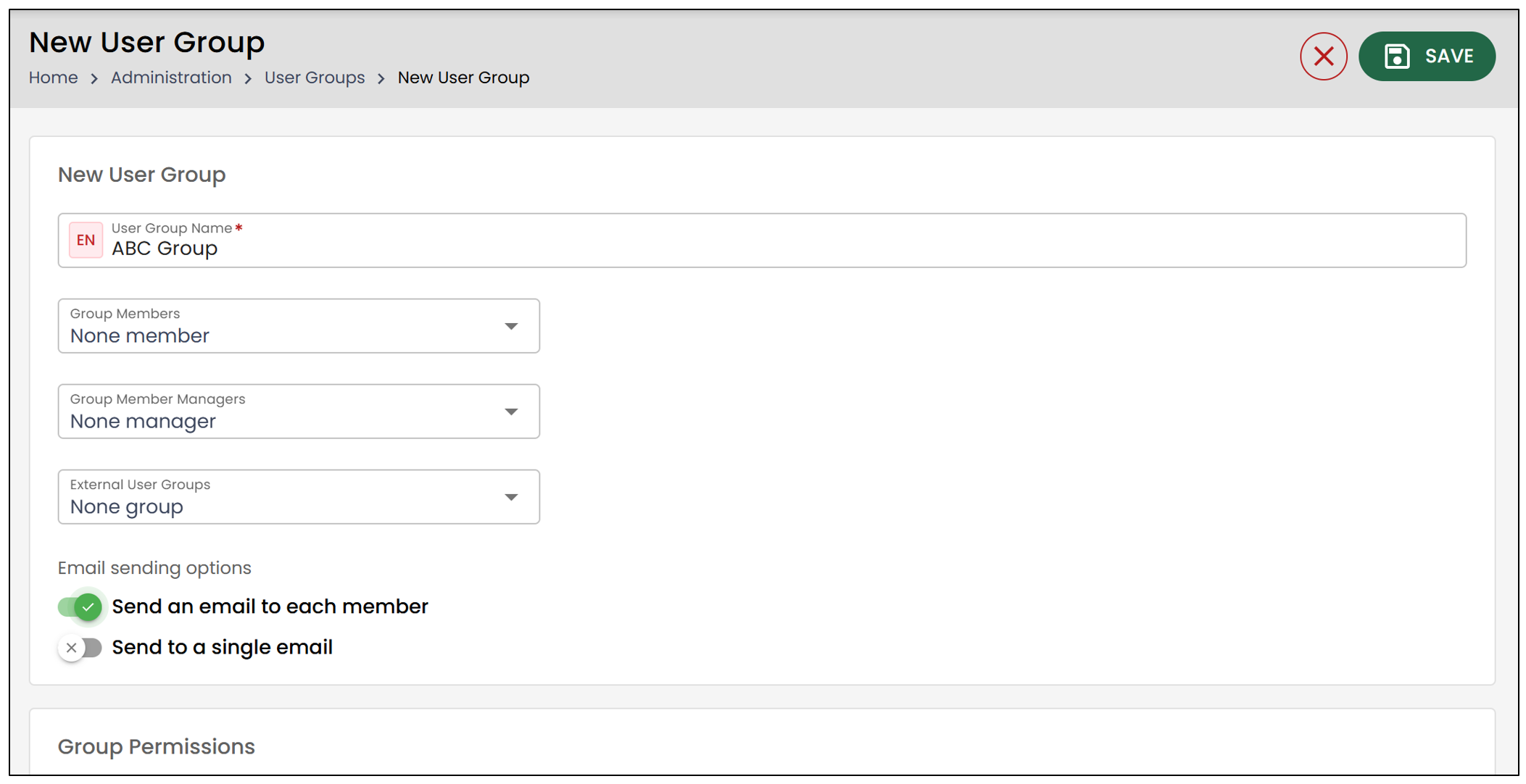
- Enter the User Group Name in both French and English. To switch languages, you can press the "Tab" key or click the

icon to select it manually. We recommend choosing a name that clearly describes the group, such as the role of its users.
- Group Members : These are users who already exist in the system. Members you select from the drop-down list will have access to the same shared folders and share the same permissions. Select the desired group members using the "+" button or the arrows.
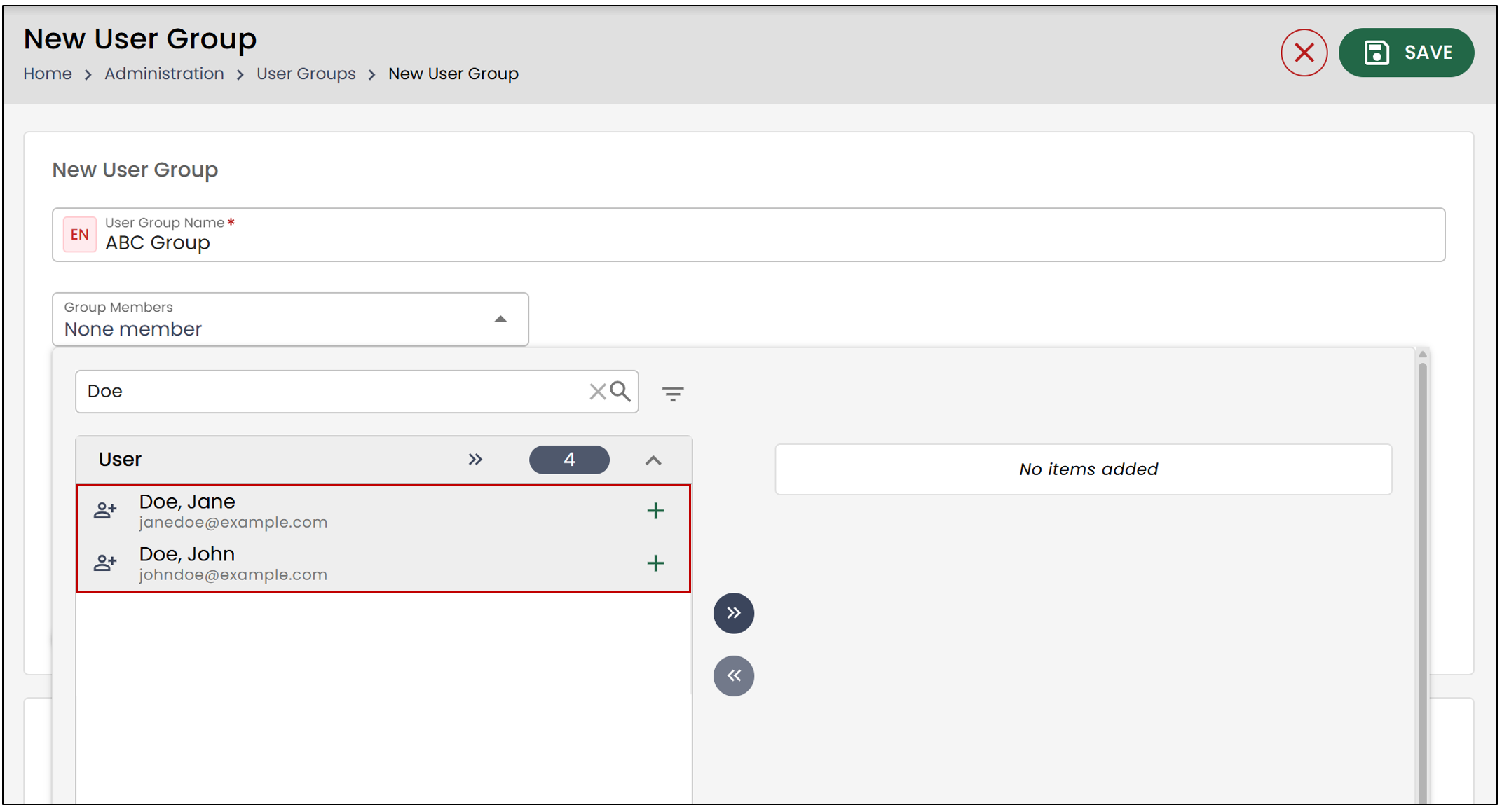
- Group Members Managers : Group members managers will have access to user groups in the Administration section of the platform and will be able to add or remove members from the group. This feature allows a manager to control which users have access to the folder type without having access to all users or to creating/modifying them.
NOTE: For a user to appear in your list of managers, you must first grant them the permission "Administration >> User Groups (Delegate)."
- External User Groups : Thanks to external user groups, you can synchronize the groups from your Identity Provider (for example, Microsoft Entra, AzureAD, Imprivata, OneLogin, etc.) with the eZsign user groups.
NOTE: For an external group to appear in your options, you must first create the "External User Group " from your Administration menu.
- Group Permissions : These are the permissions that already exist in the system. For each permission you grant to the group, all members of that group will inherit the permission by default. This option is dynamic — in other words, if a permission is added to the group, it will automatically be assigned to all group members.
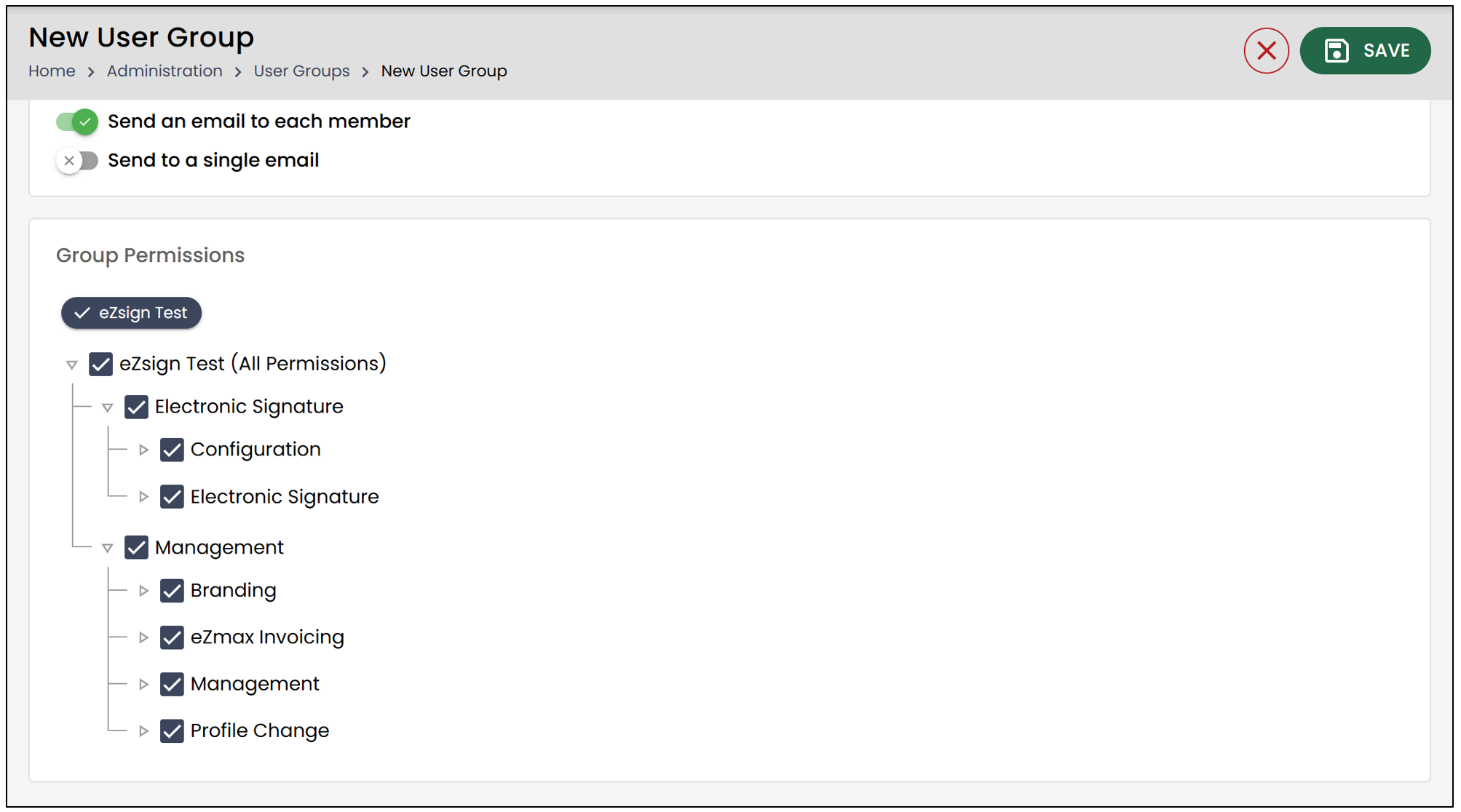
- Click Save , and the user group will be added to the system.
For more information on permissions, please refer to the article Permissions Granted to Users in eZsign.
Edit a User Group
To edit an existing user group, select it from the List of****User Groups and click Edit User Group.
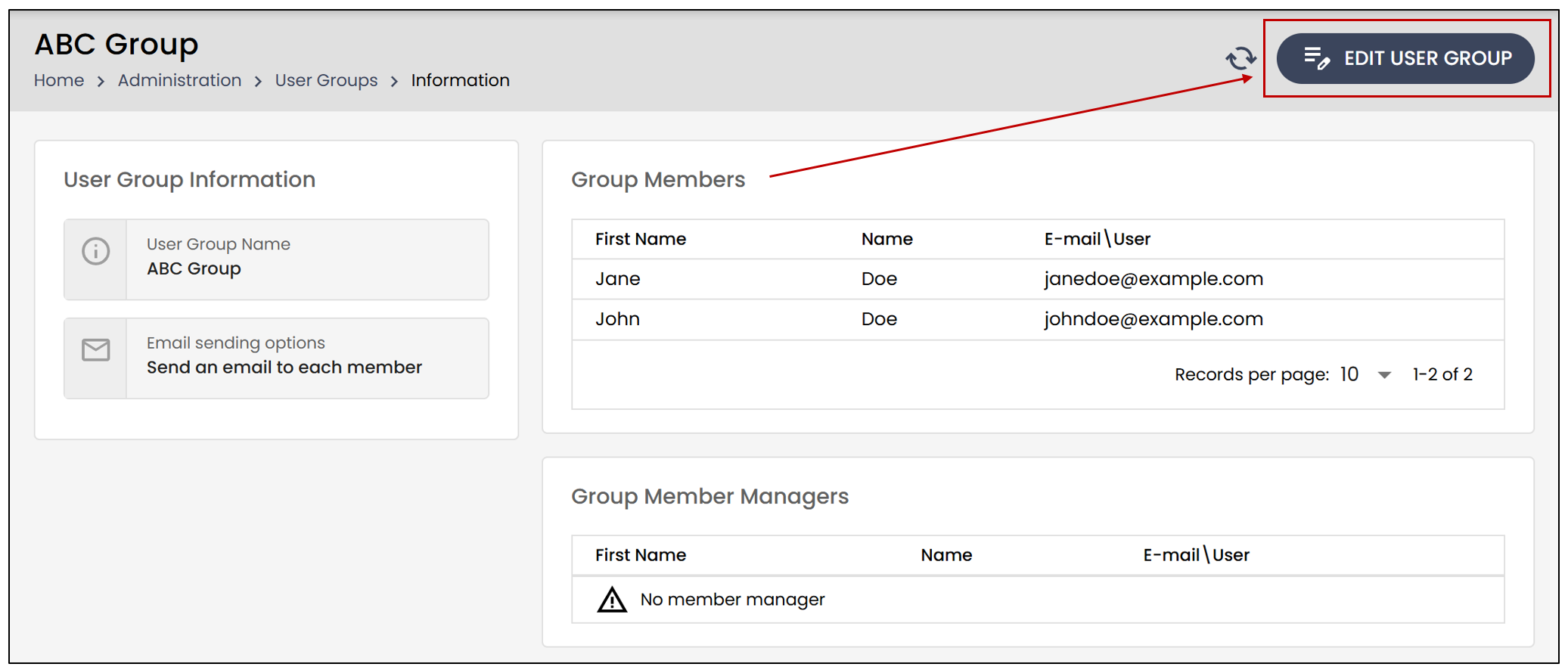
- Make the desired changes and click Save to apply them.