

English
Signature in Person (eZsign Web)
As a user, it is possible to have a signatory sign in person directly within your eZsign account. This option is useful for signers who do not have an email address and/or a computer, tablet, or smartphone.
Creation of the eZsign Folder
You will need to create an eZsign folder. For more information, see the article Creating an eZsign Folder: Start Here.
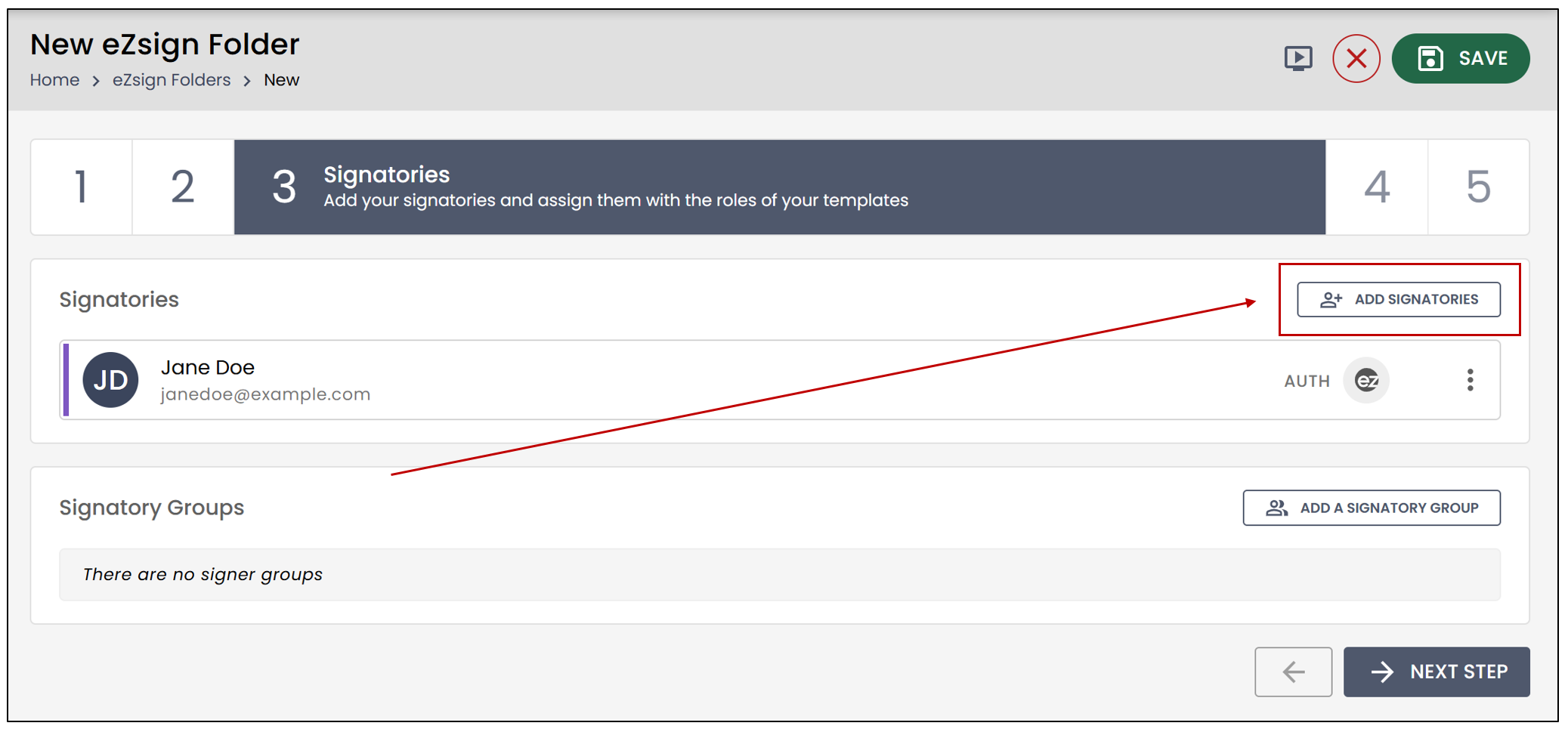
- In the Signatories section, click on Add Signatories.
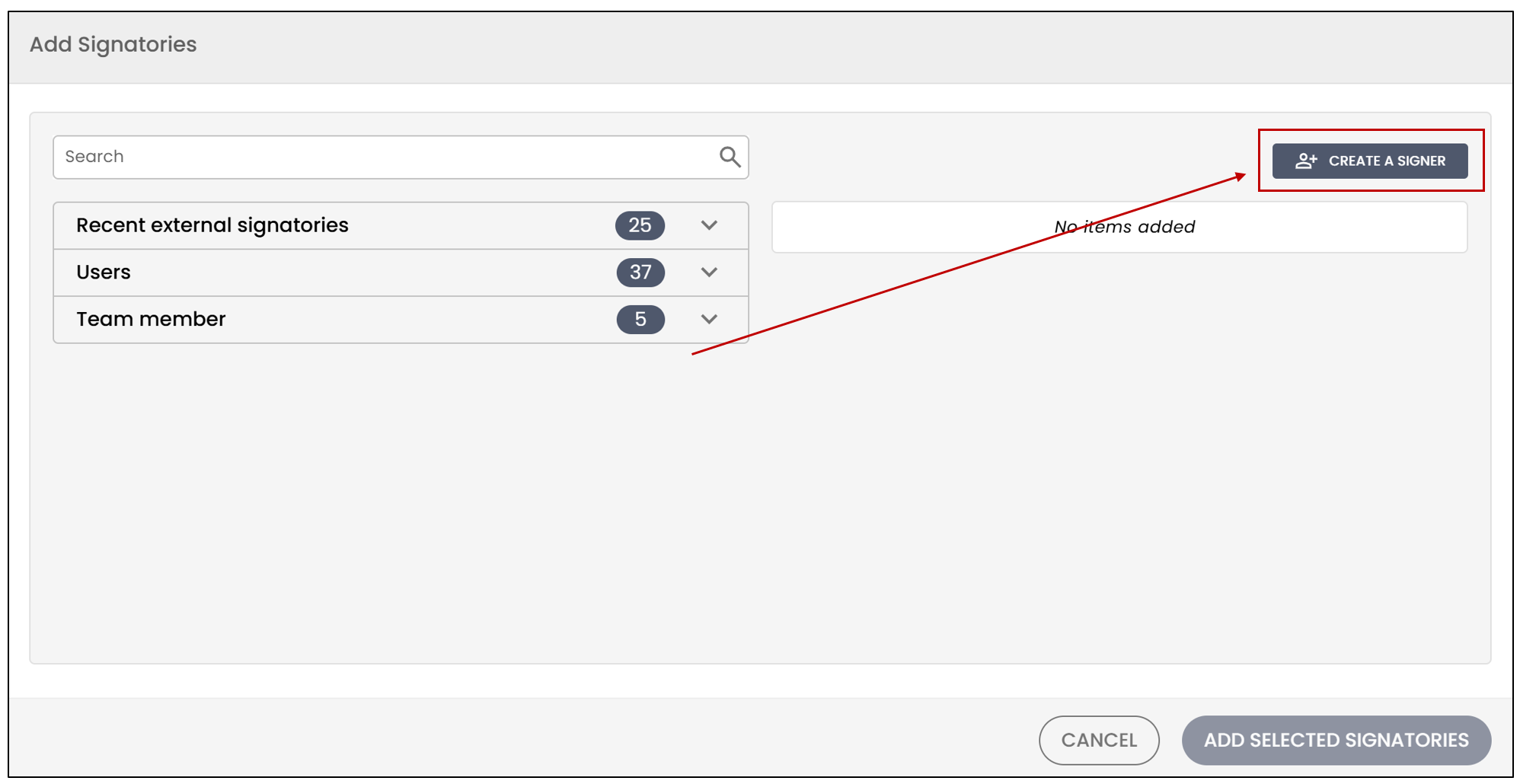
- You will then be able to Create a signer.
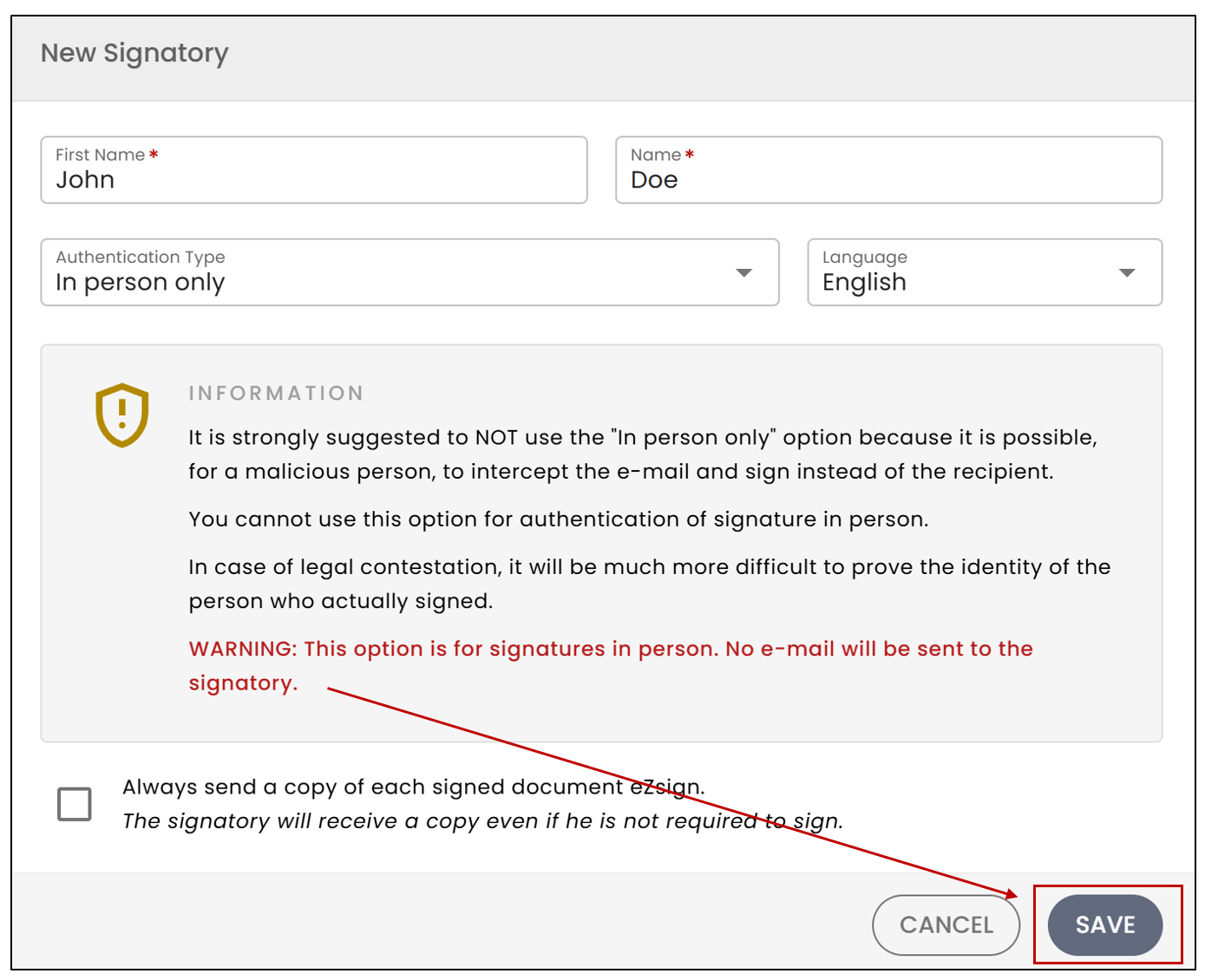
- Enter the signer’s First Name and Last Name , and select the Language.
For the Authentication Type , select:
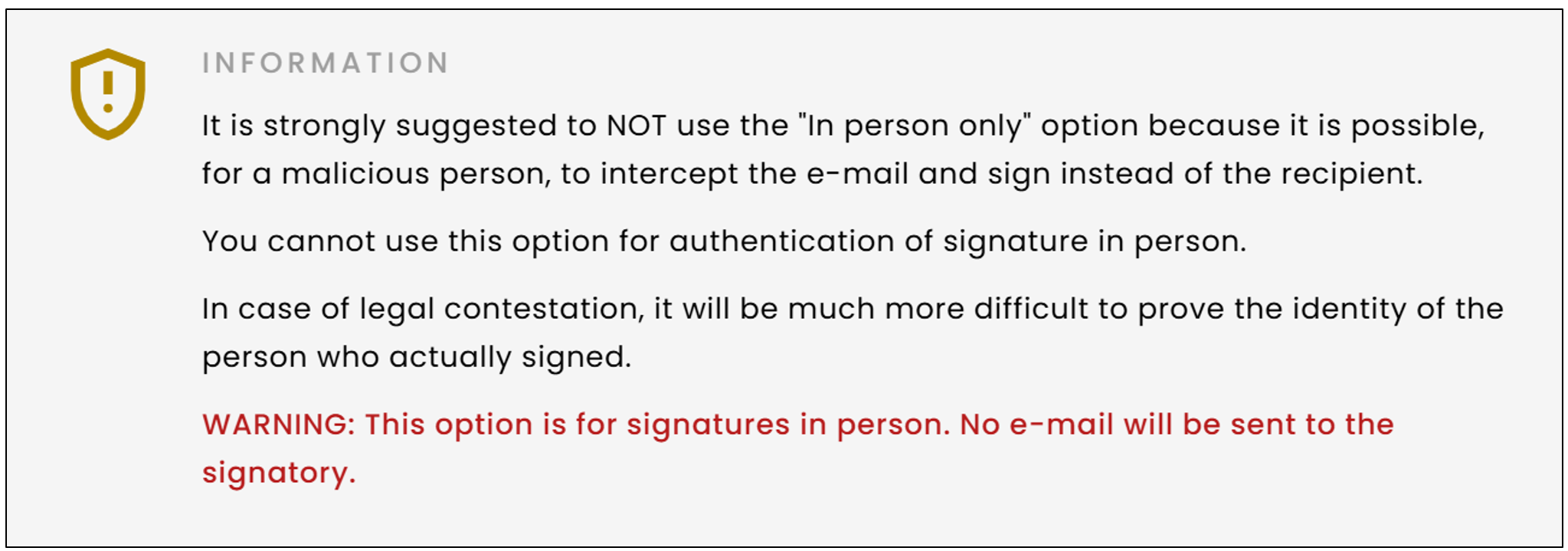
- In person only : Not recommended , as this method is not secure (see image below). No email, phone call, or SMS code will be sent to the signer.
- In person with phone or SMS : No email will be sent to the signer. They will either receive a phone call and be prompted to enter the code displayed on screen, or receive a text message with a code to enter on the screen. Make sure to provide at least one phone number, either Cellphone for SMS or Home/Work for calls.
You can then Save the new signatory.
Warning
A signer using the authentication type "In person only" or "In person with phone or SMS" will not receive any email.
Signature in Person
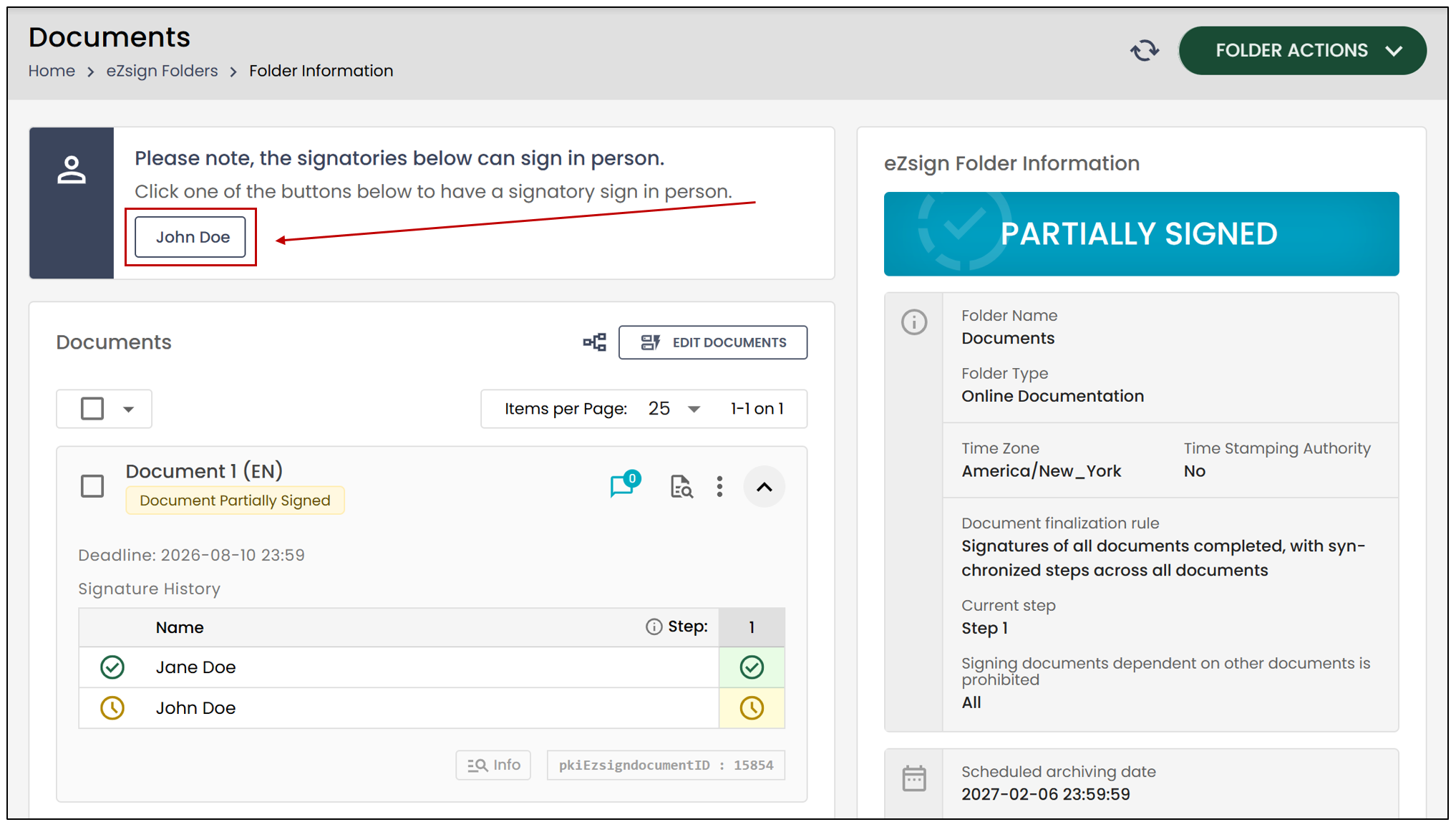
To allow the signatory to access the document, you must click on their name in the Folder Information section at the top of the page.
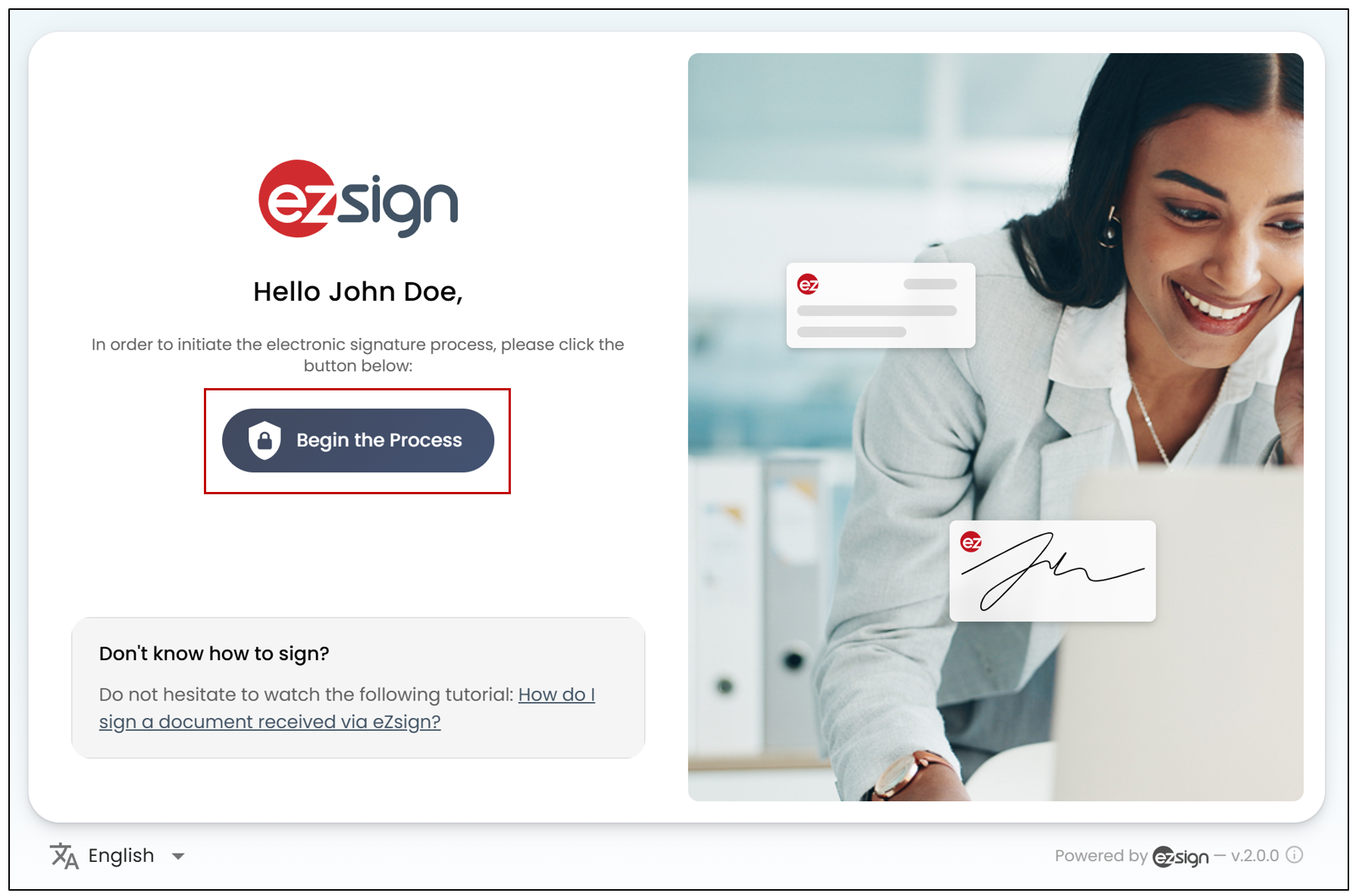
- Click on Begin the Process.
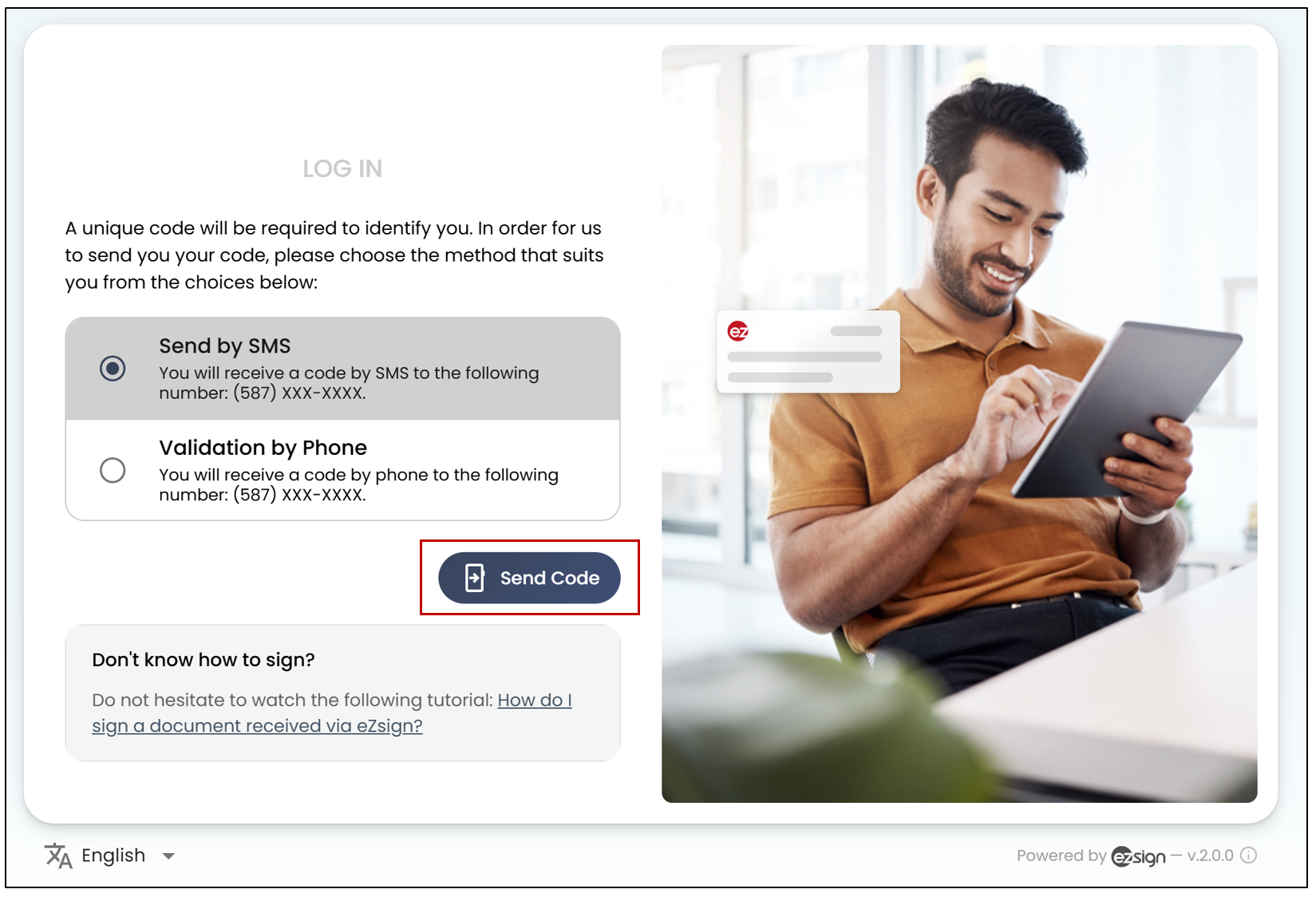
Authentication for the "In person with phone or SMS" option
For the In person with phone or SMS option, the signer will need to enter the code received by SMS or phone call in order to access and sign the document.
- Select the desired option, then click Send Code.
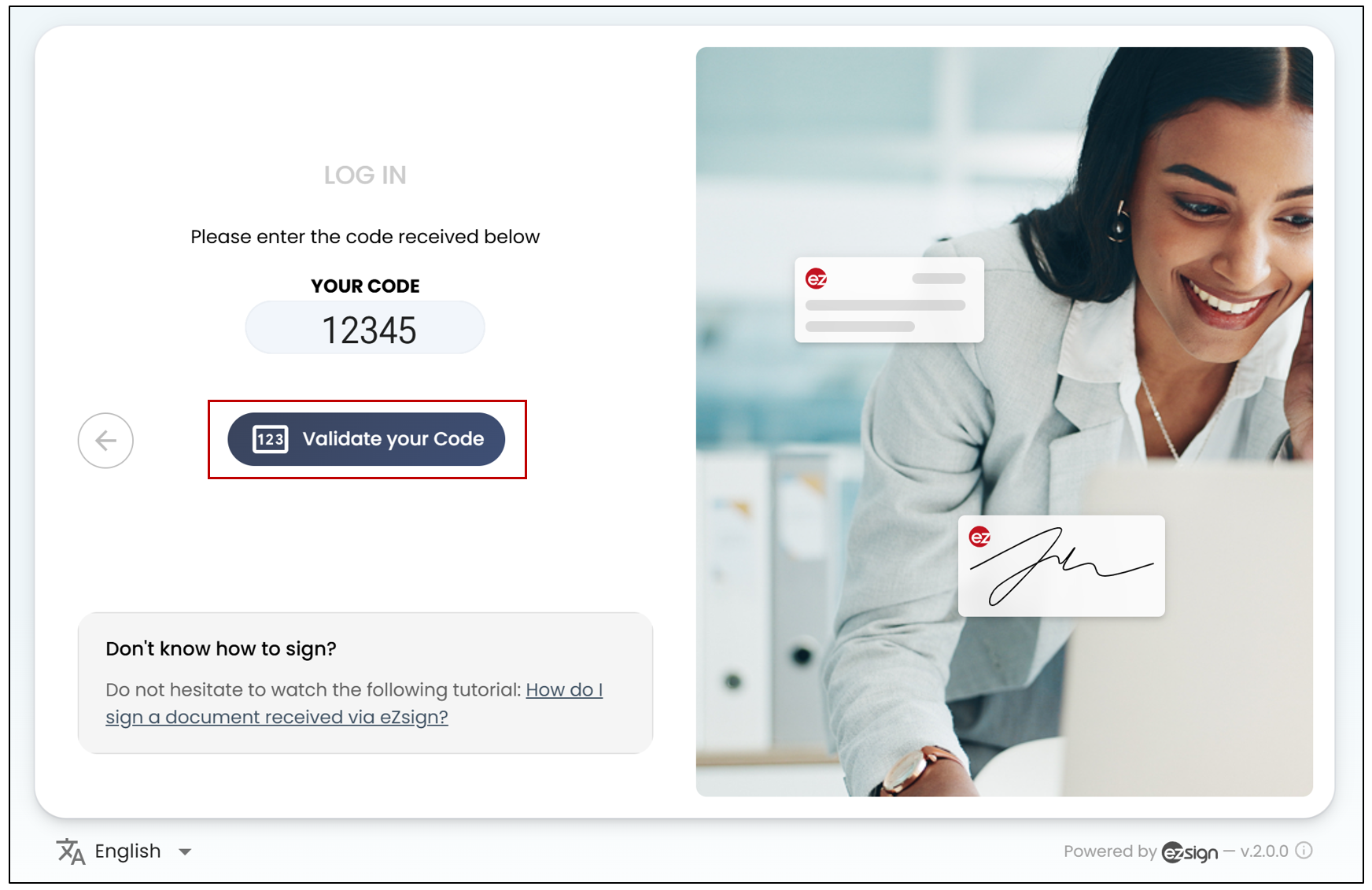
- Enter the code received, then click on Validate Your Code.
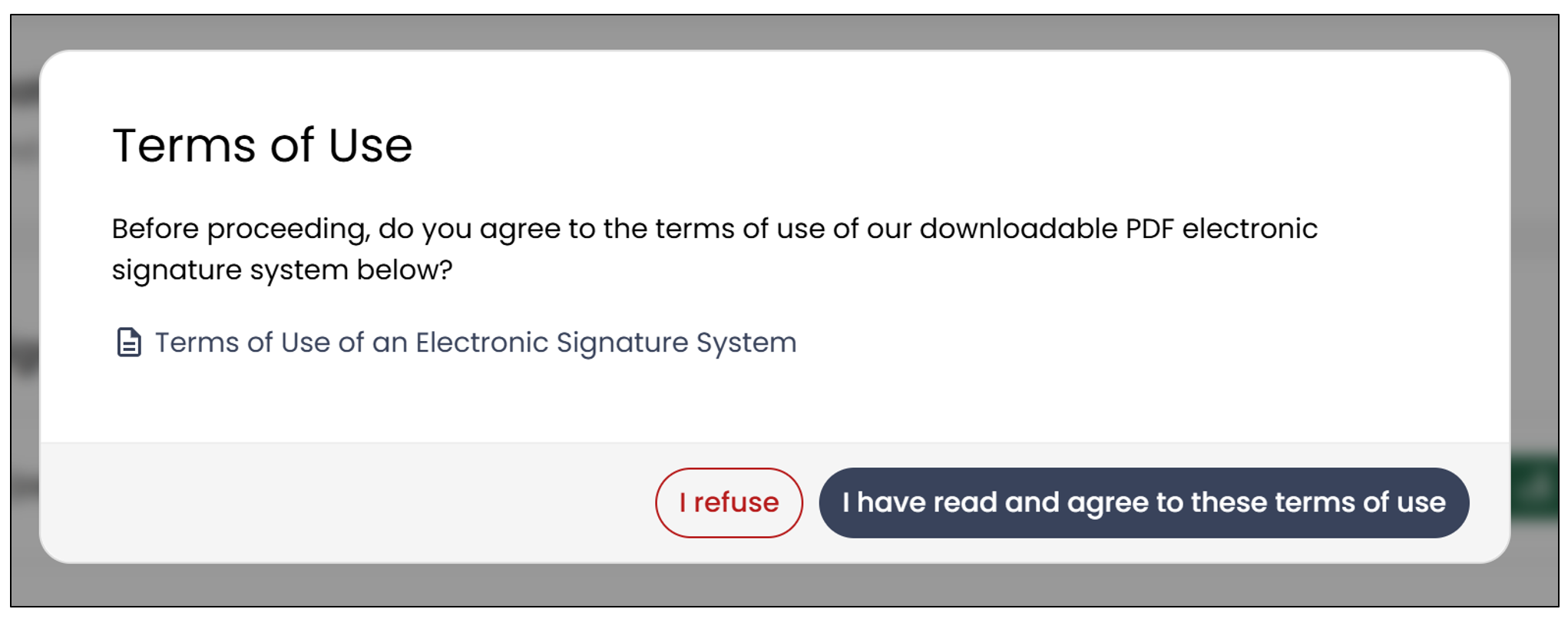
- The signer must read the terms of use of the electronic signature system, then click on "I have read and agree to these terms of use" before accessing the document.
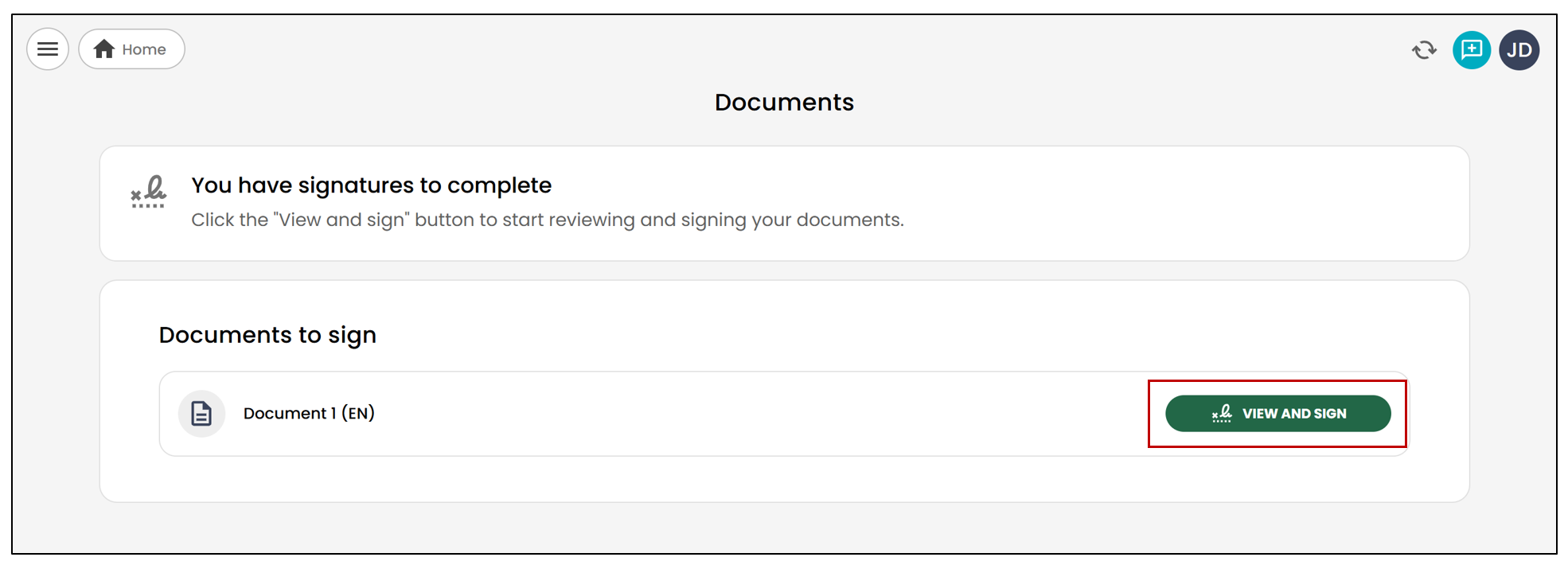
- The signatory can then select the desired document and click View and Sign.
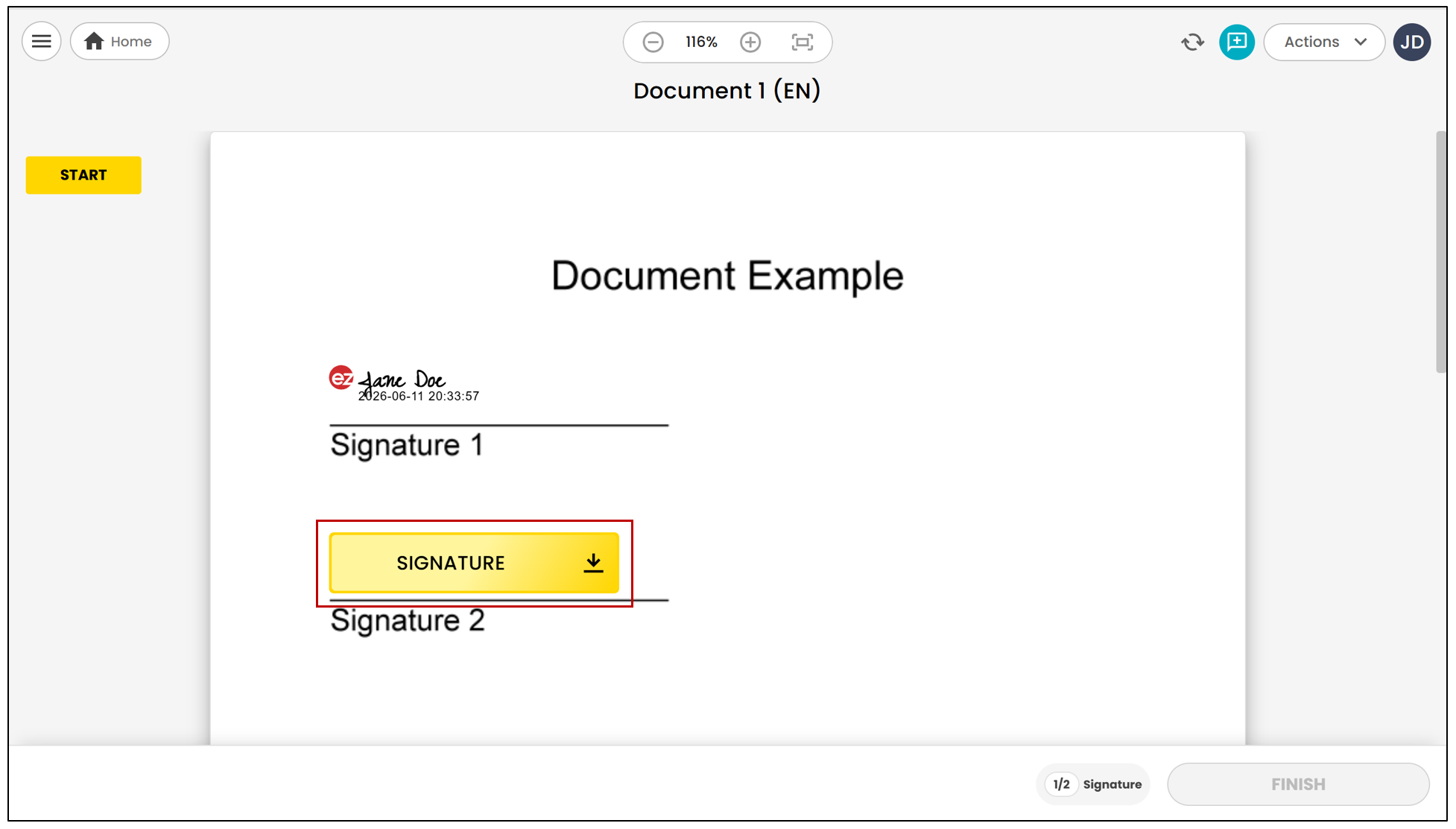
- They can then apply their signature by clicking Signature.
NOTE: The user will receive an email confirming that the document has been completed, but the signer who signed in person will not receive one.
In-Person Signature for a Signatory Initially Invited by Email
If you have sent a document to a signer with the authentication type Email and Phone or SMS , or Email and Secret Question , it is also possible to have them sign the document in person.
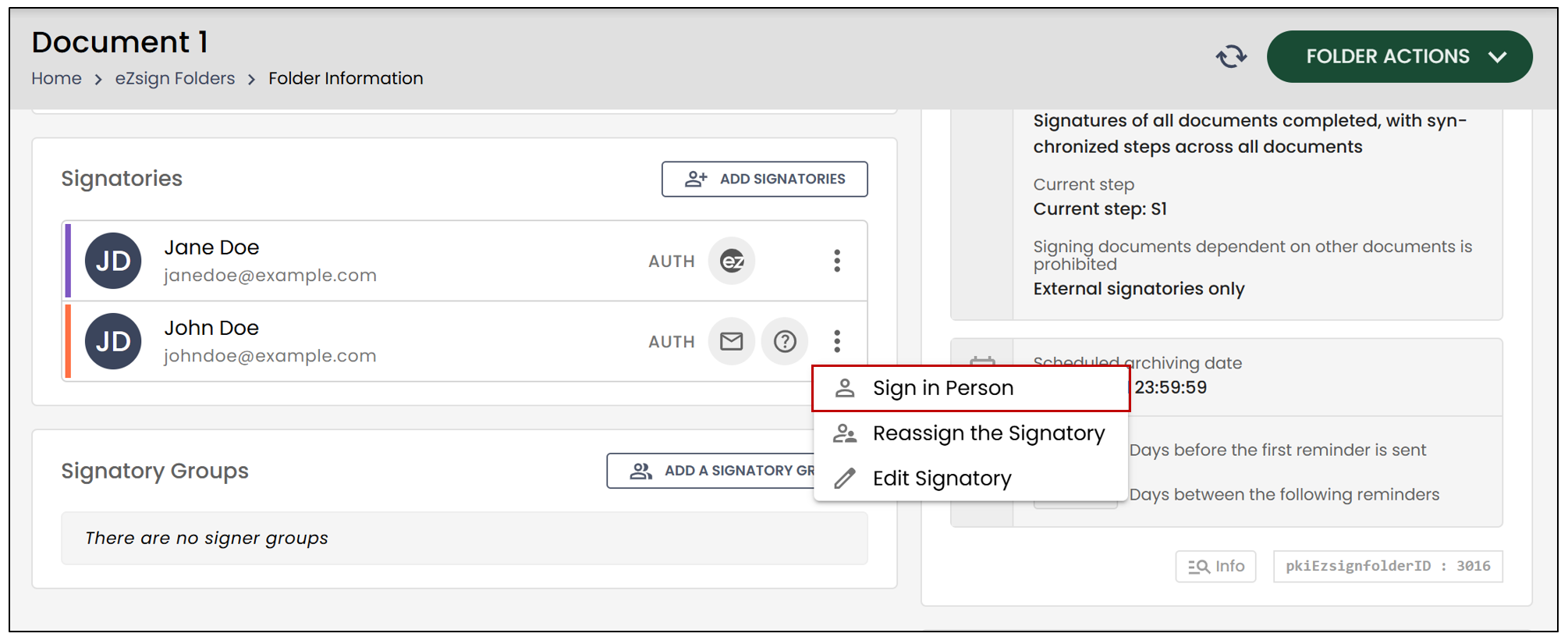
- From the desired eZsign folder, go to the Signatories section.
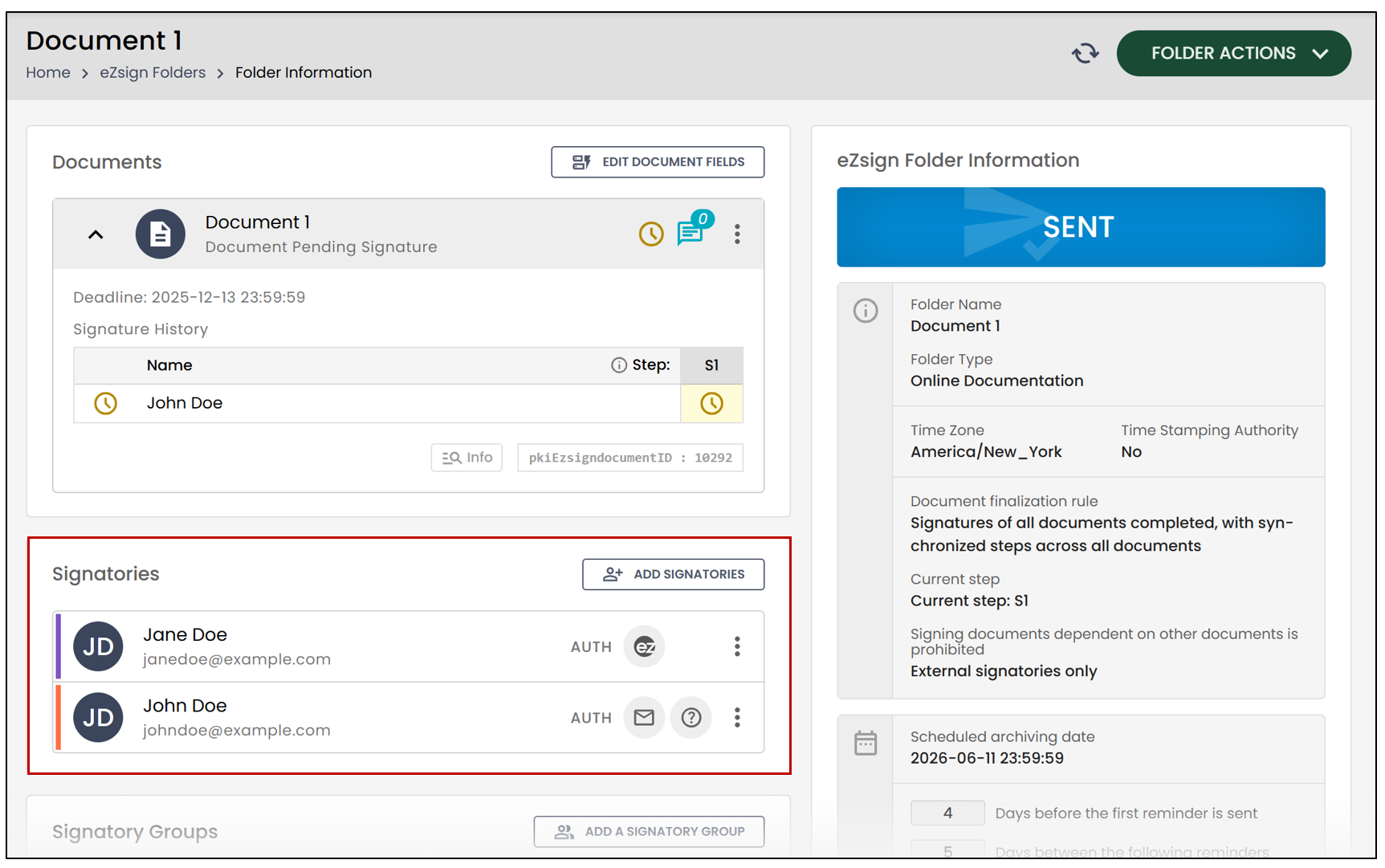
- To the right of the desired signer, click on the three vertical dots, then select Sign in Person.
- The signer will be redirected and can then click on Begin the Process.
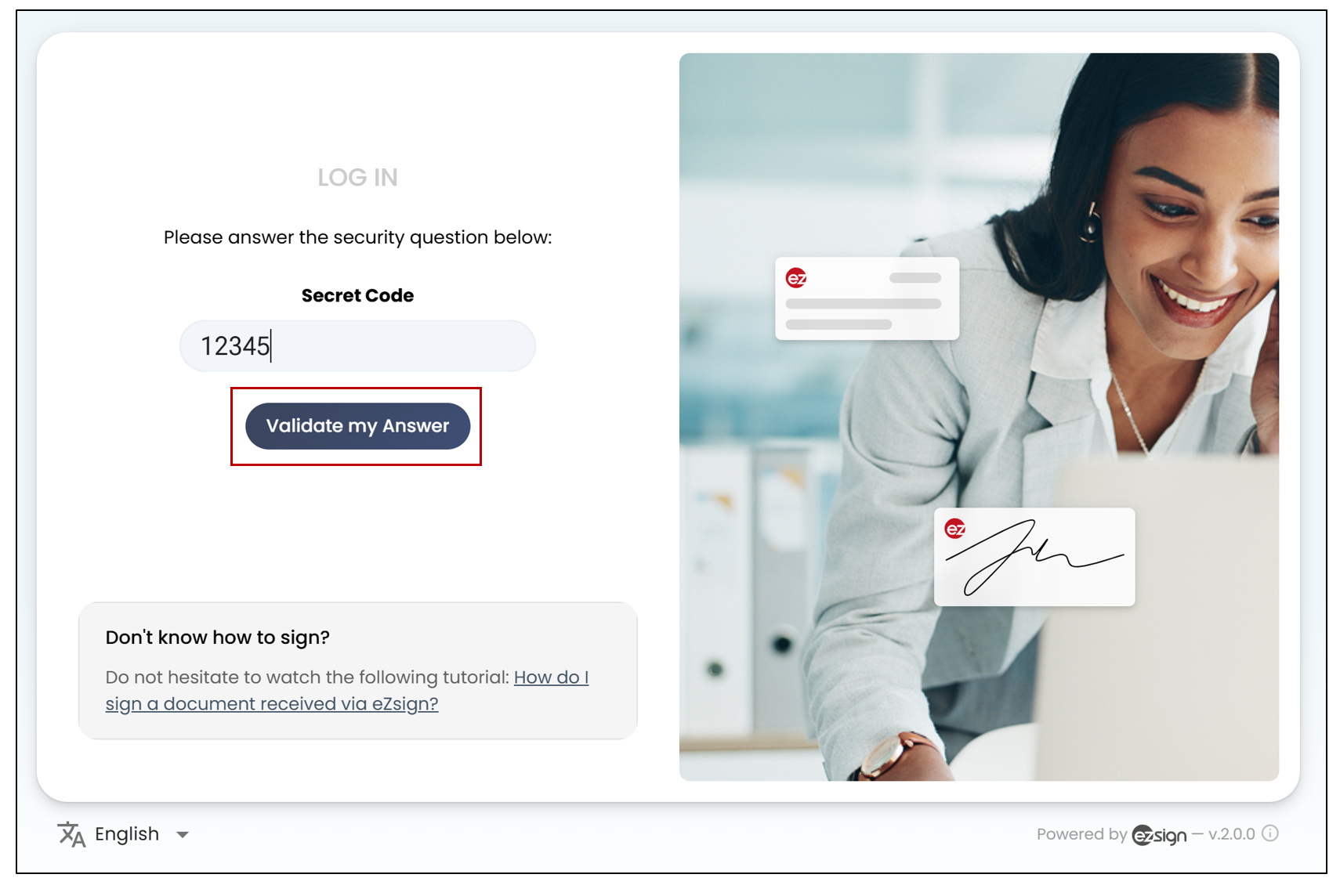
Depending on the authentication process previously chosen for the signer, they will need to authenticate. In this example, the signer must provide the answer to a secret question.
- The signer will be able to access the document after clicking Validate My Answer.
- The signer must read the terms of use of the electronic signature system, then click on "I have read and agree to these terms of use" before accessing the document.
- The signer will then be able to access the document on your device and apply their signature.
NOTE: The user and the signer who signed in person will receive an email indicating that the document has been completed.