English
Fill Out a Form as a User (eZsign Web)
When you need to fill out a form as a user, you can do so directly from the eZsign folder or the homepage of your eZsign platform.
NOTE: Form fields must be filled out before electronic signature fields.
Access the Form to be Filled Out - From the eZsign Folder
- From the main menu, click on eZsign Folders and select the desired folder.
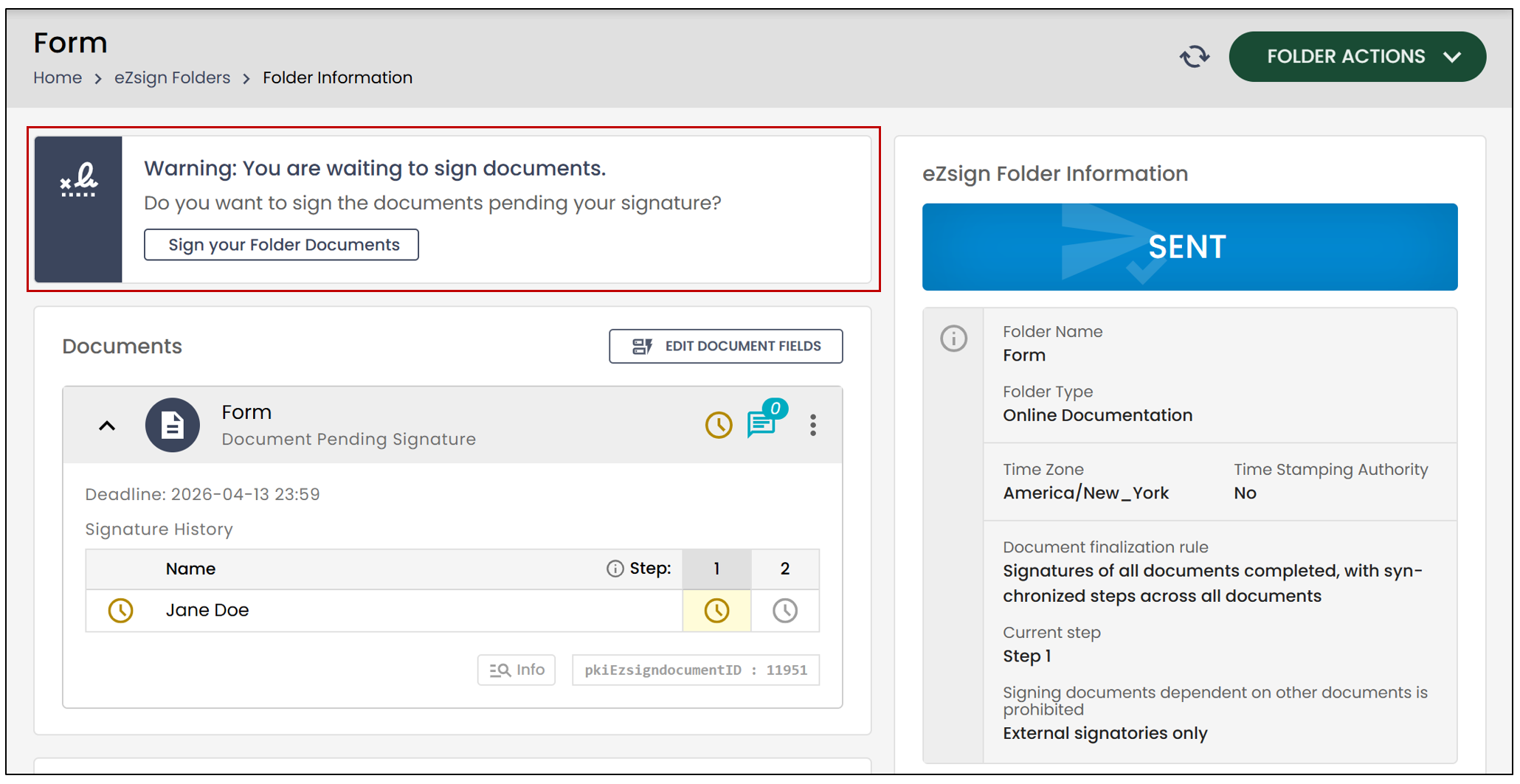
- In the Warning: you are waiting to sign documents box, click on Sign your Folder Documents**.**
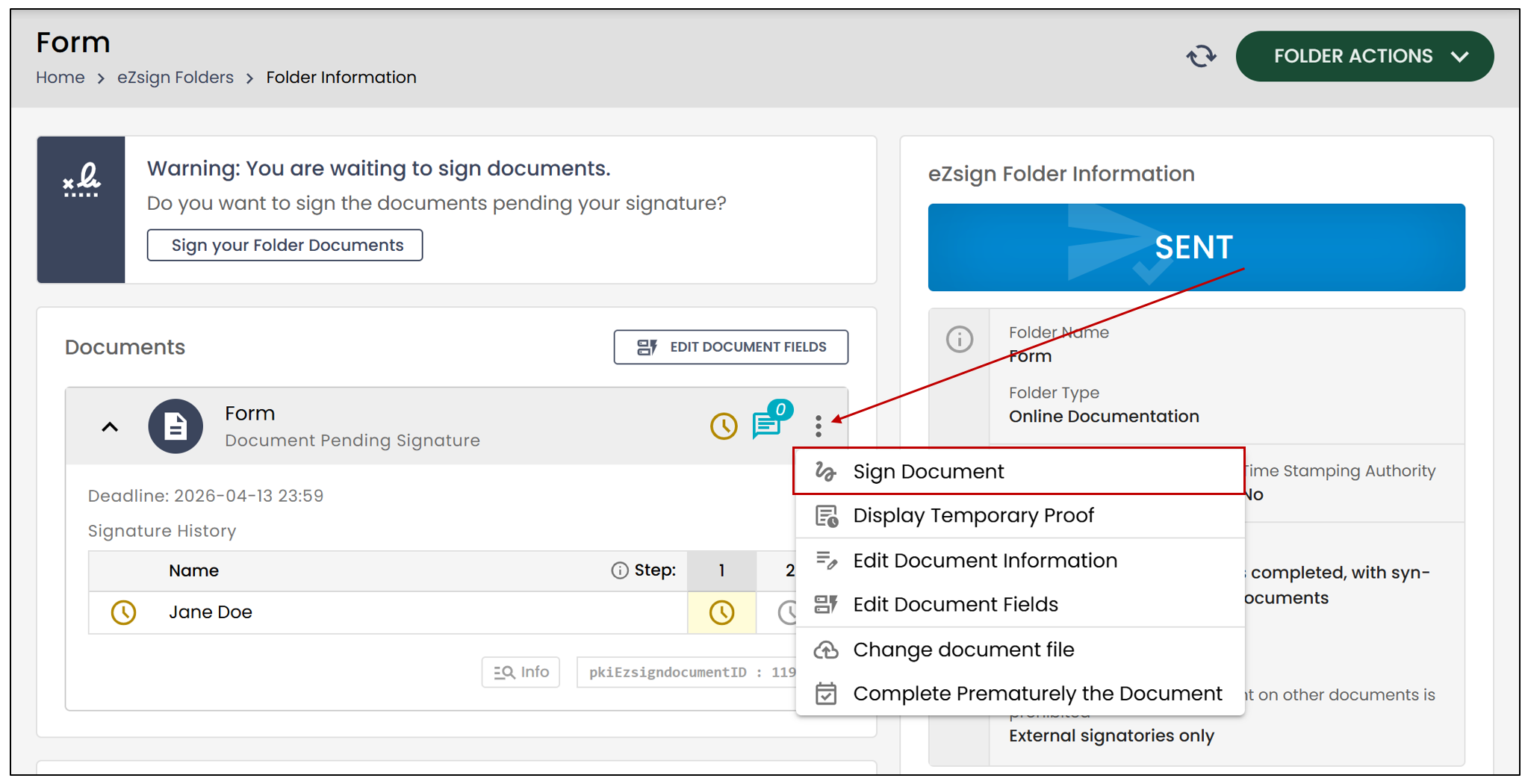
- You also have the option to click on the three vertical dots, next to the folder name, and click on Sign Document.
Access the Form to be Filled Out - From the Homepage
- On the eZsign homepage, locate the notification You have pending forms.
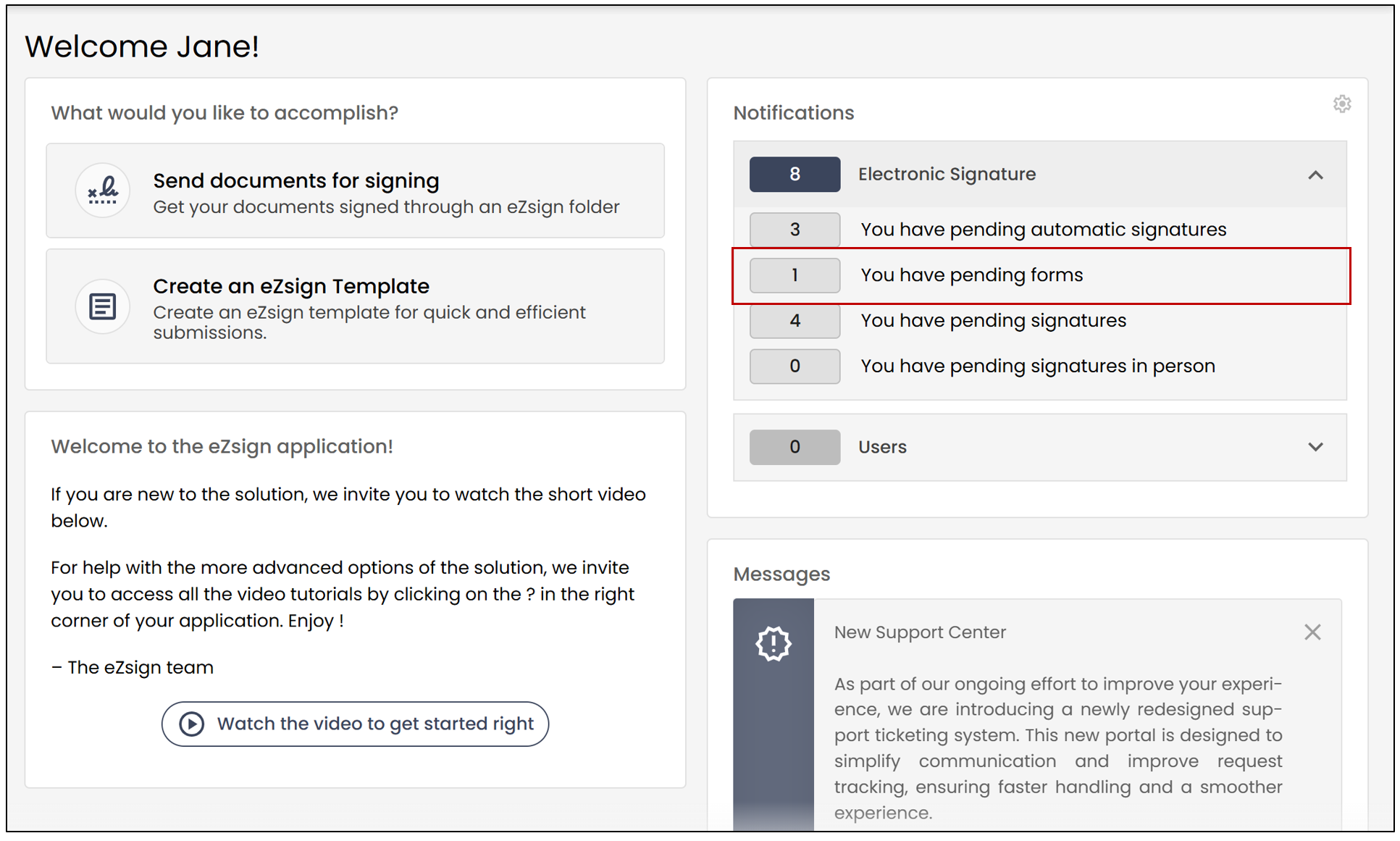
- Click on the number to the left of the message to access the pending forms.
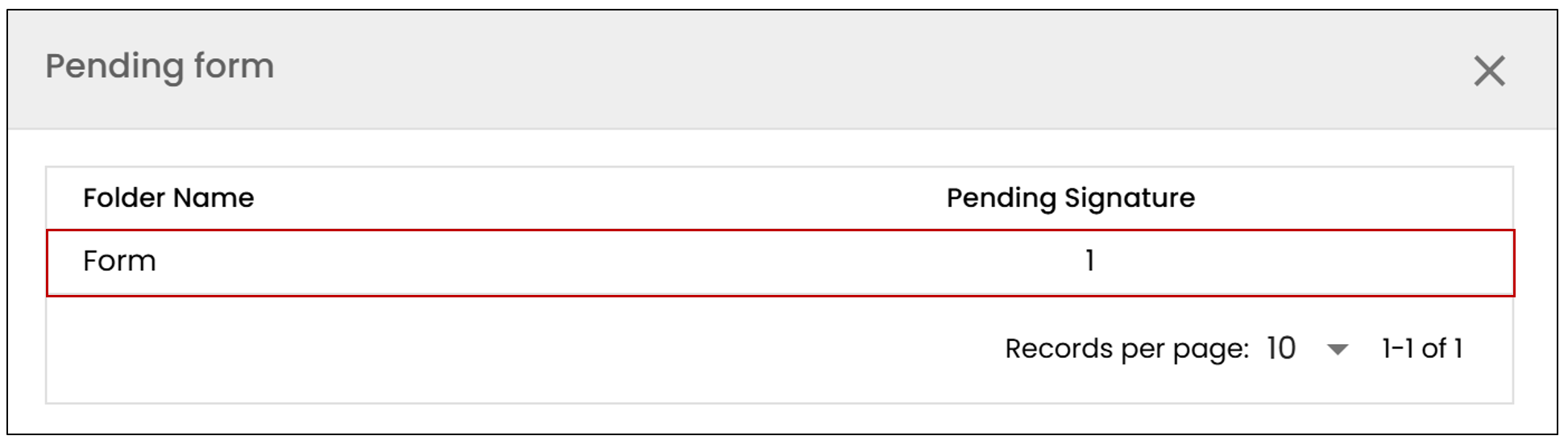
- Click on the folder name to open the form to be filled out.
Fill Out the Form
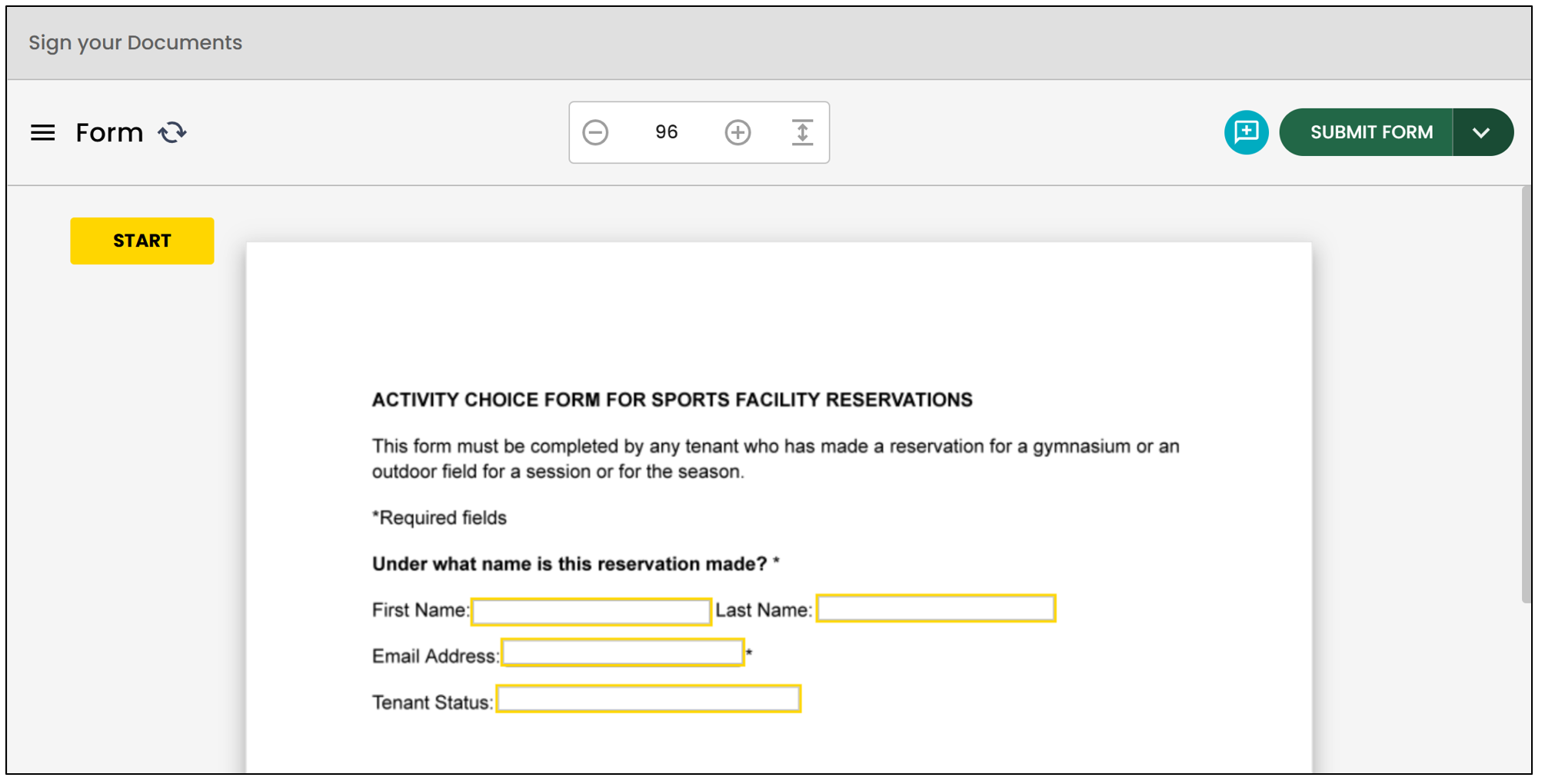
- Fill in the desired form fields**.**
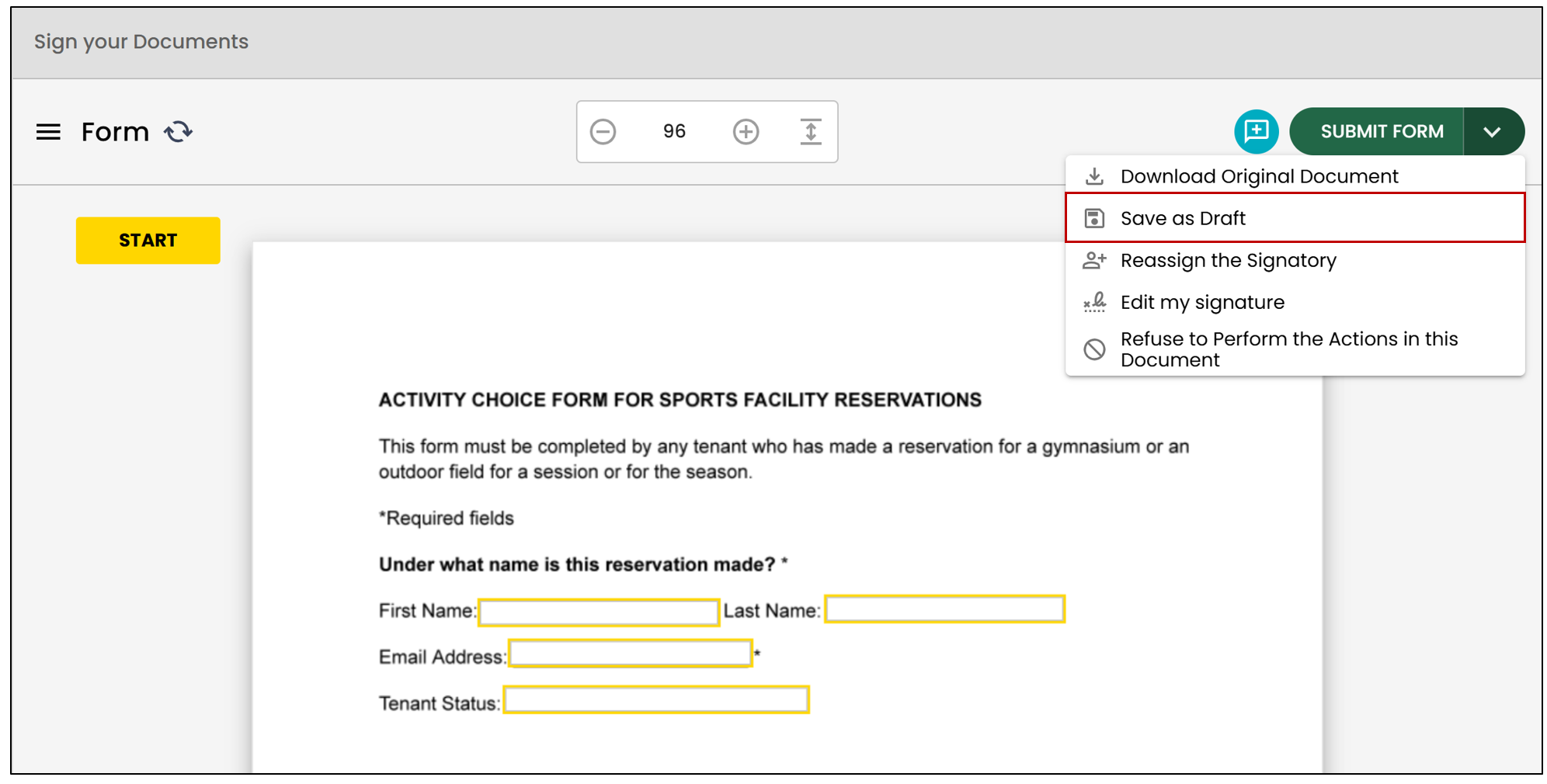
NOTE: To save the fields you have completed so far, click on the downward arrow , then select Save as Draft (see below). You will have the opportunity to complete the document later.
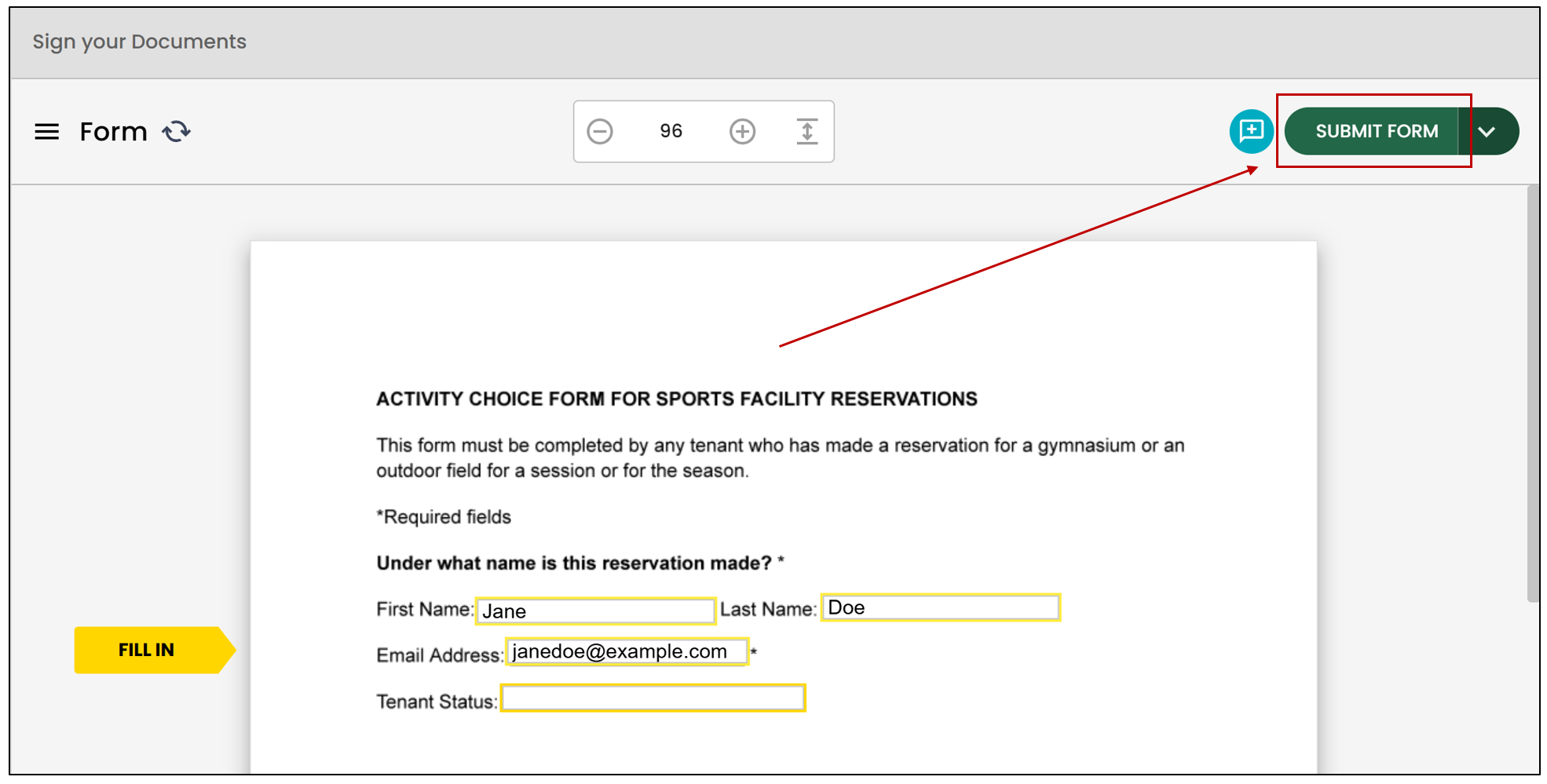
- When all form fields are filled out, click on Submit Form.
- If you have to apply your signature to the document in Step 2, the message "There are remaining actions to complete" will appear.
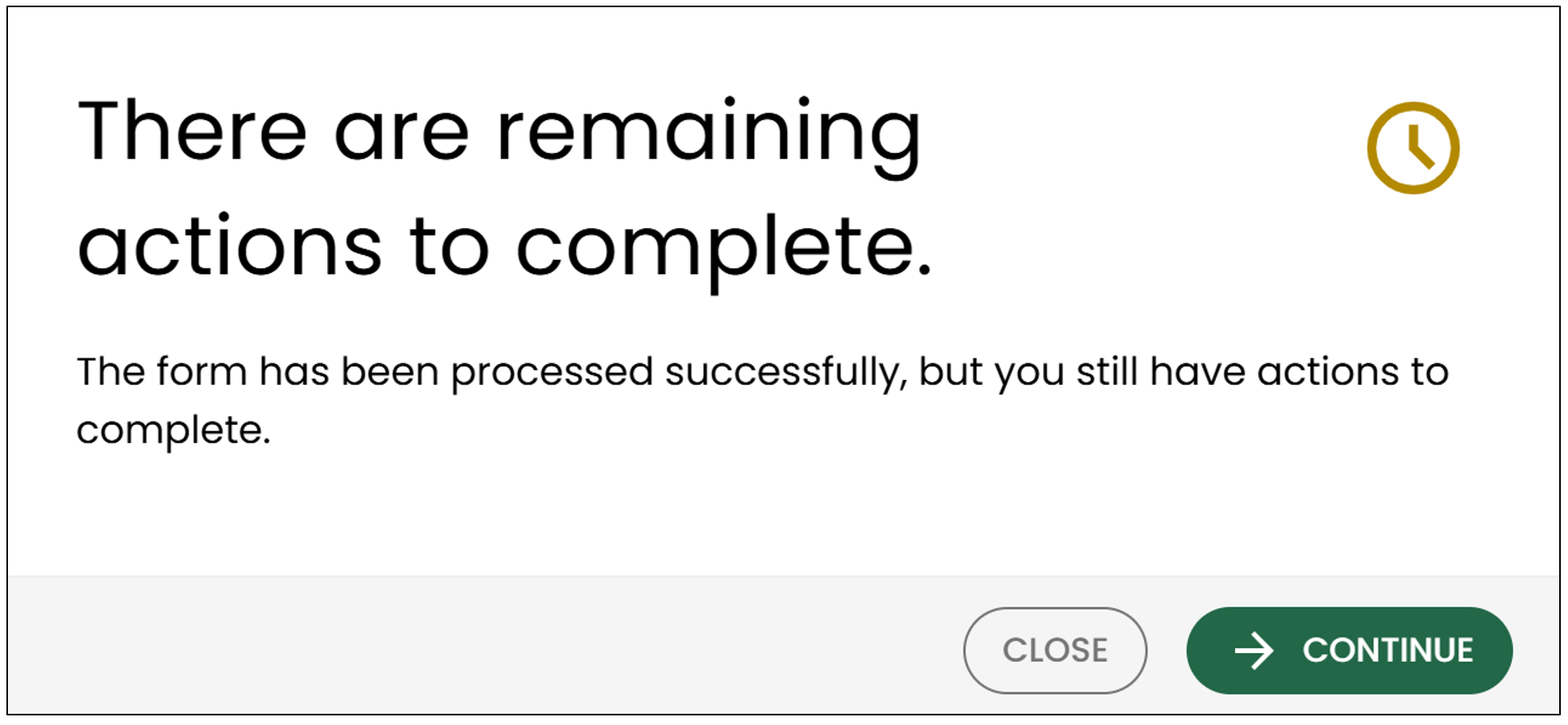
Click on Continue.
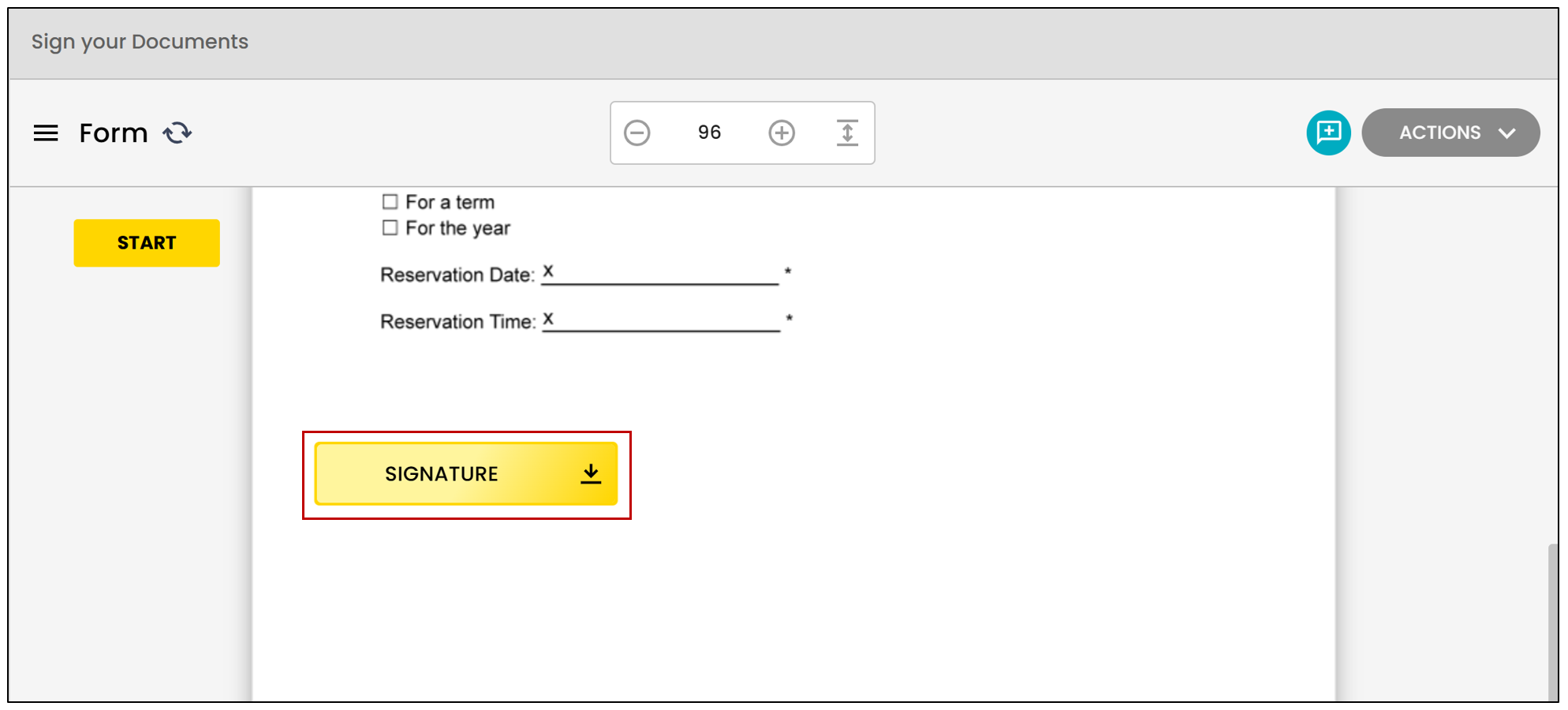
You will be able to sign the document in the designated areas by clicking on Signature.
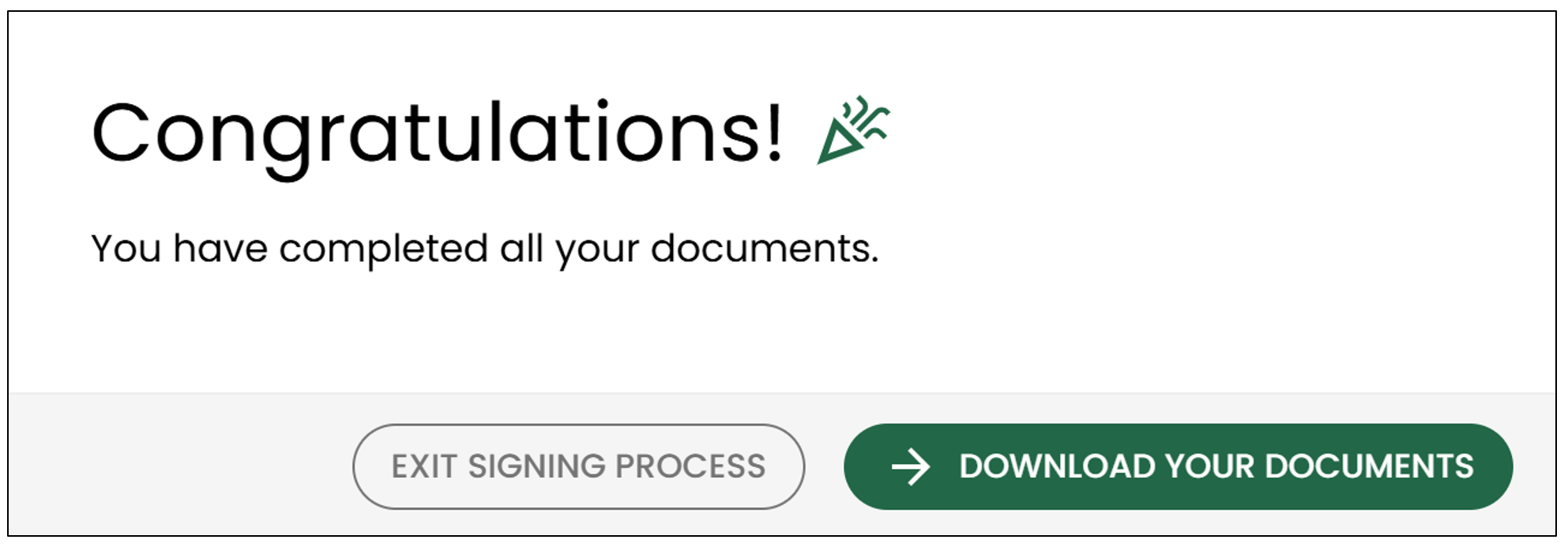
- Once the signature fields are completed and all signatures have been obtained, this message will appear, and you will have the option to Download your documents**.**