

English
Adding/Editing/Deleting a Signatory in an eZsign Folder
Add a signatory to an eZsign folder
- From the left menu, click on eZsign Folders and select the desired folder.
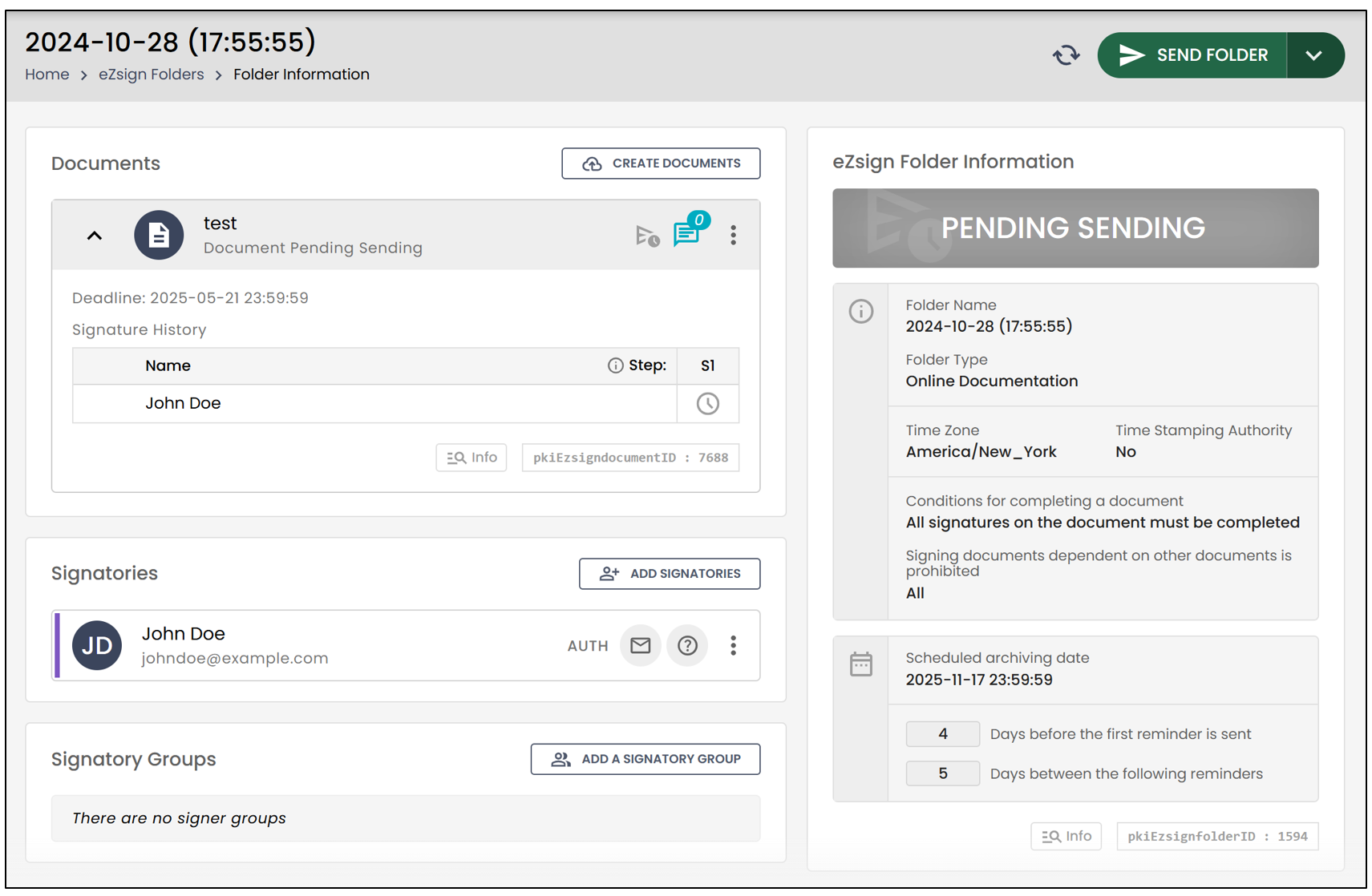
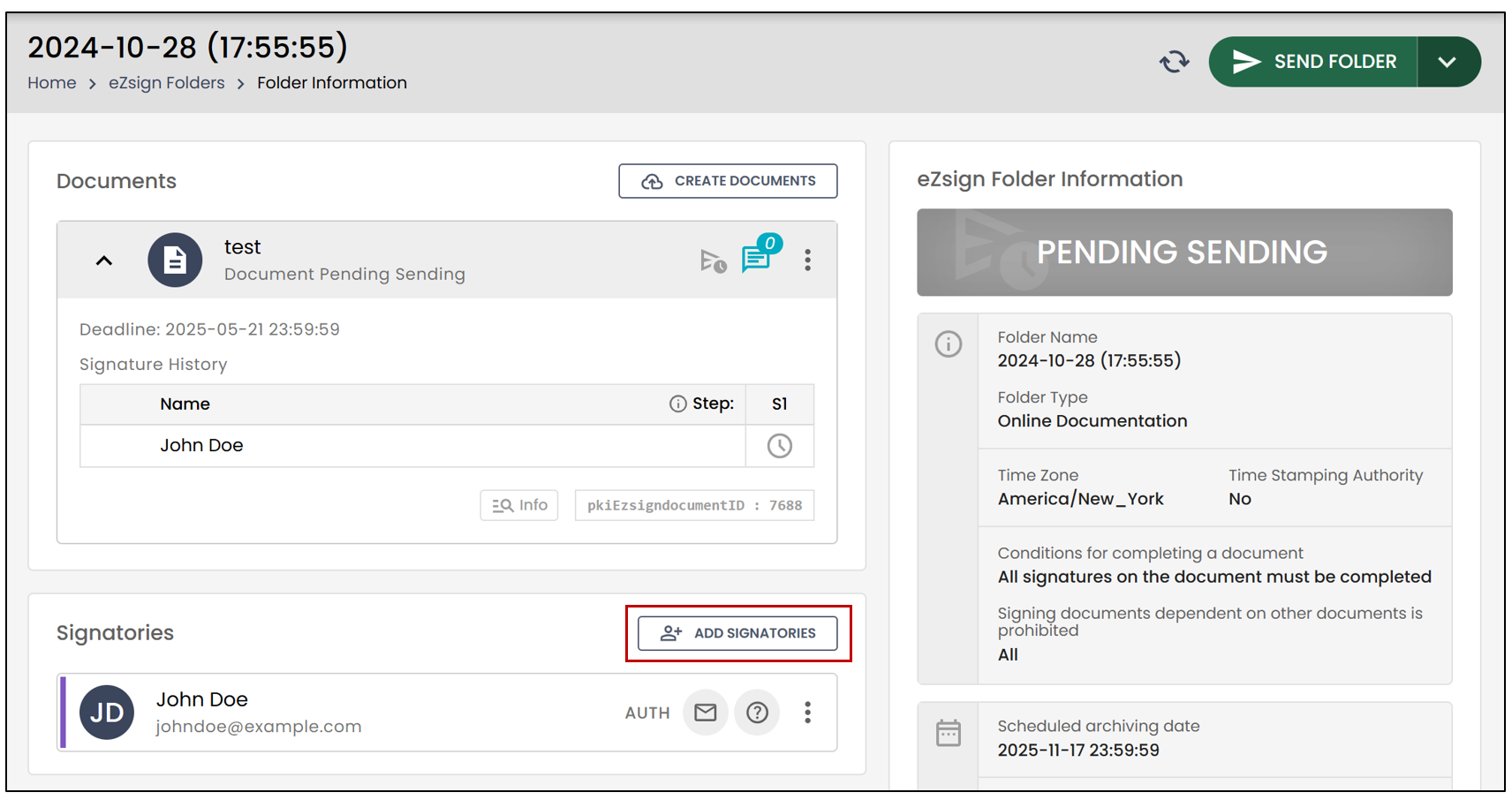
- In the Signatories section, click on Add Signatories.
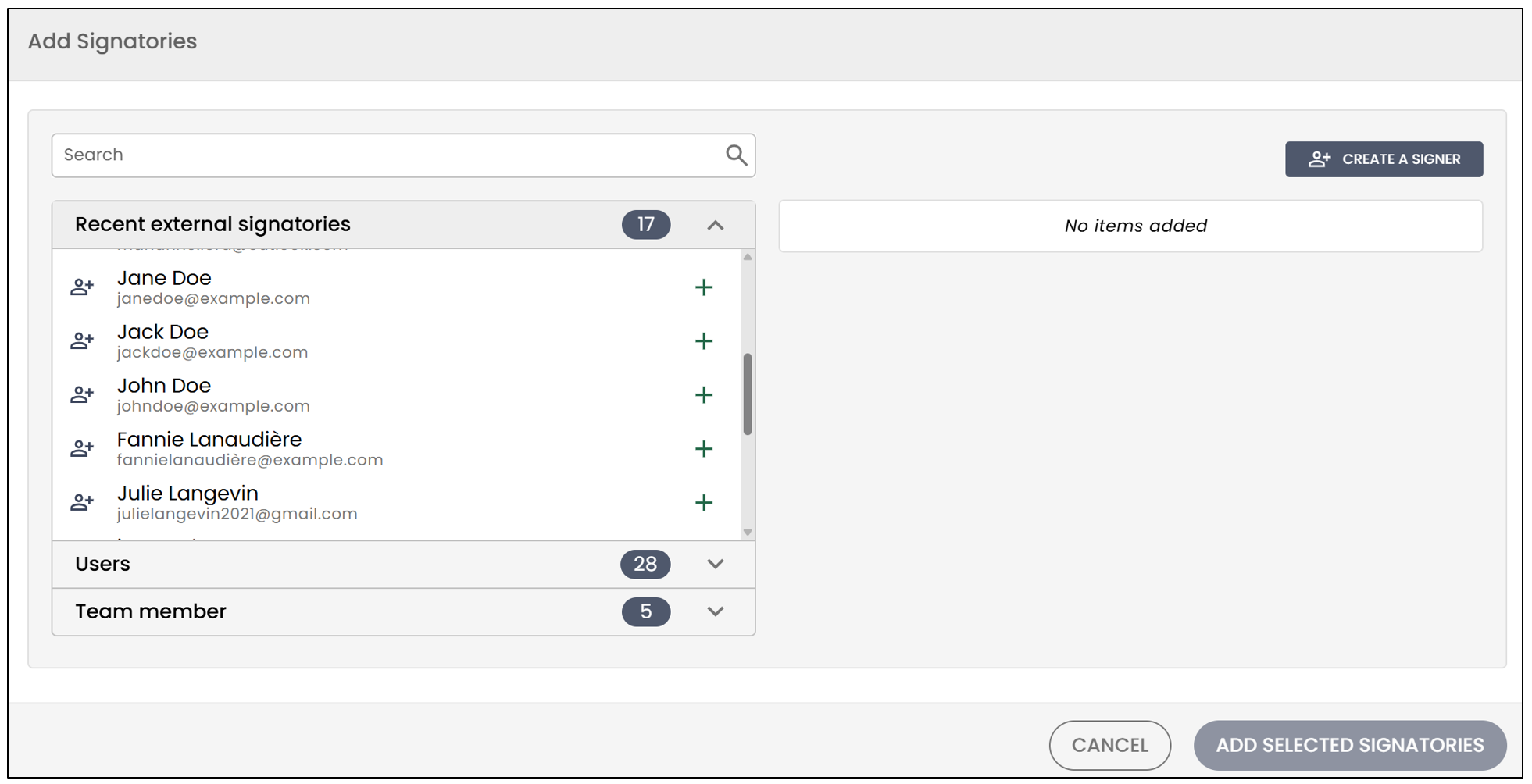
- You can add signatories in two different ways: by searching for an already registered person in the system or by creating a new signatory.
Add an Existing Signatory
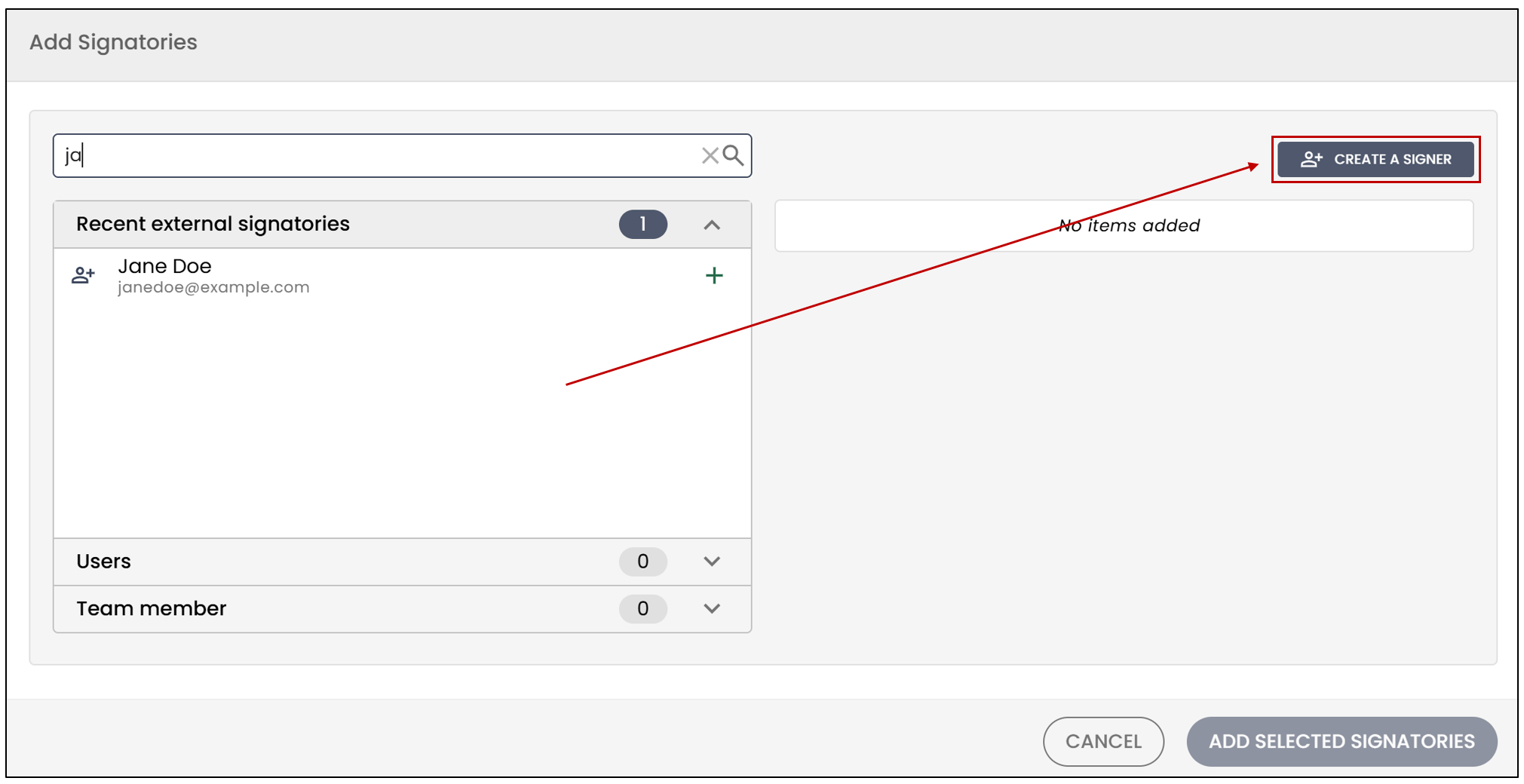
- Start typing the signatory’s name in the search bar and select the desired person from the list that appears by clicking the "+".
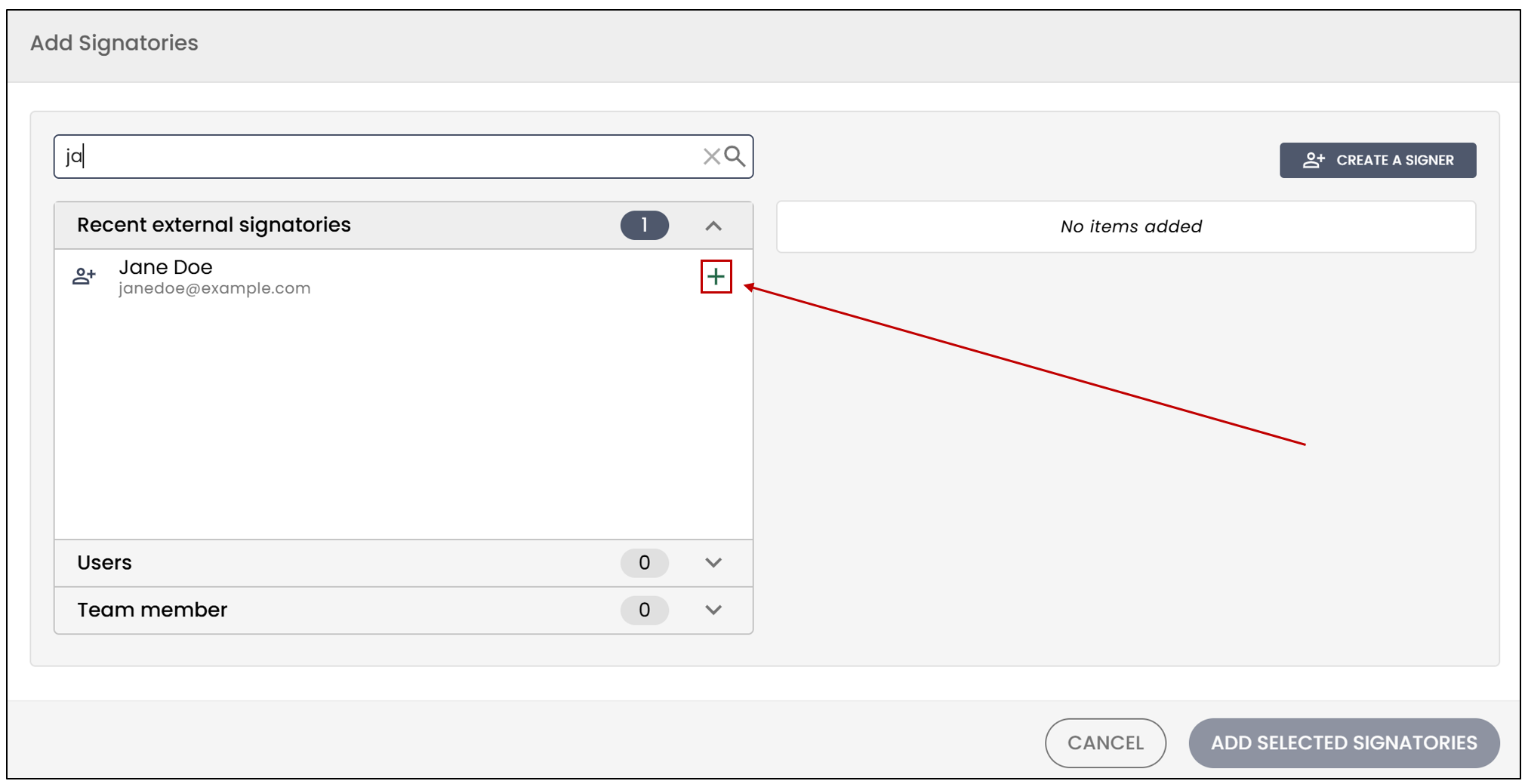
NOTE: Recent signers are displayed for a period of up to 13 months. The reference date used for this display is the creation date of the folder associated with the signer. It should also be noted that, for a signer to appear in this list, they must have the required permissions to manage the folder and must have an authorized login type for the new folder. To view the creation date, click on Info.
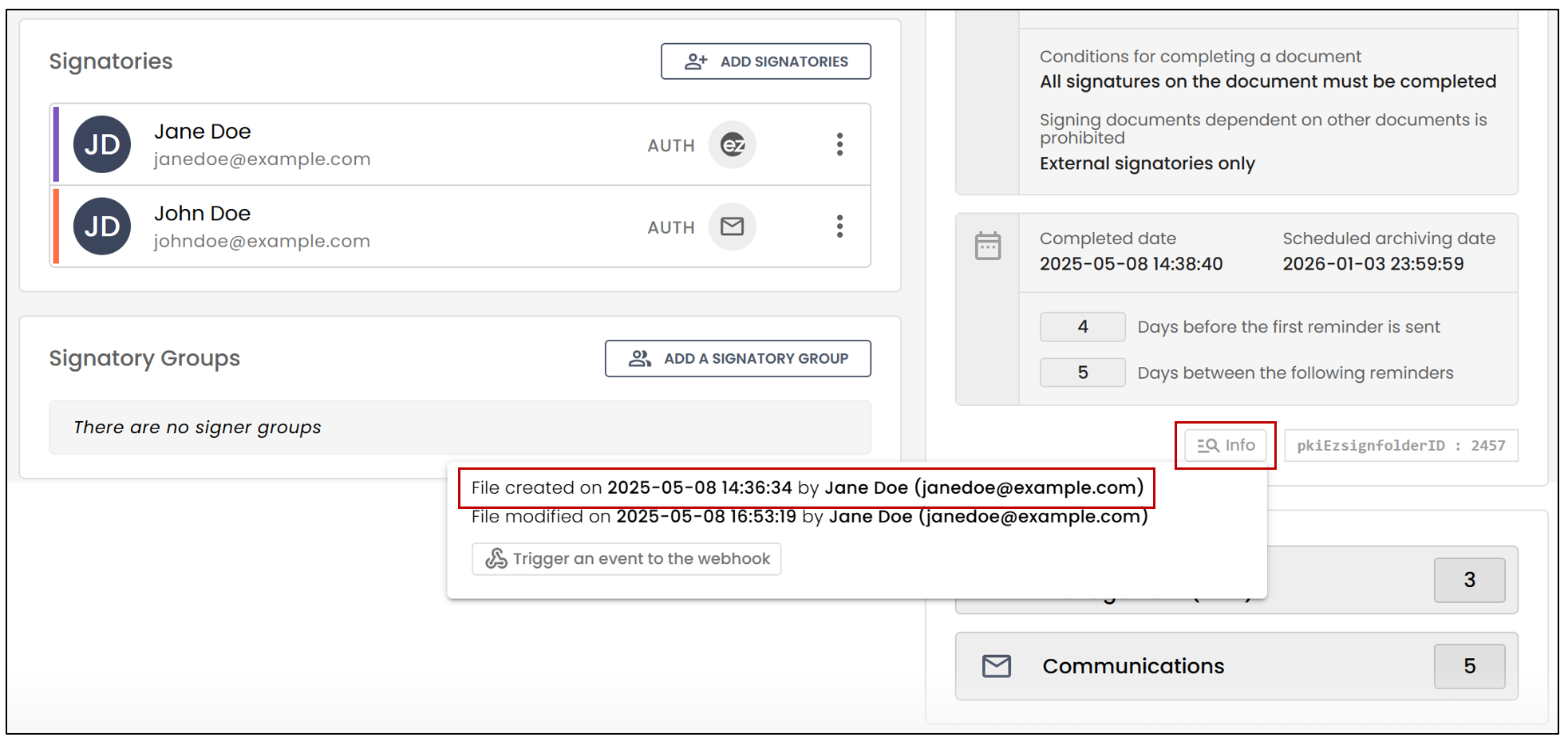
- When you’re done, click on Add Selected Signatories.
NOTE: When it is a shared folder, each member of the user group with access to this type of folder will be able to access the signatories added to the folder.
Add a New Signatory
- To create a new signatory, click on Create a Signer.
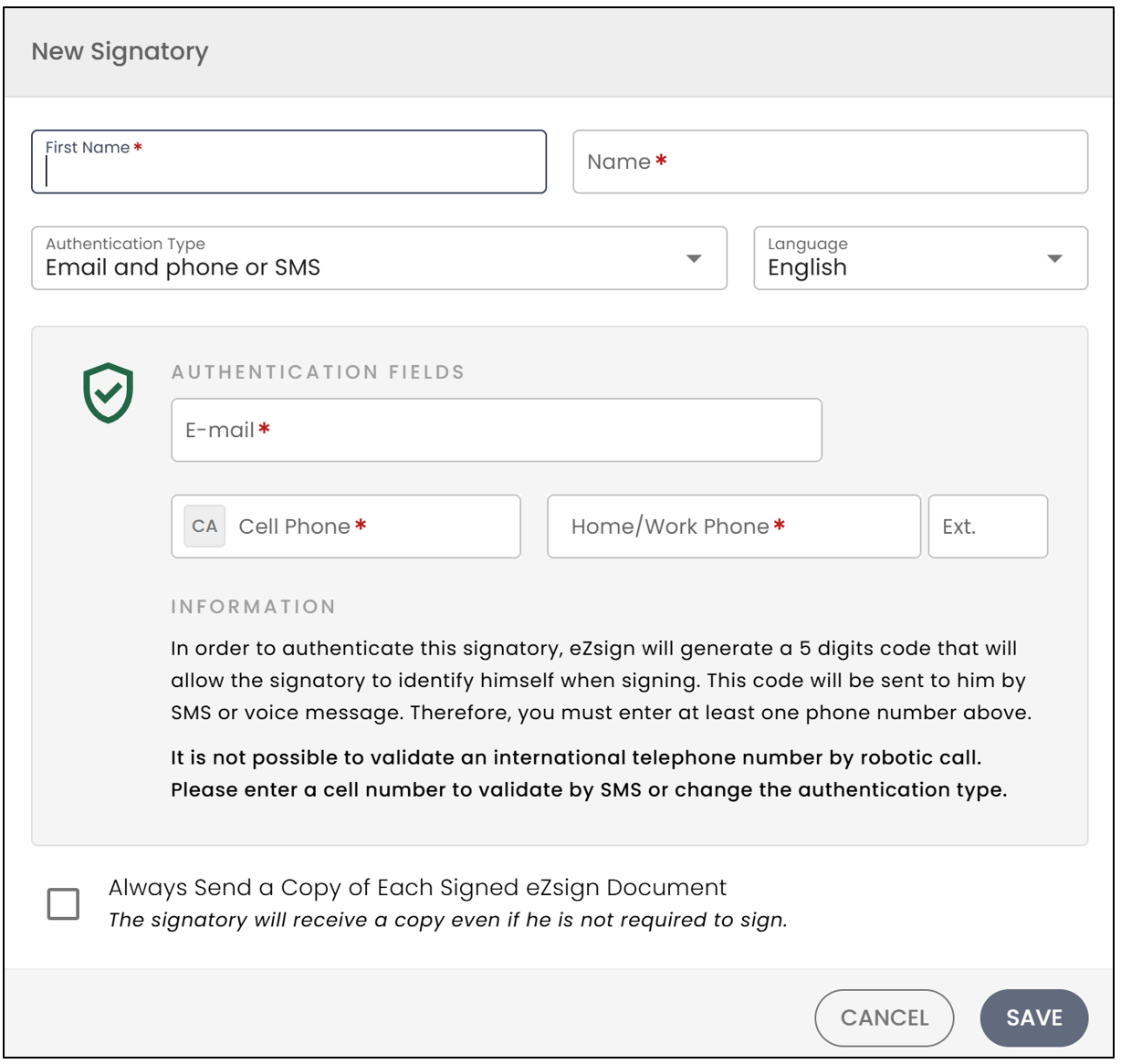
- Enter the signatory’s First Name and Last Name.
NOTE: The fields have character limits. The first name is limited to a maximum of 20 characters , and the last name to a maximum of 25 characters.
Select the appropriate Language. The email message and all instructions sent to the signatory will be in this language.
Select the desired Authentication Type. For more information, see the article Types of Signatory Authentication.
Depending on the selected authentication type, enter the Cell Phone or Home/Work Phone number.
Click Save , and the signatory will be added to the eZsign folder.
Edit a signatory in an eZsign folder
It is possible to edit a signatory, for example, to correct an error in the name, email address, or phone number, in all folders except those containing a document partially signed by that signatory.
- To edit a signatory, click on the three vertical dots next to a signatory, then click on Edit Signatory.
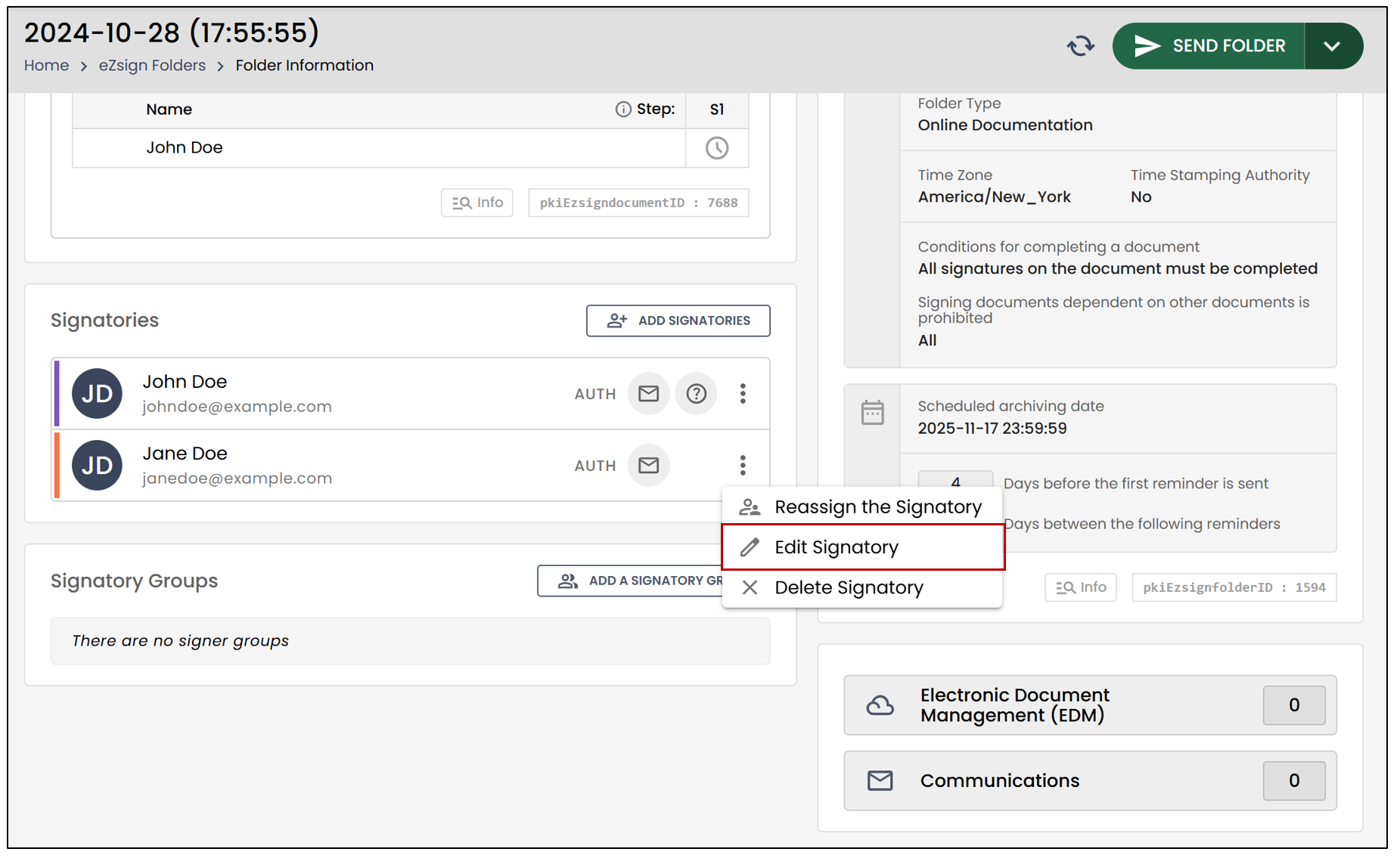
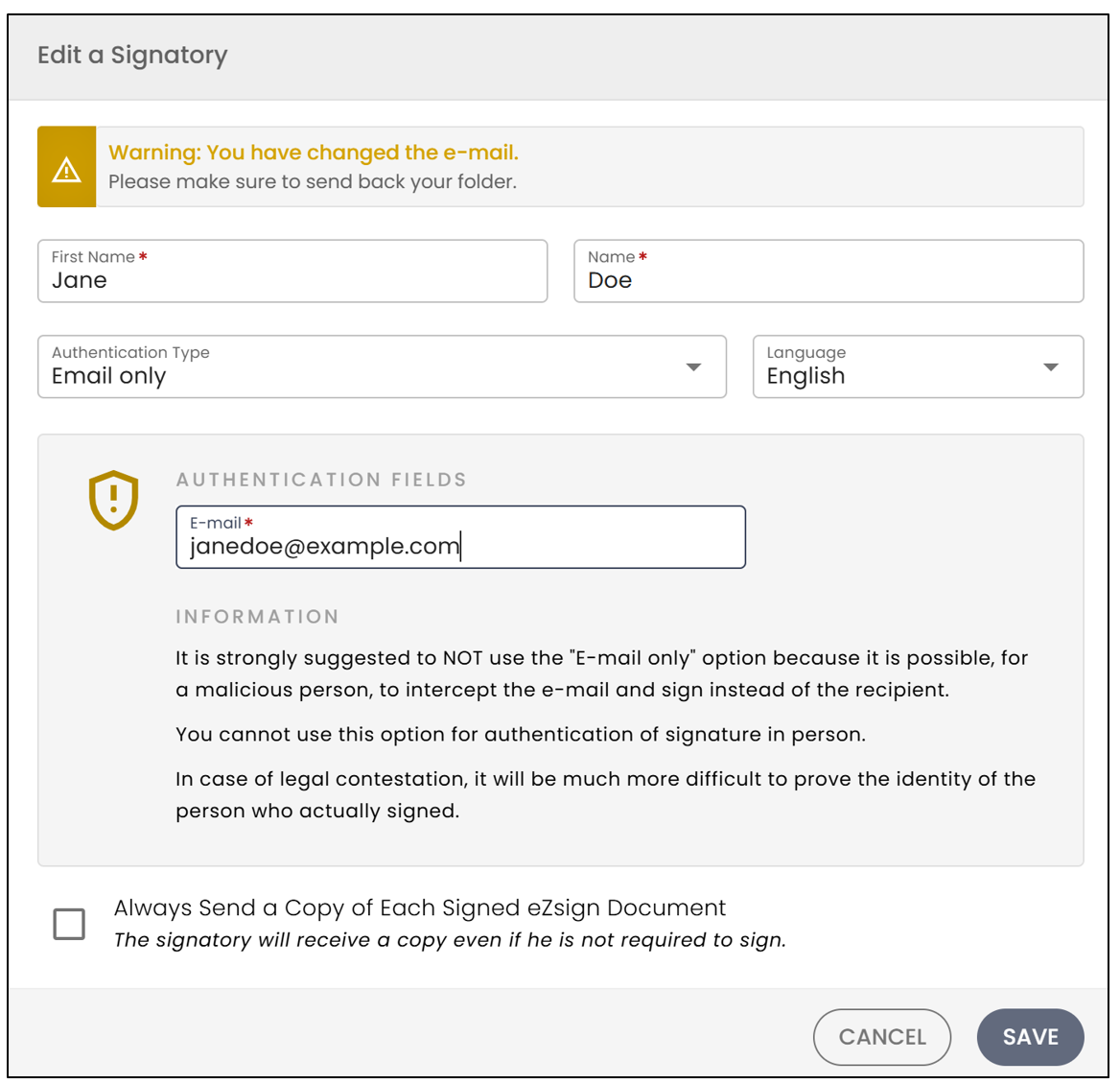
Make the desired changes, then click Save to return to the eZsign folder.
If you have modified the signatory’s email address, this message will appear:

NOTE: Don’t forget to resend the folder so that the signatory receives the email and can complete the signature.
Delete a signatory from an eZsign folder
It is possible to delete a signatory from an eZsign folder, but this is only possible if no document requiring the signatory’s signature has been sent.
- To delete a signatory, click on the three vertical dots next to a signatory, then click on Delete Signatory.
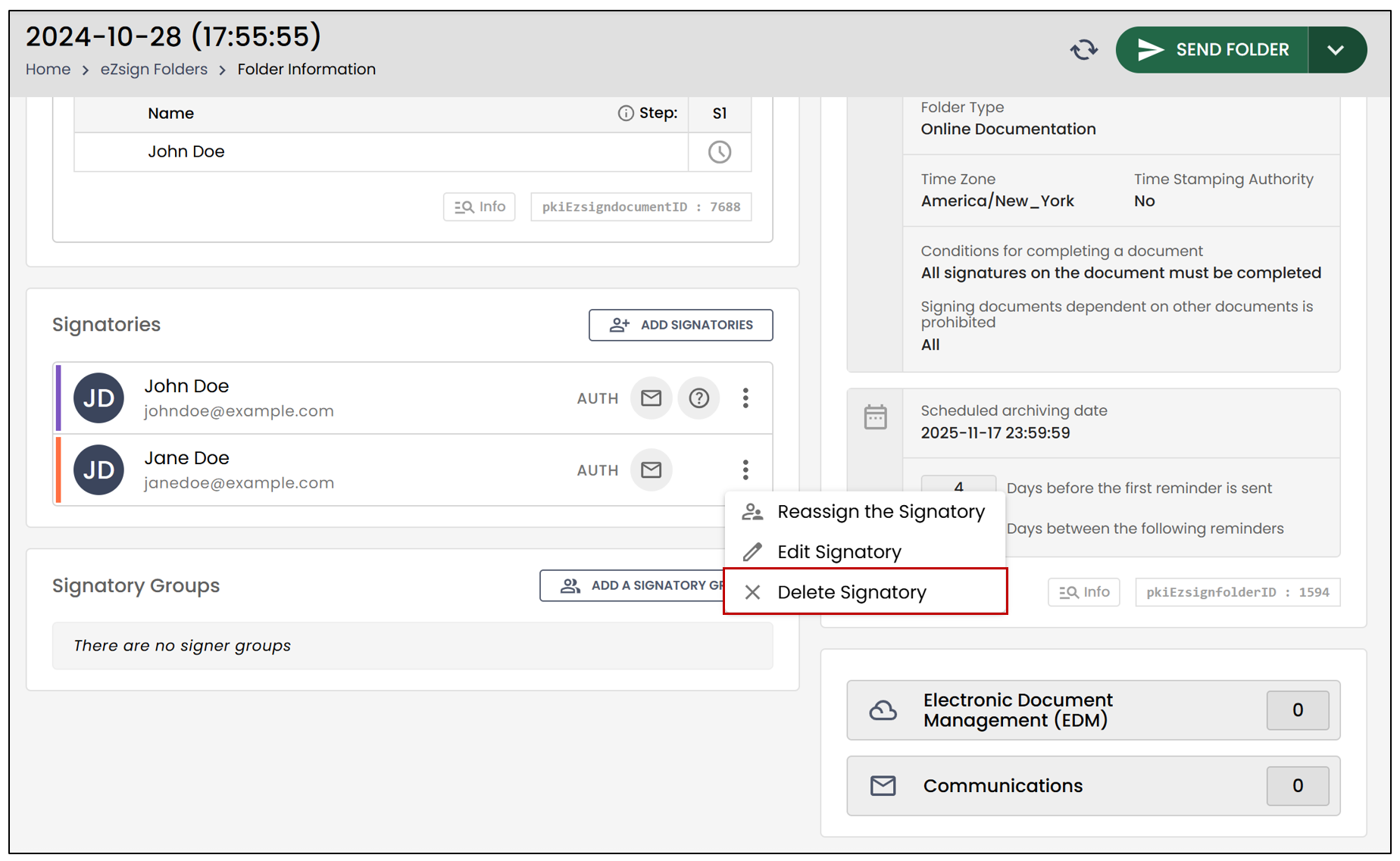
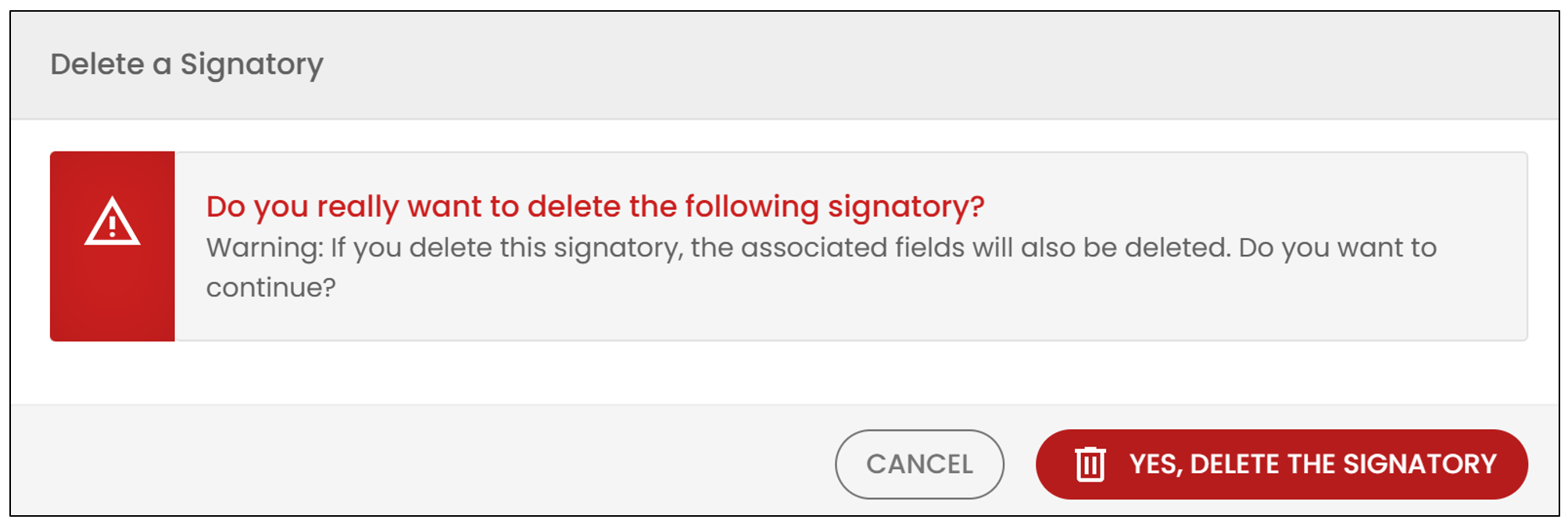
- Click Yes, delete the signatory to confirm.
For more information on signatory groups, please consult the article Add/Edit/Delete a Signatory Group in an eZsign Folder.