

English
Document Viewing Option
Add a Viewing Option
The document viewing option allows a user to view a document without having to sign it. This consultation can be done automatically or manually.
From the main menu >> Select eZsign Folders >> New eZsign Folder.
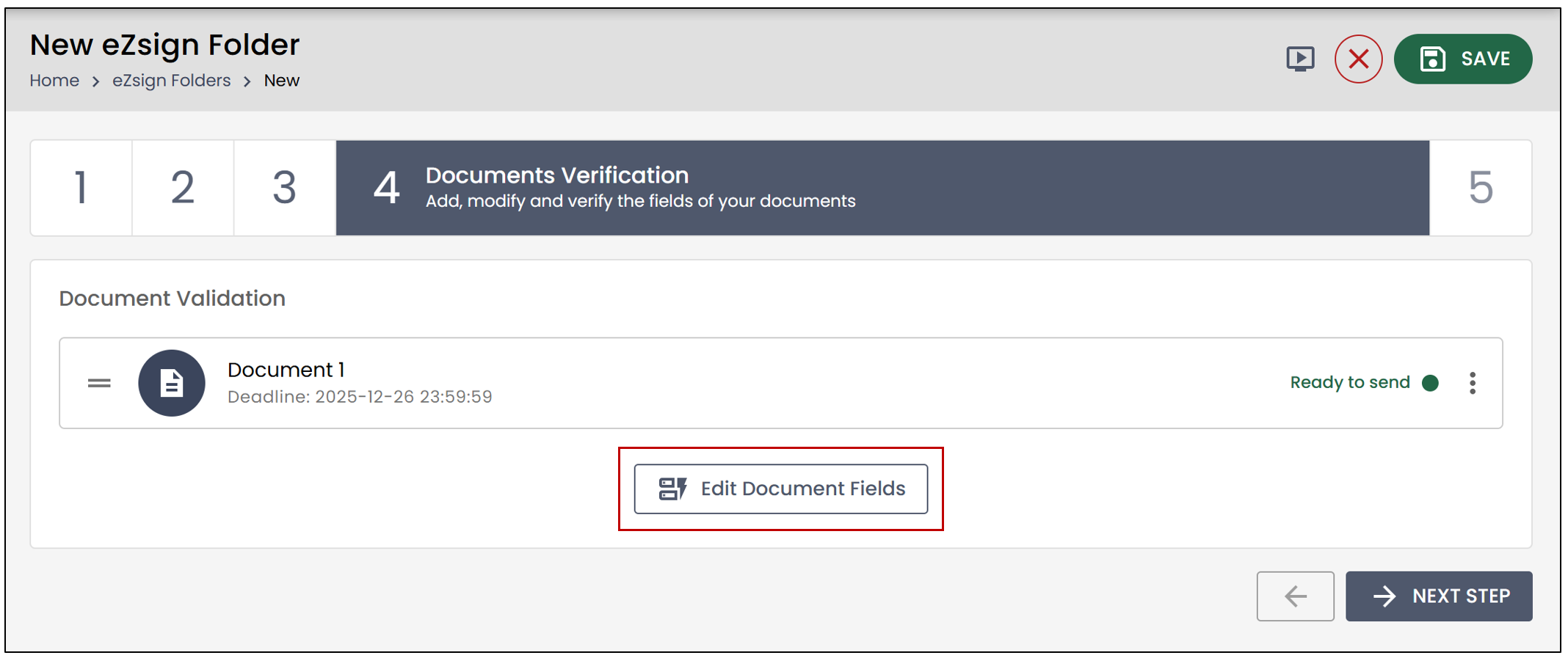
At the Document Verification step, if you want to add a viewing field, click on Edit Document Fields.
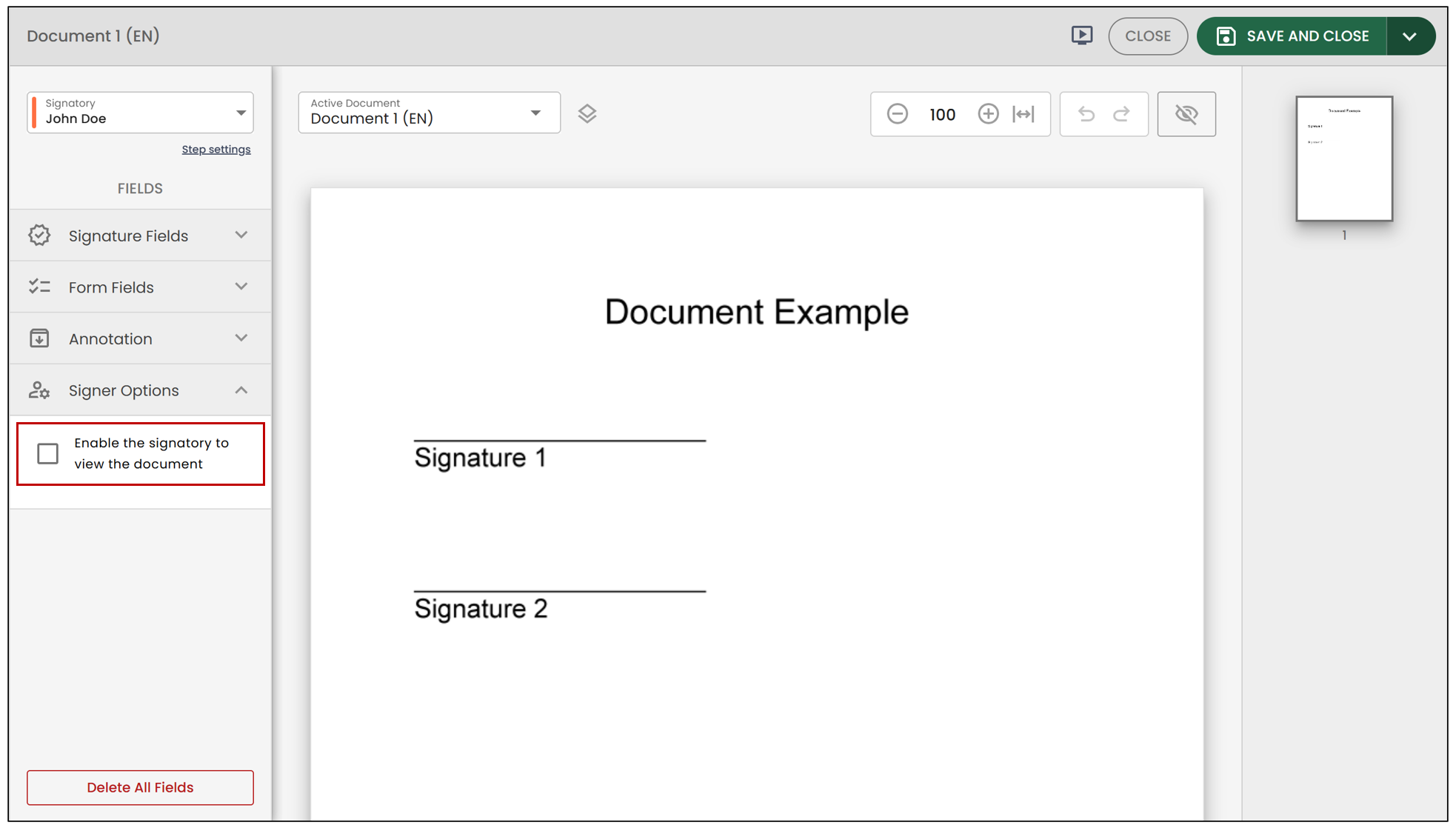
Select the desired signer, then go to Signer Options. Check Enable the signatory to view the document.
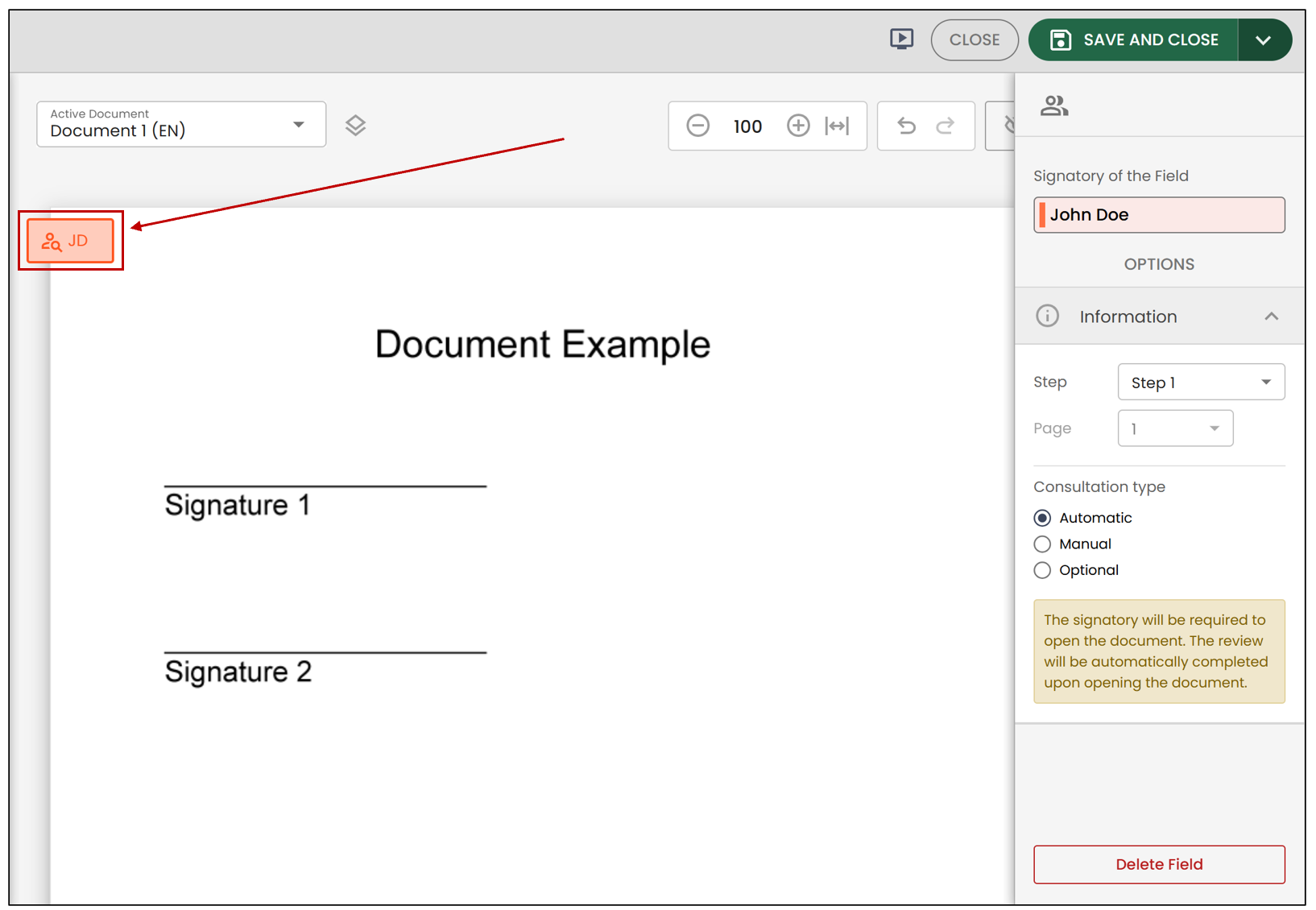
You will see a box with the initials of this user. This will not be visible on the document during signing.
You will then have the option to select the Consultation Type.
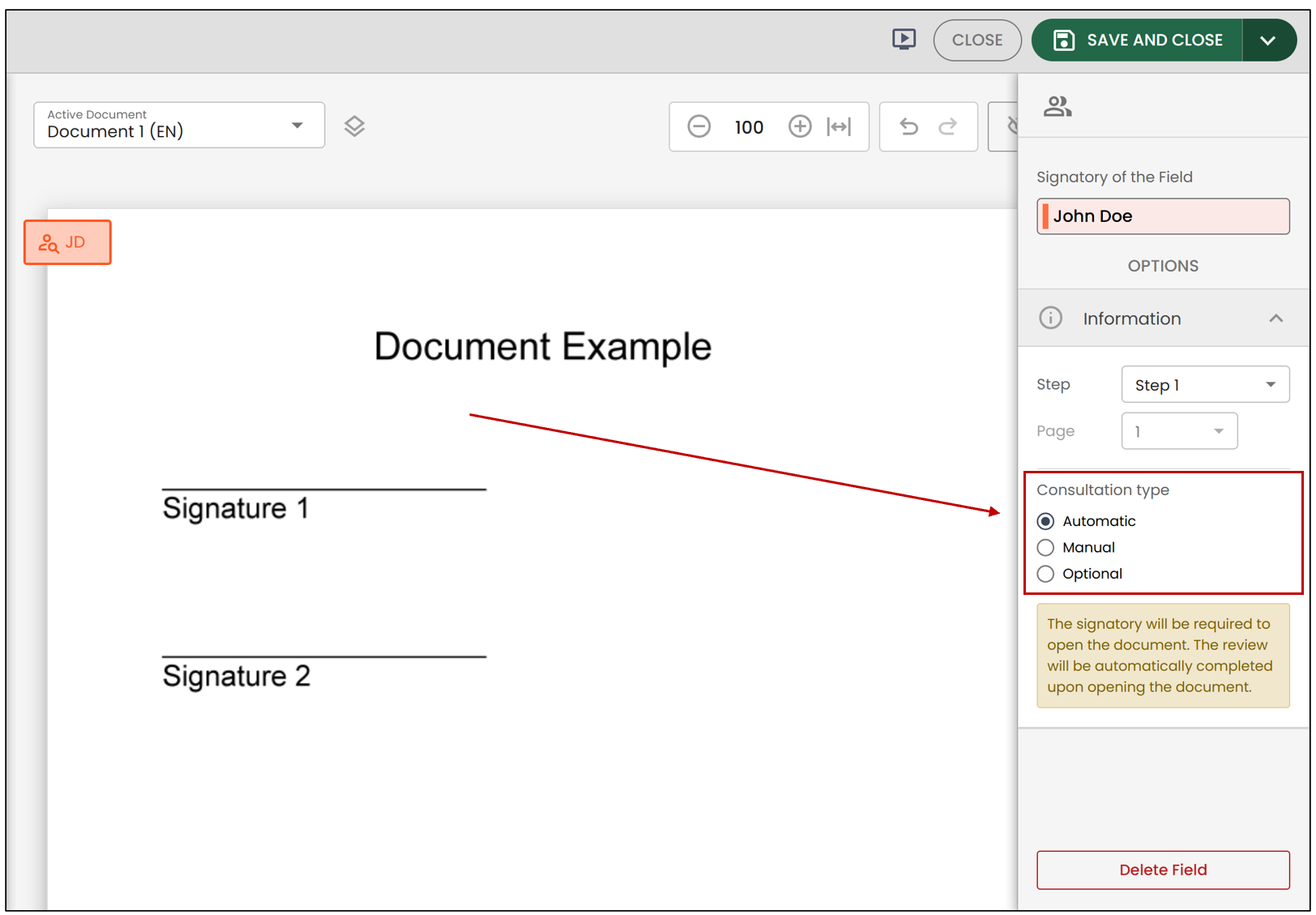
- Automatic : The viewing is considered complete as soon as the recipient opens the document. No further action is required.
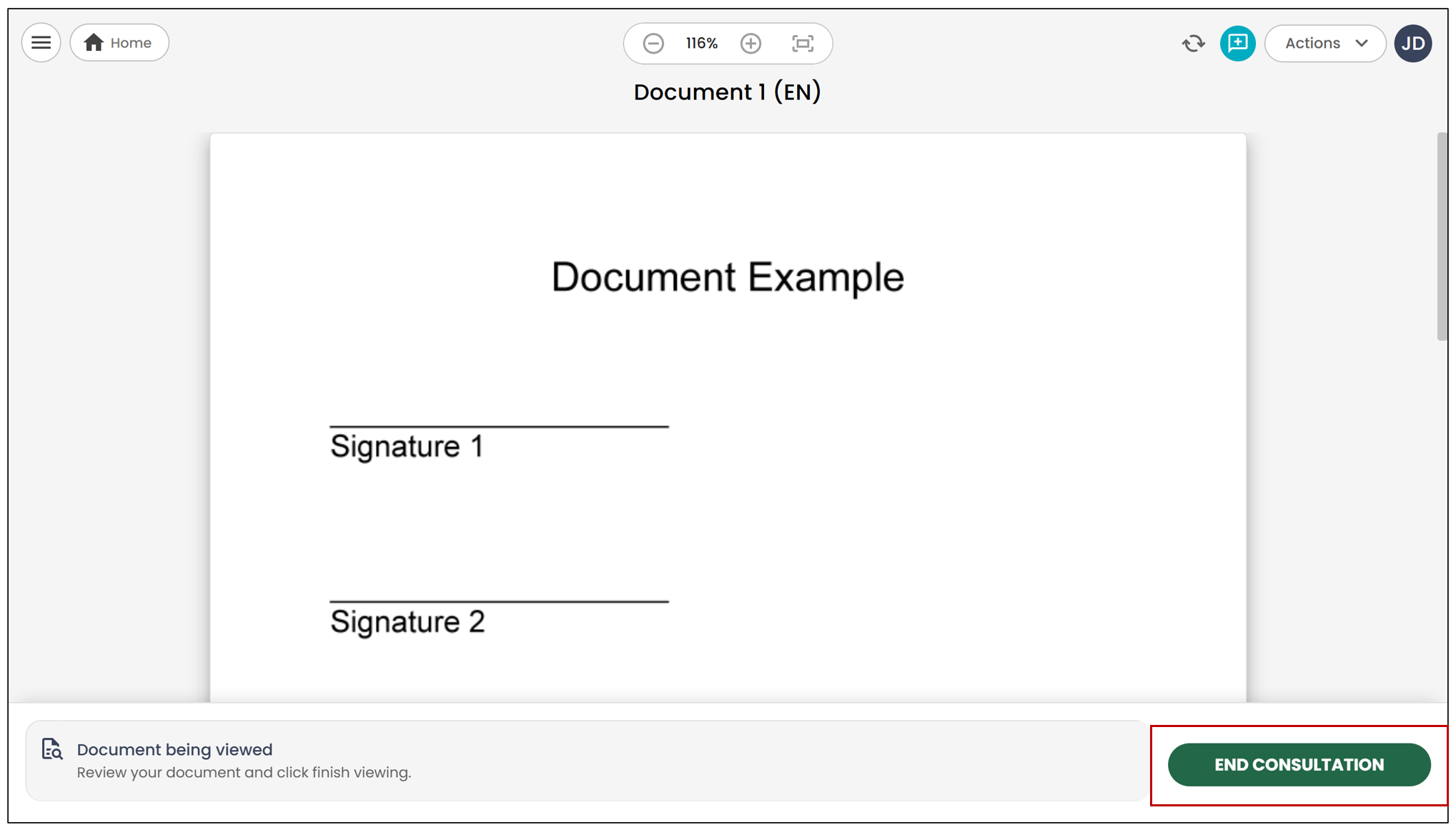
- Manual : The recipient must explicitly confirm that they have viewed the document by clicking the designated button.
- Optional : The recipient is notified by email that a document is available for viewing, but they are not required to open it. The signing process and subsequent steps continue normally, whether or not they view the document. Since no viewing confirmation is required, this viewing will not appear in the signature evidence.
You can add additional signature fields if needed, and then click Save.
Viewing by the Signatory
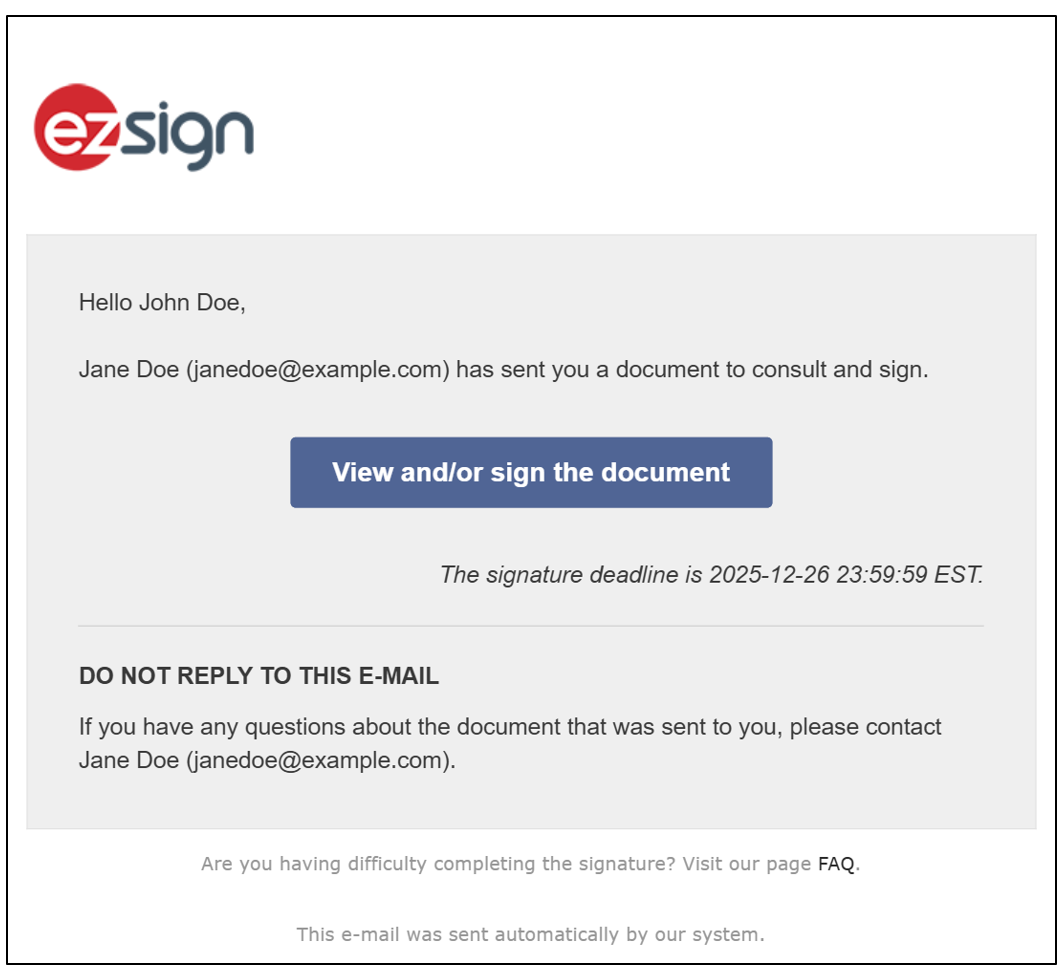
The signer with a viewing field, in this example, is at step 1. They will receive an email notifying them that they have documents to consult.
NOTE: If the Automatic option was not checked when creating the document, the person viewing the document will need to click End Consultation for the document to move to the next step.
If all actions in the folder have been completed, the signatory will see this message:
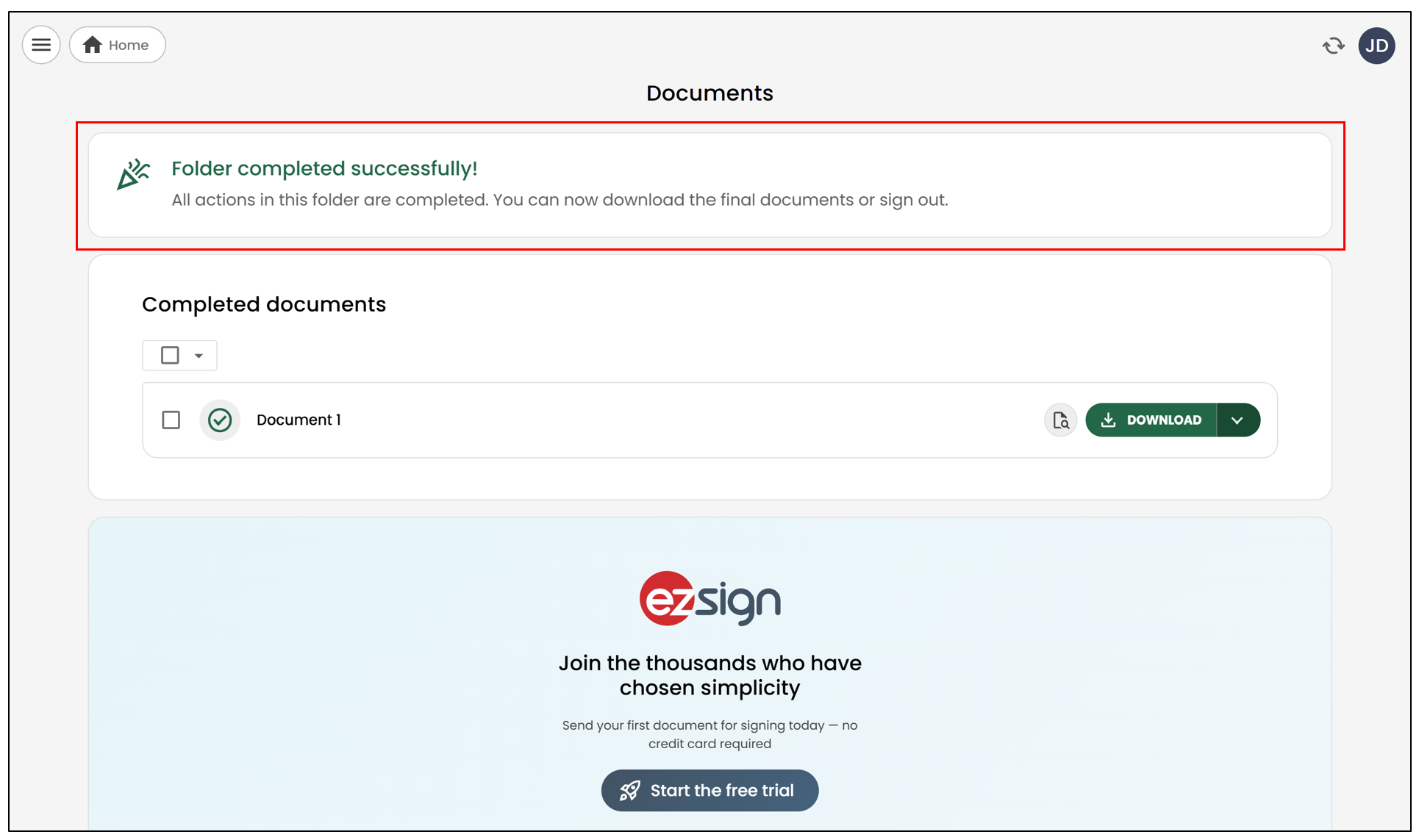
The signatory will then have the option to download the completed documents.