English
Adding an "Attachments" Field in a Document
Adding an "Attachments" Field in a Document
It is possible to add an Attachments electronic signature field in a document, allowing the signatory to attach one or more files to the document during their signature.
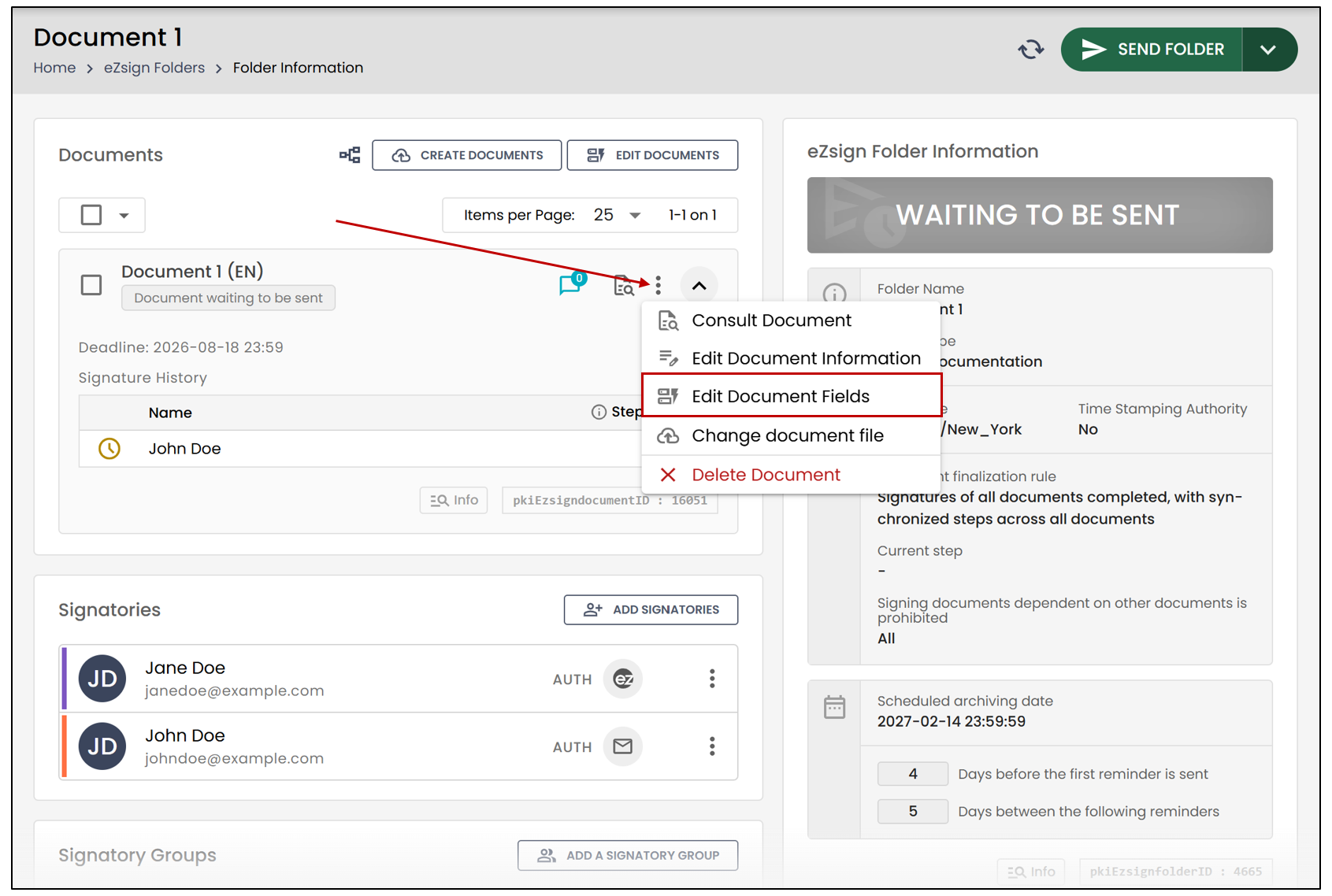
- From the left menu, click on eZsign Folders and select the desired folder. In the Documents section, click on the three vertical dots, and click on Edit Document Fields.
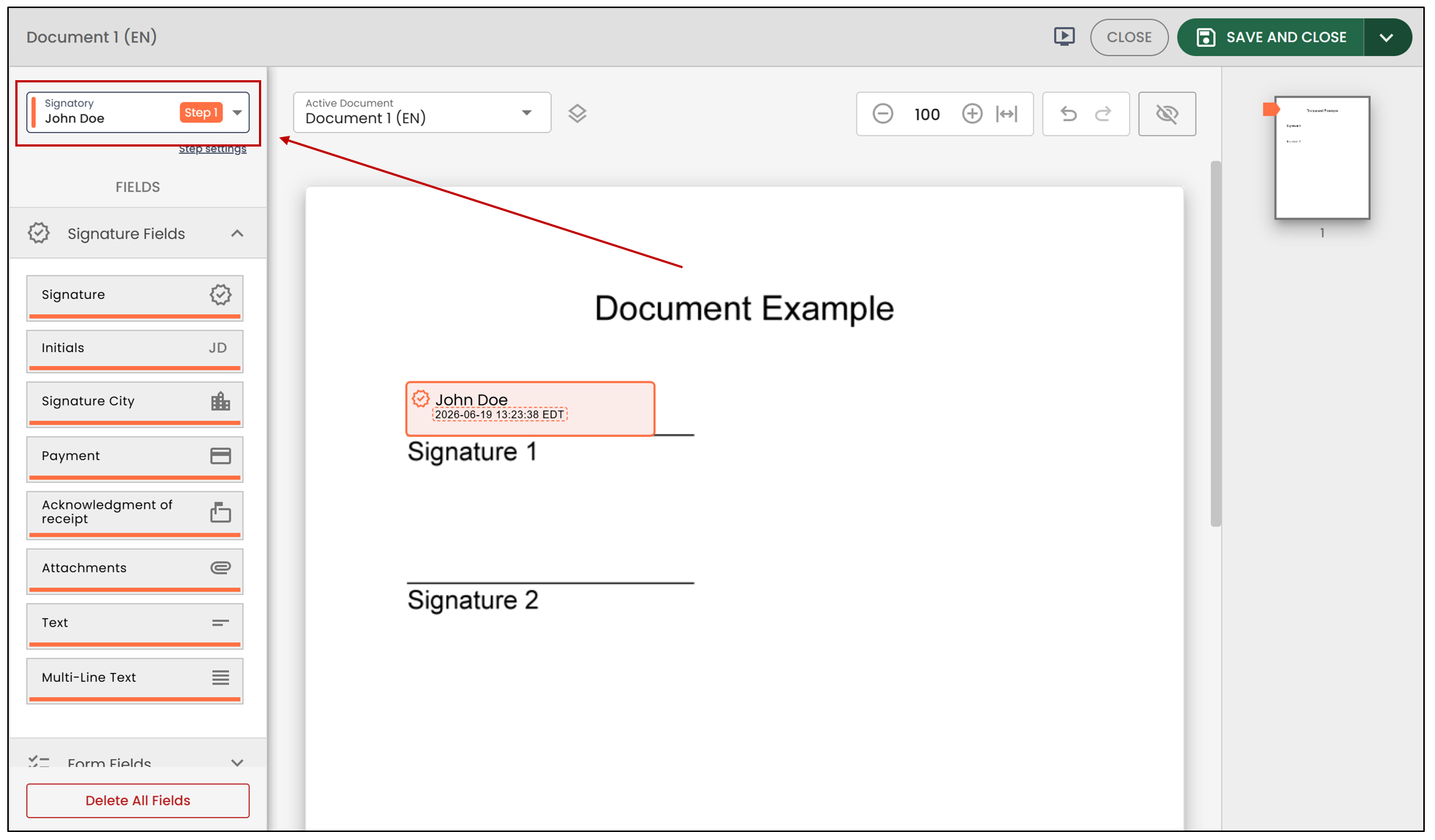
- Select the desired Signatory and Step from the drop-down list.
- Select Attachments in the Signature Fields and place it in the desired location in the document.
Settings Specific to this Field
Informations :
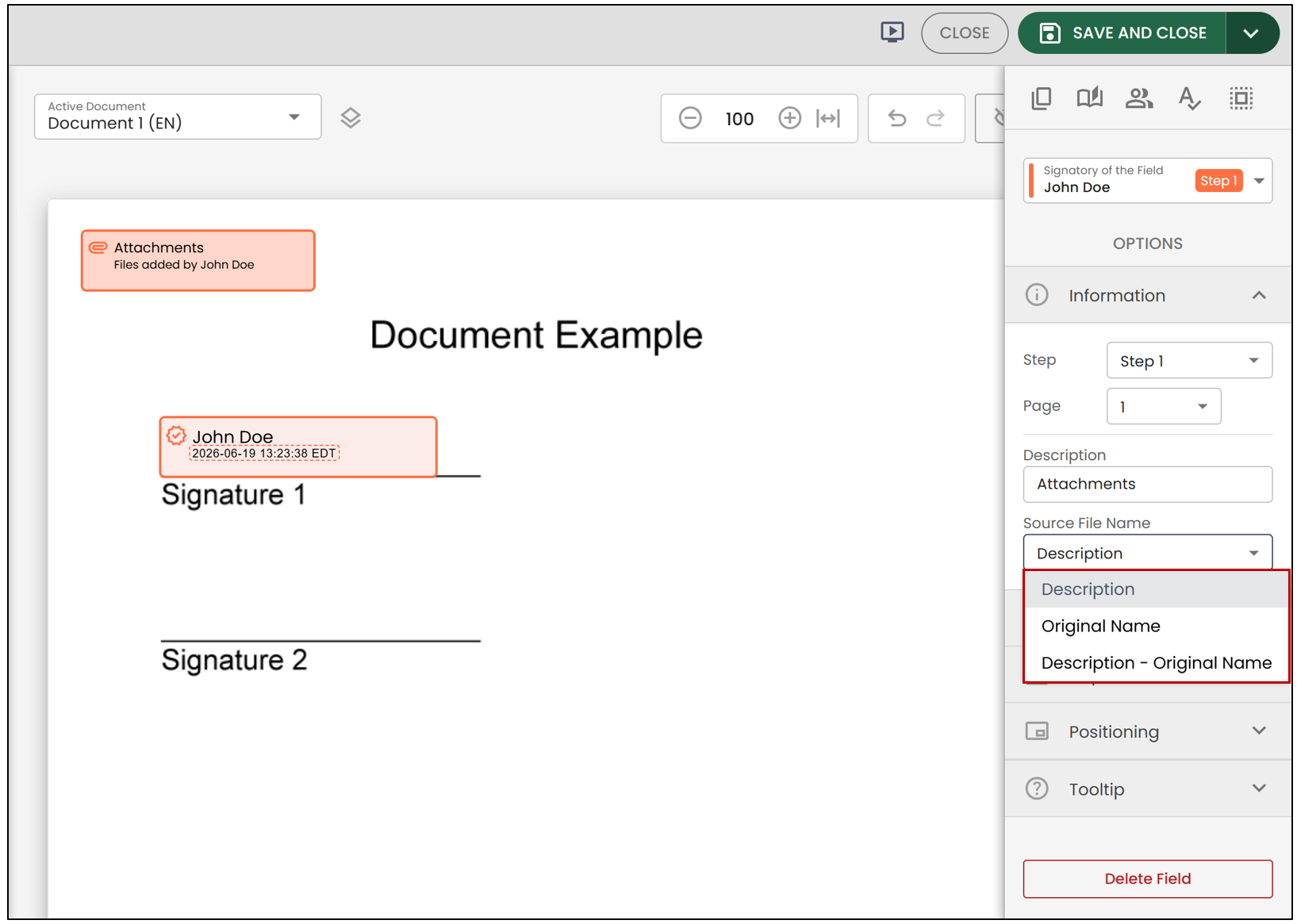
- Description : By default, the description is Attachments , but you can modify it and enter the desired name for the file to be added.
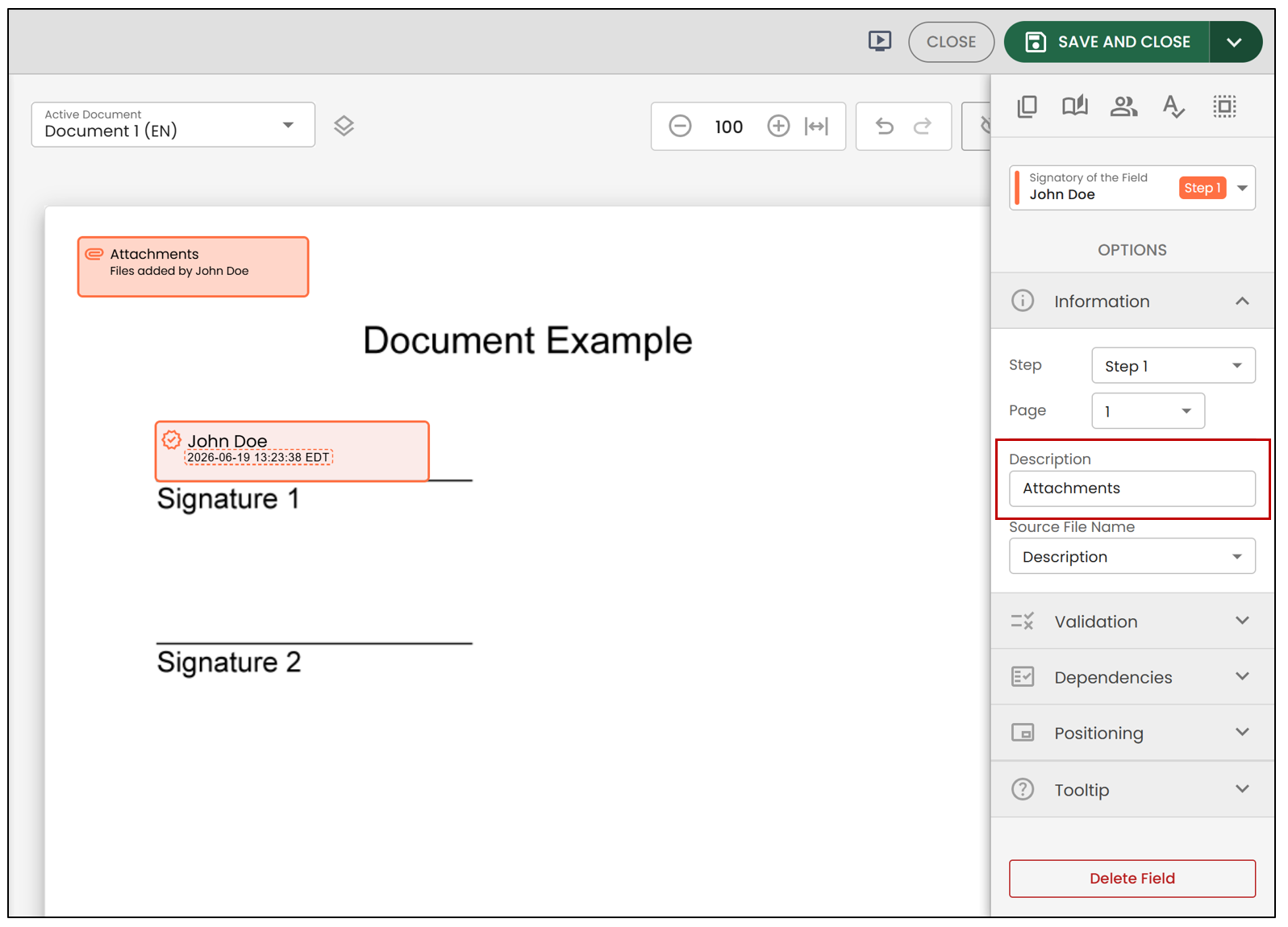
Source File Name : From the drop-down list, you can select
Description : By default, the name entered in the Description field will appear in the document.
Original Name : The name the file had when uploaded (the name given by the client to their file) will appear in the document.
Description - Original Name : The name provided in the description as well as the name the file had when uploaded (the name given by the client to their file) will appear in the document.
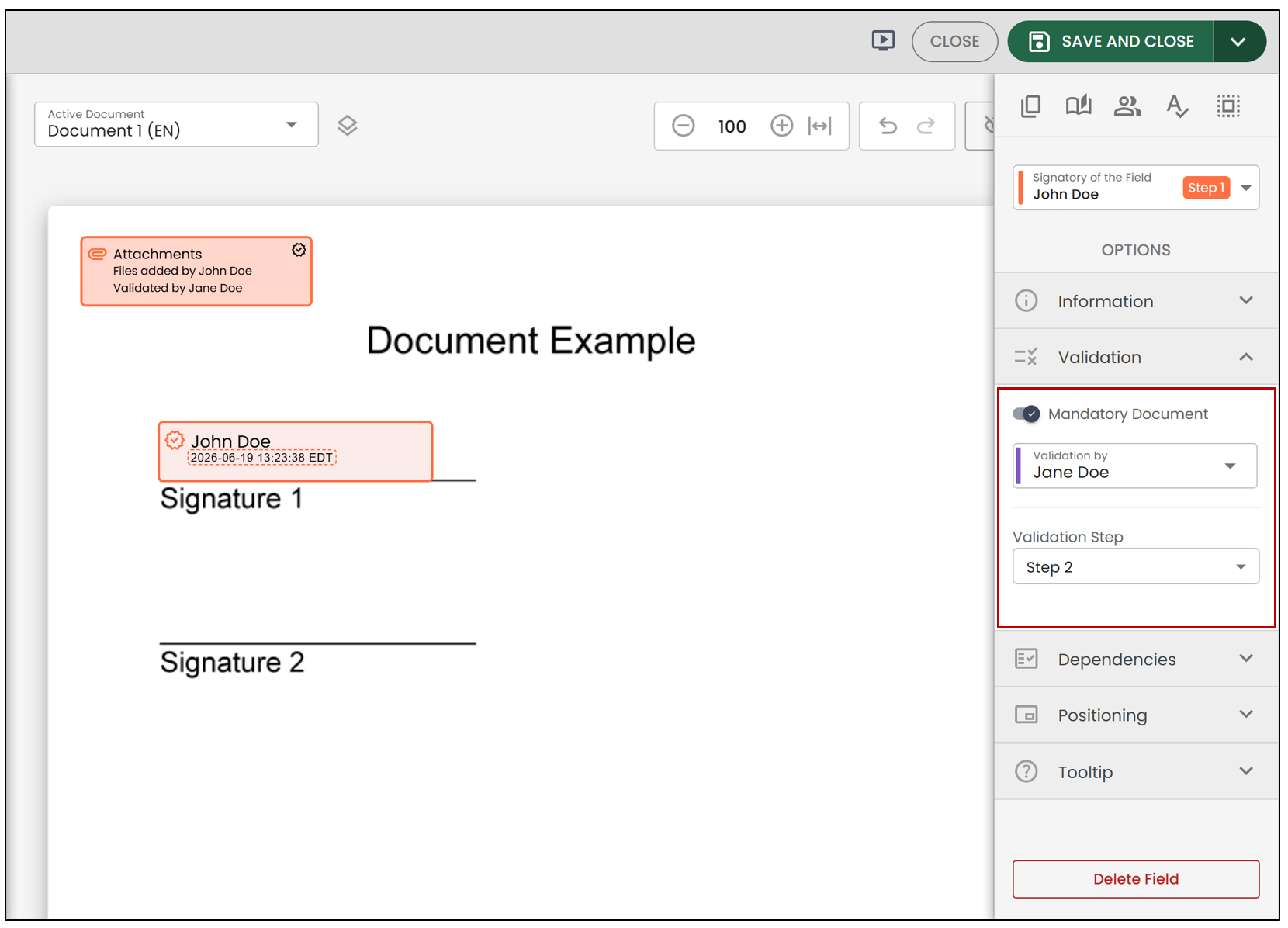
Validation
Mandatory Document : If checked, the signatory will be required to attach one or more files.
Validation by : Choose a system user who will be able to validate the signatory’s attachment. For more information, see the article Attachment Validation.
Validation Step : Indicates the order in which the validation should be performed and allows you to select the validation step.
NOTE: Only the user who created the folder can validate an attached file.
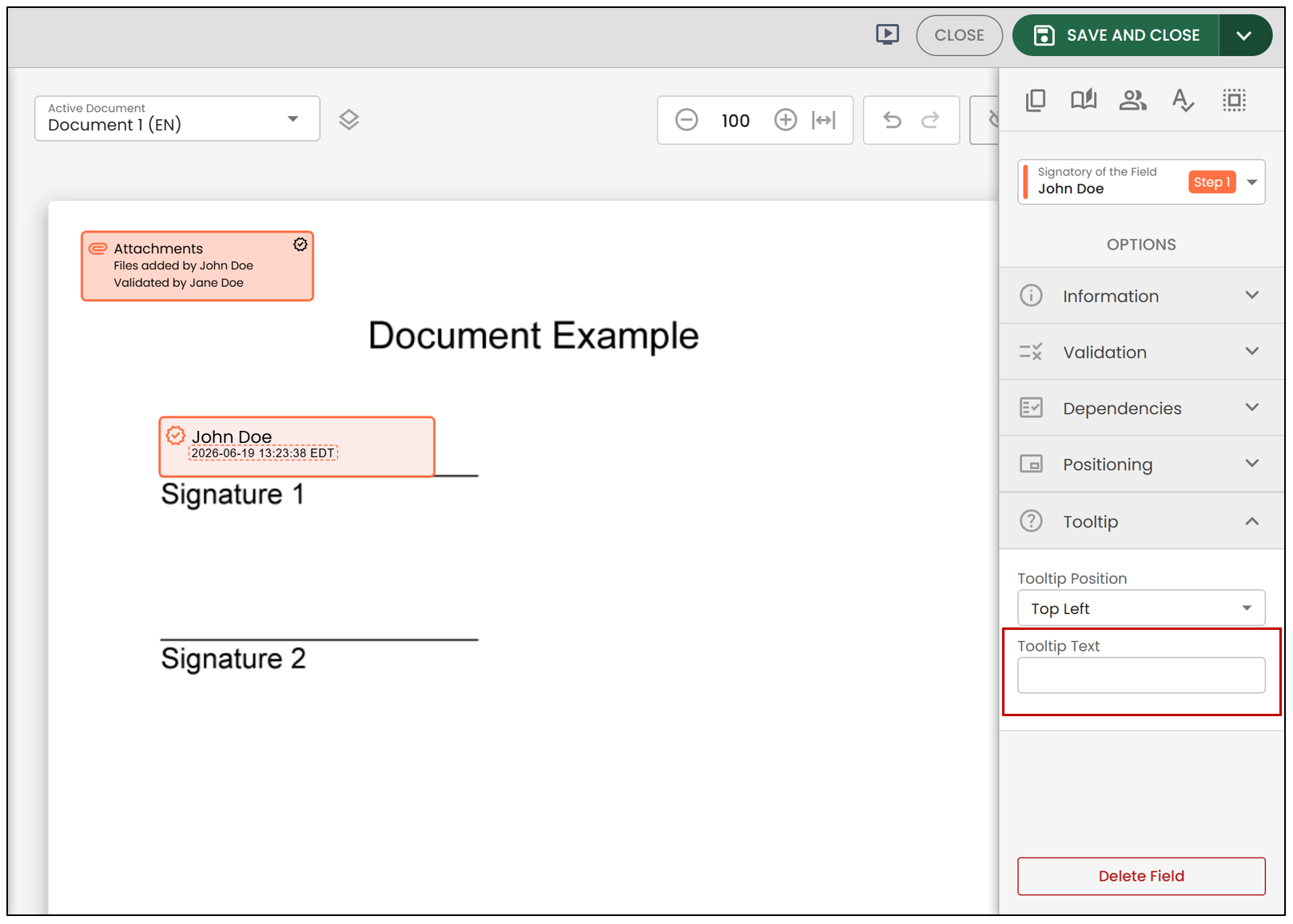
- Tooltip : You can enter information for the signatory regarding the file to be added.
- When all desired fields are added/modified, click Save.
Here’s what the signatory will see when filling out the form field:
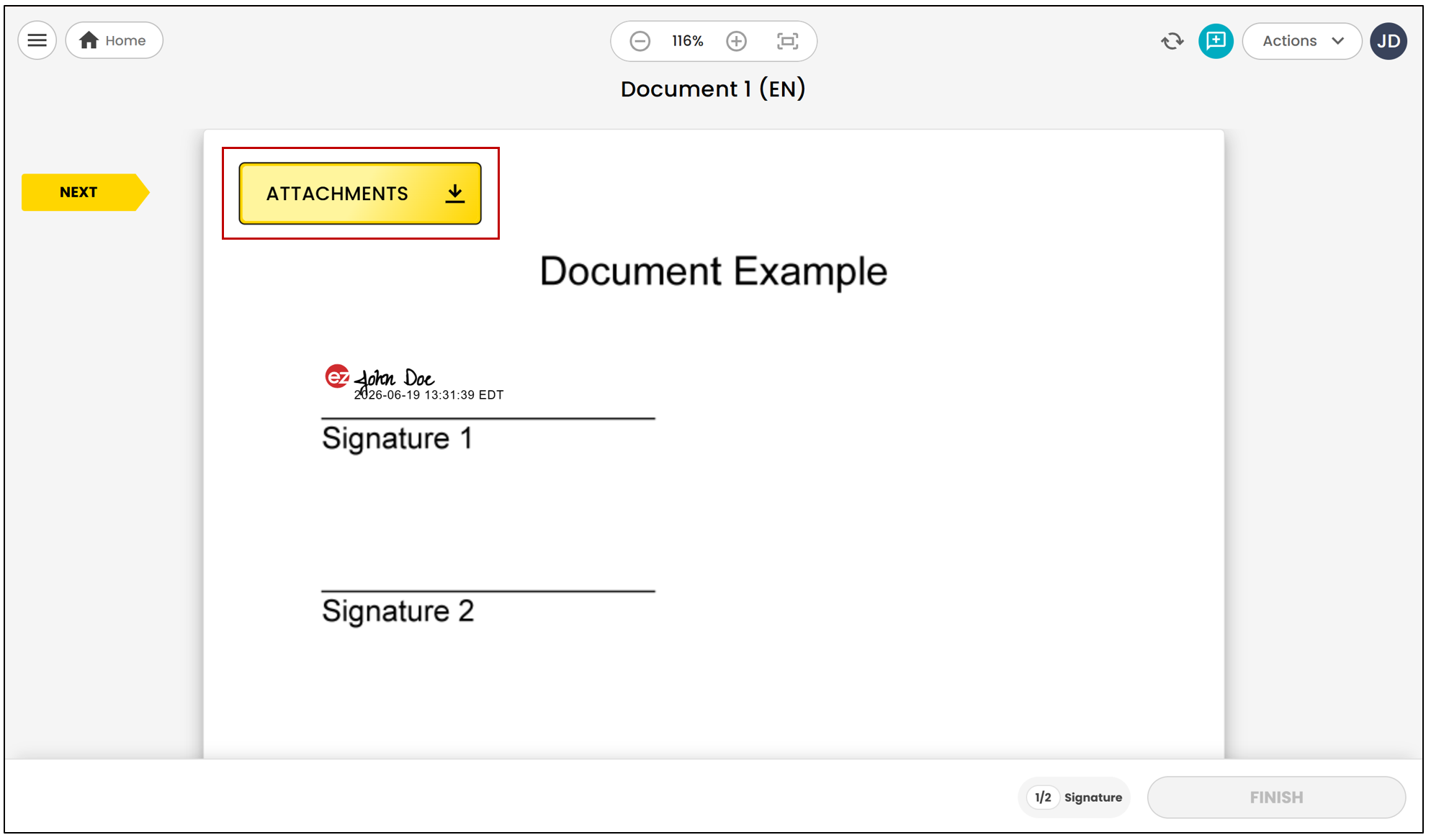
- The signatory will then be able to drag one or more attachments into the gray box below.
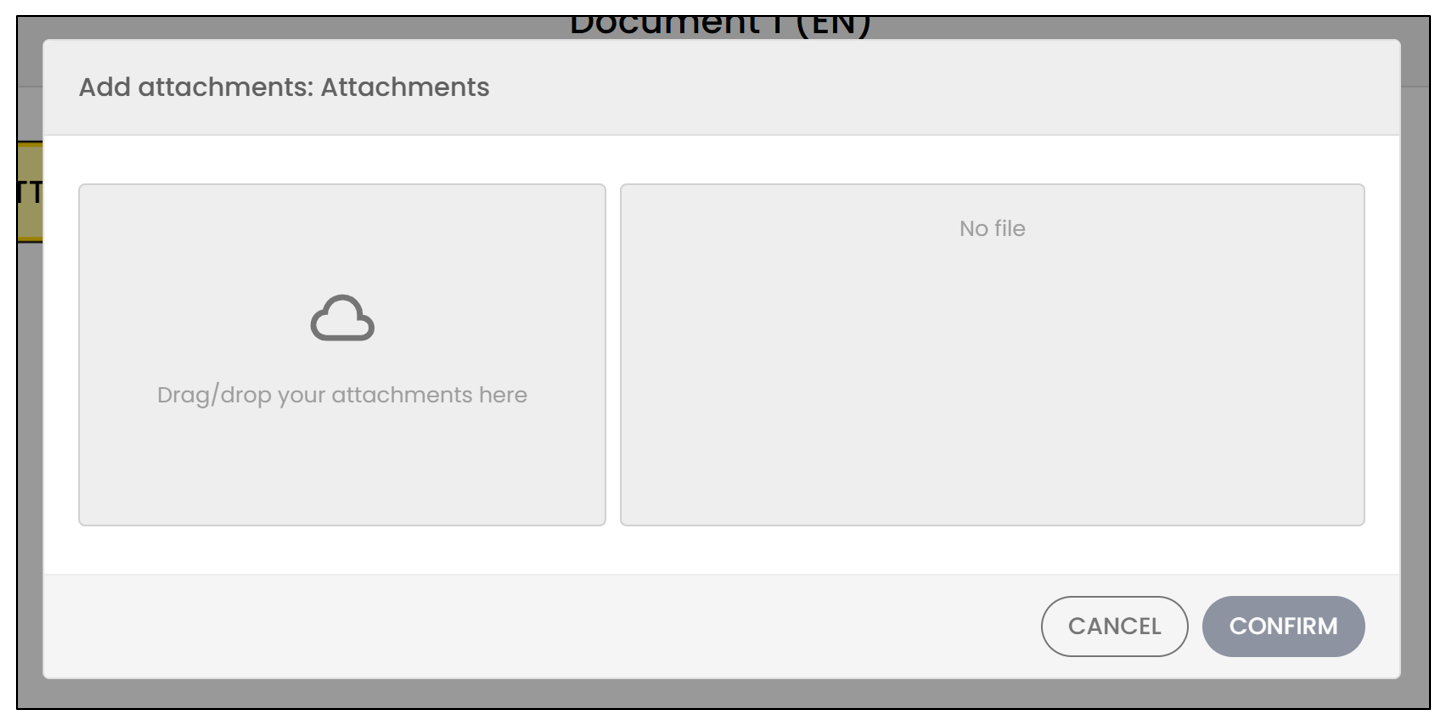
NOTE: The limit for attachments is 40 MB per file. However, the signer can add multiple files if needed , as there is no limit to the number of files that can be attached.
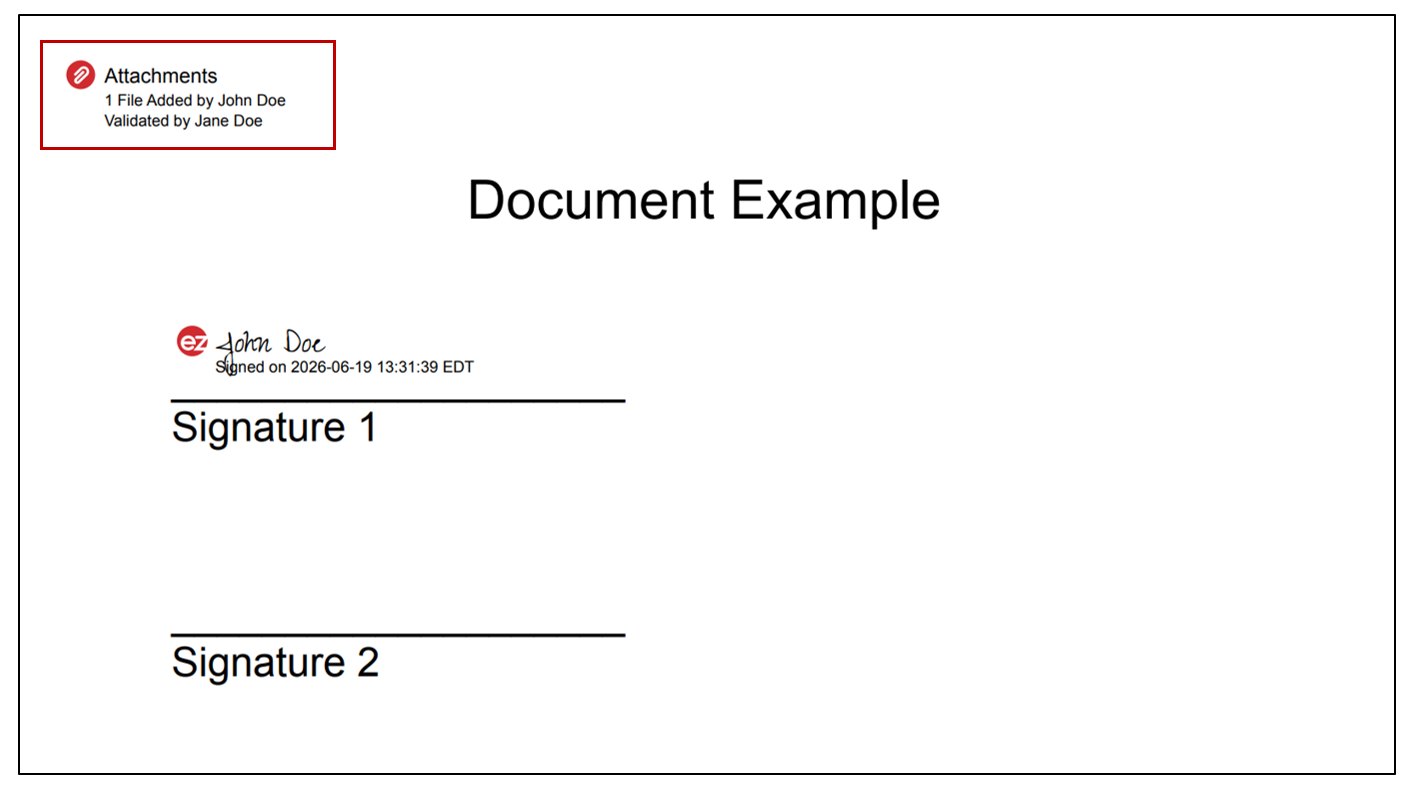
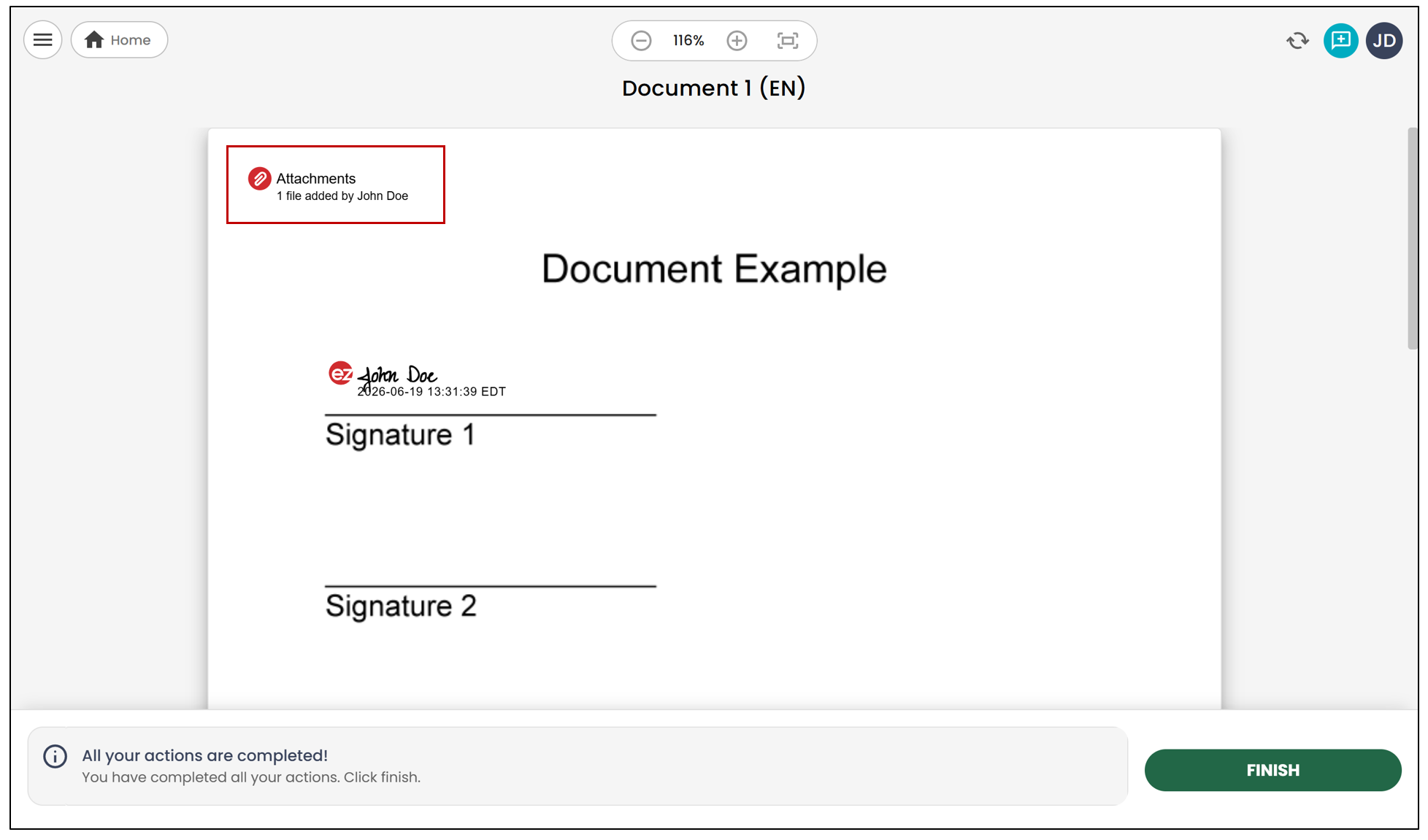
Here’s how the field will appear on the document once the attachment is added:
Attachment Validation
If the attachment needs to be validated by a system user, this is what will appear during its validation:
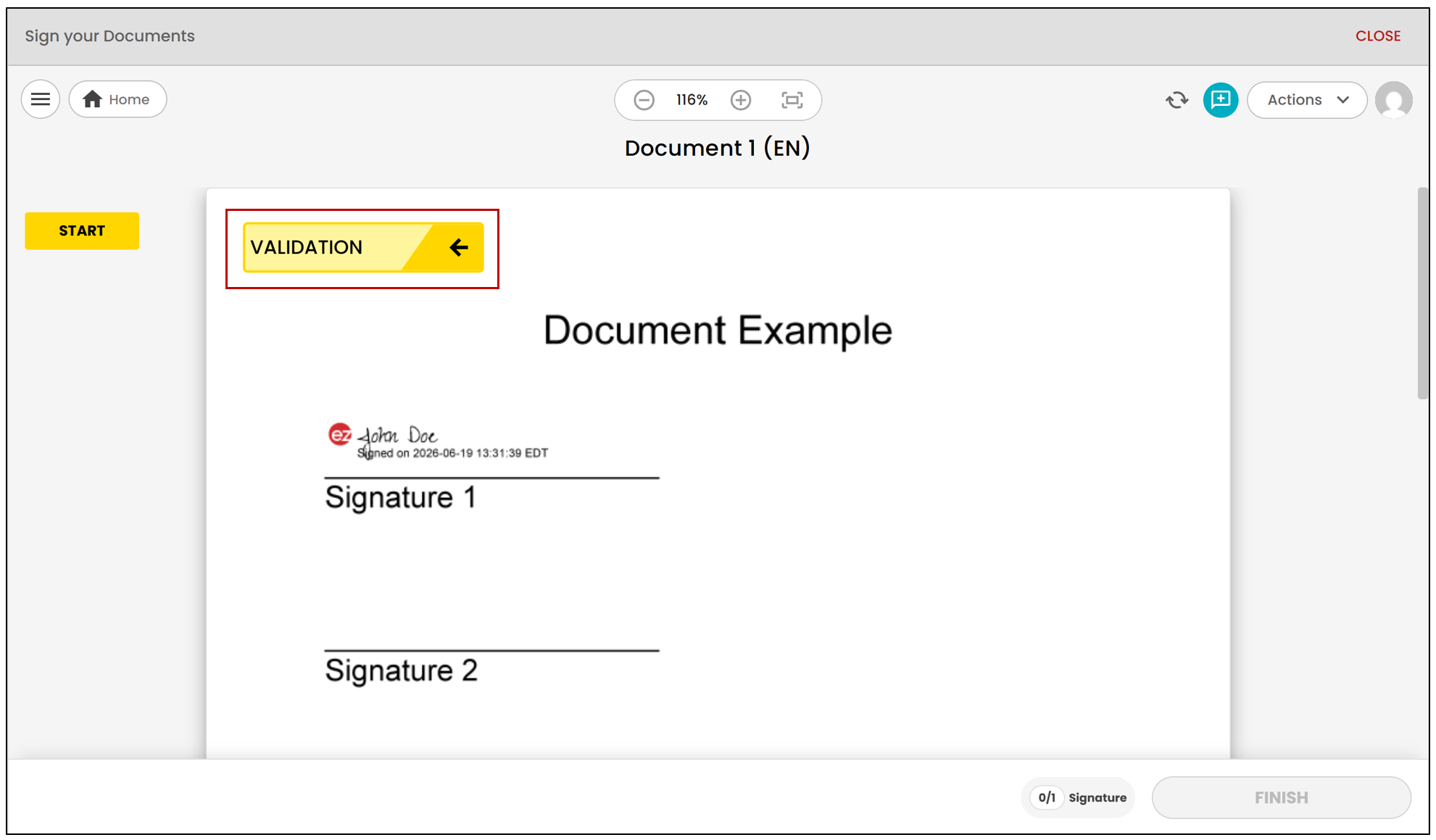
- During validation, the system user will be able to Accept or **Refuse **the attachment. If it is rejected, the user will need to enter a message with an explanation. In case of rejection, the document will automatically return to the previous step.
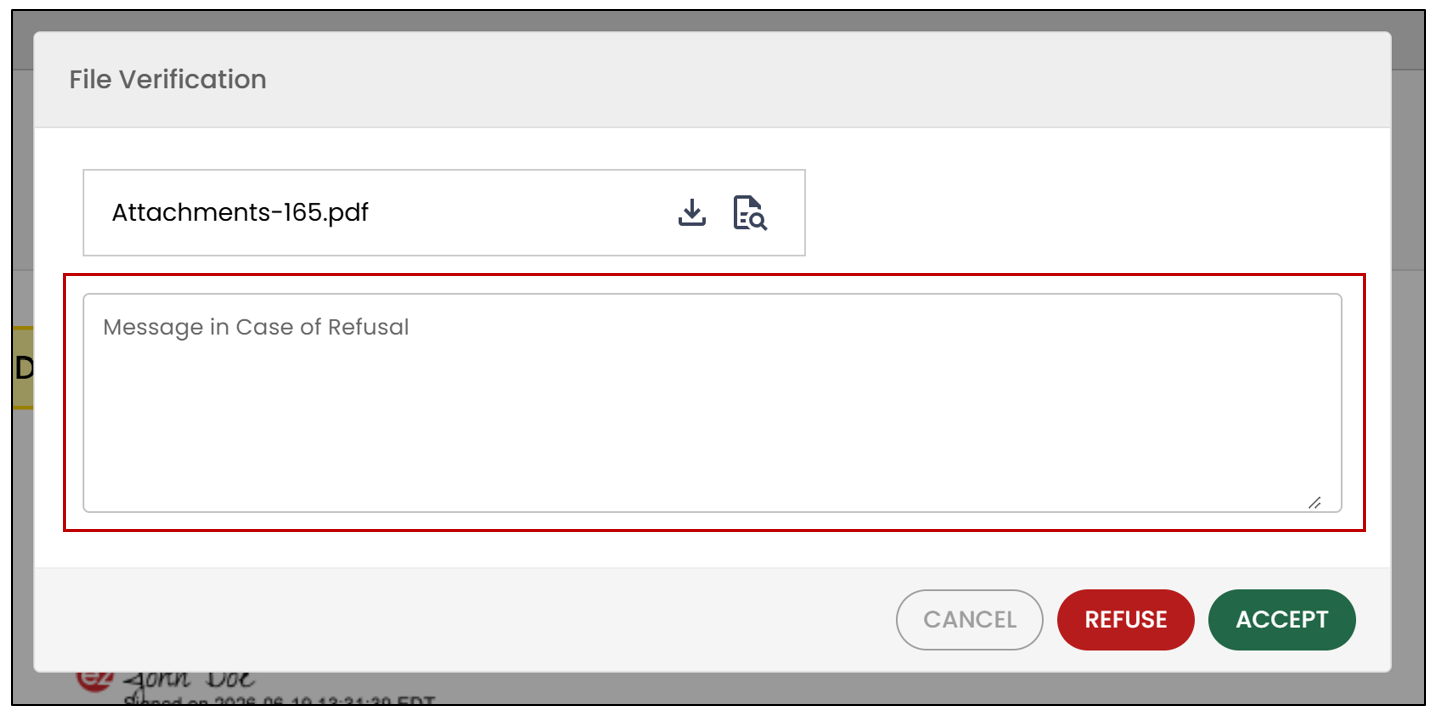
Here’s how the field will appear on the document once the attachment is validated: