

English
Colleague Access Management
The colleague access management feature allows you to grant another user access to all your files for a specified period. For example, this option would enable another user to manage your folders during your vacation or absence.
Add a colleague
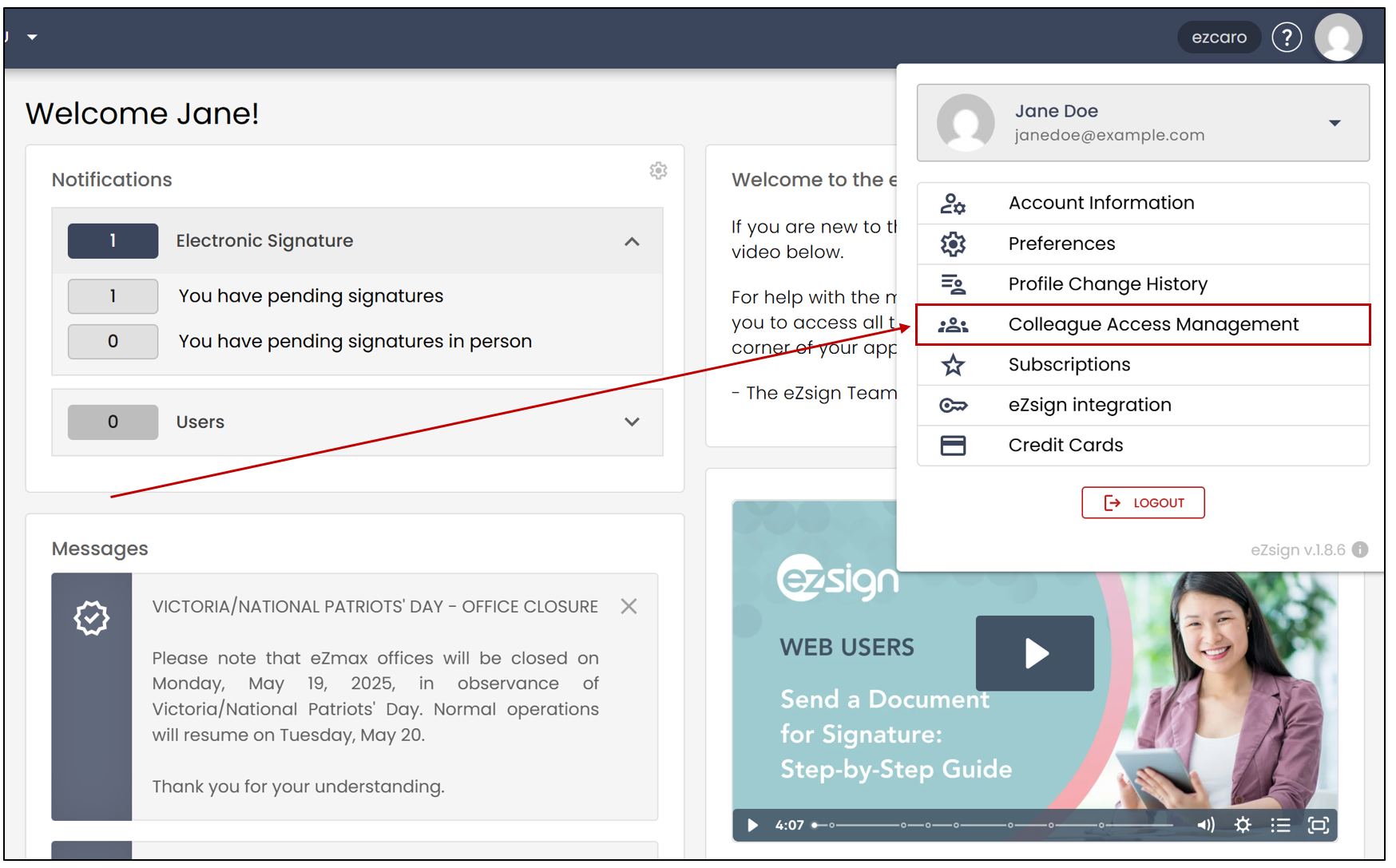
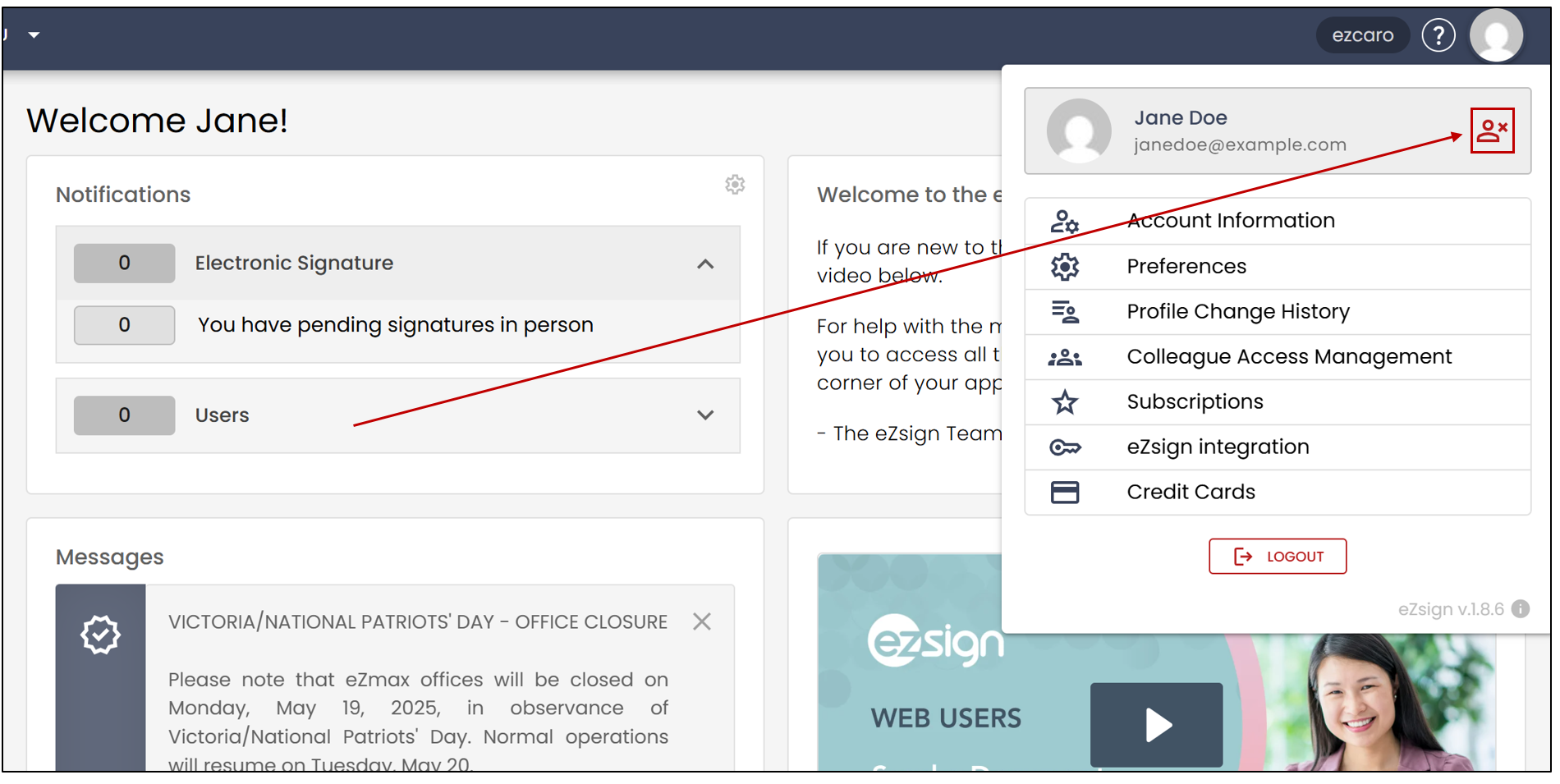
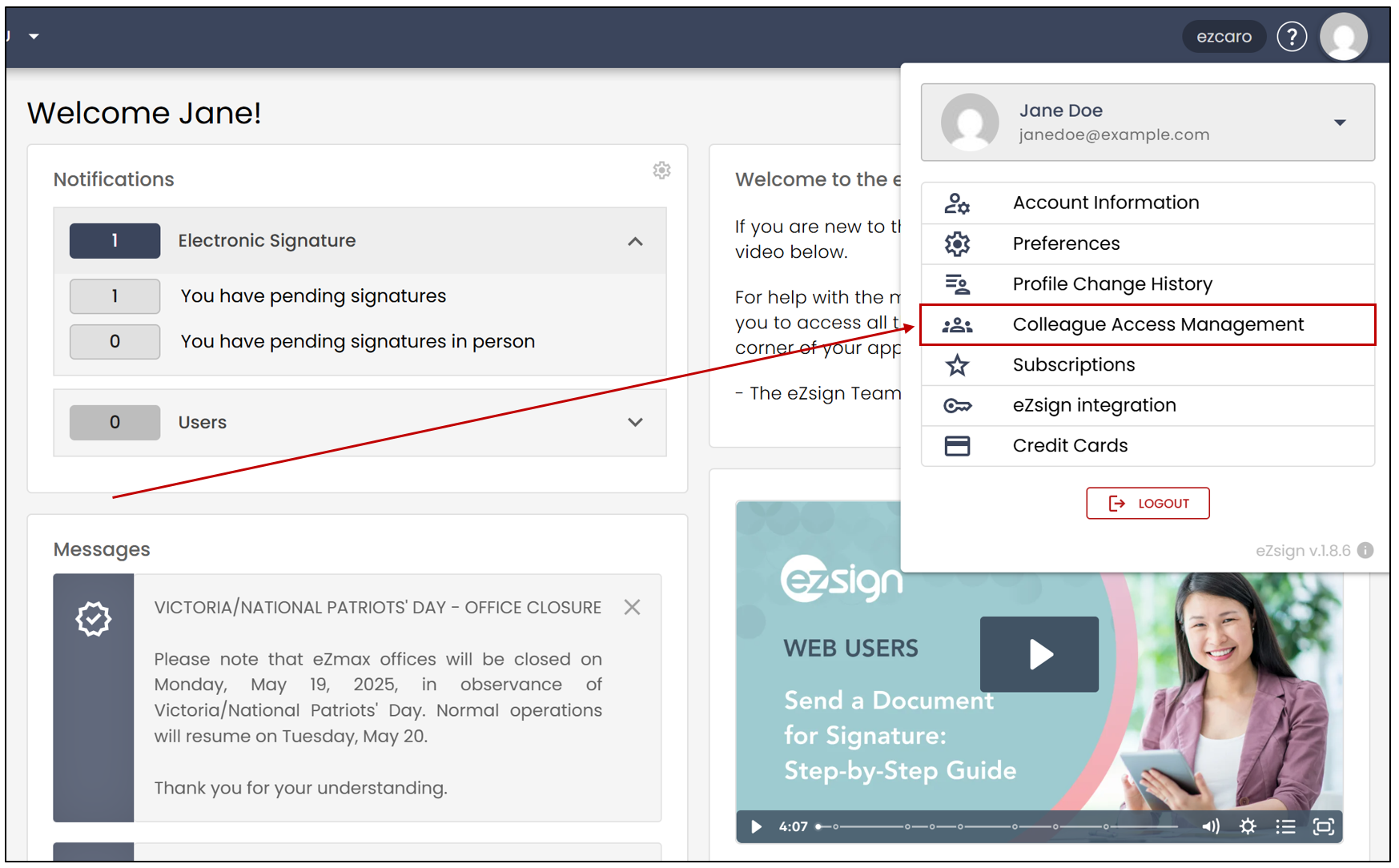
From the main menu, click on your profile picture >> Colleague Access Management.
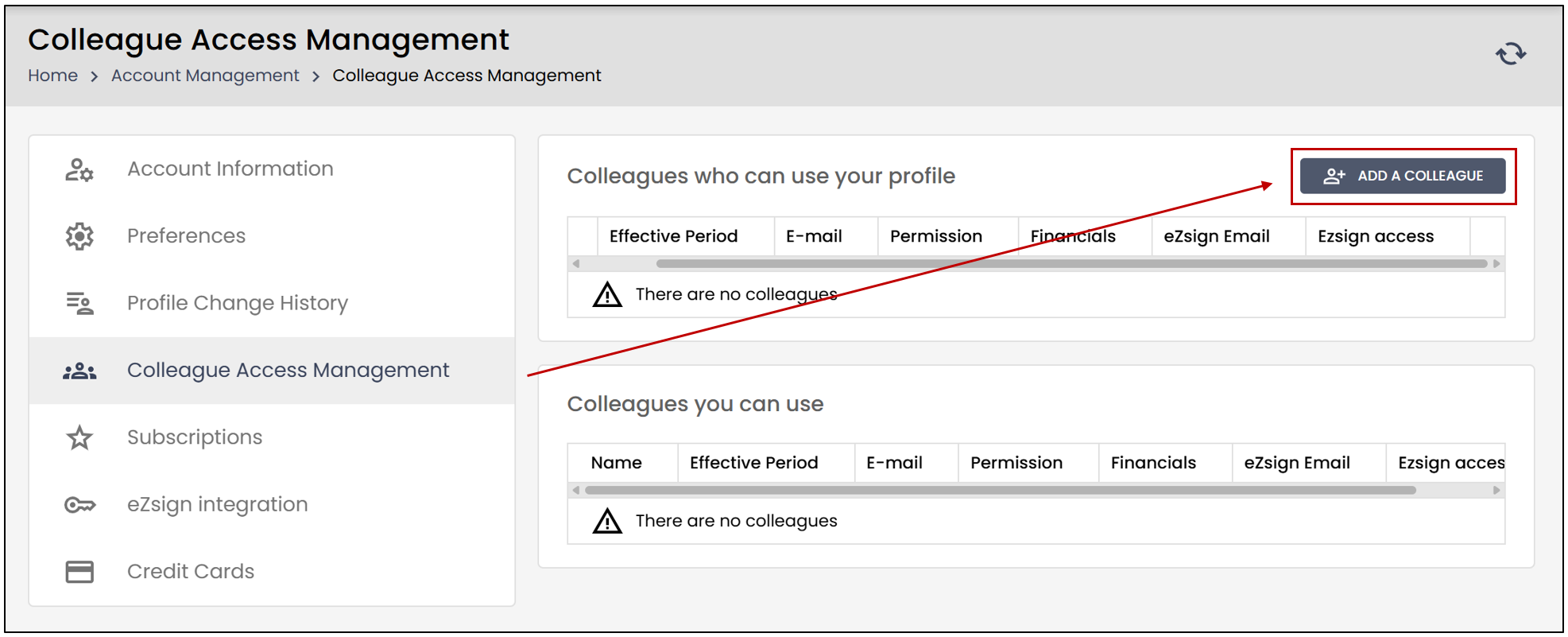
- Click on Add a colleague.
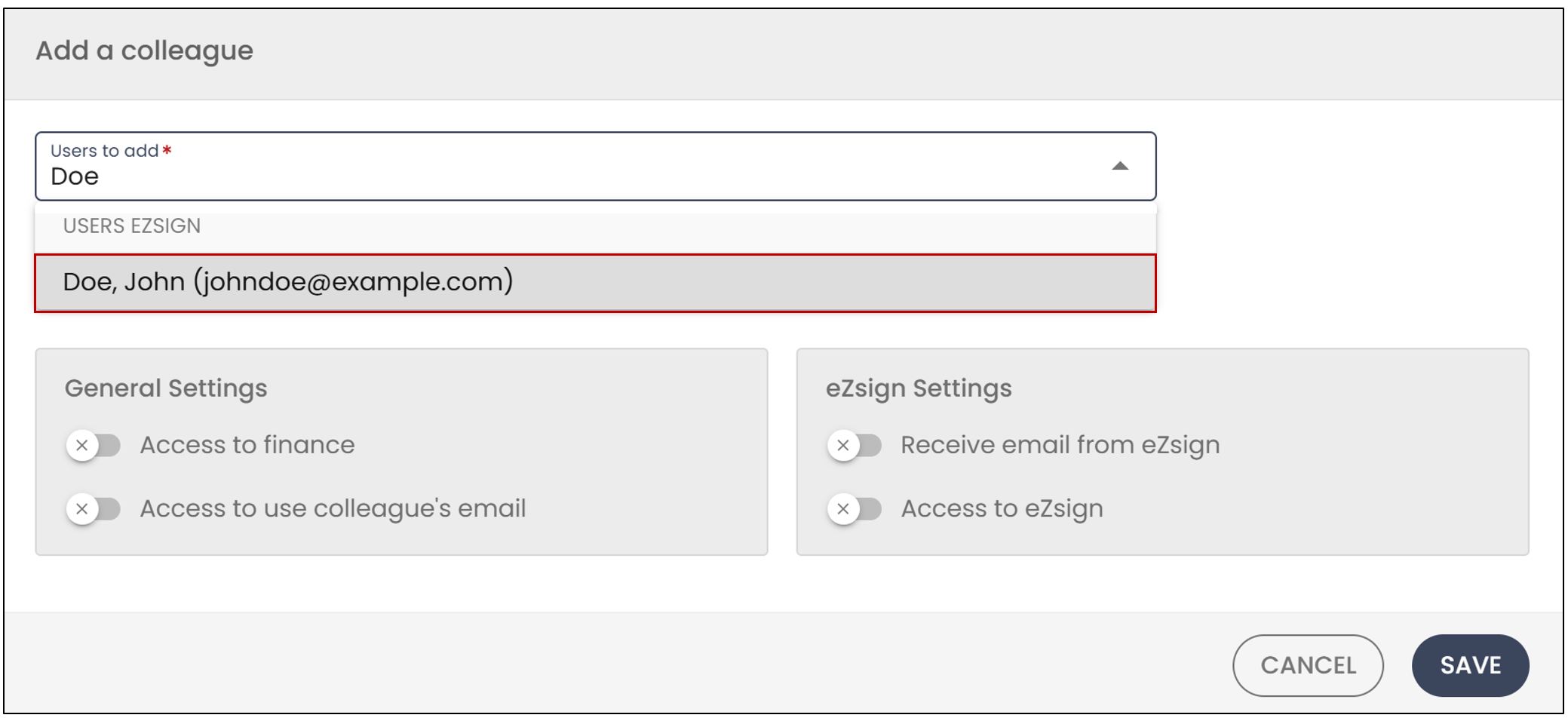
- You will need to select the desired colleague from the drop-down list or the search bar.
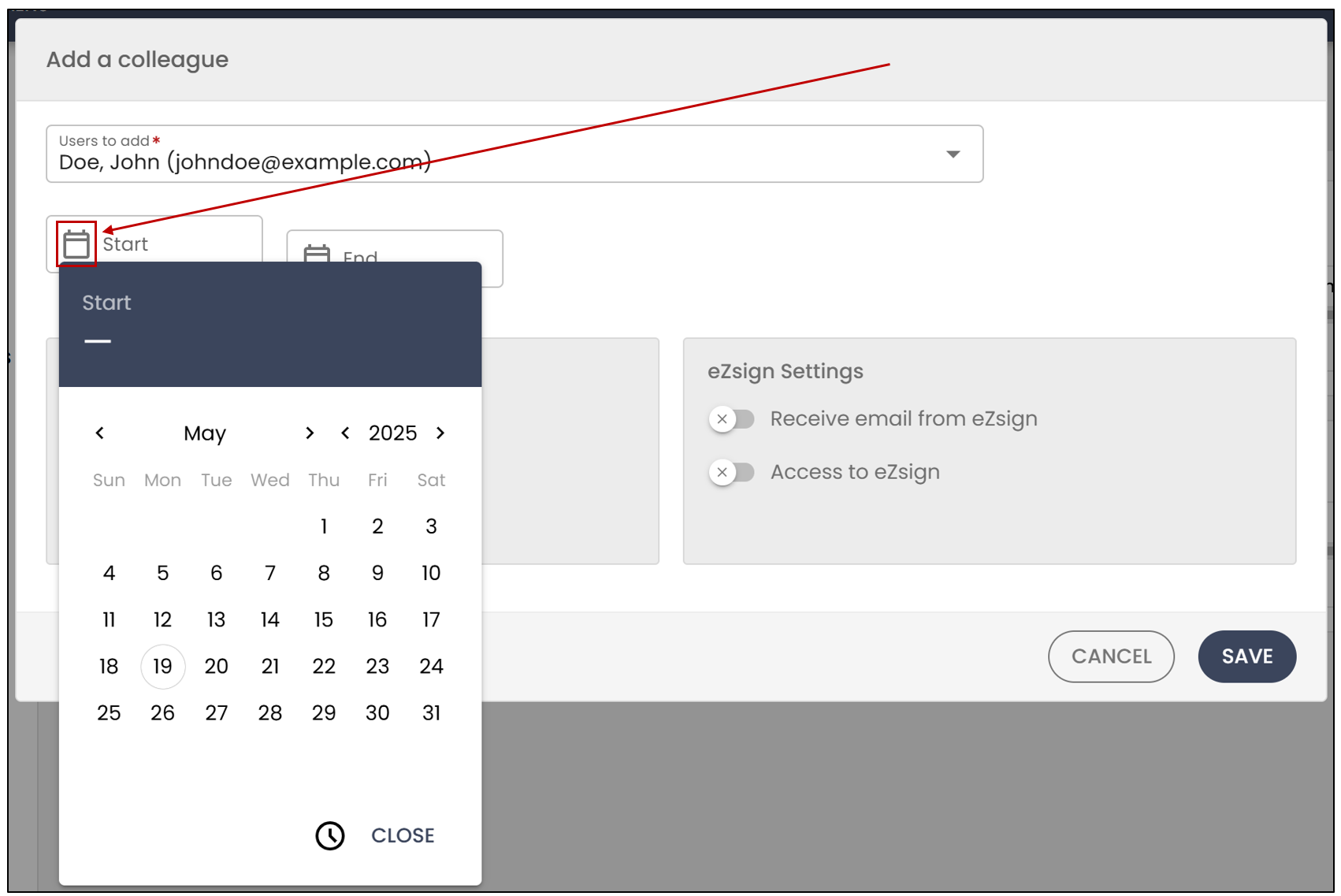
- Next, click on the calendar icon to add the start date as well as the end date.
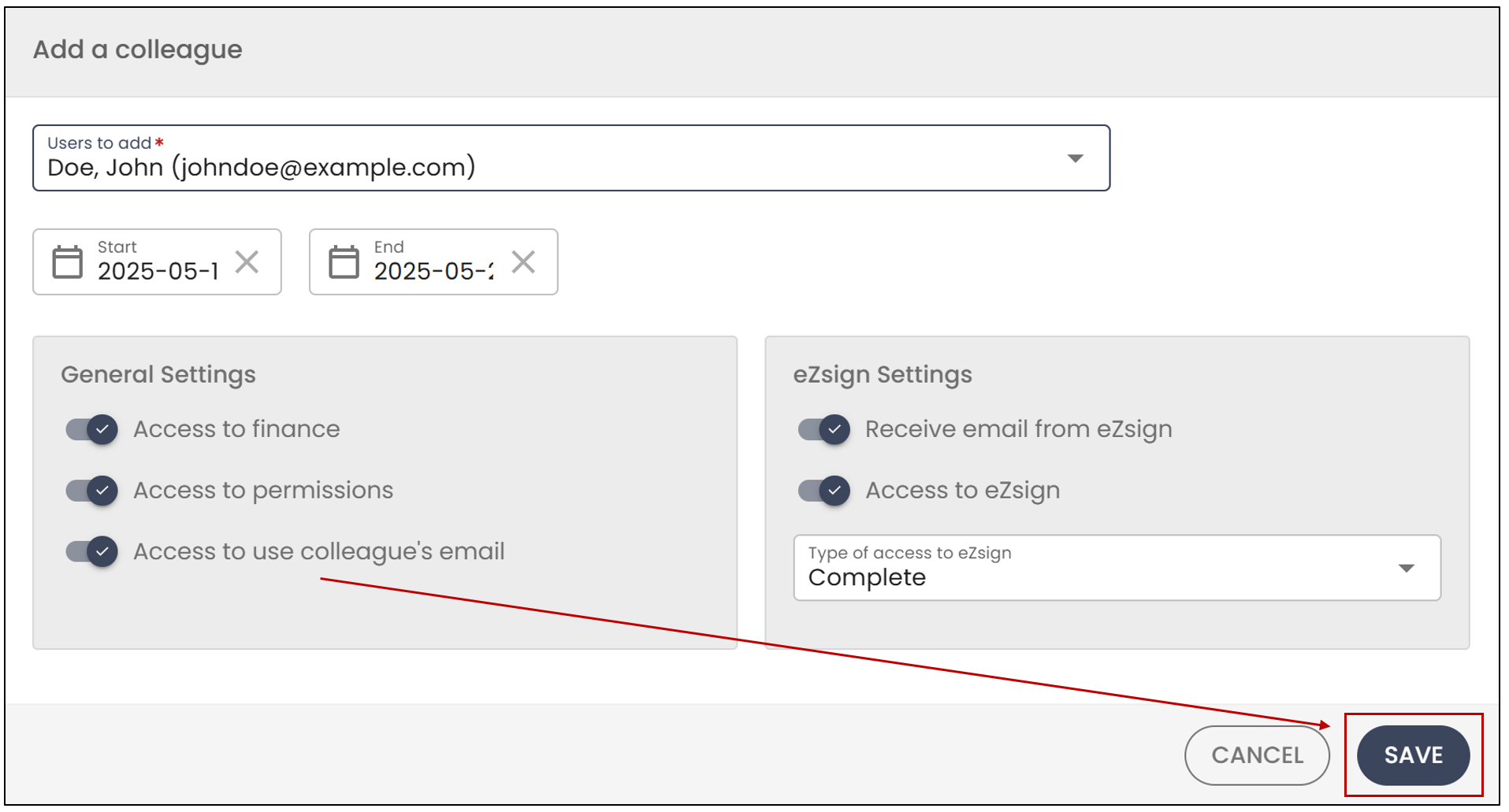
General Settings :
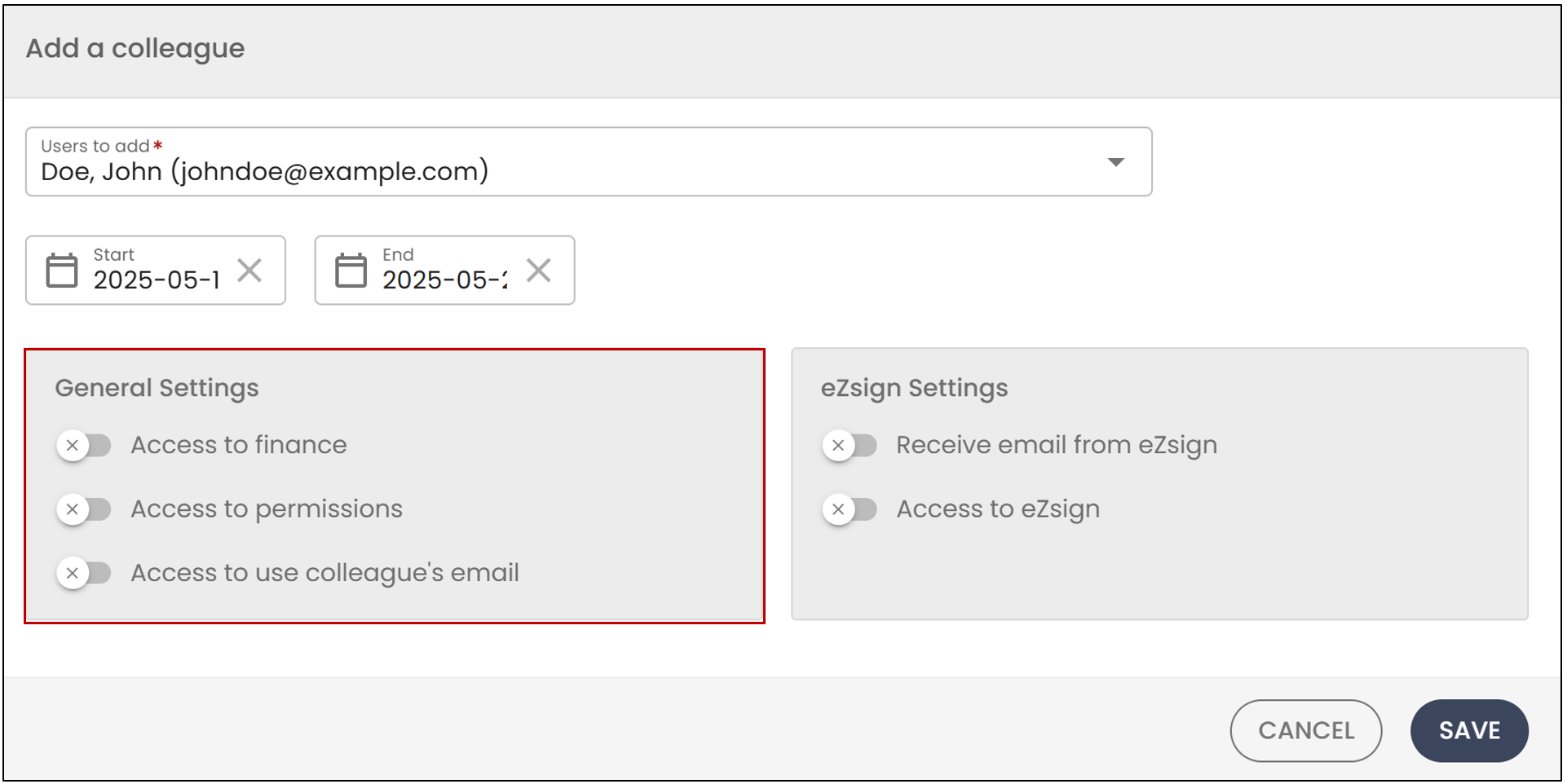
Access to finance : This feature only applies to users with full accounting functionality in eZmax. It allows you to grant access to all your financial data within the system to this user.
Access to permissions : If you are administrator, this option allows you to grant your colleague access to all administrative permissions.
Access to use colleague’s email : This option enables your colleague to send emails from your eZsign platform using your email address.
eZsign Settings:
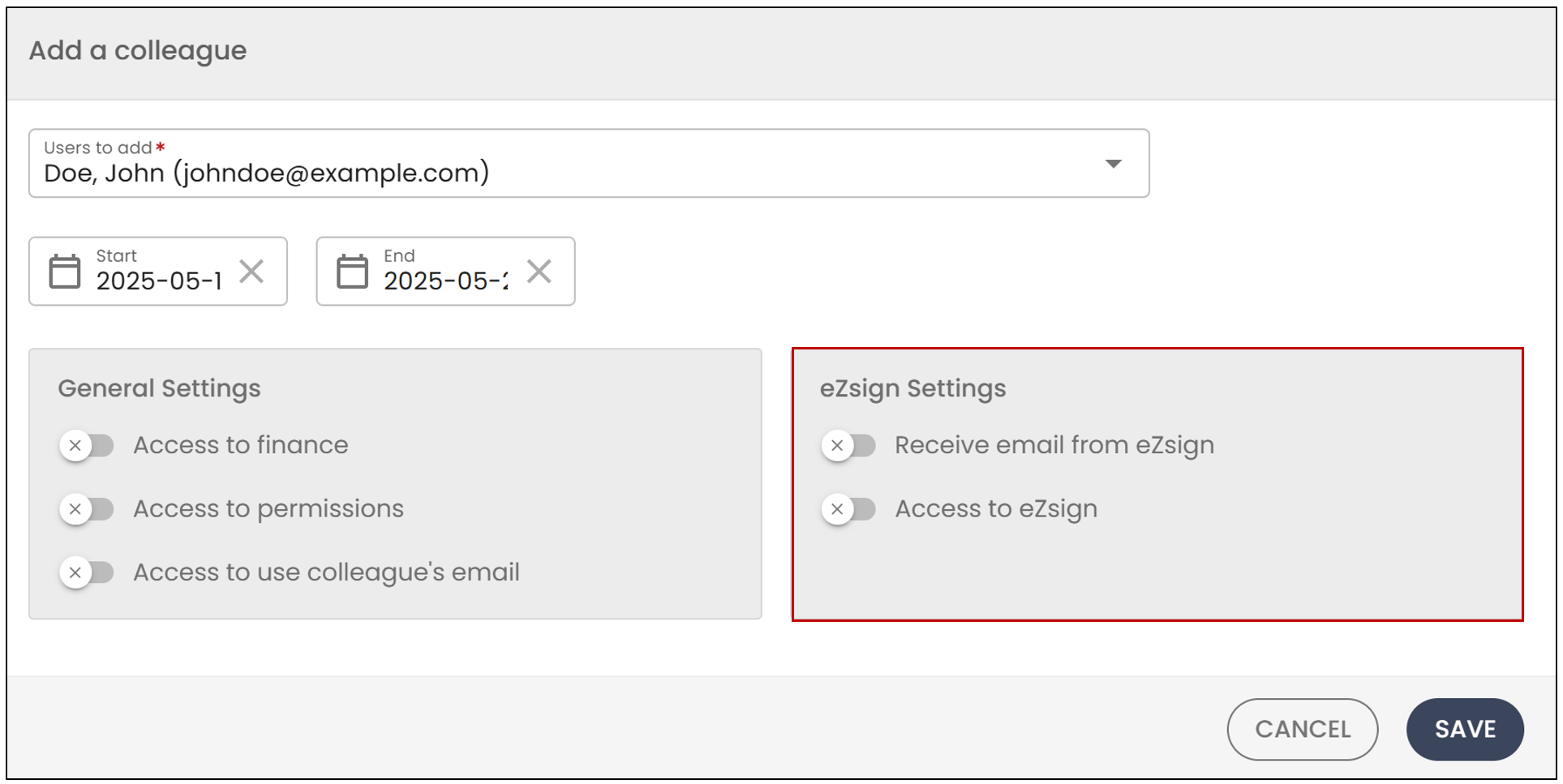
Receive emails from eZsign : This option allows your colleague to receive your emails, such as when a document is completed.
Access to eZsign : This option enables your colleague to access your eZsign platform and create files during your absence.
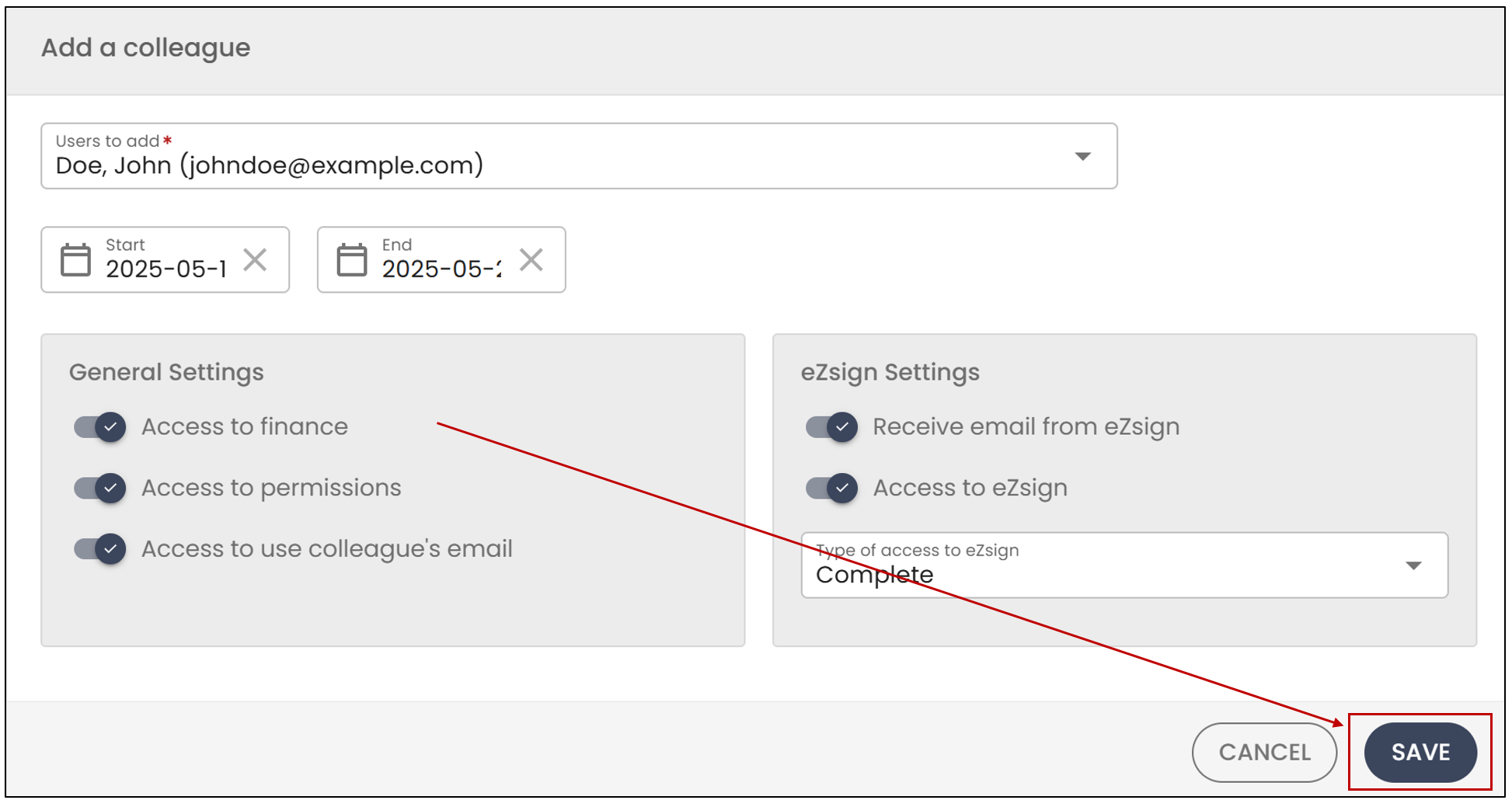
Click on Save to record your preferences.
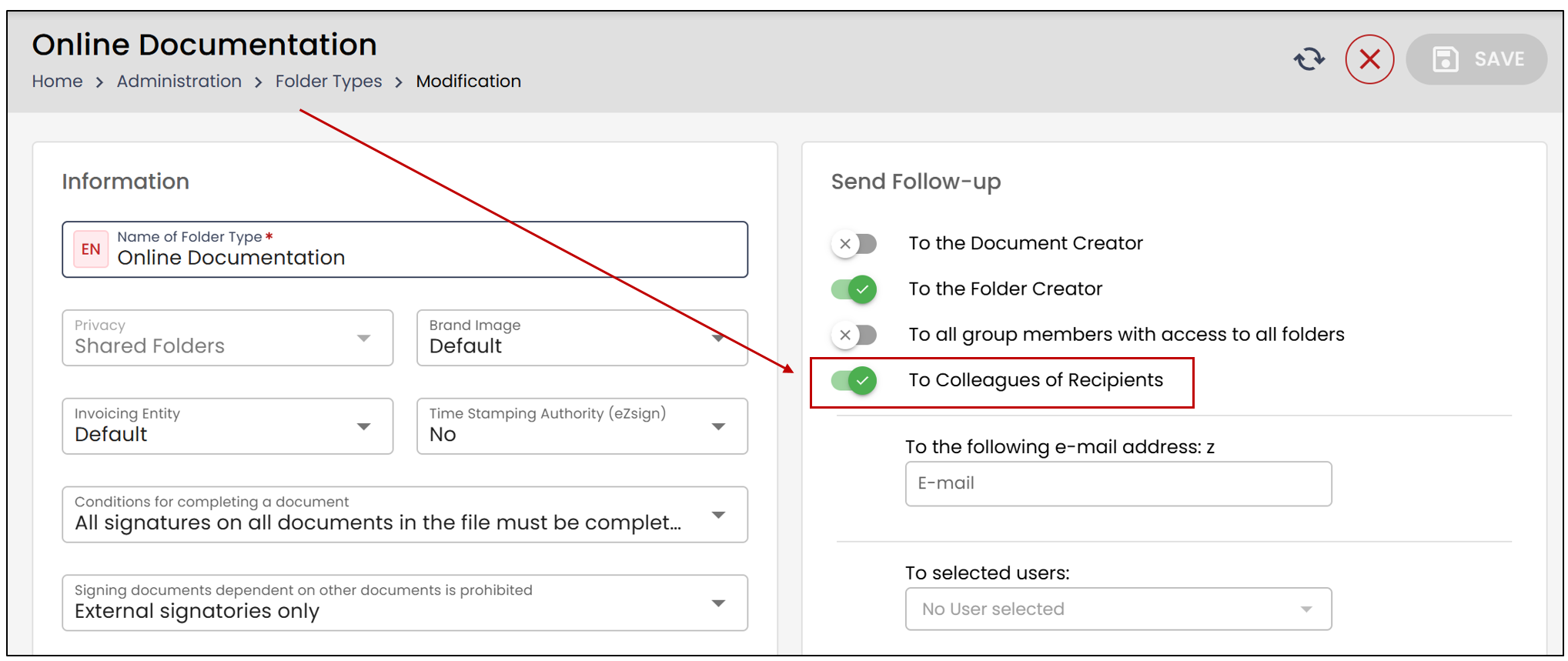
Warning
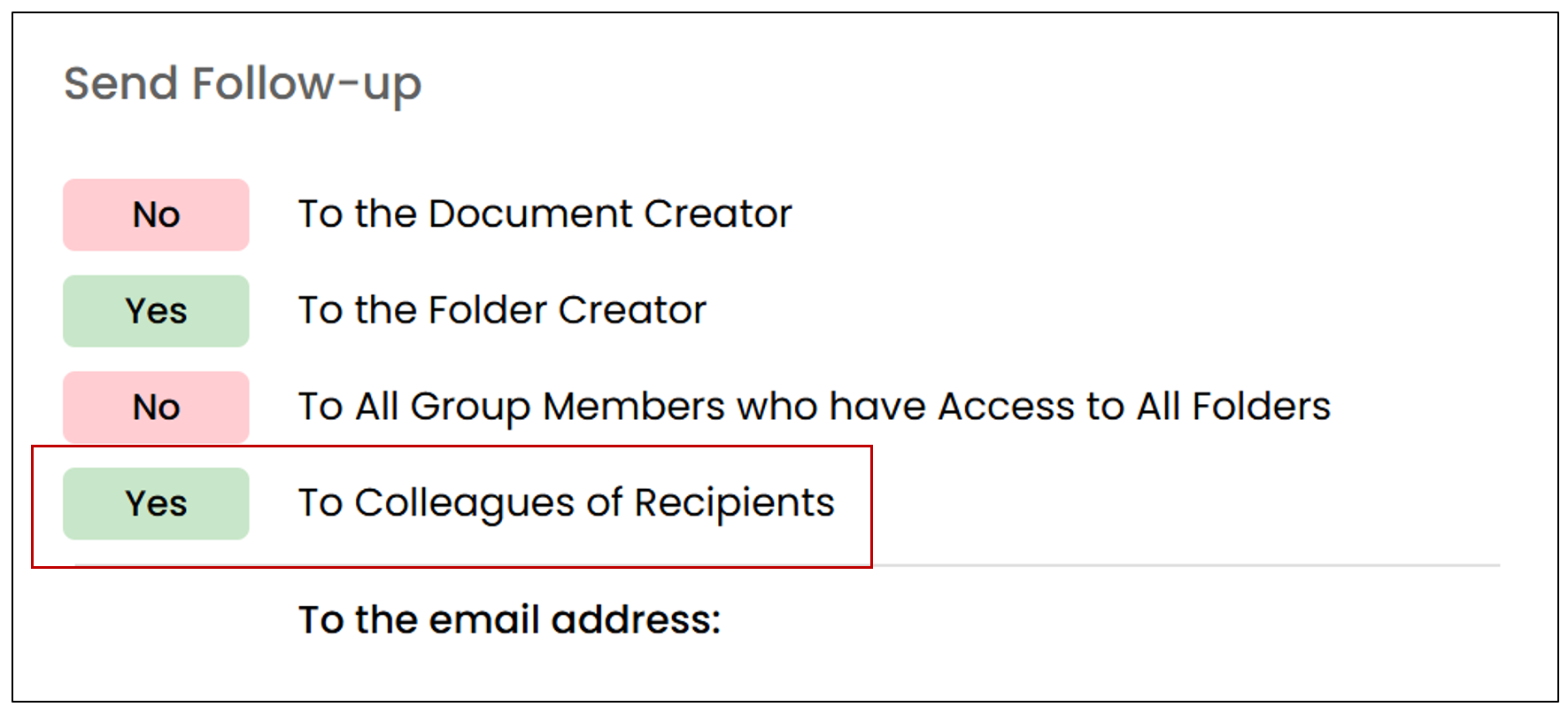
To ensure that your colleague can access your profile, make sure that the follow-up "To****Colleagues of recipients" option in the folder type is enabled. If this option is not checked, the eZsign documents will not be sent to your colleague during your vacation.
Access a colleague’s profile.
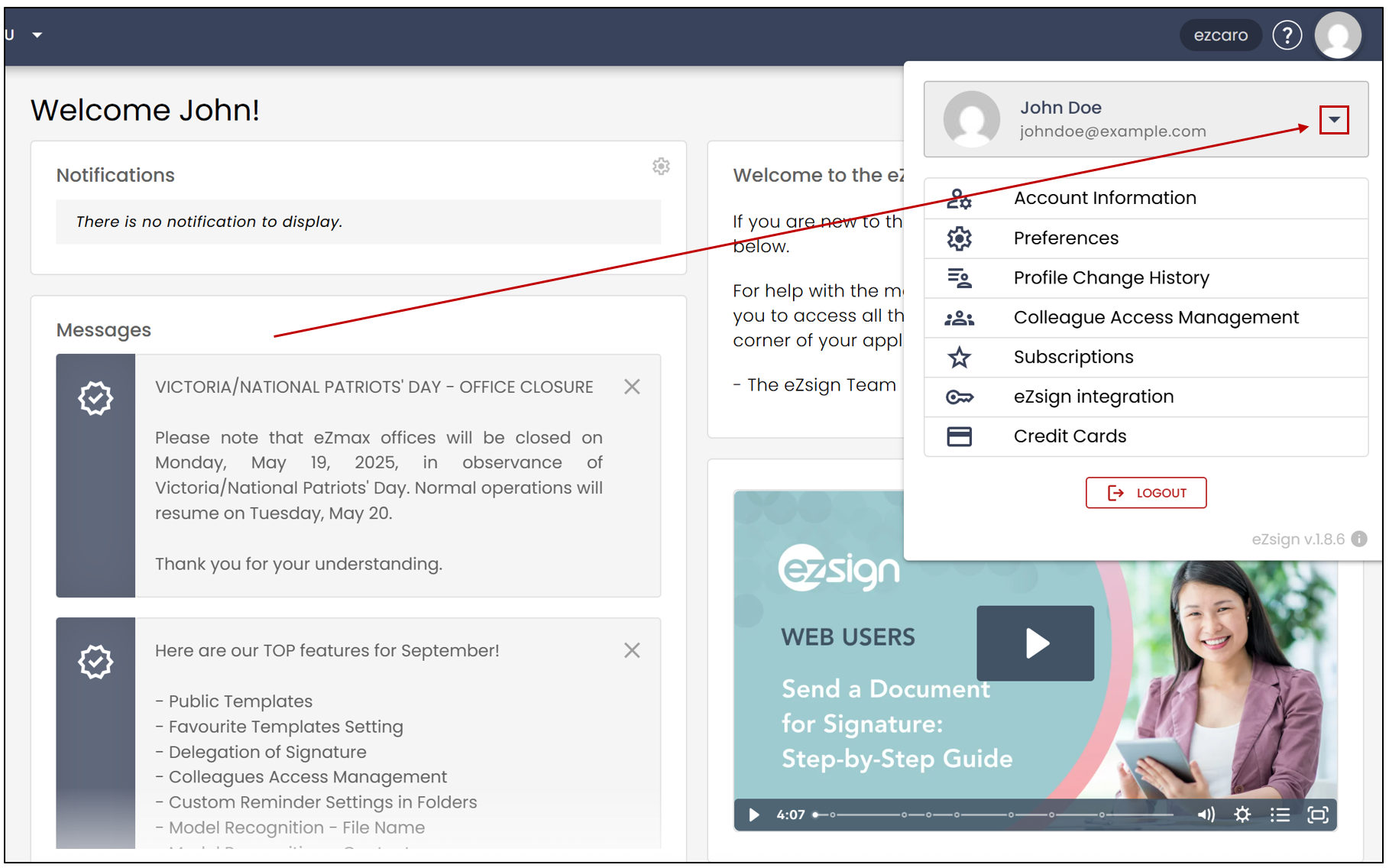
- To access a colleague’s profile, the user must click on their own profile picture and then on the downward arrow.
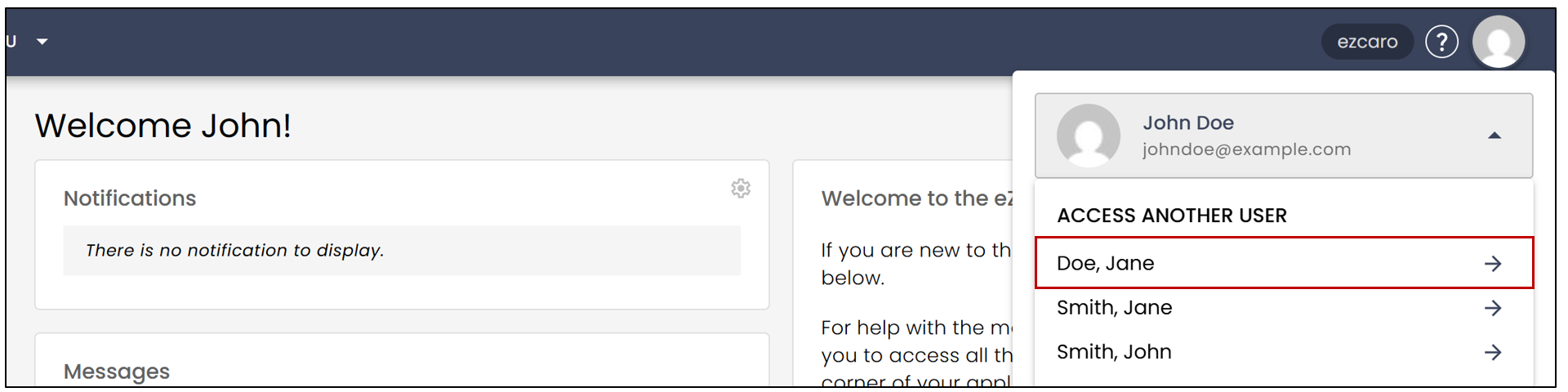
In this example, John wants to access Jane’s account during her absence.
- The user will then need to select the desired colleague’s name. The user will be redirected to their colleague’s account.
- This feature will allow the user to create new files and access their colleague’s files.
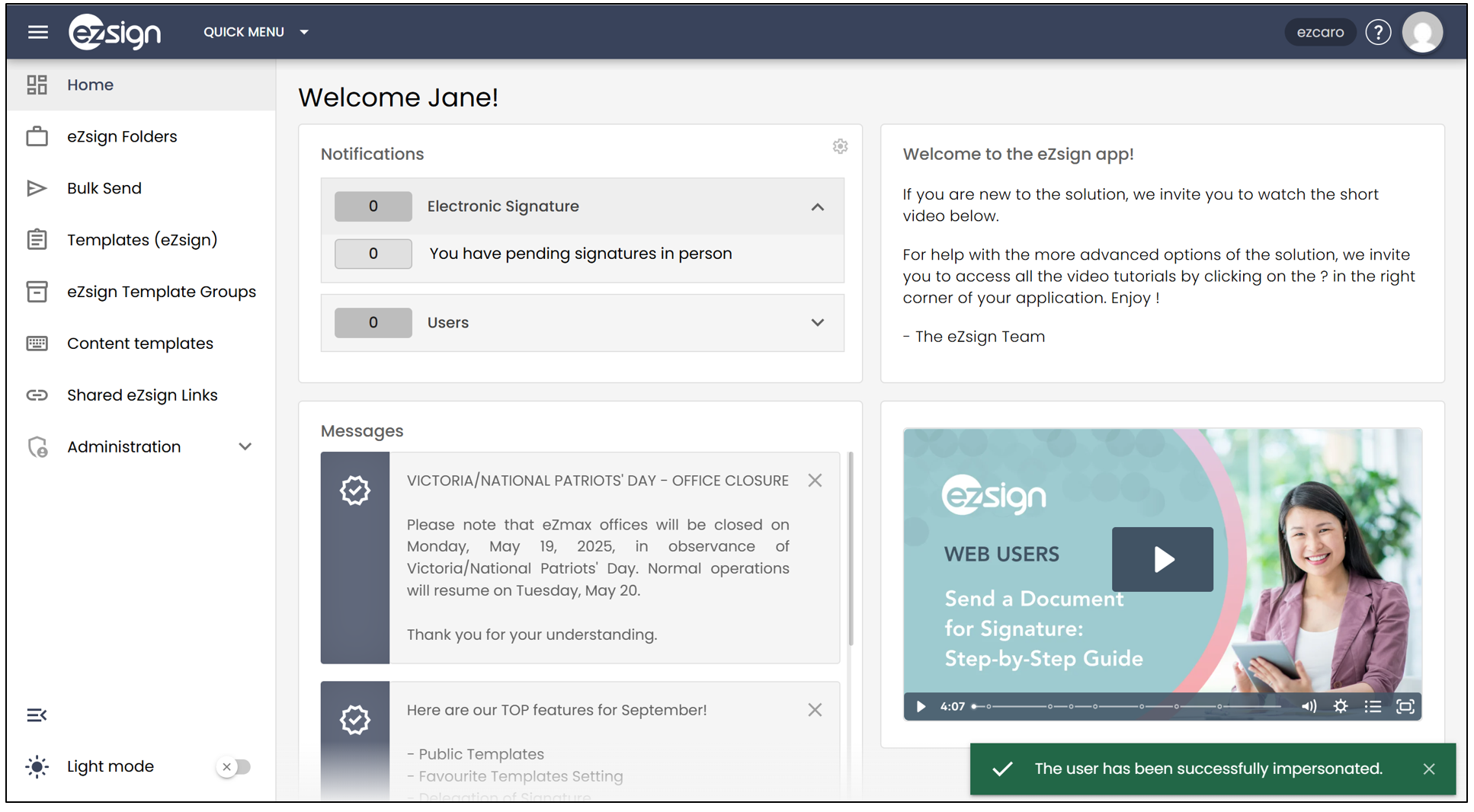
NOTE: To return to their personal account, the user must click on their colleague’s profile picture and then on the

icon.
Communications
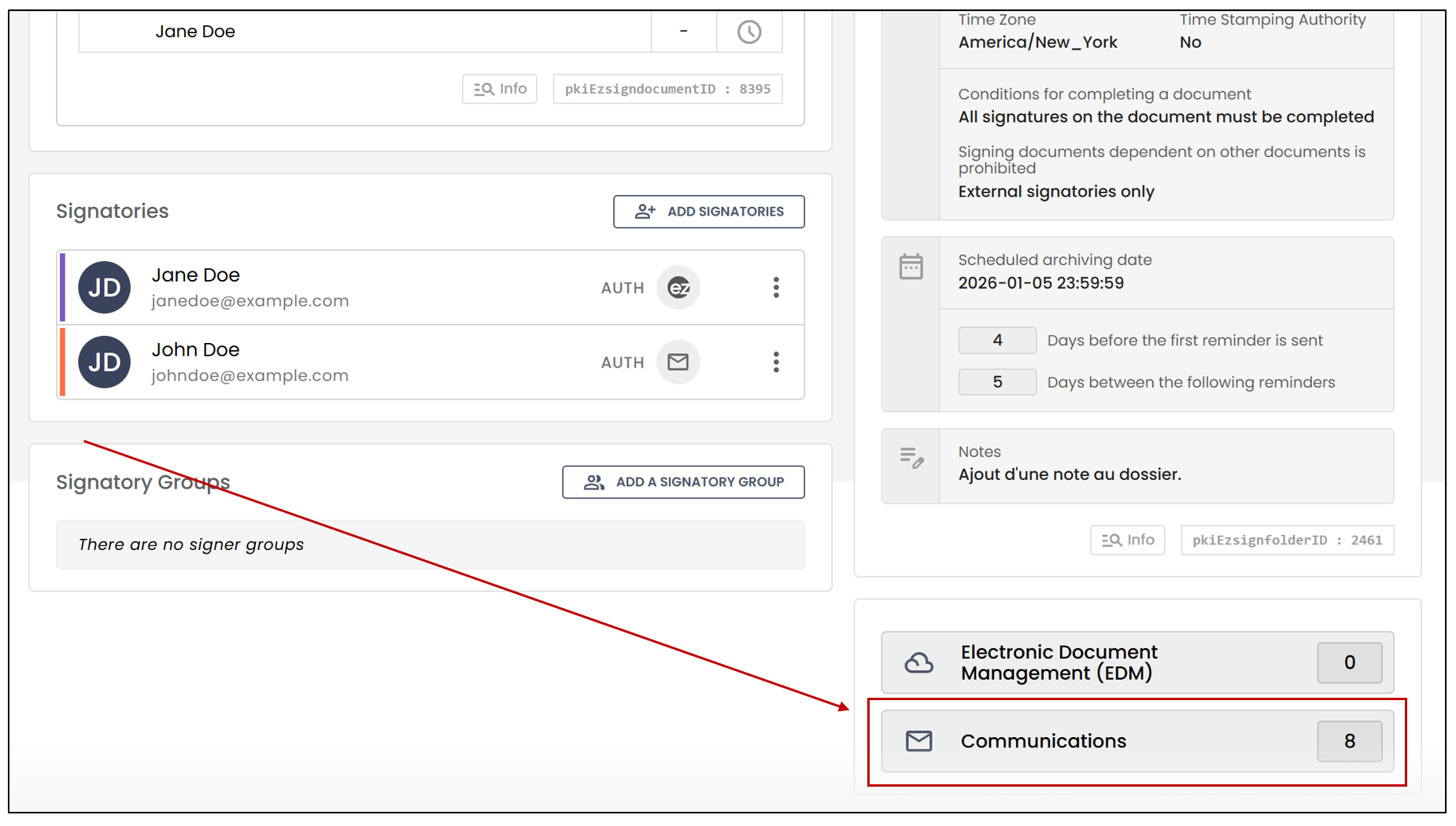
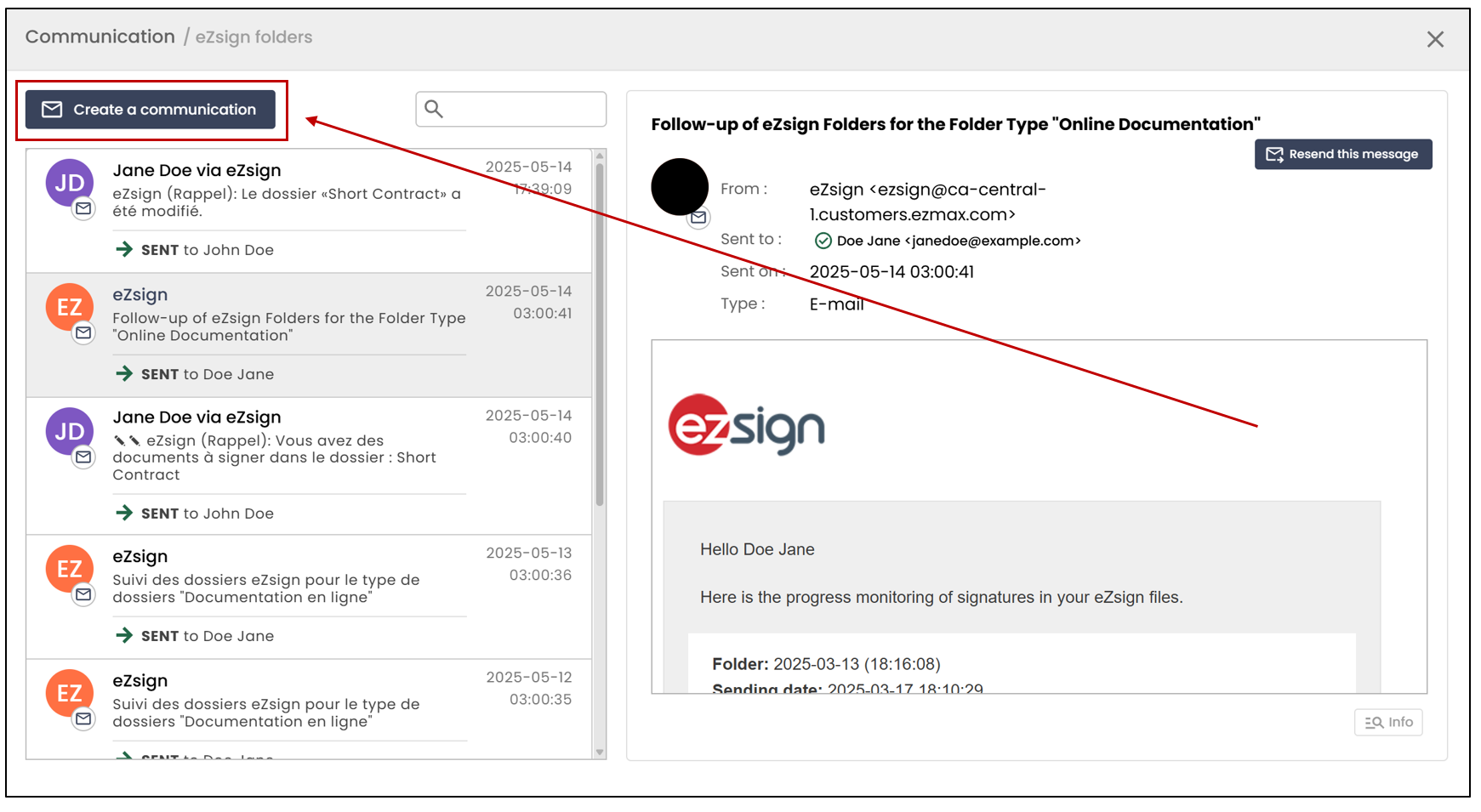
- When adding the colleague, if the Access to use colleague’s email option is selected, the user will be able to send communications from an eZsign folder by clicking on Communications >> Create a communication.
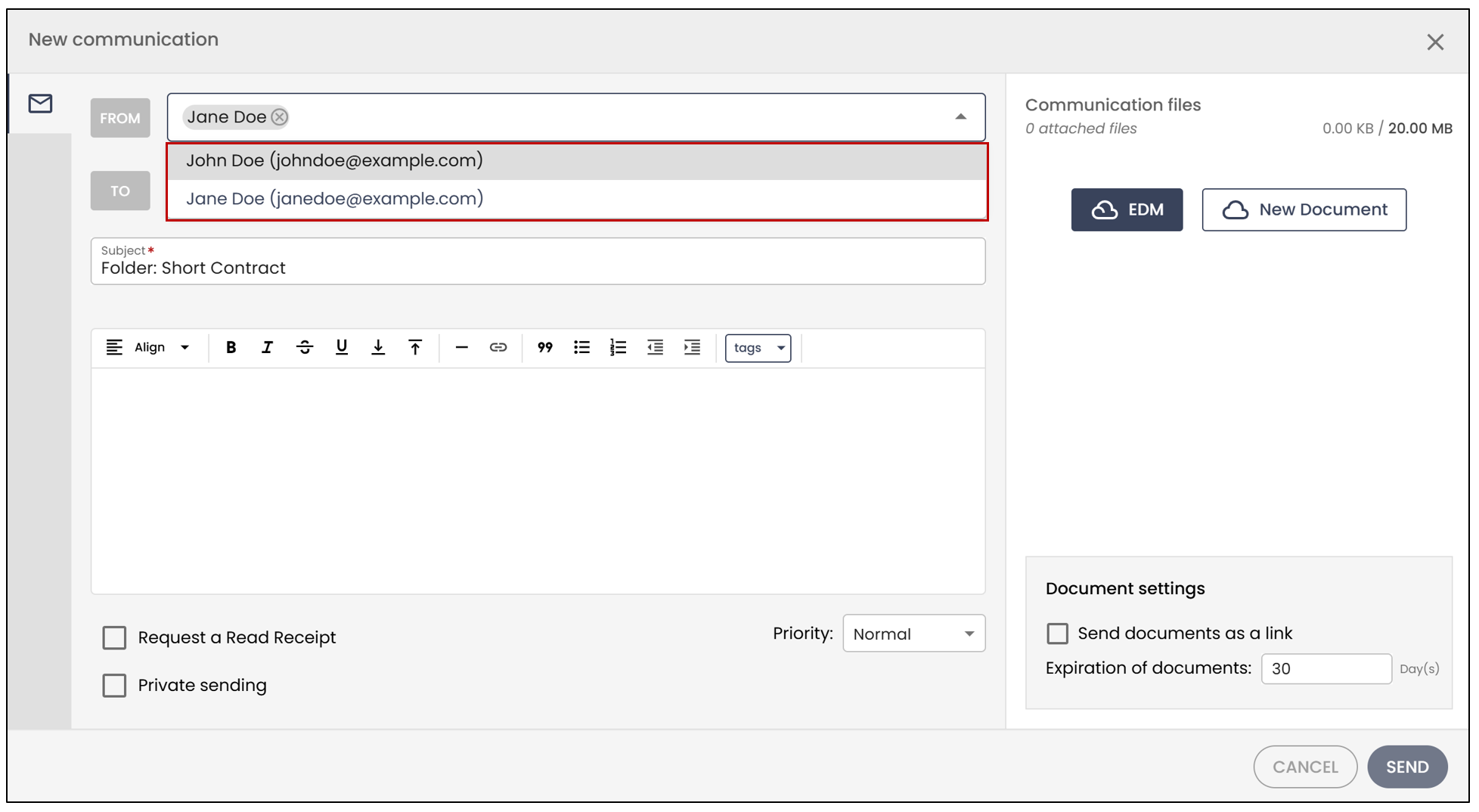
- The user can then choose from which address the email will be sent. They will have the option to select either their personal email address or their colleague’s account address.
Edit a colleague’s access
From the main menu, click on your profile picture >> Colleague Access Management.
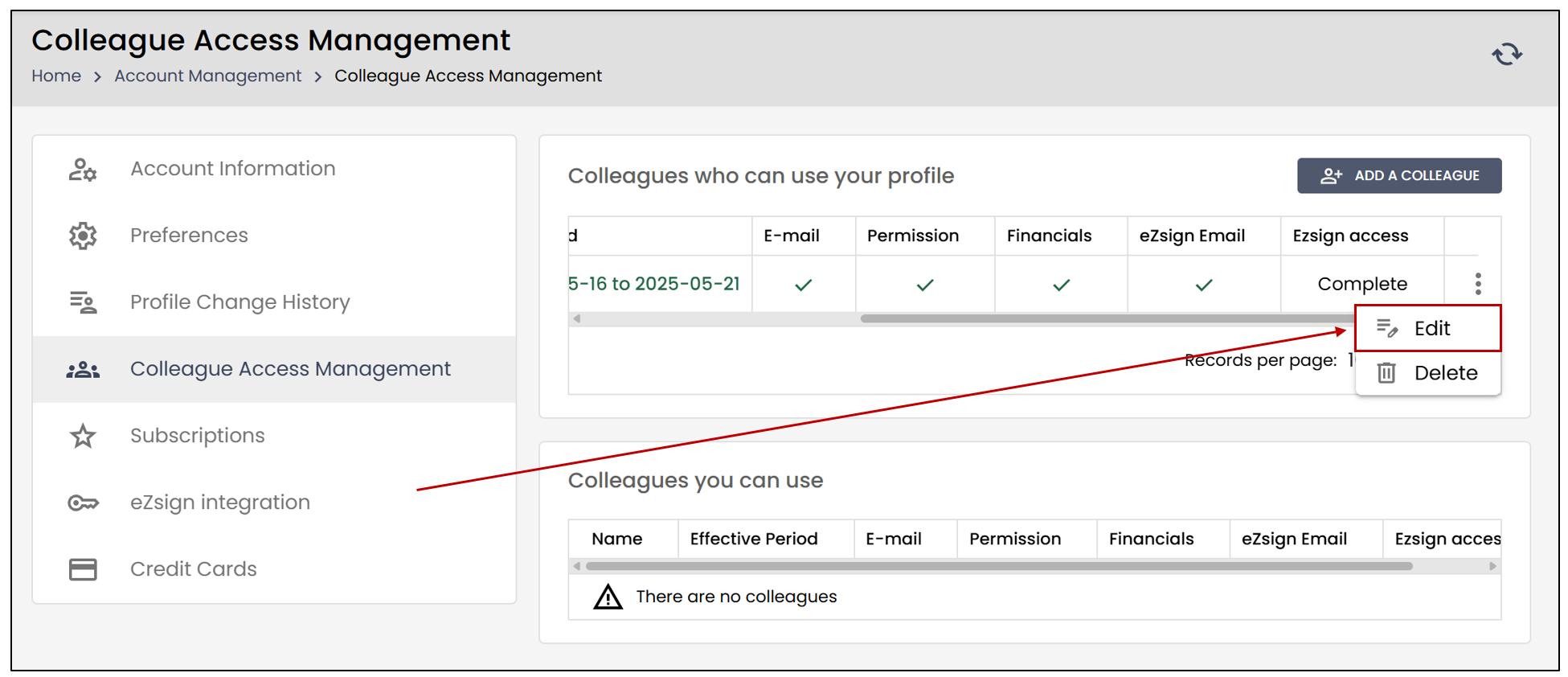
- In the Colleagues who can use your profile section, click on the three vertical dots to the right of the user, and then click on Edit.
- You can modify the user, the period, or the settings. To save your changes, click on Save.
Delete a colleague’s access
From the main menu, click on your profile picture >> Colleague Access Management.
- In the Colleagues who can use your profile section, click on the three vertical dots to the right of the user, and then click on Delete.
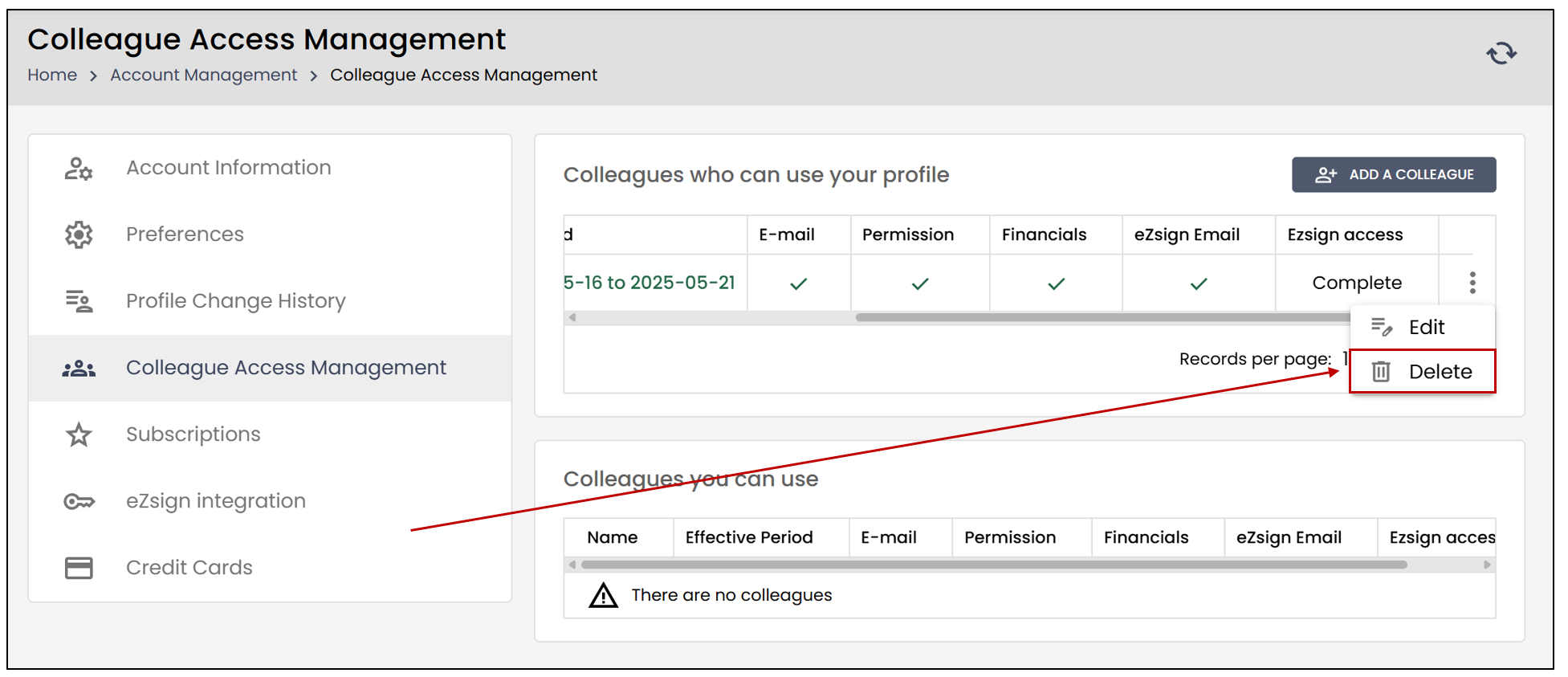
NOTE: Your colleague will no longer have any access to your account.