

English
Document Management in an eZsign Folder
Document Management in an eZsign Folder
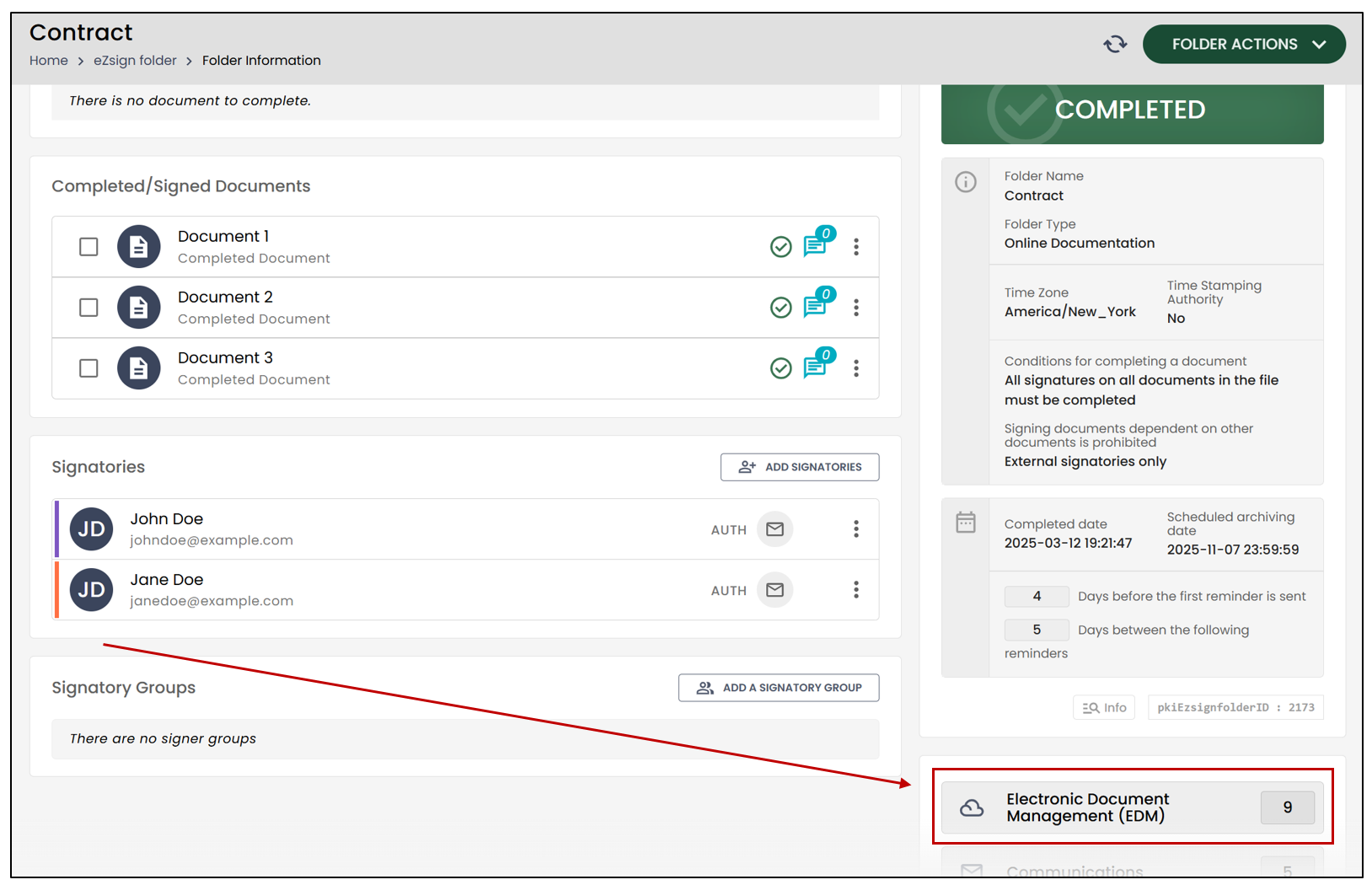
When you are in a signature folder and it is completed, or if it contains certain completed documents (whether prematurely or not), you will be able to view the documents, their proof, and any attachments added, if applicable. These will be found in the **Electronic Document Management (EDM) **by clicking the button below.
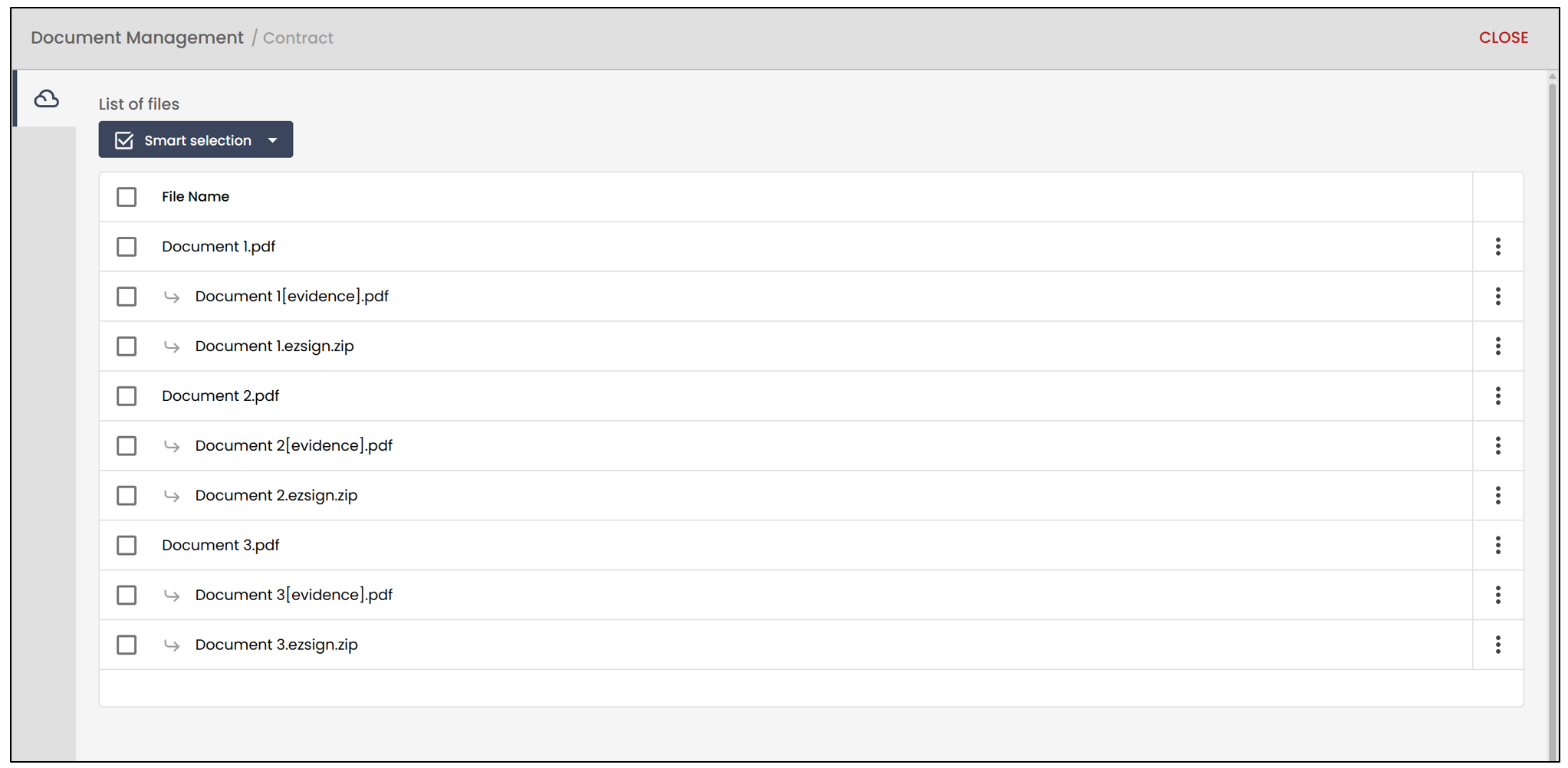
In the file list, you will be able to see the main document, the proof, as well as the complete proof of the document (.zip file). If you request others to include attachments, those files will also be added to the document list.
Download Documents
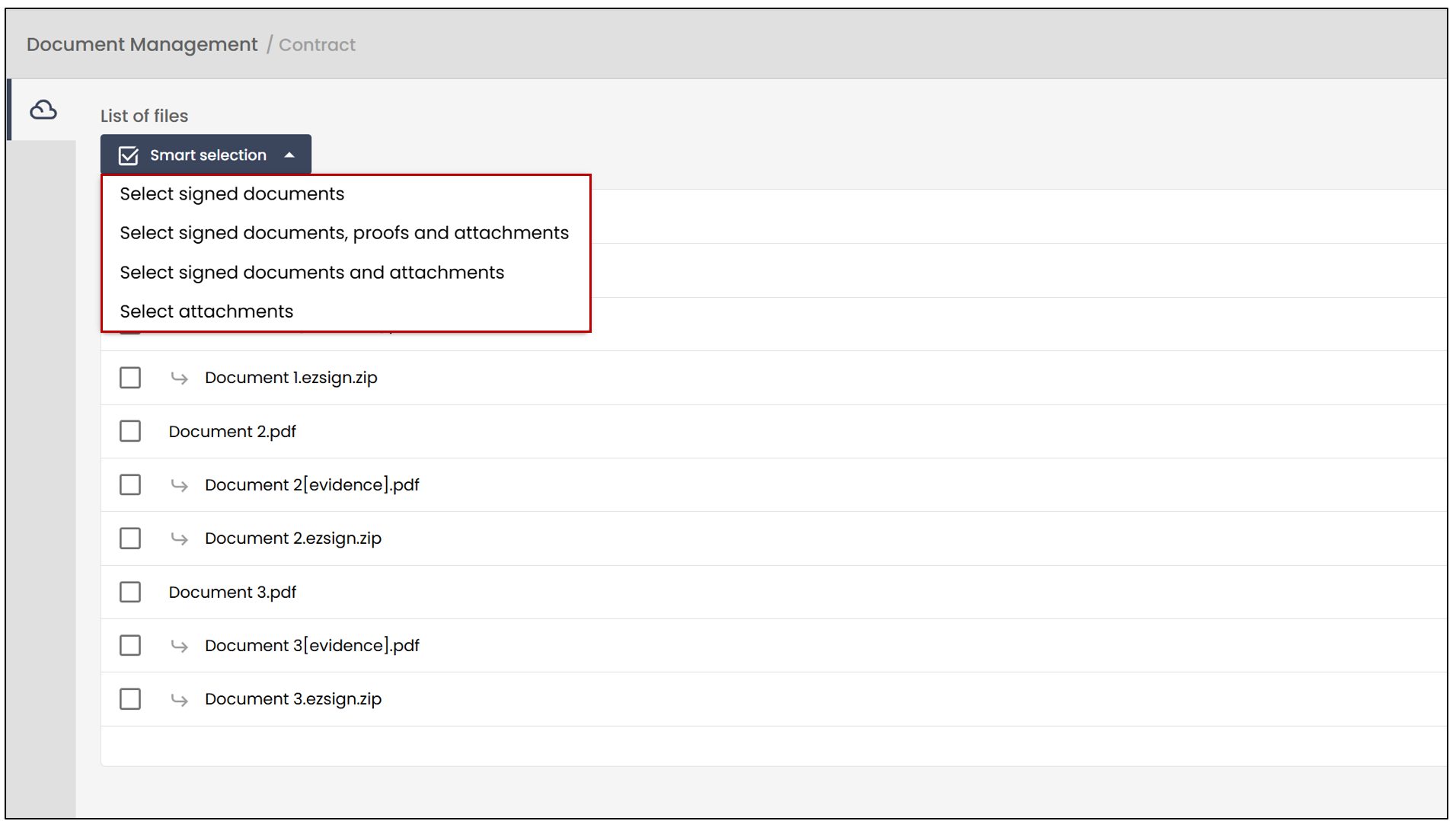
- You have the option to manually select the files you wish to download by checking them. By clicking on Smart Selection , you can choose to select specific documents. For example, only signed documents and attachments—these documents will be selected automatically.
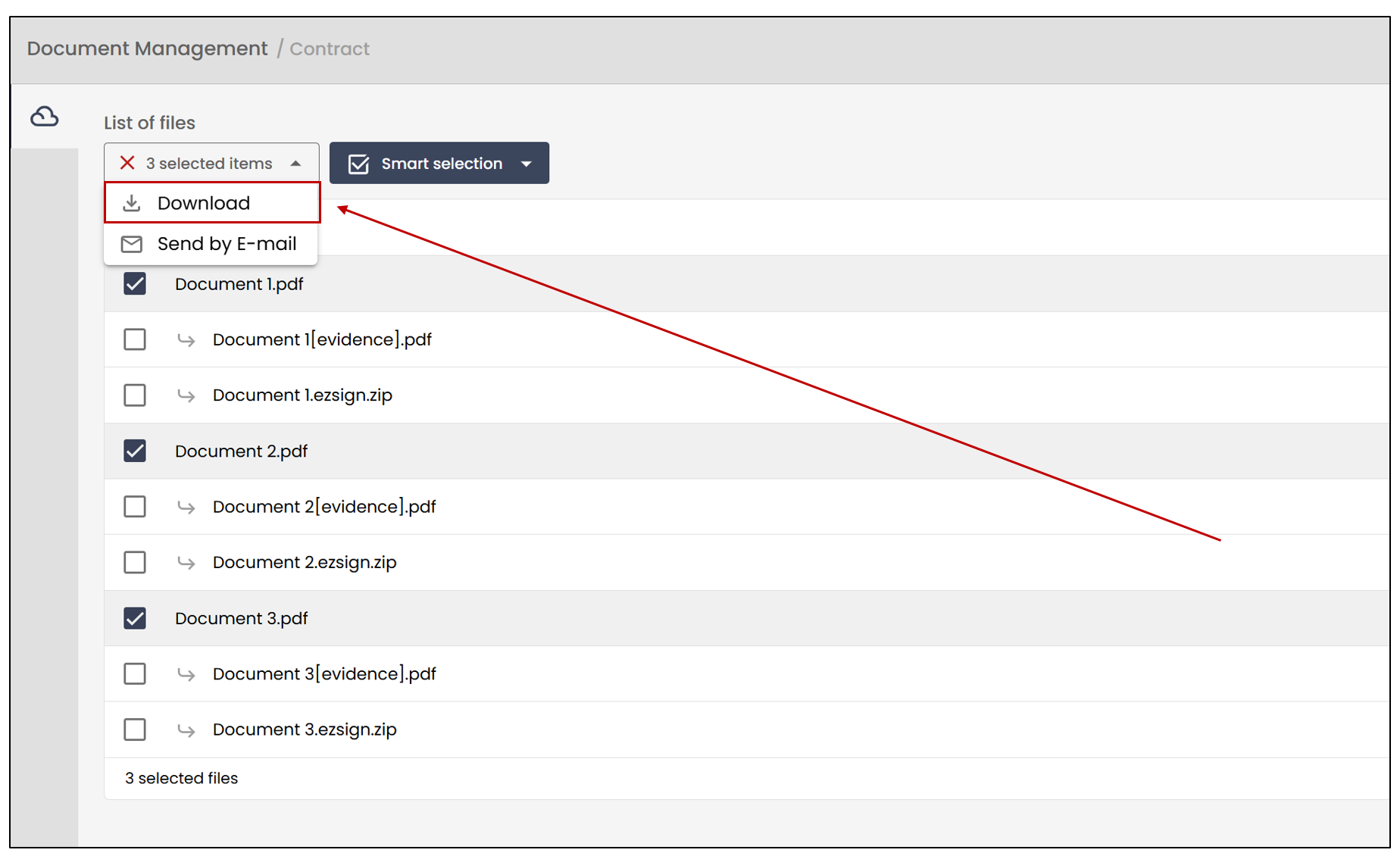
- You will then need to click on Download at the top left of your screen once you have selected all the desired documents.
- If you only want to download a single file, simply click on the three dots to the right of it and select Download file.
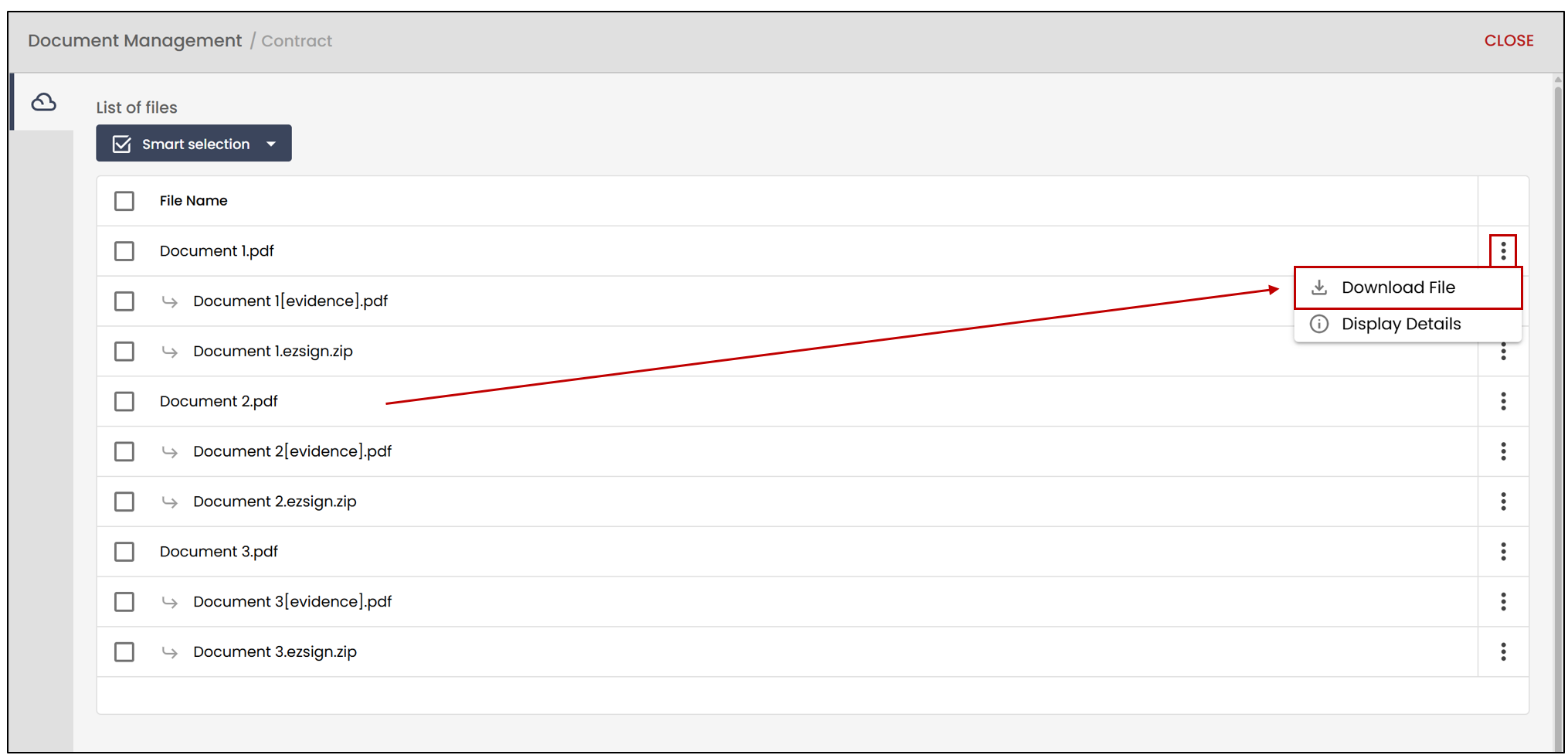
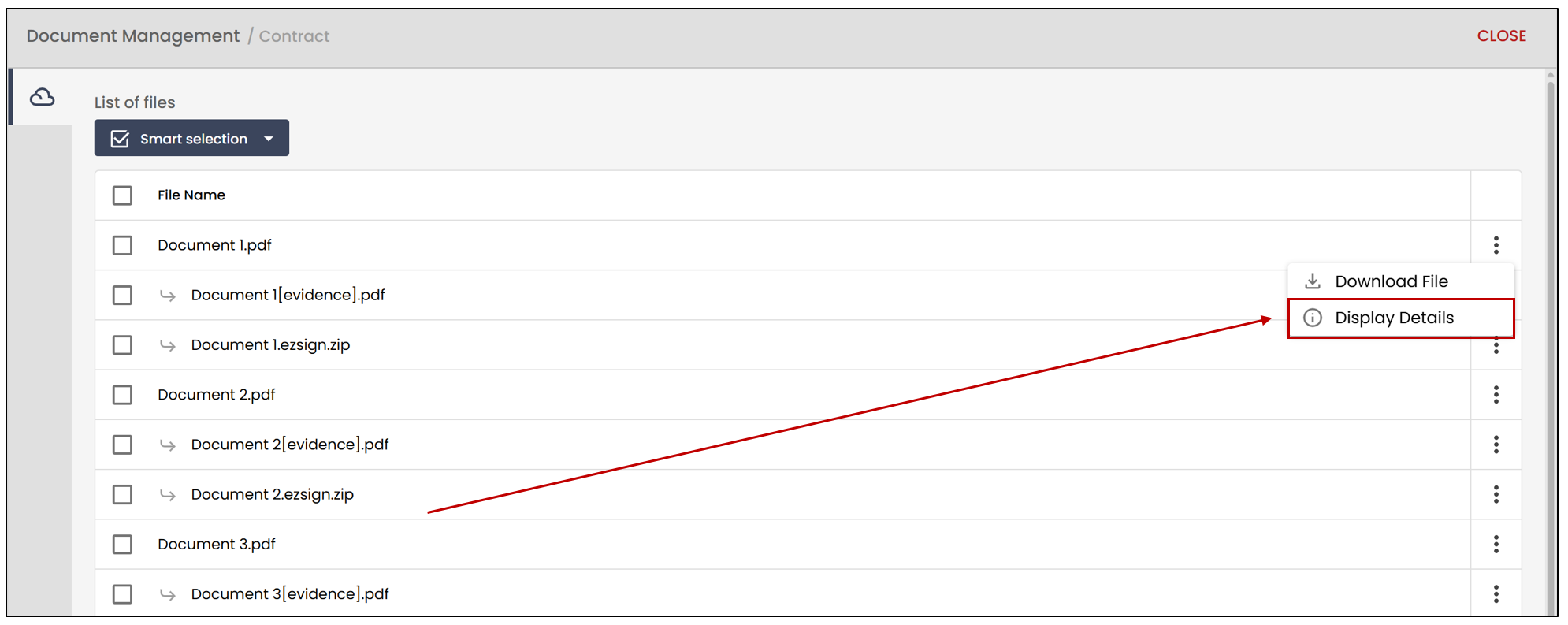
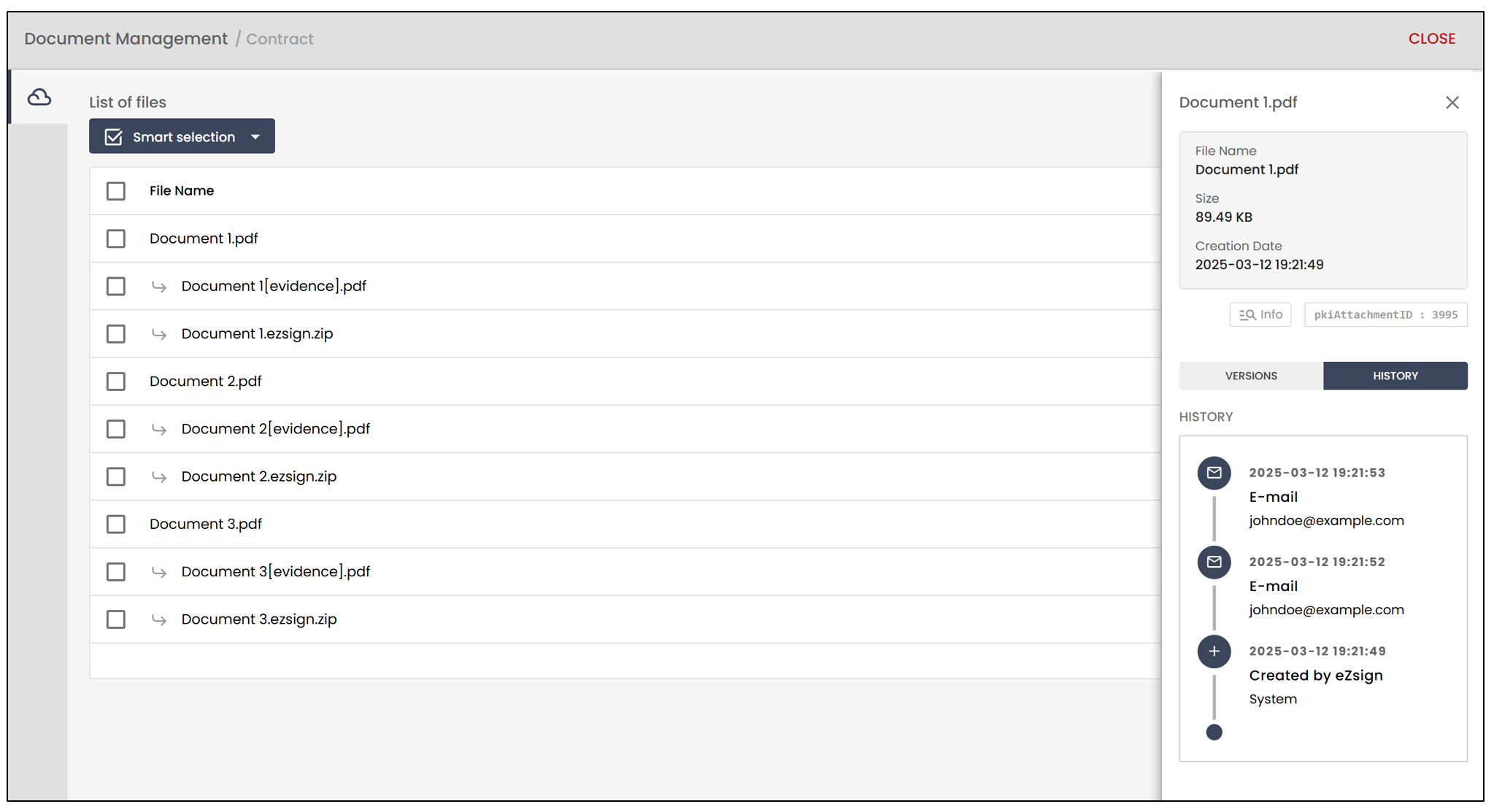
By clicking on Display Details , you will be able to see the name, size, and creation date of the specific file. By selecting the History option, you will have access to all actions performed on this document.
Send Documents by Email
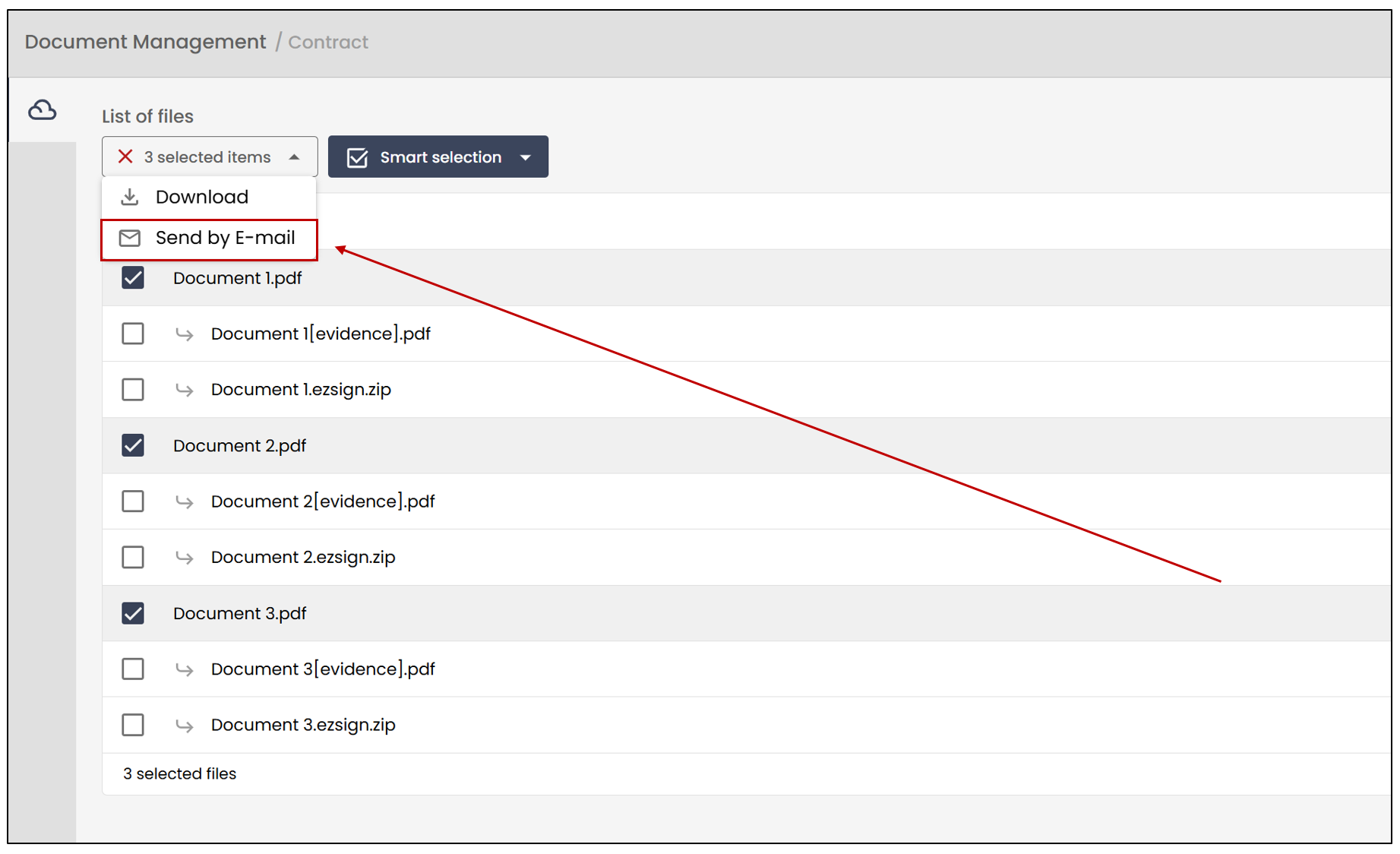
After selecting all the desired documents, you also have the option to click on Send by Email. All selected files will be attached to your email. For more information, please refer to the article Managing Communications in an eZsign Folder (Coming soon).
It is also possible to directly download a document by clicking on the three dots located to the right of the completed/signed document.
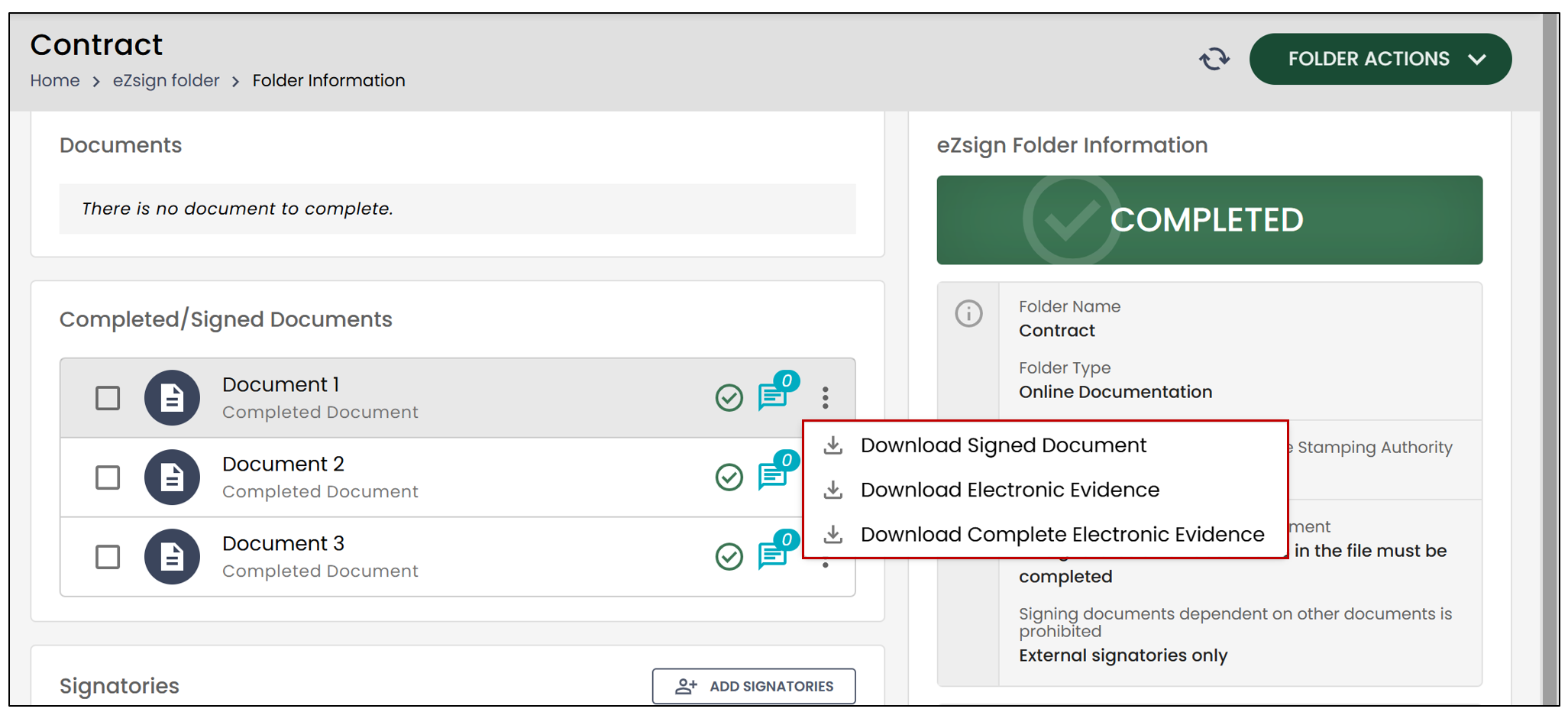
View the signed document (PDF)
It is now possible to view signed documents in PDF format.
- From the folder, click on the three vertical dots to the right of the desired document. Then click on Consult the signed document (PDF).
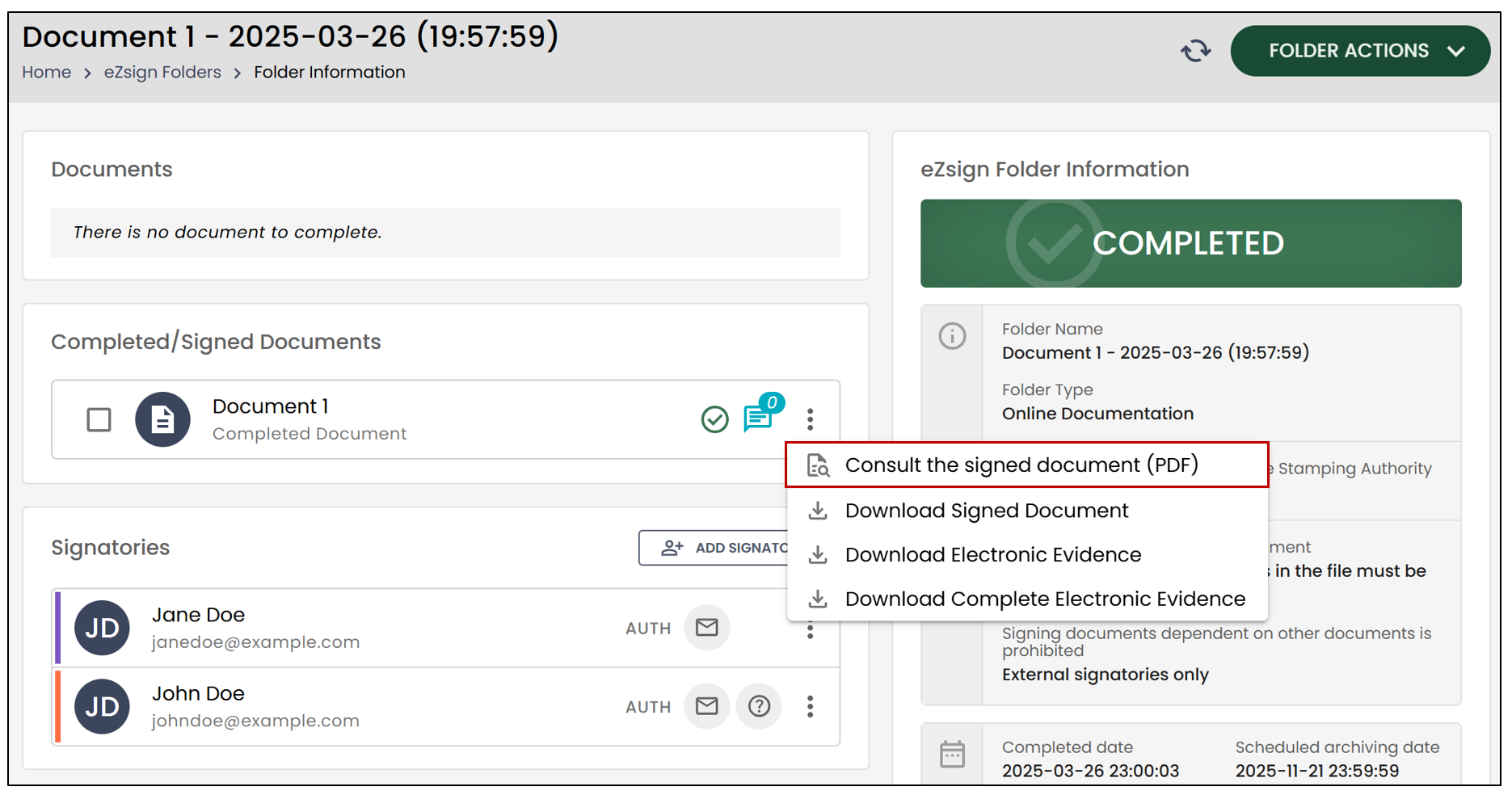
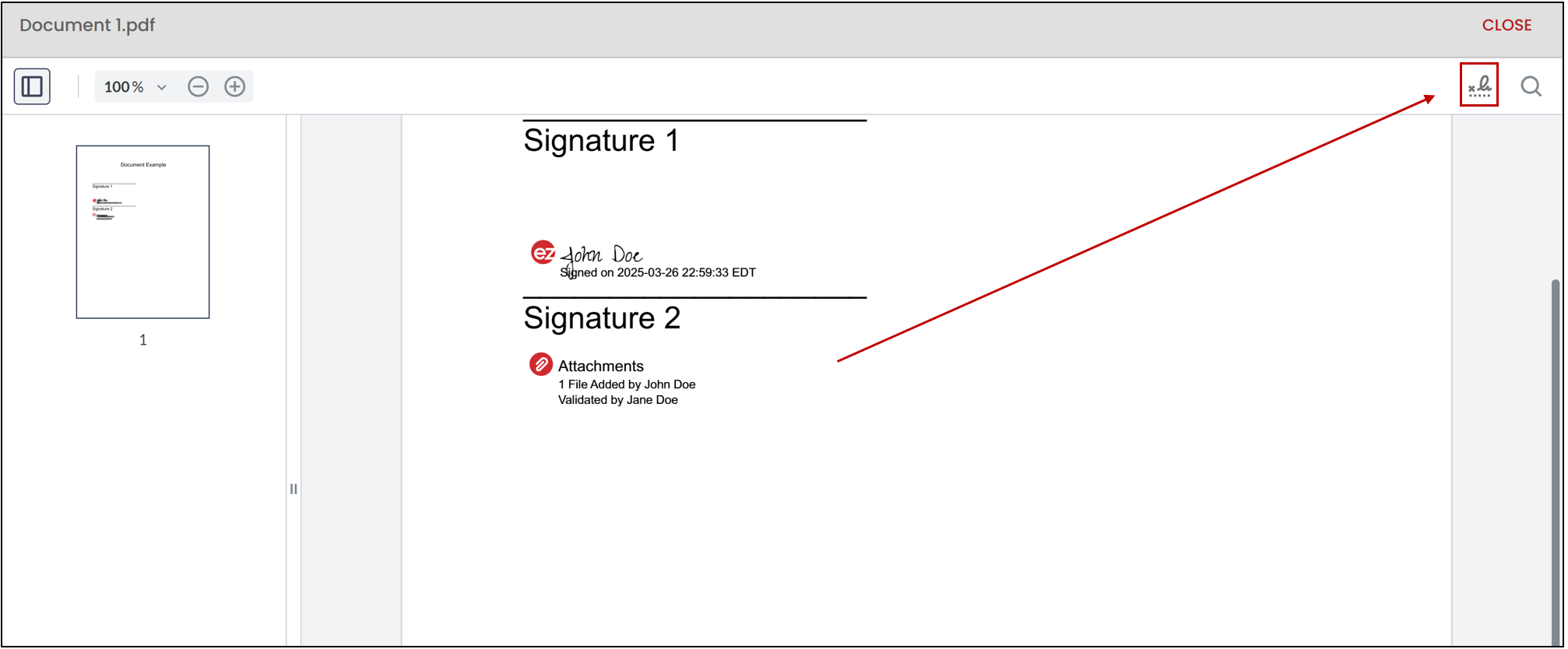
You will then be able to view the document.
- To see the signature details, click on the

icon.
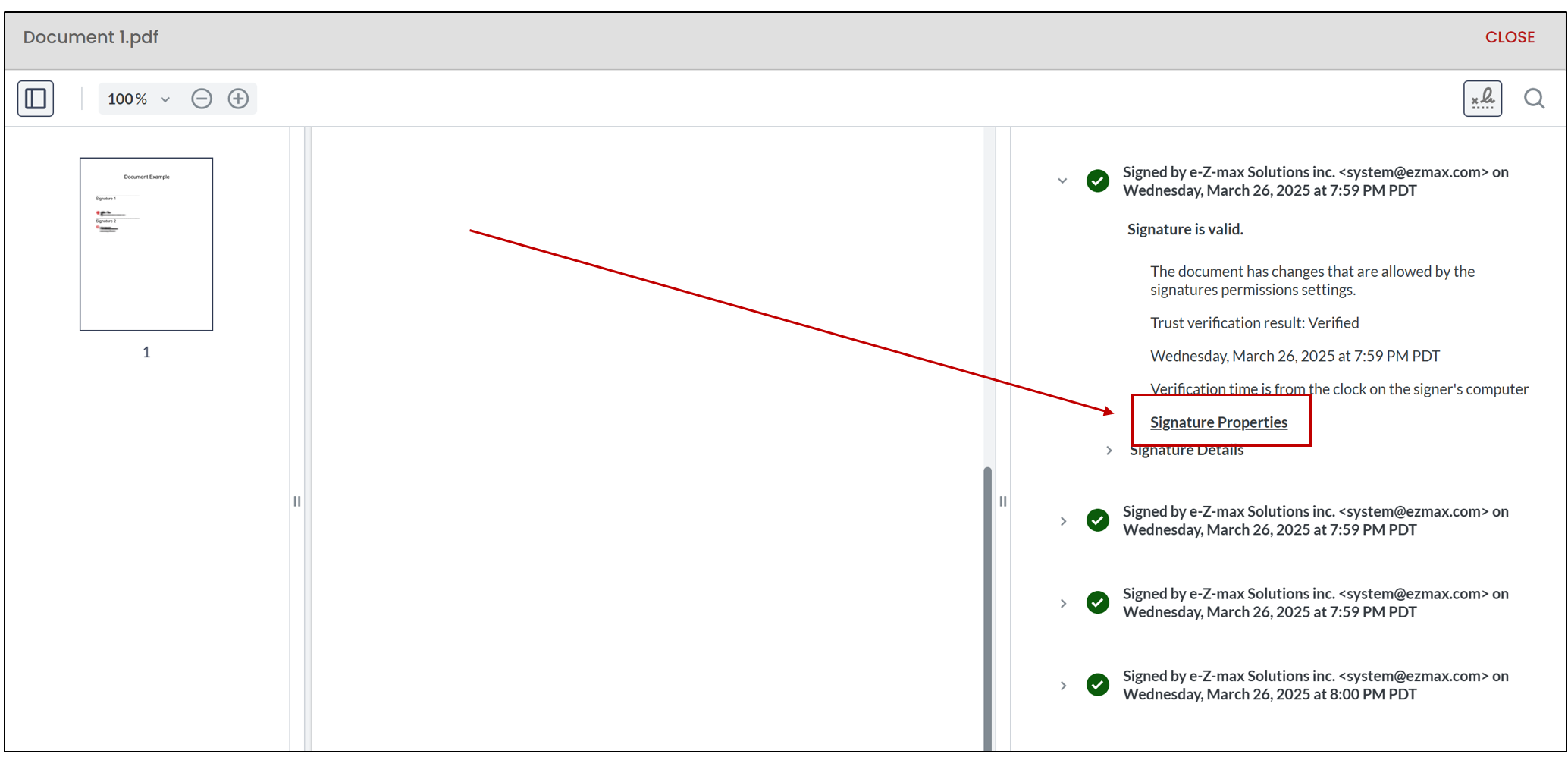
- To view the Signature Properties , press the button for that purpose.
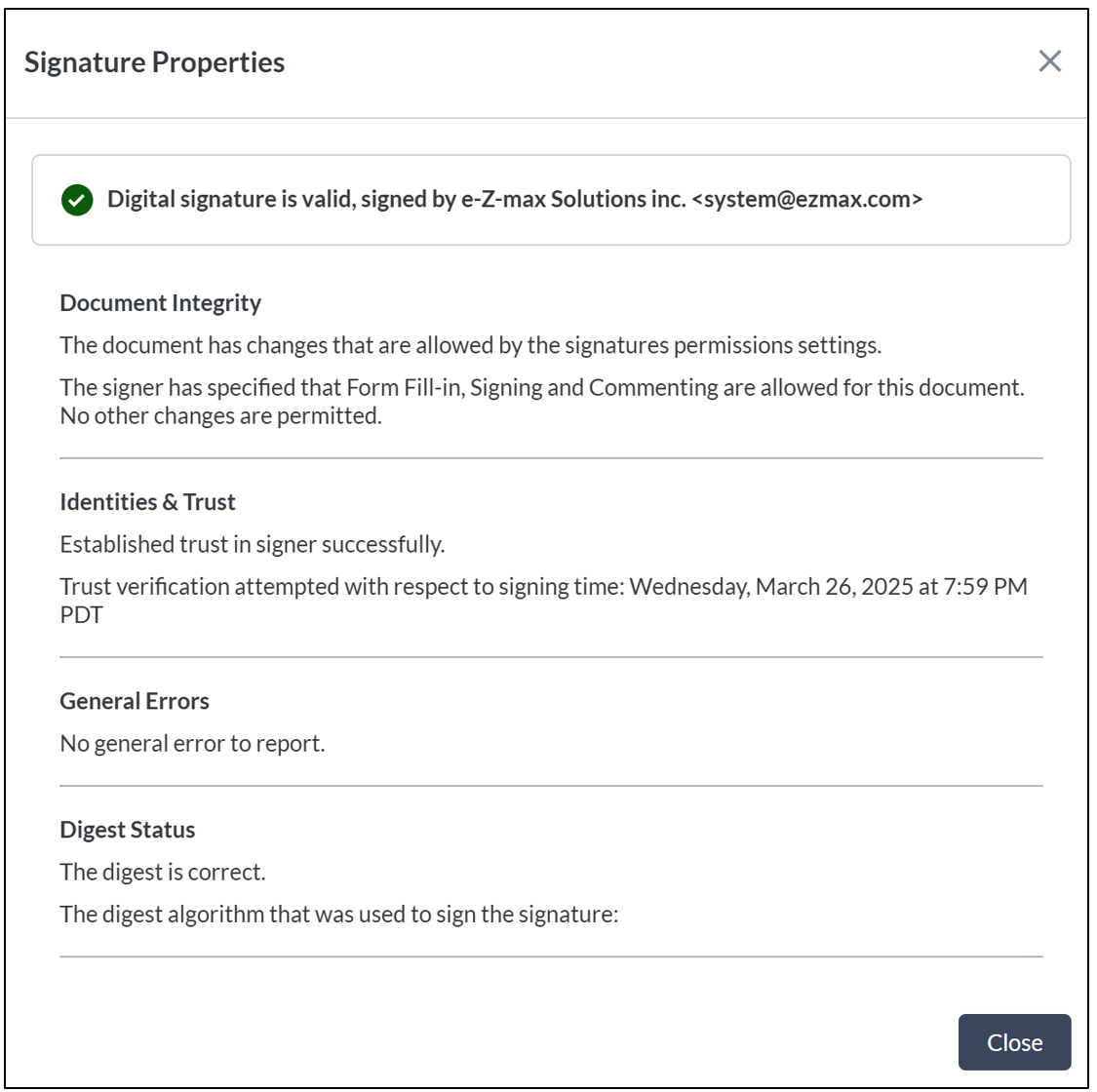
- Click on Close to return to the folder.