

English
Delegation of Signature
Delegation of Signature
In your eZsign application, you have the option to delegate your signature. For example, you might decide to delegate the responsibility of signing to one of your colleagues during an absence.
NOTE: This option is only available when the submissions are made from a folder type for which delegation permission has been granted by the account administrator.
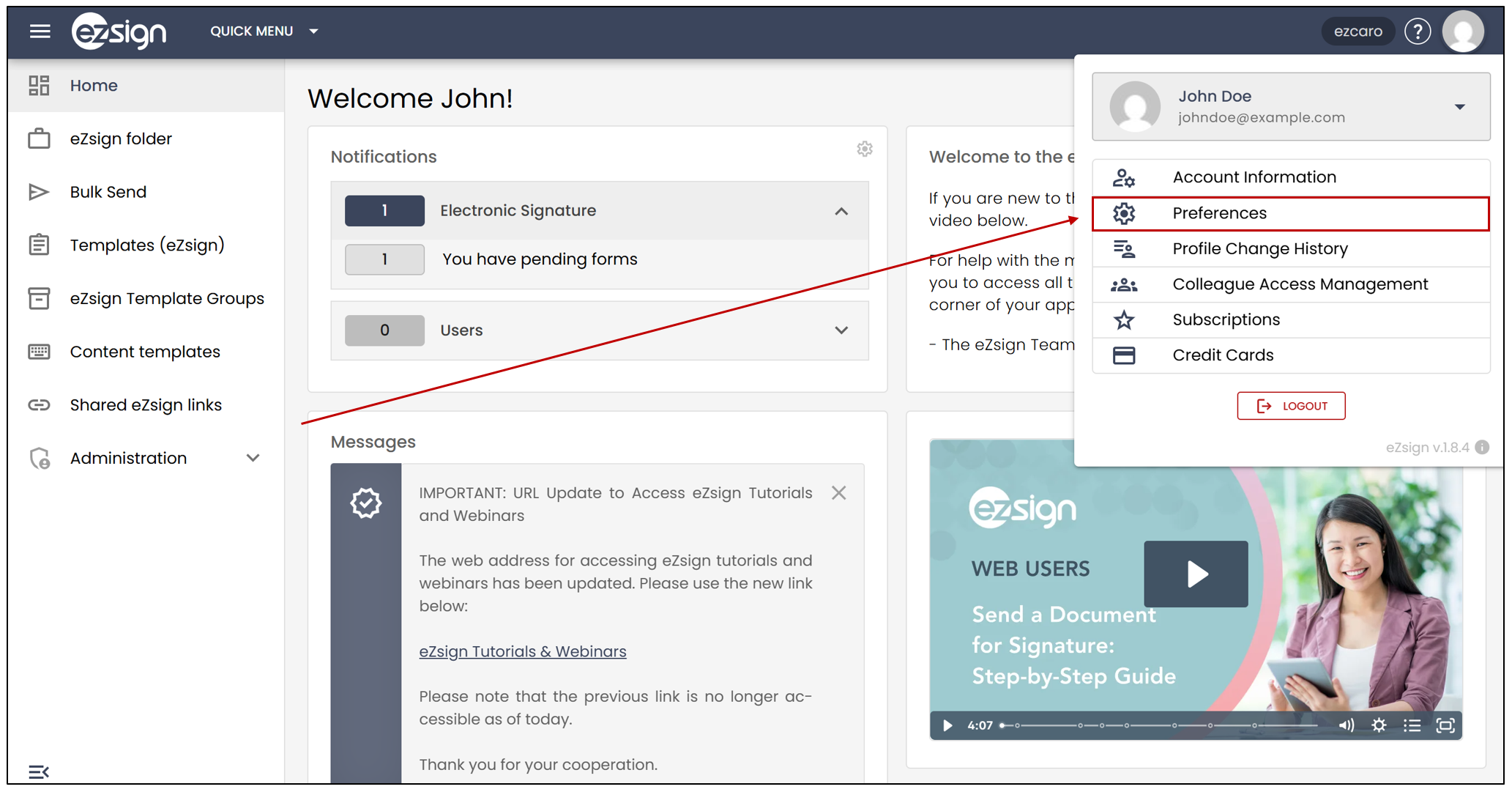
- From the main menu, click on your profile picture, then select Preferences.
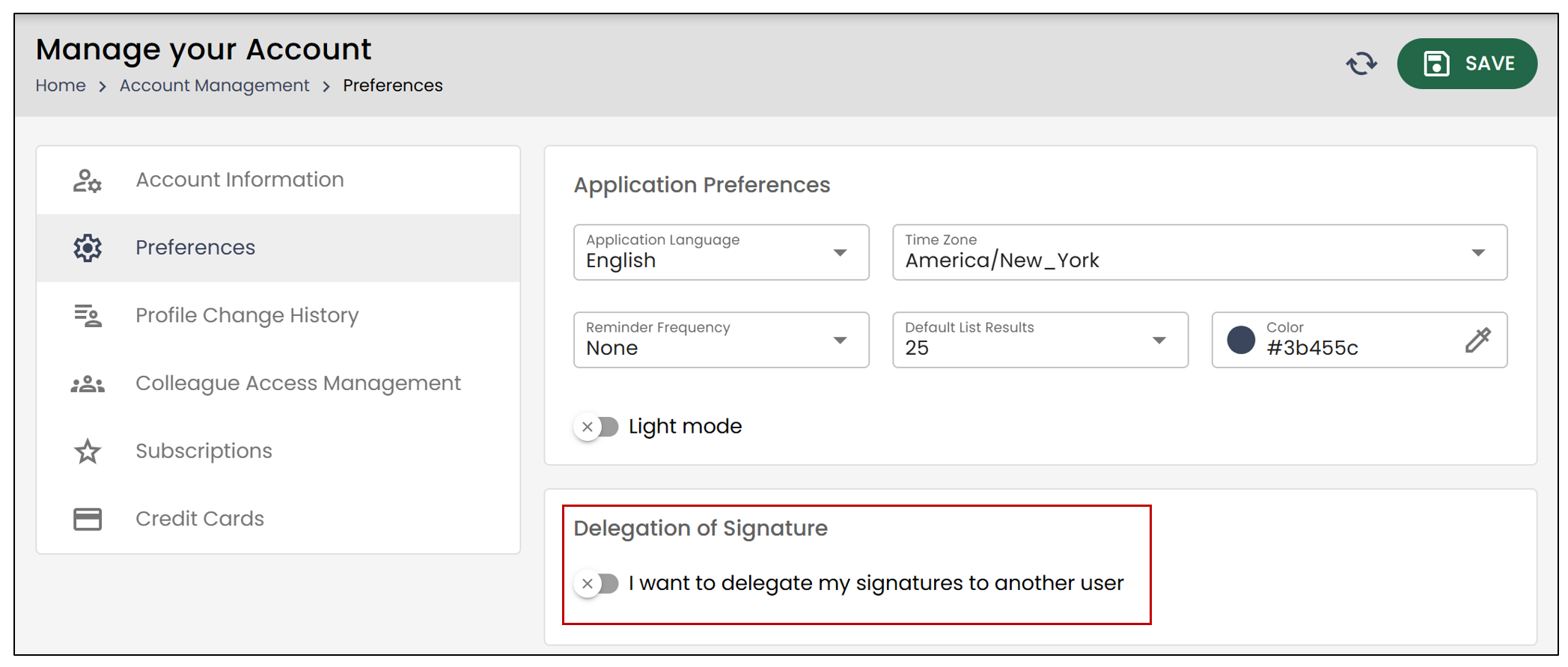
To be able to delegate your signature, you will need to activate this option.
Next, you will need to select a Delegated User from the drop-down list. This user will be designated to sign your documents during the chosen period.
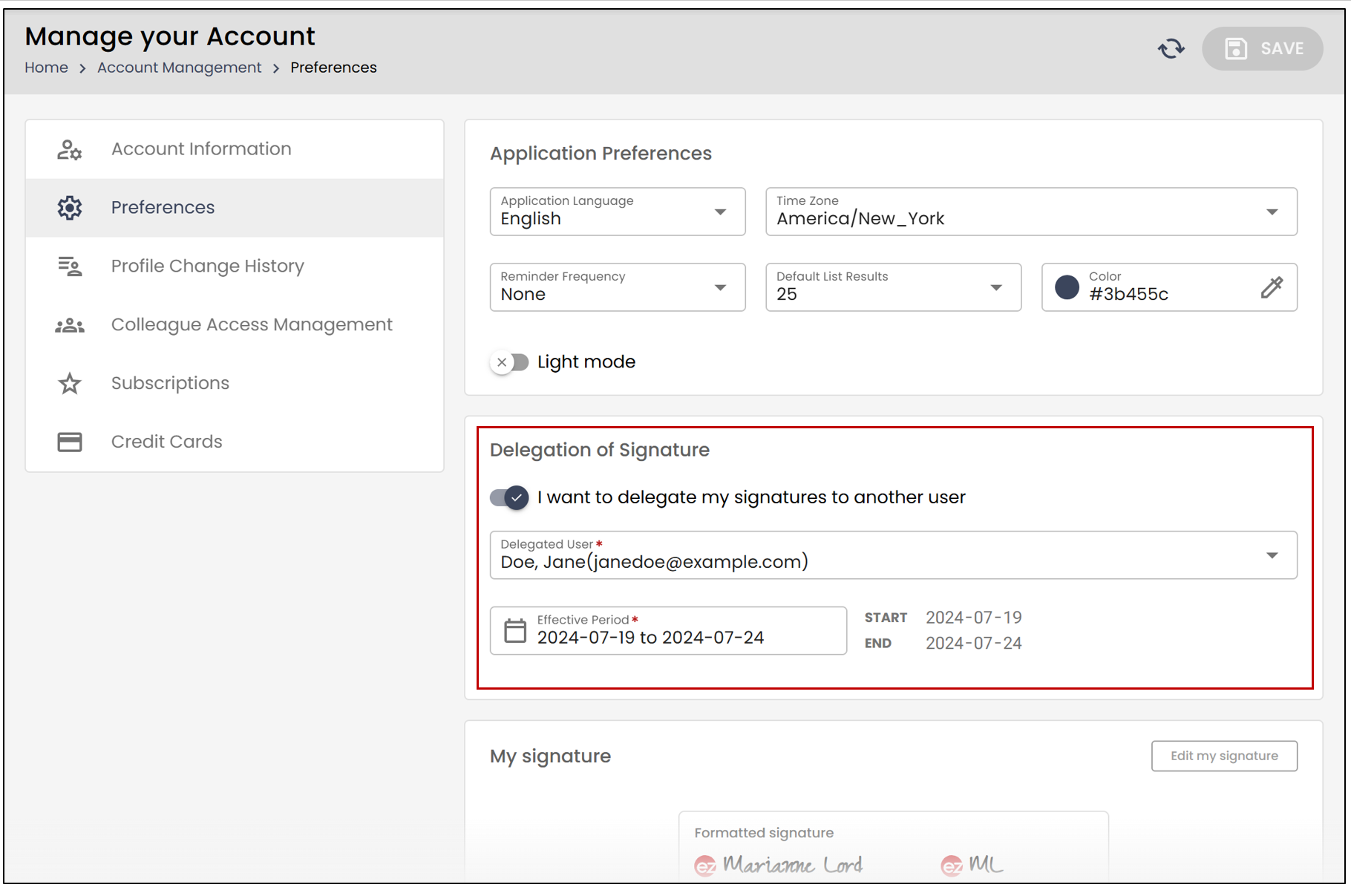
- The Effective Period will define the time frame during which the user will receive the delegated signatures. Click on the calendar icon, then select the desired period.
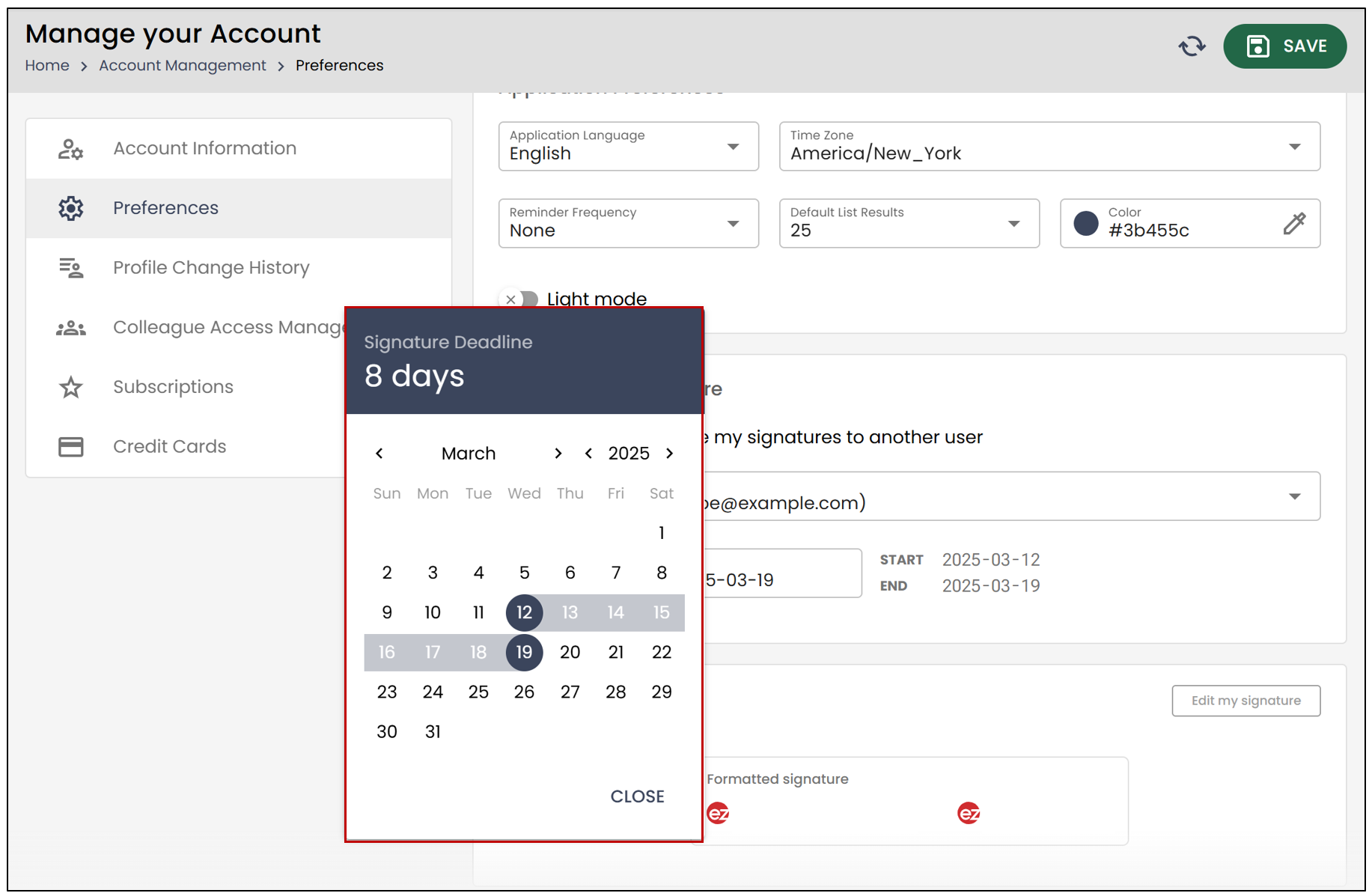
- When you are finished, click on Save to save your changes.
NOTE: During this period, all your signatures will be delegated to the selected user. They will receive an email notifying them that they have documents to sign and will be able to apply their signature.
Here is an example where Jane Doe delegated her signature to John Doe:
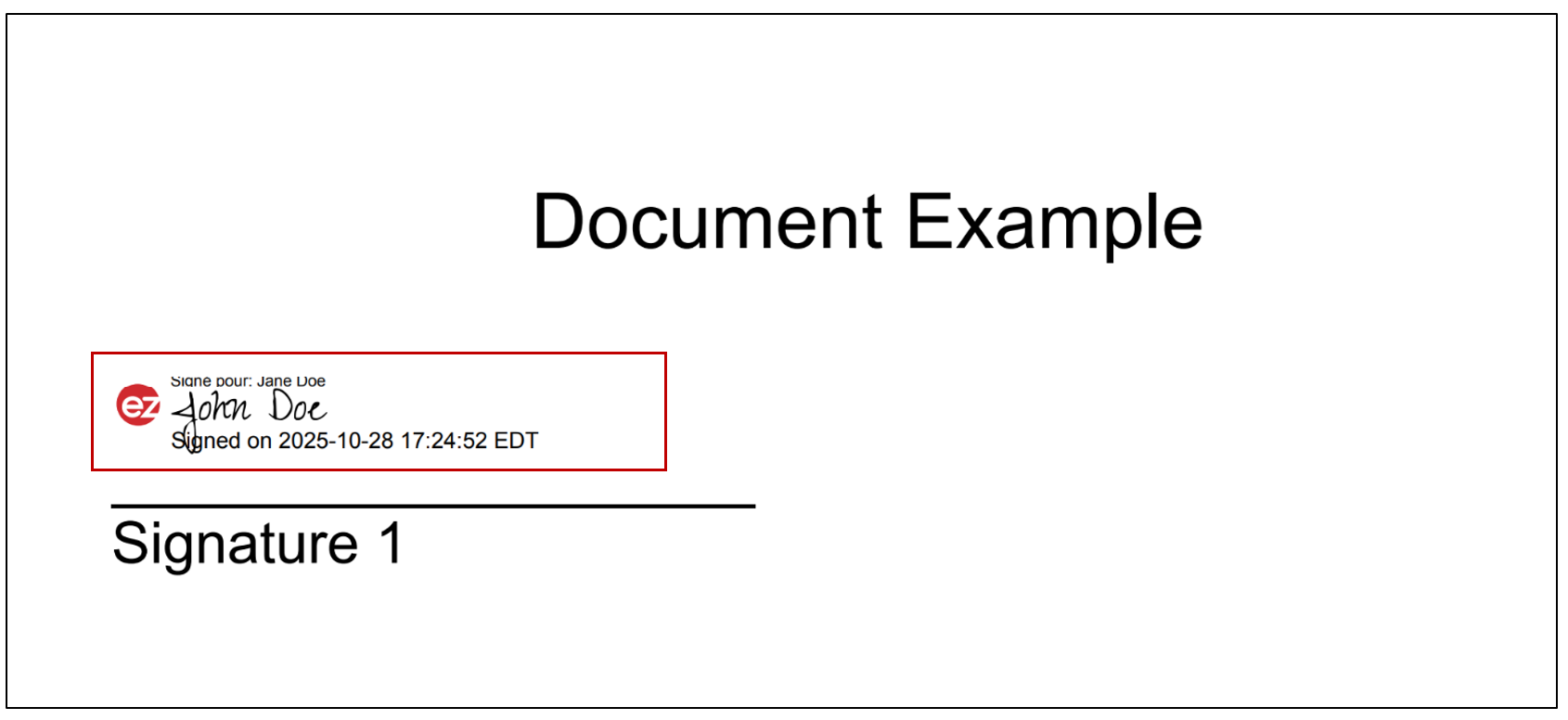
NOTE: You will also be able to consult the electronic proof in the Signatories section. It will indicate that John Doe signed the document for Jane Doe.