

Français
Actions in the "Signatures Status" Section of an eZsign Folder/Edit a sent document
From the "Signature Status" section of an eZsign folder, depending on the progress of signatures in a document, different actions are possible:

QUERY LENGTH LIMIT EXCEEDED. MAX ALLOWED QUERY : 500 CHARS
In the case of a document sent but no signature obtained and a partially signed document, you have the possibility to display the temporary evidence.**
- From the Actions menu of the "Signature Status" section, click on "Display Temporary Evidence".
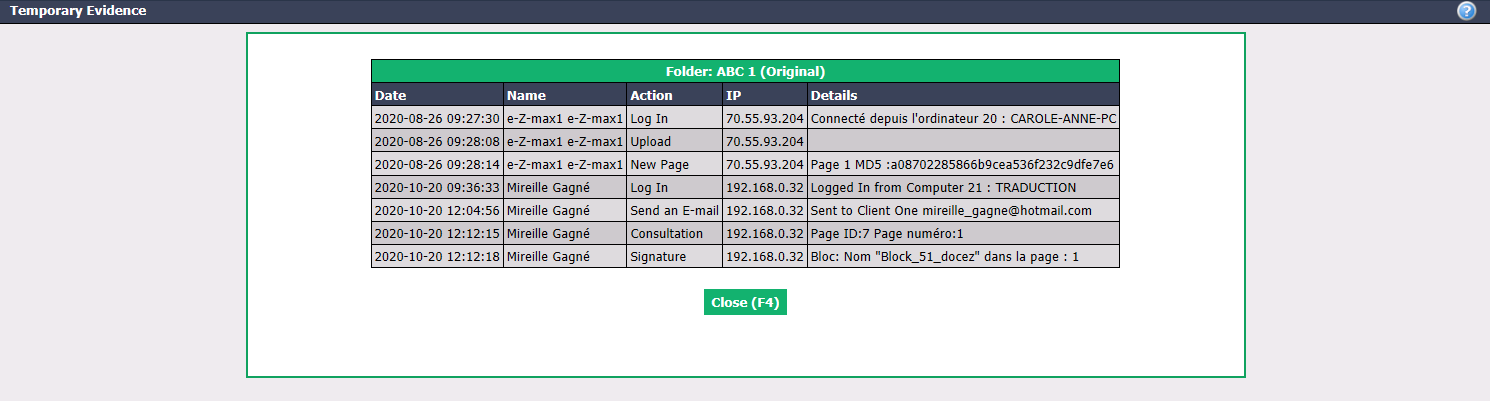
You can see what actions were done in the document, when and by whom.
Click on Close to return to the eZsign folder.
Complete Prematurely the Document****
In the case of a document sent but no signature obtained and a partially signed document, you have the possibility to complete prematurely the document. This feature allows you to stop the document’s signing process while saving the signatures already completed on the document. It is practical in the following situations:
You have added a field for a signatory who doesn’t need to sign.
One of the signatories no longer wants to e-sign and prefers to sign manually.
From the Actions menu of the "Signature Status" section, click on "Complete Prematurely the Document" and this warning message will appear:
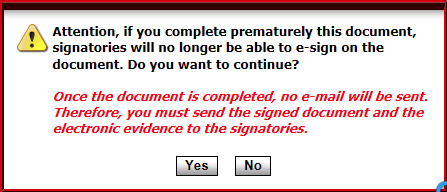
The first part of the message means that if you proceed, the signatories in this document who have not yet signed will no longer be able to do so.
The second part of the message means that you will need to send the signed document and its electronic evidence to the people who have already signed the document.
Click on Yes to confirm.

- The document’s signature status/progress will be "Completed" even though not all signatures have been received.
Edit the Fields
In the case of a document sent but no signature obtained and a partially signed document, it is possible to modify the fields.**
- From the Actions menu of the "Signature Status" section, click on "Edit Fields" and this warning message will appear:
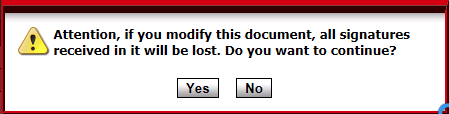
This message means that if you proceed, all signatures already received on the document will be lost. You will have to resend the document to all signatories once you have completed the modifications.
Click on Yes to confirm.
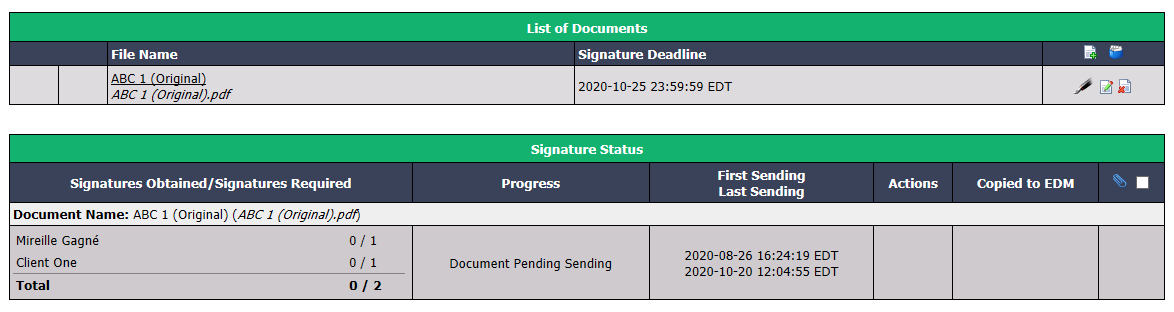
The document will return to the progress "Document Pending Sending" (signature status "Unsent").
In the "List of Documents" section, you can now click on the Fountain Pen icon to add, edit or delete the fields in the document. Or click on the X icon to delete the document. For more information, please see the article Adding/Editing/Deleting a Field in a Document.
Fill In the Form****
In the case of a document sent but without a signature obtained, with the progression "Form to Fill In", you have the possibility to complete the form as a user, if applicable. For more information, please see the article Filling In a Form as a User (486).****
Sign the Document
In the case of a document sent but no signature obtained and a partially signed document, you have the possibility to sign this document as a user, if applicable. For more information, please see the article Signing a Document as a User.**
Consult the Document
In the case of a document sent but no signature obtained and a partially signed document, you have the possibility to view the document.
- From the Actions menu of the "Signature Status" section, click on "Consult Document".
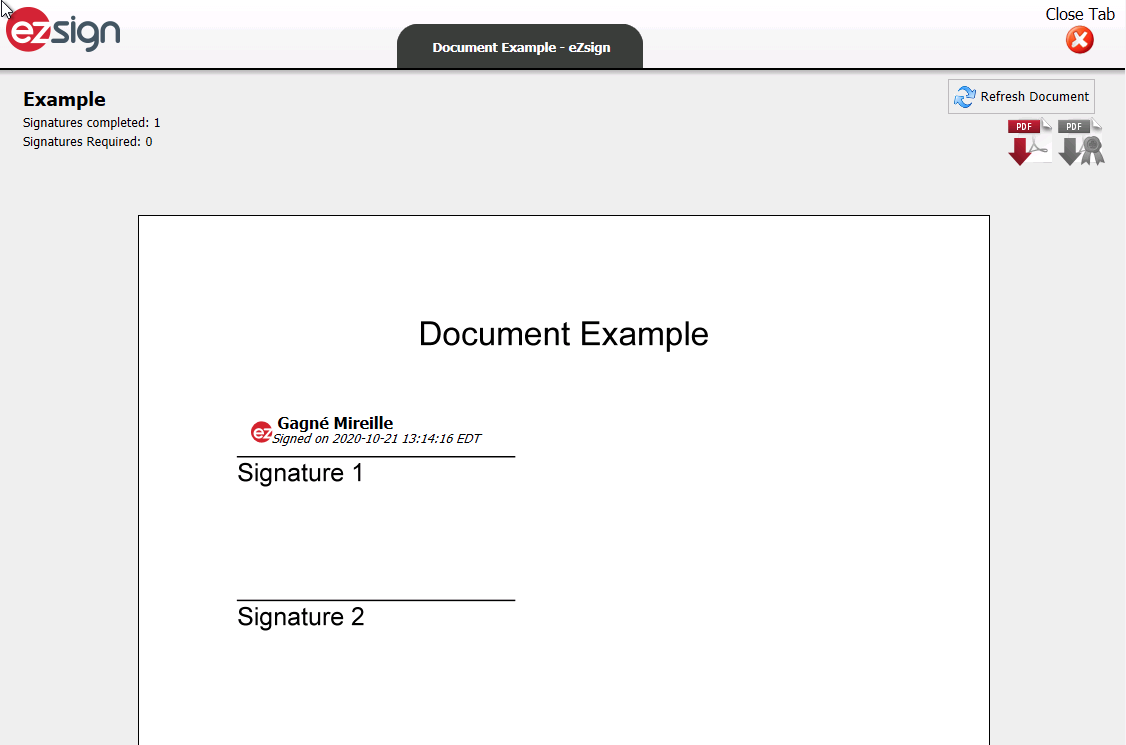
- You can see the document with the signatures obtained so far.
NOTE: You will not see the fields for other required signatures to come.
- Click on Close Tab to return to the eZsign folder.
Download the Signed Document**
In the case of a completed document, you have the possibility to open or save it on your computer.
From the Actions menu of the "Signature Status" section, click on "Download Signed Document".
Click on Open or Save.
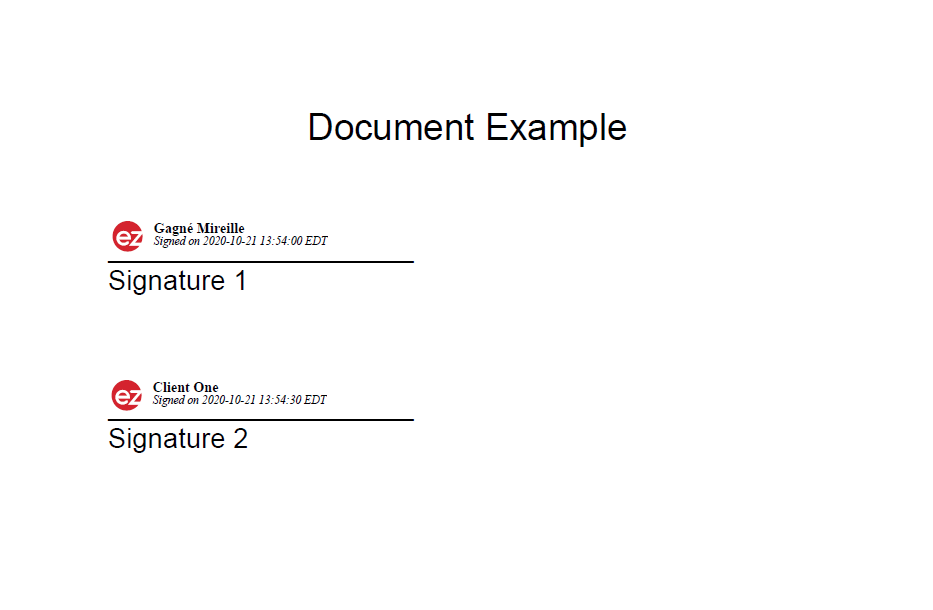
- You can see the completed document, i.e. with all the signatures obtained.
Sign Again**
In the case of a completed document, if you forgot to add a field of a signatory to the folder, you have the possibility to add it while keeping the signatures already obtained.
- From the Actions menu of the "Signature Status" section, click on "Sign Again".
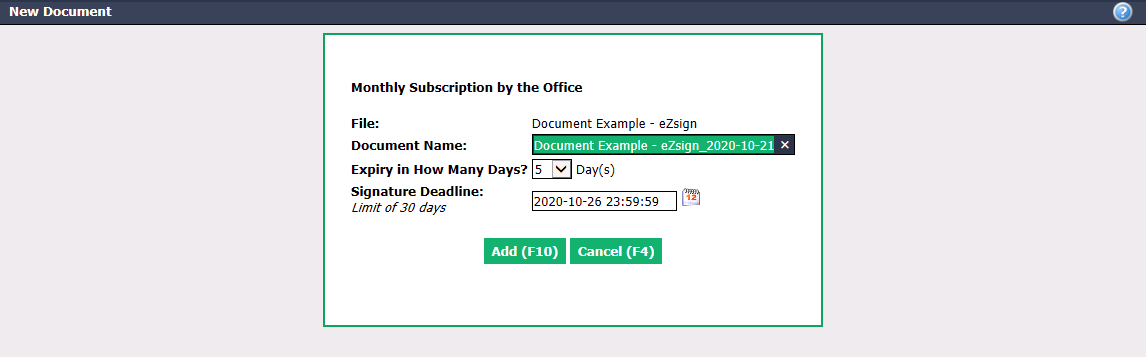
- Click on Add.

The document will be added to the folder’s "List of Documents" section and today’s date will be added to the document’s name.
Click on the Fountain Pen icon to add Fields in the document. For more information, please see the article Adding/Editing/Deleting a Field in a Document.
Download the Electronic Evidence**
In the case of a completed document, you have the possibility to download the electronic evidence.
From the Actions menu of the "Signature Status" section, click on "Download Electronic Evidence".
You will see all the detailed information about the document (folder, signatories, files), the global audit log, the audit log of the terms of use and the audit log of the signatories.
For more information, please see the article Electronic Evidences.
Download the Complete Electronic Evidence**
In the case of a completed document, you have the possibility to download the complete electronic evidence.
From the Actions menu of the "Signature Status" section, click on "Download Complete Electronic Evidence".
You will be able to open the document before signature, the signed document, the electronic evidence as well as the terms of use.
For more information, please see the article Electronic Evidences.