

Français
Adding/Editing/Deleting a Document in an eZsign Folder
Once the folder is created, here are, in order, the next steps:
QUERY LENGTH LIMIT EXCEEDED. MAX ALLOWED QUERY : 500 CHARS
Adding a Document in an eZsign Folder
- From the desired folder, in the "List of Signatories" section.

- Click on the Sheet with a + icon.
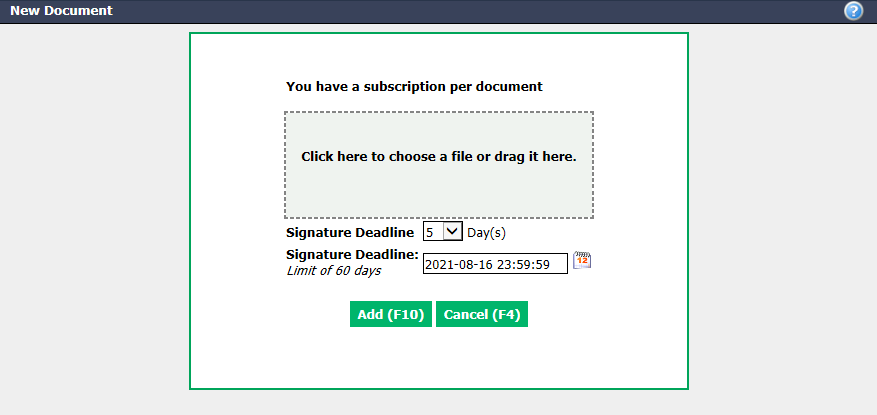
- Click onClick here to choose a file or drag it here** to select and download the desired document.**
Warning
The file to be downloaded must be in PDF format.
NOTE: It is possible to select multiple files to add them all at once.
NOTE: In the dotted frame, you can drag files received by e-mail (depending on your e-mail account) or from your computer.
- You can delete a downloaded file by clicking on the Red X icon to its right.
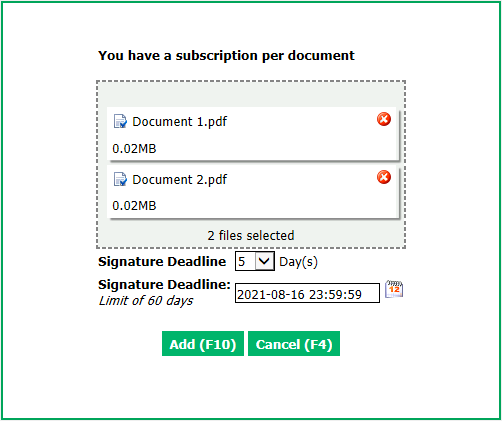
NOTE: You can click anywhere in the dotted frame to select and add more files from your computer.
- Select the desired number for the first Signature Deadline field (1 to 60) and the date in the field below will be automatically entered. You can also manually enter the date in the second Signature****Deadline field (60-day limit). The link sent by e-mail will no longer be valid after this date.
NOTE: The signature deadline selected will apply to all documents in the dotted frame.
Click onAdd** and the document(s) will be imported into the folder.**
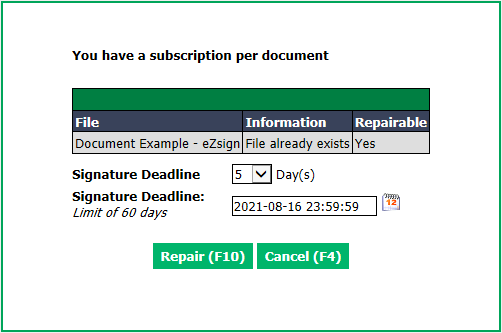
If you have selected a file that already exists in your folder, you will see this message underInformation** : "File already exists". Click on Repair to add a copy of this document to the folder or on Cancel to select another file.**
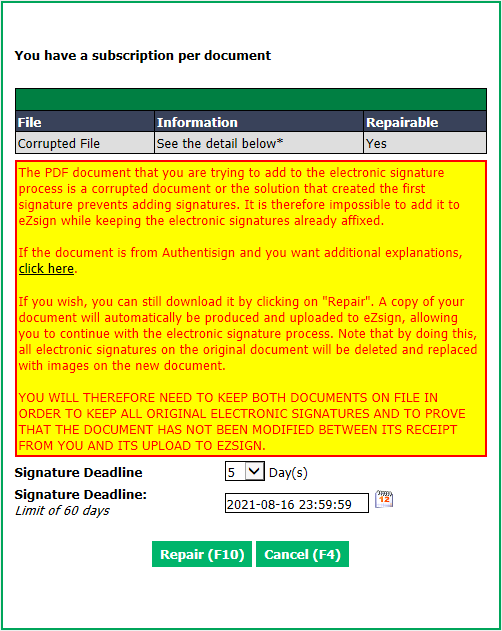
- If you have selected a corrupted file, you will see this message underInformation** : "See the detail below*". If the file is repairable, read the detail and click on Repair to continue and add the document to your folder.**
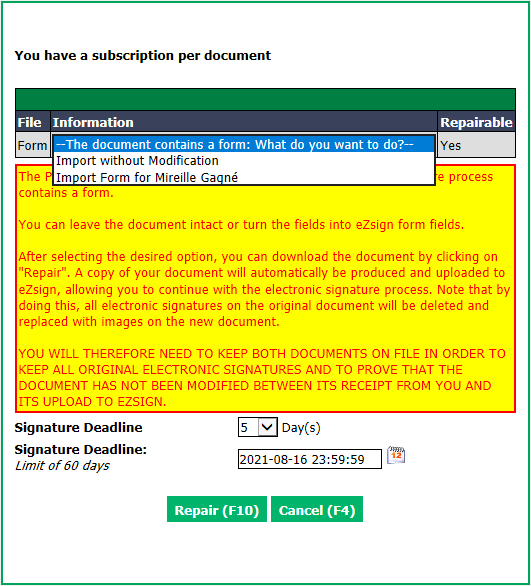
- If you have selected a form to fill in, you will see this message underInformation** : "The document contains a form: What do you want to do?". Select "Import without Modification" if you have already filled all the fields or "Import Form for (Name of the signatory)" if you want to have it filled in eZmax by the indicated signatory. Click on Repair to continue and add the document to your folder. **For more information, please see the article Adding a Form in an eZsign Folder.
Editing a Document in an eZsign Folder**
Once a document is added to an eZsign folder, you can change its name and signature deadline.

- In the "List of Documents" section, click on the Sheet with a Pencil icon.
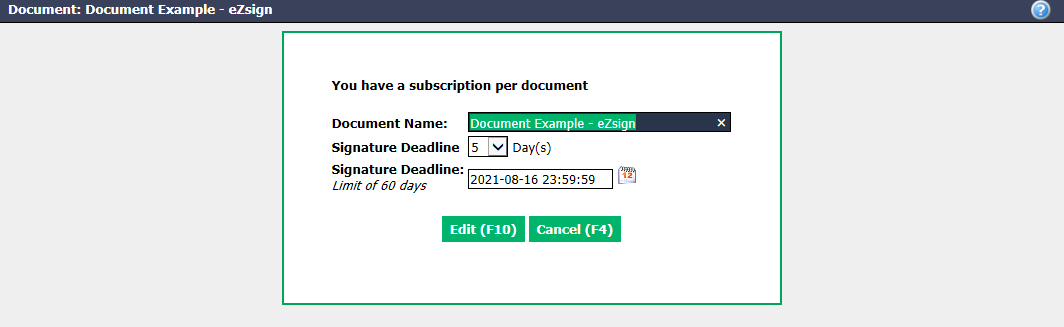
- Make the desired changes and click on Submit to save them.
Deleting a Document in an eZsign Folder**
It is possible to delete a document from an eZsign folder, as long as the document is still in the process of being signed, i.e. that it is not at the completed status.
"Unsent" Status
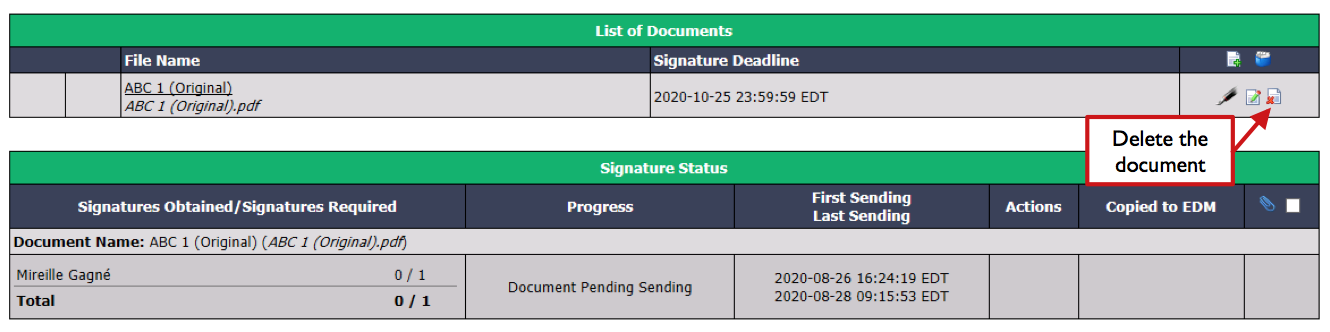
- In the "List of Documents" section, c lick on the Sheet with an X icon and this message will appear:
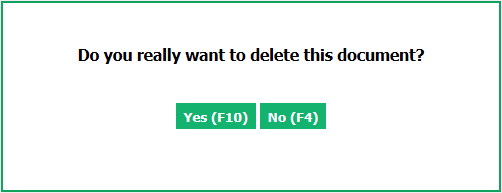
- Click on Yes to confirm.
"Sent" Status
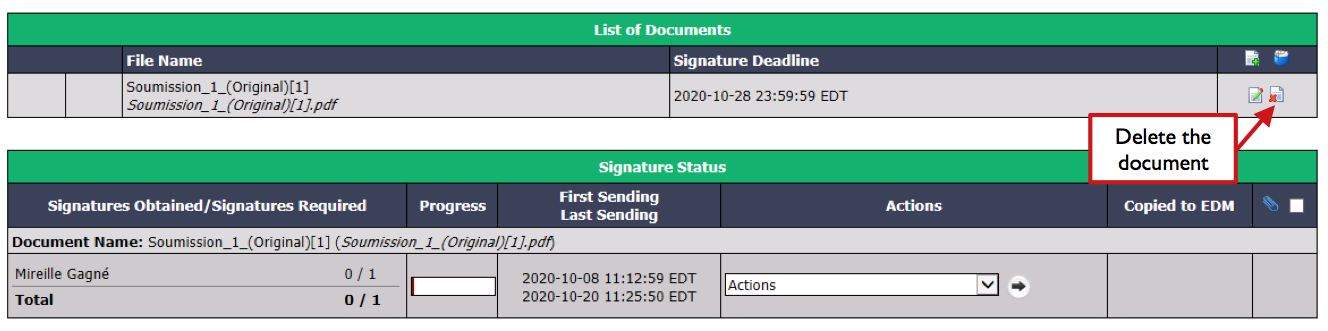
- In the "List of Documents" section, c lick on the Sheet with an X icon and this message will appear:
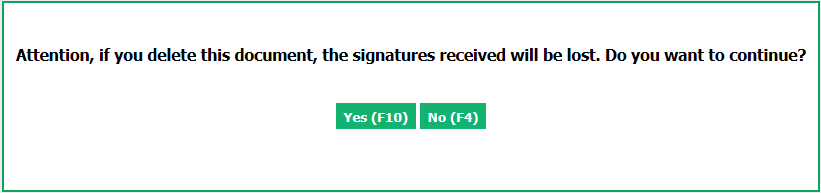
- Click on Yes to confirm.
"Partially Signed" Status
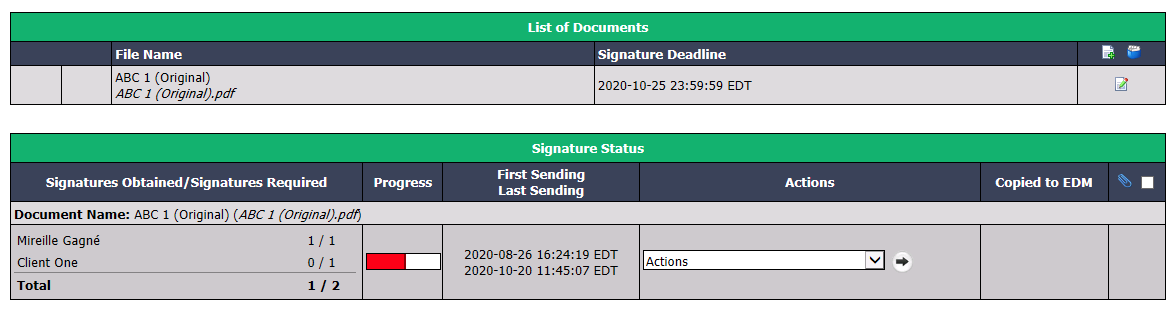
- From the Actions menu in the "Signature Status" section, select "Edit Fields" and this warning will appear:
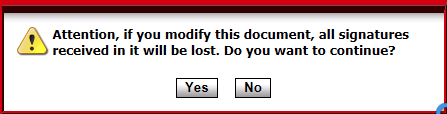
This warning means that if you proceed, all signatures already received on the document will be lost. You will have to resend the document to all signatories to have it signed again.
Click on Yes to confirm.
The document will return to the Progress "Document Pending Sending".
In the "List of Documents" section, c lick on the Sheet with an X icon and this message will appear:
- Click on Yes to confirm.