

English
Paying the Balance of a Credit Card
When you receive a credit card statement, you can make its payment in the eZmax system.
- From Main menu, click on the Open Wallet icon

or Accounts Payable >> List of Payment Preparations >> Actions >> New Payment Preparation.

Start typing the name of the credit card company into the Supplier field. In this example: Visa.
The Payment Method will be automatically selected based on what was configured when the supplier was created. In this example: Check payment.
Click on the Check Mark button.

- Verify if the Payment Date is right for you (today’s date is automatically displayed). The Accounting Period will be automatically selected according to the payment date entered.
Warning
Please make sure that the date entered is the same as the selected accounting period.
Cheque (if manual) : We suggest you enter the payment date in YYMMDD format. In this example: 201109.
Verify the GL Code associated to supplier that will appear by default: it must be the GL code of the credit card. Otherwise, you can change it manually.
Enter the credit card statement balance in the Amount field. In this example: $2,750.00.
Taxable : Select "No tax".
Click on the Green + icon.
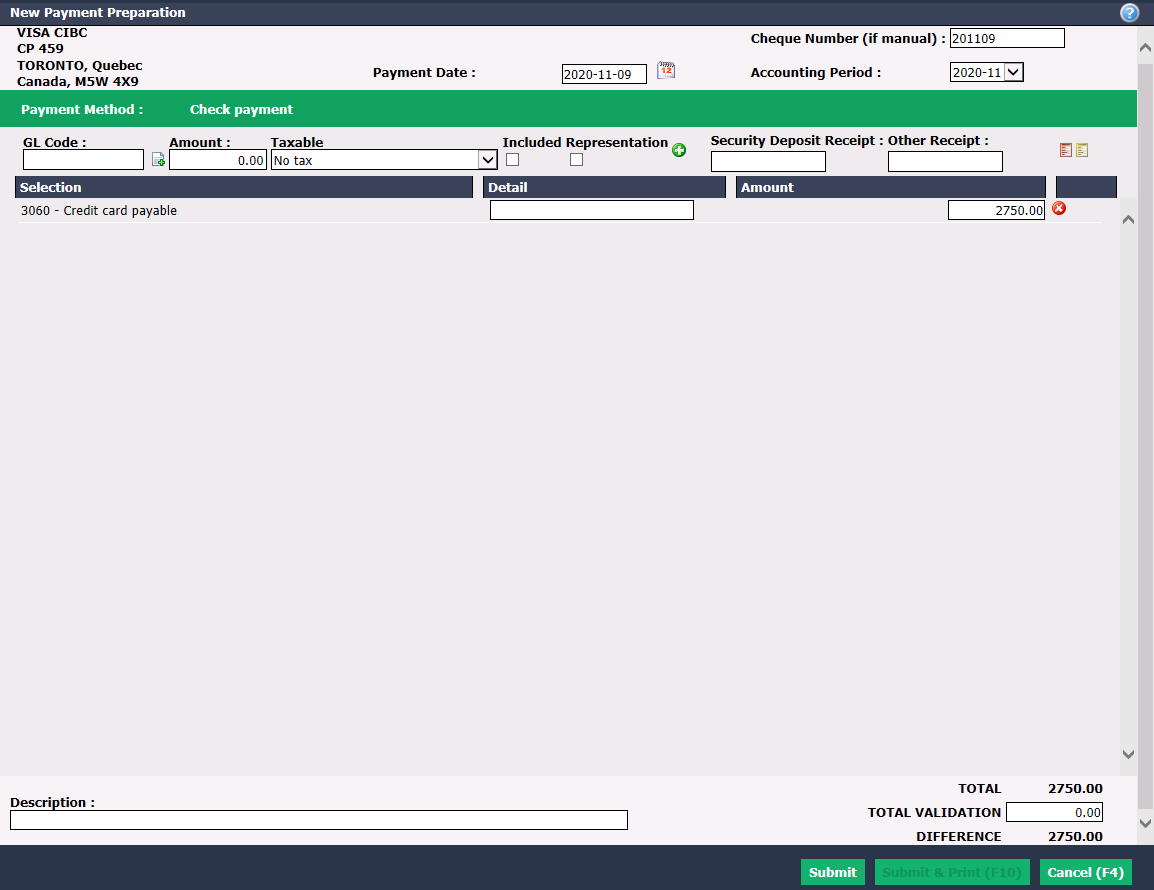
- Click on Submit.