

English
Manipulating EDM Documents
Once a document has been added to Electronic Document Management (for more information, please see the article Adding Documents to EDM), by clicking on the Document Management icon

, it is possible to:
- Edit (Type and Privacy)
- Open
- Rename
- Delete
- Display History
- Validate
- Send by E-mail
- Send by Fax
- Copy to a File, a Buyer’s Contract or the Deal
- Send to eZsign
- Send to the Listing or the Deal
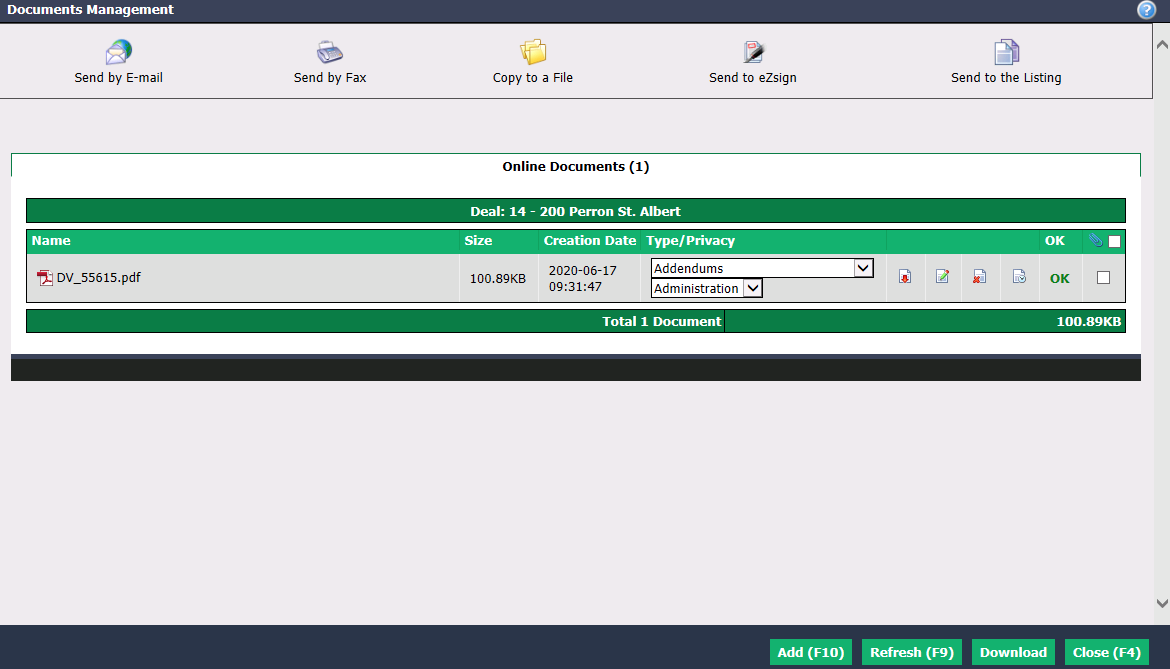
Edit Document Type and Privacy
- You can change the document Type in the top field from the drop-down list.
NOTE: The list of document types is managed by the office. You can modify this list at any time if you have the required authorization. For more information, please see the article Adding/Editing a Required Document.
- Privacy : Select who can see the document in the bottom field from the drop-down list.
- Administration only
- Buyer’s Agents only
- Seller’s Agents only
- Creator only (who added the document)
- All
- Specific User only: Select the desired user from the drop-down list that will appear.
Open a Document
- To consult a PDF document, click on the Download icon

.
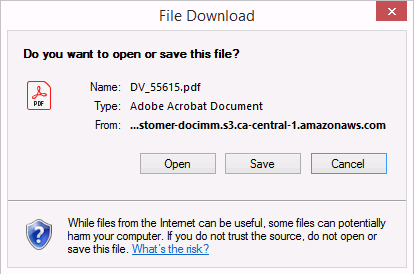
- Click on Open or Save.
Rename a Document
- To change the name of a document, click on the Rename icon **

.**
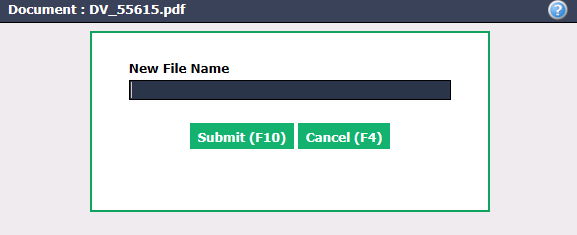
- Enter the New File Name and click on Submit.
Delete a Document
- To reject a document, click on the Delete icon

:
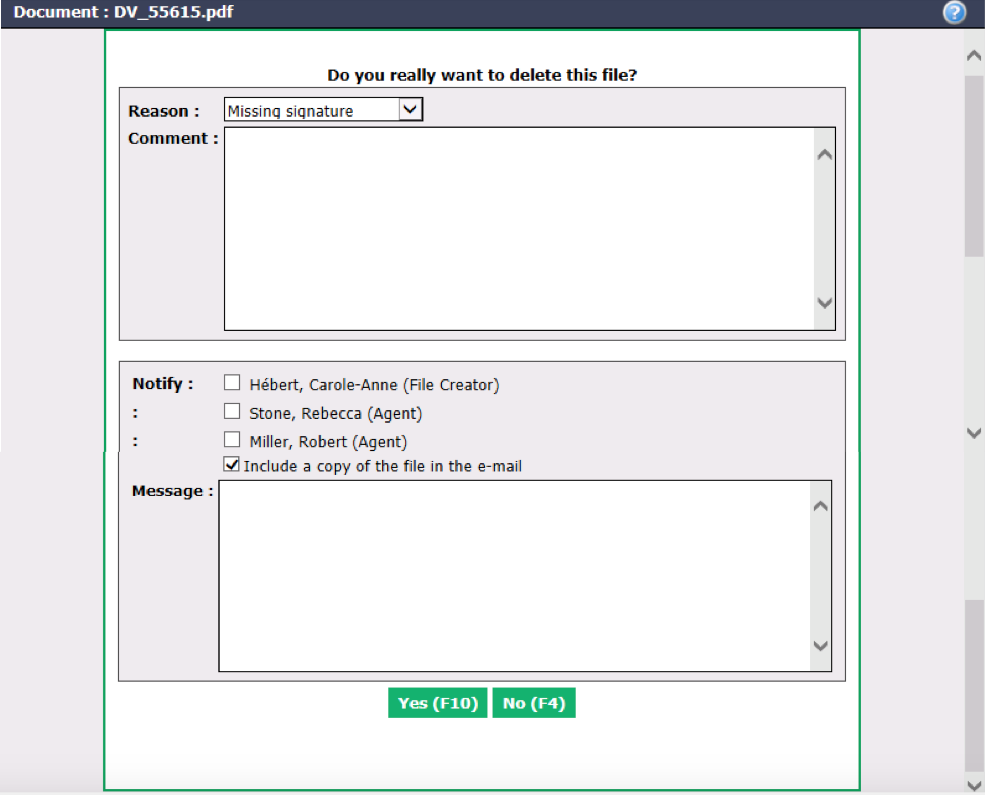
Select the Reason for rejection from the drop-down list. (For more information, please see the article Adding/Editing a Reason for Rejected Document.)
You can write a Comment in the field.
Check the boxes of the people you want to Notify by e-mail.
Indicate if you want to Include a copy of the file in the e-mail.
Write a Message if desired.
Click on Yes to delete the document. It will now appear in the "Deleted Documents" tab of the EDM.
Display Document History
- To view the history of actions taken in relation to a document, click on the History icon **

.**
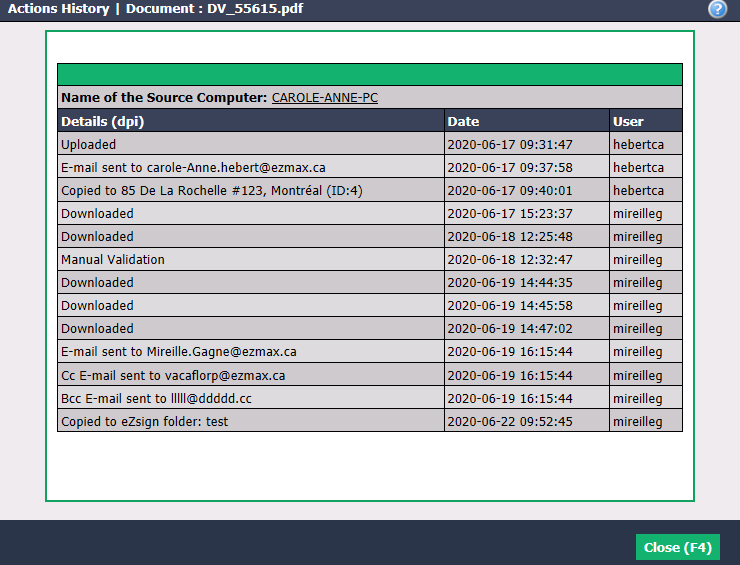
Validate a Document
- After consulting and verifying a document, if it is compliant, check the OK box and a green OK will appear in place of the box. For more information, see the article Documents to Validate.
Send a Document by E-mail
Select the desired document by checking the last box to the right of the document.
Click on Send by E-mail.
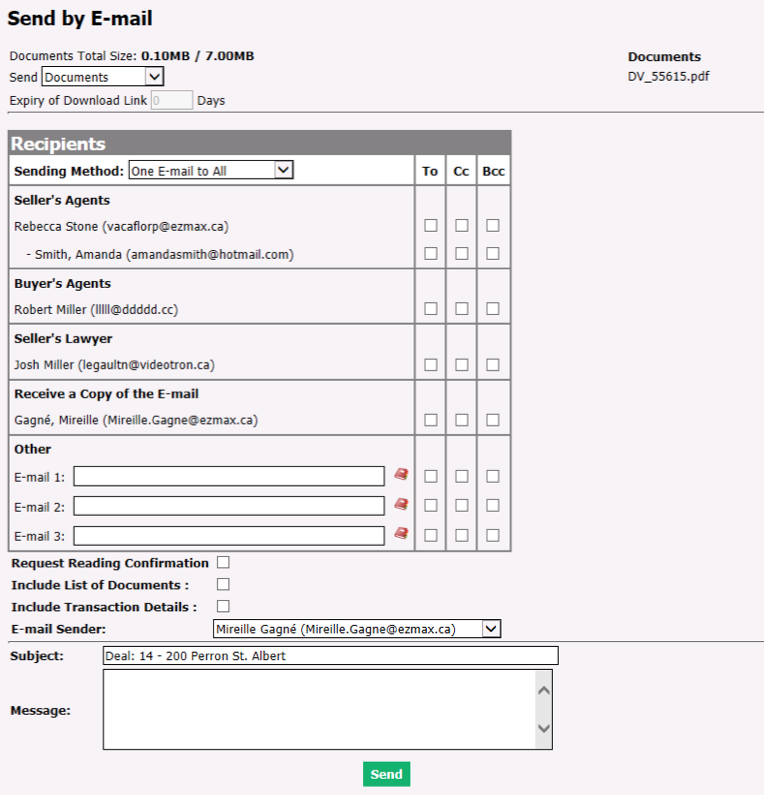
Indicate if you want to Send the "Documents" or the "Link to Download".
If you select "Link to Download", you can enter in how many Days the Expiry of Download Link will take place.
Warning
The maximum total size of the documents to be sent is 7.00MB. If the maximum is exceeded, a link will be sent to download the documents.
Sending Method : "One E-mail to All" or "One E-mail per Recipient".
Select the recipients by checking the boxes:
- To : Primary recipient who will receive the e-mail.
- Cc (Carbon copy): Secondary recipient who will receive the e-mail for information.
- Bcc (Blind carbon copy): Secondary recipient who will receive the e-mail without the knowledge of other recipients.
In the Others field, you can manually enter an e-mail address or search for a contact in eZmax by clicking on the Address Book icon

.
Warning
You must check at least one To recipient.
Request Reading Confirmation:
If you want to Include List of Documents and Include Transaction Details (report), check these boxes.
E-mail Sender : Select who sends the e-mail from the drop-down list.
Subject : When it is a transaction, the default subject is "Listing or Deal: Address of the transaction", but you can change it manually.
You can write a Message.
Click on Send and the following message will appear: "The e-mail has been sent successfully".
Information
To view the history of e-mail sending, click on the Communication Management icon

in the transaction, the buyer’s contract, the refused offer or the other income.
Send a Document by Fax
Select the desired document by checking the last box to the right of the document.
Click on Send by Fax.
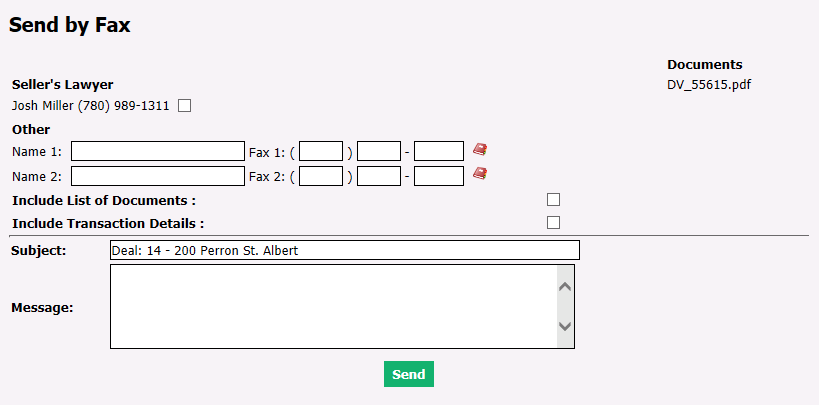
- Seller’s Lawyer : In this example, the name and fax number of the seller’s lawyer appear by default because this information has been entered in the file. Check this box if you want to select it as the recipient.
NOTE: Depending on the file, the recipient’s information (e.g. Real Estate Board, Buyer’s Lawyer, etc.) will appear.
- In the Other field, you can manually enter the name and fax number of the recipient(s) or search for a contact in eZmax by clicking on the Address Book icon

.
Subject : When it is a transaction, the default subject is "Listing or Deal: Address of the transaction", but you can change it manually.
You can write a Message.
Click on Send and the following message will appear: "The e-mail has been sent successfully".
Information
To view the history of fax sending, from Main menu >> General >> Send a Fax, click on the List of Faxes.
Copy a Document to a File, a Buyer’s Contract or the Deal
Copy to a File
This feature is for transactions (listings or deals) and rejected offer. If, for example, you have the wrong document or there is a transaction that duplicates, you can copy a document to another file, i.e. a transaction or other income.
Select the desired document by checking the last box to the right of the document.
Click on Copy to a File.
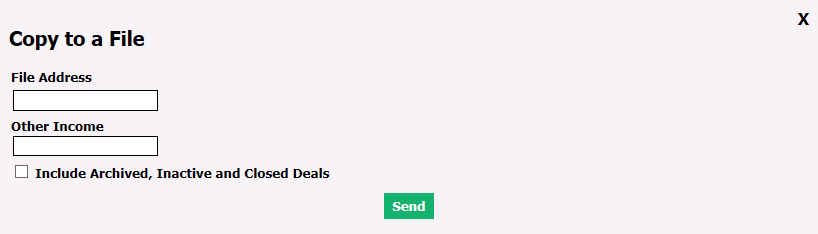
If you want to send the copy of the document to a file (transaction - listing or deal), start typing the File Address in the field and select the desired file. If you are looking for an archived, inactive or closed transaction, check the Include Archived, Inactive and Closed Deals box before typing the address.
If you want to send a copy of the document from a deal to another income, start typing the name (description) or the eZmax identification number of the Other Income and select the desired file.
NOTE: To send a document from a deal to another income, this other income must be associated with the deal. For more information, please see the article Adding/Editing an Other Income.
- Click on Send.
Copy to a Buyer’s Contract
This feature is for buyer’s contracts. You can send a copy of a document from a buyer’s contract to another buyer’s contract.
Select the desired document by checking the last box to the right of the document.
Click on Copy to a BC.
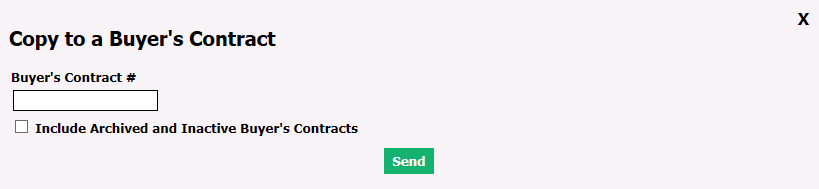
Start typing the Buyer’s Contract # in the field and select the desired contract. If you are looking for an archived or inactive buyer’s contract, check the Include Archived and Inactive Buyer’s Contract box before typing the number.
Click on Send.
Copy to the Deal
This feature is for buyer’s contracts. You can send a copy of a document from a buyer’s contract to the deal associated with this buyer’s contract. (For more information, please see the article Associating a Deal with a Buyer’s Contract.)
Select the desired document by checking the last box to the right of the document.
Click on Copy to the Deal.
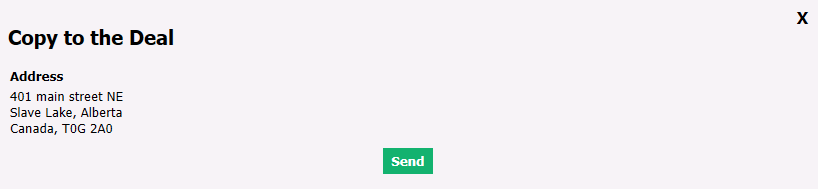
- Click on Send.
Send a Document to eZsign
If you want to have a document signed, you can send it to eZsign.
Select the desired document by checking the last box to the right of the document.
Click on Send to eZsign.
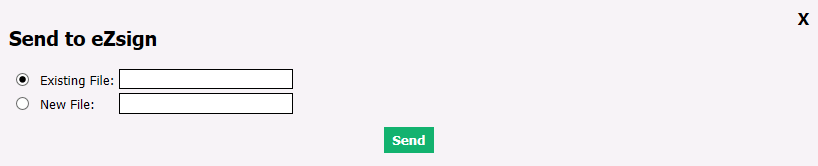
If you already have a file in eZsign for this document, enter the name? (address?, ?, other?) of the Existing File.
If you don’t have a file in eZsign for this document, enter the name of the New File to create.
Click on Send and the document will appear in the eZsign file, in the "List of Documents" section.
Send a Document to the Listing or the Deal
Send to the Listing
If, for example, you mistakenly put a document in the "Deal" section instead of the "Listing" section, you can send this document to the "Listing" section of this transaction.
Select the desired document by checking the last box to the right of the document.
Click on Send to the Listing.

- Click on Send and the document will be moved to the "Listing" section of the transaction.
Send to the Deal
If, for example, you mistakenly put a document in the "Listing" section instead of the "Deal" section, you can send this document to the "Deal" section of this transaction.
Select the desired document by checking the last box to the right of the document.
Click on Send to the Deal.

- Click on Send and the document will be moved to the "Deal" section of the transaction.