

English
Agent Bank Account
Once an agent is created, if you have selected the electronic transfer as payment method, you must add a bank account to this agent’s profile. Thereafter, if there are changes to be made in the bank account information, you can modify them.
NOTE: To create an agent, please see the article Adding a Regular and/or Incorporated Agent.
- From the agent’s profile, click on Actions >> Edit Bank Account.
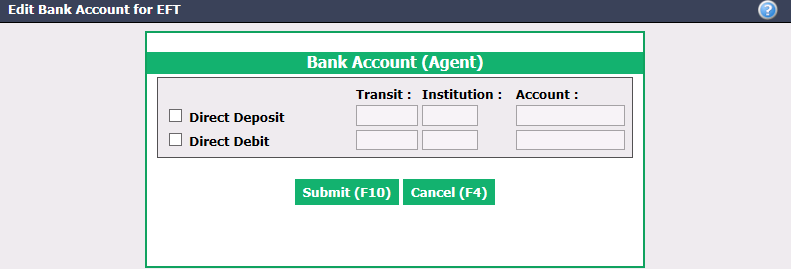
- If the current payment method is "Check payment" and you want to change it to "Electronic transfer", you must check the Direct Deposit box and enter the appropriate Transit , Institution and Bank Account numbers. If the current payment method is "Electronic transfer", you can modify the bank account information for EFT (electronic funds transfer).
- Direct Deposit : The payment will be deposited into the agent’s account.
- Direct Debit : The payment will be taken from the agent’s bank account (for example, to pay monthly invoices). If you want this option, you should contact technical support.
NOTE: Add "0" before the 3-digit institution number.
- Click on Submit to save changes.
Bank Account of an Incorporated Agent
When an agent is incorporated, in addition to adding a bank account as described above, it is important to add a bank account to the "Incorporation" section of his profile.
- In the profile of the incorporated agent, go to the "Incorporation" section.
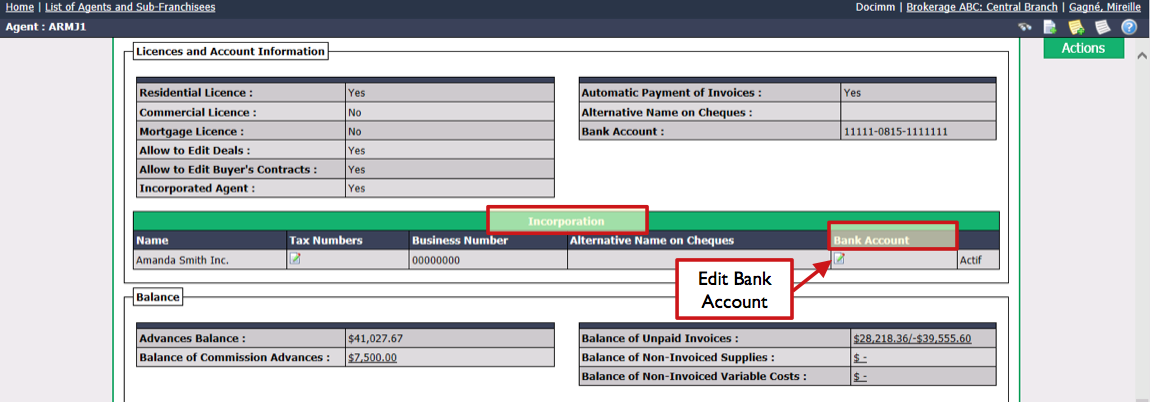
- Click on Edit icon in Bank Account.
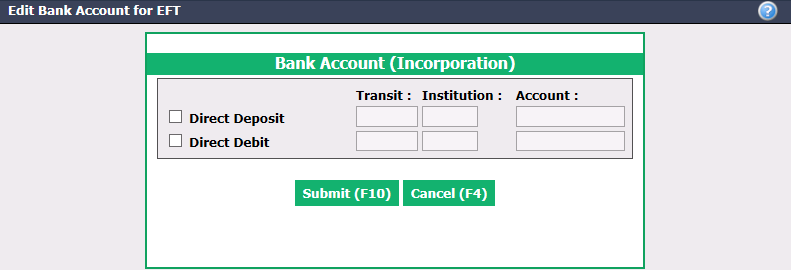
- If the current payment method for this agent is "Check payment" and you want to change it to "Electronic transfer", you must check the Direct Deposit box and enter the appropriate Transit , Institution and Bank Account numbers. If the current payment method is "Electronic transfer", you can modify the bank account information for EFT (electronic funds transfer).
- Direct Deposit : The payment will be deposited into the agent’s account.
- Direct Debit : The payment will be taken from the agent’s bank account (for example, to pay monthly invoices). If you want this option, you should contact technical support.
NOTE: Add "0" before the 3-digit institution number.
- Click on Submit to save changes.