

English
Editing a Text Control Letter
Edit/Revise a Text Control Letter - Basic Revisions
Basic revisions to a text control letter (typo, wording changes, etc.) can be done by the brokerage by anyone with the appropriate authorization level.
- From Main menu, click on General >> Templates >> Text Control Templates.
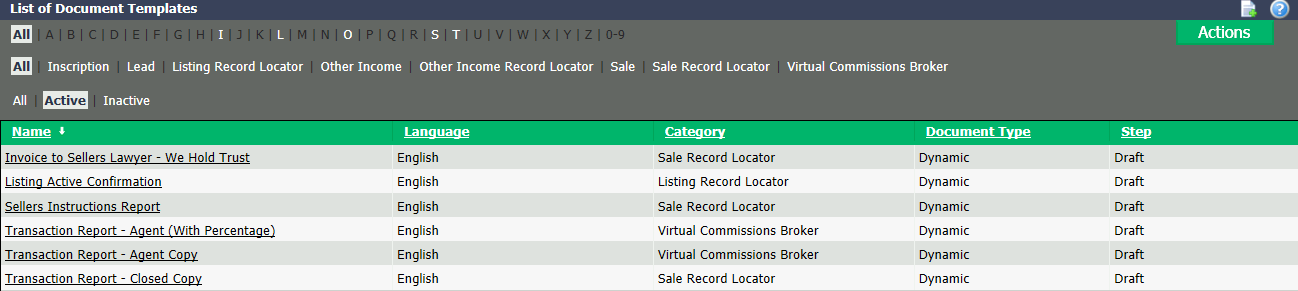
- Select the letter template that needs a revision.
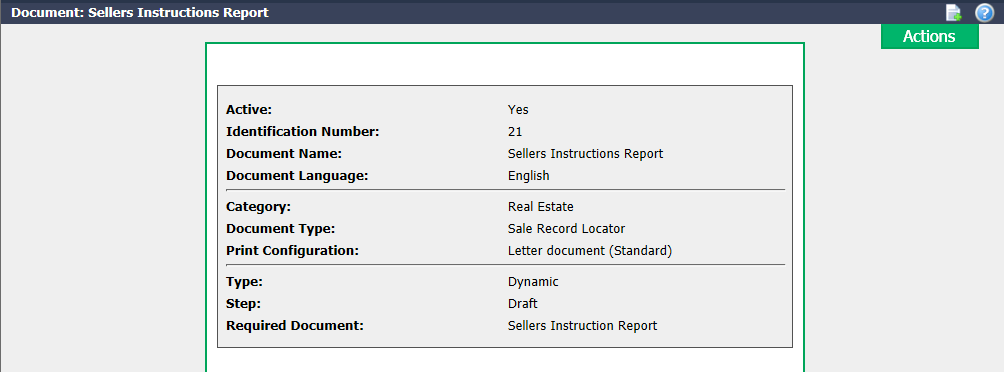
- Click on Actions >> Edit Document.
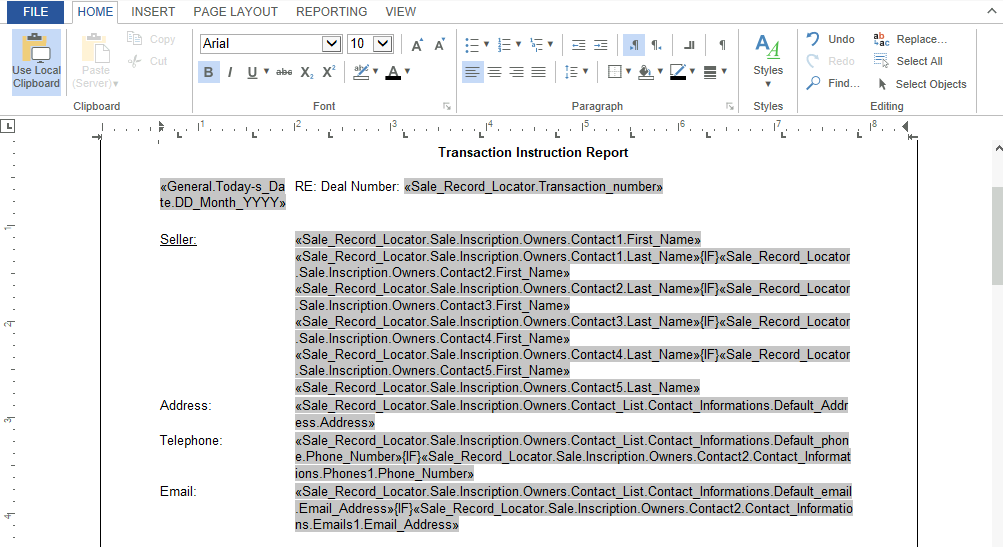
- Make the required changes : Change font, fix spelling mistakes, add non-coded information/text, remove or add lines, change/add/remove word(s), reword or restructure a sentence.
Information
Coded information is grey in the document.
- Once all required changes are completed, click on "File" tab >> Save >> File >> Close.
Edit/Revise a Text Control Letter - Issues with Coding
Changes that cannot be done by the brokerage (coding changes, major formatting changes) will need to be done by eZmax (submit a ticket).
Create a screenshot of the letter template and indicate the changes/errors that are appearing or print the letter, markup with the issues, scan and attach to ticket.
Provide as much detail as possible.
Create a ticket (through the blue ? icon).
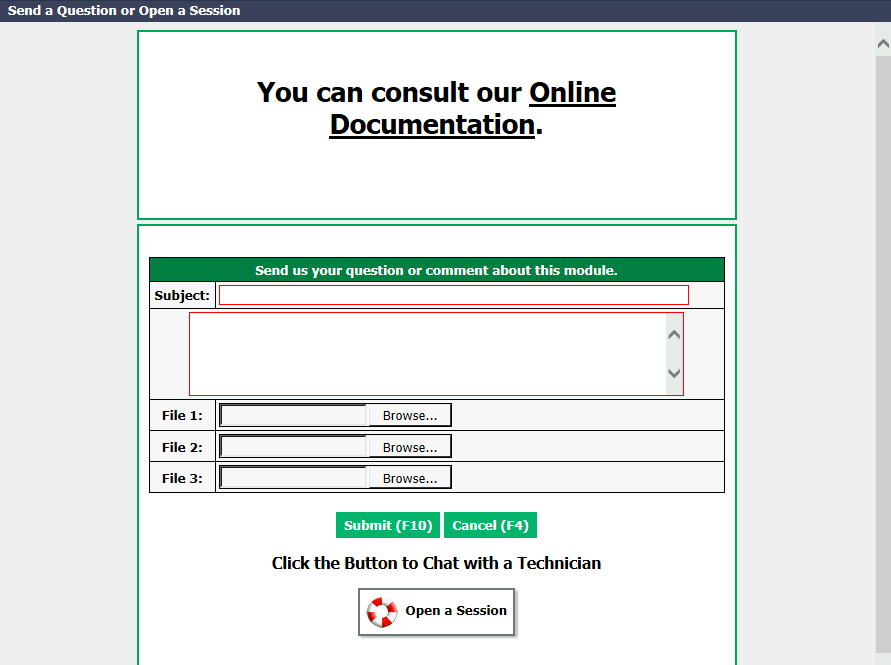
In the Subject field, indicate the letter template name as listed in the "List of Document Templates" from eZmax. Ex.: "Letter to Other Lawyer - Changes Required".
In the ticket comments field, add details to confirm the changes required for the letter.
Include an address of a transaction.
Include any attachments.
After the ticket confirmation is received, you can add other information to the ticket such as screenshots or additional attachments.
NOTE: Access to the database may be requested.
Edit a Header or Footer (Ex.: Logo)
- From Main menu, click on General >> Templates >> Text Control Templates.
- Select the letter template that needs a revision.
- Click on Actions > Edit Document.
Click on "Insert" tab at the top left, beside Home.
Select Header or Footer >> Edit Header or Footer.
Remove/Delete old logo/text.
For a new text:
- Enter and format new text.
For a new logo:
- Select Image >> Image >> Upload Image >> Select image from file list (.png or .jpg) >> Right click image >> Format >> "Size and Distance" Tab >> Rescale image size in Scale section (we recommend using same number for height and width to keep image in proportion) >> OK >> Right click image >> Text Wrapping >> Square >> Move image to desired location in Header/Footer >> "File" tab (top left) >> Save >> File >> Close.