English
Supplier Account Statements
It is possible to consult the account statements to find out, for example, which suppliers should be paid for the current accounting period.
- From Main menu >> Accounts Payable >> Account Statements.
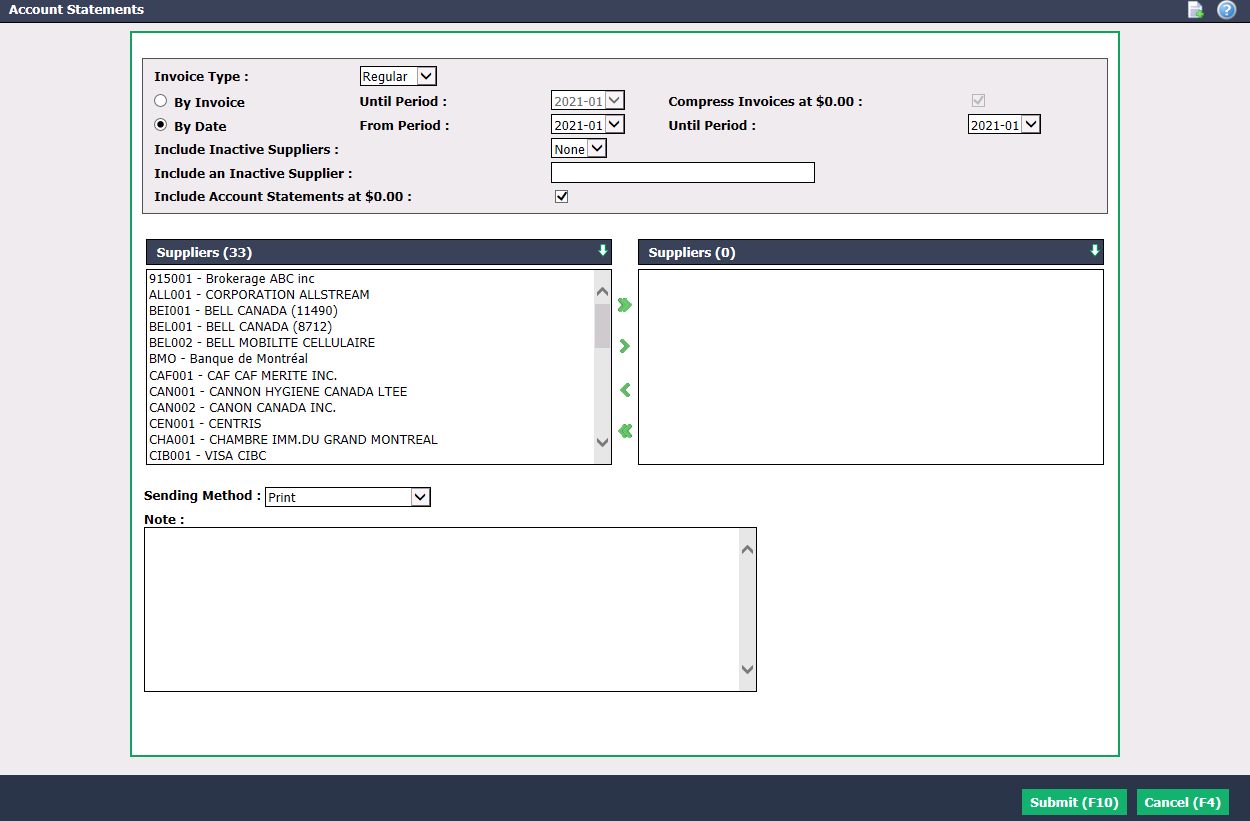
NOTE: The "Financed" Invoice Type is not applicable so the only type available is "Regular", which is also equivalent to "All".
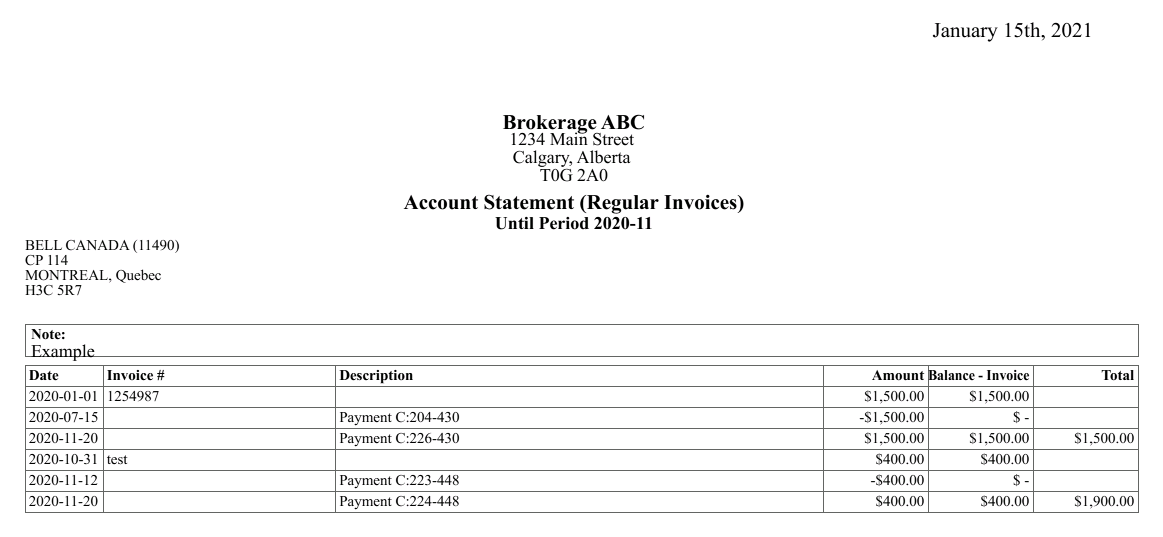
You can filter the account statements By****Invoice by selecting the desired period in the Until Period field. If you don’t want to include invoices at $0.00, check the Compress Invoices at $0.00 box. For each supplier, you will see the activities in chronological order of each invoice.
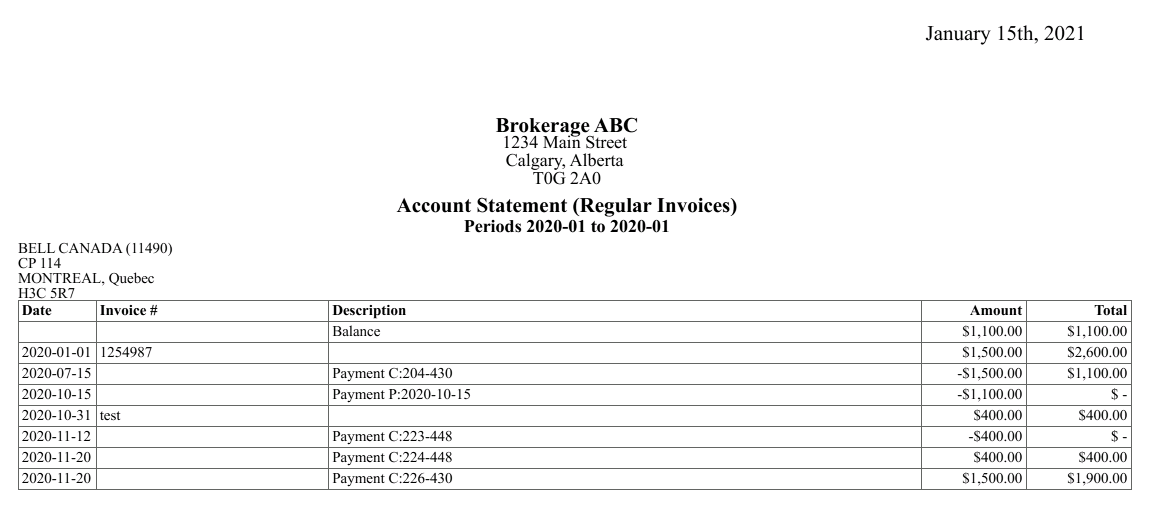
You can also filter the account statements By Date by selecting the desired period in the From Period and Until Period fields. For each supplier, you will see the activities in chronological order of all invoices.
Include Inactive Suppliers : Select "None" to include only active suppliers or "All" to include all suppliers (active and inactive).
Include an Inactive Supplier : If desired, enter the name of an inactive supplier for which you want to view the account statement.
Include Account Statements at $0.00 : Uncheck this box if you don’t want to include account statements at $0.00.
Select the desired Suppliers using the green arrows. The double arrow allows you to select all suppliers with one click, while the single arrow selects only one at a time.
You can double-click on a supplier to select it instead of using the green arrow.
Select the Sending Method :
- "According to Preference": That is, according to the sending method selected in the supplier’s profile. For more information, please see the article Adding/Editing a Supplier.
- "Print"
- "On-Screen"
A Note can be entered and will appear on the account statement By invoice only.
Click on Submit.
Example of an account statement by invoice
Example of an account statement by date