

English
Agent Commission Deduction Table
One of the most powerful tools within eZmax is the ability to create commission deductions or “fees” that can apply automatically to agents on transactions.
- In the system, there are 4 different Steps for deductions:
- Office : Can be used when the owner leaves his commission in the company. Office fees are deducted from revenue displayed on the T4A. For example, if an agent has a commission of $1,000 and an office fee of $100. The agent’s T4A will show $900 in revenues. The system does not generate an invoice for office fees, hence there are no taxes on that type of fee. The agent cannot deduct that fee in his expenses since there is no invoice.
- Commission Fees : When you close a deal, you usually proceed with the commission calculation. The commission fees are taken at the commission calculation stage. The system generates an invoice to the agent and those fees are taxable.
- Financing : In this situation, the office finances the agent’s fee (monthly fees for example). When you proceed with the payment, before paying your agent, you take a deduction on that payment to repay the financed amounts.
- Deductions on Cheque : Are taken when you process the payment. Before paying your agent, you may decide to take deductions on this payment for invoices, tax holdbacks, charity contributions, etc.
Commission Deduction Table
- From an agent’s profile, click on Actions >> Commission Deduction Table.
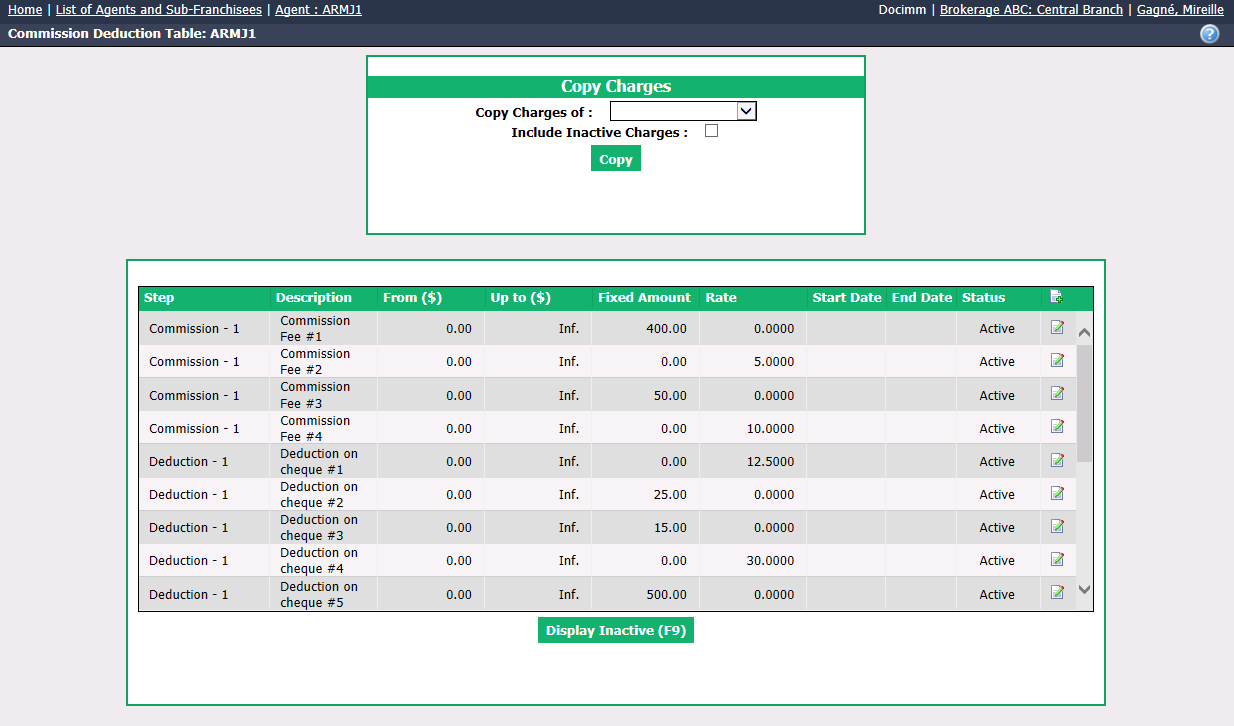
- The commission deduction table is divided in 2 sections:
- Copy Charges
- Active/Inactive Commission Deductions
Copy Charges
When there is a new agent who has the same charges as another existing agent, you can copy the charges from the latter. This will save you a lot of time instead of entering the charges manually.
In the Copy Charges of field, you can select, from the drop-down list, the agent you want to copy the charges from.
You have the choice to Include Inactive Charges or not from this agent.
Click on Copy and the charges will appear in the invoicing table.
Adding Manually a Commission Deduction
- In the active/inactive commission deductions section, click on the Sheet with a + icon.
"General" Section

Select a deduction Category from the drop-down list. For more information, please see the article Adding/Editing a Commission Deduction Category.
Assign a name to the deduction as a Description. The description will be visible by the agent so make sure he understand that name.
Assign a GL Code associated with the selected deduction and a GL code to Reinvoice to GL (Payment Exemption) if the agent have a payment exemption.
Select a Referral Date from the drop-down list. This is the date that will be used to calculate the deduction.
You may check the option Display Year-to-Date on Slip so the agents can see it on their slip (applicable only on Deductions on Cheque).
Keep funds in commission account can be selected if your office wants to keep these funds in the commission account at payout (applicable only on Deductions on Cheque).
Reserve for Subsequent Steps can be selected if there is another deduction that is calculated based on these funds (refer to the section Charges below >> Calculate on >> Reserved Amounts).
Assign a Step if there is an order on which you base the calculation of your deductions.
Active will be checked when the deduction is active. To inactivate a deduction, uncheck this box.
"Application Criteria" Section

This section determines whether or not the deduction applies in the commission calculation. If the deduction applies, the charges (established in next section) will be calculated accordingly.
You can assign a Start Date and End Date to the deduction if it is calculated only for a given period of time.
Assign an Income Type if the deduction only affect a specific type of transaction.
System allows you to apply a amount range using the boxes From ($) and Up to ($). You also need to select Calculate on to determine what the limits are calculated on:
- "Commissions": The amount of the specific commission in the calculation;
- "Month": Monthly gross commission;
- "Annual (Calendar)": Yearly gross commission based on calendar (from January 1st to December 31st);
- "Annual (Contract)": Yearly gross commission based on contract date of agent;
- "Annual (Fixed Month)": Yearly gross commission based on fixed month (you need to select the month in the drop-down list).
Apply Rates allows you to apply this deduction on "Partial Amounts" or on "Total Amounts" if your deduction have amounts established in the From ($) and Up to ($) fields.
To explain this concept, we will use the example below:
| Commission Amount | Running Total of Commission
---|---|---
Commission #1 | $5,000 | $5,000
Commission #2 | $1,000 | $6,000
Commission #3 | $10,000 | $16,000
Deduction Fee: 5% of Gross Commission, From $0, Up to $15,000
Commission #3 has 3 different stages:
- $6,000: Initial Running total
- $15,000: Top of Deduction Bracket
- $16,000: Final Running Total
When you select the option "Partial Amounts": The system will apply the deduction because part of the commission #3 is in the deduction bracket (from $0 to $15,000).
If you select the option "Total Amounts": The system will not apply the deduction because the final running total ($16,000) is out of the bracket (from $0 to $15,000).
"Charges" Section
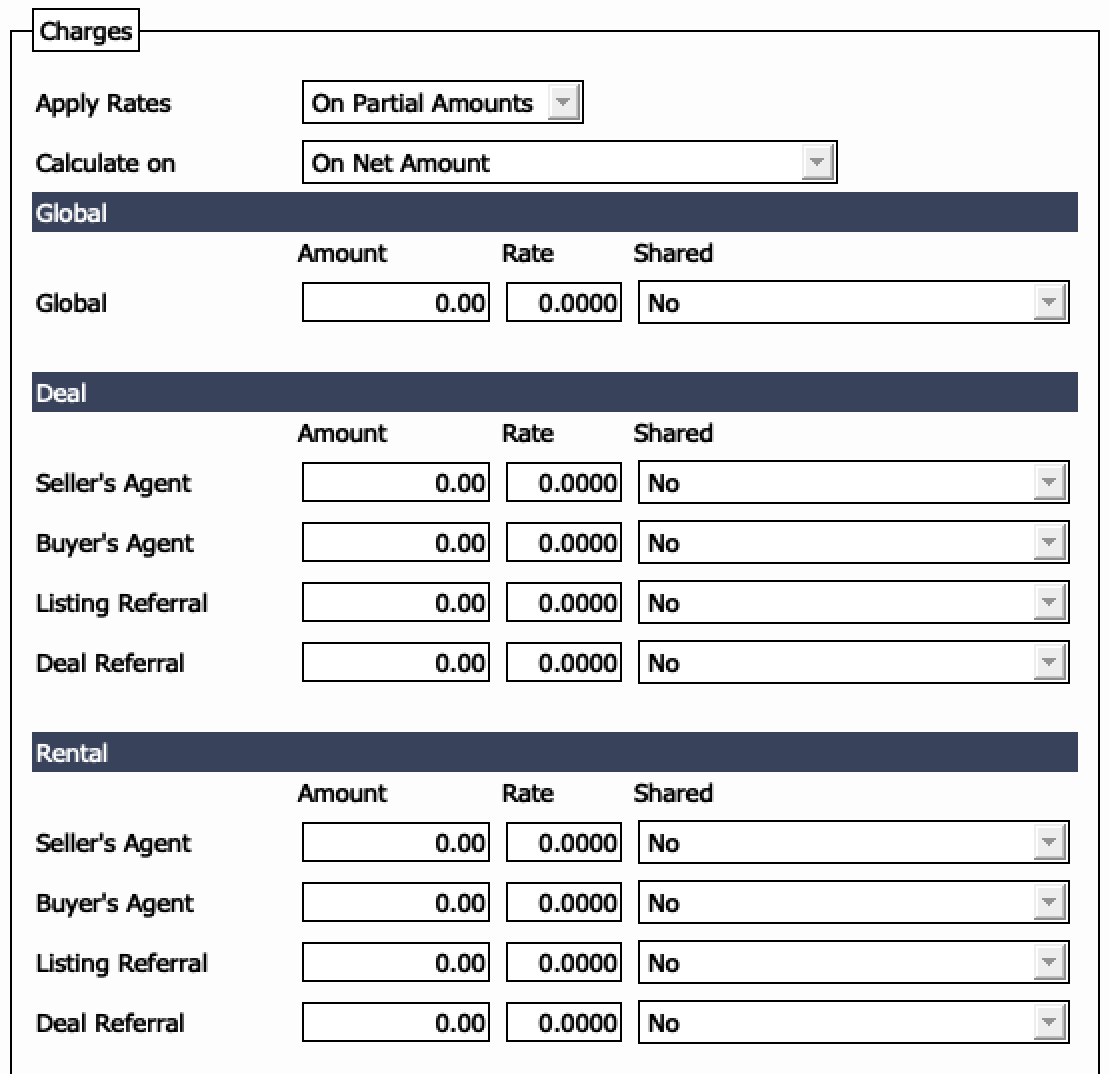
If the system established (in the previous "Application Criteria" section ) that the deduction applies, the charges will be calculated according to information entered in the "Charges" section.
Apply Rates : Allows you to apply the charge on "Partial Amounts" or on "Total Amounts" of commission.
We will use the commission # 3 from our previous example**,** with the different stages:
- $6,000: Initial Running total
- $15,000: Top of Deduction Bracket
- $16,000: Final Running Total
- Deduction Fee: 5% of Gross Commission from $0 to $15,000
When you select the option "Partial Amounts": The system will calculate the charge (5%) only on the portion of the commission included in the bracket. In this example, 5% of $9,000 (from $6,000 to $15,000).
If you select the option "Total Amounts": The system will calculate the charge (5%) on the total commission. In this example, 5% of $10,000.
Let’s look at the 4 different options (using commission #3 from the example above).
Option 1:
- Application Criteria: On Partial Amounts
- Charges: On Partial Amounts
- Fee: $450
Option 2:
- Application Criteria: On Partial Amounts
- Charges: On Total Amounts
- Fee: $500
Option 3:
- Application Criteria: On Total Amounts
- Charges: On Partial Amounts
- Fee: $0
Option 4:
- Application Criteria: On Total Amounts
- Charges: On Total Amounts
- Fee: $0
Calculate on determines if the deduction will calculate based on gross amount, remains after previous steps, on reserved amounts, etc. This will also allow you to apply the further steps on the outcome.
Global section: Allows you to set a specific dollar Amount or percentage in the Rate field for the deduction for ALL transaction types, notwithstanding the role of the agent.
The Shared option allows you to split the deduction amongst the agents in the deal based on proportion of gross commission or fairly. The shared option is more relevant on fixed amounts and when all agents have the same fee in their profile.
Deal section: Allows you to set an Amount or a Rate for the deduction based on the role of the agent: Seller’s agent, Buyer’s Agent, Listing Referral or Deal Referral.
Rental / Other Income / Additional Income sections: Like the Deal section, these sections allow you to assign a set amount or rate based on specific transaction type.
"Limiting Factors" Section
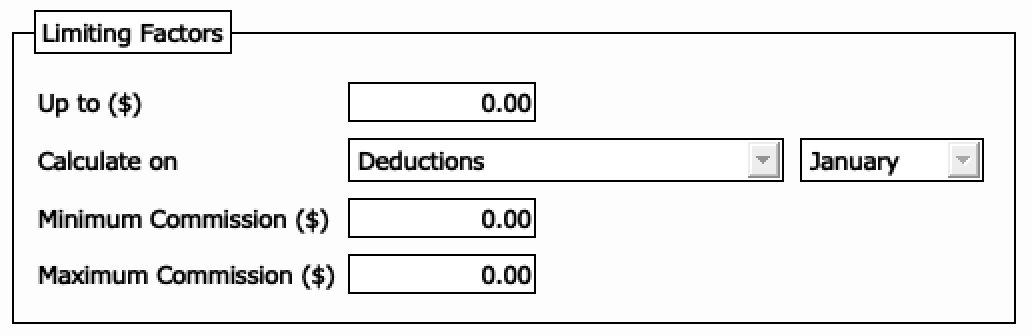
Up to ($) allows a running total of the fee and a maximum that is collected when fees cease to be calculated.
Calculate on determines when the maximum in the Up to ($) field resets.
- "Deductions": The deduction in the calculation;
- "Month": Monthly running deduction;
- "Annual (Calendar)": Yearly running deduction (based on calendar – from January 1st to December 31st);
- "Annual (Contract)": Yearly running deduction (based on contract date of the agent);
- "Annual (Fixed Month)": Yearly running deduction (based on fixed Month – you need to select the month in the drop-down list);
- "Deductions Category": Includes the other deductions in the same category as this one;
- "Category - Month", "Category - Annual (Calendar)", "Category - Annual (Contract)", "Category – Annual (Fixed Month)": Same logic applies as above, except it’s based on the total of the category.
Minimum Commission ($) allows you to set a minimum amount collected for the fee i.e. minimum of $500. Will calculate this fee at a minimum of $500 or the actual calculated amount, whichever is greater.
Maximum Commission ($) allows you to set a maximum amount for the fee i.e. maximum of $500. Will calculate this fee at a maximum of $500 or the actual calculated amount, whichever is less.
When all sections are completed, click on Submit to add the commission deduction.
Editing a Commission Deduction
- In the active/inactive commission deductions section, you can modify an existing deduction by clicking on the Sheet with a Pencil icon

to the right of the desired deduction.
- Make the desired changes and click on Submit to save them.
NOTE : When you cancel a deduction by unchecking the Active box, the charge will not completely disappear from the table; it will now be displayed in inactive charges.