

English
Error in a Commission Calculation with Cashed Cheque or EFT Transmitted
In the case of a commission calculation with a cheque that has been cashed and an electronic funds transfer that has been transmitted, if you discover that there is an error in this calculation (e.g. in the commission distribution), you have the option to correct the error. To do so, there are 3 steps to follow:
- Verify payment type
- Edit transaction (e.g.: distribution)
- Redo a commission calculation
Warning
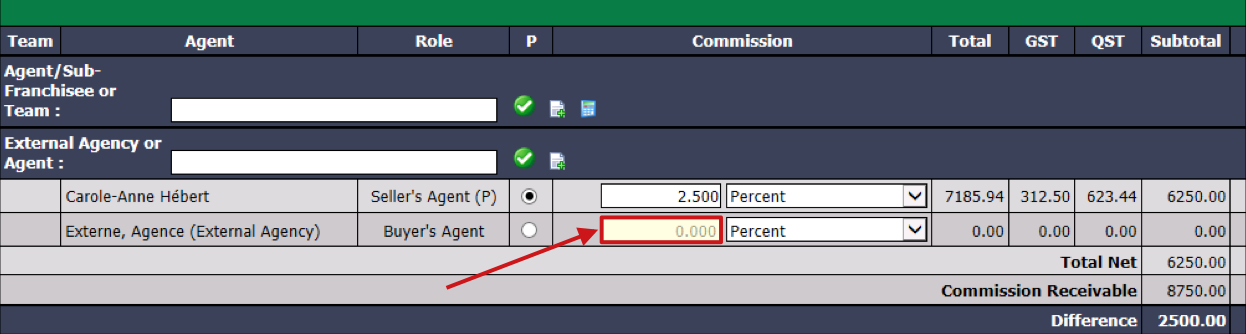
Once a commission calculation has been made for a transaction, it is no longer possible to delete an agent. However, it is possible to edit the transaction and enter "0.000" in the Commission field of the agent you want to remove.
1- Verify Payment Type**
- From the closed deal, go to the "Calculations History" section.
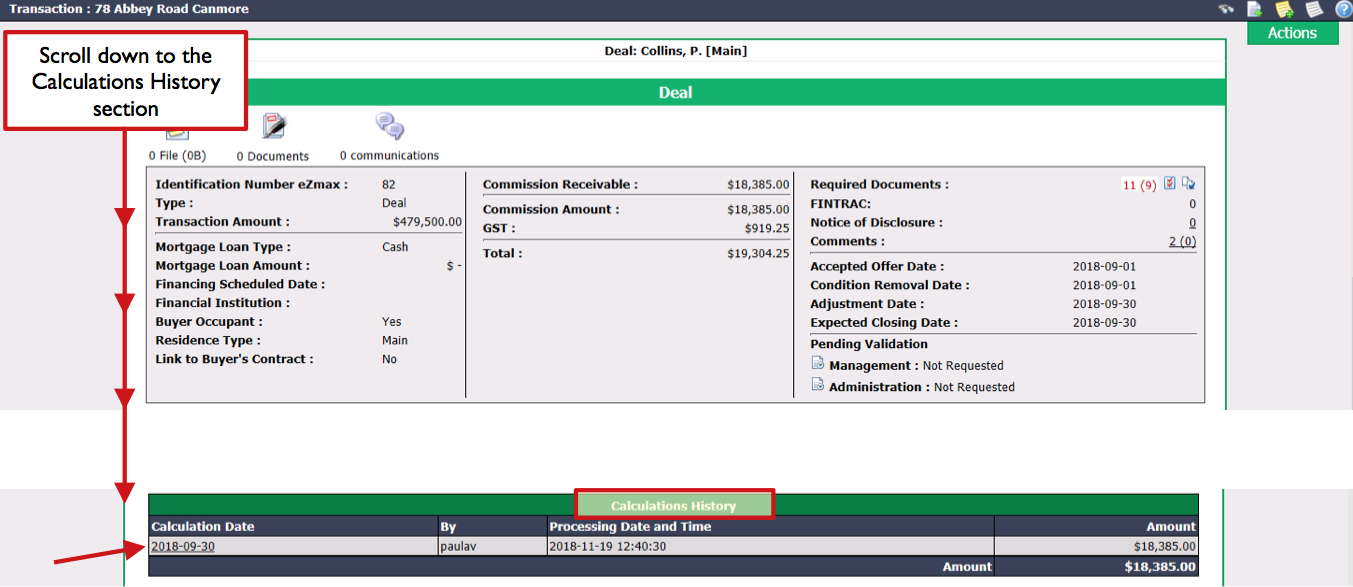
Click on the Calculation Date to display the commission calculation for all agents involved in the transaction.
In the "Payments History" section of each agent, verify the Type : there should only be a commission calculation and a payment.
For the payment, there are three options:
- "C: Cheque Number": Means that there is a printed cheque. If the cheque has not yet been cashed, you can cancel it. If the cheque has already been cashed, you cannot cancel it.
- "P: Preparation Date": Means that there is a payment preparation. You can cancel it.
- "T: Transfer Number": Means that there is an electronic transfer transmitted. You cannot cancel it.
In this article, payments are a cashed cheque and an electronic transfer transmitted.
Cashed cheque

Transmitted electronic transfer

2- Edit Transaction**
- From the closed deal, click on Actions >> Edit Transaction.
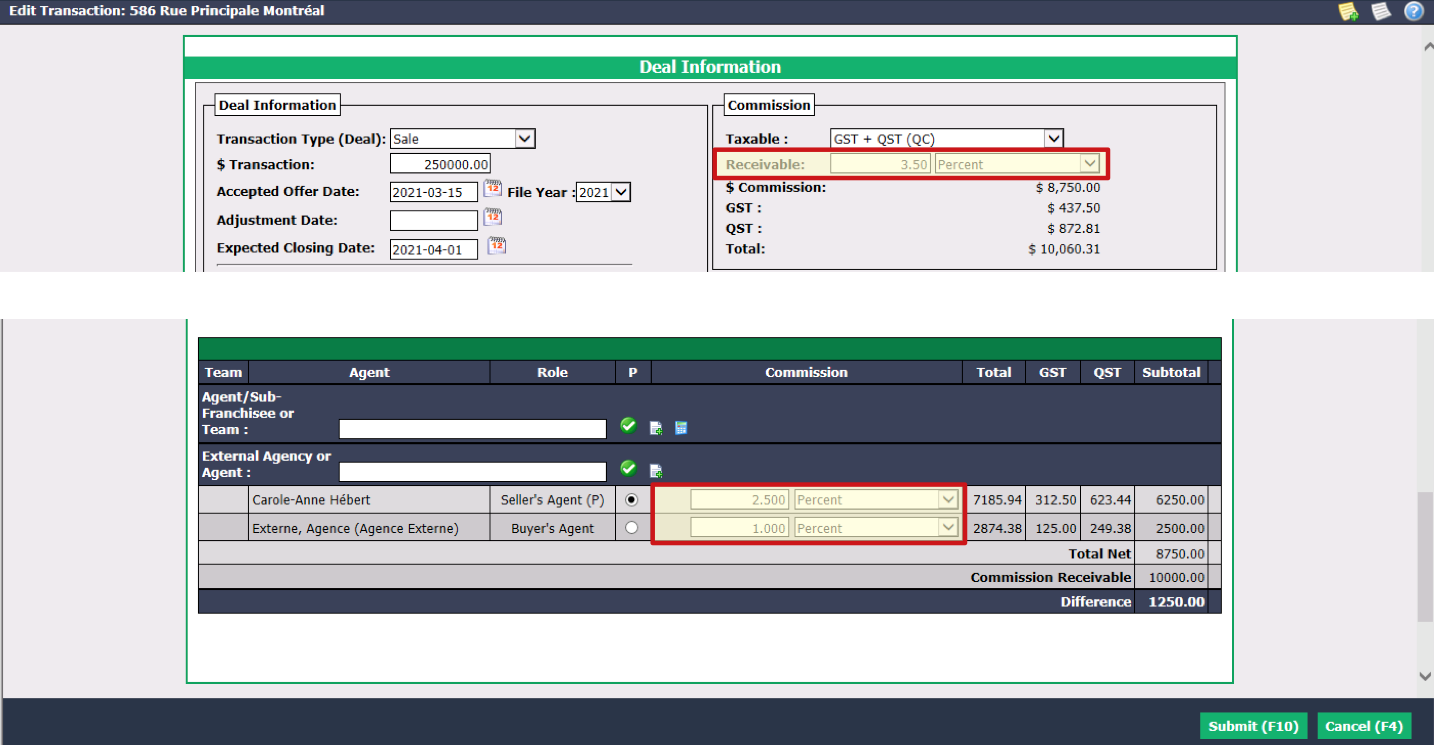
In the "Deal Information" section, edit the amount or percentage in the Receivable field and in the agent Commission section. In this example, the percentage receivable that was calculated and paid is 4% but it should have been 3.5%. Regarding the distribution of commission between the two agents: The seller’s agent received 2% but he should have received 2.5%, while the buyer’s agent received 2% but he should have received 1%.
Click on Submit and the page of the transaction will appear.
3- Redo a Commission Calculation
- From the closed deal, click on Actions >> Commission Calculation.
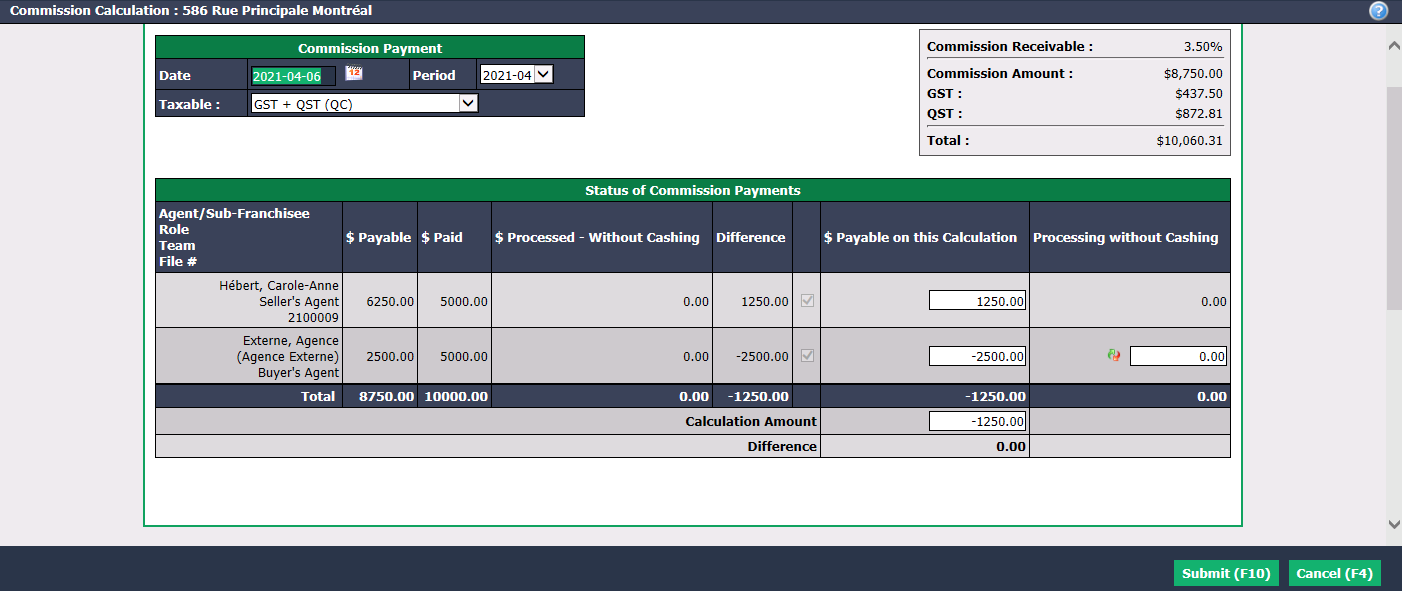
The system will have automatically filled in the $ Payable on this Calculation and Calculation Amount fields. When the amount is positive , it indicates that the agent has not received enough money and the agency will have to pay for it. When the amount is negative , it indicates that the agent has received too much money and will have to repay it to the agency. In this example, the seller’s agent received $5000.00 ($ Paid) but should have received $6250.00 ($ Payable), while the buyer’s agent received $5,000.00 ($ Paid) but should have received $2,500.00 ($ Payable). The agency must therefore reimburse $1,250.00 to the seller’s agent ($ Payable on this Calculation) and the buyer’s agent must reimburse $2,500.00 to the agency ($ Payable on this Calculation).
Click on Submit.
If the agent has an office deduction configured in his profile, a first table with it will appear. Otherwise, the table that will appear will be the one with the commission fees only.
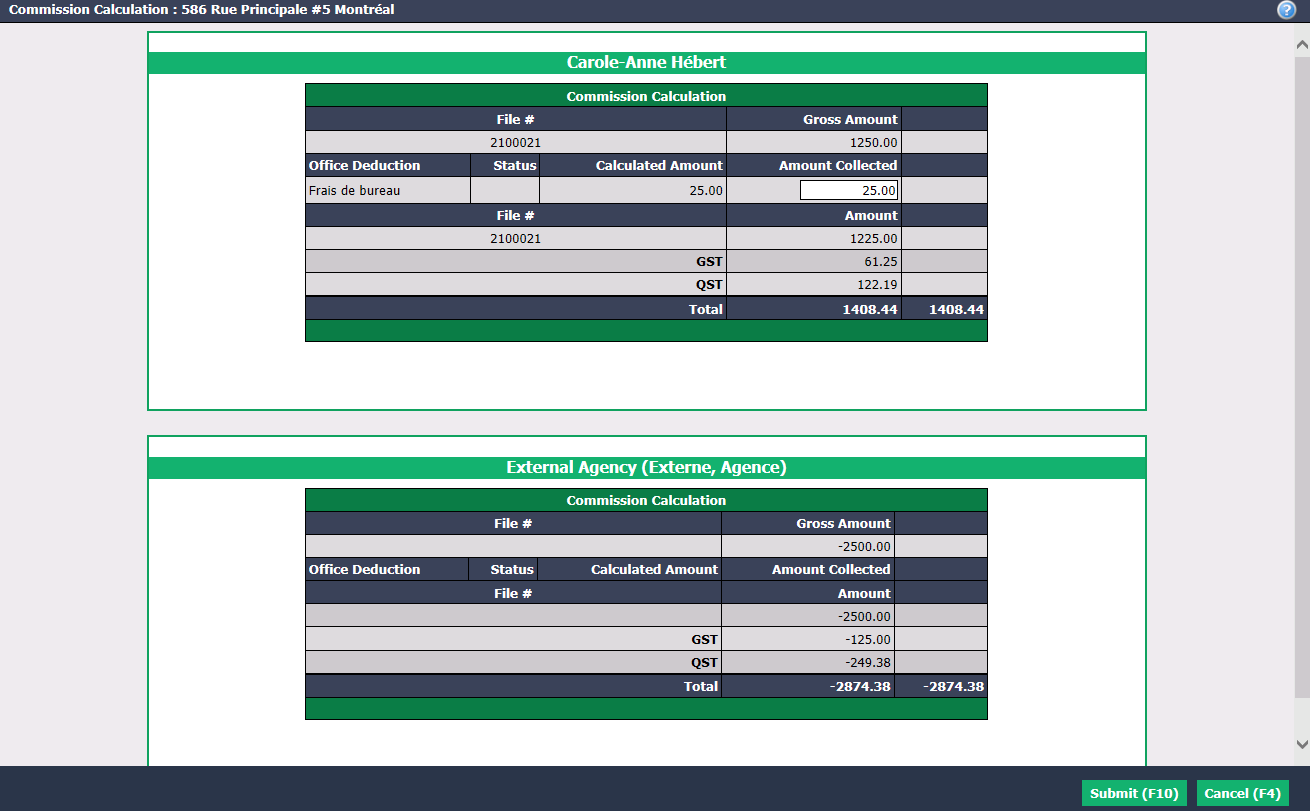
If applicable to the agent, in the Office Deduction , it is possible to enter the desired amount in the Amount Collected field.
Click on Submit and the commission fees will appear in the table.
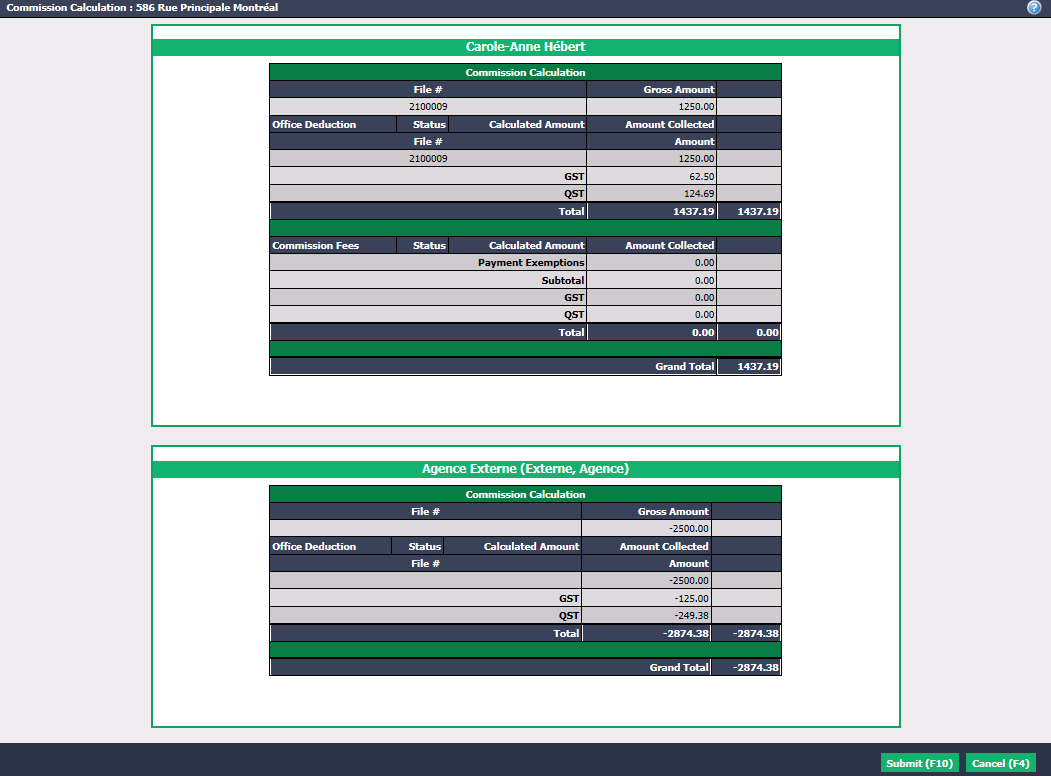
In the Commission Fees , verify the Amounts Collected automatically entered by the system and change them if applicable and necessary.
Click on Submit and the page of payment deductions table of all agents will appear.
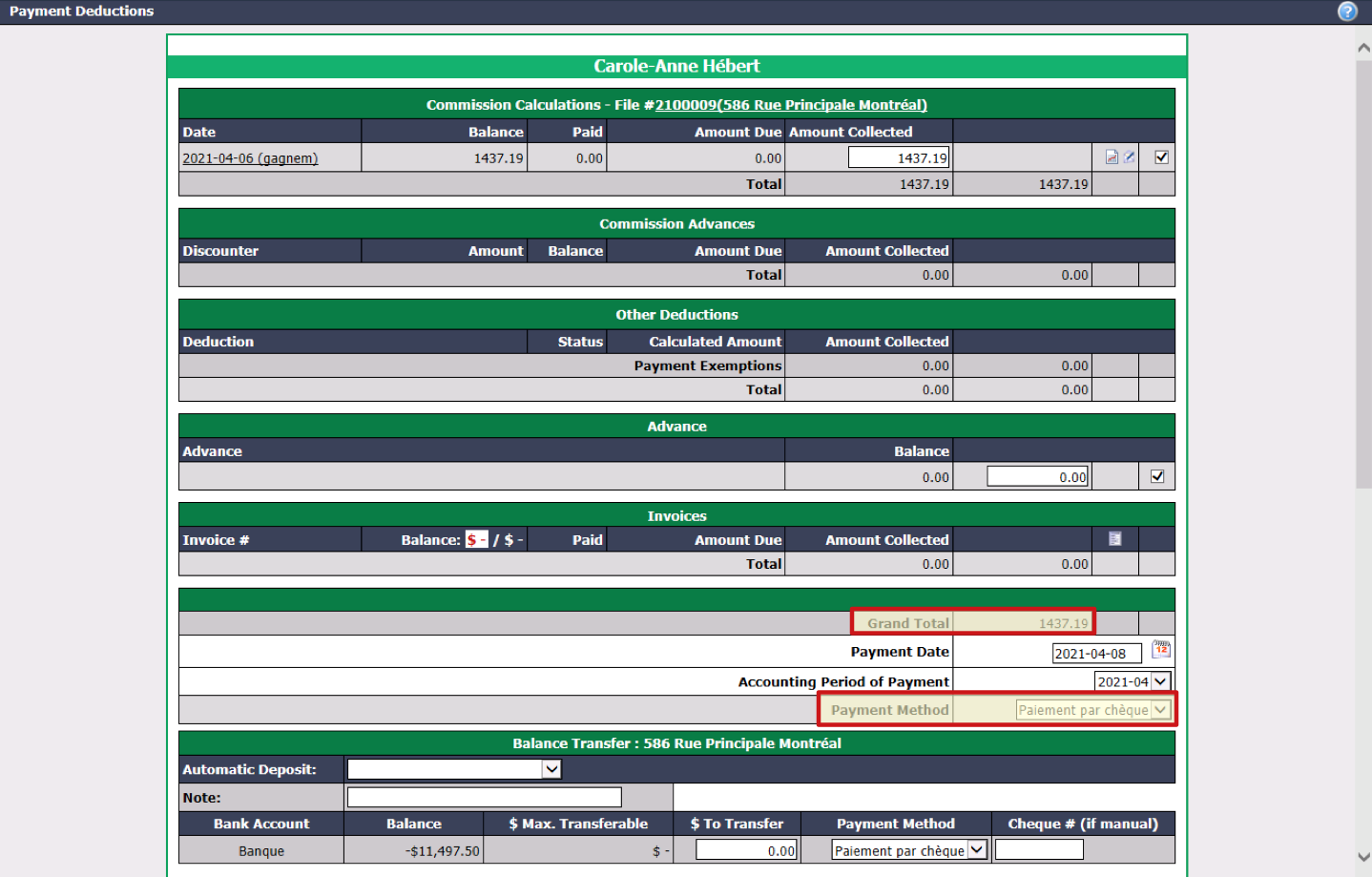
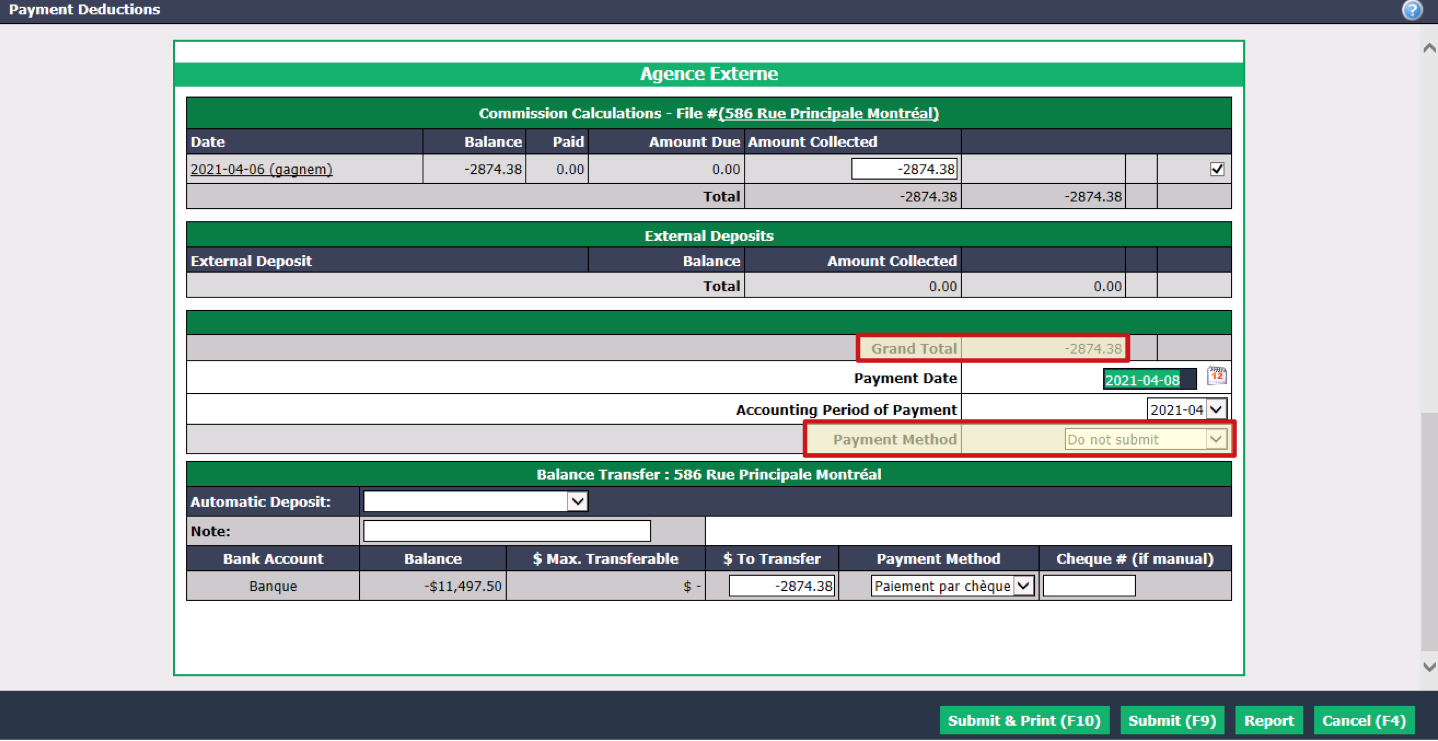
For each of the sections (Other Deductions, Advance, etc.), verify the Amounts Collected automatically entered by the system and uncheck them if necessary.
Grand Total can be positive or negative:
Positif : Amount that the agency must pay to the agent. The default Payment Method will be "Cheque payment" or "Electronic transfer". In this example, the agency must pay 1437.19$ to the seller’s agent (Carole-Anne Hébert).
- If you have selected "Cheque payment" and you click on Submit and Print , a new page will open and you can enter the starting number of the cheque and print the cheque immediately.
- If you click on Submit , this payment preparation will be displayed on the home page under "Cheques in Preparation" or "Non-Transmitted Electronic Transfer", depending on the payment method selected. For more information, please see the articles Preparation of Payment by Cheque - Real Estate and Preparation of Payment by Electronic Transfer - Real Estate.
Negative : Amount that the agency will receive from the agent. The default Payment Method will be "Do not submit". In this example, the buyer’s agent (Agence Externe) must pay 2874.38$ to the agency.
- If you click on Submit and Print or Submit , the amount that the agent must reimburse to the agency will appear on the home page under "Commissions Payable". For the reimbursement, there are two options: the amount will be collected when paying another commission to this agent or this agent will issue a cheque or electronic transfer to the agency. For more information, please see the article Receive a Commission Overpayment.