

English
Creating a Manual Invoice - Real Estate
Manual invoicing is available to charge an agent/sub-franchisee or a client at all times without having to go through monthly invoicing.
- Click on Hand icon

or ;
- From Main menu >> Accounts Receivable >> List of Invoices and click on Actions >> New Manual Invoice.
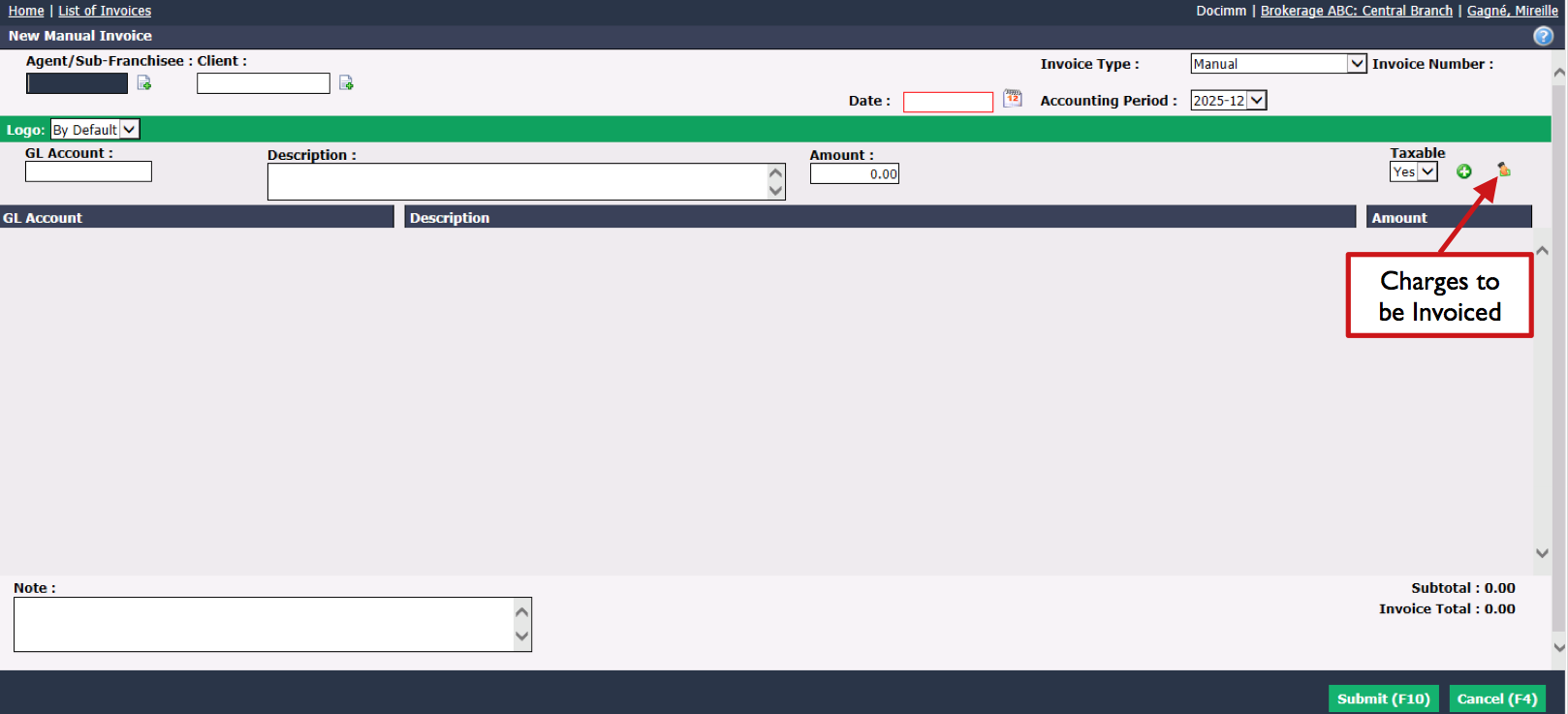
We recommend using the TAB key on your keyboard to move from one field to another.
Enter the name of the Agent/Sub-franchisee or the Client to be invoiced. (The Sheet with a + icon to the right of the field is used to add a new agent/sub-franchisee or a client. For more information, please see the articles Adding a Regular and/or Incorporated Agent and Adding/Editing a Client.)
Enter the invoicing Date for the purchase you want to enter. The Accounting Period will be automatically selected according to the invoicing date entered.
Warning
The invoicing Date entered must be the same as the selected Accounting Period and this period must be open. For more information, please see the article Accounting Period Management (447).
Fill in the GL Account and invoice Description fields.
Enter the Amount before taxes of the invoice and select whether or not the amount is Taxable.
Click on the Green + icon to add the purchase.
Press the Enter key on your keyboard when you are in the Amount field to automatically add taxes and purchase to the invoice.
NOTE: If you want to credit or invoice a charge that is already in the invoicing table (which affects monthly charges), you can click on the Charges to be Invoiced icon

. This procedure will be much faster than manually entering the charge into the GL Account , Description and Amount fields.
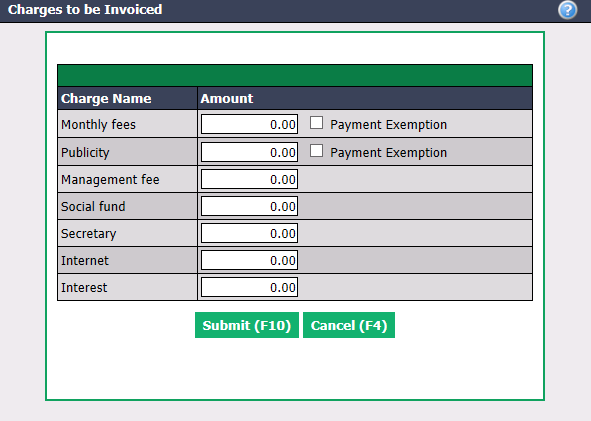
You can add more than one amount to the invoice by filling in the GL Account , Description , Amount and Taxable fields for each of them.
A Note can be entered and will be displayed on the invoice.
Click on Submit and this window will appear:
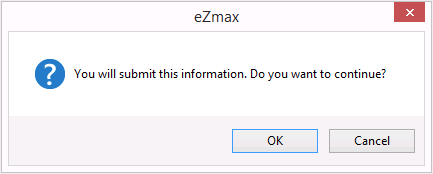
- Click on OK if you are sure of your information and the invoice will be created in the agent/sub-franchisee’s or client’s profile.
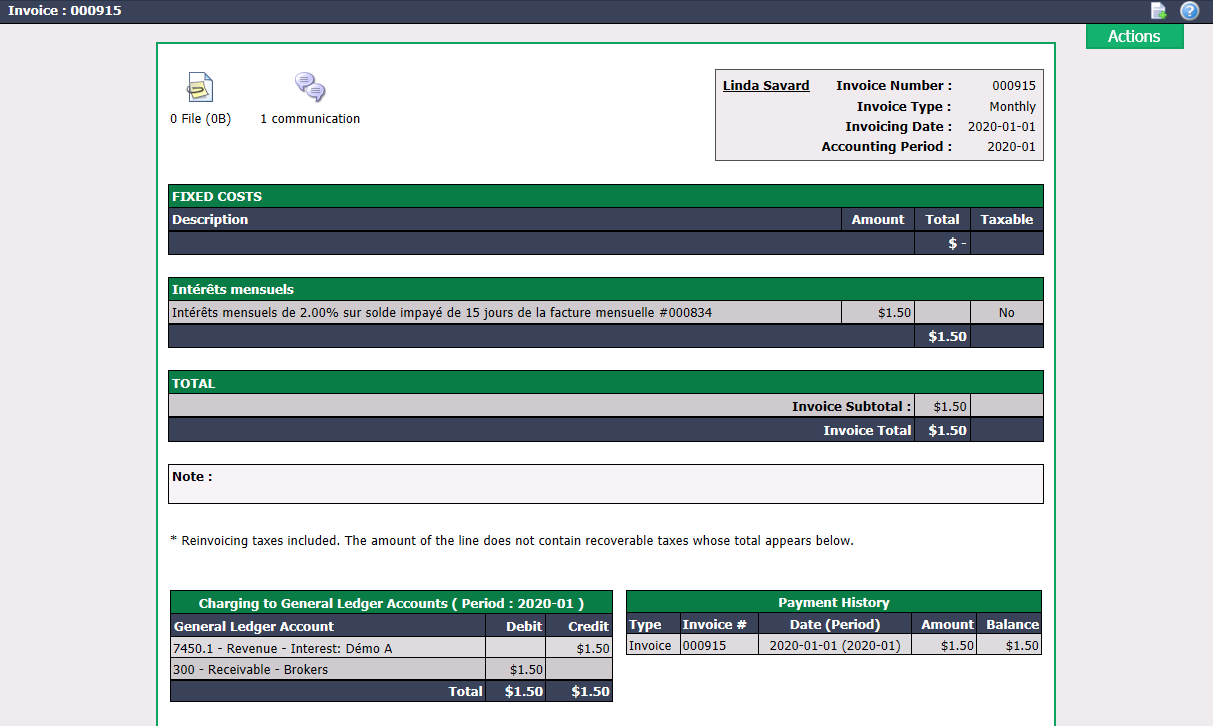
From the Actions menu, you have the option to:
- Print Invoice: See the example below.
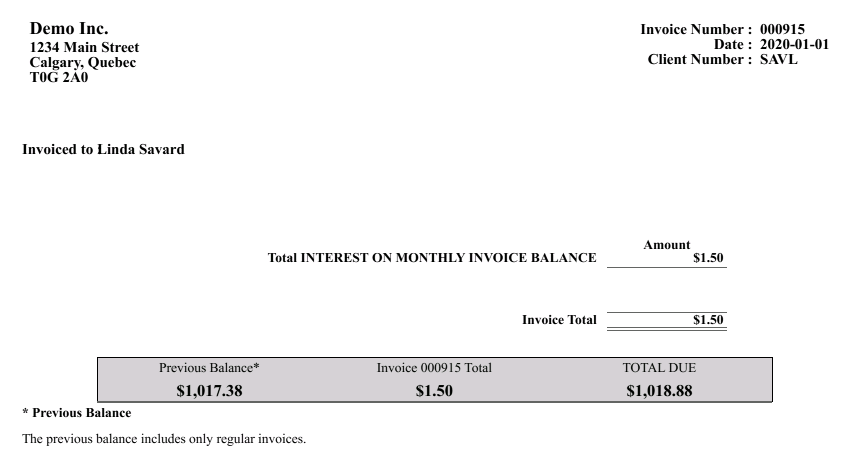
NOTE: If this option has been configured, the previous balance, total of the current invoice and total amount due will appear at the bottom of the invoice. For more information, please see the article Configure Balances on an Invoice (414).
* Send According to Preference: If you want to send the invoice according to the sending method selected in the agent/sub-franchisee’s or client’s profile ("Print" or "E-mail"). For more information, please see the articles [Adding a Regular and/or Incorporated Agent](../../real-estate/agents/adding-regular-and-or-incorporated-agent.md) and [Adding/Editing a Client](../configurations/adding-editing-client.md).Print Invoice (Detailed): Not applicable for manual invoices.
Send According to Preference (Detailed): Not applicable for manual invoices.
Reverse Invoice: If you want to cancel the invoice. See the example below.
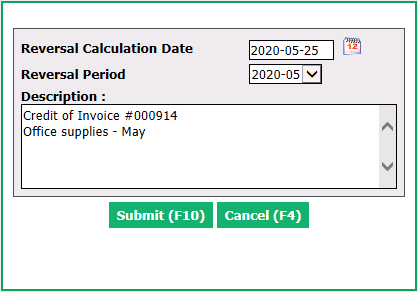
- List of Variable Costs: Not applicable for manual invoicing. Apply only for monthly invoicing.
- Manual Payment by Credit Card: Apply only to companies that use the Moneris system. For more information, please see the article Processing System of Credit Card Payments.