English
Purchase Report
It is possible to produce a report to display all the purchases that have been entered into the system for a given date(s)/period(s).
- From Main menu >> Accounts Payable >> Purchase Report.
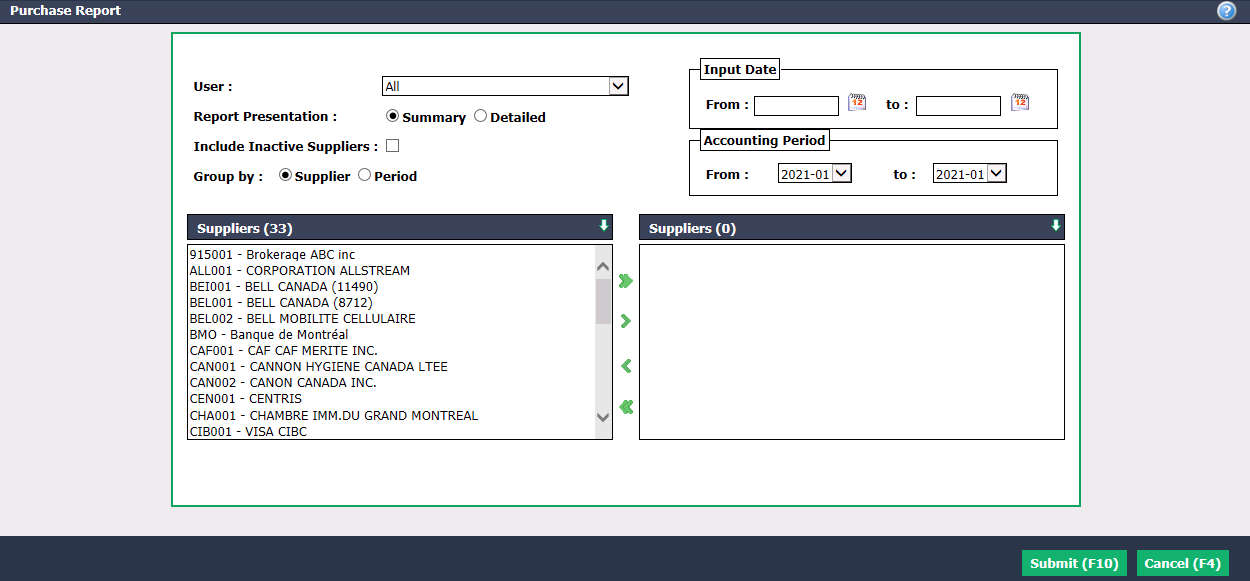
You can filter the purchases by User who made them by selecting his name from the drop-down list. To view all users, select "All."
You can also filter the purchases by Input Date (creation date of the purchase in the system) by entering the desired dates in the From and To fields or by Accounting Period by entering the desired periods in the From and To fields.
Select Report Presentation :
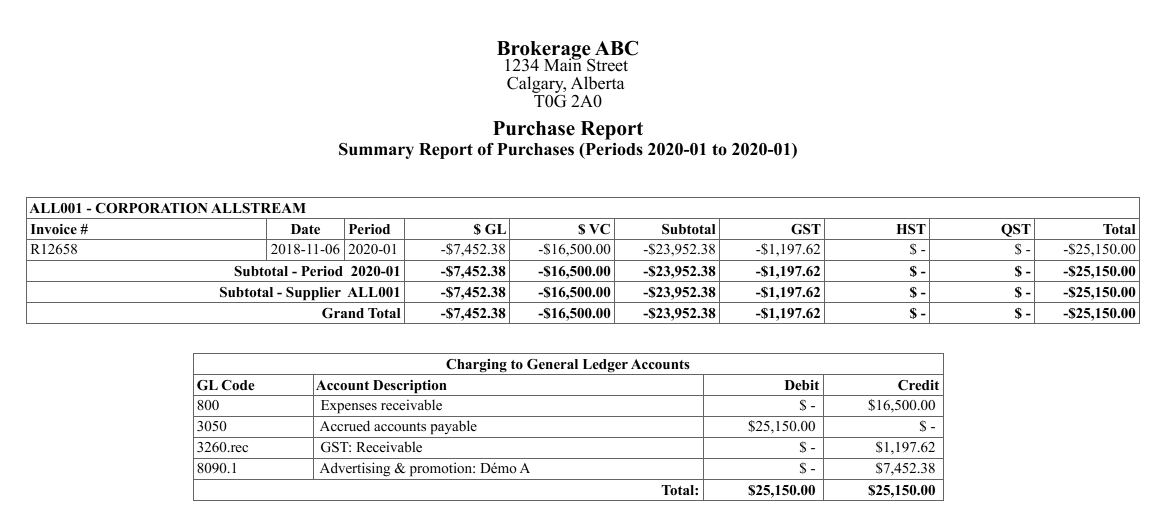
- Summary : For each invoice, you will see the total amount of the General Ledger as well as the variable cost.
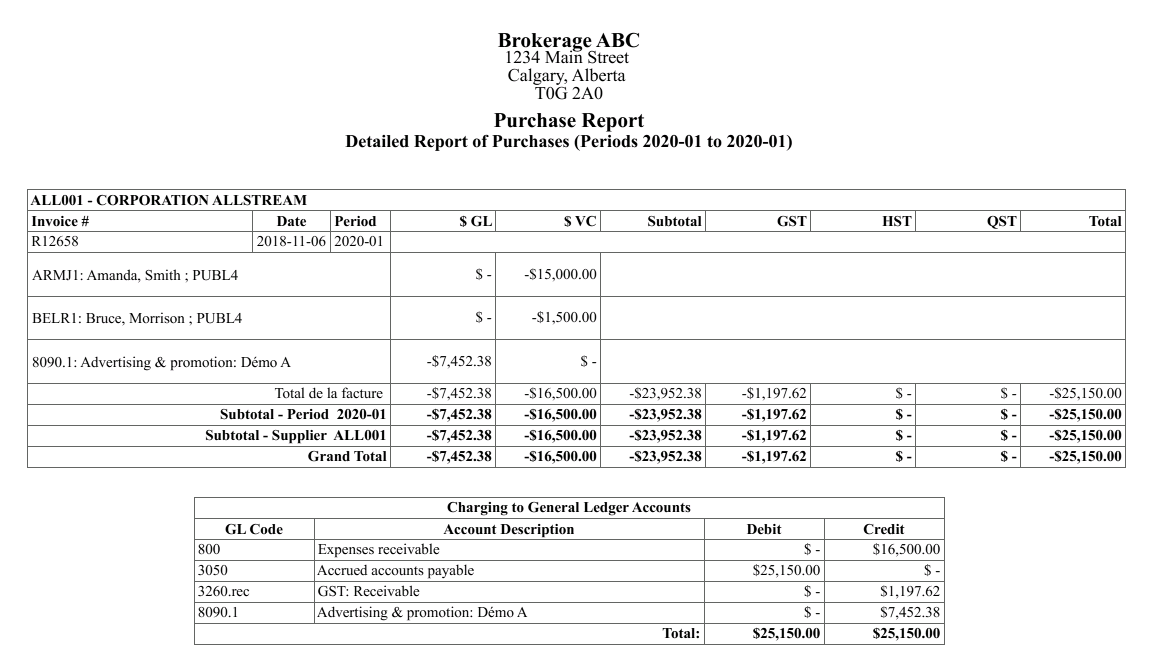
- Detailed : For each invoice, in addition to the total amount of the General Ledger and the variable cost, you will also see the details of the individual amounts.
You can Include Inactive Suppliers by checking the box.
You can Group by Supplier or Period the purchases in the report.
Select the desired Suppliers using the green arrows. The double arrow allows you to select all suppliers with one click, while the single arrow selects only one at a time.
You can double-click on a supplier to select it instead of using the green arrow.
- Click on Submit.
Example of a summary report, by supplier:
Example of a detailed report, by supplier: