

English
Configuration of an Automatic Deposit
When you receive money from a lawyer and you want to pay your agents, the automatic deposit is used to cash that amount and pay the agents through the transaction, without going through the cash register (manual deposit). You can set up an automatic deposit in your system, i.e add a new one or change one that already exists in your system.
There are two types of automatic deposit:
Grouped: Used when you have multiple cheques to deposit together. It appears on the home page under "Number of Pending Automatic Deposits." Only one amount will appear on the bank statement. At the end of the day, you will need to make a manual deposit.
Individual: Used when you want to deposit a cheque only. The deposit will not require any manual steps.
Required Authorizations
In order to be able to configure an automatic deposit, the user must have the required authorizations.
- From Main Menu >> Admin. >> List of Users, click on "Admin" and select the desired user.
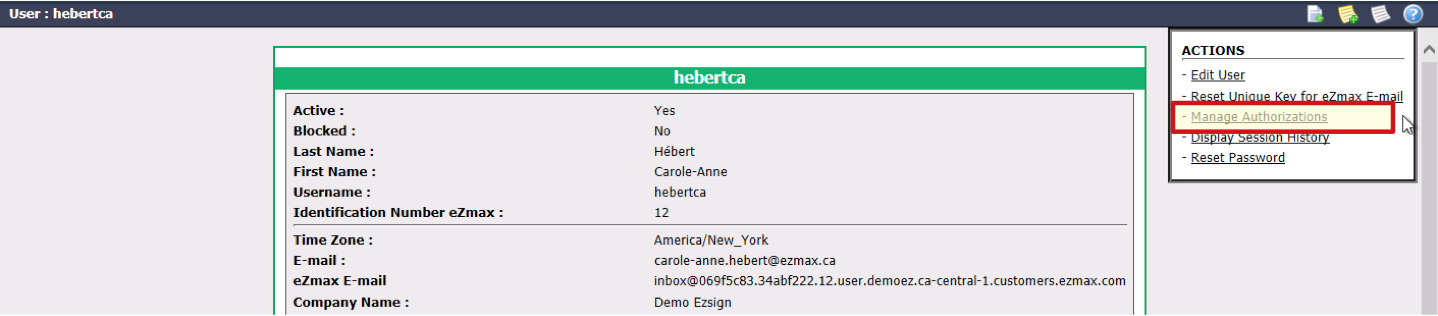
- Click on Actions >> Manage Authorizations.
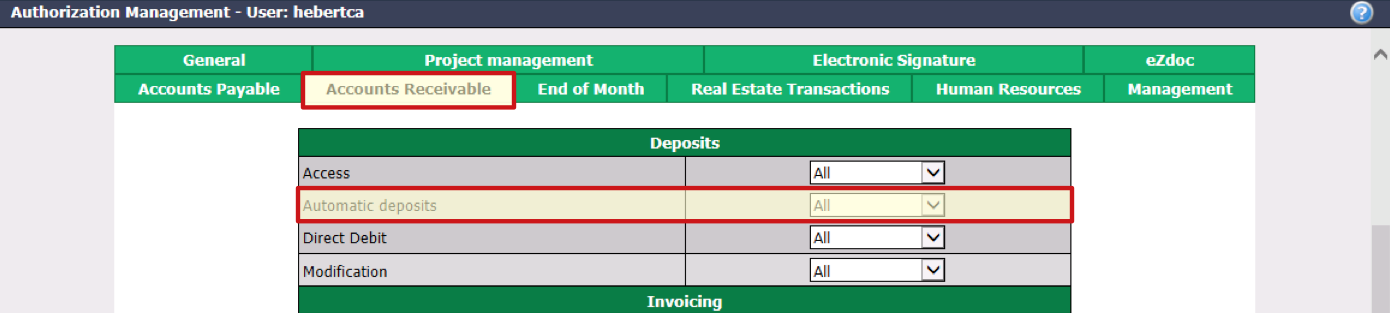
- In "Accounts Receivable" tab, for Automatic deposits , select "All".
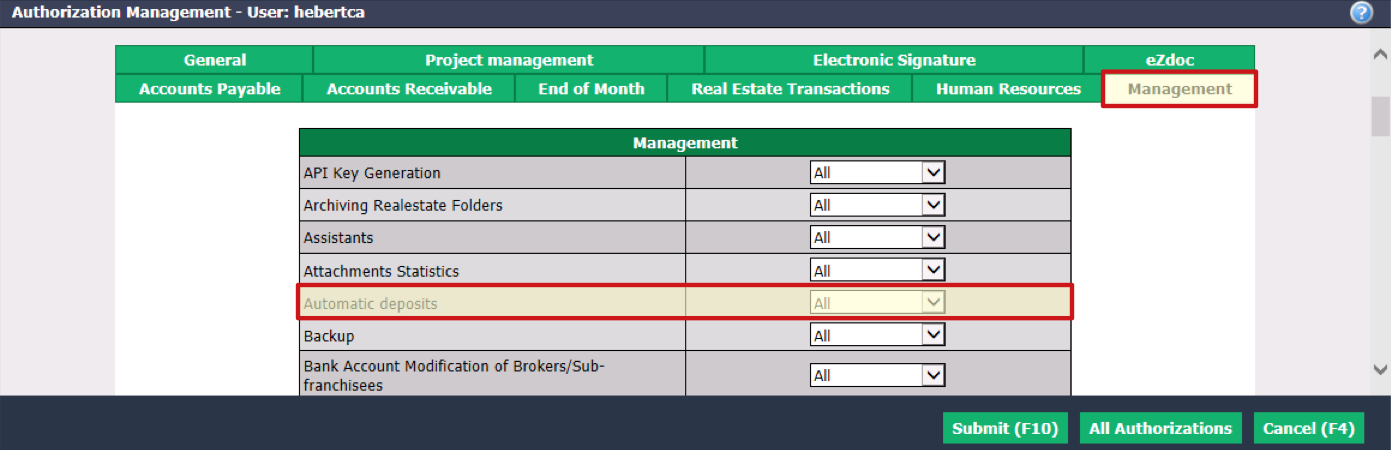
In "Management" tab, for Automatic deposits , select "All".
Click on Submit.
Adding an Automatic Deposit
From Main menu >> Accounts Receivable >> List of Automatic Deposits.
Click on Actions >> New Automatic Deposit.
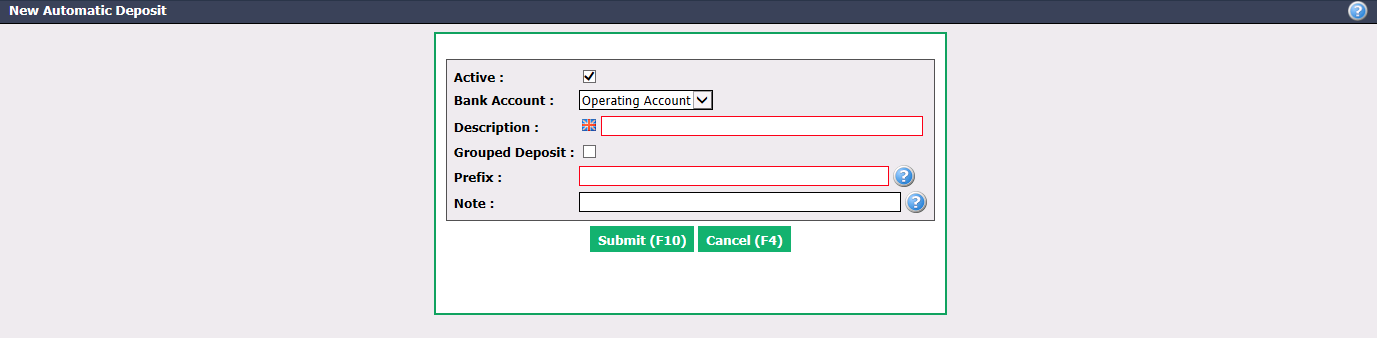
Active will be checked when the automatic deposit is active. To inactivate it, uncheck this box.
Select the desired Bank Account.
Enter a Description of this automatic deposit in English as well as in French. Suggestion: Name of bank account - Type of deposit (individual or grouped).
If it is a Grouped Deposit , check this box and you will not have to enter a Prefix.
If it is an individual deposit, enter a Prefix which will be placed in the deposit number.
A Note can also be entered.
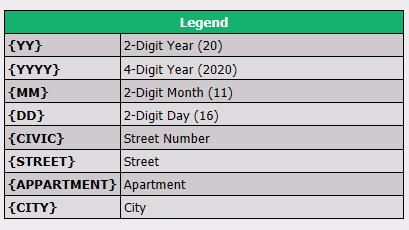
NOTE: If you click on the Question Mark icon, you will have access to a legend with the codes and their meanings. You can therefore copy and paste a code in the Prefix and/or Note field, for example {YY}, so that the 2-digit year appears in the deposit number or in the note.
- Click on Submit and the automatic deposit will be added in the system.
Editing an Automatic Deposit
To modify an existing automatic deposit, select it from the List of Automatic Deposits and click on Actions >> Edit Automatic Deposit.
Make the desired changes and click on Submit to save them.