English
Error in a Commission Calculation without Payment
In the case of a commission calculation for which no payment has yet been made, if you discover that there is an error in this calculation (e.g. in the commission fees or in the commission distribution), you have the option to reverse it so that you can start over. To do so, there are 2 steps to follow:
- Reverse commission calculation
- Remove commissions from the list of commissions payable
1- Reverse Commission Calculation
- From the closed deal, go to the "Calculations History" section.
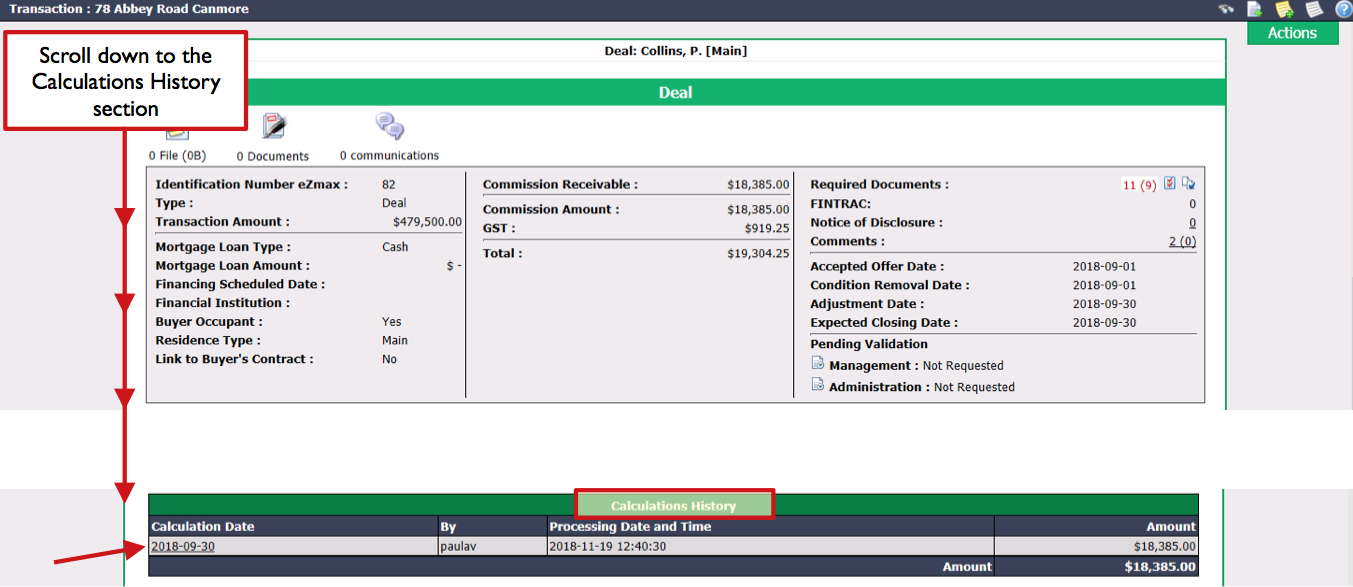
Click on the Calculation Date to display the commission calculation for all agents involved in the transaction.
In the "Payments History" section of each agent, verify the Type : there should only be a commission calculation but no payment.

- Click on Actions >> Reverse Calculation.
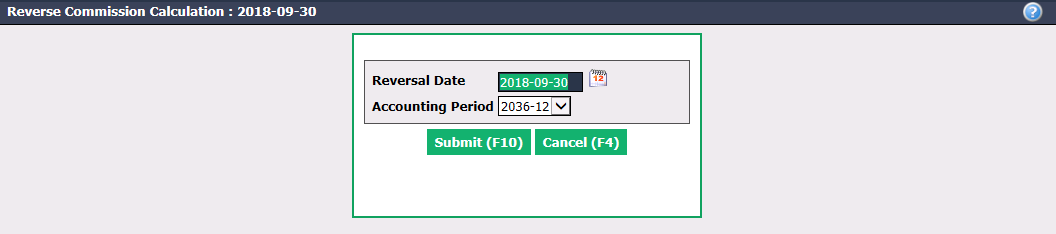
- The Reversal Date will be, by default, the date of commission calculation. The Accoun****ting Period will be automatically selected according to the reversal date entered.
Warning
Please make sure that the date entered is the same as the selected accounting period.
Click on Submit and the page of the transaction will appear.
In the "Calculations History" section, you will see a positive amount and the same negative amount, resulting in a total Amount of $0.00.

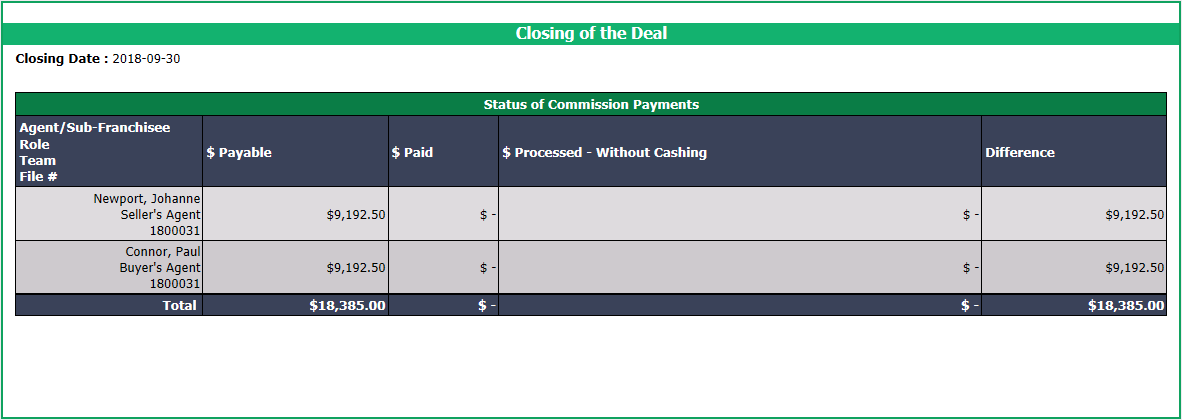
- In the "Closing of the Deal" section, the $ Paid will be $0.00.
2- Remove Commissions from the List of Commissions Payable
You must now remove the commissions at $0.00 from the list of commissions payable by issuing a $0.00 cheque for each of the agents involved in the transaction.

- From the home page, click on the number to the right of the "Commissions Payable" warning or from Main menu >> Real Estate >> List of Commissions Payable.
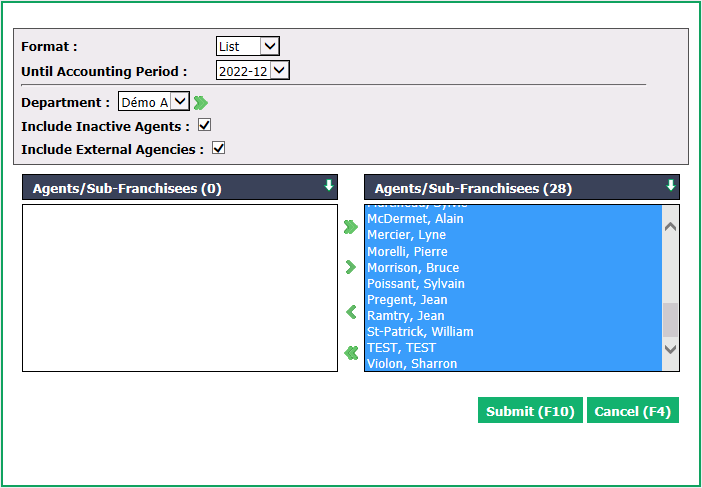
- All the agents will be selected so click on Submit.
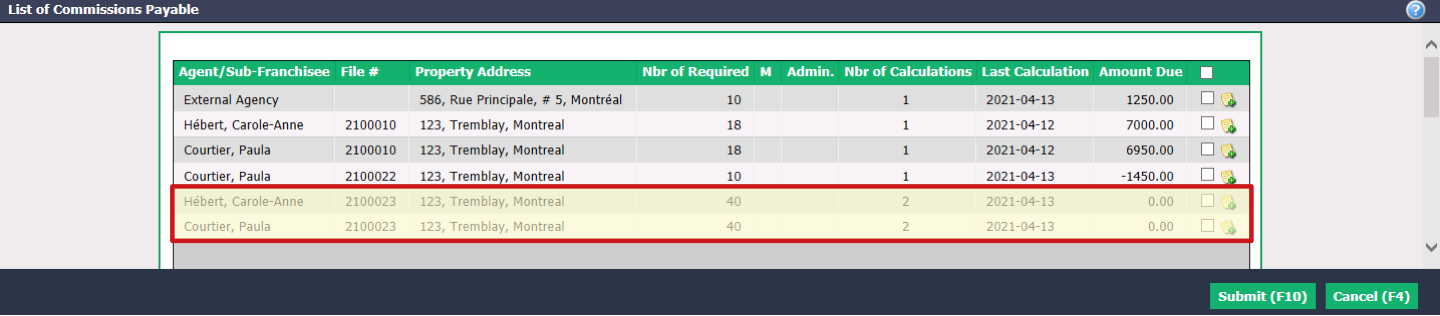
Check all the boxes of the desired combination: Agent/Sub-Franchisee + Property****Address.
Click on Submit and the payment deductions page for all agents involved in the transaction will appear.
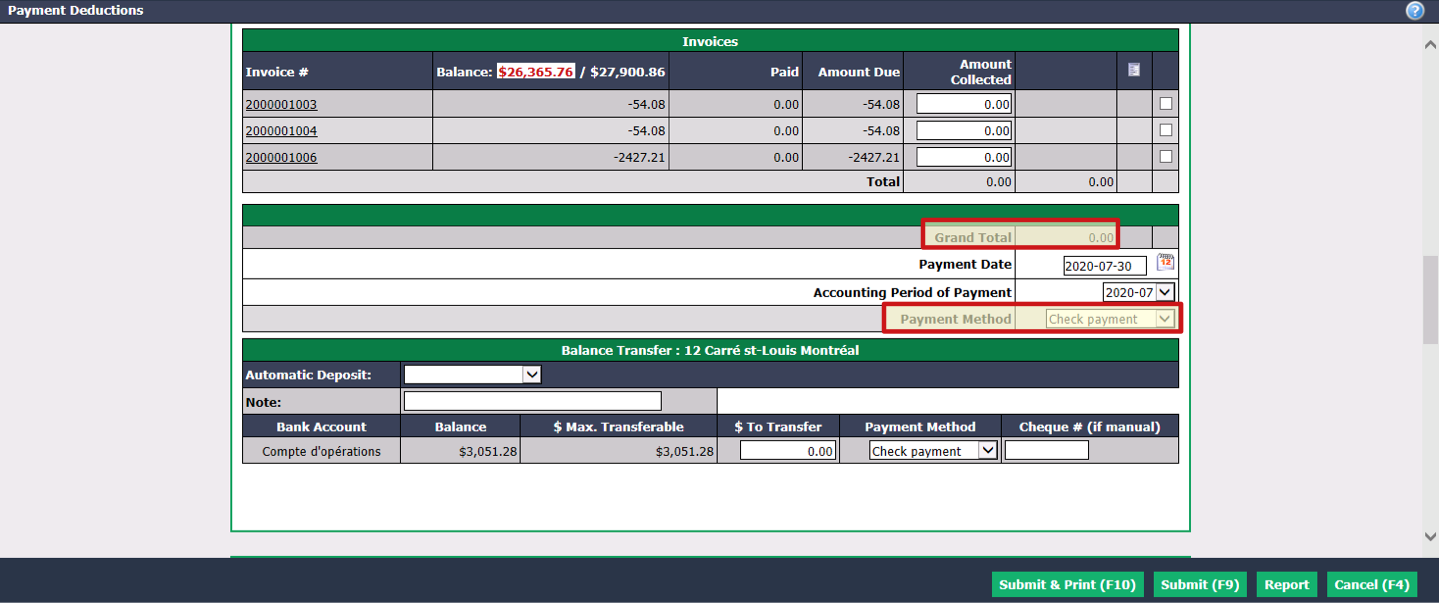
For each agent, make sure that all the amounts collected are at $0.00 in all sections (Commission Calculations, Commissions Fees, Other Deductions, etc.). The Grand Total must be $0.00, otherwise, uncheck the appropriate boxes.
Verify if the Payment Date is right for you (today"s date is automatically displayed).
Select "Check payment" for the Payment Method.
Warning
In the "Balance Transfer" section, make sure there is no amount in the $ To Transfer. Otherwise, set it to $0.00.
- Click on Submit & Print.
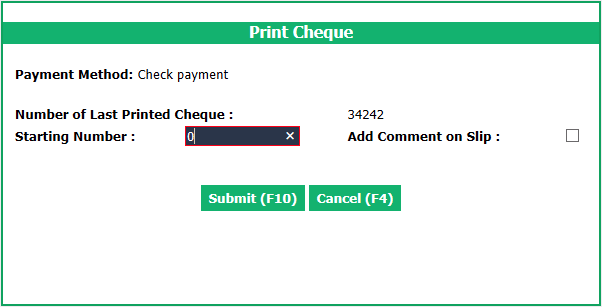
Enter "0" in the Starting Number of the cheque.
Click on Submit and the commission payment slip at $0.00 will appear.
If necessary, you can redo the commission calculation for this transaction by changing, for example, the total or the distribution of the commission. For more information, please see the article Commission Calculation and Payment.
Warning
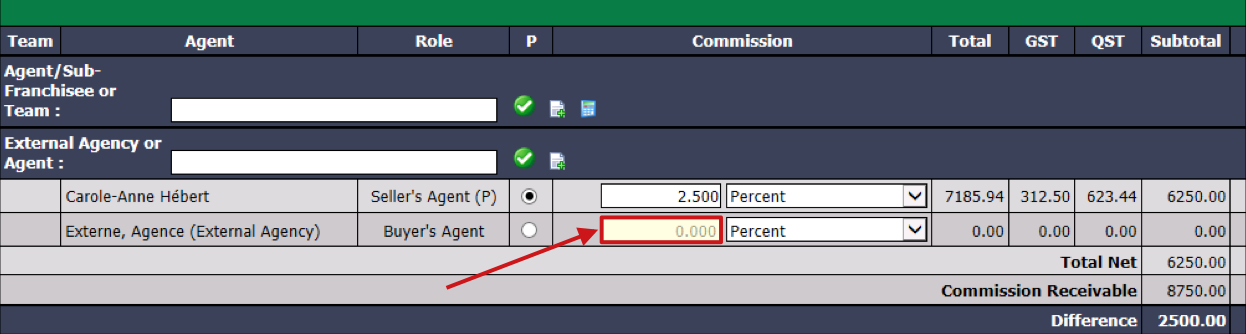
Once a commission calculation has been made for a transaction, it is no longer possible to delete an agent. However, it is possible to edit the transaction and enter "0.000" in the Commission field of the agent you want to remove.