

English
Sending Signed Documents by E-mail
Once the folder is created, here are, in order, the next steps:
- Add the signatories. For more information, please see the article Adding/Editing/Deleting a Signatory in an eZsign Folder.
- Add the documents. For more information, please see the article Adding/Editing/Deleting a Document in an eZsign Folder.
- Add the fields. For more information, please see the article Adding/Editing/Deleting a Field in a Document.
- Send the documents to sign. For more information, please see the article Sending Documents to Sign.
- Sign the documents. For more information, please see the articles Signing a Document as a User and Signing a Document as an External Signatory.
- Send the signed documents by e-mail.
Sending Signed Documents by E-mail
It is possible to send the completed documents, i.e. signed by all required signatories, by e-mail to the recipients of your choice.

From the desired folder, in the "Signature Status" section, check the box to the right of the desired completed document or the box next to the Paper Clip icon to select all documents.
Click on Send by E-mail.
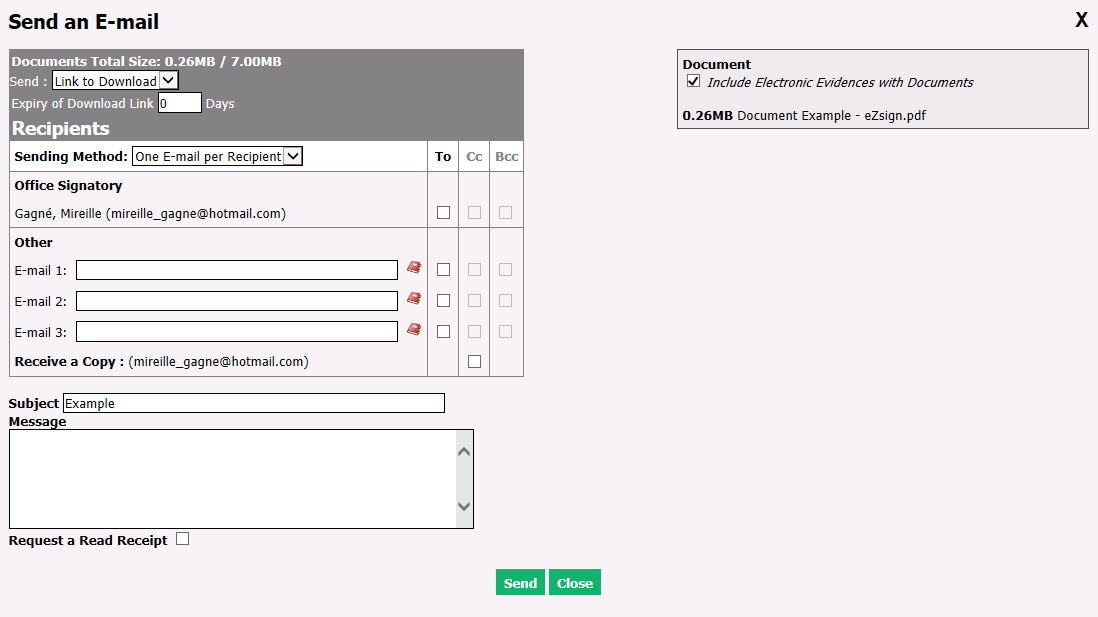
Indicate if you want to Send the documents as an attachment or a link to download them.
If you select "Link to Download", you can enter in how many Days the Expiry of Download Link will take place.
Warning
The maximum total size of documents to send is 7.00MB. If the maximum is exceeded, a link will be automatically sent to download the documents.
Sending Method : "One E-mail per Recipient" or "One E-mail to All".
Select the recipients by checking the To boxes of the signatories or other e-mail addresses added manually.
- Cc (Carbon copy): Secondary recipient who will receive the e-mail for information.
- Bcc : (Blind carbon copy): Secondary recipient who will receive the e-mail without the knowledge of the other recipients.
In the Others field, you can manually enter up to 3 e-mail addresses.
Warning
You must check at least one recipient To.
Receive a Copy : If you check this box, you will receive a copy of the e-mail at the address indicated in brackets.
Subject : The default subject is the folder name, but you can change it manually.
You can write a Message.
Request a Read Receipt : If you check this box, you will receive a notification when the recipient has read the e-mail.
Document : If you don’t want to Include Electronic Evidences with Documents , uncheck this box.
Click on Send and the following message will appear: "The e-mail has been sent successfully.".
Information
To view the history of e-mails sent, click on the Communication Management icon

in the desired folder. For more information, please see the article Viewing/Editing/Archiving/Deleting an eZsign Folder.