

English
Integri-T Guarantee
Authorization to Access Integri-T
Before the user can create Integri-T application forms, he must have the required authorization.**
From the user's profile, click on Actions >> Manage Authorizations.
Under the "Real Estate Transactions" tab, in the "RE/MAX" section:
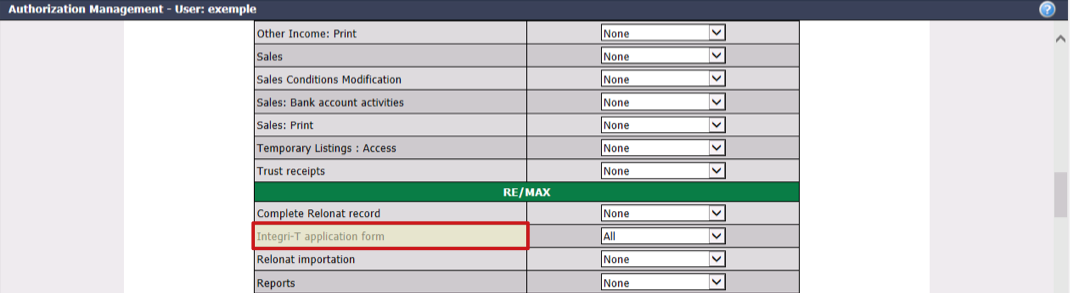
Select "All" for Integri-T application form.
Click on Submit.
Create an Integri-T Application Form
The Integri-T guarantee is now available on the buyer's side and on the seller's side. An Integri-T application form must now be completed in all transactions.**
NOTE : We recommend that you first create a required document "Integri-T Application" in the folder types "Listing" and "Deal". For more information, please see the article Adding/Editing a Required Document.
Warning
The form must be completed even if the client does not want the Integri-T guarantee. The agent and/or administration have the option to create and have the client sign the Integri-T application form.
- When the administration create the form, from Main menu >> Real Estate >> Create an Integri-T Application Form.
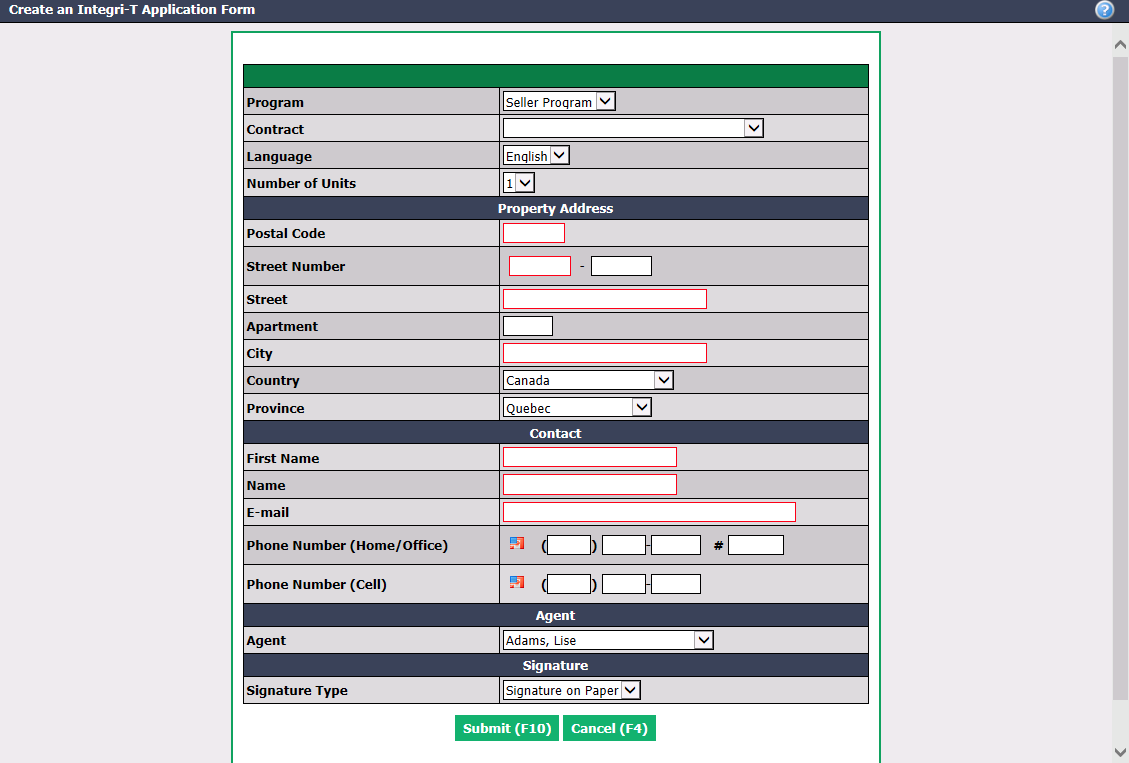
Select the desired Program : "Seller Program" or "Buyer Program".
You must then select the desired type of Contract. Refer to the Integri-T program from your franchisor to find out which program to select:
- "Buyer Program"
- "Buyer Program"
- "Waive": The client does not want the Integri-T guarantee.
- "Seller Program"
- "Seller Program"
- "Seller Program with Integri-T Inspection
- "Waive": The client does not want the Integri-T guarantee.
- "Buyer Program"
Select the appropriate client Language and Number of Units (1 to 5).
Enter Property Address.
Enter the information of a single Contact , regardless of the number of people involved in the transaction.
NOTE: If you will be using the electronic signature, enter a Phone Number (Home/Office) or Phone Number (****Cell).
Select a single Agent , regardless of the number of agents involved in the transaction.
Select Signature Type :
- "Signature on Paper": A paper PDF document will be produced and will have to be signed by the client.
- "Electronic Signature in Person"
- "Electronic Signature"
NOTE: The user generating the form must have an active electronic signature account in the system in order to use the electronic signature options. For more information, please see the articles Signing a Document as a User and Signing a Document as an External Signatory.
- Click on Submit to display the PDF application form.
NOTE: The information contained in the form is sent directly to ACQ HW for statistical and file follow-up purposes. There is no list or report that groups application requests in eZmax.
If the signature type selected is "Signature on Paper", you must print the PDF document and have it signed by the client. Afterwards, this document will have to be added manually in the transaction's EDM.
If the form is signed electronically, the document will have to be manually sent from your electronic signature folder to the transaction's EDM.
Transmit an Integri-T Contract
NOTE: If the client has waived the Integri-T guarantee, you don't have to send the contract to Integri-T.
- When you have to transmit a contract in a transaction, go to the "Listing information"/"Files" or "Deals"/"Files" section and click on this icon

(Integri-T).
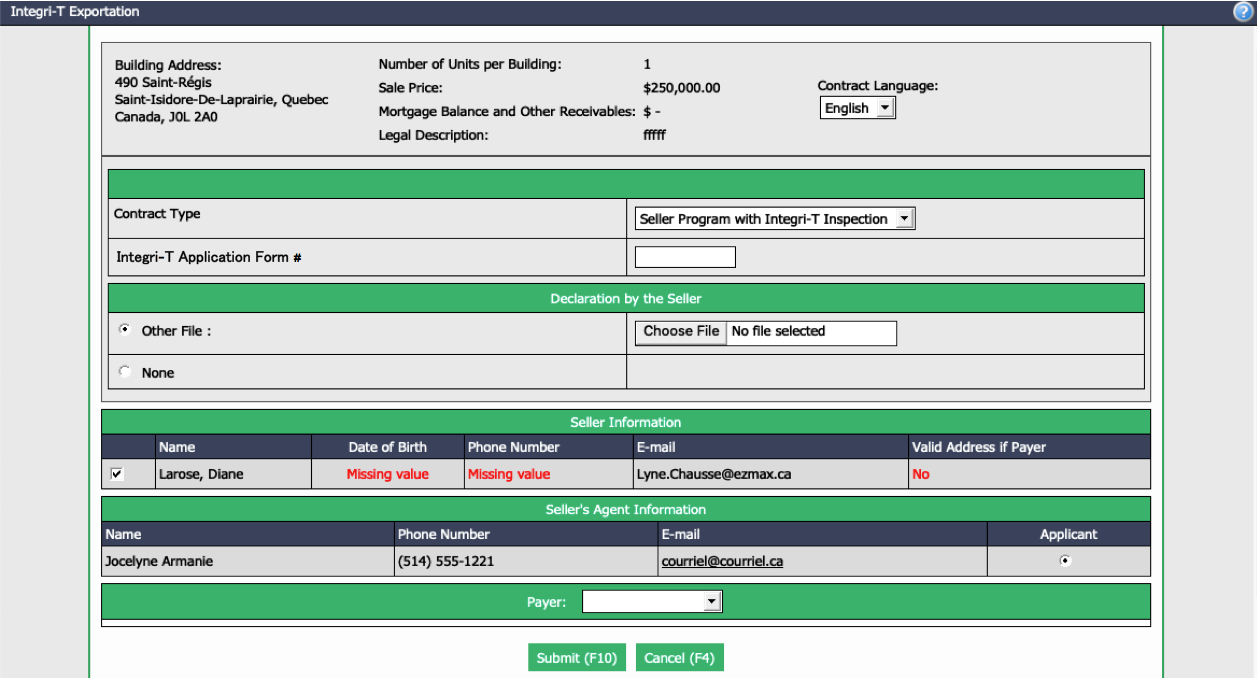
Select the appropriate Contract Type and enter the Integri-T Application Form # found on the PDF application form.
Fill in the other fields, if applicable.
Click on Submit and the contract will be sent to Integri-T.
Activate the Creation/Transmission of Integri-T Contracts by Agents**
If you want all the agents in your agency or in a particular department to be able to create and transmit Integri-T contracts, you can do so via department configurations.
From Main menu >> Config. >> List of Configurations by Department.
Click on the desired Department.
Click on the "Real Estate" tab.
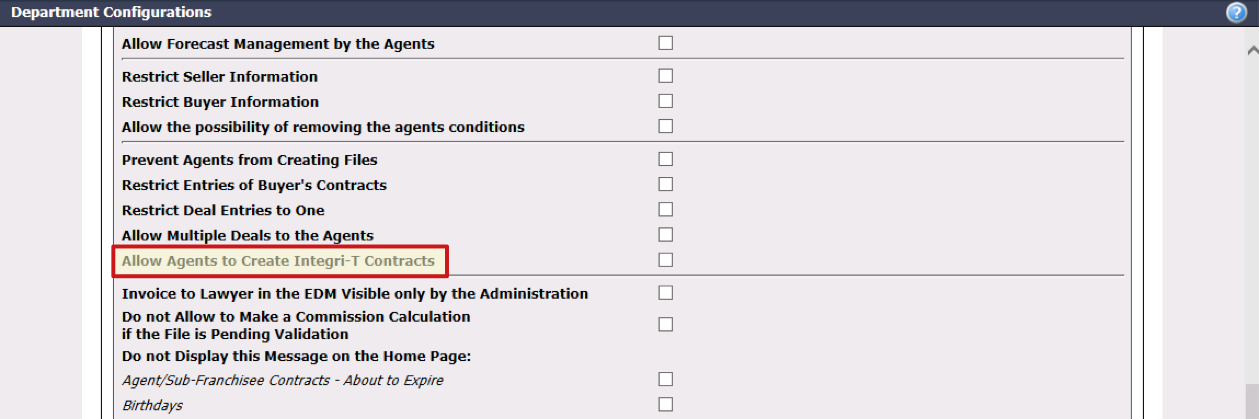
Check the Allow Agents to Create Integri-T Contracts box.
Click on Submit.