

English
Client Invoicing Table
It is possible to invoice charges (e.g. monthly fee, annual dues) to a client automatically on a periodic basis. From the invoicing table of the client, you have the option to add charges (manually or by copying them from another client), edit existing charges and reinvoice charges.
- From an existing client’s profile, click on Actions >> Invoicing Table.
Copy Charges Section
When there is a new client who has the same charges as another existing client, you can copy the charges from the latter. This will save you a lot of time instead of entering the charges manually.
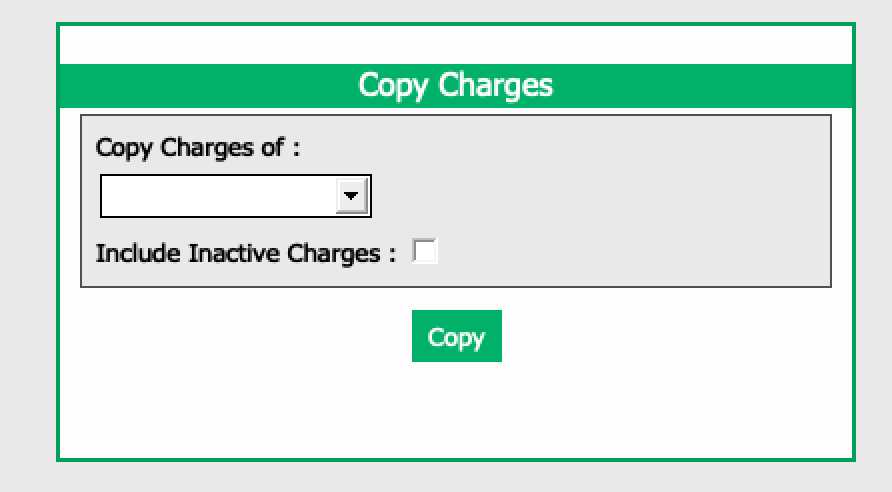
In the Copy Charges of field, you can select, from the drop-down list, the client you want to copy the charges from.
You have the choice to Include Inactive Charges**** or not from this client.
Click on Copy and the charges will appear in the invoicing table.
Active Charges Section
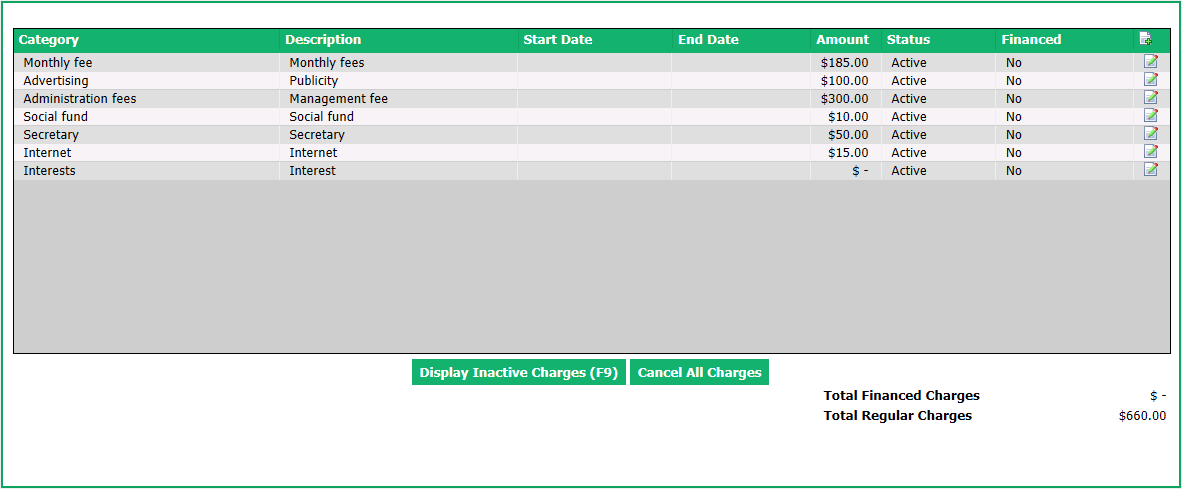
If necessary, you can Display Inactive Charges and Cancel All Charges.
All these charges will be automatically invoiced at your monthly invoicing.
Adding a charge manually:
- Click on the Sheet with a + icon.
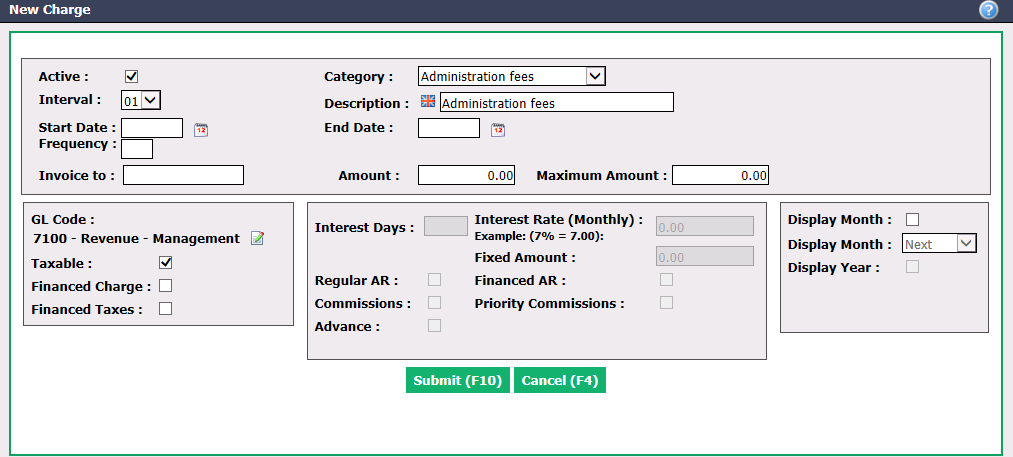
Active will be checked when the charge is active. To inactivate a charge, uncheck this box.
Select a Charge Category from the drop-down list and the Description (which will appear on the invoice) will automatically enter. If necessary, you can manually modify this description. For more information, please see the article**** Adding/Editing an Invoicing Category (409).
In the case of the "Interest" Category , you can enter the number of Interest Days (after how many days, for an unpaid invoice, interest begins to be charged) and the Interest Rate (Monthly) or a Fixed Amount. You can also indicate whether the interest applies to Regular AR , Financed AR , Commissions , Priority Commissions and/or Advances.
Depending on the category selected, the GL Code that has already been assigned to this category will appear automatically. If necessary, you can modify it manually by clicking on the Sheet with a Pencil icon

to its right.
Select the desired Interval for this charge (charge invoiced every 1 to 12 months).
You can enter the invoicing Start Date and Frequency (the number of times the charge will apply, after which the charge will stop being calculated). The End Date will be automatically calculated. You can also leave the Frequency field empty and manually enter an End Date.
Invoice to : In the case of a payment exemption, select the appropriate client (reinvoicing to another client) or GL account (reinvoicing to the office).
Enter the Amount of the charge and indicate if it is Taxable.
Maximum amount: Allows you to invoice these charges up to an amount where they will no longer be calculated.
Financed Charge and Financed Taxes : Not applicable for clients.
If you check Display Month , select which month will be displayed on the invoice:
- "Previous": For example, if invoicing is made on May 1 for April.
- "Current": For example, if invoicing is made on June 1 for June.
- "Next": For example, if invoicing is made on May 31 for June.
Click on Submit to add this charge to the invoicing table.
Editing a Charge:
- You can modify an existing charge by clicking on the Sheet with a Pencil icon
to the right of the desired charge.
- Make the desired changes and click on Submit to save them.
NOTE : When you cancel a charge by unchecking the Active box, the charge will not completely disappear from the table; it will now be displayed in inactive charges.
Variable Costs and Supplies Section
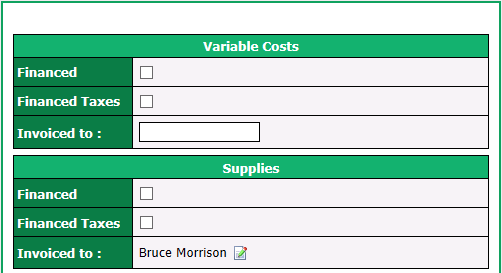
Reinvoicing:
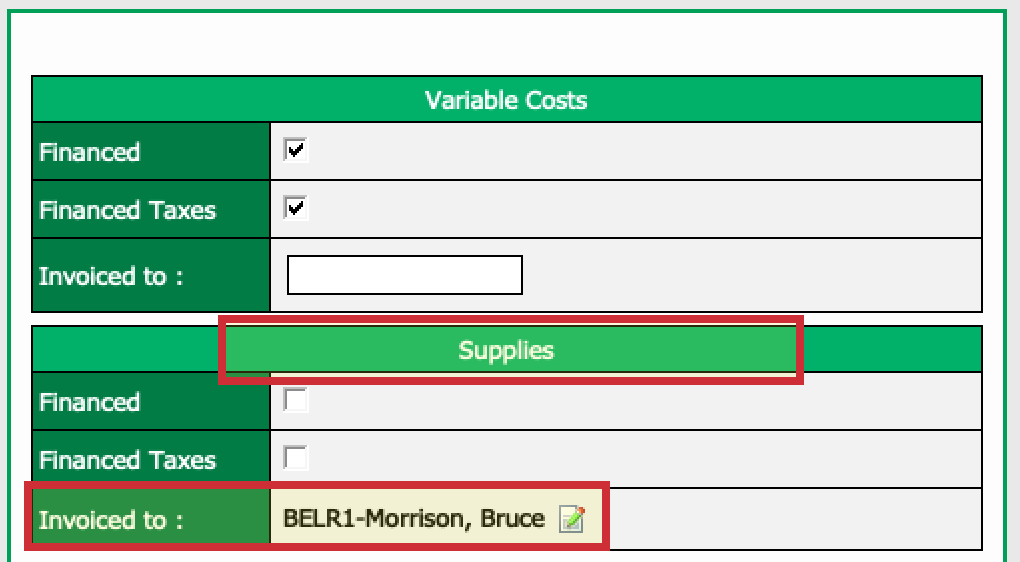
Invoiced to: Allows you to reinvoice any variable costs or supplies directly to another party (e.g. client, GL account, etc.).
Example: In Amanda’s profile, we configured supplies to be invoiced to Bruce Morrison (a client).
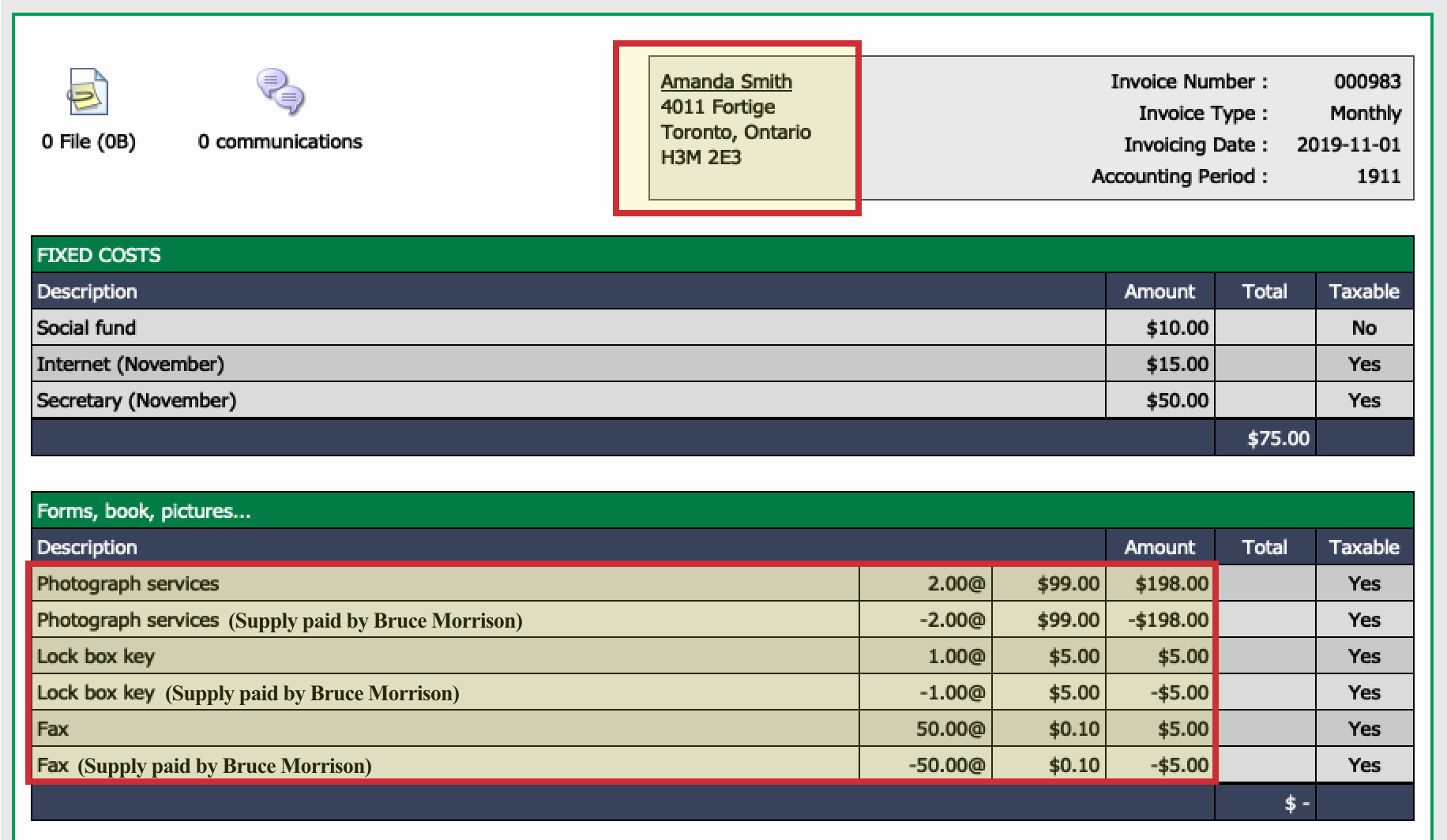
- Amanda was invoiced for various supplies like fax, lock box key and photograph services.

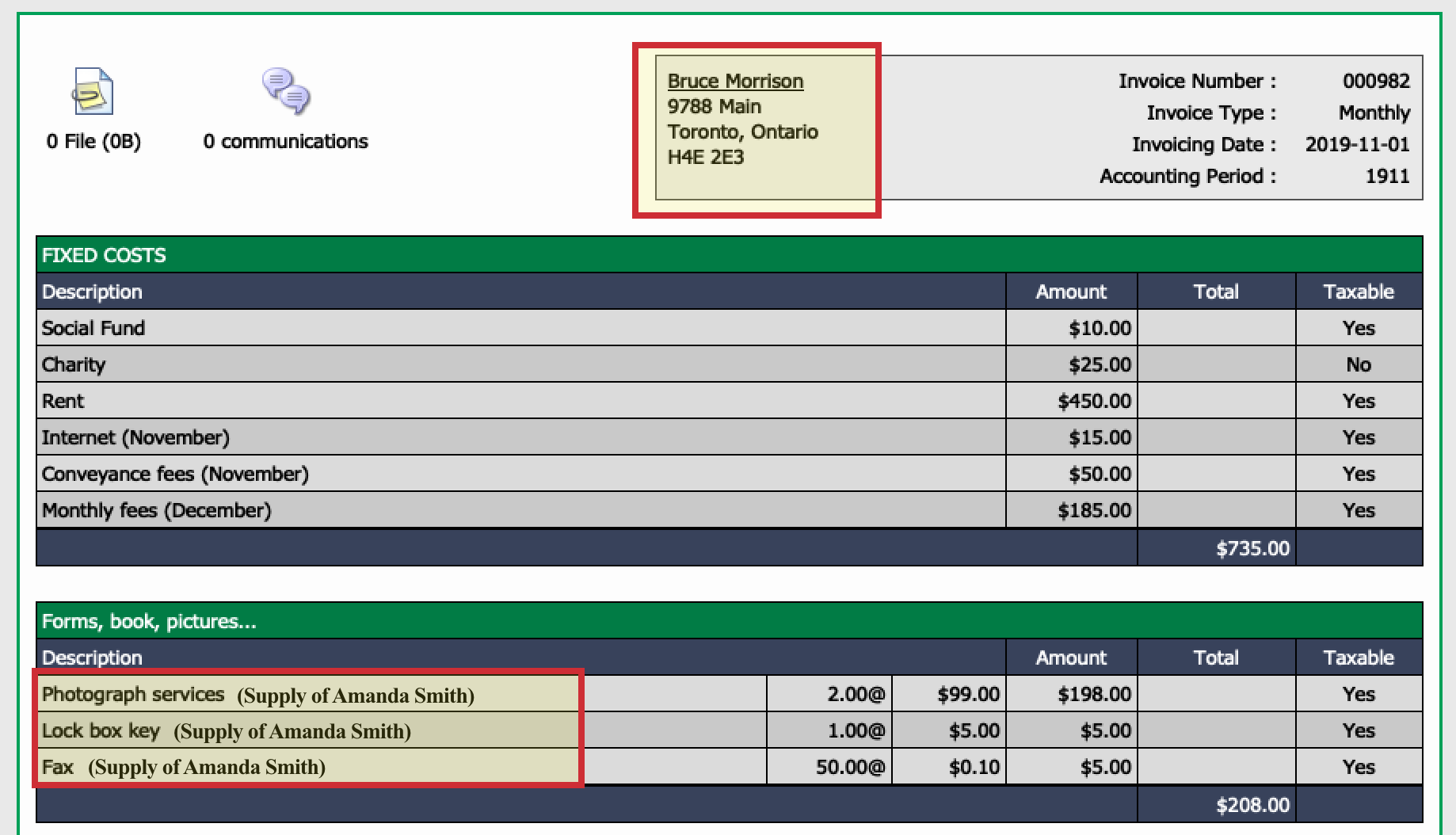
- When Amanda will receive her invoice, the charges will appear on her invoice but will automatically be credited with the note that the supply is paid by Bruce Morrison. Bruce Morrison’s invoice will include Amanda’s charges.
Financing:
- Financed and Financed Taxes : Not applicable for clients.
Interest Section
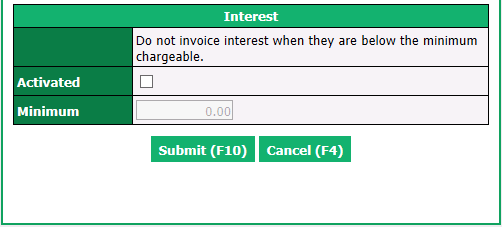
If your office charges interest to clients, you can check the Activated box to invoice interest only when it is above the Minimum chargeable amount. For example, if Minimum**** is set at $5.00, the system will invoice the interests only when the interest charge is above $5.00.
Click on Submit.