

English
Viewing/Editing an Agent Profile
Agent Profile - Viewing
- Click on the Agents icon

or from your Main menu >> Real Estate >> List of Agents and Sub-Franchisees.
Select the agent you want to see.
If you use eZmax Admin EDM, you will be able to add documents directly in the agent’s profile. You could, for example, add the agent’s contract to the EDM. For more information, please see the article Adding Documents to EDM.
To access the agent’s user, click on View User. For more information, please see the article Agent User.
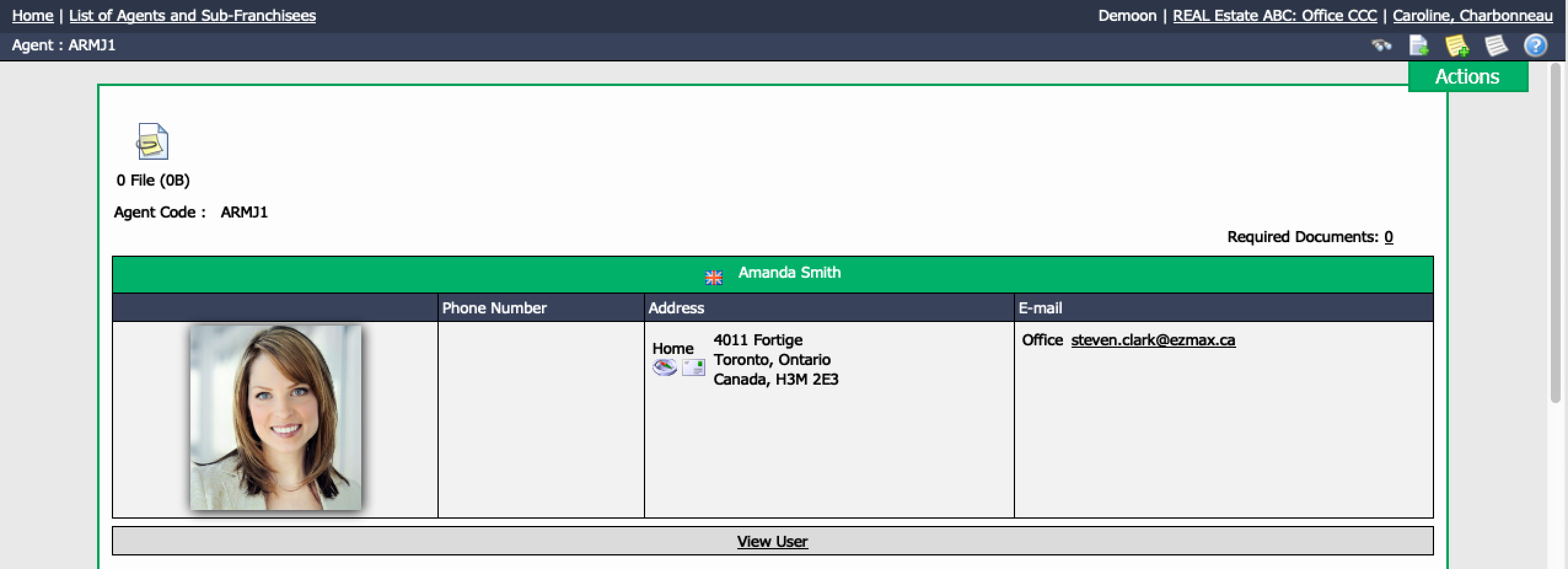
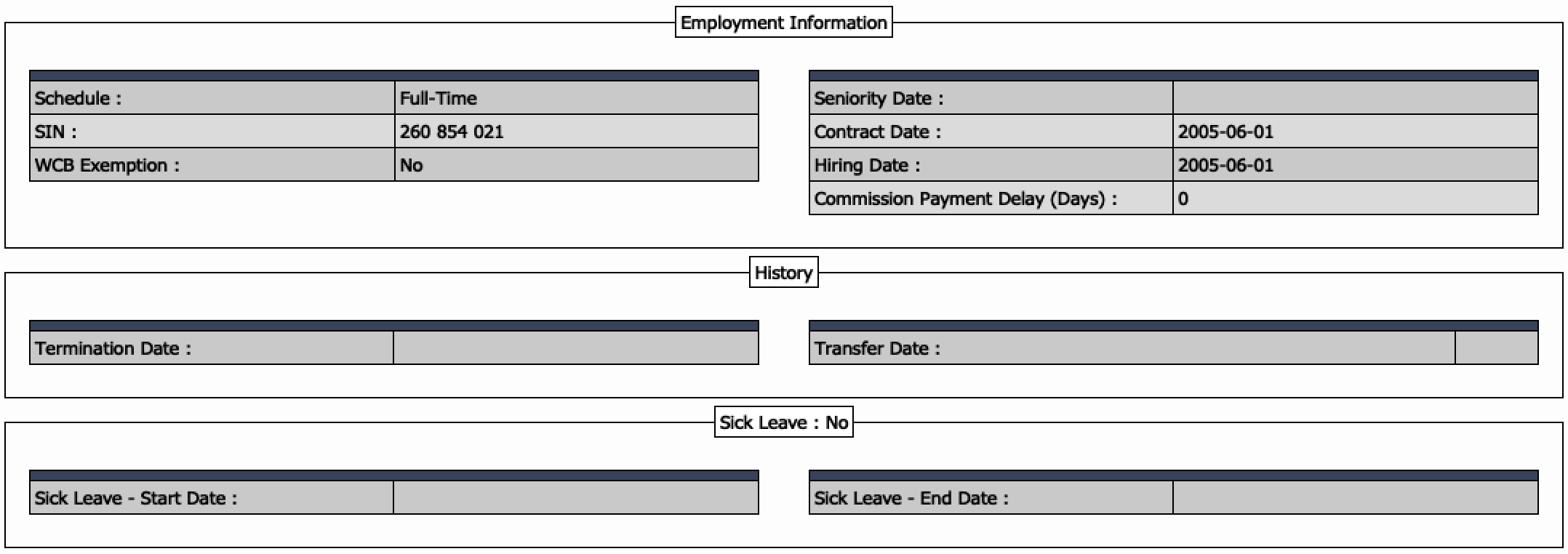
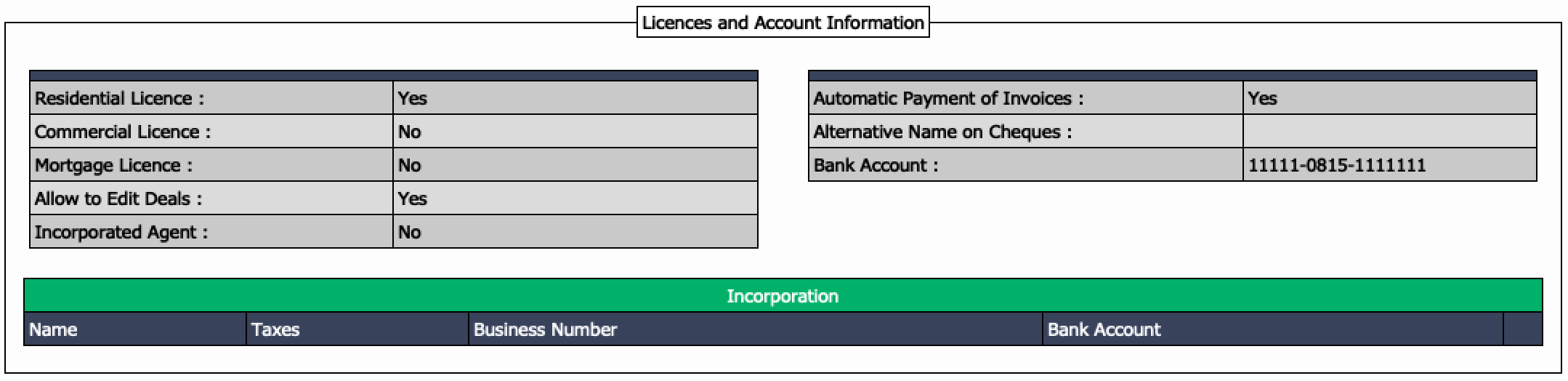
- The agent profile is divided in 8 sections:
- General Information
- Employment Information
- History
- Sick Leave
- Deals History
- Forecast
- Licences and Account Information
- Balance
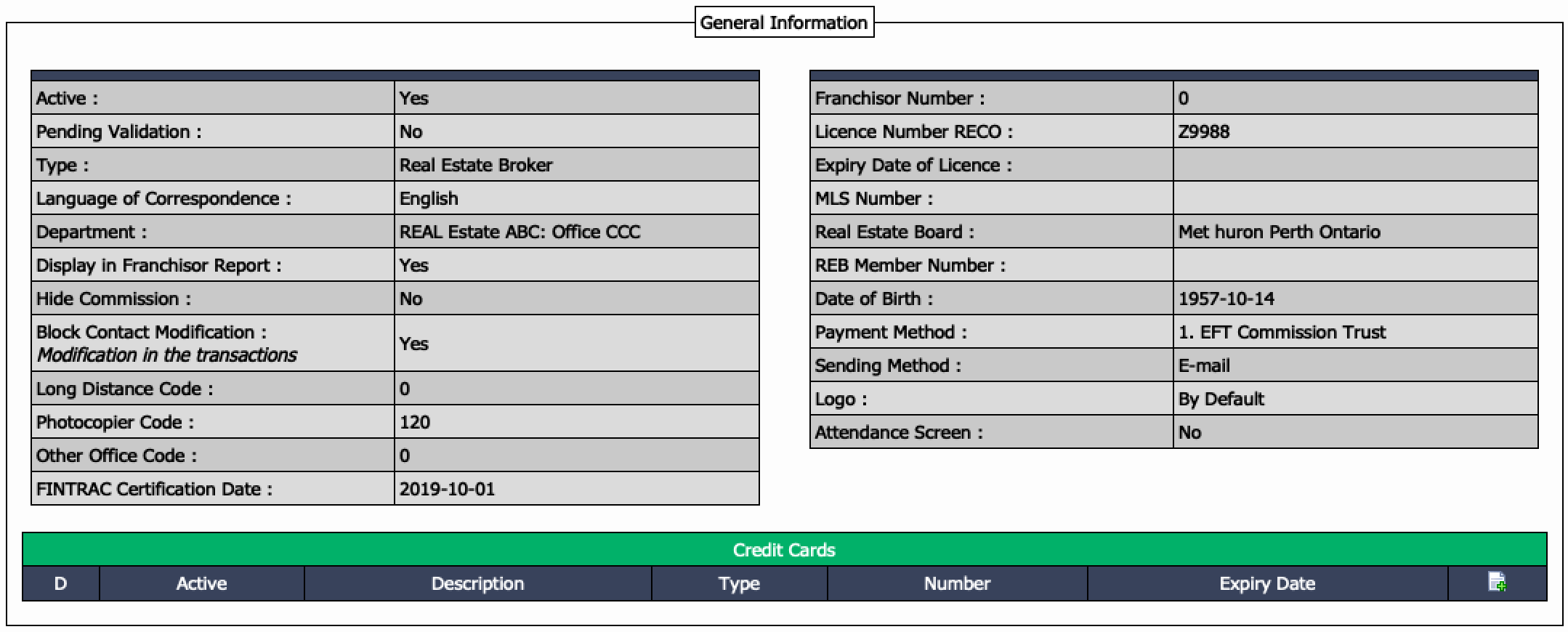
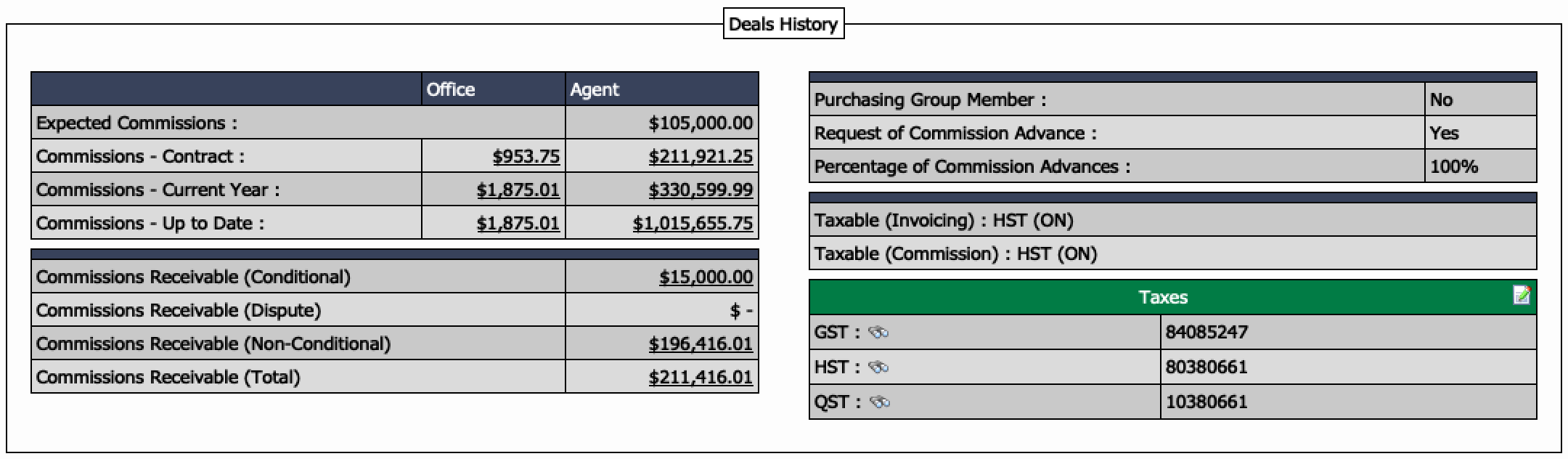
Expected Commissions : This is the expected commissions you entered in the agent profile.
Office vs Agent : Office commissions don’t appear on the T4A, Agent commissions are on the T4A.
Commissions – Contract : Commissions earned to date based on contract date of agent.
Commissions – Current Year : YTD commission earned.
Commissions – Up to Date : Total commissions earned since the agent is with your office.
When you click on any of the amounts in that section, eZmax will direct you to the report (the Commissions Report) that you need to generate to see the details of those commissions.
Commissions Receivable (Conditional)****: Expected commissions on deals entered in the system and conditional.
Commissions Receivable (Dispute)****: Expected commissions on deals under dispute.
Commissions Receivable (Non-Conditional)****: Expected commissions on firm deals.
Commissions Receivable (Total)
When you click on any of those amounts, eZmax will direct you to the report (the Transactions Report) you need to generate to see the details of those expected commissions.
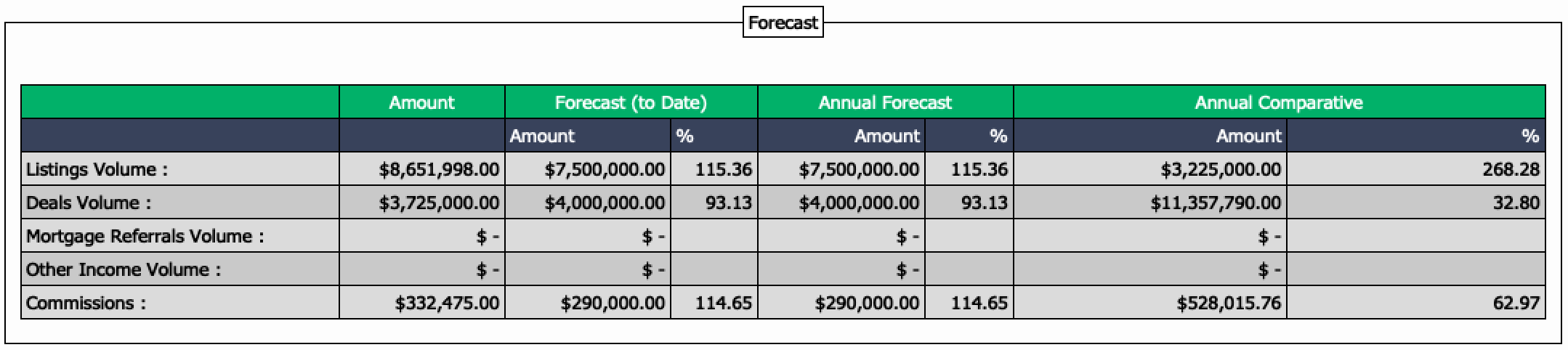
The projections need to be entered by the agent or the office. From Main menu >> Real Estate >> Forecast >> Forecast Management - Agents and Sub-Franchisees.
eZmax will compare the Amount to date vs Forecast (to Date) and Annual Forecast.
Formula to calculate the % = (Amount to date / Forecast to date) x 100
Annual Comparative gives you the amount at the same period, the previous year.
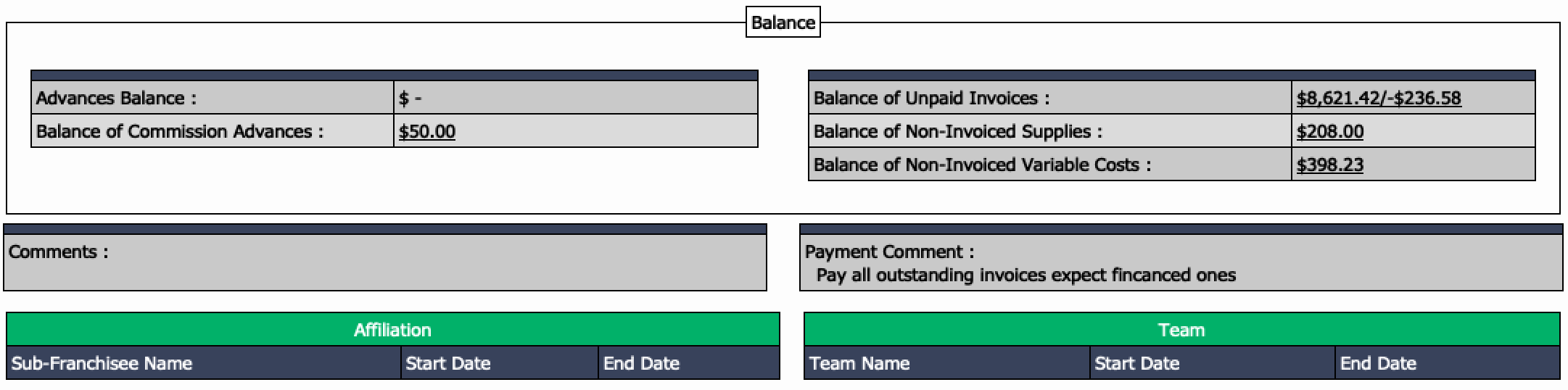
Advances Balance : When the office advances funds to the agent without a direct link to a transaction, it’s called an advance. You see the balance due here.
Balance of Commission Advances : Commissions Advances are directly linked to a transaction and the advance can be done by the office or any other commission advance company. By clicking on the amount, you will see the list of all transactions with advanced funds.
Balance of Unpaid Invoices : First amount is the total of regular invoices due to the office. Second amount is the total of financed invoices due to the office.
You can see the unpaid invoices by clicking on the amounts. You will access the list of all unpaid invoices (categorized in 3 different tabs: "Commissions", "Financed" and "Normal" Invoices).
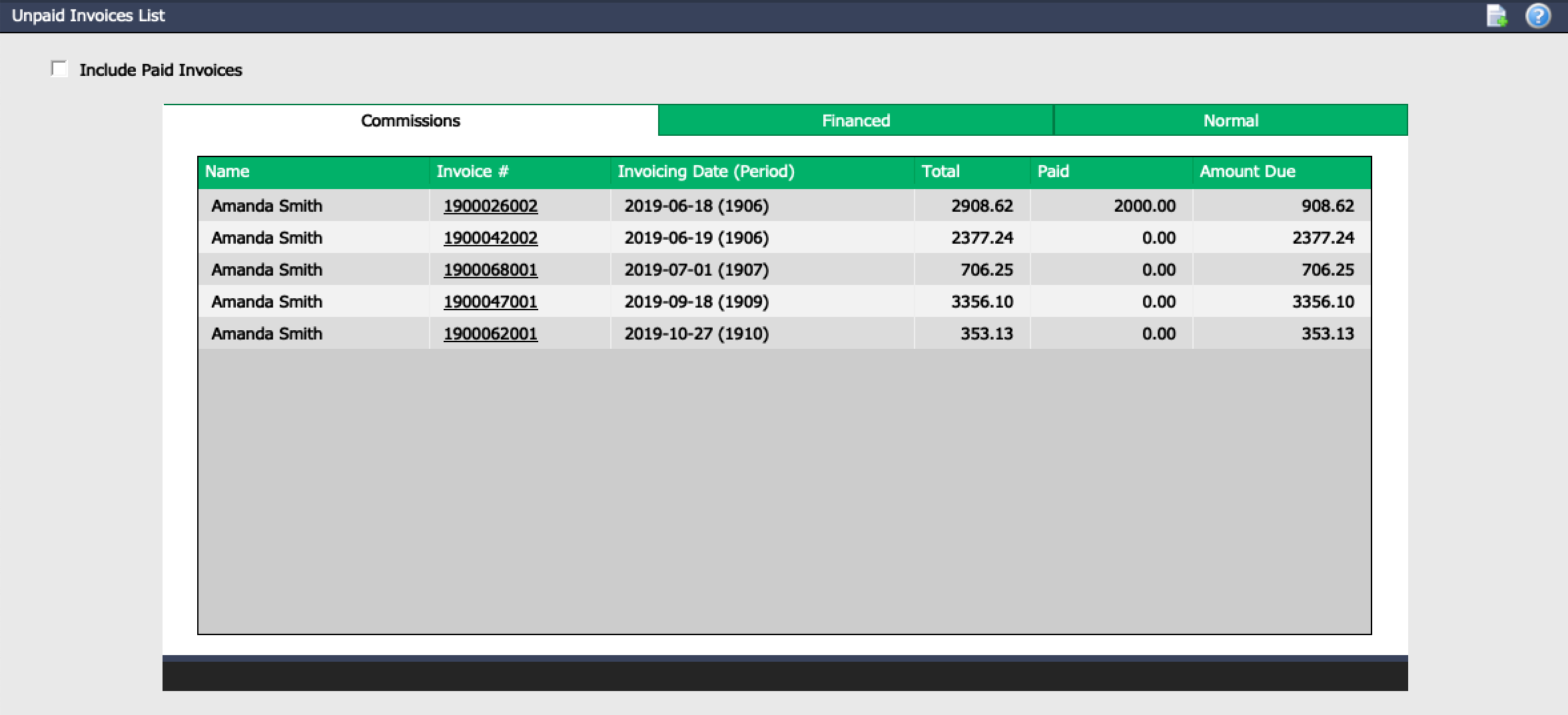
From this list, you can click on the invoice numbers to see the invoice details.
Balance of Non-Invoiced Supplies : All items added through the "Express Supply Invoicing" and not invoiced yet (because monthly invoicing is not processed). By clicking on the amount, you will access the list of all the non-invoiced items.
Balance of Non-Invoiced Variable Costs : All items rebilled to an agent and not invoiced yet (because monthly invoicing is not processed). By clicking on the amount, you will access the list of all the non-invoiced items.
**Agent Profile - Editing **
To modify an existing agent, select it from the List of Agents and Sub-Franchisees and click on Actions >> Edit Agent.
Make the desired changes and click on Submit to save them.