

English
Adding/Editing an Assistant
In the eZmax system, it is impossible to connect more than once simultaneously with the same login information. By creating an assistant, you will be able to log into an agent’s profile at the same time as the agent.
Adding an Assistant
From Main menu >> Admin >> List of Assistants.
Click on Actions >> New Assistant.
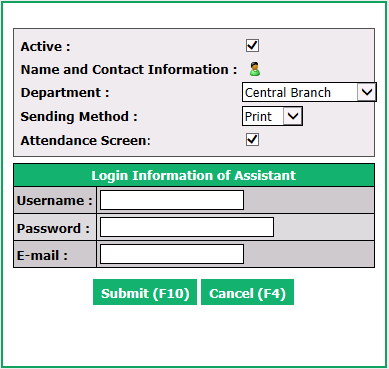
Active will be checked when the assistant is active. To inactivate an assistant, uncheck this box.
Name and Contact Information : Click on Name and Contact Information icon

to create a new contact file for the assistant.
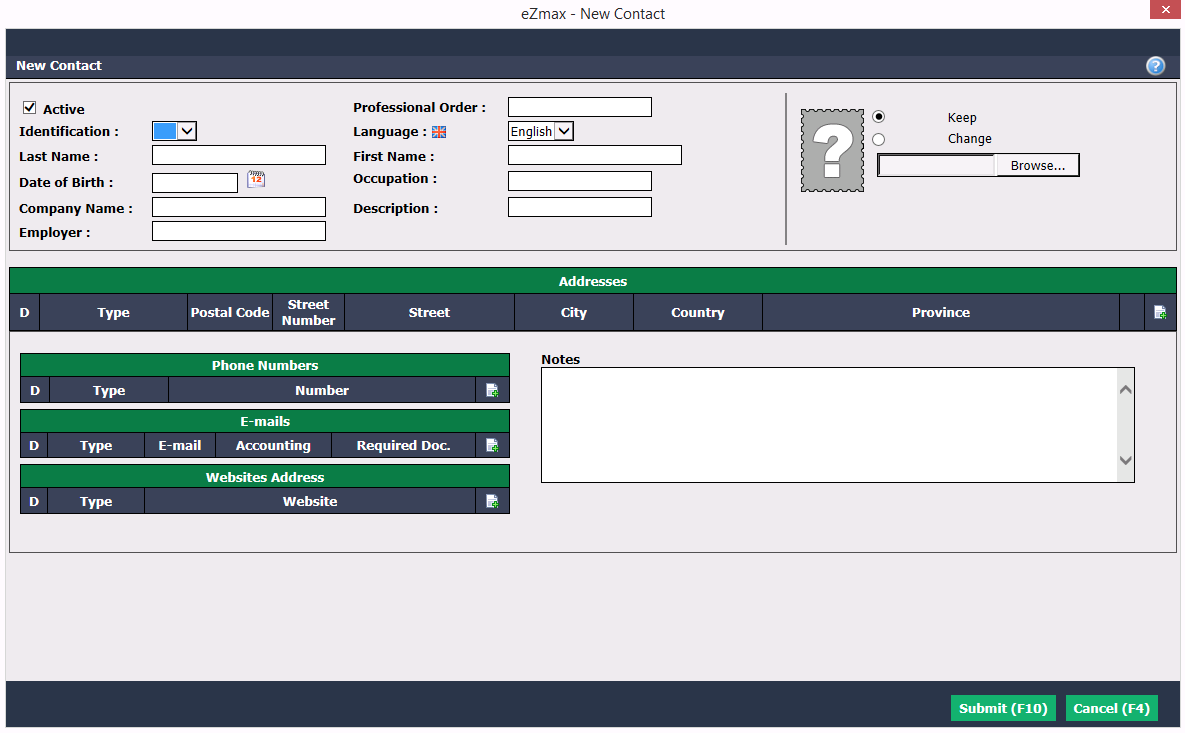
* You must enter the ** _Last Name_** and ** _First Name_** of the assistant. Other fields are not mandatory.

* The assistant photo can be added by clicking the ** _Browse_** button, then selecting and uploading the desired file.

* **_Addresses_** , ** _Phone Numbers_** , ** _E-mails_** , ** _Websites Address_** : Can be added by clicking on the Sheet with a + icon.

* **_Notes_** can also be entered.

* Click on ** _Submit_** to save the contact information.
Department : Assign the assistant to the appropriate department.
Select a Sending Met hod of the documents:
- Print: Hard copy
- E-mail: Attached file
Attendance Screen : If this module is available in your agency, you can check this box to activate it.
In the section "Login Information of Assistant", assign a Username. Suggestion: First 4 letters of last name followed by first letter of first name, for example: SAMPS for Susan Sample.
Enter a temporary Password. (Suggestion : Ab123456!) The assistant will be prompted to change the password at first login.
Warning
The password must contain at least 8 characters, one uppercase, one lowercase, one digit and one special character.
Enter his E-mail address.
Click on Submit and the assistant will be added in the system.
Once the assistant is added in the system, you will be able to give authorization to the assistant to log into the profile of a desired agent via Colleague Access Management.
Editing an Assistant
- To modify an existing assistant, select it from the List of Assistant and click on Actions >> Edit Assistant.
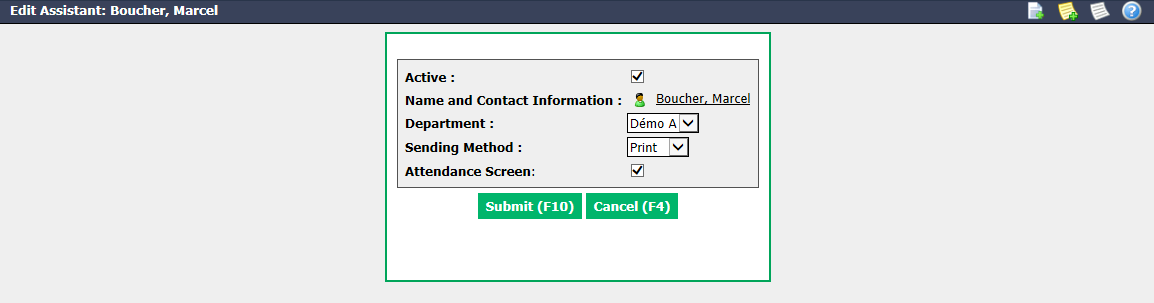
The following fields may be changed:
- Active
- Name and Contact Information (including e-mail address)
- Department
- Sending Method
- Attendance Screen
When the changes are made, click on Submit to save them.
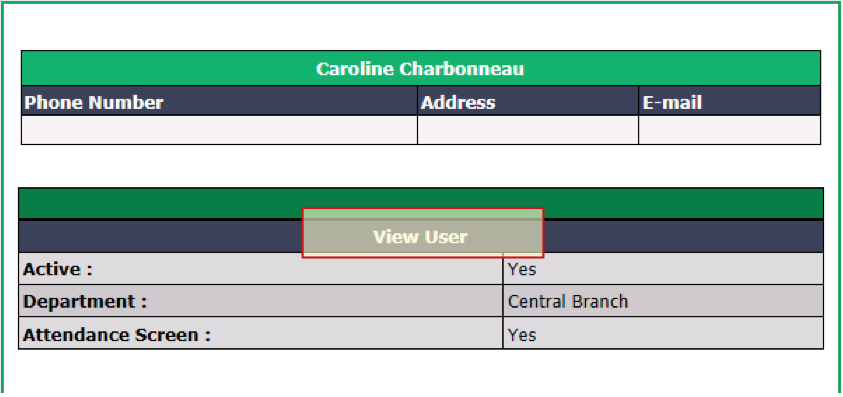
If you want to change the login information of the assistant (username, password and e-mail address), click on View User. You will then be redirected to the page showing the user’s information and you will be able to make the desired changes from the Actions menu. For more information, see the articlesAdding/Editing a User and Resetting a User Password.
Information
When you select an assistant from the List of Assistants and click on Actions, you also have the option of consulting the Attendance Status History of this assistant, if this module is activated in your agency.
