

English
Viewing/Editing a Commission Advance
Once a commission advance has been added to a transaction, it is possible to view and/or modify it.
- From the desired transaction, go to the "Deal"/"Commission Advances" section.
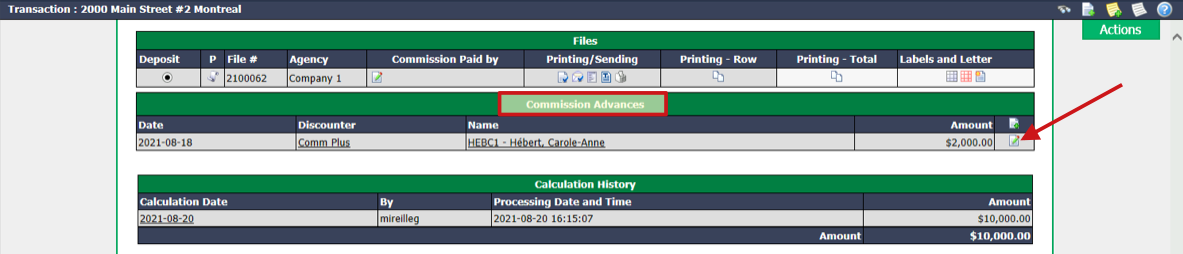
- Click on the Sheet with a Pencil icon.
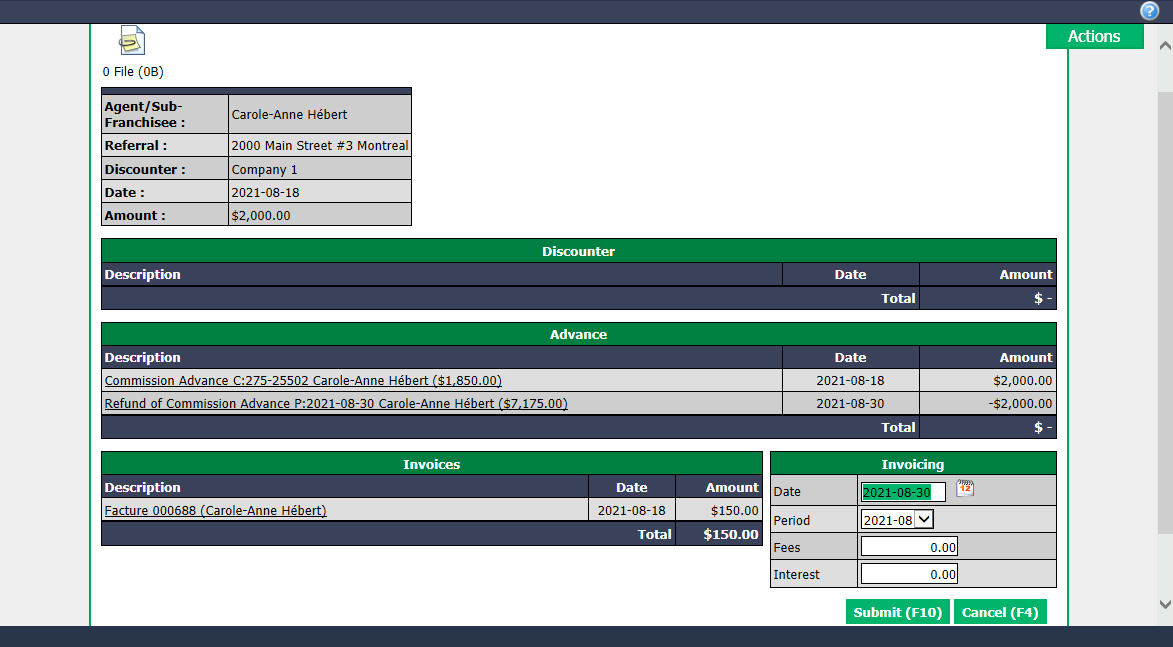
Example: Discounter = Agency
Example: Discounter = External Company
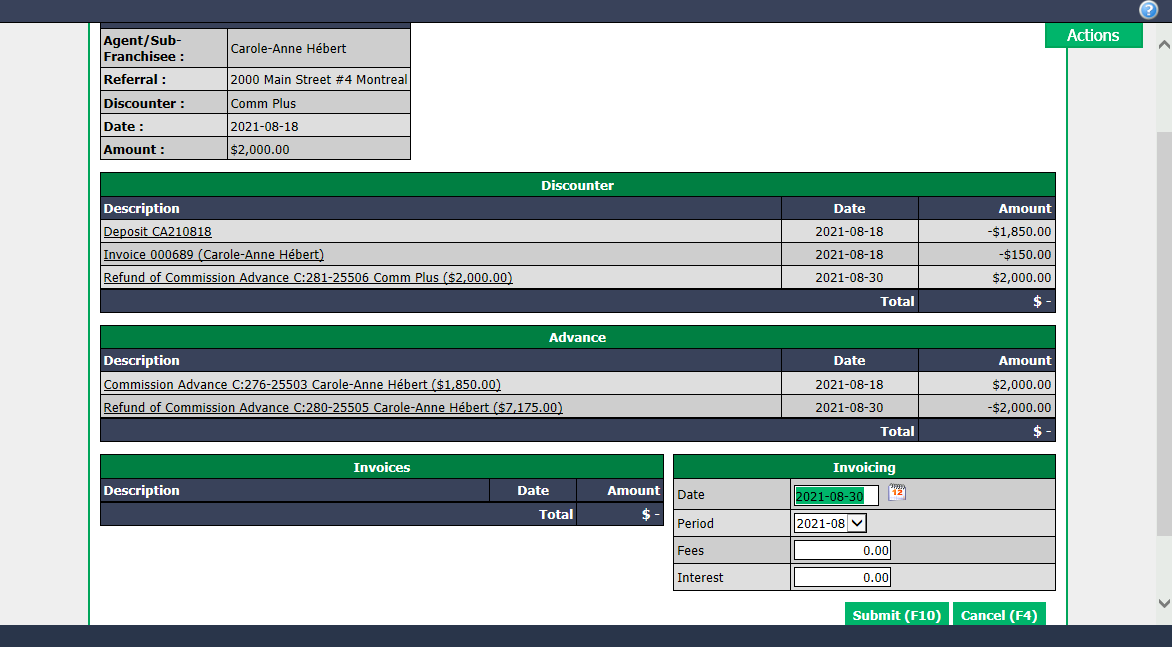
"Discounter" Section
- If the discounter is an external company, you can click on a deposit or a refund to display its details. If fees or interest have been charged on the advance, you can also click on an invoice to display its details.
"Advance" Section
- You can click on a commission advance or a refund to display details of its payment preparation.
"Invoicing" Section
- You can add an amount for Fee s (taxable) or Interest (non-taxable). Enter the desired **Invoice **Date. The Period will be automatically entered according to the date entered. Click on Submit.
Warning
Please make sure that the date entered is the same as the selected accounting period.
Electronic Document Management
- It is possible to add documents to EDM (Electronic Document Management) by clicking on this icon

located at the top left of the page. For more information, please see the article Adding Documents to EDM.
Actions Menu
- From the Actions menu, you have the option to Reassign Commission Advance. For more information, please see the article Reassign a Commission Advance (645).