

English
Batch Change of Charges to be Invoiced - General
It is possible to use the function of batch change of charges to be invoiced in the event that you have to modify the amount of a charge for several clients. This function allows you to quickly and simply change the amount instead of going to each client invoicing table to change it manually.
- From Main menu >> Accounts Receivable >> Batch Change of Charges to be Invoiced.
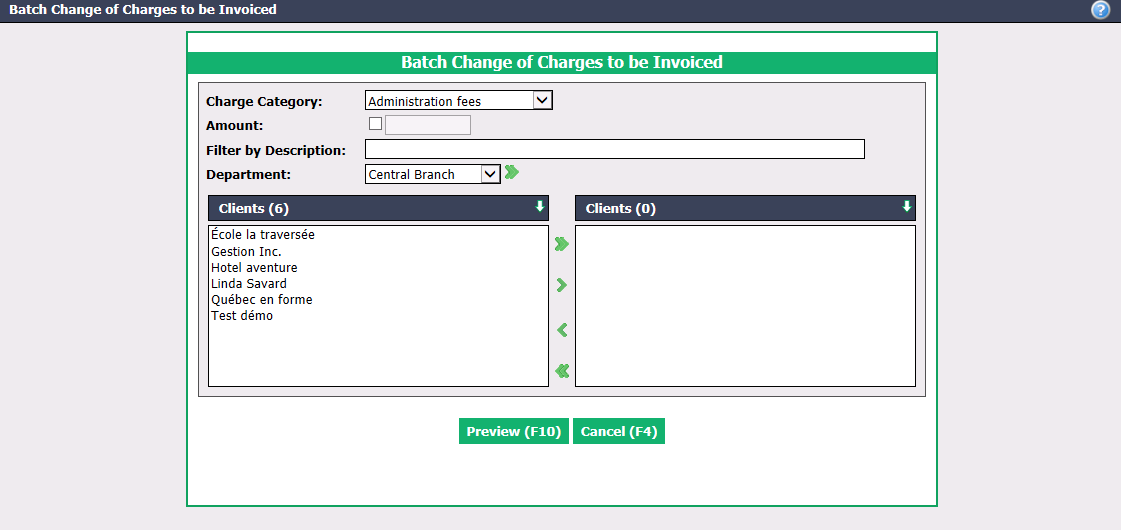
Select the desired Charge Category from the drop-down list.
In the event that you have amounts that vary according to the clients for the same category of charges and you want to modify a single amount, you can check the box and enter the Amount to be modified.
Filter by Description : You can enter the description that was entered when adding a charge in a client invoicing table to filter the charge search. For more information, please see the article Client Invoicing Table.
Select the desired Clients using the green arrows. The double arrow allows you to select all clients with one click, while the single arrow selects only one at a time.
You can double-click on a client to select it instead of using the green arrow.
You can also select all clients of a Department using the double arrow, if applicable.
Click on Preview.
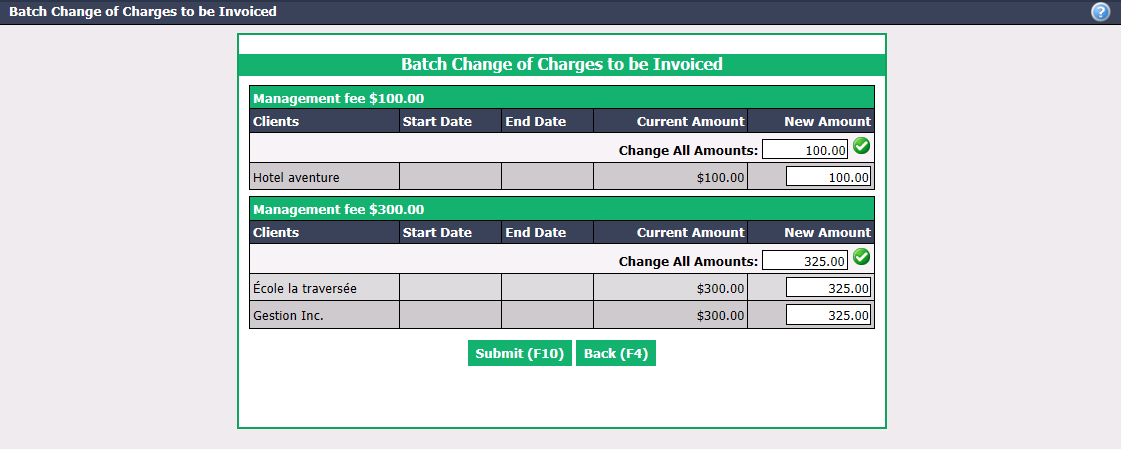
Enter the new amount to charge in the Change All Amounts field and click on the Check Mark button. You can also manually enter the new amount to the right of the desired person. In this example, monthly fee in the invoicing table of the clients/agents/sub-franchisees that were $300 were increased to $325.
Click on Submit and the amount of the charge will be changed in the invoicing table for each of the appropriate clients.