

English
Signing a Document Containing an "Attachments" Field as an External Signatory
- When you need to sign/add an attachment in a document as an external signatory, i.e. you are not the user who added the fields and sent the document, you will receive an e-mail with the following information:
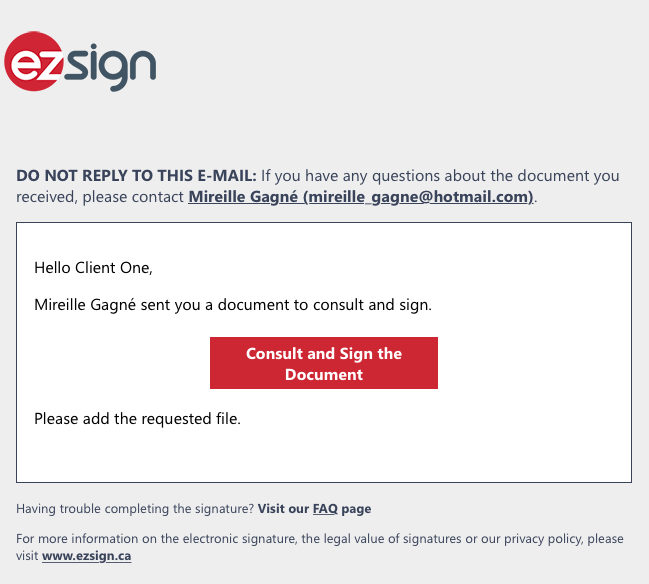
Just below the red rectangle, you will be able to see the message that was entered by the sender when sending the documents, if applicable. In this example: "Please add the requested file".
To begin the signing process, click on Consult and Sign the Document.
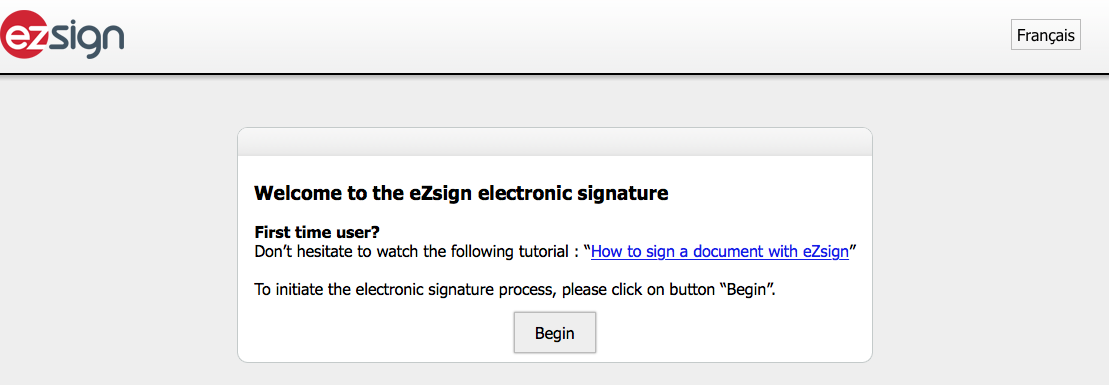
- Click on Begin and you will be redirected to the authentication page.
NOTE: Authentication depends on what the sender of the documents has configured. For more information, please see the article Types of Signatory Authentication.
Authentication: E-mail and Secret Question
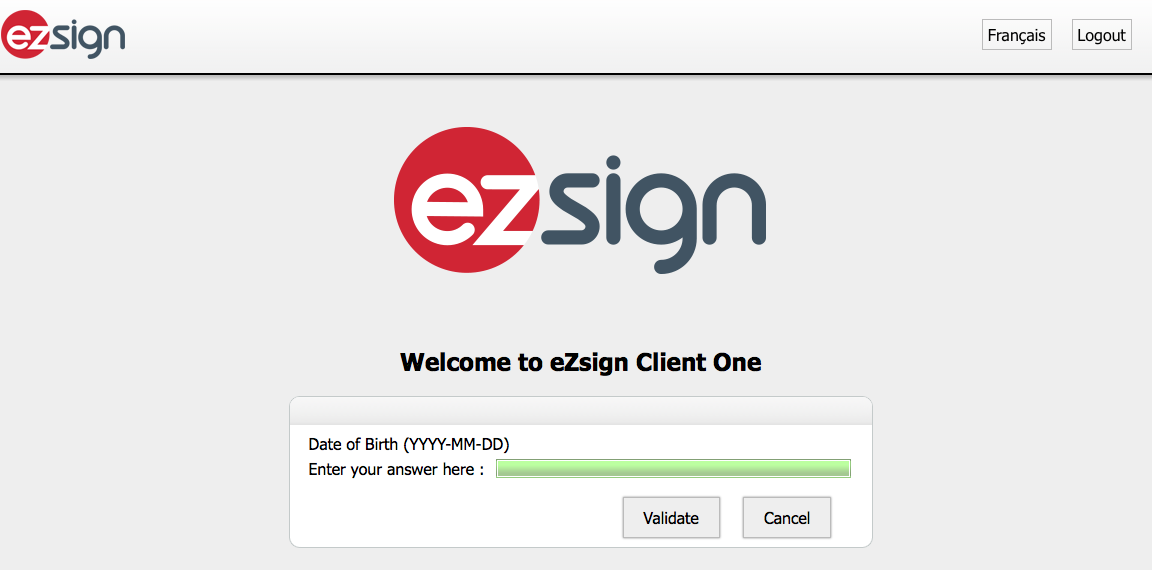
Answer the secret question in the Enter your answer here field.
Click on Validate and the agreement page will appear.
Authentication: E-mail and Phone or SMS
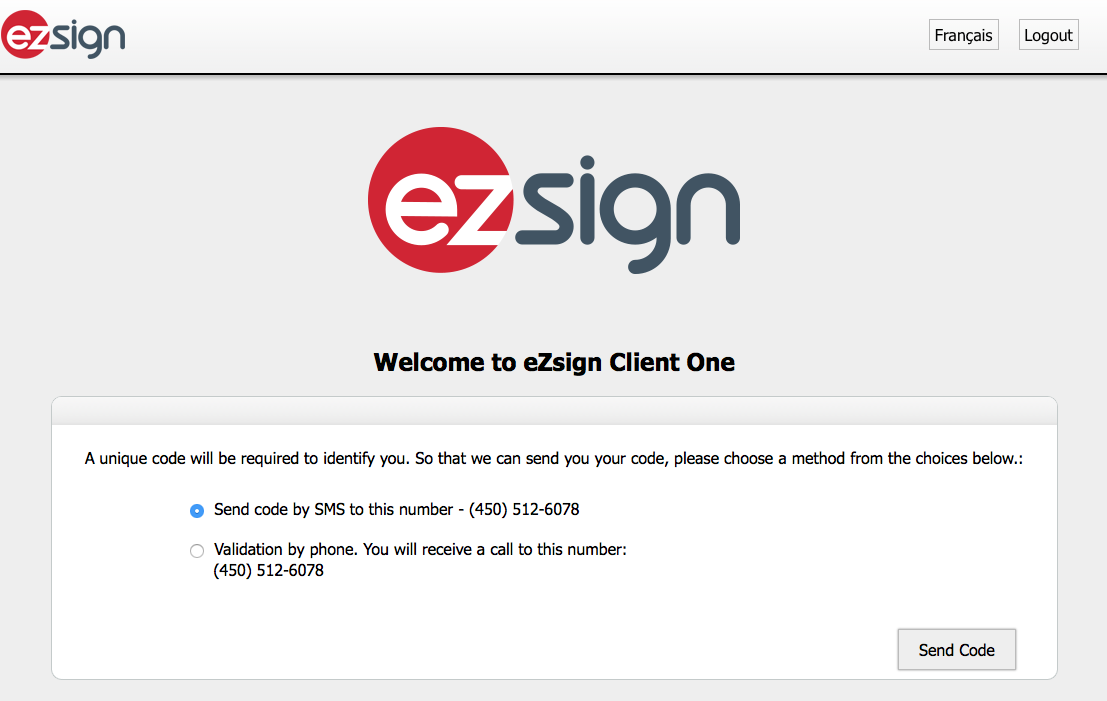
Select the sending method of the unique code: "Send code by SMS to this number" or "Validation by phone".
In both cases, click on Send Code.
Validation by SMS
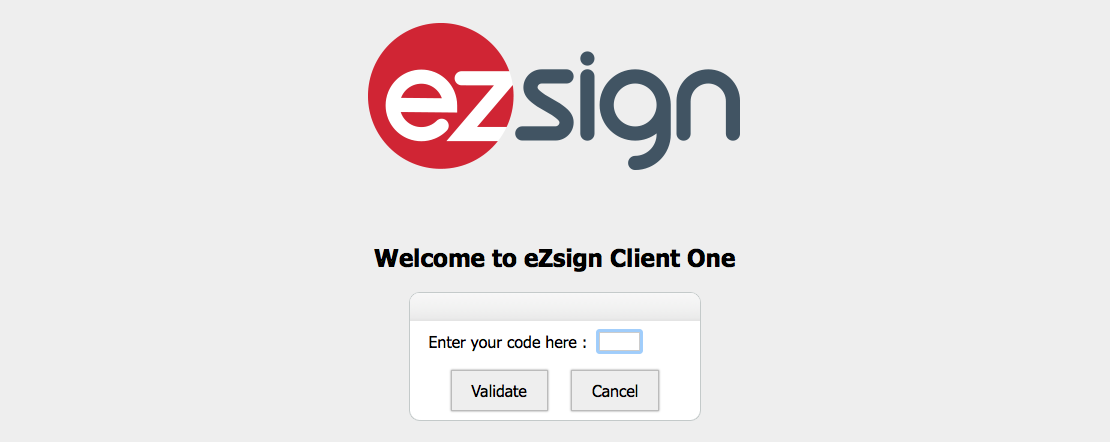
When you receive the unique code on your cell phone, enter it in the field Enter your code here.
Click on Validate and the agreement page will appear.
Validation by Phone
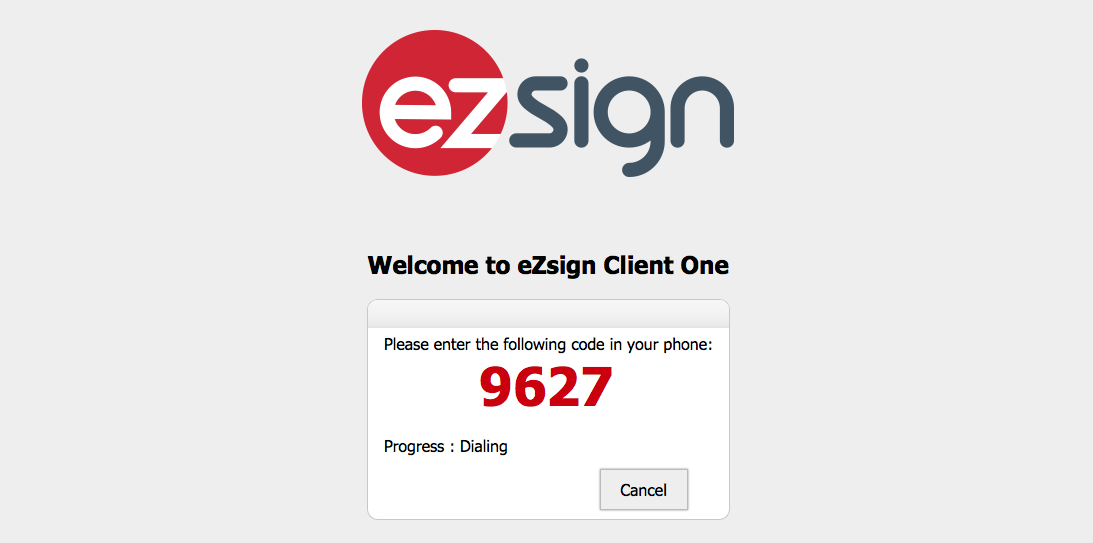
A 4-digit code will appear on your computer screen and the phone in the folder will ring. When you answer, a message will ask you to dial the 4-digit code on your phone.
When you are done, you will hear this message: "You have entered the correct code. Thank you!" and the agreement page will appear.
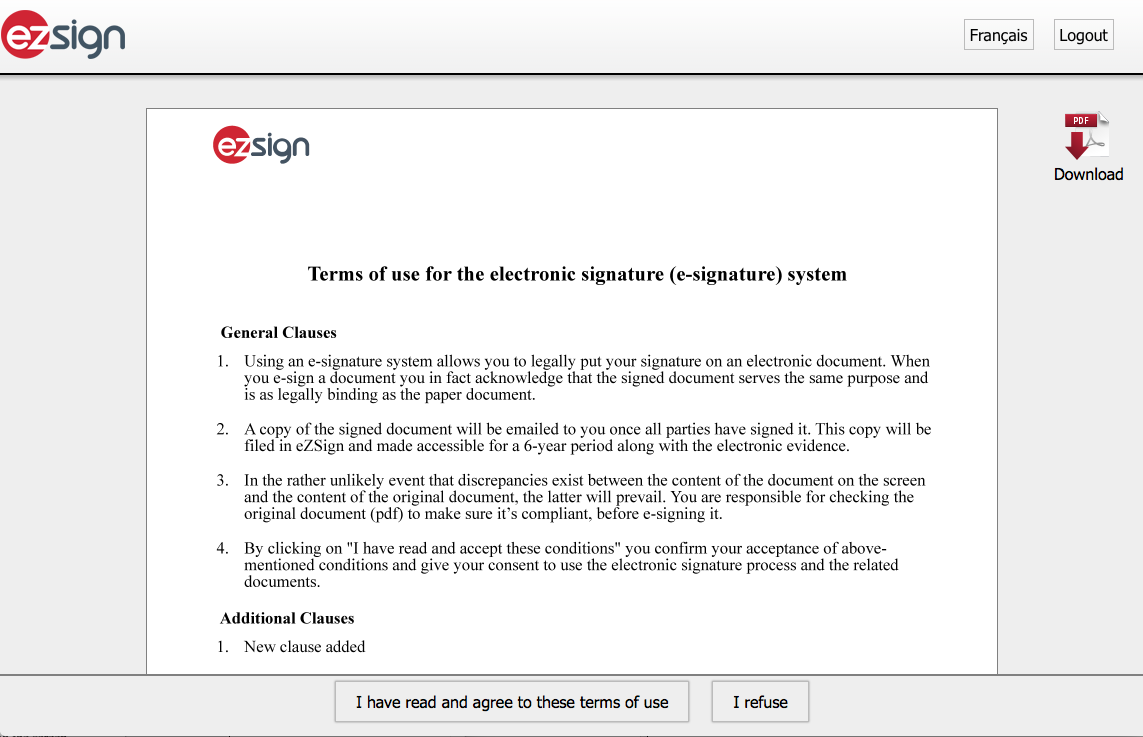
- Read the terms and conditions for using the electronic signature system and click I have read and agree to these terms of use.
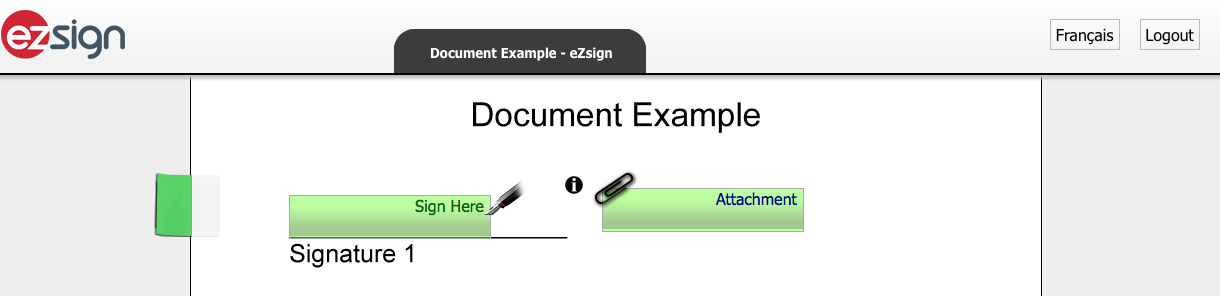
NOTE: If the document contains form fields, they must be completed before electronic signature fields. For more information, please see the article Filling In a Form as an External Signatory (488).
- If there is this icon

(Information) to the left of the "Attachment" field, click on it to display what was written in the Tooltip field when adding the field.
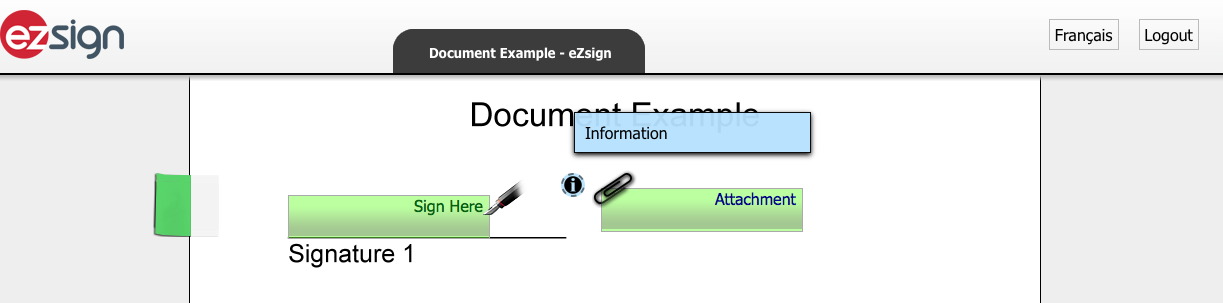
- To add the requested file(s), click on the name of the "Attachment" field (green field with a paper clip).
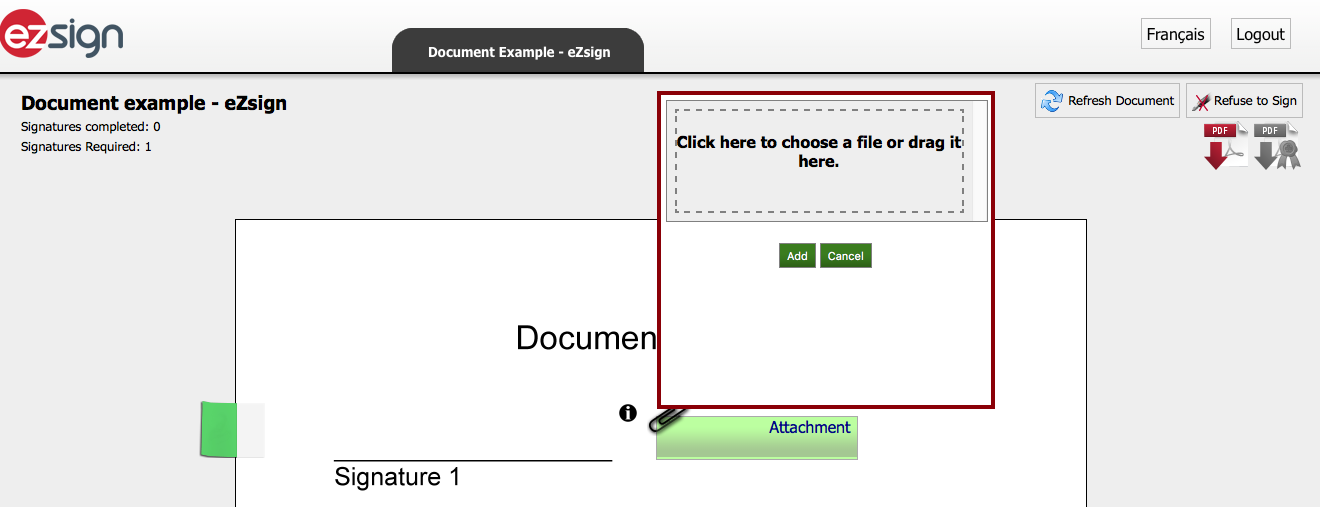
- Click onClick here to choose a file or drag it here** to select and download the desired document.**
NOTE: It is possible to select multiple files to add them all at once.
NOTE: In the dotted frame, you can drag files received by e-mail (depending on your e-mail account) or from your computer.
- You can delete a downloaded file by clicking on the Red X icon to its right.
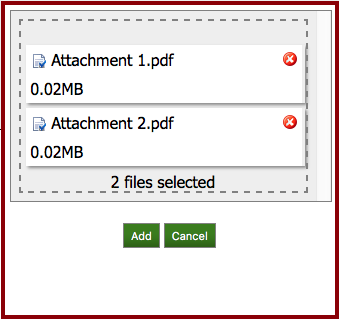
NOTE: You can click anywhere in the dotted frame to select and add more files from your computer.
- Click onAdd** and the files(s) will be imported into the document.**
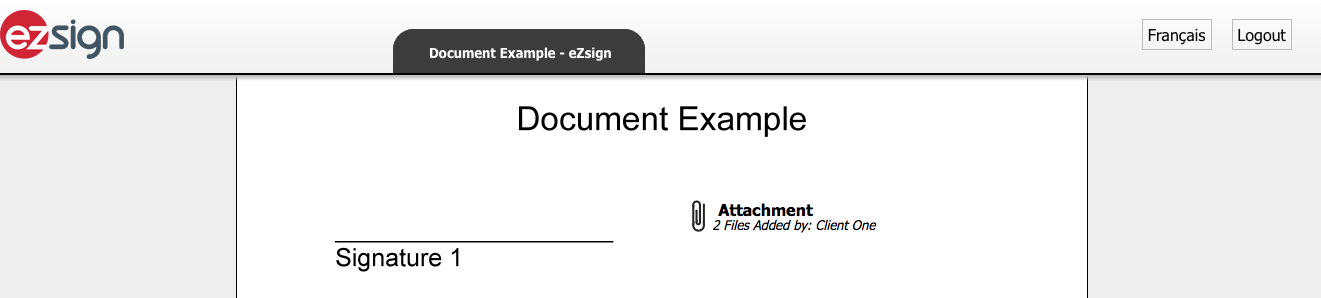
- If the document contains other electronic signature fields and you are the signatory, sign the document where indicated by clicking on Sign Here.
NOTE: If the field that was added in the document is "Signature City", click on Enter the city here. Enter the name of the city from which you are signing in the window that will appear and click on Send. The system will ask you to confirm then click on Yes to confirm.
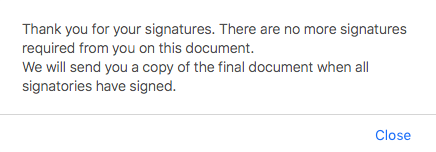
- If you have completed all the required fields from you but there are still signatures to be obtained from other signatories, this message will be displayed to let you know that the electronic signature process is complete for you.
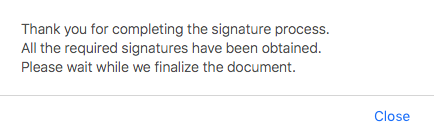
- If all signatures have been obtained in the document, this message will be displayed to let you know that the electronic signature process is complete.
- Click on Close and you will be redirected to a page where you see the completed document.
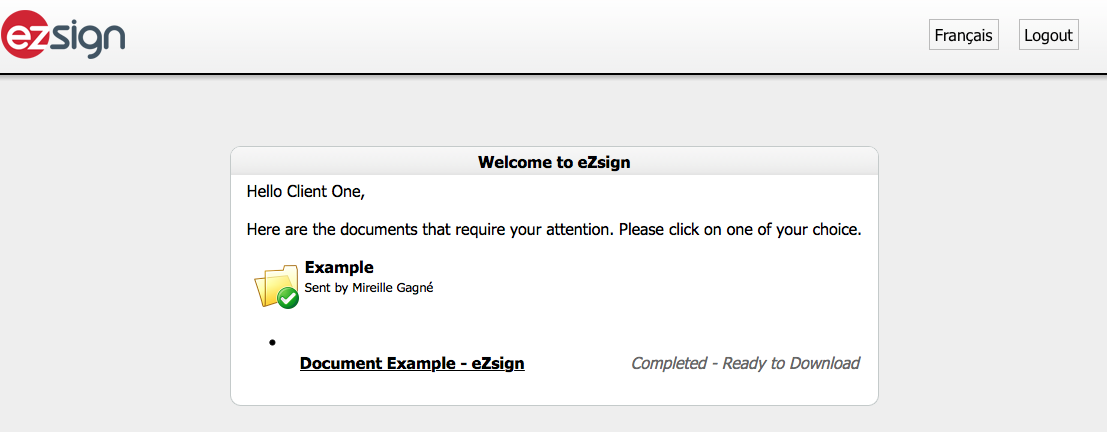
You can click on the name of the document to view it or you can click on Logout to end your session.
You will receive an e-mail when all parties have completed the signatures in the document.
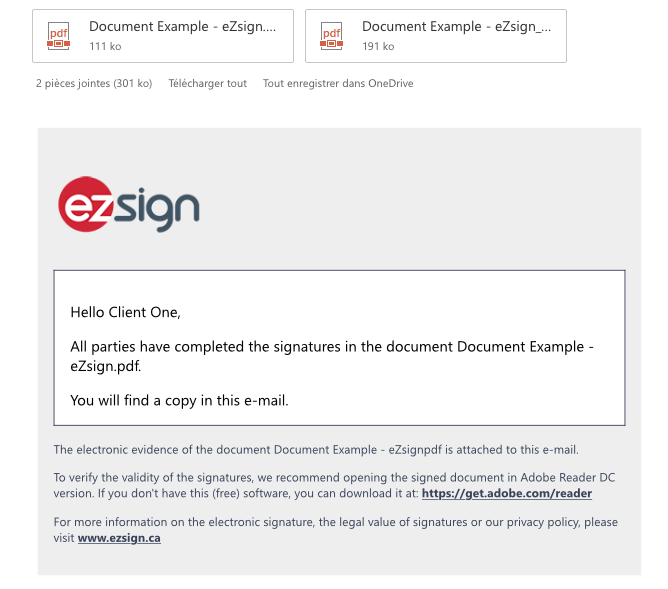
- You will find in this e-mail a copy of the completed document as well as the electronic evidence of signature that you can keep in your records.
NOTE: To view the signatures and verify their validity, you will need to open the documents in Adobe Reader. If you don’t have this (free) software, you can download it from the address provided in the e-mail. For more information, please see the article Validity of an Electronic Signature.