

English
Reimburse a Commission Advance
When the deal is closed, you can reimburse the commission advance to the agency or an external company when calculating and paying the compensation of the agents involved in this transaction.
- From a closed deal, click on Actions >> Commission Calculation.
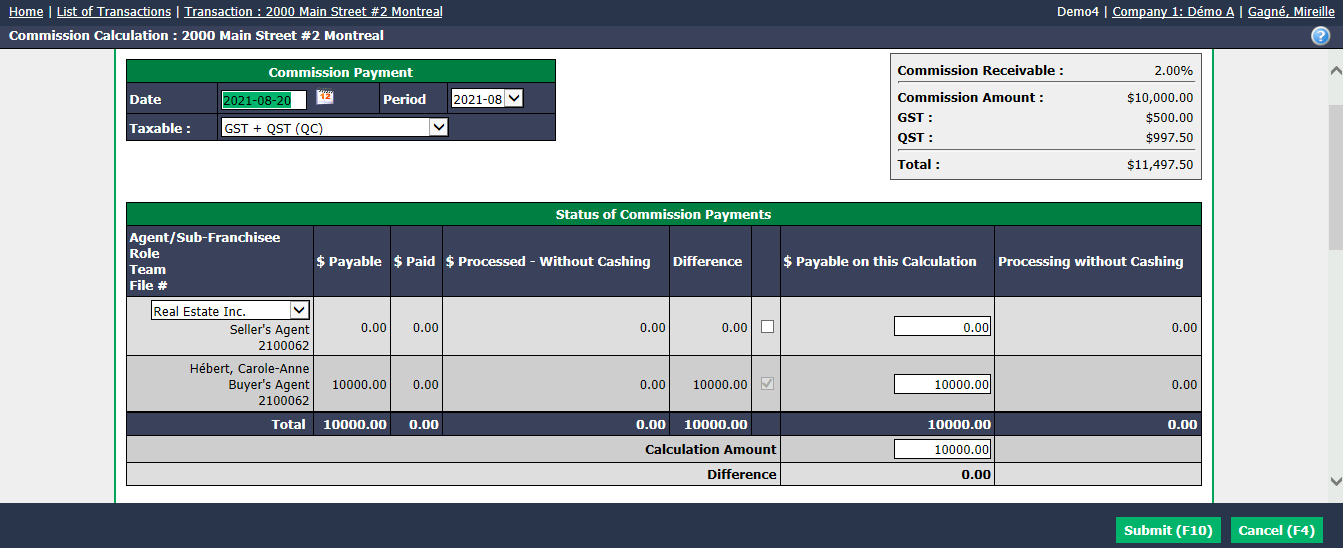
Verify the information and click on Submit.
If the agent has an office deduction configured in his profile, a first table with it will appear. Otherwise, the table that will appear will be the one with the commission fees only.
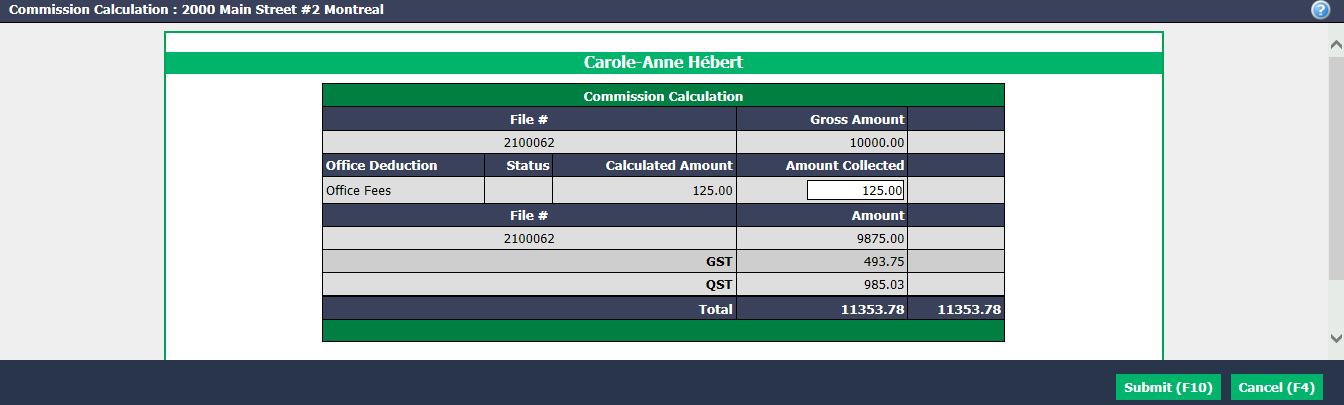
It is possible to enter the desired amount in the Amount Collected field.
Click on Submit and the commission fees will appear in the table.
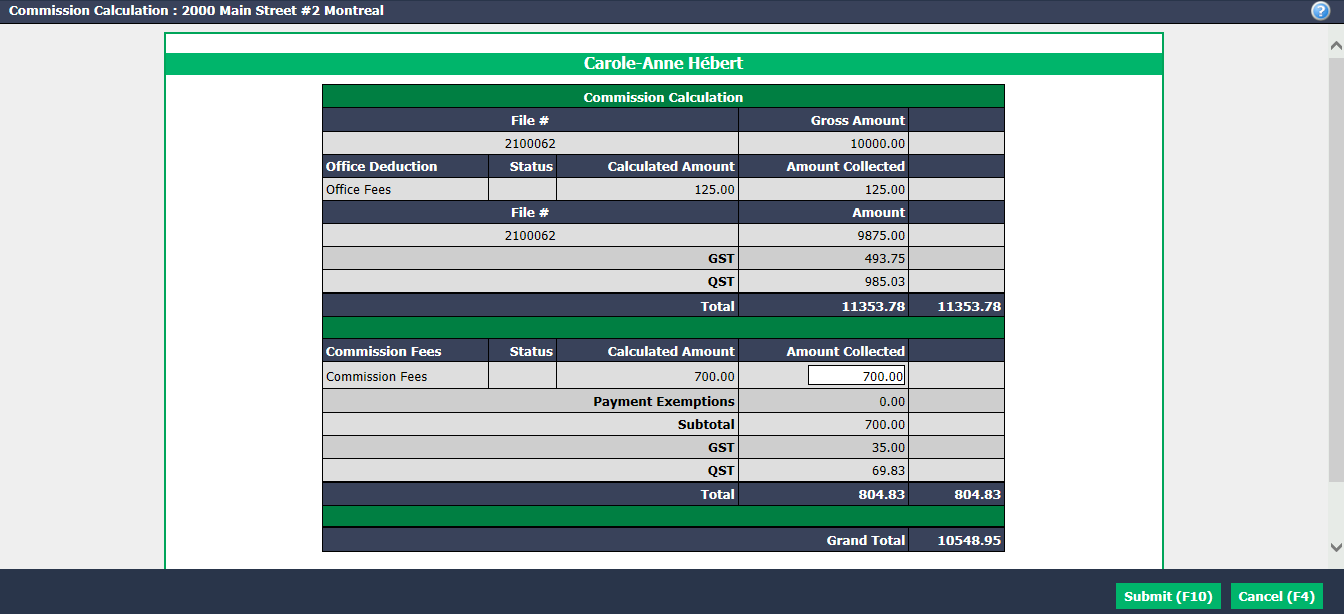
In the Commission Fees , will be automatically calculated according to the agent’s configuration, but it is possible to change it manually in the Amount Collected field.
Click on Submit and the page of payment deductions table of all agents will appear.
Information
If you click on Cancel , you will return to the transaction information page and the calculation of commission made will not be saved.
- When you have finished verifying the amounts, click on Submit and the payment deductions table for each agent will appear.
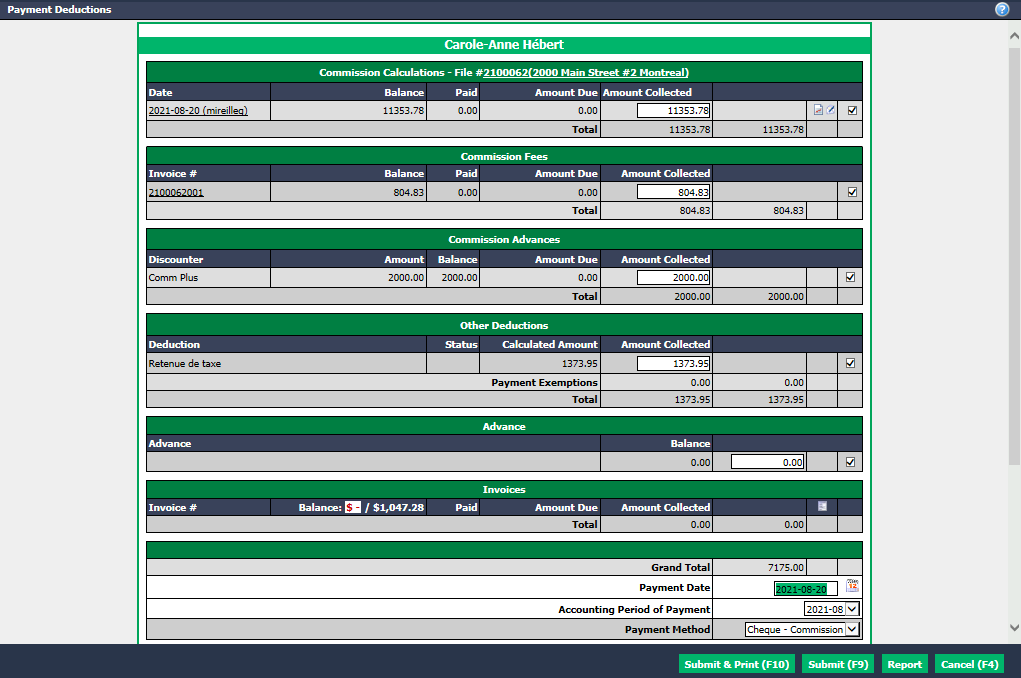
- In the "Commission Advance" section of the desired agent, make sure that the advance to be reimbursed is checked. It is possible to enter a lower amount in the Amount Collected field if you do not want to repay the entire advance. In this example: The totality is reimbursed by Carole-Anne Hébert, i.e. $2,000.00.
NOTE: In the "Invoices" section, you can add invoices of this agent by clicking on the Blue Sheet icon (List of Invoices).
Select the desired Payment Method (cheque or electronic transfer).
If you have selected "Cheque" as Payment Method and you click on Submit & Print, a new page will open and you will be able to enter the starting number of the cheque and print the cheque immediately.
If you click on Submit , this payment preparation will be displayed on the home page under "Cheques in Preparation" or "Non-Transmitted Electronic Transfer", depending on the payment method selected. For more information, please see the articles Preparation of Payment by Cheque - Real Estate and Preparation of Payment by Electronic Transfer - Real Estate.
Discounter: External Company
- If the discounter is an external company, regardless of the payment method selected and you have clicked on Submit or Submit & Print, the discounter refund page will appear.
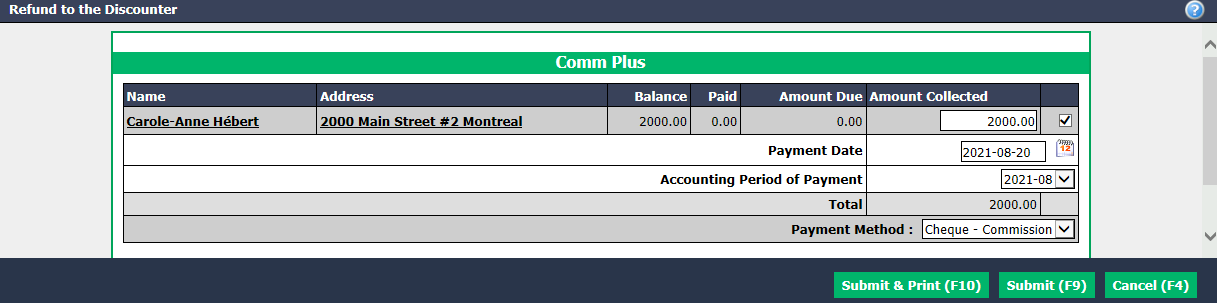
Select the desired Payment Method to reimburse the external company that lent the money to the agent (cheque or electronic transfer).
If you have selected "Cheque" as Payment Method and you click on Submit & Print, a new page will open and you will be able to enter the starting number of the cheque and print the cheque immediately.
If you click on Submit , this payment preparation will be displayed on the home page under "Cheques in Preparation" or "Non-Transmitted Electronic Transfer", depending on the payment method selected. For more information, please see the articles Preparation of Payment by Cheque - Real Estate and Preparation of Payment by Electronic Transfer - Real Estate.