

English
Adding Documents to EDM
- It is possible to add documents to EDM (Electronic Document Management) by clicking on the Document Management icon

located at the top of the page of a transaction (listing or deal), buyer’s contract, refused offer, other income, external agency, profile of an agent/sub-franchisee and profile of a lawyer.
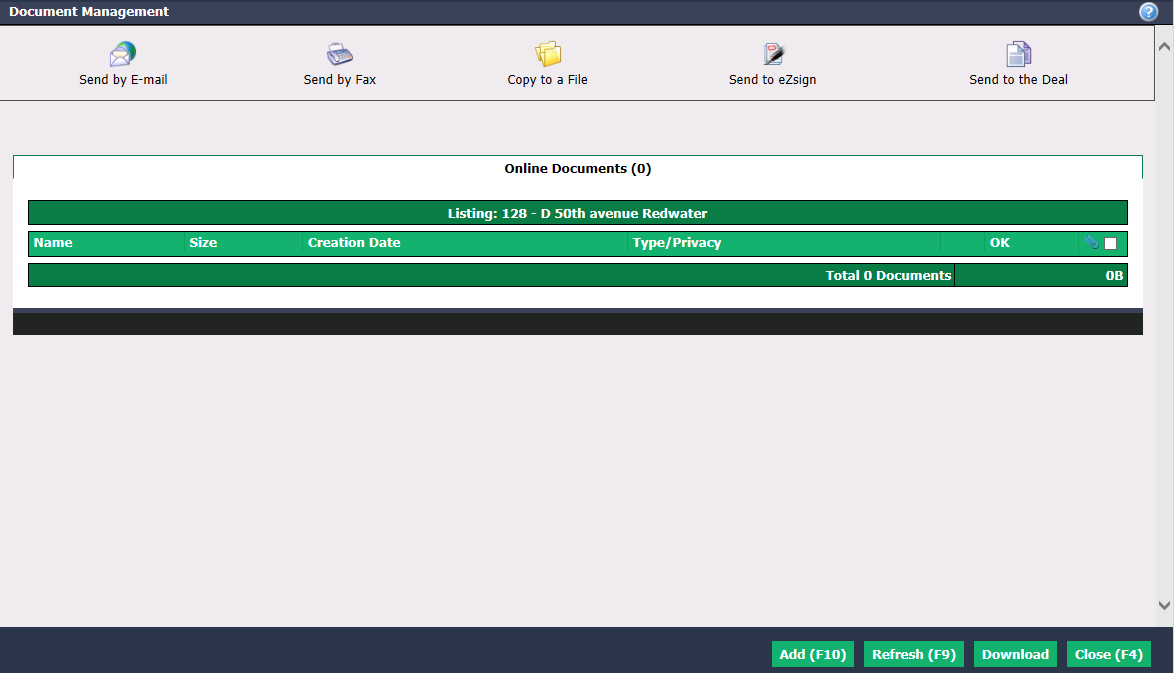
- Click on Add.
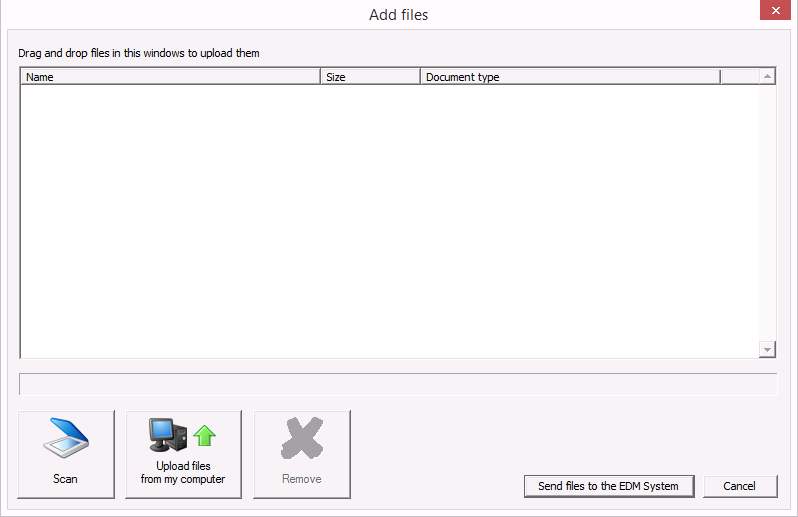
- You have the possibility to scan a document or to upload a file from your computer.
Scan
- Click on Scan.
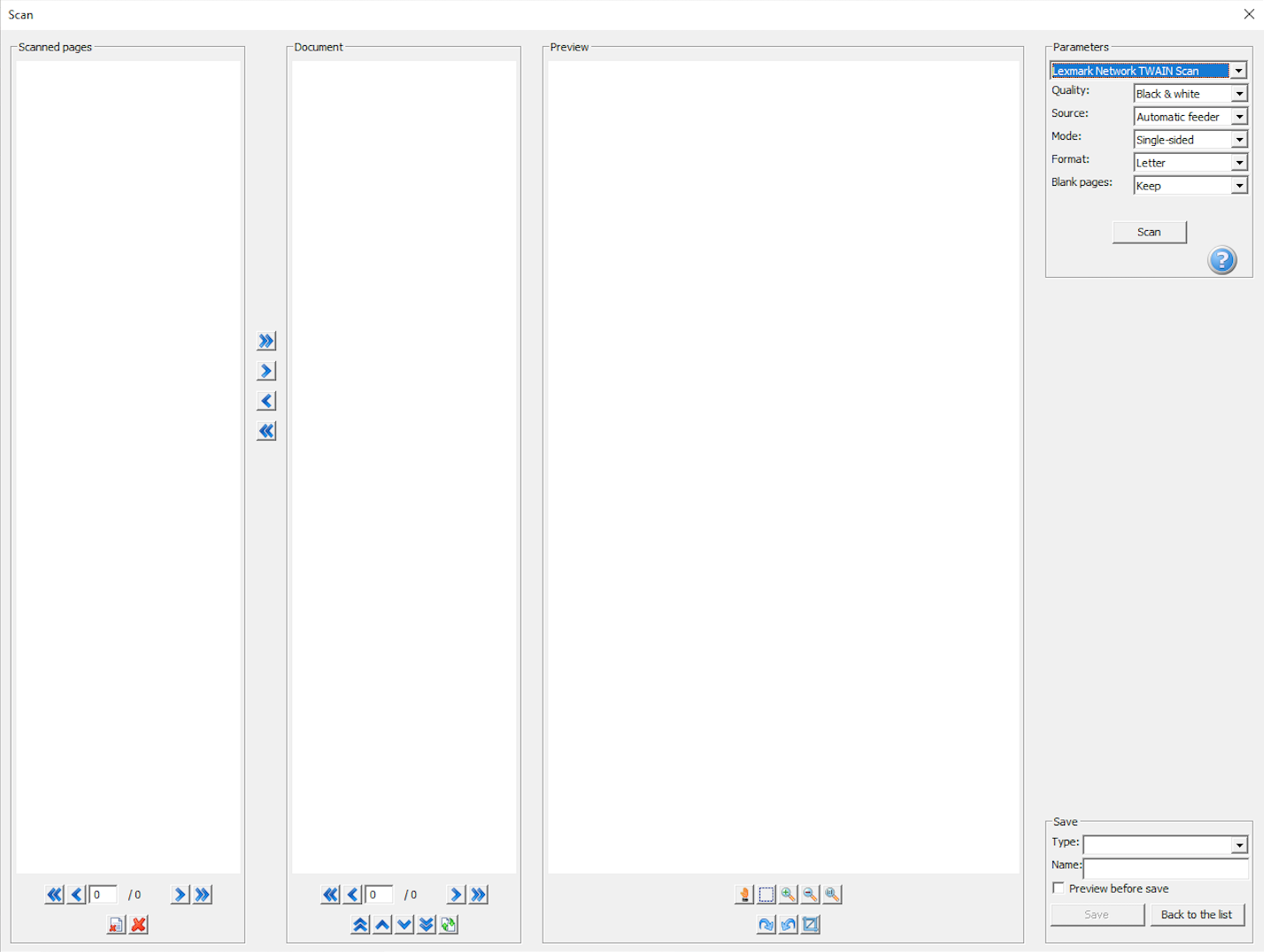
- In the "Parameters" section, select the desired scanner/printer.
NOTE: The name of the scanner/printer must contain "TWAIN". If you have trouble scanning documents, please contact technical support.
Choose the desired Quality , Source , Mode and Format. We recommend that you choose Letter or Legal Format instead of Auto.
Indicate whether you want to Ignore or Keep the Blank pages. We recommend that you keep the white pages because sometimes the characters on the document to be scanned are very light.
Click on Scan.
The scanned document will appear in the Scanned pages column.
You can reject pages (e.g. blank pages) by clicking on the Red X icon.
Select the scanned documents you want to send to EDM and click on the blue arrow to move them to the Document column.
NOTE: The double blue arrow allows all scanned documents to be moved with a single click.
Click on a document to view each of its pages (one at a time) in the Preview column.
You can edit the page (crop, zoom, rotate, etc.) by clicking on the appropriate icon.
In the "Save" section, select the document Type and enter its Name.
You can Preview before save by checking the box.
Click on Save.
Repeat the previous five steps for each of the scanned documents.
All documents will appear in the "Add files" window.
Click on Send files to the EDM System.
In the "Document Management" window, click on Refresh to display the documents in the "Online Documents" tab.
Upload
- Click on Upload files from my computer.
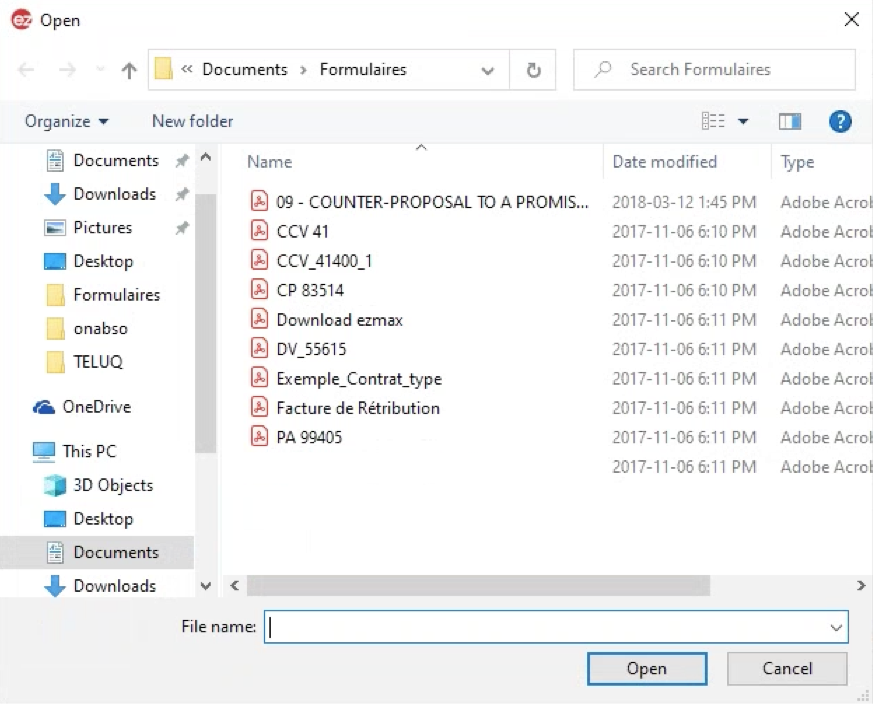
Locate the desired file in your computer and double-click it to display it in the "Add files" window.
Select the DocumentType from the drop-down list.
Click on Send files to the EDM System.
In the "Document Management" window, click on Refresh to display the documents in the "Online Documents" tab.
Warning
It is important to select a Document Type other than "None" so that this document is recognized as a required document that is now on file.