

English
List of Departments
It is possible to view and edit the information of a department.
- From Main menu >> Admin >> Company >> Departments.

NOTE: The "None" department is present by default.
You can filter the departments by the following statuses:
- "Active": All departments with the Active box checked in its information.
- "Inactive": All departments with the Active box not checked in its information.
If you want to get the list in Excel format, click on Actions >> Excel Icon. Click on Open or Save.
Click on the desired department Name to display its information.
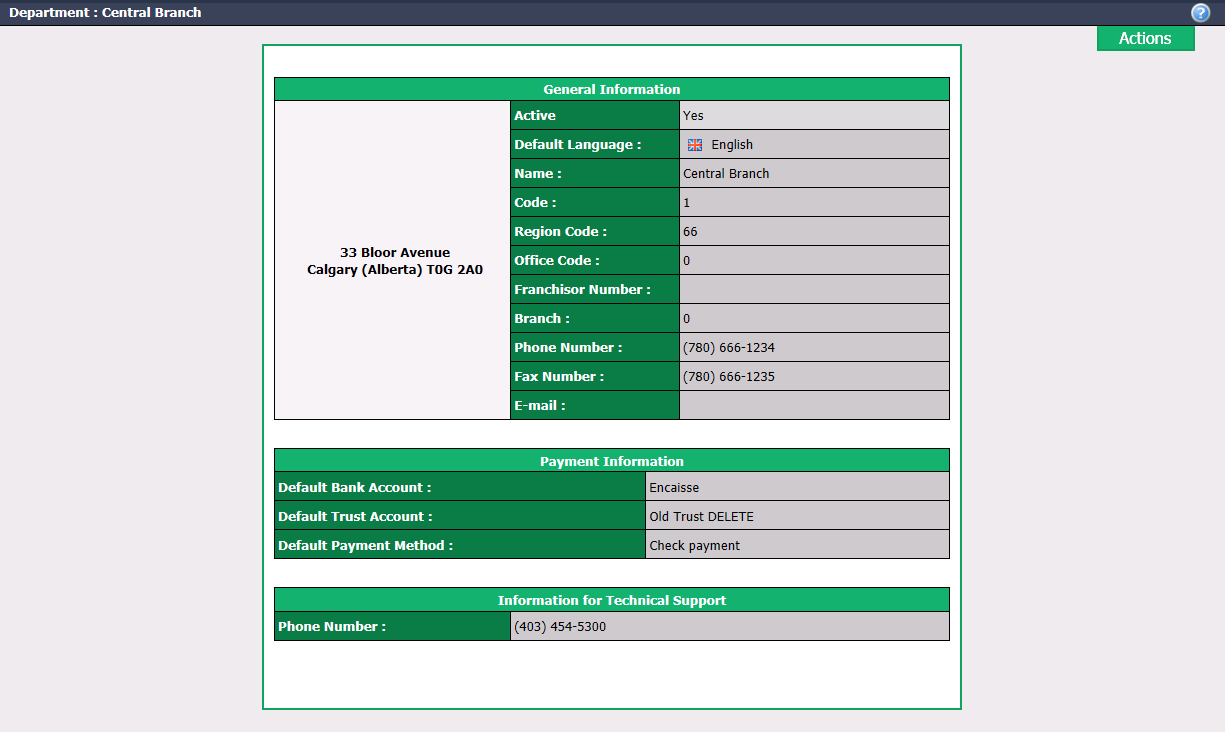
- If you want to make changes to the department information, click on Actions >> Edit Department.
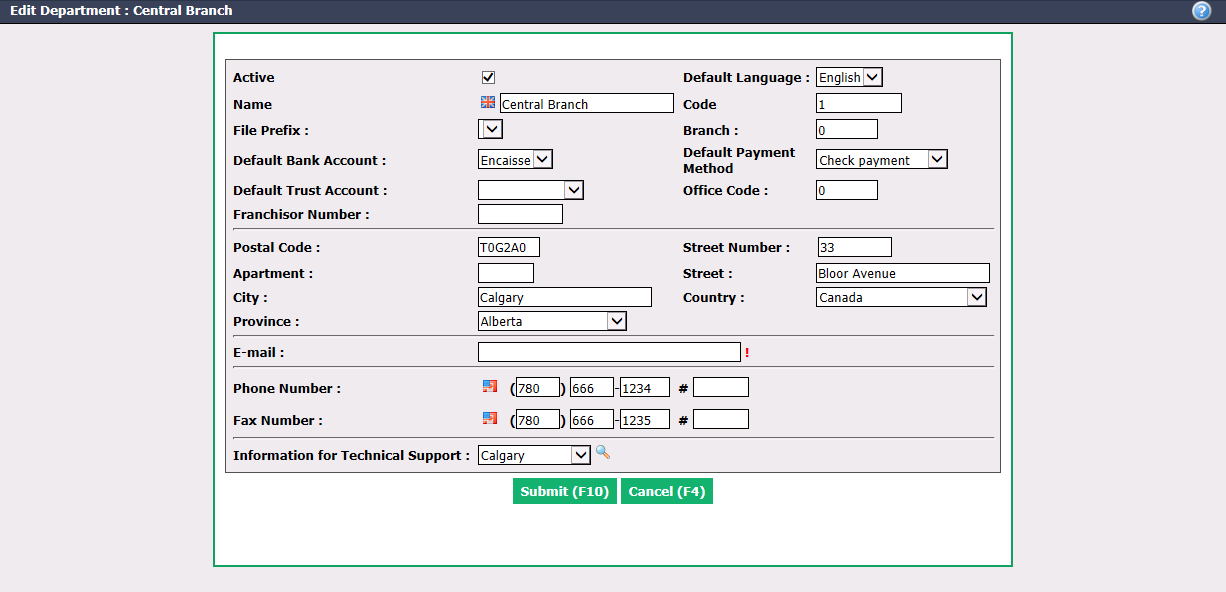
You can edit these fields:
- Active : This box will be checked when the department is active. To inactivate a department, uncheck this box.
- Name of the department: In English as well as in French.
- File Prefix : These are letters and/or numbers that will be placed in front of the number of files that will be added to the system. Example: "A" for the Demo A department. This allows you to differentiate the files of the different departments. The list of prefixes is configured by eZmax. For more information, please contact the technical support.
- Default Bank Account and Default Trust Account**😗* From the drop-down list, select the bank account that will be displayed by default on the home page under "Non-Transmitted Electronic Transfers," "Cheques in Preparation," etc.
- Franchisor Number (if applicable)
- Default Language : "English" or "French".
- Code : Internal code assigned in eZmax.
- Branch number (if applicable)
- Default Payment Method
- Office Code (if applicable)
- Address (Postal Code , Street Number , Apartment , Street , City , Province , Country)
- E-mail Address
- Phone Number and Fax Number
- Information for Technical Support : Depending on the address entered, when you click on the magnifying glass icon, the appropriate phone number for your region will be displayed in the department profile. You can also select the desired region from the drop-down list.
Click on Submit to save your changes.