English
Required Documents in a Transaction
- To access the required documents in a transaction, you need to go to the "Listing Information" or the "Deal" section.
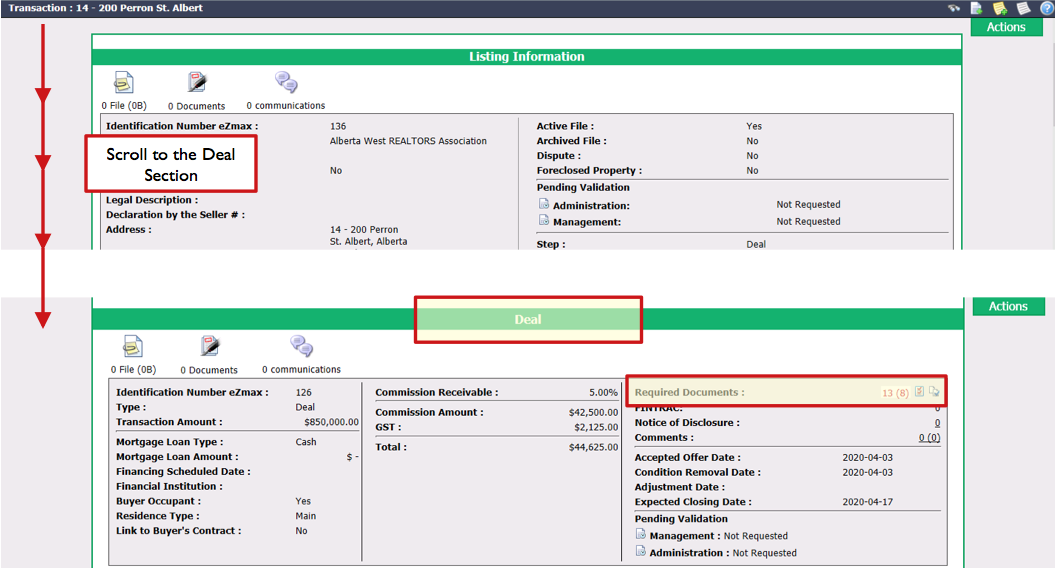
- If you are in the "Deal" section of the transaction, the number in red shows you how many documents are required in the deal and the number in brackets shows you how many documents are required in the listing. It’s the opposite if you are in the "Listing Information "section. In the example below, 13 documents are required in the deal and 8 documents are required in the listing.
Send Required Documents and Reminder
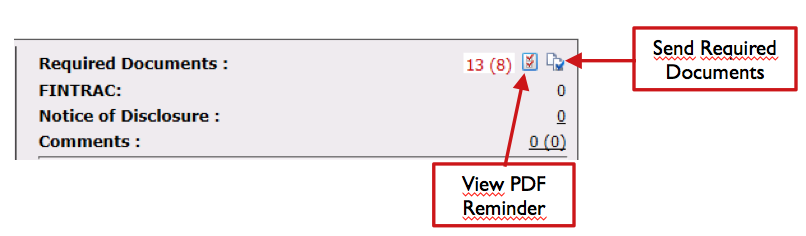
- To send a required document notification to the agents, you can click on the Send Required Documents icon.
NOTE: The automatic sending of a reminder for the required documents per transaction can be programmed in the configurations. From Main menu >> Config. >> List of Configurations per Department. Click on the desired Department. In the "Automatic Sending of Reports" tab, select the Sending Frequency and General Settings , then click on Submit.
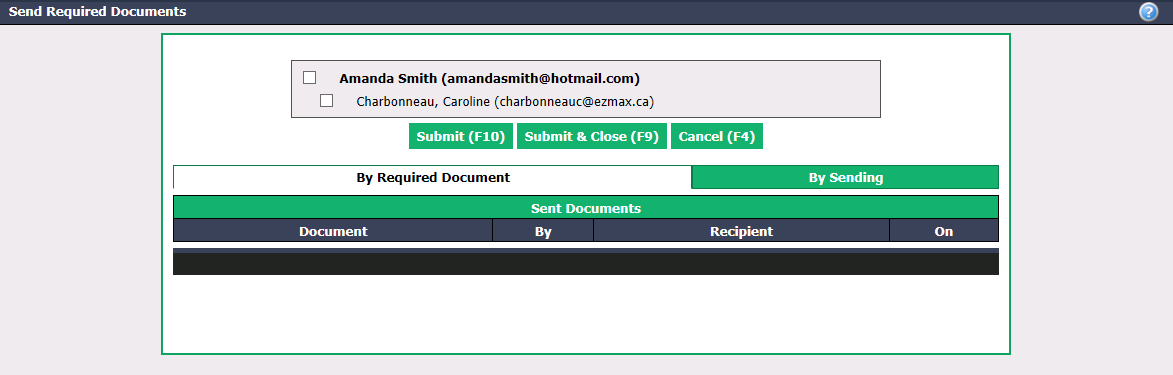
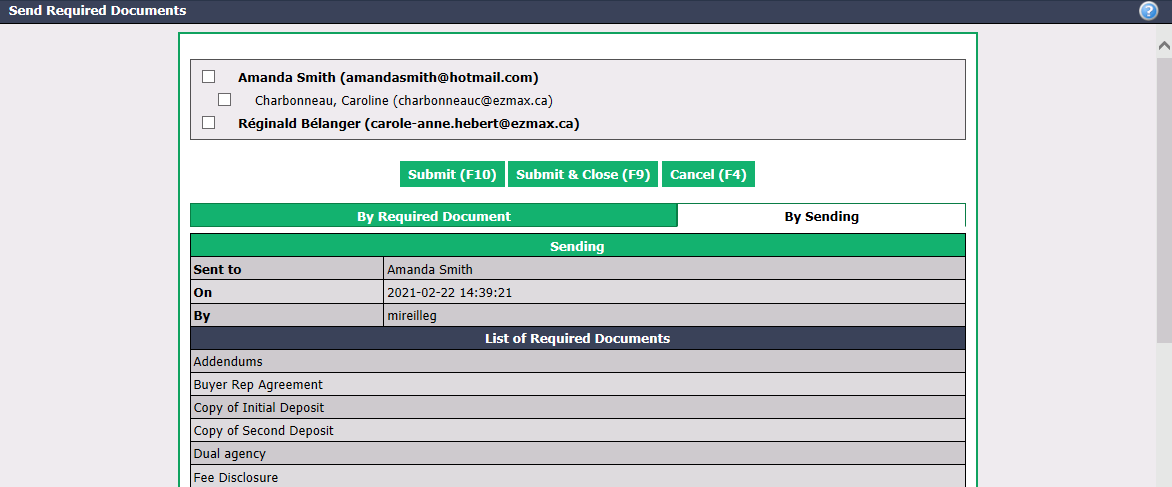
Select the people you want to notify by e-mail.
Click on Submit or Submit & Close.
The system will keep track of all notifications sent to agents in the "By Required Document" and "By Sending" tabs.
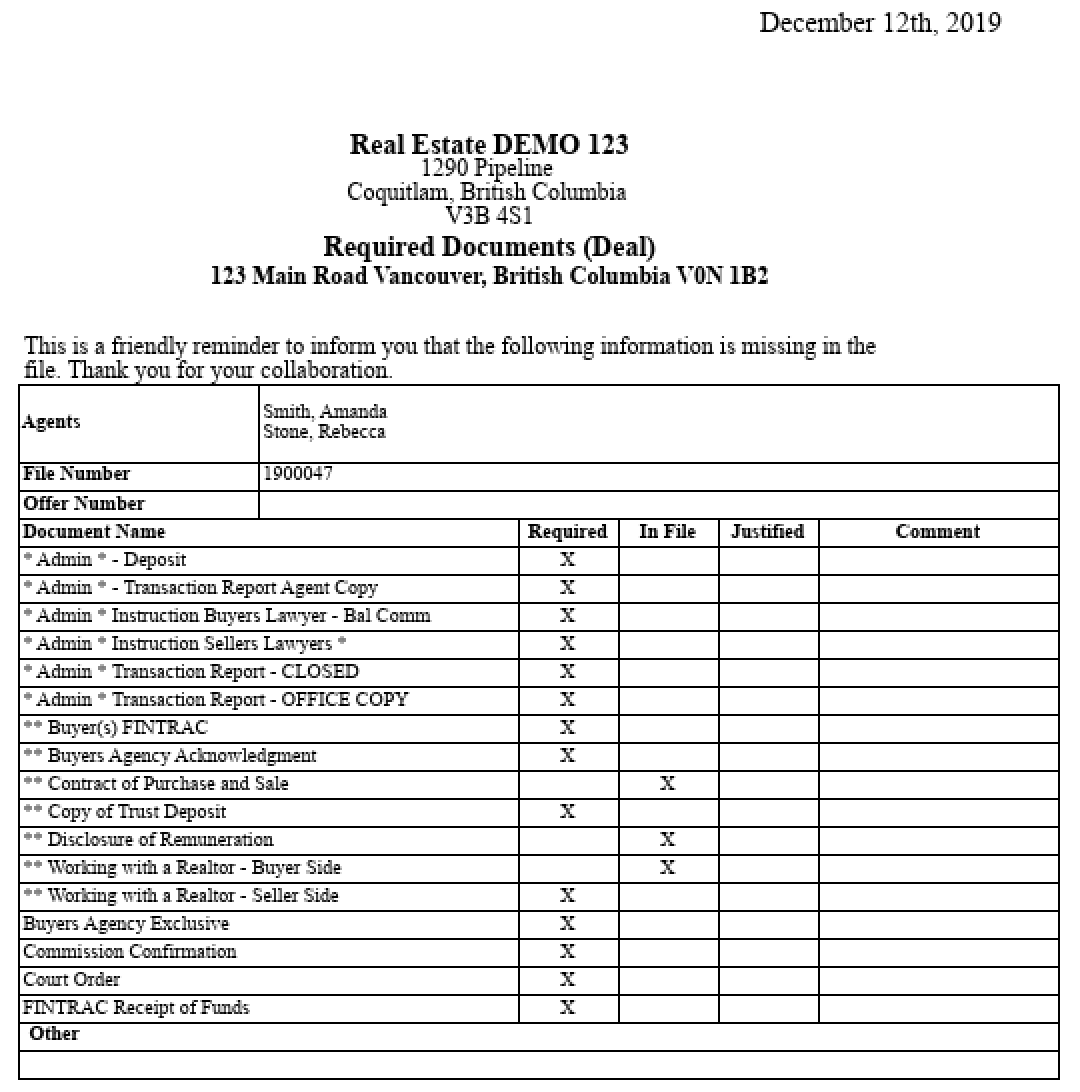
- The agents will receive a reminder under the same format as the PDF reminder in the file.
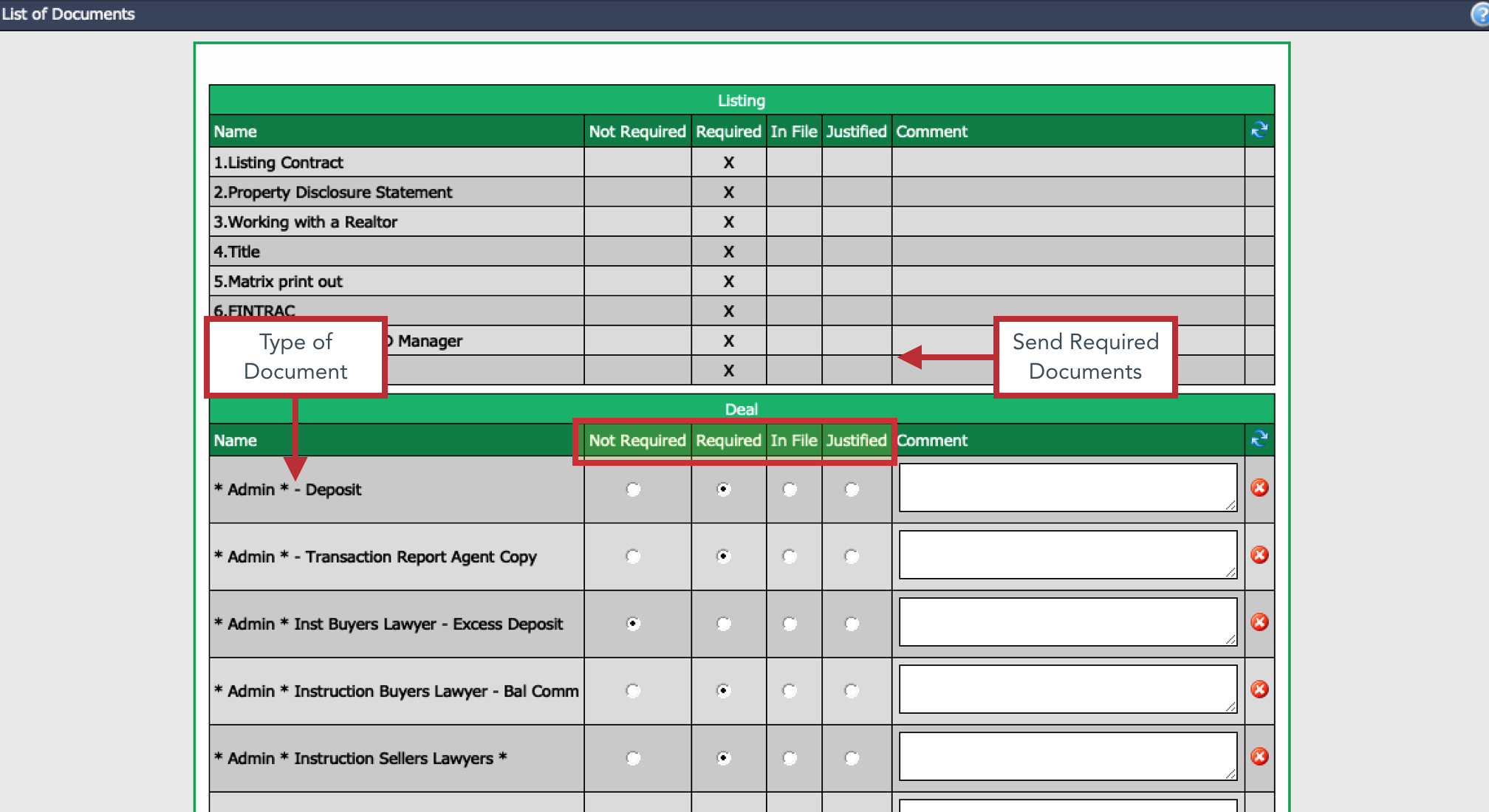
List of Documents
When you click on a number, you access the list of all documents in the file.
The required listing documents are displayed first and all the deal documents are displayed second.
Each document will have one of the following status:
- Not Required
- Required
- In File
- Justified
You also have the option of writing a Comment next to the document. When the agent will be notified of required documents, the comment will be displayed.
If you want to change the status of a document type (for example, a document is now required in file), you simply click on the radio button to select the desired status.